How to Generate Powerful PPTs from Paragraphs in Minutes


Transform paragraphs into dynamic presentations effortlessly! Learn the secrets to crafting compelling PowerPoint slides quickly with our expert guide.
Creating visually appealing and impactful presentations from paragraphs can be a daunting task, but with the right tools and techniques, it becomes surprisingly easy. In this step-by-step guide, we'll walk you through the process of using MagicSlides GPT, an innovative extension for Google Slides, to transform paragraphs into powerful PowerPoint presentations.
How to Generate Powerful PPTs from Paragraphs in Minutes
Step 1: Visit Google Slides
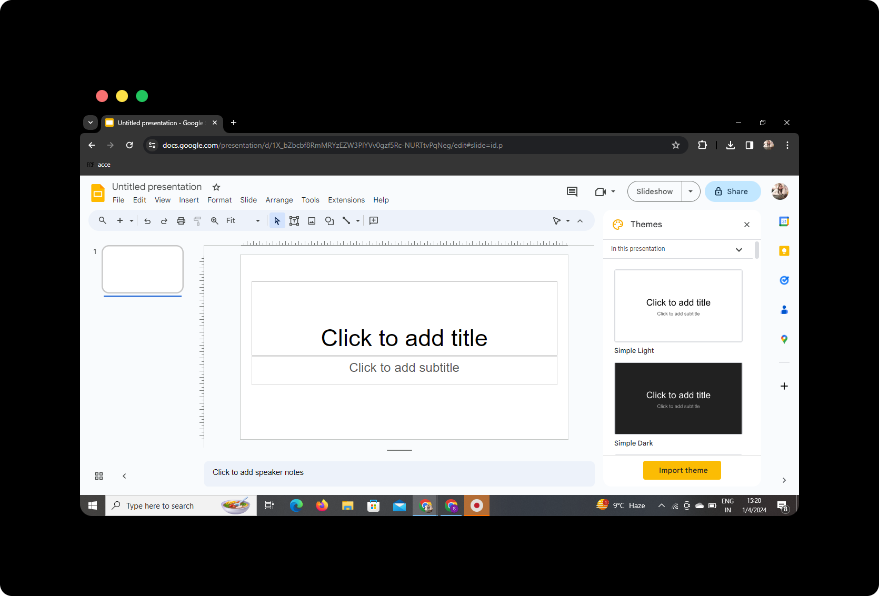
Begin by visiting Google Slides at slides.google.com. If you don't have a Google account, sign up for one. If you're already signed in, proceed to the next step.
Step 2: Sign In with Google to Google Slides
Sign in with your Google account to access the full suite of Google Slides features. This step ensures that your presentations are saved securely in the cloud.
Step 3: Install MagicSlides GPT Extension (if not downloaded)
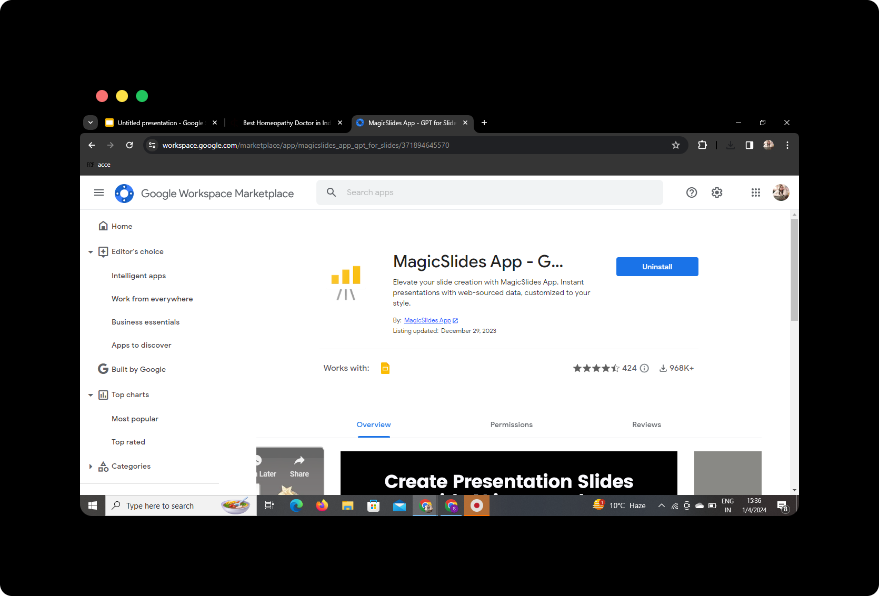
If you haven't downloaded the MagicSlides GPT extension, go to the Google Chrome Web Store, search for MagicSlides GPT, and click "Add to Chrome." Once added, proceed to the next step.
Step 4: Open MagicSlides GPT
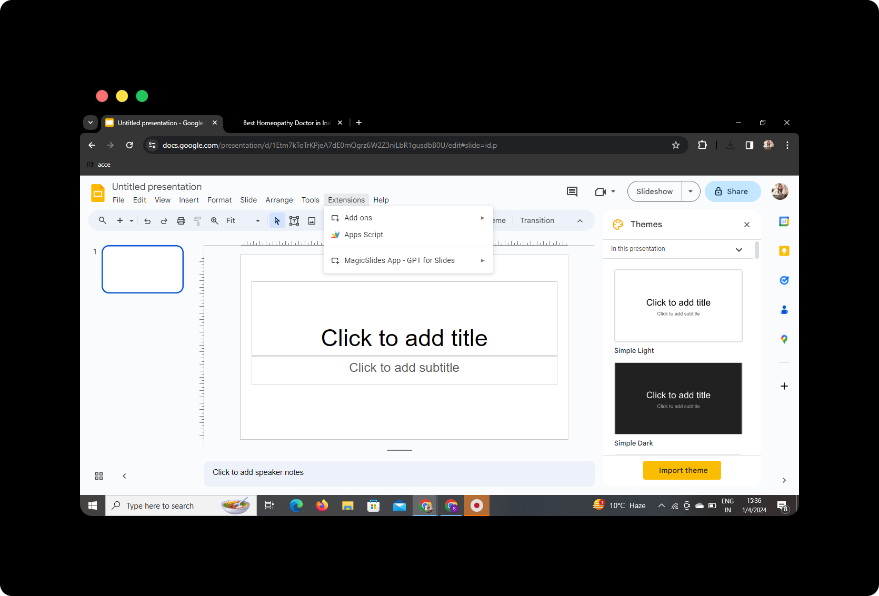
In Google Slides, navigate to the extensions menu and click on MagicSlides GPT. If you've just downloaded the extension, you may need to refresh the page before proceeding.
Step 5: Generate PPT in MagicSlides GPT
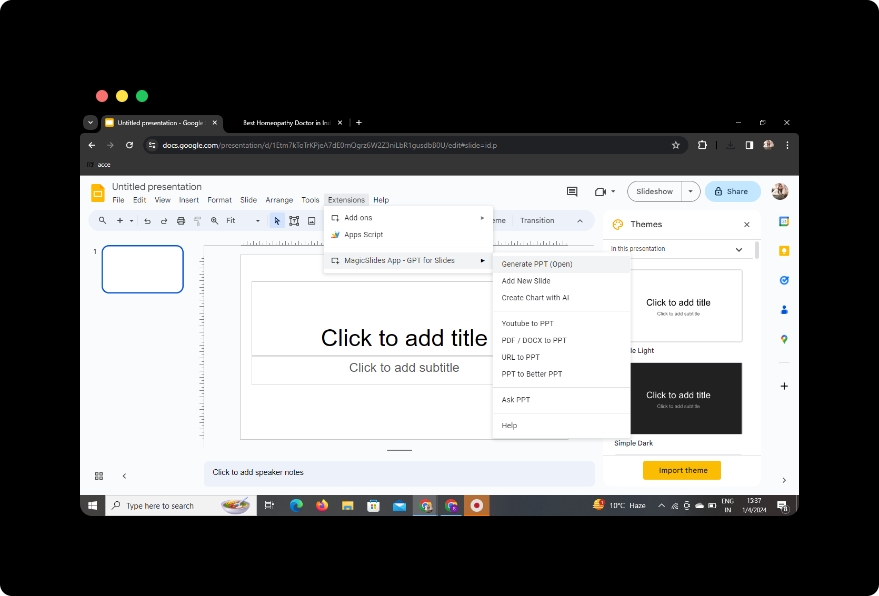
Within MagicSlides GPT, click on the "Generate PPT" option. This will open a new window where you can customize your presentation.
Step 6: Click on 'Summarize' Option
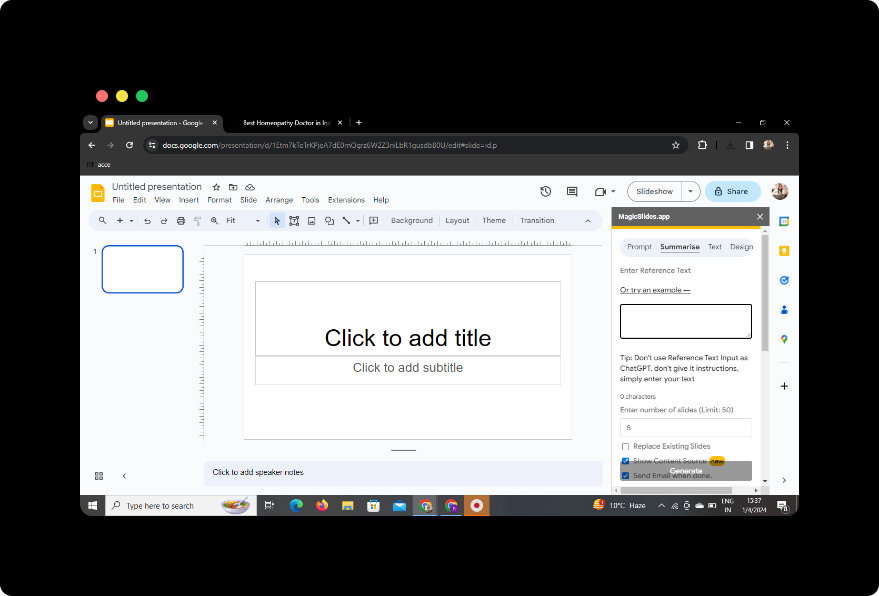
Choose the "Summarize" option within MagicSlides GPT. This feature is designed to condense your paragraphs into concise and impactful content for your slides.
Step 7: Paste Your Paragraph Content
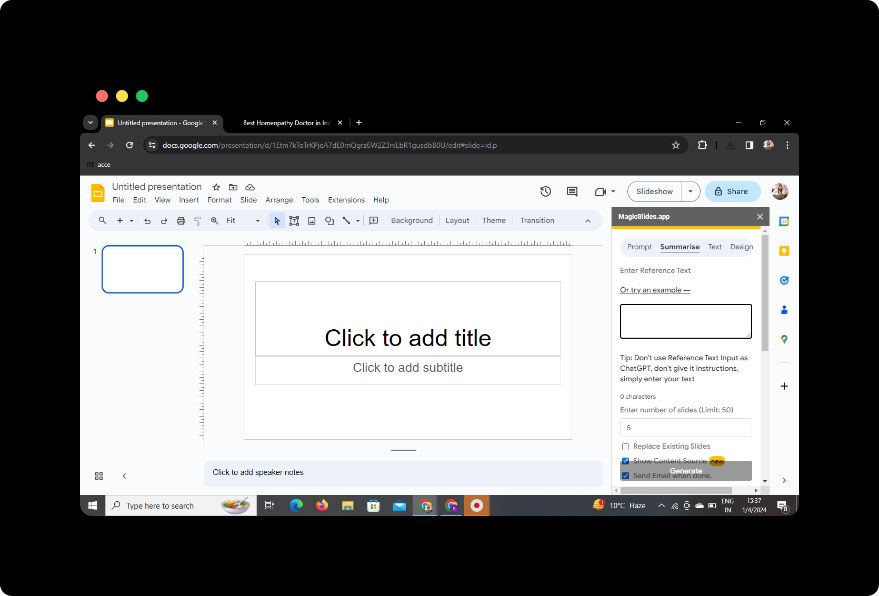
Paste the paragraphs you want to include in your presentation into the designated area. MagicSlides GPT will analyze the text and suggest slide content based on the input.
Step 8: Select the Number of Slides
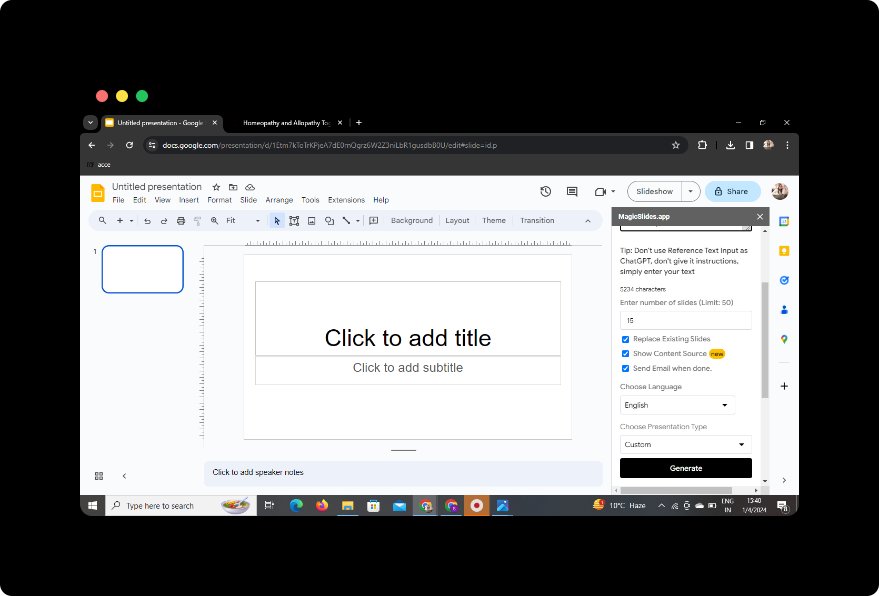
Specify the number of slides you want for your presentation. This customization allows you to control the pacing and depth of your content.
Step 9: Click on Generate Presentation
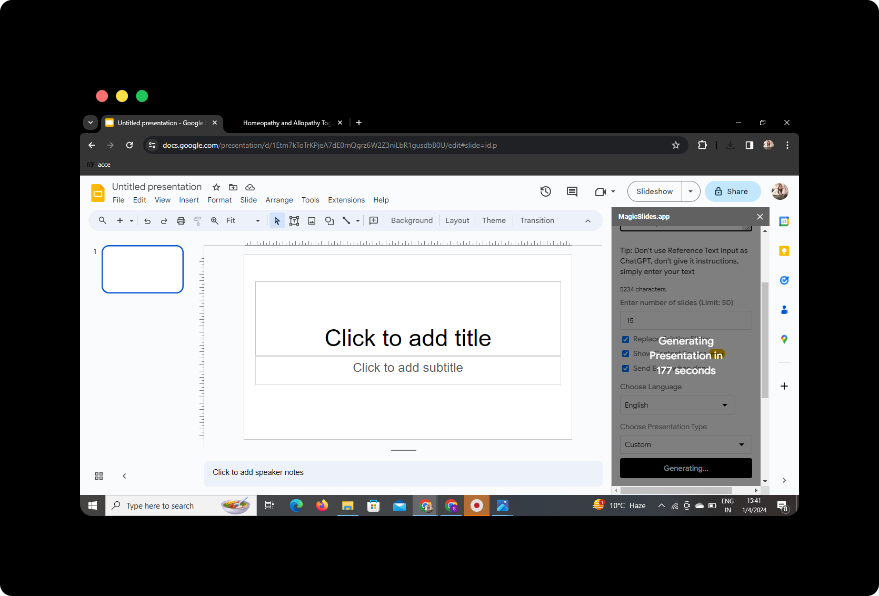
Hit the "Generate Presentation" button. MagicSlides GPT will work its magic, transforming your paragraphs into a well-structured PowerPoint presentation.
Step 10: Your Presentation is Ready!
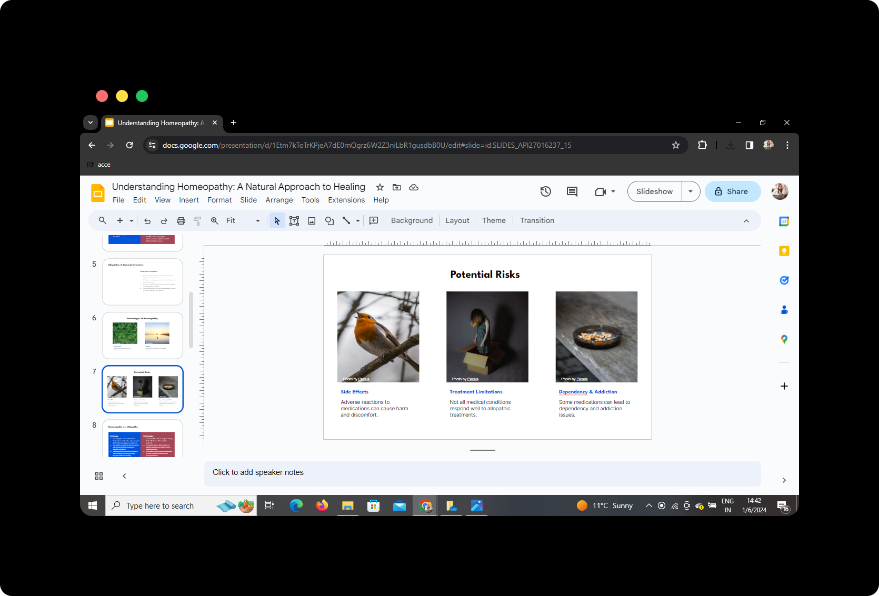
Once the generation process is complete, your presentation is ready for review. Make any necessary edits or adjustments, and your powerful PPT is good to go.
Conclusion
In just a few simple steps, you've turned paragraphs into a compelling presentation using the MagicSlides GPT extension for Google Slides. This streamlined process not only saves time but also ensures that your content is presented in a visually appealing and engaging manner.
Frequently Asked Questions (FAQs)
Is MagicSlides GPT compatible with other browsers? MagicSlides GPT is currently designed as a Google Chrome extension. Ensure you are using Google Chrome for optimal performance.
Can I use MagicSlides GPT without a Google account? No, a Google account is required to access Google Slides and use the MagicSlides GPT extension.
Is there a limit to the number of paragraphs MagicSlides GPT can handle? MagicSlides GPT is designed to handle a variety of content lengths, but extremely long paragraphs may require additional editing for optimal results.
Can I use MagicSlides GPT for business presentations? Absolutely! MagicSlides GPT is versatile and suitable for creating presentations for both educational and business purposes.
Are the generated presentations customizable? Yes, you can customize the generated presentations in Google Slides to meet your specific needs and preferences.


