How To Group On Google Slides


Grouping can be one of the most useful feature while using slides, here let’s see how to group on google slides
Google Slides is a powerful tool for creating visually appealing presentations, and one of its features that can significantly enhance your presentation design is the ability to group objects.
Grouping allows you to treat multiple objects as a single unit, making it easier to manipulate and manage elements on your slides. In this step-by-step guide, we'll walk you through the process of grouping objects in Google Slides, ensuring your presentations are well-organized and visually compelling.
Step 1: Open Your Google Slides Presentation
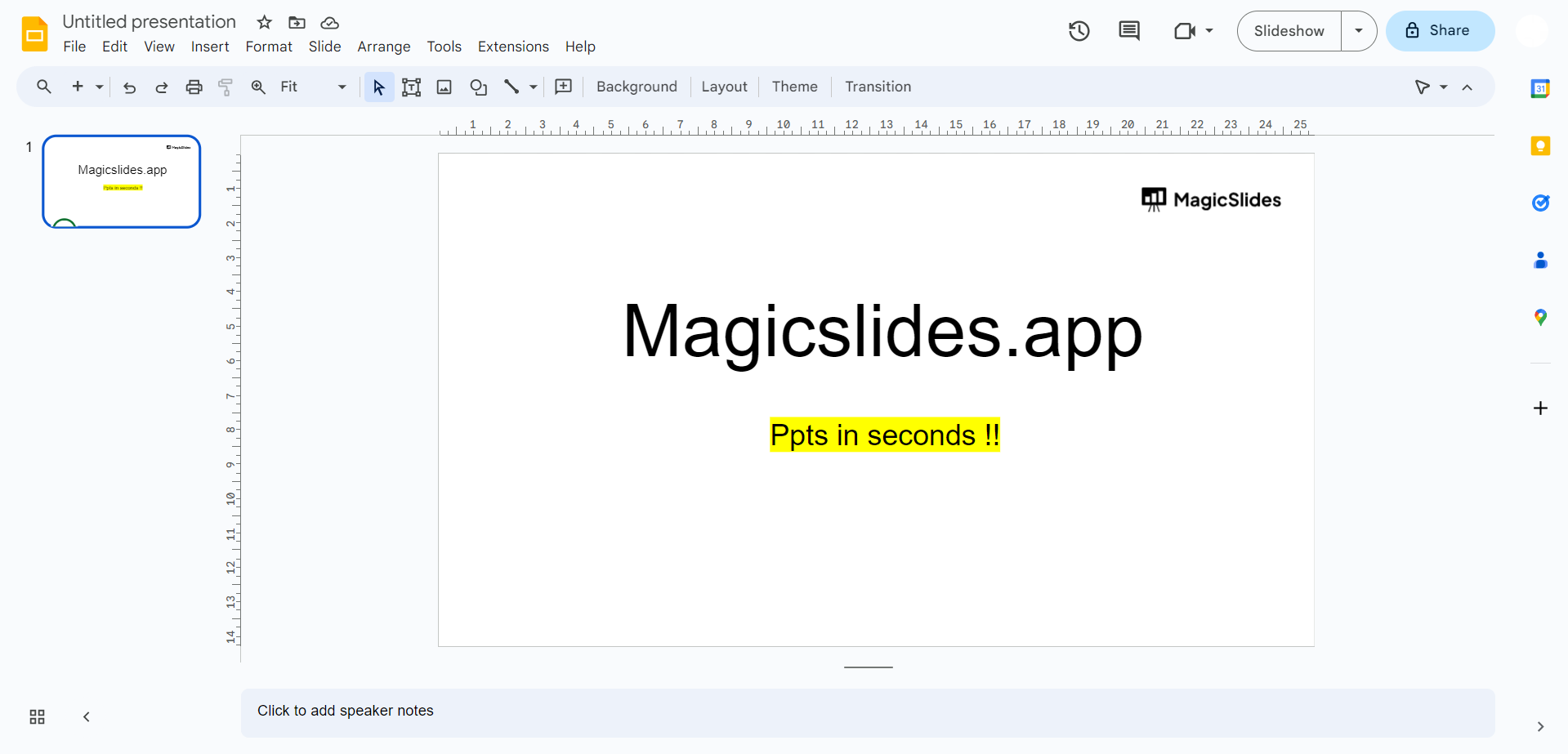
Start by opening Google Slides and the presentation you want to work on. If you're creating a new presentation, go ahead and add the objects you want to group.
Step 2: Select the Objects to Be Grouped
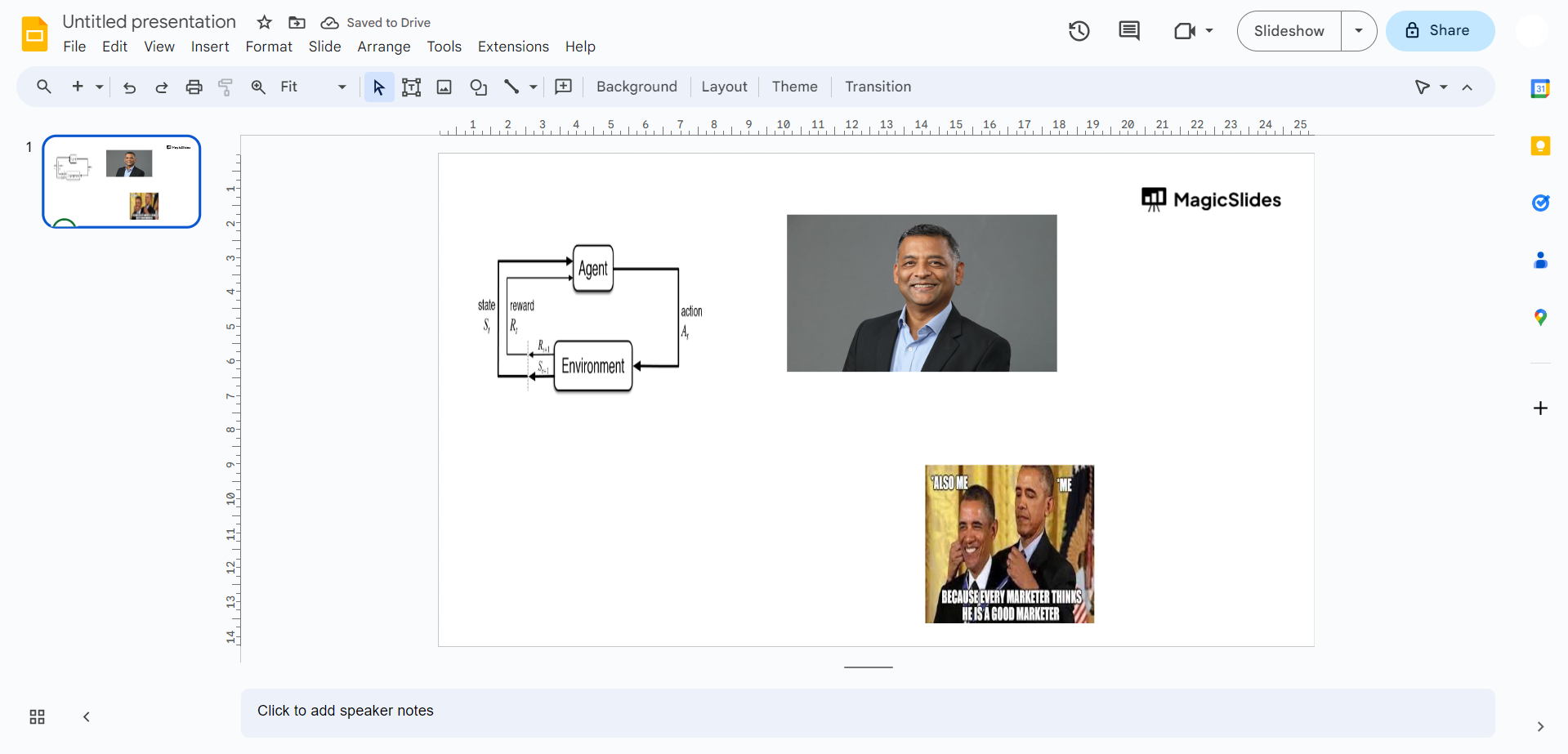
Click and drag your cursor to select the objects you want to group together. You can select multiple shapes, images, or text boxes at once. To select more than one object, hold down the "Shift" key on your keyboard while clicking each item.
Step 3: Access the "Group" Option
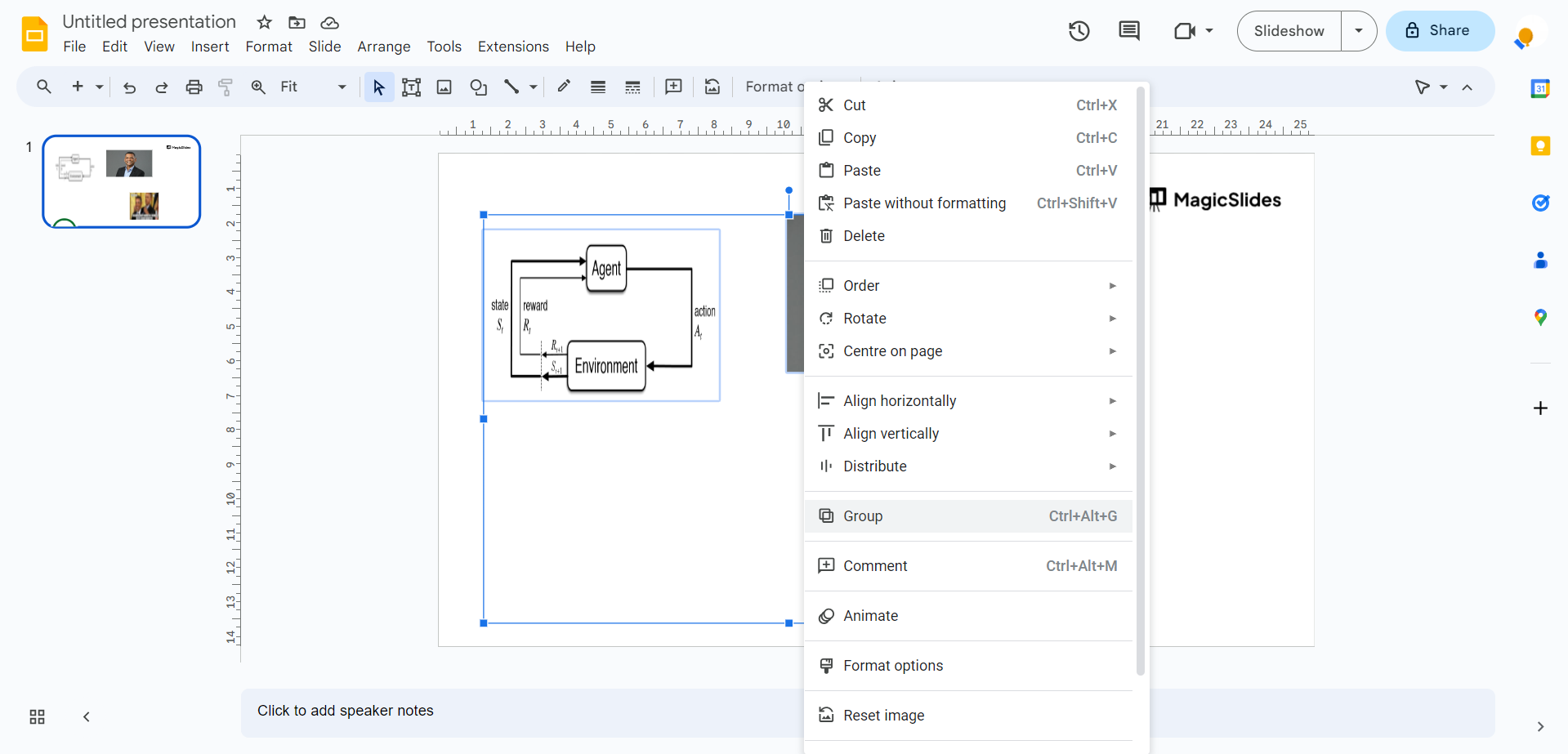
With the objects selected, right-click on one of them to open a context menu. From the menu, scroll down and find the "Group" option. Click on it, and your selected objects will be grouped together into a single entity.
Step 4: Editing Grouped Objects
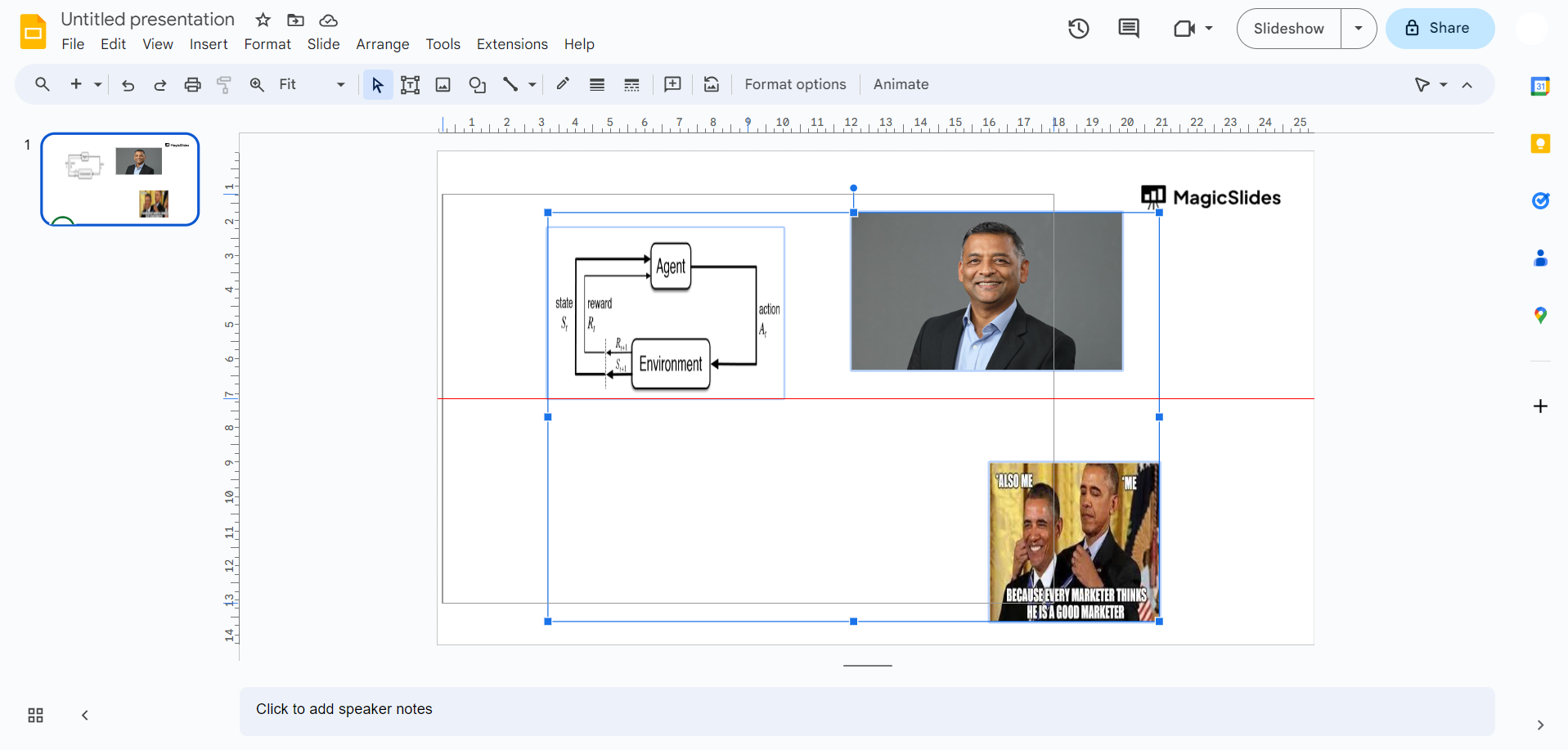
Once the objects are grouped, you can easily move, resize, or rotate them as a single unit. Any edits you make to the grouped objects will apply uniformly to all items within the group.
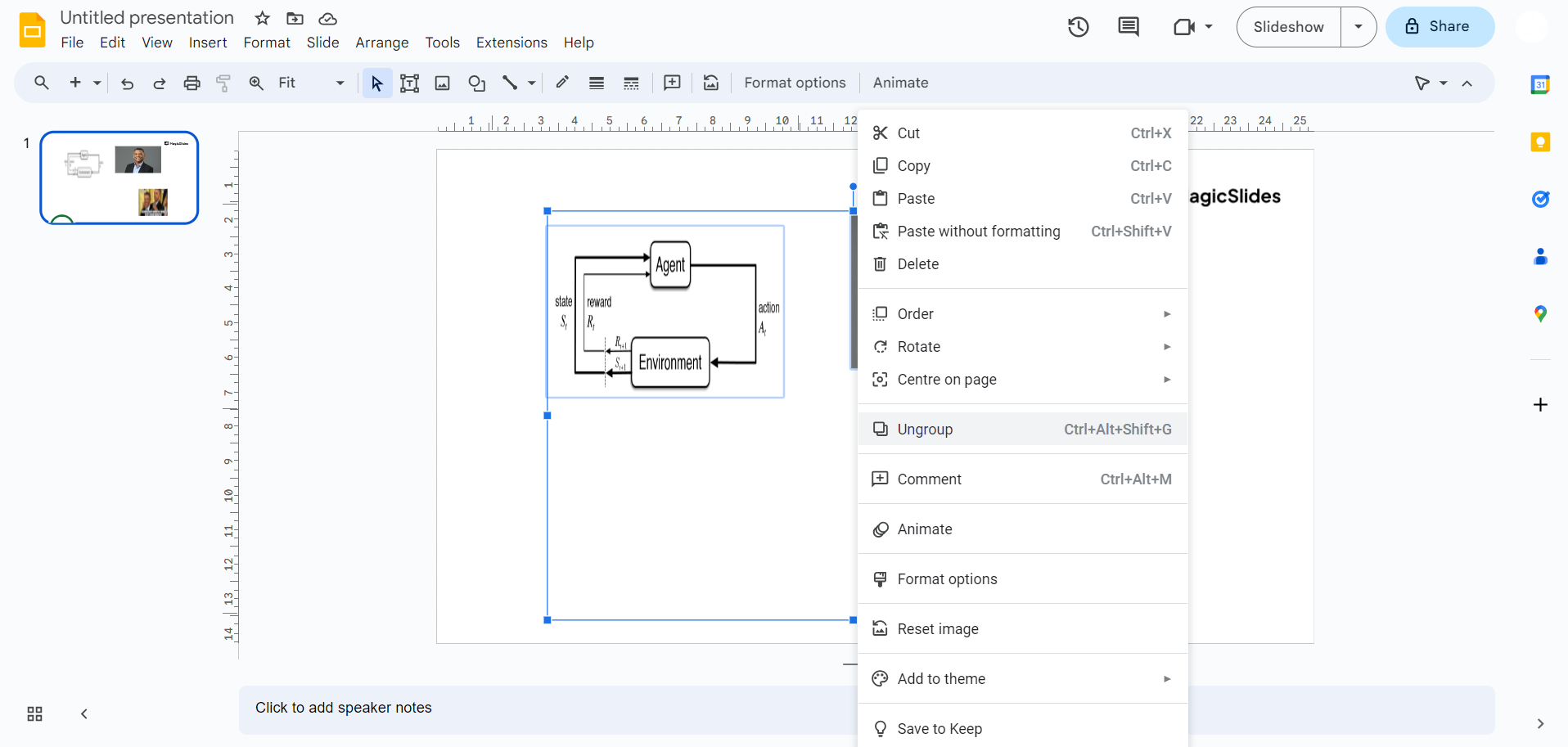
Step 5: Ungrouping Objects
If you ever need to make changes to individual objects within the group, simply select the grouped object, right-click, and choose the "Ungroup" option from the context menu. This will break the objects apart, allowing you to edit them individually.
Step 6: Regrouping Objects
After making any necessary changes to individual objects, you can regroup them by selecting them and repeating the "Group" process as described in Step 3.
Conclusion:
Grouping objects in Google Slides is a valuable feature for anyone looking to create well-structured and visually appealing presentations. It streamlines the design process, making it easier to work with complex slide layouts and ensuring your content is organized and visually coherent.
Whether you're a seasoned presenter or just getting started with Google Slides, mastering the art of grouping objects will help you craft more compelling and professional presentations. So, the next time you're working on your slides, remember these simple steps to make your presentation creation process smoother and more efficient.


