How to Hide Slides in PowerPoint: A Step-by-Step Guide


Learn how to hide slides in PowerPoint without deleting them. Follow simple steps to hide, unhide, and show single or multiple slides during a presentation.
Need to skip a slide in your PowerPoint presentation without deleting it? PowerPoint lets you hide slides so they stay in your presentation but don’t appear during the slideshow. This is useful when you have backup slides, optional information, detailed data, or content you may want to show only if someone asks.
In this guide, you’ll learn how to hide slides in PowerPoint, hide multiple slides, unhide them, and display a hidden slide during a presentation. We’ll also look at how MagicSlides can help you create presentations faster when you’re starting a deck from scratch.
What Happens When You Hide a Slide in PowerPoint?
When you hide a slide in PowerPoint, the slide isn’t deleted or removed from your presentation. Instead, PowerPoint simply skips it when you play the slideshow.
Here’s what happens:
- The slide stays in your presentation: You can still edit the slide and access all its content.
- It won’t appear in the normal slideshow: PowerPoint moves from the previous visible slide to the next visible one.
- The slide remains available: You can access a hidden slide if you need to show it during a presentation.
- You can unhide it anytime: Select the hidden slide and choose Unhide Slide to add it back to the normal presentation sequence.
This makes hiding slides useful when you have backup information, optional content, supporting data, or Q&A material that you don’t want to present every time.
For example, a sales presentation might include a detailed pricing slide that isn’t relevant to every audience. Instead of deleting it, you can hide it and keep it available in case someone asks about pricing.
How to Hide a Slide in PowerPoint
Hiding a slide in PowerPoint takes just a few clicks. The hidden slide stays in your presentation file, but PowerPoint skips it when you run the slideshow. This makes it a useful option when you want to keep extra information available without showing it to your audience.
Step 1: Open your PowerPoint presentation
Open the PowerPoint presentation that contains the slide you want to hide.
Step 2: Select the slide
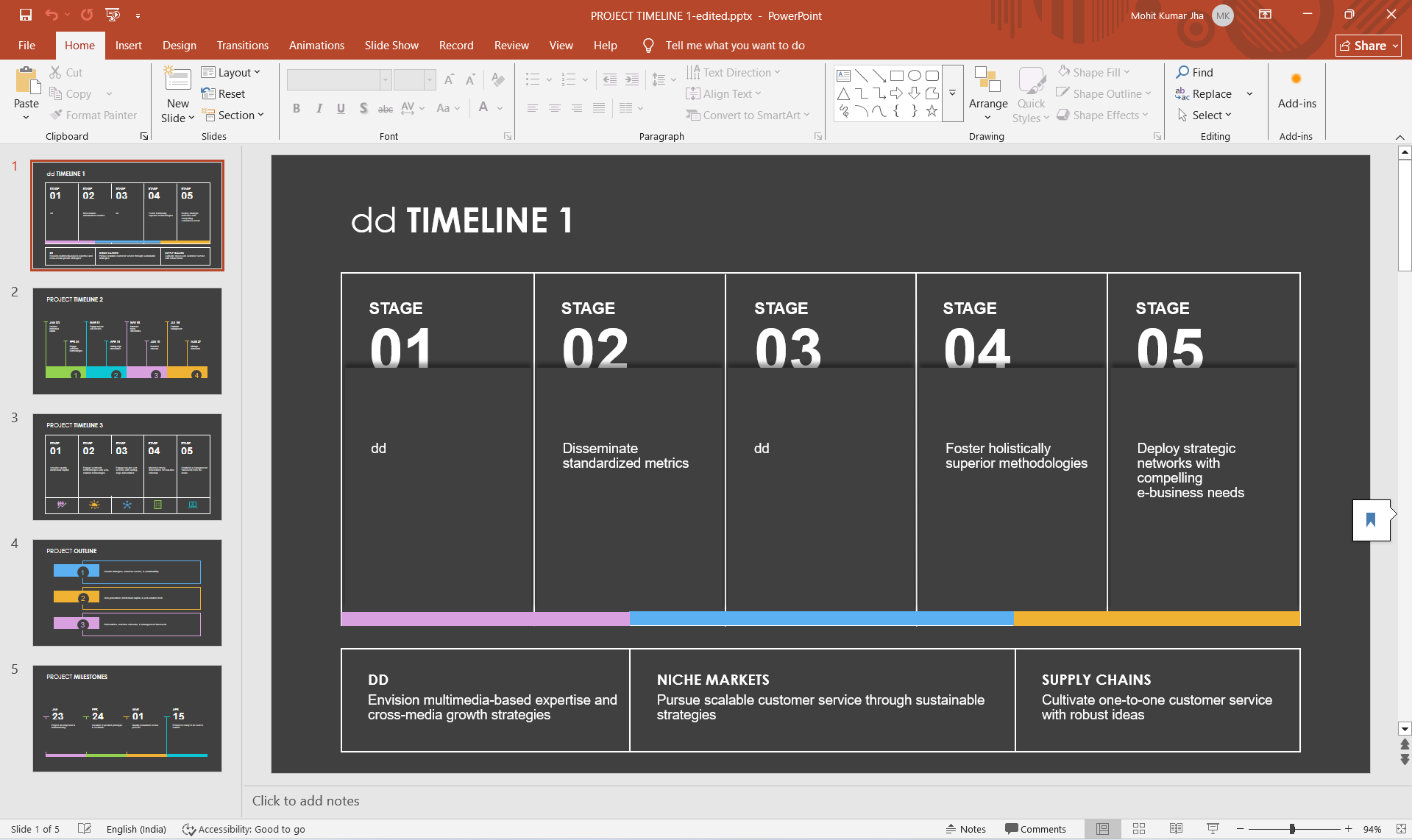
In the thumbnail pane on the left, find and select the slide you don’t want to show during your presentation.
Step 3: Select “Hide Slide”
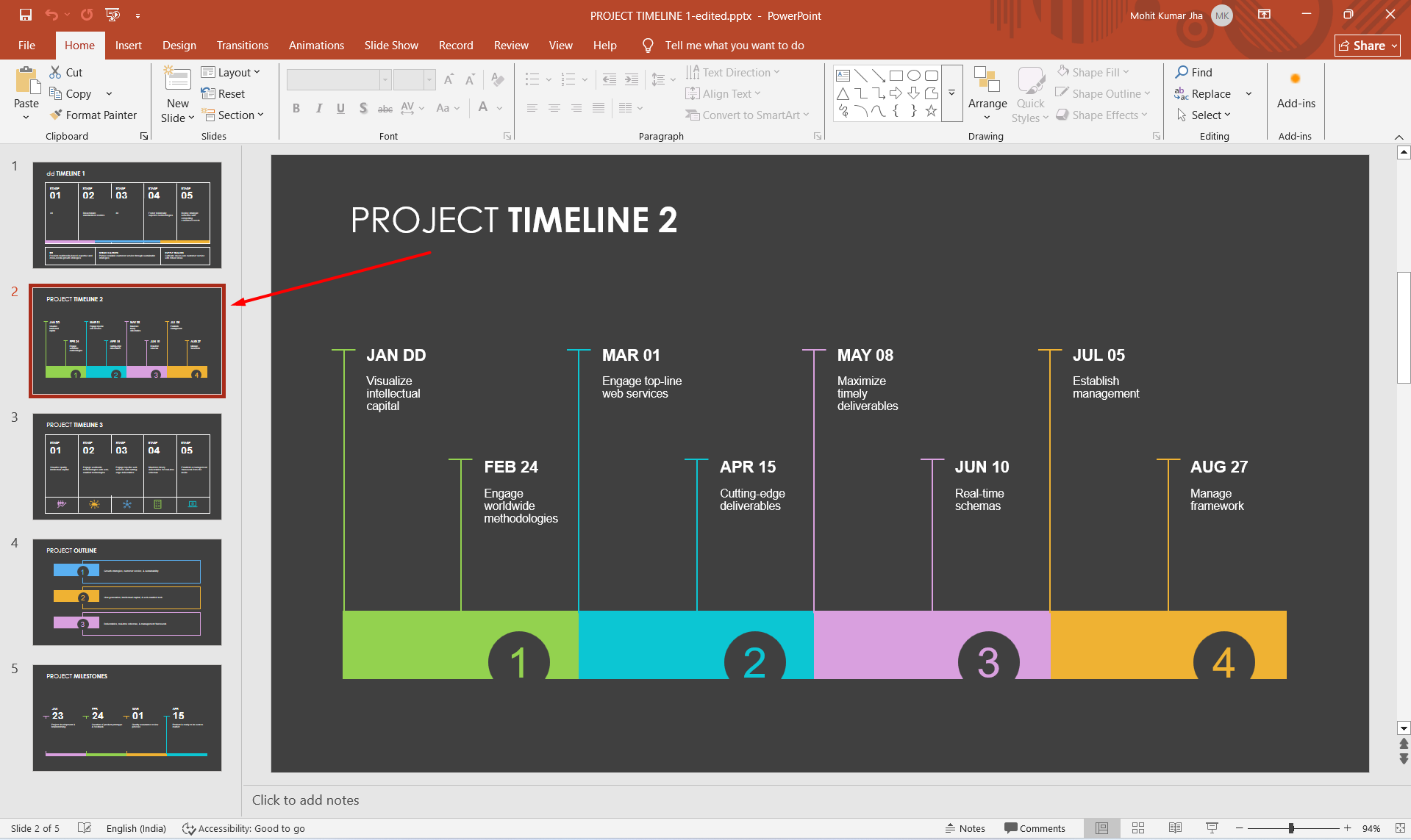
Right-click the selected slide and choose Hide Slide from the menu.
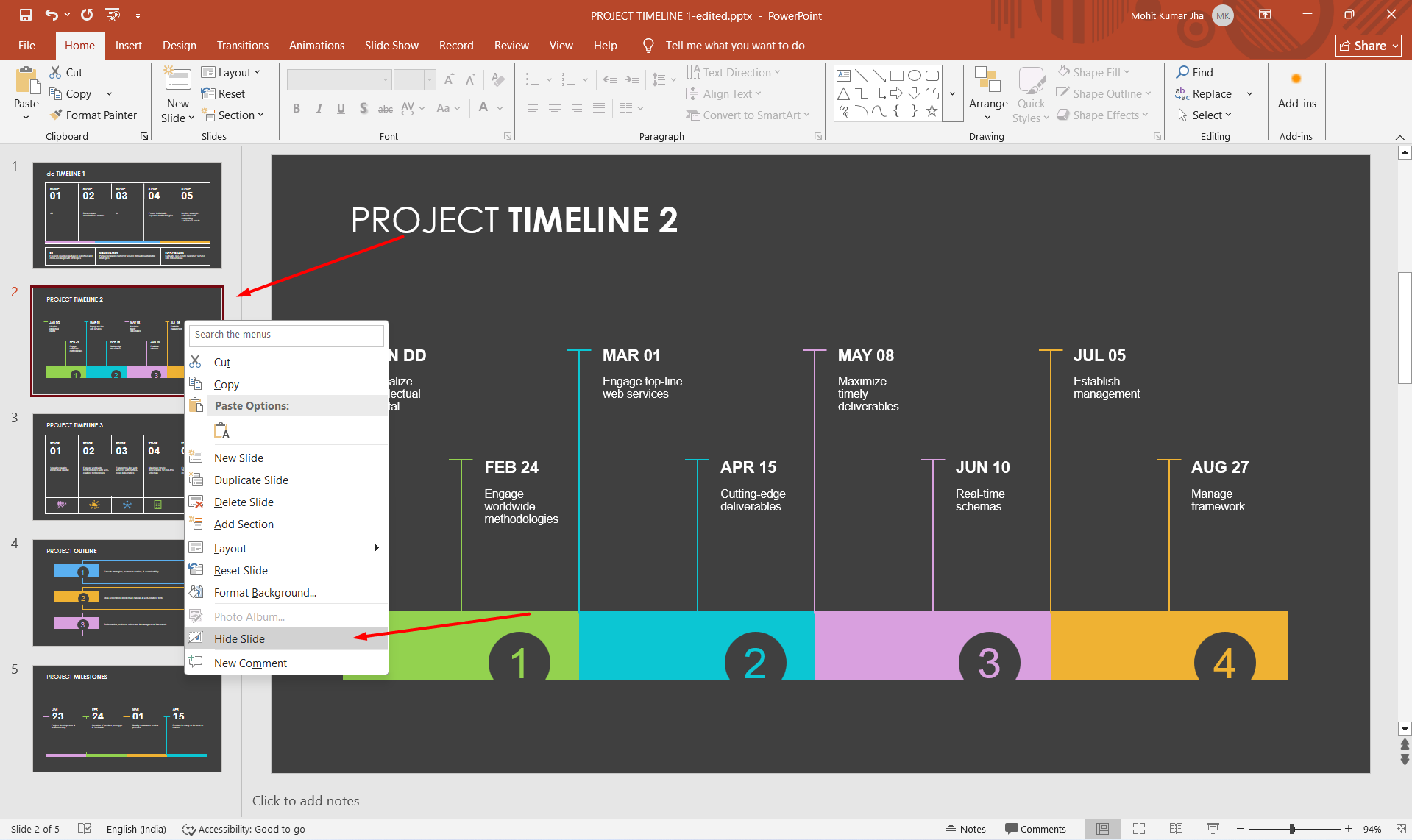
You can also select the slide and use the Hide Slide option from PowerPoint’s ribbon.
Step 4: Confirm the slide is hidden
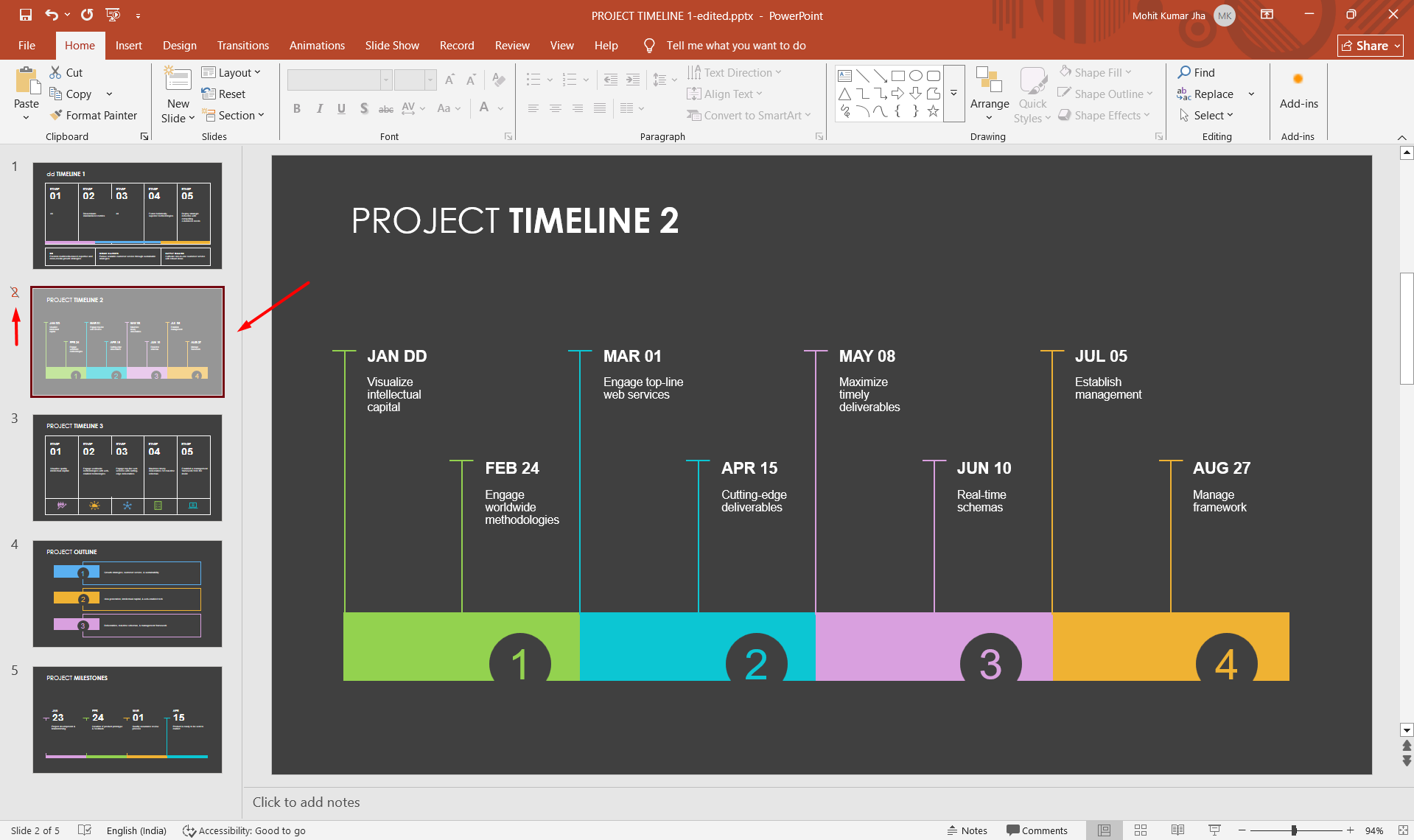
Once hidden, PowerPoint marks the slide with a line through its slide number. The slide remains fully editable and stays in the presentation, but it won’t appear when you move through the slides normally during Slide Show mode.
Tip: Hiding is better than deleting when you think you may need the slide later. You can always unhide it before your next presentation.
How to Hide Multiple Slides in PowerPoint
If you have several slides that you don’t want to show during your presentation, you don’t need to hide them one at a time. PowerPoint allows you to select multiple slides and hide them together.
Step 1: Select multiple slides
In the thumbnail pane, select the slides you want to hide.
- On Windows, hold Ctrl while selecting individual slides.
- On Mac, hold Command while selecting individual slides.
- To select a continuous range of slides, select the first slide, hold Shift, and select the last slide.
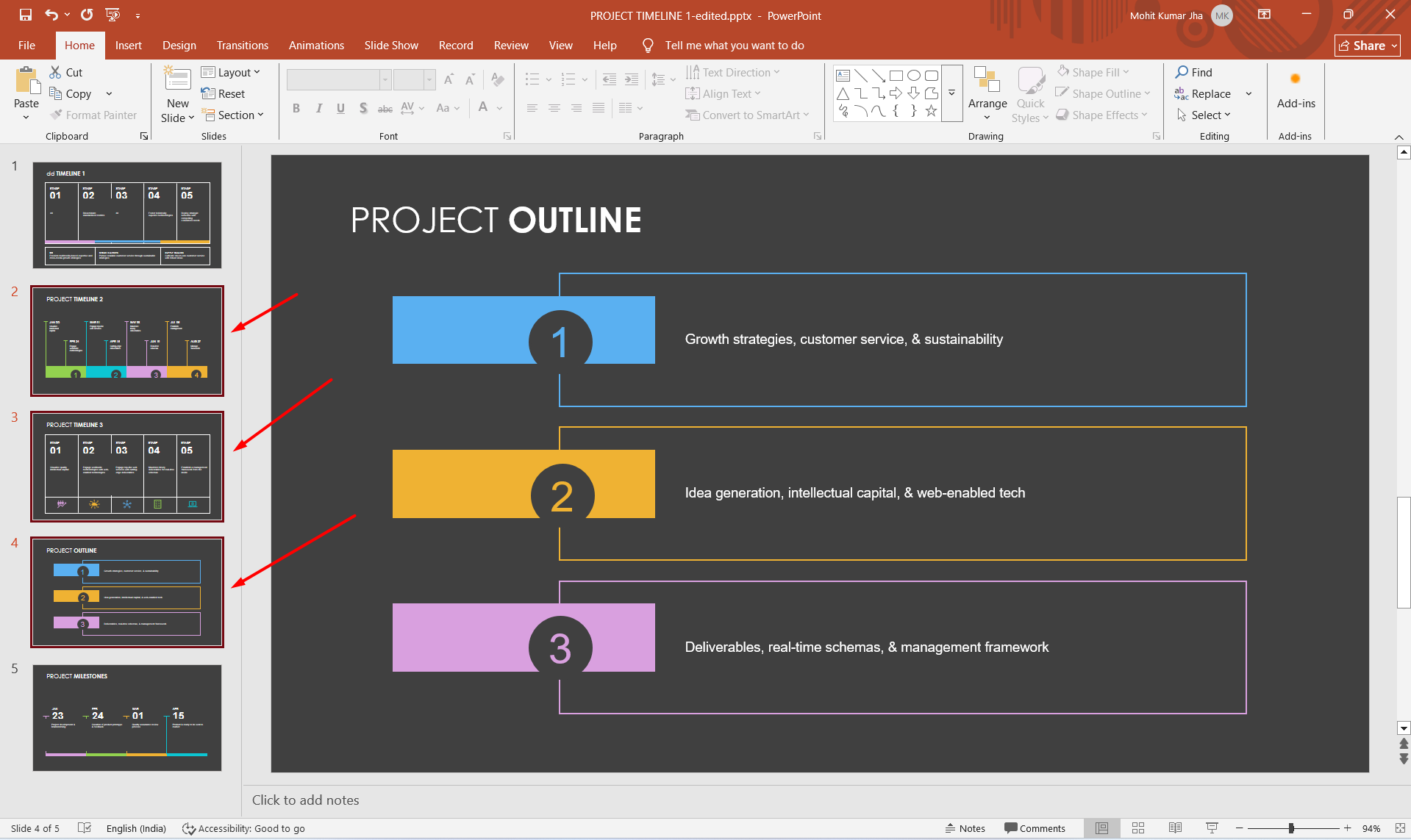
Step 2: Hide the selected slides
Right-click any of the selected slides and choose Hide Slide.
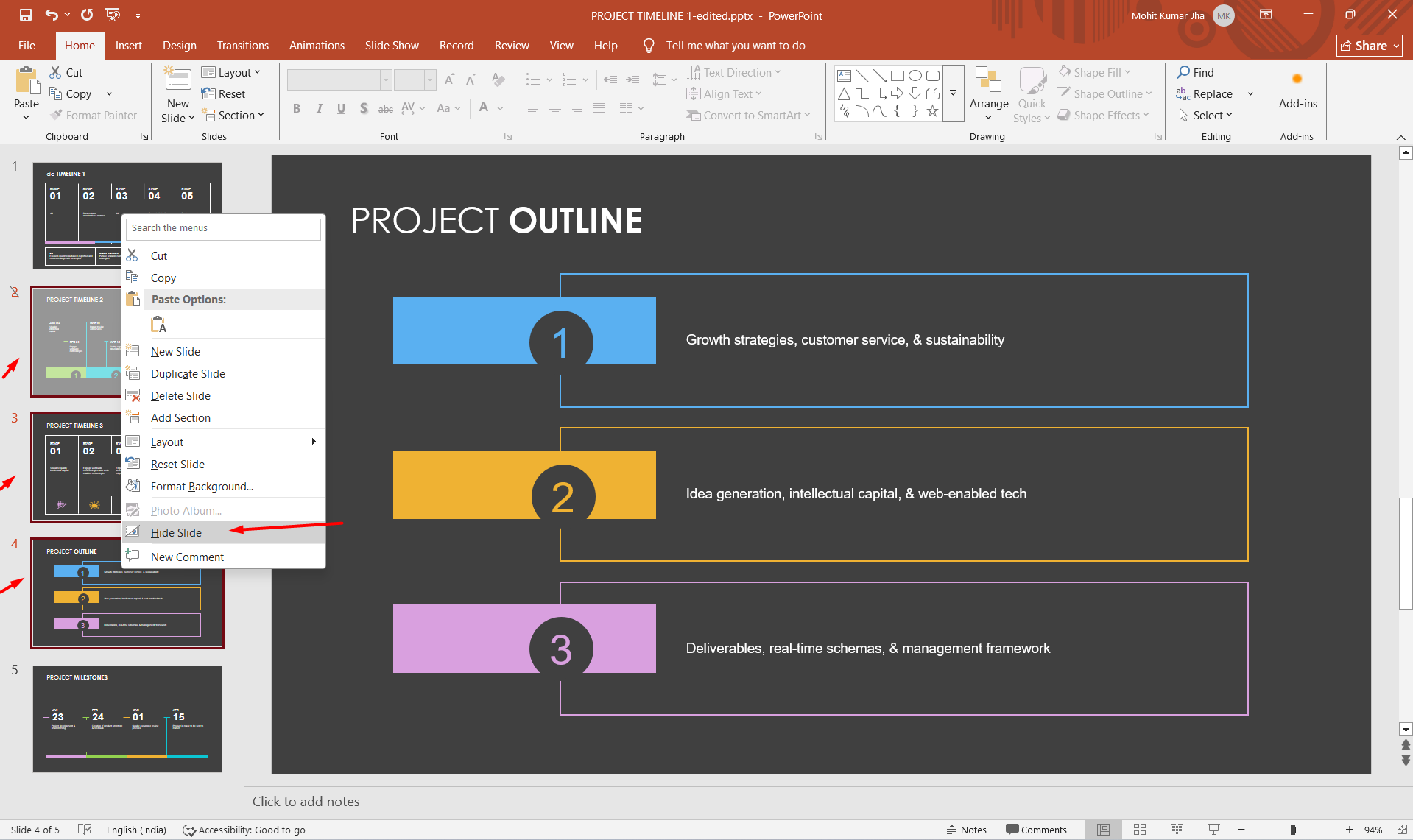
All selected slides will now be hidden from the normal slideshow.
This is particularly useful for presentations with backup slides, optional sections, detailed data, or different versions of the same content. You can keep everything in one PowerPoint file while showing only the slides that are relevant to your audience.
How to Unhide a Slide in PowerPoint
Changed your mind and want a hidden slide to appear in your presentation again? You can easily unhide it without recreating or moving any content.
Step 1: Find the hidden slide
Look through the slide thumbnails on the left side of your PowerPoint window. Hidden slides are marked with a line through their slide number, making them easy to identify.
Step 2: Right-click the slide
Right-click the hidden slide you want to show again.
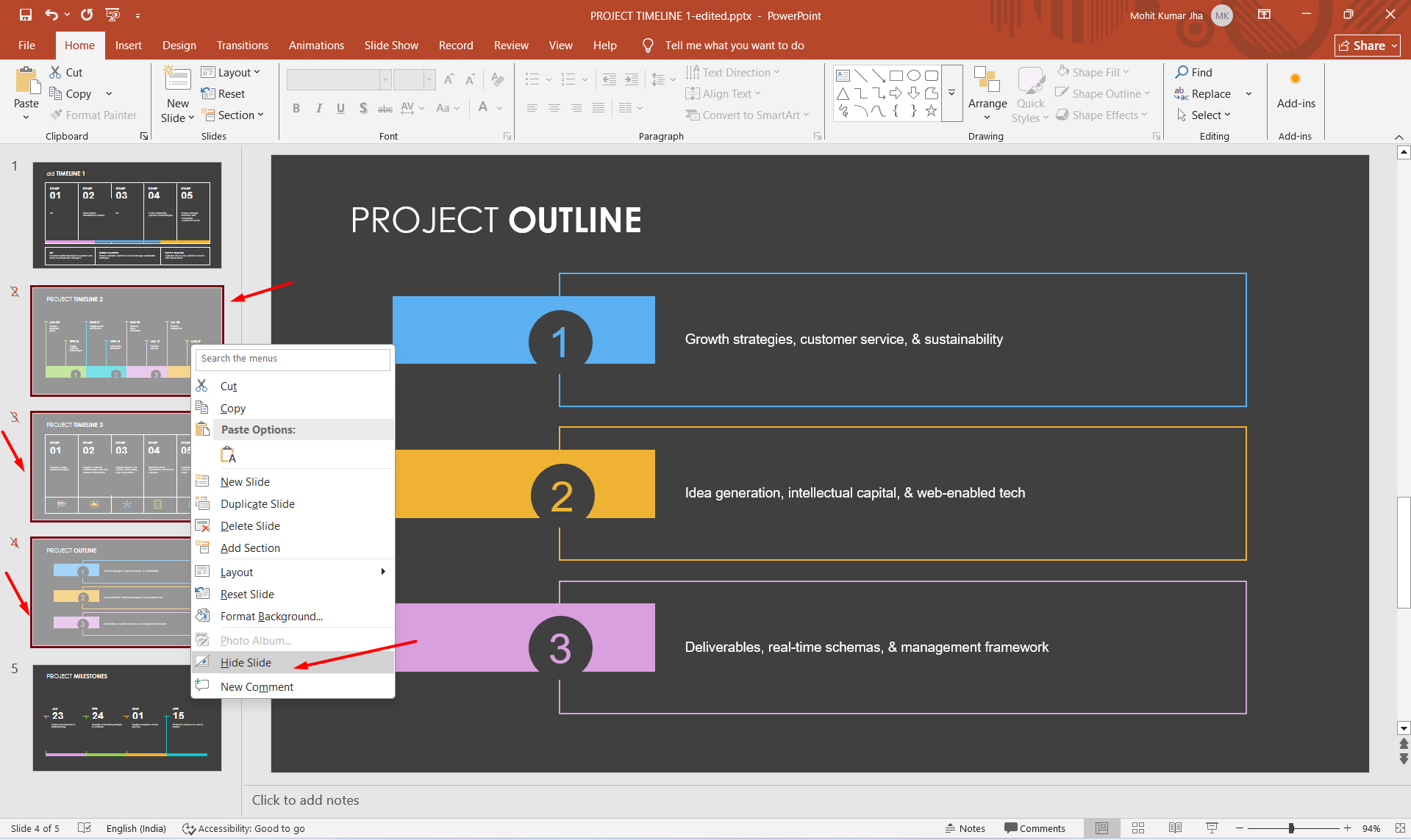
Step 3: Select “Unhide Slide”
Choose Unhide Slide from the menu. The slide will immediately become part of the normal presentation sequence again.
You can repeat these steps for any other hidden slides in your deck.
Tip: Hiding and unhiding slides is a convenient way to maintain backup content. Instead of deleting slides you may need later, you can simply keep them hidden until they’re relevant.
How to Hide a Slide in PowerPoint on Mac
If you’re using PowerPoint on a Mac, you can hide slides using the same basic process as on Windows. You don’t need to delete the slide or move it to another presentation.
- Steps to Hide a Slide on Mac
- Open your PowerPoint presentation.
- Select the slide you want to hide from the thumbnail pane.
- Right-click or Control-click the slide.
- Select Hide Slide from the menu.
PowerPoint will mark the slide as hidden, and it will be skipped when you run the presentation in Slide Show mode.
You can also select multiple slides before choosing Hide Slide if you want to hide several slides at once.
The hidden slide remains editable and stays in your presentation, so you can unhide it whenever you need it. This makes the feature useful for keeping optional content, backup slides, or detailed information ready without including it in your main presentation flow.
Creating Presentations Faster with MagicSlides
Hiding slides is useful when you’re managing an existing PowerPoint presentation, but creating a presentation from scratch can take much more time. You have to plan the structure, write the content, choose layouts, and organize everything into a cohesive deck.
That’s where MagicSlides can help.
MagicSlides is an AI-powered presentation tool that can turn your ideas, text, or source material into a structured presentation. Instead of starting with a blank slide, you can use AI to create a first draft and then customize the presentation to fit your needs.

For example, if you’re preparing a business presentation, you can use MagicSlides to quickly generate the initial deck and then refine the slides before presenting. You can also keep detailed information, supporting data, or additional case studies as backup slides and hide them when they’re not needed.
This can save time while giving you more flexibility over how your final presentation is structured.
Conclusion
Knowing how to hide slides in PowerPoint can help you keep your presentations organized without permanently deleting useful content. Whether you’re hiding a single slide, multiple slides, or backup information for a Q&A session, the process only takes a few clicks.
Hidden slides are especially useful when you want to keep your main presentation concise while still having additional information ready when you need it. And when you’re creating a presentation from scratch, MagicSlides can help you generate and structure your slides faster with AI.
With the right combination of presentation tools and techniques, you can spend less time building slides and more time focusing on your audience and your message.
Frequently Asked Questions
Q1. Can you hide a slide in PowerPoint without deleting it?
Yes. PowerPoint lets you hide a slide without deleting it. The slide stays in your presentation and remains editable, but it is skipped during the normal slideshow.
Q2. How do you hide multiple slides in PowerPoint?
Select the slides you want to hide in the thumbnail pane, right-click one of them, and select Hide Slide. You can select individual slides or a continuous range of slides.
Q3. How do I unhide a slide in PowerPoint?
Find the hidden slide in the thumbnail pane, right-click it, and select Unhide Slide. The slide will then appear in the normal presentation sequence.
Q4. Can I show a hidden slide during a presentation?
Yes. You can access a hidden slide through the presentation’s slide navigation and display it when needed. This is useful for answering questions or showing additional information without including the slide in your main presentation flow.
Q5. Can I hide slides in PowerPoint on Mac?
Yes. PowerPoint for Mac supports hidden slides. Select the slide, right-click or Control-click it, and choose Hide Slide.
Q6. Does hiding a PowerPoint slide delete its content?
No. Hiding a slide only prevents it from appearing during the normal slideshow. All text, images, animations, and other content remain on the slide.
Also read: How to Add Text Shadow in PowerPoint: Step-by-Step Guide


