How to Add Text Shadow in PowerPoint: Step-by-Step Guide


Learn how to add text shadow in PowerPoint with simple step-by-step instructions. Customize the shadow's color, transparency, blur, distance, and more.
Adding a text shadow in PowerPoint is a simple way to make headings, titles, and other text stand out on a slide. A subtle shadow can improve readability, create visual depth, and make your presentation look more polished without changing the text itself.
PowerPoint includes built-in shadow effects that let you add a shadow to text and customize its appearance. In this guide, you’ll learn how to add text shadow in PowerPoint step by step, how to adjust the shadow’s color, transparency, blur, distance, and angle, and how to remove it when you no longer need the effect. We’ll also cover text shadows in PowerPoint on Mac and online, along with tips for using shadows effectively in professional presentations.
How to Add Text Shadow in PowerPoint
PowerPoint lets you add a shadow directly to selected text using its built-in Text Effects options. You don’t need an external design tool or add-in to create a basic text shadow.
Follow these steps:
Step 1. Open your PowerPoint presentation and go to the slide containing the text you want to edit.
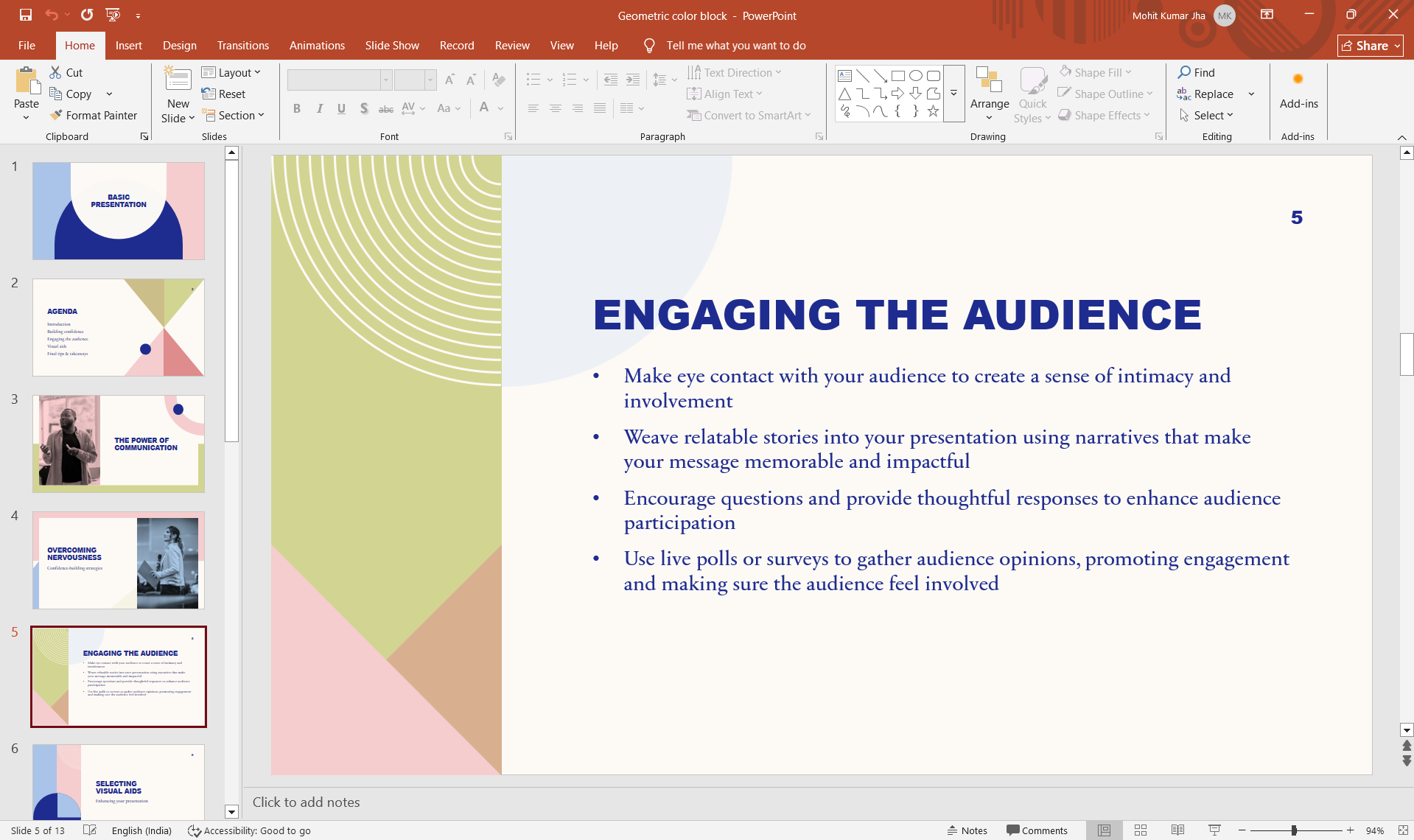
Step 2. Select the text you want to add a shadow to. You can select a single word, a sentence, or the entire text in a text box.
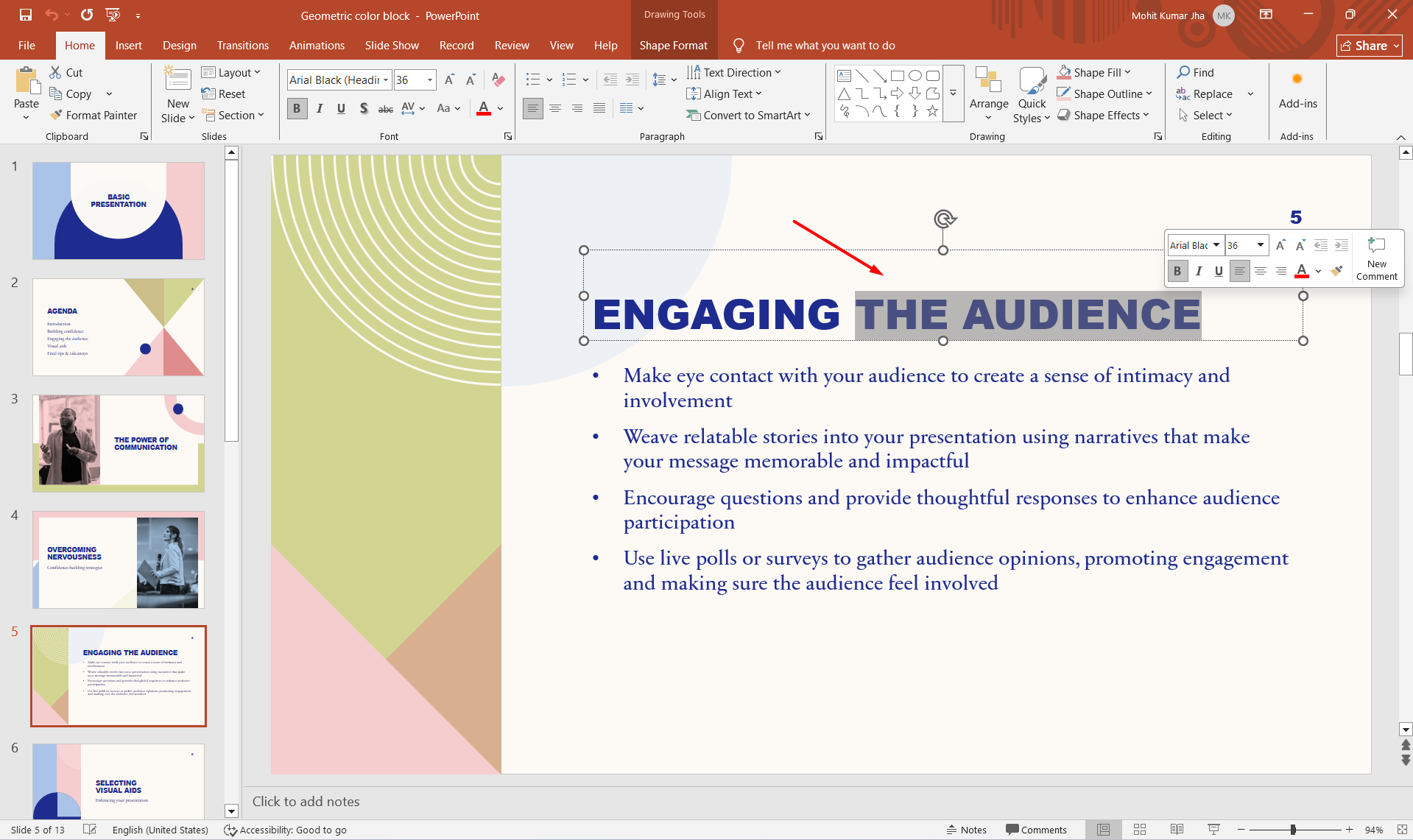
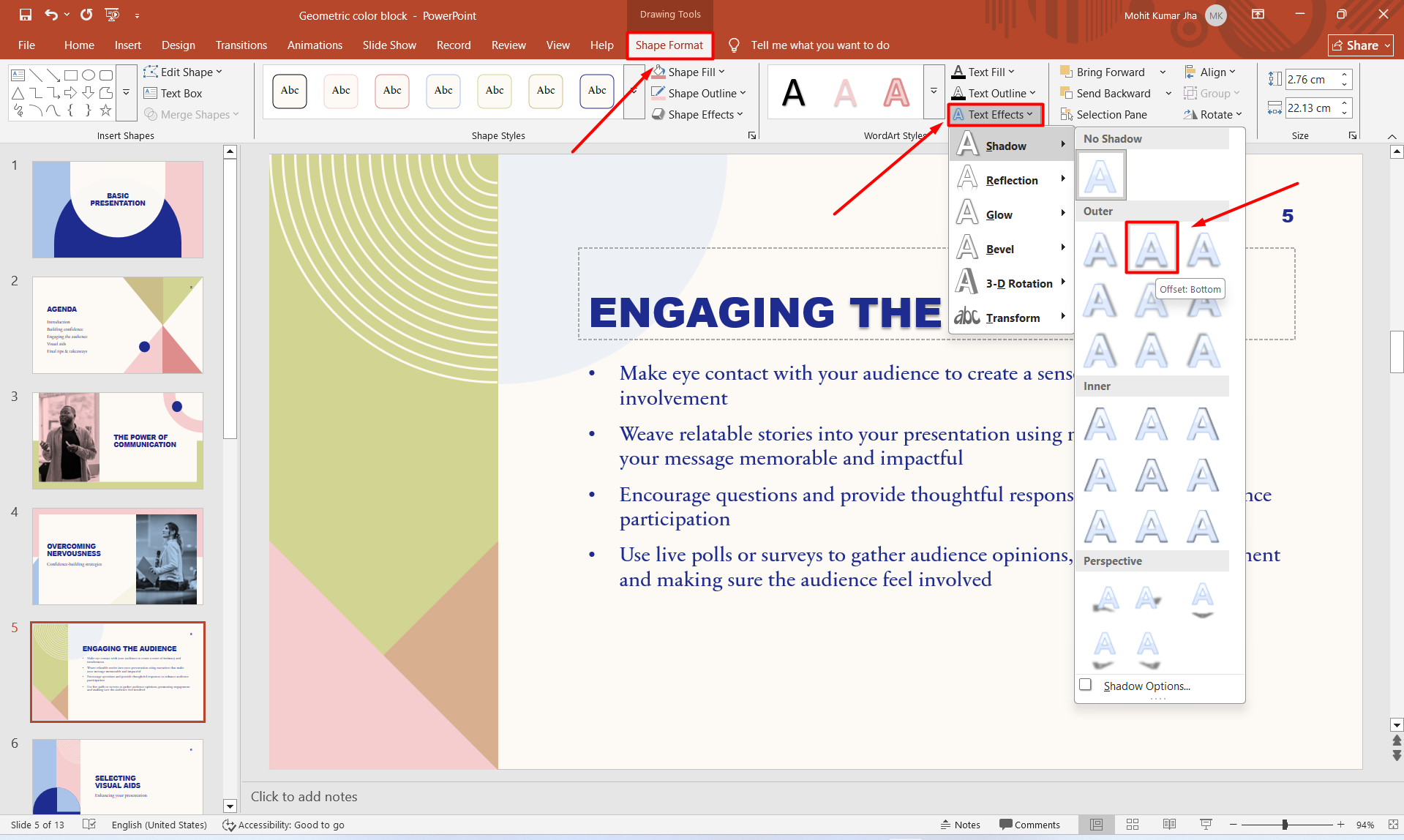
Step 4. Go to the Shape Format tab. If you don’t see it, make sure you’ve selected the text box or WordArt containing the text.
Step 5. Click Text Effects → Shadow and choose a shadow style.
Step 6. To customize the effect, select Text Effects → Shadow → Shadow Options and adjust the color, transparency, blur, angle, and distance.
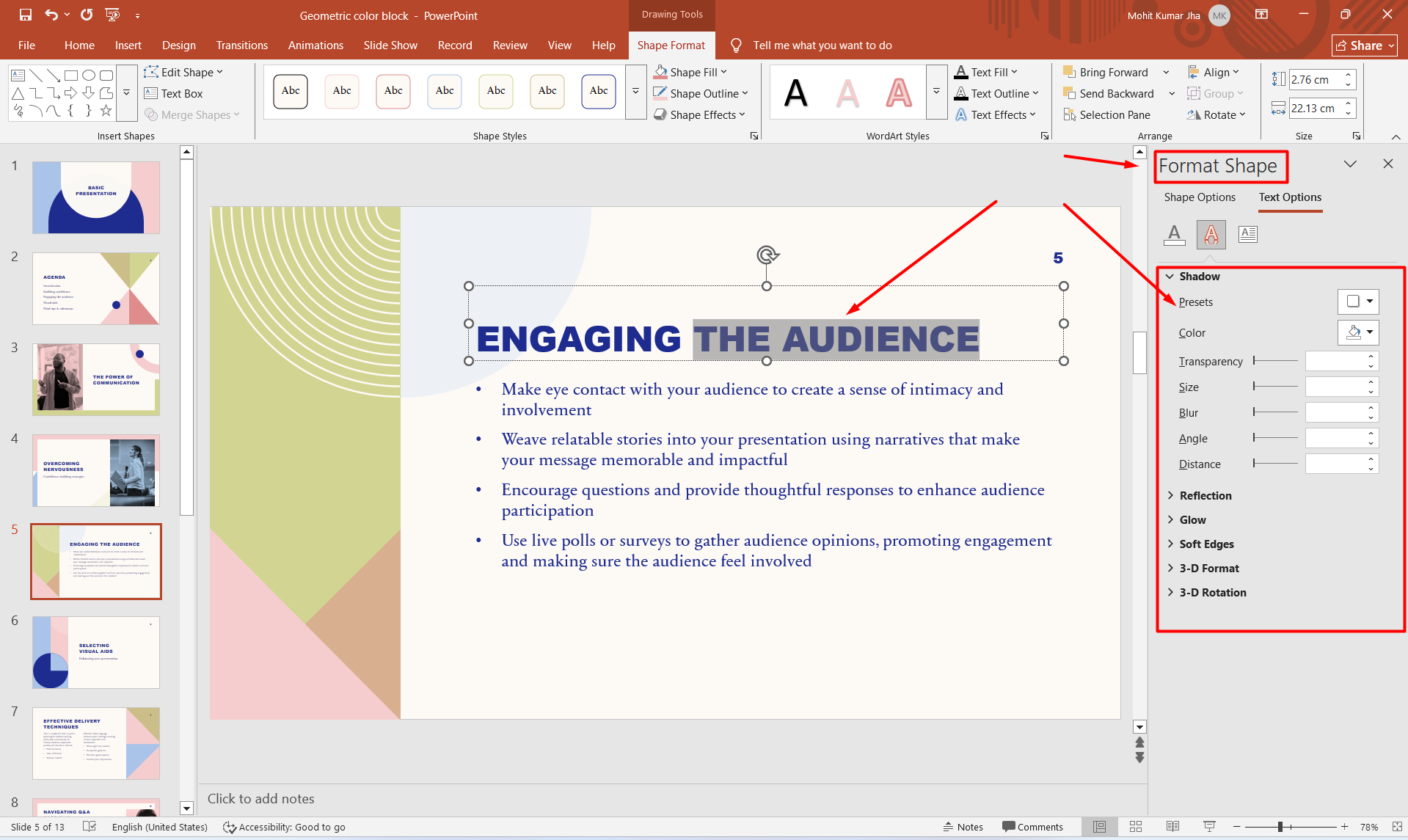
Your text will now have a shadow effect. If you want more control over how the shadow looks, open the Shadow Options to adjust individual settings such as transparency, blur, angle, and distance.
Tip: Select the Text, Not Just the Text Box
If you want the shadow to appear behind the letters, make sure you select the text itself before applying the effect. PowerPoint also allows shadows to be applied to shapes and text boxes, which creates a different visual effect.
For a clean, professional presentation, start with a subtle shadow rather than the strongest preset. A small amount of blur and transparency can make text easier to read without making the slide look cluttered.
How to Customize Text Shadow in PowerPoint
PowerPoint gives you more control over a text shadow than just choosing a preset. You can customize the shadow’s color, transparency, size, blur, angle, and distance to create the look you want.
To customize the shadow:
Step 1. Select the text with the shadow effect.
Step 2. Go to Home → Shape Effects → Shadow.
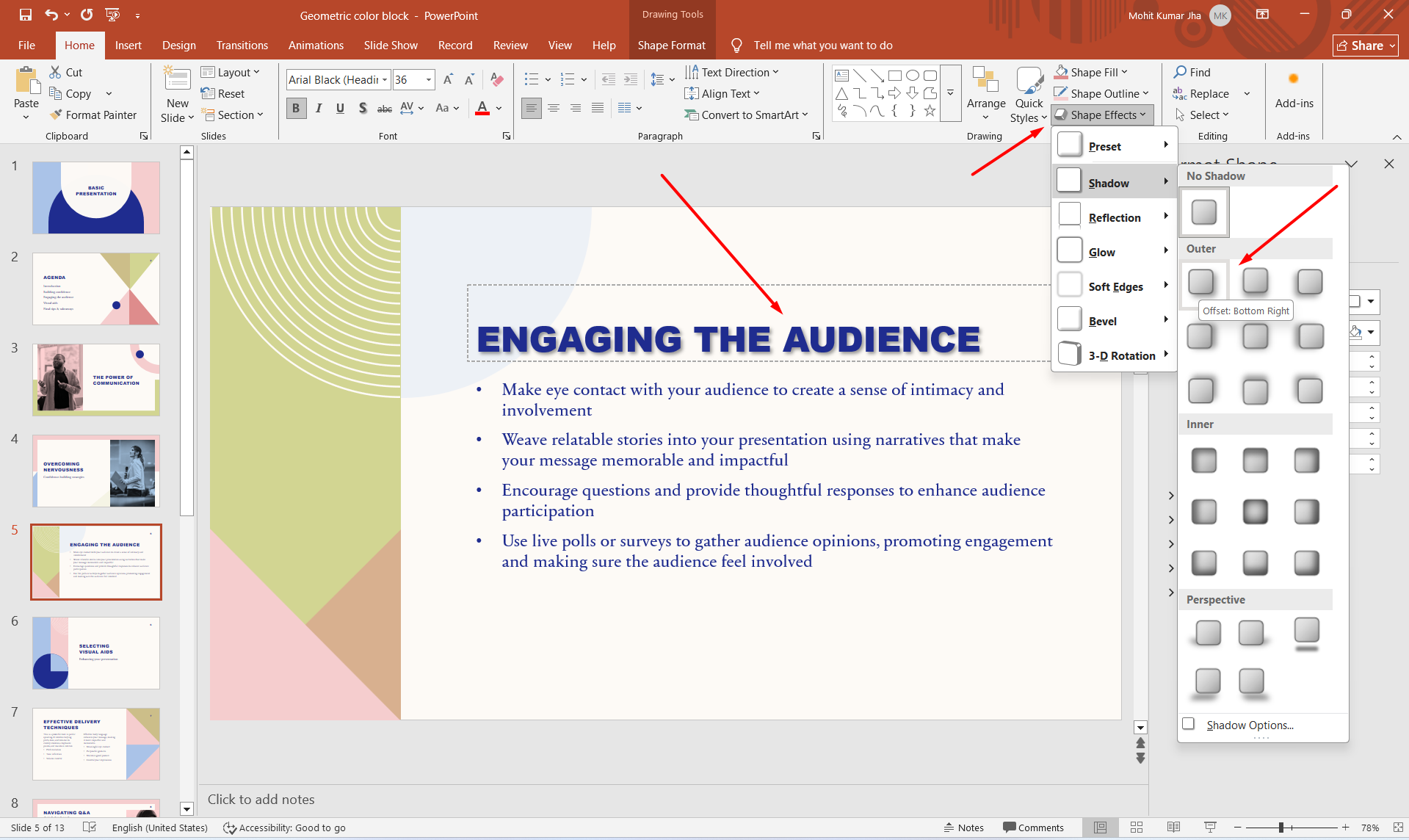
Step 3. Select Shadow Options to open the formatting controls.
Step 4. Adjust the available settings until the shadow looks right on your slide.
Step 5. Adjust the Shadow Color
The shadow doesn’t have to be black. You can choose a different color to complement your text and slide background. A dark gray shadow often works well for light text, while a lighter shadow can help dark text stand out against a darker background.
Change Transparency
Transparency controls how visible the shadow is. Increasing transparency creates a softer, more subtle effect, while reducing transparency makes the shadow more prominent.
For professional presentations, a slightly transparent shadow is usually easier on the eyes than a completely opaque one.
Adjust Blur
The Blur setting controls how soft or sharp the edges of the shadow appear. A lower blur creates a sharper shadow, while a higher blur produces a softer glow-like effect.
Change Distance and Angle
Distance determines how far the shadow sits from the text, while Angle controls the direction in which the shadow is cast.
A small distance with a moderate blur usually creates a clean effect without making the text appear disconnected from the slide.
Adjust Shadow Size
The Size setting controls the overall spread of the shadow. Keep it relatively subtle for body text and use stronger settings only when you’re intentionally creating a decorative heading or title.
Tip: Don’t overdo the effect. The best text shadows usually support readability rather than becoming the main visual element on the slide.
Tips for Using Text Shadows in PowerPoint
- Keep it subtle: Use moderate blur and transparency for a professional look.
- Use it selectively: Apply shadows mainly to titles and important headings.
- Consider the background: Shadows can improve text readability over images or busy backgrounds.
- Stay consistent: Use similar shadow styles throughout your presentation.
- Preview your slide: Check the effect in Slide Show mode before presenting.
Create Professional Presentations Faster With MagicSlides
Adding text shadows can improve individual slides, but creating a polished presentation involves much more than formatting text. MagicSlides AI Presentation Tool helps you create PowerPoint presentations faster using AI.

You can turn your ideas, text, or existing content into structured presentation slides, then customize the design and formatting to match your needs. This can save time when you’re creating presentations from scratch.
If you want to spend less time designing slides and more time focusing on your content, try MagicSlides for your next presentation.
Conclusion
Adding a text shadow in PowerPoint is a simple way to make titles and important text stand out. You can apply a preset shadow through Text Effects and customize properties such as color, transparency, blur, size, angle, and distance to match your presentation design.
For the best results, keep shadows subtle and use them consistently. If you want to create polished presentations without spending too much time on manual formatting, MagicSlides can help you generate professional PowerPoint slides faster.
Also read: How to Create a Roadmap in PowerPoint: Step-by-Step Guide
Frequently Asked Questions
Q1. How do I add a shadow to text in PowerPoint?
Select your text, go to Home → Text Effects and Typography → Shadow, and choose a shadow preset. You can use Shadow Options to customize the effect.
Q2. How do I add a drop shadow to text in PowerPoint?
Select the text and choose Text Effects and Typography → Shadow. Select a drop-shadow preset or open Shadow Options to adjust its appearance.
Q3. Can I customize a text shadow in PowerPoint?
Yes. You can customize settings such as color, transparency, blur, size, angle, and distance to create the desired shadow effect.
Q4. How do I remove a text shadow in PowerPoint?
Select the text, open Text Effects and Typography → Shadow, and choose No Shadow. If the shadow is around the text box rather than the letters, remove it through Shape Format → Shape Effects → Shadow → No Shadow.
Q5. Can I change the color of a text shadow in PowerPoint?
Yes. Open the Shadow Options after selecting the text shadow and choose your preferred shadow color.
Q6. Why is the shadow appearing around my text box instead of the text?
You may have applied a shape shadow instead of a text shadow. Select the actual text and use Text Effects → Shadow to apply the effect to the letters.


