How to Compress a Video in Microsoft PowerPoint


Learn how to compress a video in Microsoft PowerPoint and reduce your presentation file size. Follow simple steps to compress media without losing too much quality.
If your PowerPoint presentation is too large because it contains a video, you can use PowerPoint’s built-in Compress Media feature to reduce the video and overall presentation file size. This makes the presentation easier to save, share, upload, and transfer without removing the video from your slides.
In this guide, you’ll learn how to compress a video in Microsoft PowerPoint step by step, where to find the Compress Media option, and which video quality setting to choose. We’ll also cover what to do if you can’t find the compression option and whether PowerPoint supports video compression on Mac and the web.
How to Compress a Video in PowerPoint?
You can compress an embedded video directly from PowerPoint without using a separate video compression tool. The quickest method is to use the Compress Media option under the File menu.
Compressing videos in PowerPoint can help reduce the overall file size of your presentation, making it easier to share and transfer. Here’s how you can compress a video in PowerPoint:
Step 1: Open Your PowerPoint Presentation: Open the PowerPoint presentation that contains the video you want to compress.
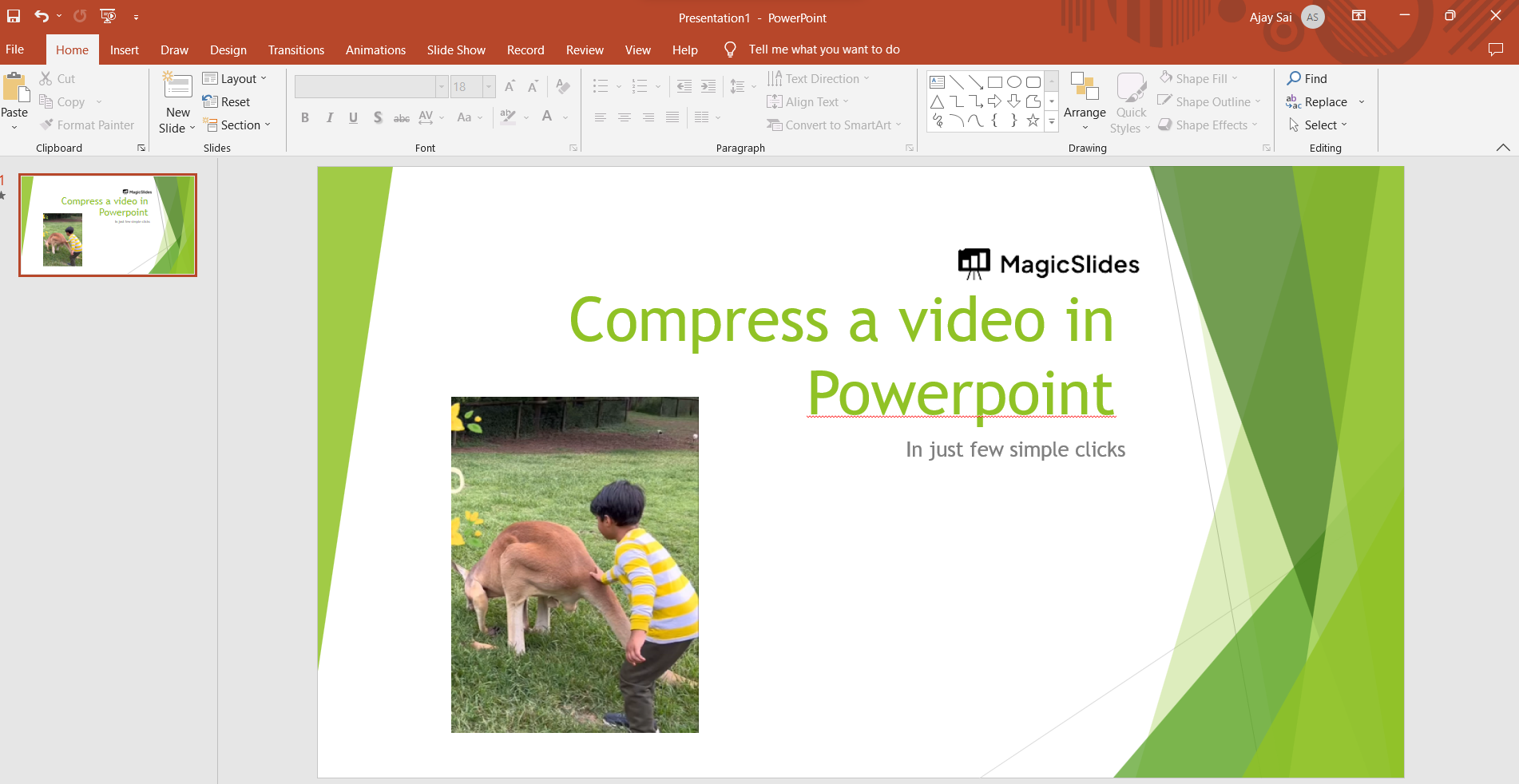
Step 2: Select the Video: Click on the video in your slide to select it. This will display the “Video Tools” tab in the PowerPoint ribbon at the top of the screen.
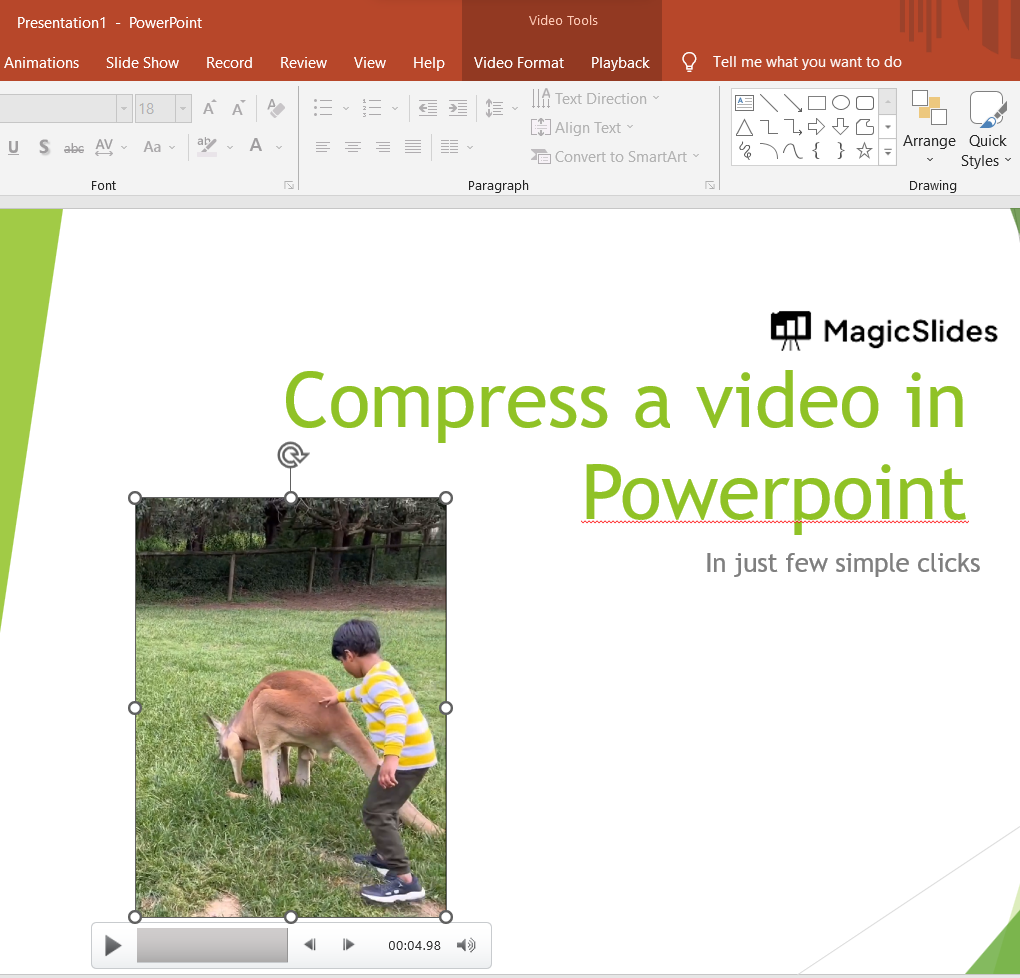
Step 3: Go to the Video Tools Tab: Click on the “Video Tools” tab in the ribbon. This tab appears when you have a video selected.
Step 4: Format Tab: Within the “Video Tools” tab, you will see a “Format” tab. Click on this tab to access the video formatting options. or you can go to the File tab, select Info, and select Compress Options over there.
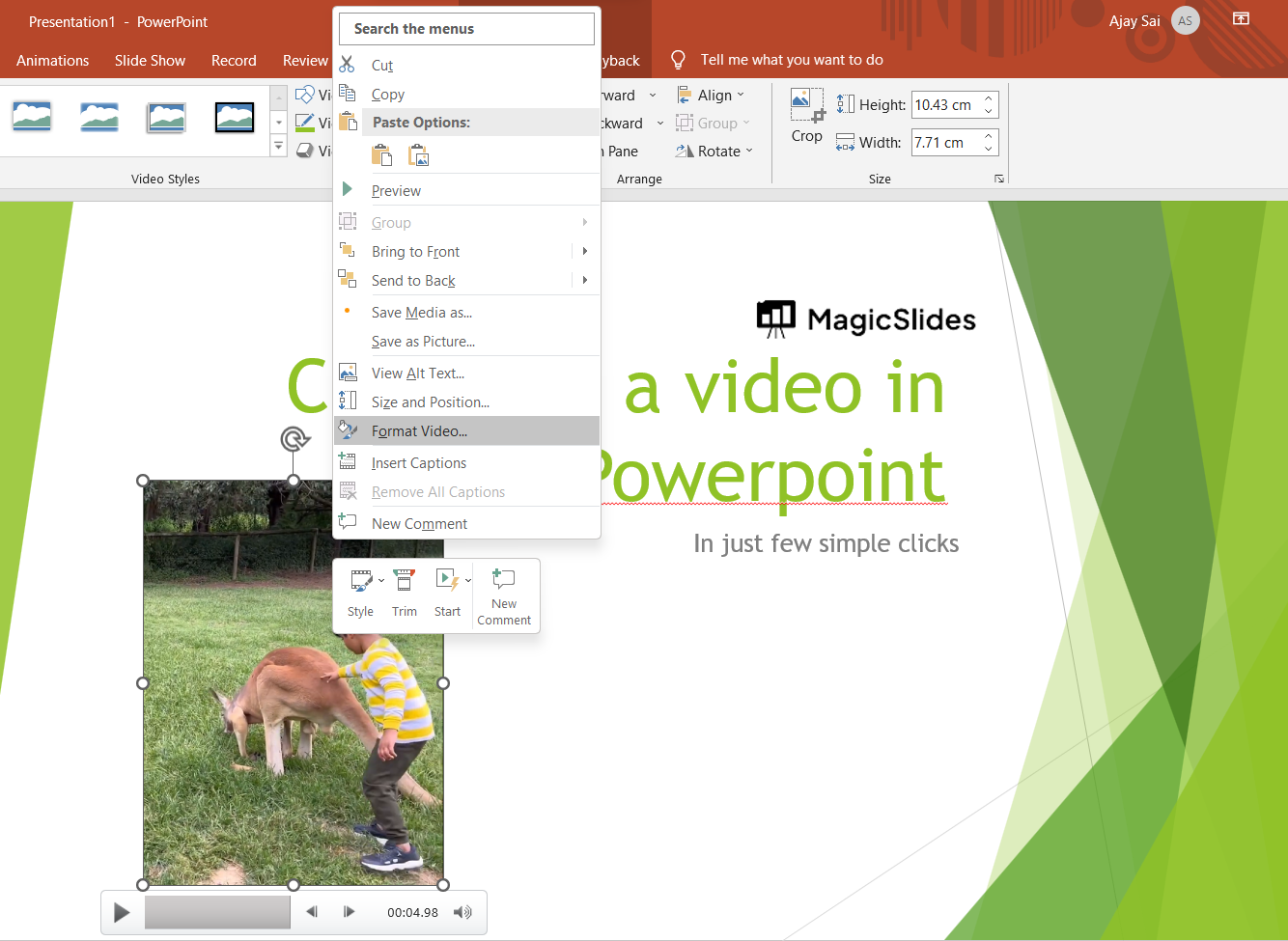
Step 5: Compress Media: In the “Format” tab, you will find the “Compress Media” button. It’s usually located in the “Adjust” group.
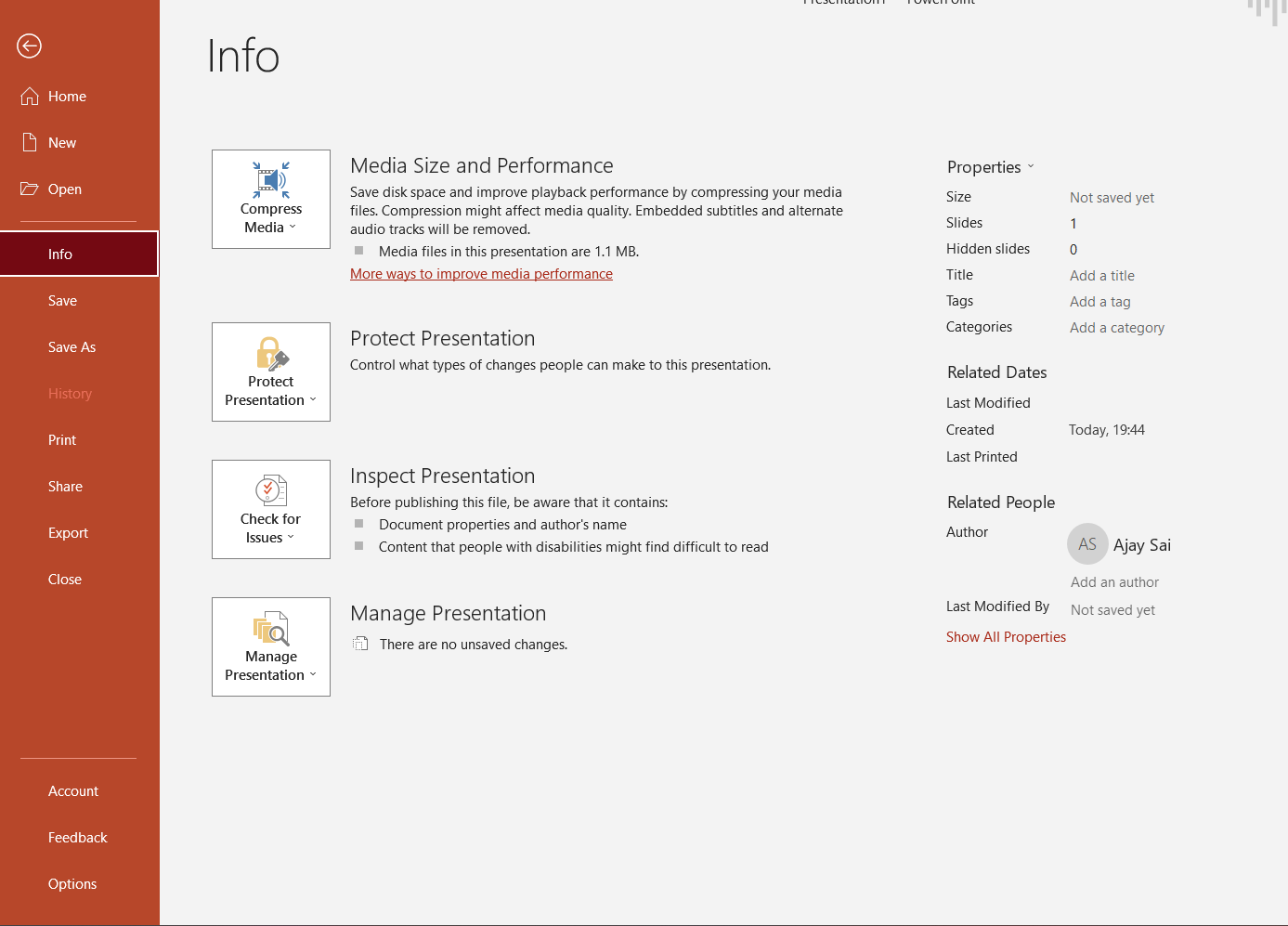
Step 6: Choose Compression Options: Clicking on the “Compress Media” button will open a menu with compression options. You might see different resolution and quality options. Choose the desired compression settings based on your needs.
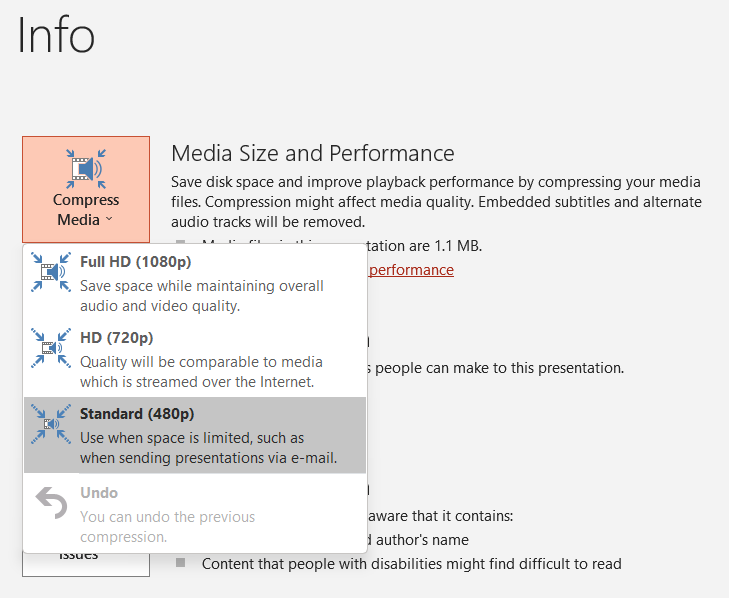
Step 7: Apply Compression: After selecting your compression options, click on the “Apply” button. PowerPoint will then compress the video using the chosen settings.
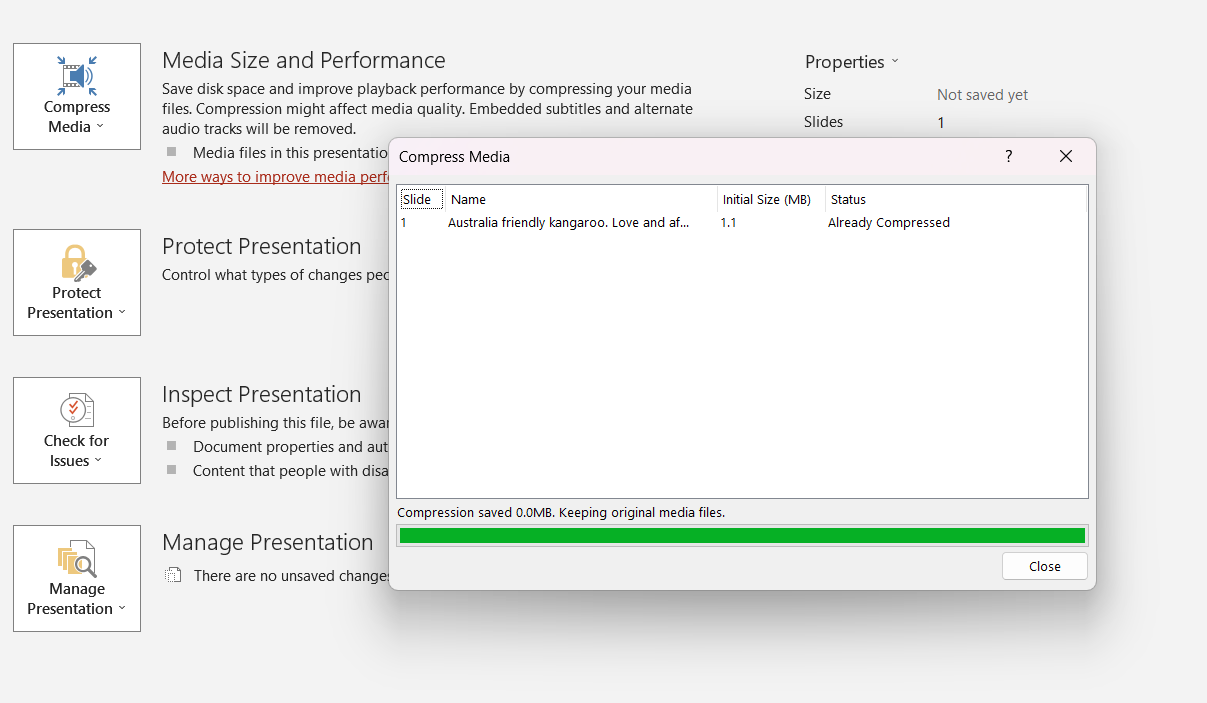
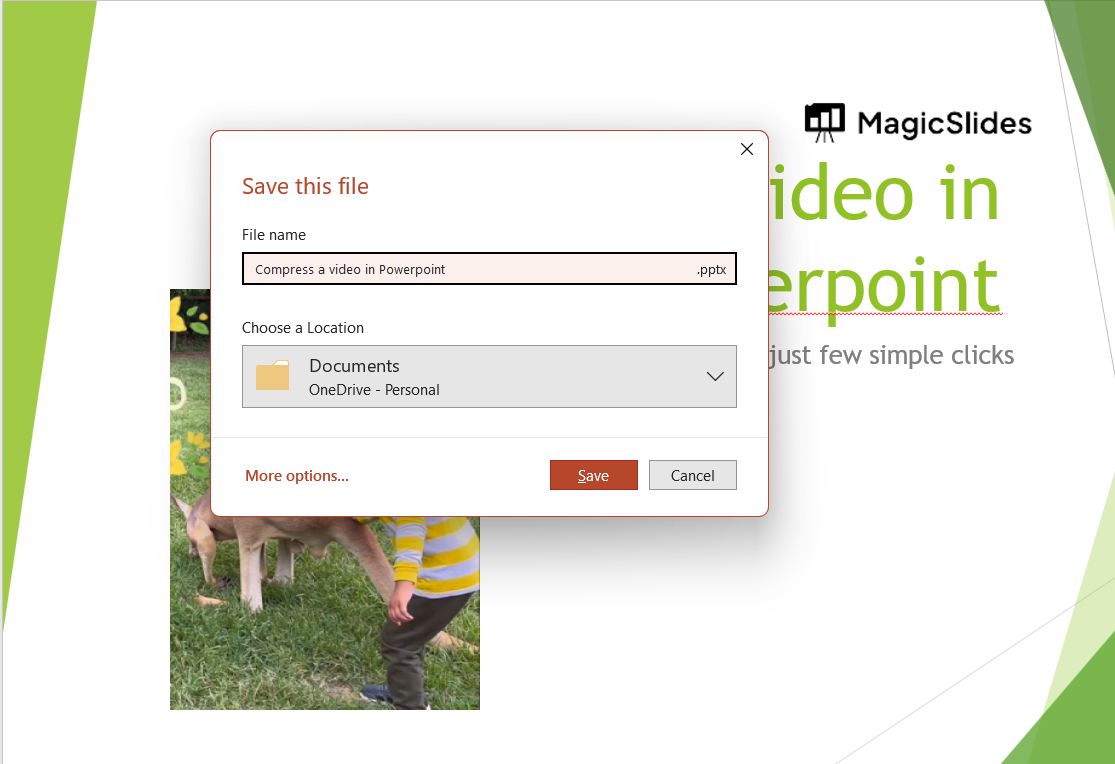
Step 8: Save Your Presentation: Once the compression is applied, make sure to save your presentation with the updated video. You can save it as a new file or overwrite the existing one.
Please note that compressing a video will result in a reduction in video quality to some extent. Before compressing, it’s a good idea to make a backup copy of your original presentation in case you want to revert to the original video quality.
How to Reduce the Size of a PowerPoint File With Video
If your PowerPoint file is still too large after compressing the video, you can take a few additional steps to reduce its overall size.
1. Compress all media files
PowerPoint’s Compress Media feature can reduce the size of embedded video and audio files in the presentation. If your presentation contains multiple media files, compressing them can significantly reduce the overall file size.
Go to File → Info → Compress Media, then select the compression quality that suits your needs.
2. Remove unnecessary videos and audio
Check your presentation for videos, audio clips, or other media that you no longer need. Removing unused media can reduce the file size immediately.
3. Compress images in the presentation
Large images can also contribute significantly to PowerPoint file size. If your presentation contains high-resolution photos, use PowerPoint’s Compress Pictures feature to reduce their size.
Select an image, go to Picture Format → Compress Pictures, and choose an appropriate resolution.
4. Save the presentation as a new file
After compressing your media, save the presentation as a new file rather than overwriting the original. This gives you a backup of the uncompressed version if you need the original video quality later.
How much can PowerPoint reduce the file size?
The amount of space you save depends on the original video’s resolution, format, duration, and compression level. A presentation containing a large 1080p video can often benefit substantially from compression, while a video that has already been compressed may show a smaller reduction.
Tip: If you’re preparing a PowerPoint for email, an online upload, or sharing with others, start with HD (720p). It generally provides a good balance between video quality and presentation file size.
What to Do If You Can’t Find “Compress Media” in PowerPoint
If you don’t see the Compress Media option under File → Info, your version of PowerPoint may not support the feature.
Microsoft currently states that Compress Media is available in PowerPoint for Windows, but it isn’t available in PowerPoint for Mac or PowerPoint for the web.
If you’re using PowerPoint for Windows
Make sure your presentation contains an embedded video or audio file. Then:
- Open the presentation.
- Select File → Info.
- Look for Media Size and Performance.
- Select Compress Media.
- Choose Full HD, HD, or Standard quality.
If the option still doesn’t appear, check whether you’re using a PowerPoint version that supports media compression and whether the presentation contains compatible media.
If you’re using PowerPoint for Mac
PowerPoint for Mac doesn’t currently provide the same Compress Media feature available in PowerPoint for Windows. If you need to significantly reduce the video file size, compress the video before inserting it into PowerPoint using a video compression tool, then replace the original video in your presentation.
If you’re using PowerPoint for the web
The web version of PowerPoint also doesn’t provide the Compress Media feature. If you need to compress embedded media, open the presentation in the desktop version of PowerPoint for Windows and use File → Info → Compress Media.
Tip: If you’re sharing a presentation with someone else, check the final file size after compression and play the video from start to finish to make sure the quality and playback are still acceptable.
Create Better, Smaller Presentations with MagicSlides
If you’re spending too much time formatting slides, adding content, and creating presentations from scratch, MagicSlides AI PPT Maker can help simplify the process. It uses AI to turn your ideas, text, or documents into structured PowerPoint presentations in just a few clicks.

Instead of starting with a blank presentation, you can use MagicSlides to generate a presentation structure and then customize the slides to fit your needs. This can be especially useful when you need to create presentations quickly while keeping the content organized and professional.
Conclusion
Compressing a video in PowerPoint is a simple way to reduce your presentation’s file size and make it easier to share, upload, and store. On PowerPoint for Windows, you can use File → Info → Compress Media and choose between Full HD, HD, or Standard quality depending on how much you want to reduce the file size.
For most users, HD (720p) offers a good balance between video quality and file size. Before compressing, save a backup of your original presentation, and always check the video after compression to make sure the quality and playback meet your needs.
Frequently Asked Questions
Q1. How do I reduce the size of a video in PowerPoint?
Open your presentation and go to File → Info → Compress Media. Choose Full HD, HD, or Standard quality. PowerPoint will compress the media in your presentation and reduce its overall file size.
Q2. Does PowerPoint compress video automatically?
No. PowerPoint doesn’t automatically compress an embedded video to your preferred quality. You need to use the Compress Media feature in the desktop Windows version of PowerPoint.
Q3. Can I compress a video in PowerPoint on Mac?
The Compress Media feature isn’t available in PowerPoint for Mac. If you need to reduce the video’s size on a Mac, compress the video before inserting it into your presentation using a video compression tool.
Q4. Can I compress a video in PowerPoint Online?
No. PowerPoint for the web doesn’t currently provide the Compress Media feature. You can open the presentation in the desktop Windows version of PowerPoint to compress its media.
Q5. Will compressing a video reduce its quality?
Yes. Lower compression settings can reduce video resolution and quality. 720p (HD) is generally a good balance between file size and quality, while 480p (Standard) produces a smaller file but lower video quality.
Q6. Can I compress an MP4 video in PowerPoint?
Yes, if the MP4 is embedded in your presentation and supported by your version of PowerPoint. Use File → Info → Compress Media to compress the media in the presentation.


