How to highlight on Google slides


Enhance your Google Slides presentations with this guide on highlighting text effectively for maximum impact.
Google Slides is a powerful presentation tool that allows you to create visually appealing slideshows. While it's commonly used for showcasing information through text, images, and charts, many users may not be aware of the feature to highlight text. Highlighting is a great way to draw attention to key points, emphasize important information, and enhance the overall visual appeal of your slides. In this step-by-step guide, we'll walk you through the process of highlighting text in Google Slides.
How to highlight on Google slides
Step 1: Open Your Google Slides Presentation
Begin by opening the Google Slides presentation where you want to highlight text. If you haven't started a presentation yet, create a new one by going to Google Drive, selecting "New," and choosing "Google Slides."

Step 2: Select the Text You Want to Highlight
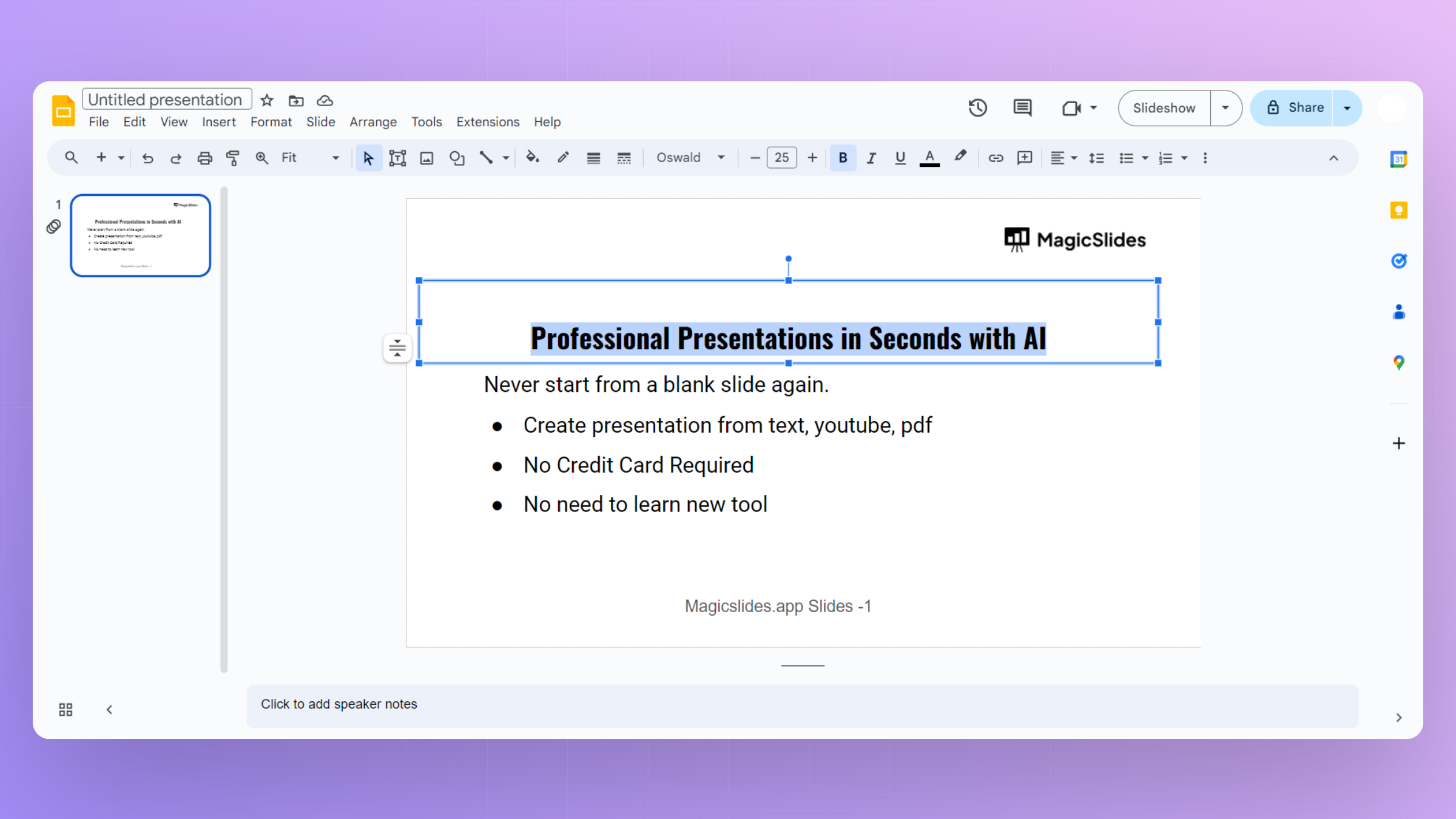
Navigate to the slide containing the text you want to highlight. Click and drag your cursor to select the specific text you wish to emphasize. Alternatively, hold down the "Shift" key while using the arrow keys for a more precise selection.
Step 3: Access the Text Toolbar
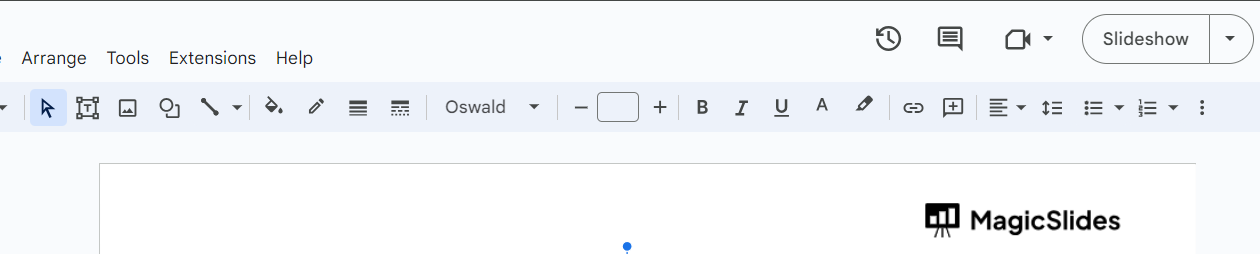
Once you've selected the desired text, a toolbar should appear at the top of the screen. Look for the pencil icon, which represents the text formatting options.
Step 4: Choose the Highlighting Color
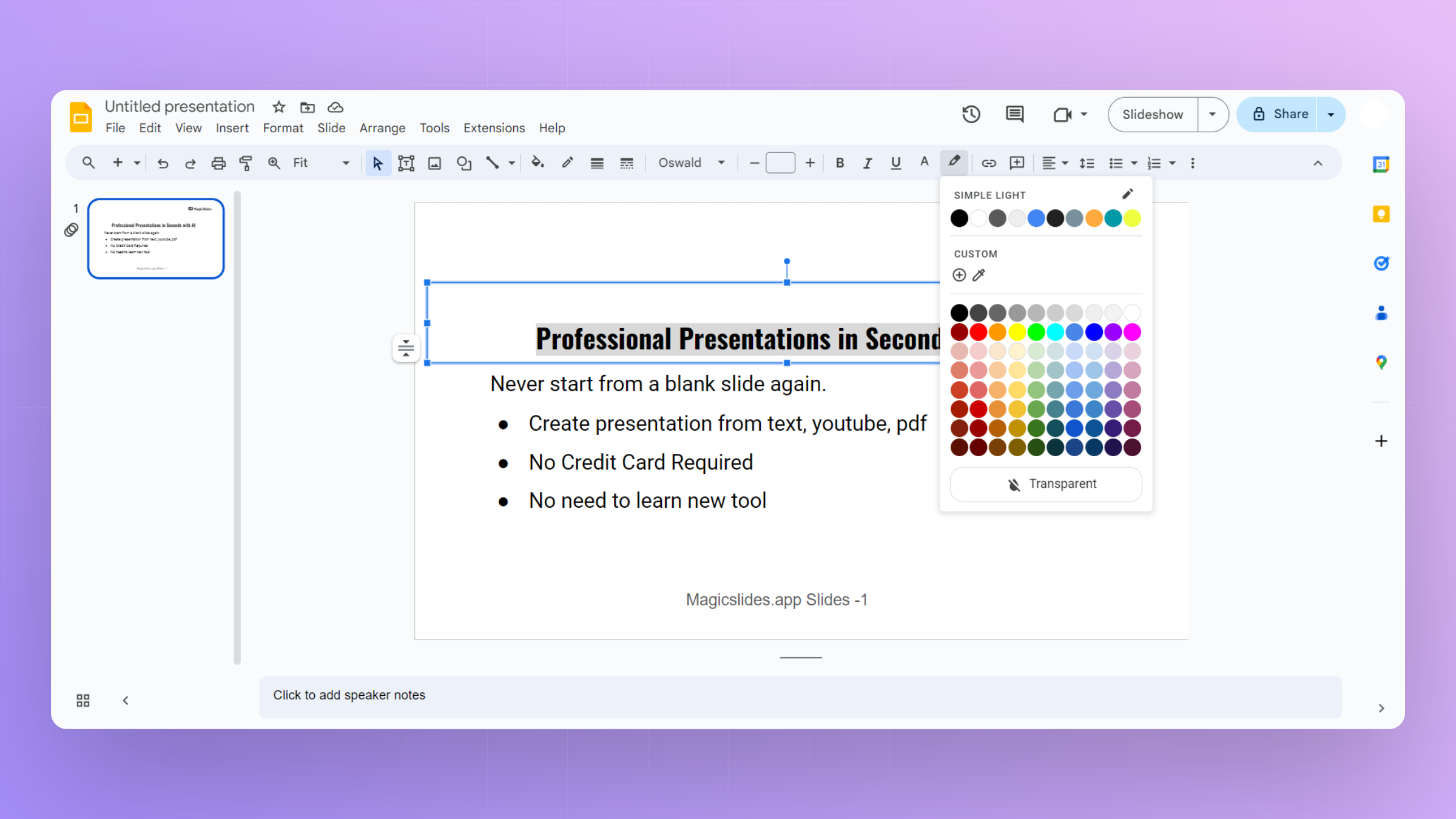
Click on the "A" icon, and a dropdown menu will appear with various text formatting options. Look for the highlighter icon, usually represented by a marker. Click on it, and a color palette will appear. Choose the color you want for your highlight.
Step 5: View the Highlighted Text
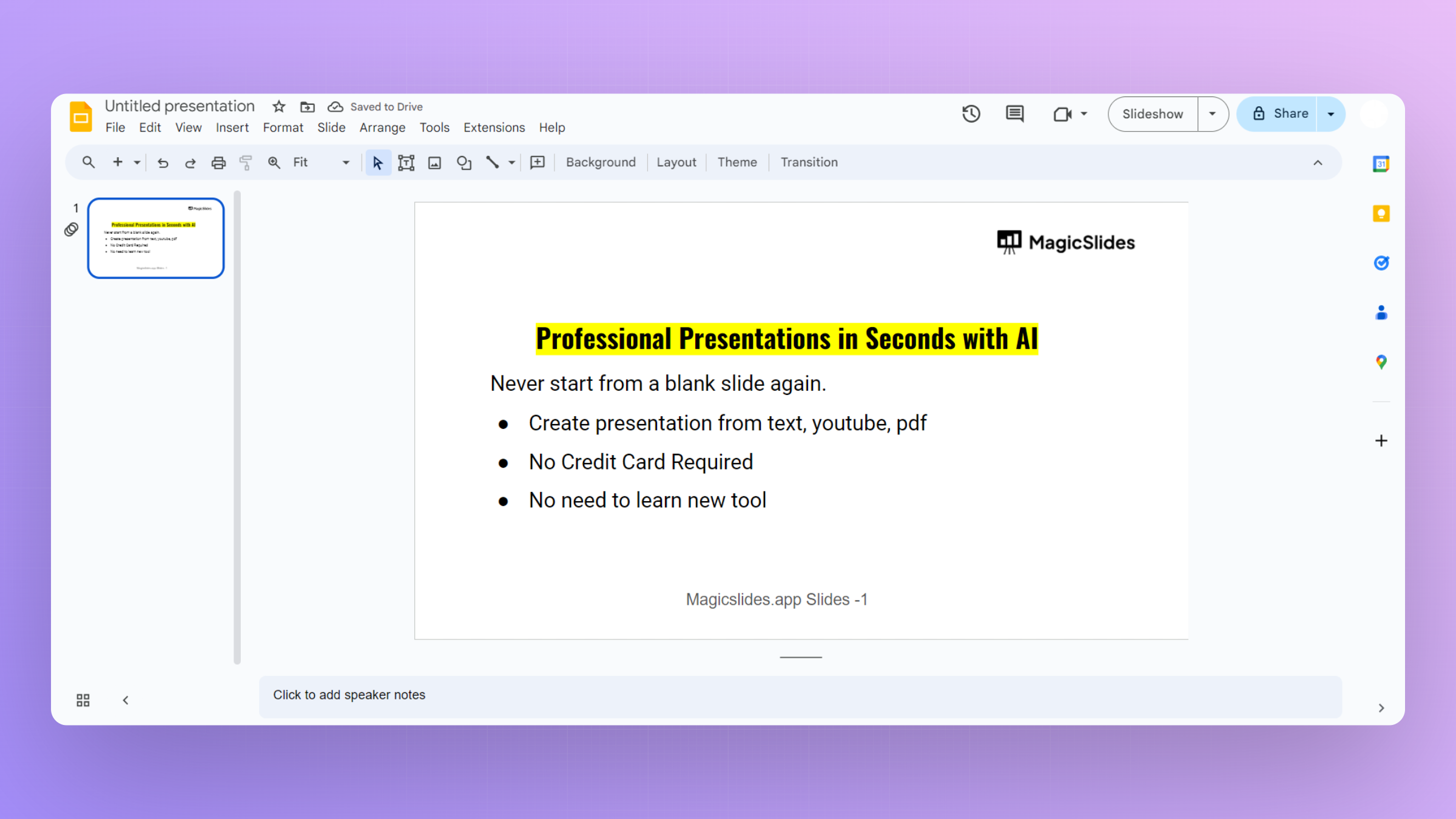
After selecting the highlight color, your chosen text will be instantly highlighted. The color will make the text stand out on the slide, making it more noticeable to your audience.
Conclusion:
Highlighting text in Google Slides is a simple yet effective way to make key information pop in your presentations. Whether you're emphasizing important points, directing attention to specific details, or creating a more engaging design, this feature enhances your overall presentation skills. By following these easy steps, you can add a professional touch to your slides and captivate your audience with visually appealing content.
Frequently Asked Questions:
Can I highlight text in Google Slides on mobile devices?
Yes, you can highlight text on mobile devices using the Google Slides app with similar steps.
Can I customize the highlight color to match my presentation's theme?
Absolutely! Google Slides allows you to choose from a variety of colors to match your theme.
Is there a shortcut for highlighting text in Google Slides?
Currently, Google Slides doesn't have a built-in keyboard shortcut for text highlighting, but stay tuned for updates.
Can I remove the highlight from text once it's applied?
Certainly! To remove the highlight, select the highlighted text, go to the color palette, and choose "No Fill."


