How to Add GIFs to PowerPoint (Step-by-Step Guide)


Learn how to add GIFs to PowerPoint with this step-by-step guide. Insert animated GIFs, resize them, fix playback issues, and create more engaging presentations.
Animated GIFs can make your PowerPoint presentations more engaging by adding movement, emphasizing important points, and capturing your audience’s attention. Whether you’re creating a business presentation, classroom lesson, marketing deck, or training material, GIFs help explain ideas visually and make slides more interactive.
The best part is that Microsoft PowerPoint supports animated GIFs natively, so you can insert them just like regular images. Once you’re in Slide Show mode, the GIF plays automatically without requiring any additional setup.
In this guide, I’ll show you exactly how to add a GIF to PowerPoint, how to insert online GIFs, troubleshoot common playback issues, and share best practices for using GIFs effectively.
Why Add GIFs to PowerPoint?
GIFs help make presentations more engaging because they:
- Grab your audience’s attention instantly.
- Explain concepts visually.
- Add humor without distracting from your message.
- Make product demos more interactive.
- Improve storytelling compared to static images.
Since PowerPoint supports animated GIFs natively, you can insert them just like regular images without installing any third-party software.
Steps to Add a GIF to PowerPoint
Adding a GIF to PowerPoint only takes a few clicks. Follow these simple steps:
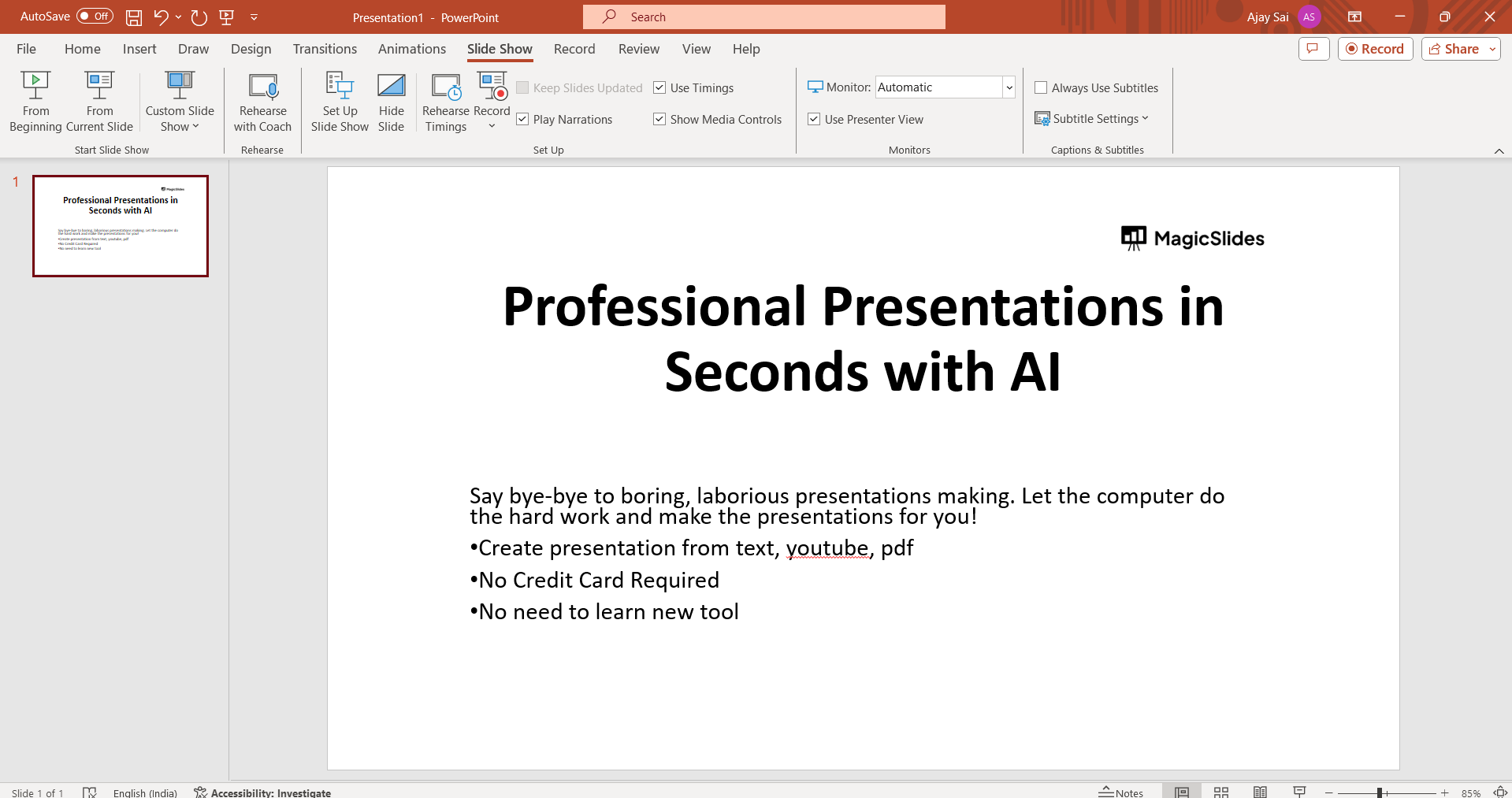
Step 1. Open Your Presentation
Launch the PowerPoint application on your device and open the specific presentation where you want to incorporate a GIF.
Step 2. Select the Slide
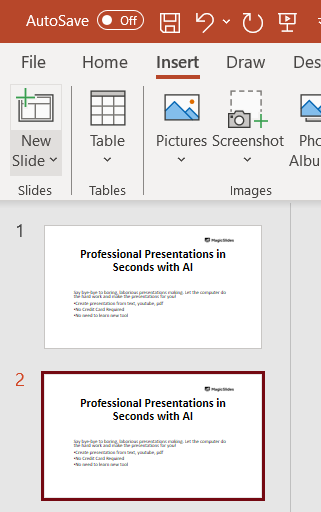
Create a new slide by selecting Home > New Slide, or navigate to an existing slide where you want to insert the GIF.
Step 3. Insert the GIF
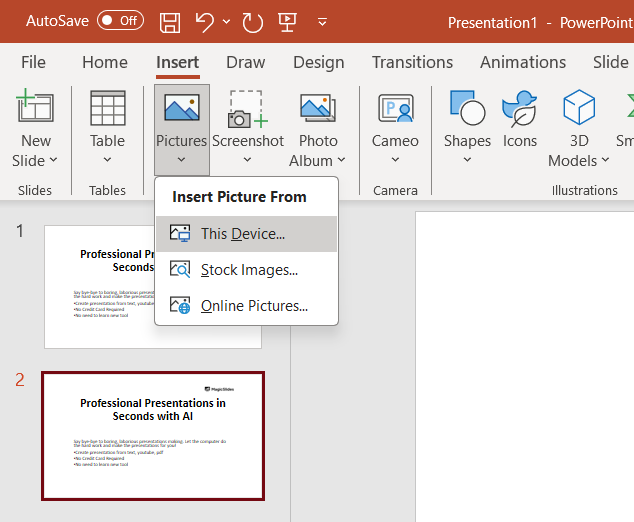
Click the Insert tab and select Pictures. Choose the GIF from your computer, then click Insert. The animated GIF will immediately appear on your slide.

Step 4. Resize and Position the GIF
Customize the GIF’s appearance by resizing and repositioning it on the slide. Click and drag the corners to adjust its size, ensuring it fits seamlessly into your layout.
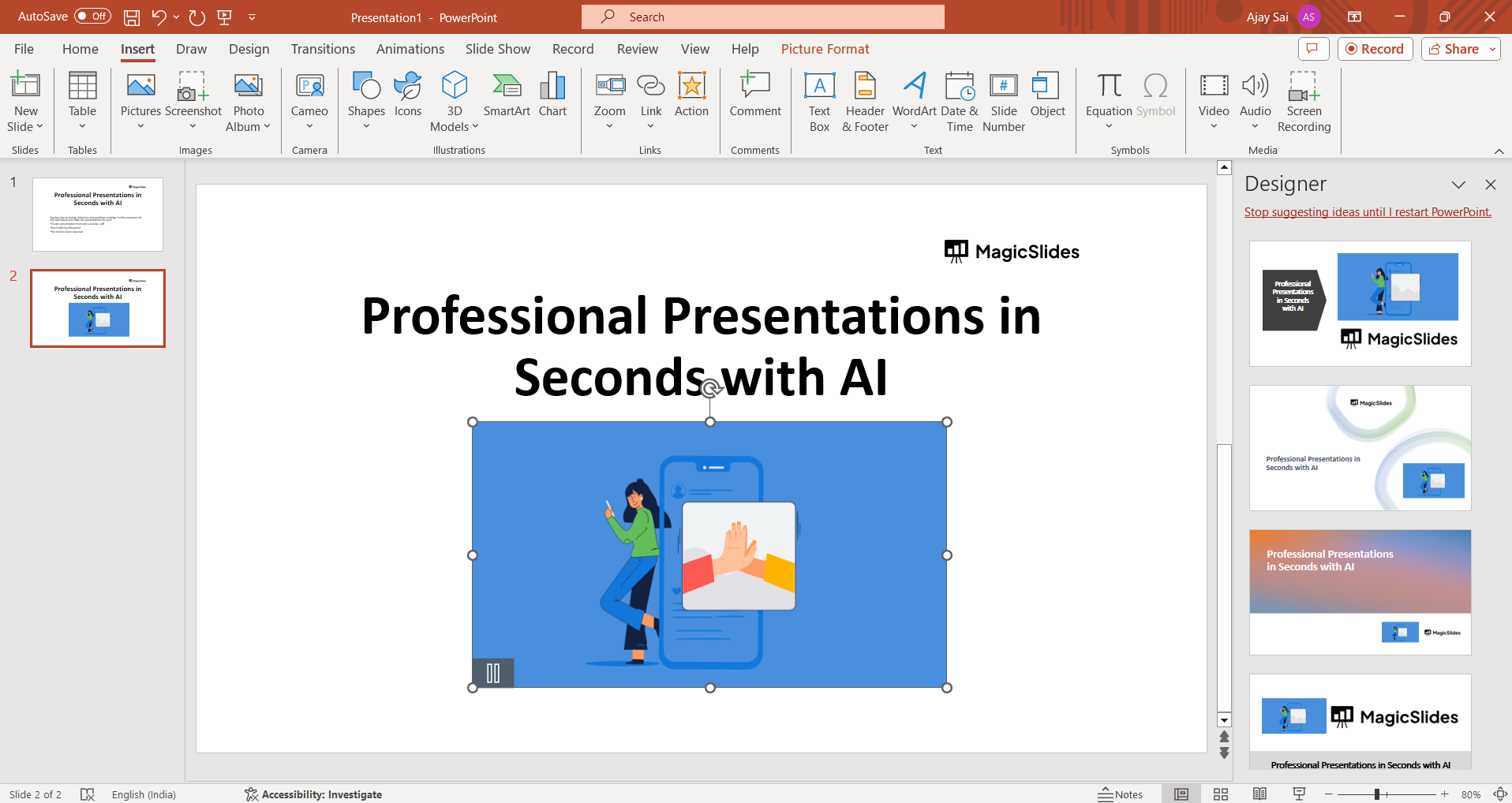
Tip: Resize the GIF using the corner handles to maintain its original aspect ratio and avoid stretching the animation.
Step 5. Preview the Animation
While editing your presentation, the GIF may appear as a static image. Start Slide Show (or press F5) to preview the animation and make sure it plays correctly.
Step 6. Save Your Presentation
Save your PowerPoint presentation (Ctrl + S on Windows or Cmd + S on Mac) to preserve the inserted GIF.
How to Insert an Online GIF into PowerPoint?
If you don’t already have a GIF saved on your computer, newer versions of Microsoft PowerPoint let you search for and insert GIFs directly from the web.
- Open the Insert tab.
- Click Online Pictures.
- Search for a GIF.
- Select your preferred animation.
- Click Insert.
This feature is available in most modern versions of Microsoft PowerPoint and is one of the quickest ways to insert GIFs without downloading them manually.
Why Is My GIF Not Animating?
If your GIF isn’t playing, check the following:
- You’re viewing the presentation in Slide Show mode.
- The GIF wasn’t converted into a static image during editing.
- The file isn’t corrupted.
- You’re using a PowerPoint version that supports animated GIFs.
- If the GIF still doesn’t animate, try opening it in a web browser. If it doesn’t play there either, the GIF file may be corrupted and should be replaced.
Best Practices for Using GIFs in PowerPoint
To keep your presentation professional:
- Use GIFs only when they support your message.
- Keep animations short and relevant.
- Avoid adding too many GIFs on one slide.
- Compress large GIF files if your presentation becomes slow.
- Use high-quality GIFs to avoid blurry visuals.
- Make sure the GIF enhances your content instead of distracting your audience.
Can You Add GIFs to PowerPoint on Mac?
Yes. The process is nearly identical on Mac. Open your presentation, go to Insert > Pictures > Picture from File, select your GIF, and insert it into the slide. Animated GIFs will play automatically when you run the presentation in Slide Show mode.
Create Better PowerPoint Presentations Faster
Instead of designing every slide manually, AI presentation tools can help generate professional presentations in minutes.

With MagicSlides AI, you can create complete PowerPoint presentations from a topic, document, PDF, YouTube video, or webpage. The AI automatically generates slides, layouts, images, and speaker-ready content, helping you create professional presentations in minutes while saving hours of manual work.
Whether you’re creating educational slides, business presentations, or pitch decks, it can significantly reduce your presentation creation time.
Conclusion
Adding GIFs to PowerPoint is an easy way to make your presentations more dynamic and memorable. Simply insert the GIF like an image, position it on your slide, and preview it in Slide Show mode to see the animation. When used thoughtfully, GIFs can improve audience engagement, explain ideas visually, and make your presentations more impactful.
Frequently Asked Questions (FAQs)
Q1. Can I resize a GIF in PowerPoint?
Yes. Select the GIF and drag the corner handles to resize it while maintaining its proportions.
Q2. Do GIFs play automatically in PowerPoint?
Yes. Animated GIFs automatically play when the slide is displayed in Slide Show mode.
Q3. Can I insert online GIFs directly into PowerPoint?
Yes. Most recent versions of Microsoft PowerPoint include the Online Pictures feature, allowing you to search for and insert GIFs directly.
Q4. Why does my GIF appear as a still image?
GIFs only animate during Slide Show mode. While editing slides, they typically appear as static images.
Q5. Can I control how many times a GIF loops?
PowerPoint follows the looping settings embedded within the GIF itself. To change the looping behavior, you’ll need to edit the GIF before inserting it into your presentation.
Q6. Will adding GIFs increase my PowerPoint file size?
Yes. Large or multiple GIFs can significantly increase your presentation’s file size. Compressing GIFs before inserting them can help keep the presentation lightweight.


