How to keep Glare and Shadows in Canva


Enhance your Canva designs by preserving glare and shadows for a professional and realistic touch
Glare and shadows can add depth, realism, and a professional touch to your designs.
Whether you’re creating graphics for social media, presentations, or marketing materials, maintaining these effects is crucial to preserving the aesthetic appeal of your work.
In this guide, we’ll walk you through how to keep glare and shadows in Canva to elevate your designs effectively.
How to Keep Glare and Shadows in Canva | Steps to Keep Glare and Shadows in Canva
Step 1: Open Canva and Your Design
Log in to your Canva account and open the design project you want to enhance.

If you don’t have a design yet, create one by selecting a template or a custom size.
Step 2: Add an Image with Glare or Shadows
Go to the Uploads tab and upload an image that naturally contains glare or shadows.
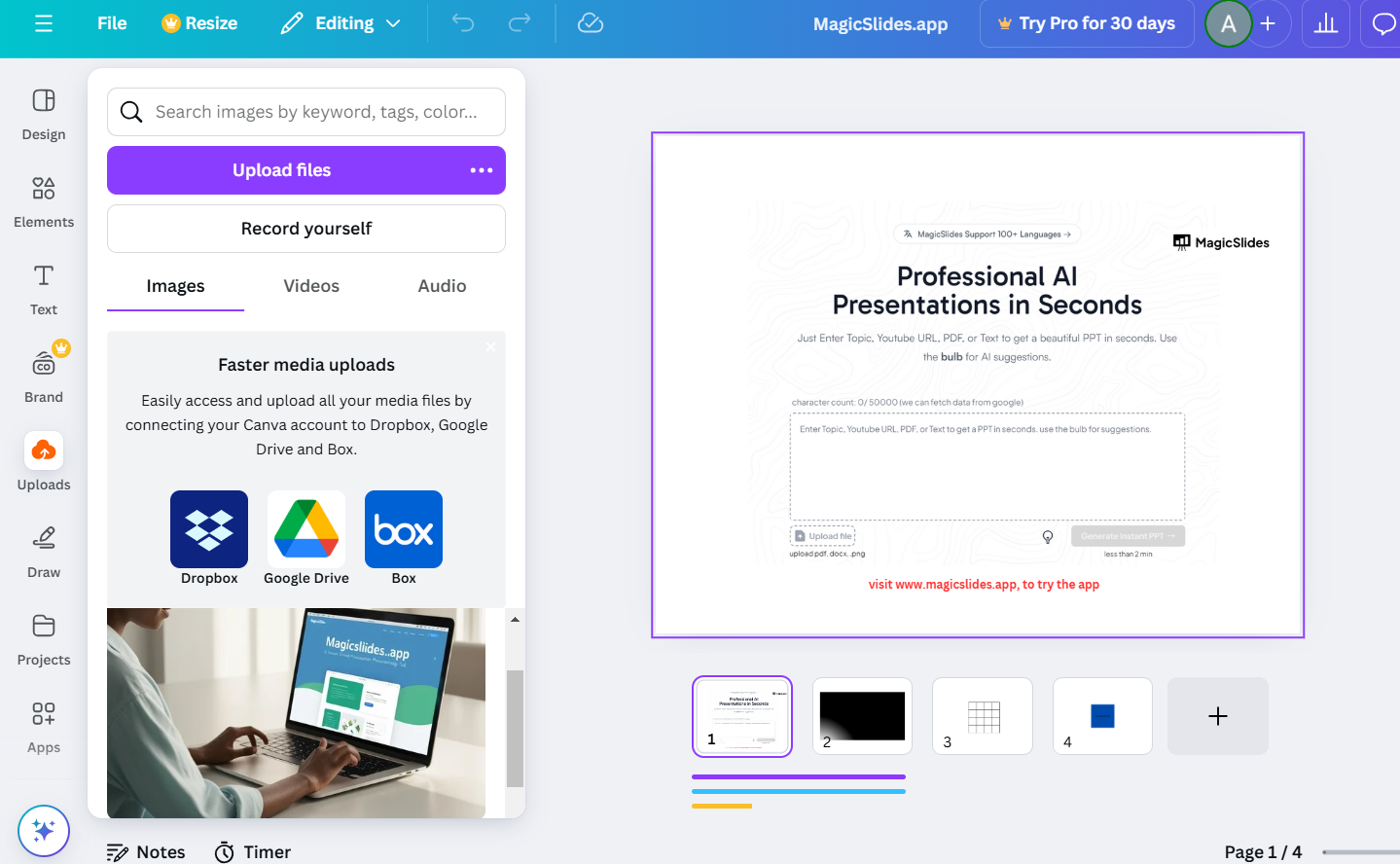
Alternatively, choose an image from Canva’s built-in library by searching for relevant keywords like "shadow" or "glare."
Step 3: Avoid Overwriting Effects
When editing the image, be cautious with adjustments like brightness, contrast, or saturation, as these can diminish glare and shadow effects.
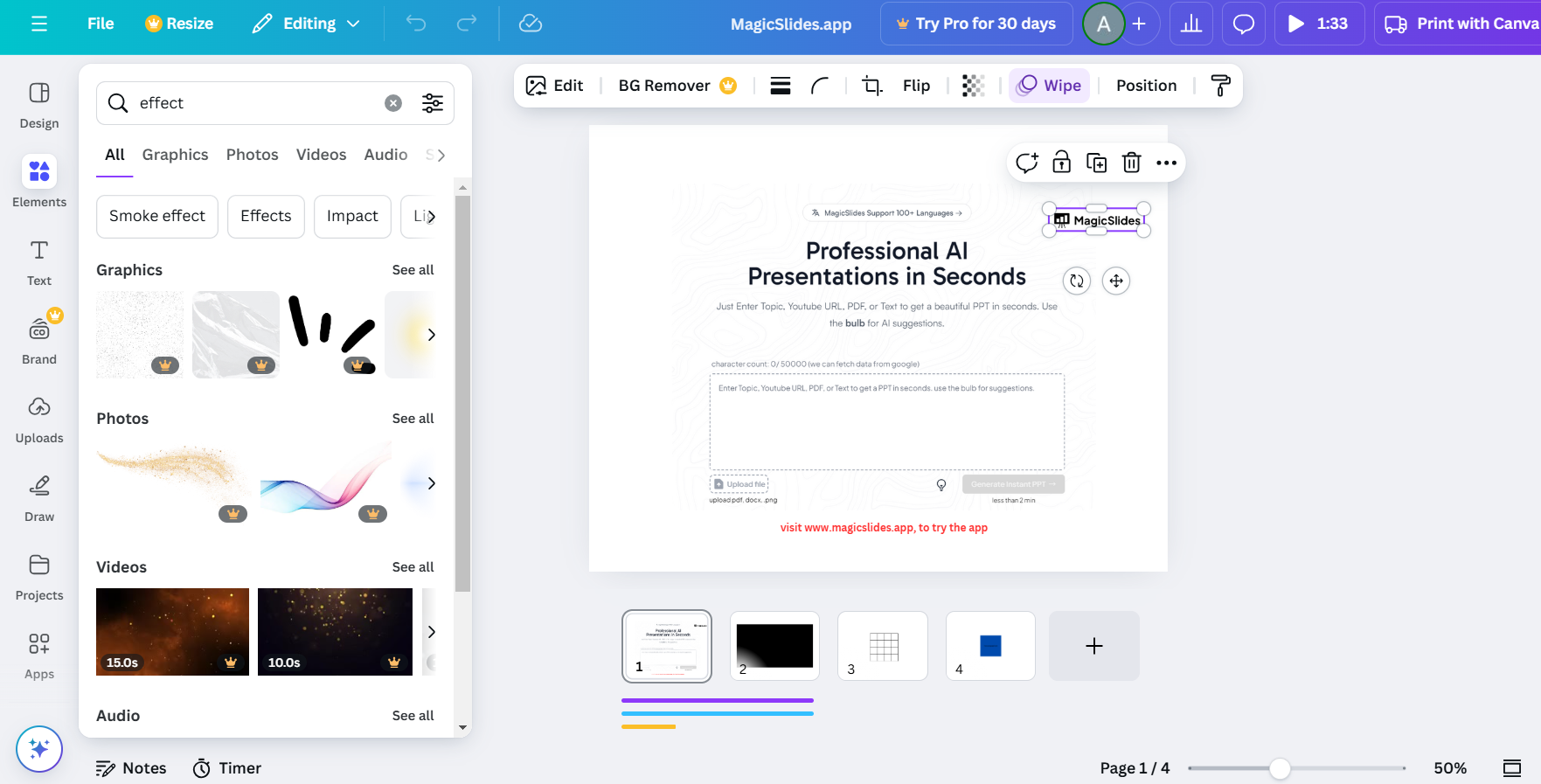
To retain these elements, make subtle changes to ensure the natural effects are preserved.
Step 4: Add or Enhance Shadows in Canva
If the existing shadows are too faint or missing, you can add them manually:
- Click on the image, then go to the Effects panel.
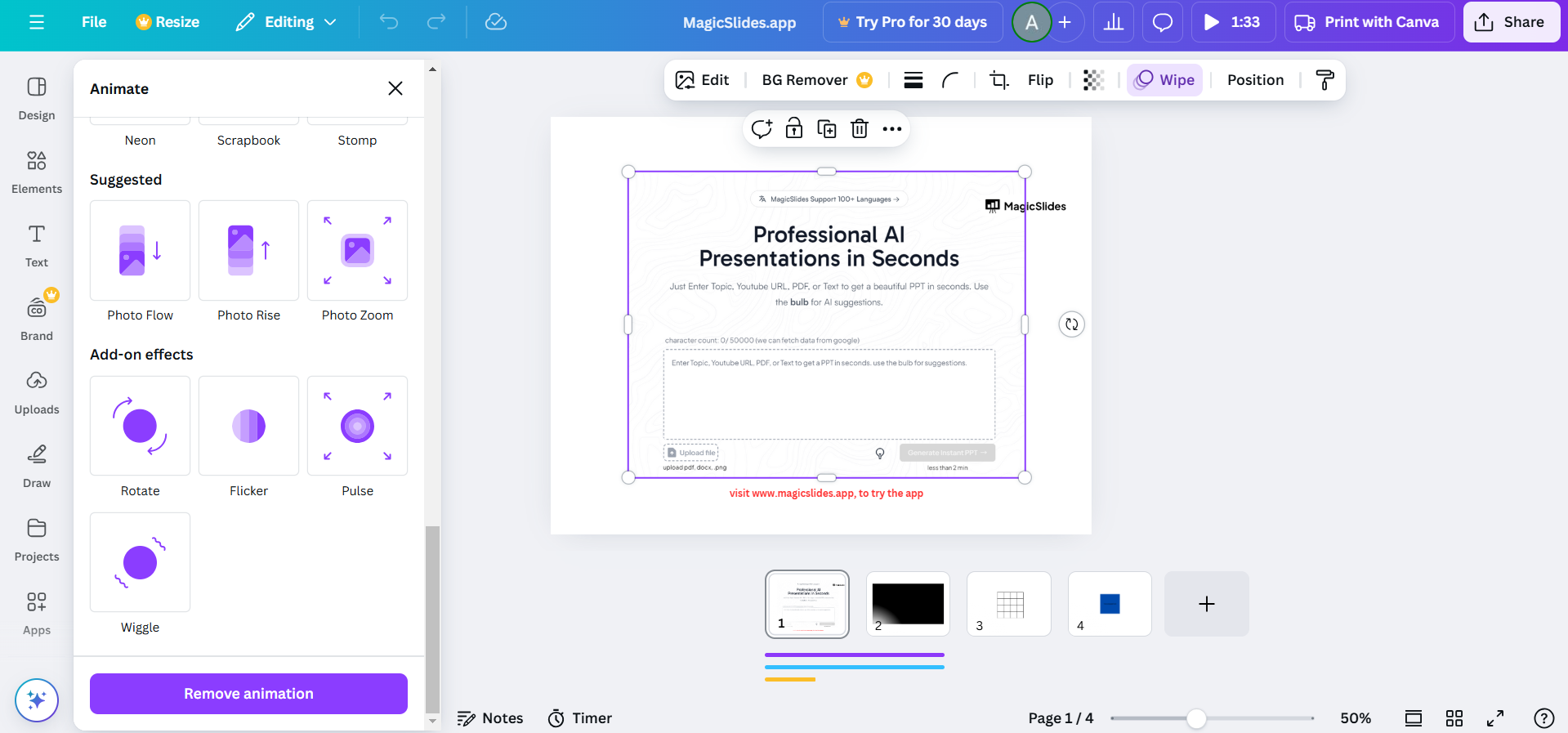
- Select the Shadow effect and adjust the settings for blur, transparency, and angle to match the original glare or shadow.
Step 5: Save and Export
Once satisfied with your design, save your project by clicking the “Download” button in the top-right corner.
Choose a high-resolution format like PNG to retain the glare and shadow details. After mastering glare and shadows in Canva, take your skills further by learning how to create a repeated pattern in Canva for seamless backgrounds.
Conclusion
Keeping glare and shadows in Canva can significantly enhance the depth and realism of your designs.
By following these steps, you can preserve and even enhance these effects, ensuring your projects look polished and professional.
Experiment with Canva’s tools and features to find the perfect balance for your design needs.
FAQs on Keeping Glare and Shadows in Canva
Can I adjust the intensity of shadows in Canva?
Yes! Use the Effects panel to customize the shadow’s blur, transparency, and direction for a more realistic look.
How do I enhance natural glare in Canva?
You can use light-colored shapes with reduced transparency to mimic or enhance the glare effect on your image.
Does Canva support high-resolution exports for designs with shadows and glare?
Yes! Export your design in PNG or PDF format for high-quality output that retains all effects.
By mastering glare and shadow techniques in Canva, you can create visually compelling designs that stand out.


