Addon google slides iconPPT with AISlide TemplatesPPT TemplatesPricingBlog
    PPT with AISlide TemplatesPPT TemplatesPricingBlog
    1. Home
    2. Blog
    3. How to make a correct answer on Google forms


    How to make a correct answer on Google forms

    magicslides app

    Published By

    magicslides app
    Sanskar Tiwari

    Approved By

    Sanskar Tiwari

    Published On

    January 13th, 2025

    Reading Time

    3 min read

    Elevate your Google Forms with precision by mastering the art of setting correct answers effortlessly.

    Creating effective and accurate assessments is essential for any Google Forms user. In this comprehensive guide, we'll walk you through the process of setting correct answers on Google Forms. Whether you're designing quizzes, surveys, or evaluations, ensuring your form recognizes correct responses is key to obtaining meaningful data. Follow these step-by-step instructions to streamline your form creation process and deliver accurate results.

    How to make a correct answer on Google forms

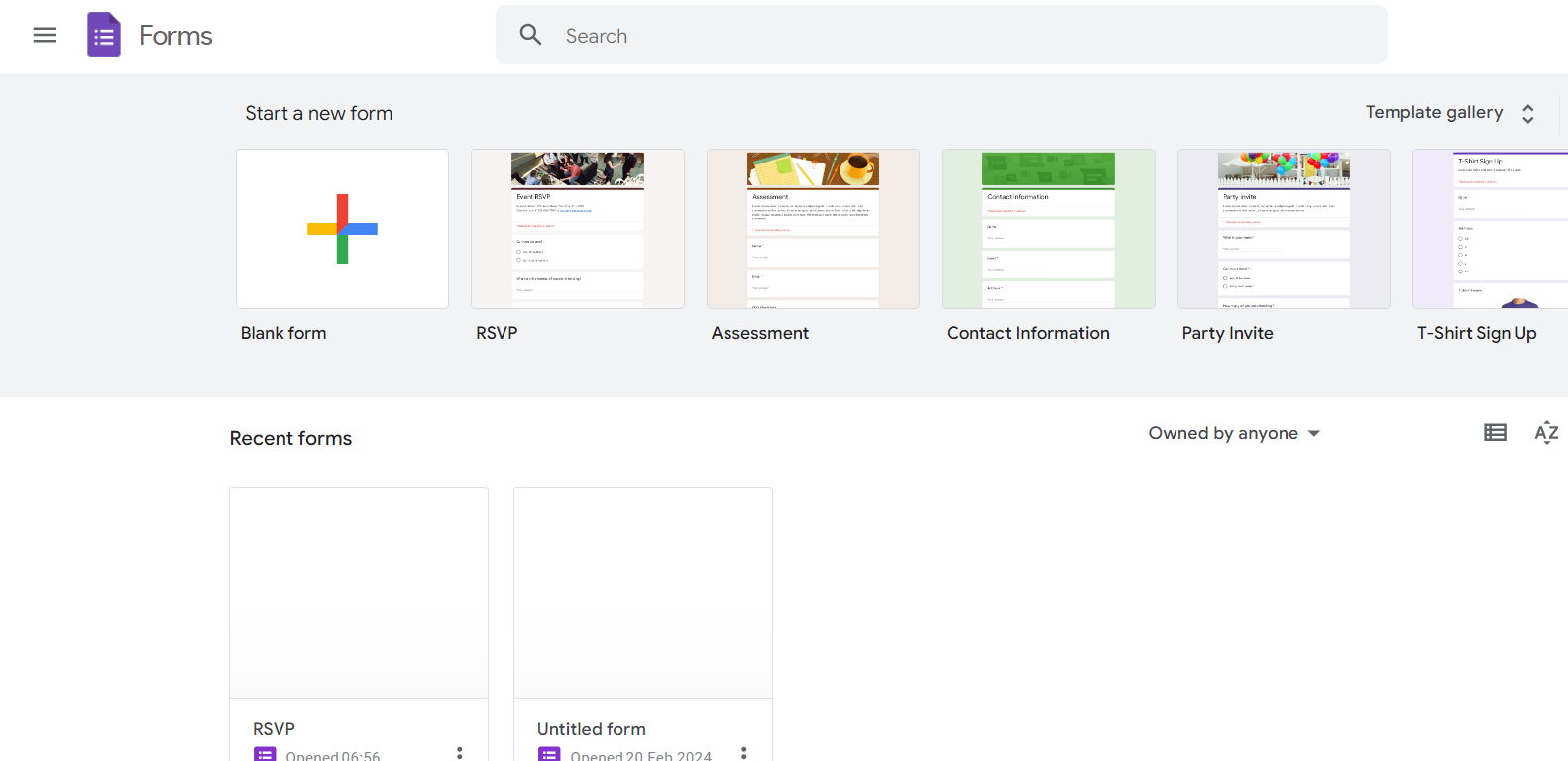
    Step 1: Create a Google Form

    Begin by creating your Google Form, adding questions, options, and any necessary details. Choose the question type that best fits your assessment, whether it's multiple-choice, short answer, or another format.
    notion image

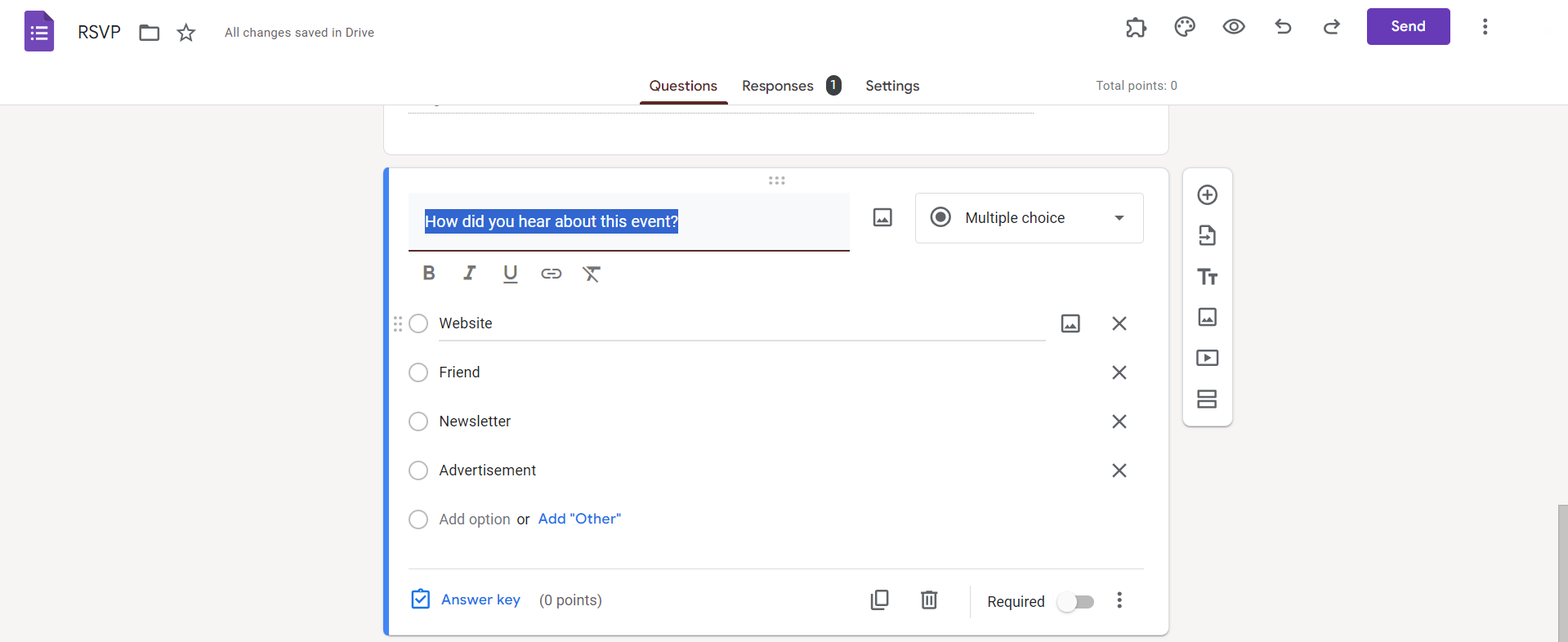
    Step 2: Add a Question with Answer Key

    For questions requiring specific answers, add the question to your form. Click on the three dots beside the question and select "Answer Key." This option is available for multiple-choice, checkbox, and dropdown questions.
    notion image

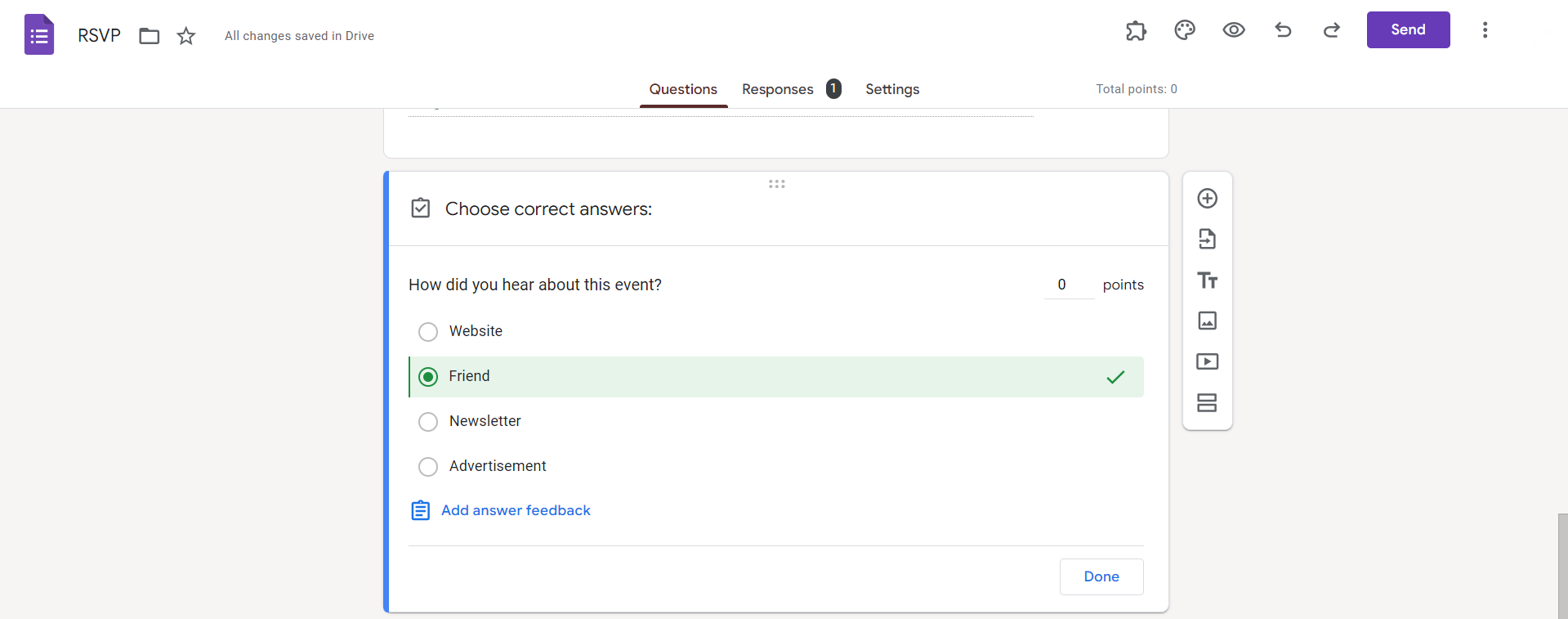
    Step 3: Mark Correct Answers

    Within the Answer Key section, mark the correct answer(s) for the question. If applicable, assign point values for each correct response.
    notion image

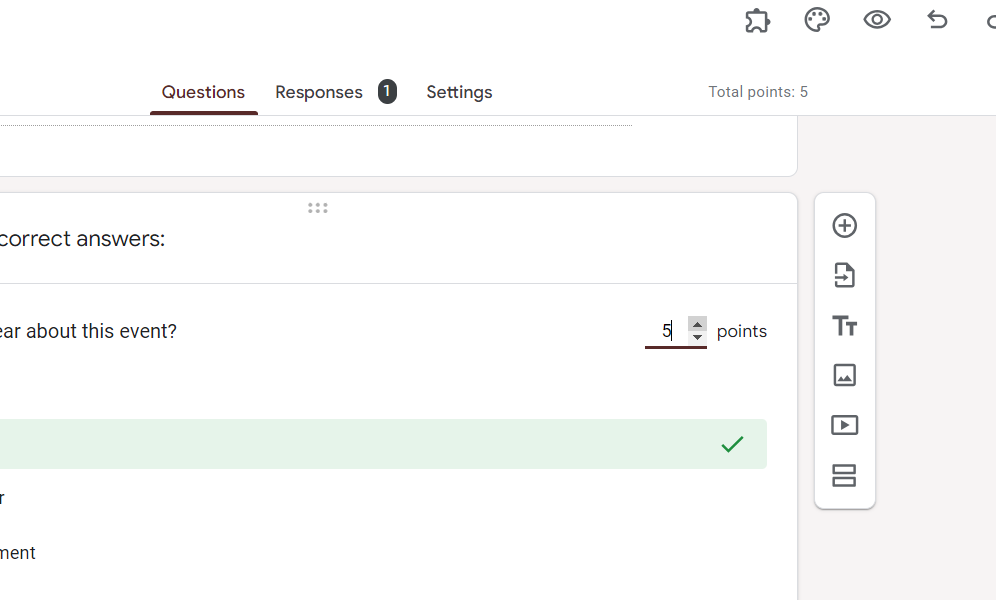
    Step 4: Set Point Values (Optional)

    Assign point values to questions if you want to grade your form automatically. This step is especially useful for quizzes. Click on "Answer Key," and you'll find the option to set points for each correct answer.
    notion image

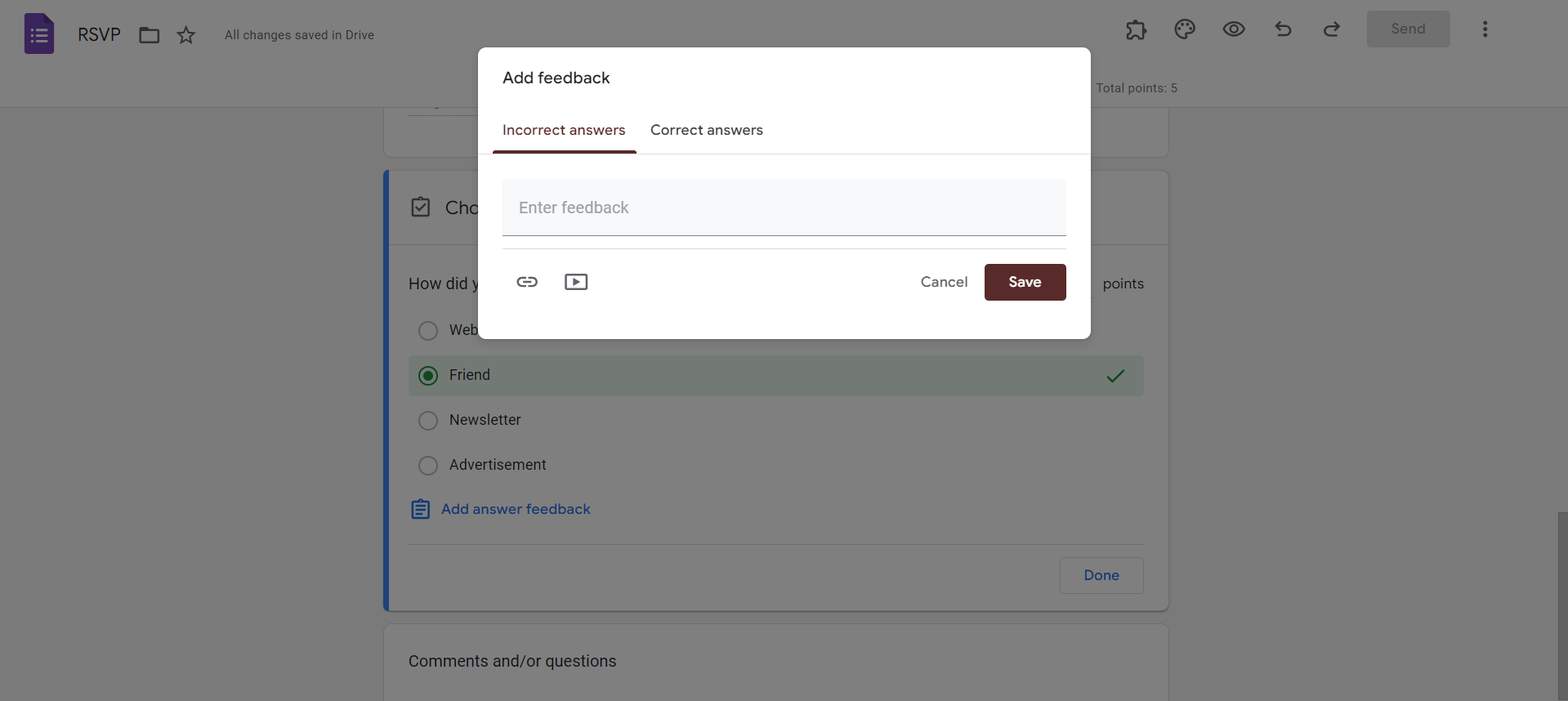
    Step 5: Customize Feedback (Optional)

    Enhance the user experience by providing customized feedback for correct and incorrect responses. Within the Answer Key section, add feedback for each potential outcome.
    notion image

    Conclusion:

    Setting correct answers on Google Forms is a crucial aspect of form creation, ensuring accurate data collection and efficient assessment. With these step-by-step instructions, you have the tools to effortlessly mark correct responses, assign points, and provide insightful feedback. Whether you're a teacher managing quizzes or a professional gathering feedback, this guide empowers you to make the most of Google Forms' capabilities. Create engaging and effective assessments with confidence, knowing that your form is accurately recognizing correct answers and providing a seamless user experience for respondents.

    Frequently Asked Questions:

    Can I set multiple correct answers for a single question on Google Forms?

    No, Google Forms currently supports only one correct answer per question for automatic grading.

    What happens if a respondent provides a different but acceptable answer?

    Google Forms allows you to manually review and adjust grades for cases where responses may vary.

    Is it possible to edit correct answers after I've created the form?

    Yes, you can revisit your form, select the question, and adjust the correct answer as needed.

    Can I use Google Forms to create assessments with partial credit for each question?

    As of now, Google Forms primarily supports assigning full points for correct answers, not partial credit.

    Share on socials

    About the author

    Mehjabi Khan profile photo
    Mehjabi Khan— Writer

    Mehjabi Khan is one of our talented writers with a background in creating content for major companies like Mahindra and Suzuki. She has a knack for explaining complex ideas in a way that’s easy to understand and enjoyable to read. When she's not writing, Mehjabi loves to cook, bringing the same creativity to her recipes as she does to her articles.

    More from Mehjabi

    More from the blog

      250+ Good Morning Messages for Her (Romantic, Deep, Cute & Sweet)

      30 January 2026

      200+ Heart Touching Birthday Wishes for Sister (Short, Funny and More)

      29 January 2026

      50+ History Presentation Topics For 2026

      28 January 2026

      How to Add Music to Your Canva Presentation: A Step-by-Step Guide

      27 January 2026

      15 Quick Tips To Use ChatGpt At Work

      22 January 2026

      11 Best AI Tools for Business in 2025

      22 January 2026

      How to Create an Infographic That Clearly Communicates Your Message

      20 January 2026

      How to Create a Sales Presentation Template in Google Sheets

      20 January 2026

      How to Make a Pie Chart on Google Slides in Simple Steps

      19 January 2026

    Table of Contents

    Create Presentations in Seconds

    Transform your ideas into professional presentations with AI. No design skills needed.

    Try MagicSlides Free

    Create Stunning Presentations with AI in Seconds ✨

    Transform any topic, text, YouTube video, PDF or URL into beautiful presentations instantly with MagicSlides AI.

    Try MagicSlides AI Presentation Maker
    MagicSlides AI Presentation

    Footer

    Solutions

    • MagicSlides App
    • Google Slides Add-on
    • MagicSlides in Chrome
    • MagicSlides in Figma
    • MagicSlides in ChatGPT
    • MagicSlides in Telegram
    • MagicSlides in Zapier
    • MagicSlides in Figma Slides

    Tools

    • AI PPT Tools
    • QR Code Generator
    • Design Tools
    • PPT Templates
    • Slide Templates
    • PDF Tools

    Examples

    • AI Presentations
    • PPT by MagicSlides
    • Quizzes
    • Charts
    • Coloring Pages

    Resources

    • Changelog
    • Documentation
    • API Docs

    Top Blogs

    • How to Create Presentation Using ChatGPT
    • 100+ Best Seminar Topics for Students in 2025

    Company

    • Help
    • MCP
    • Blog
    • Pricing
    • Affiliate Program
    • Manage Subscription
    • Privacy Policy
    • Contact Us
    • Terms & Conditions
    • Refund & Cancellation Policy

    We also built

    • SheetAI - GPT For Sheets
    • MagicForm - GPT For Google Forms
    • SecondBrain.fyi
    • BlogBee - Free Blogging Platform

    © 2026 IndianAppGuy Tech Pvt Ltd. All rights reserved.