how to make a picture transparent in power point


Learn the creative art of making an image transparent in PowerPoint for captivating, visually appealing presentations.
In Microsoft PowerPoint, making an image transparent is a powerful technique that can enhance your presentations by blending images seamlessly into your content. The transparency effect can be used for overlays, watermarks, or creative design. In this comprehensive guide, we will provide step-by-step instructions on how to make a picture transparent in PowerPoint, allowing you to create captivating and visually appealing slides.
Steps to Make a Picture Transparent in PowerPoint:
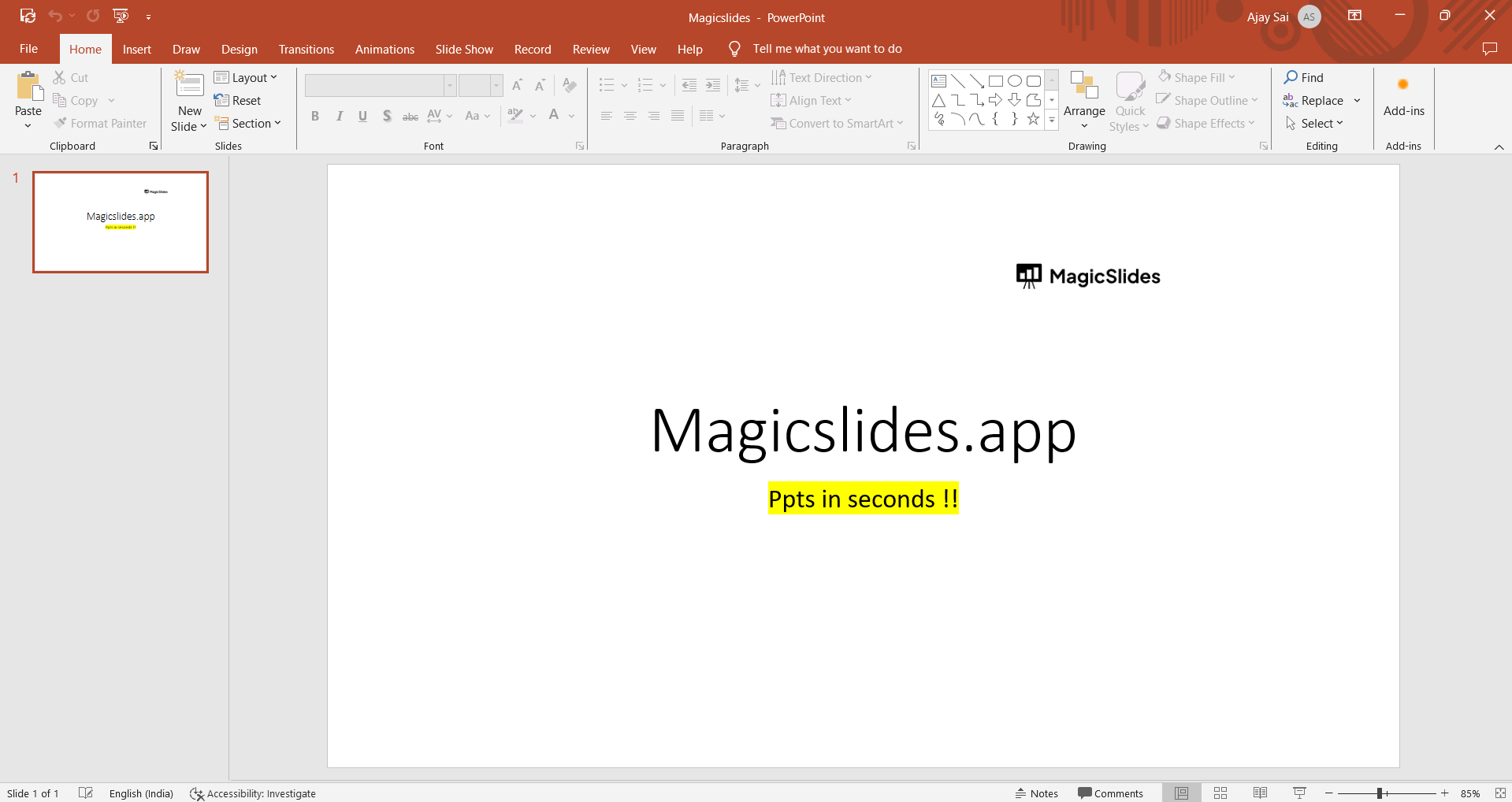
→ Open Your PowerPoint Presentation:
- Start by launching Microsoft PowerPoint and opening the presentation where you want to make a picture transparent.
→ Insert the Image:
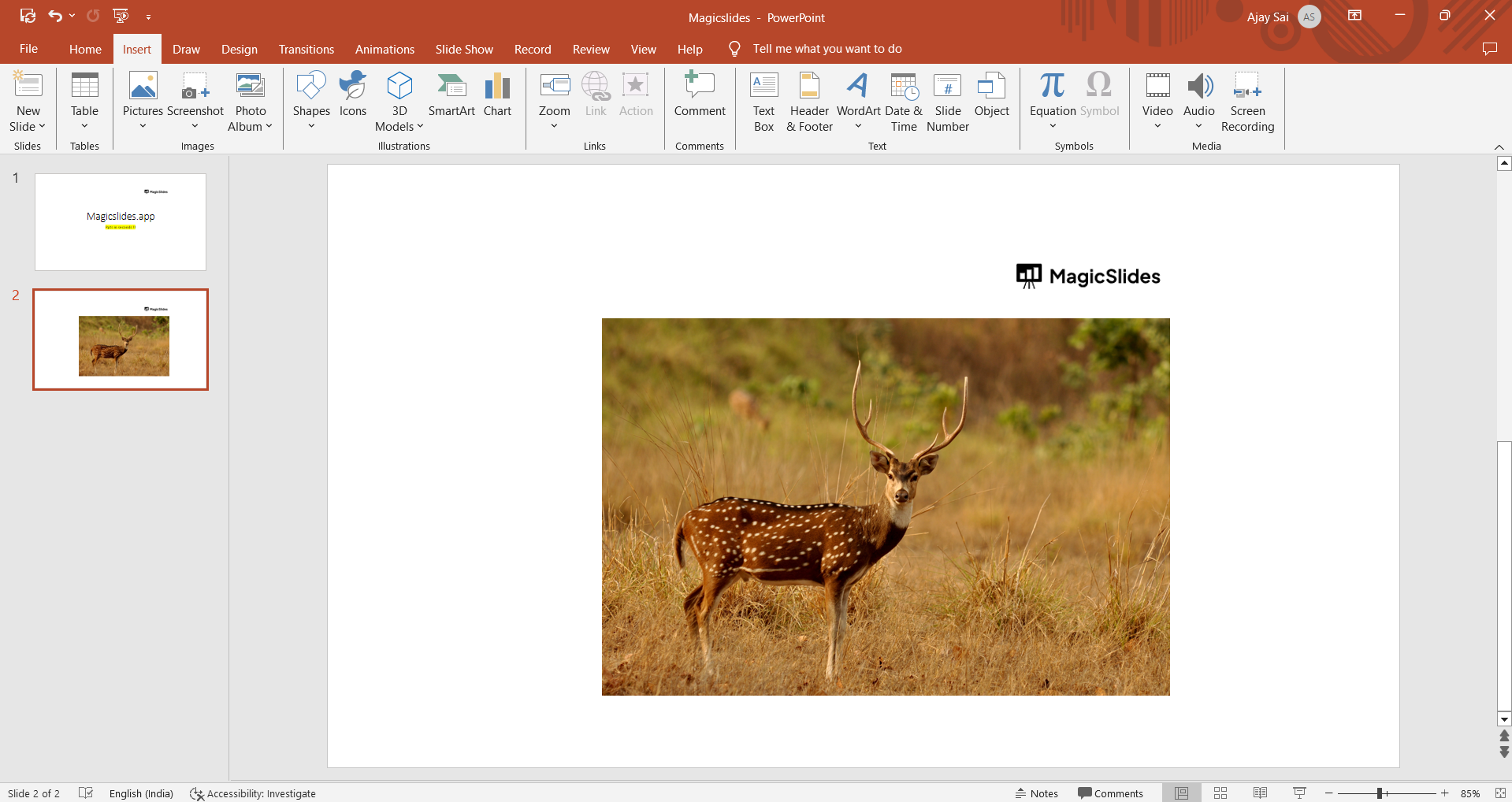
- Navigate to the slide where you wish to add the transparent image and click on the "Insert" tab in the PowerPoint ribbon.
→ Add the Picture:
- Select "Picture" to insert the image you want to make transparent. Browse your files and choose the desired image.
→ Select the Image:
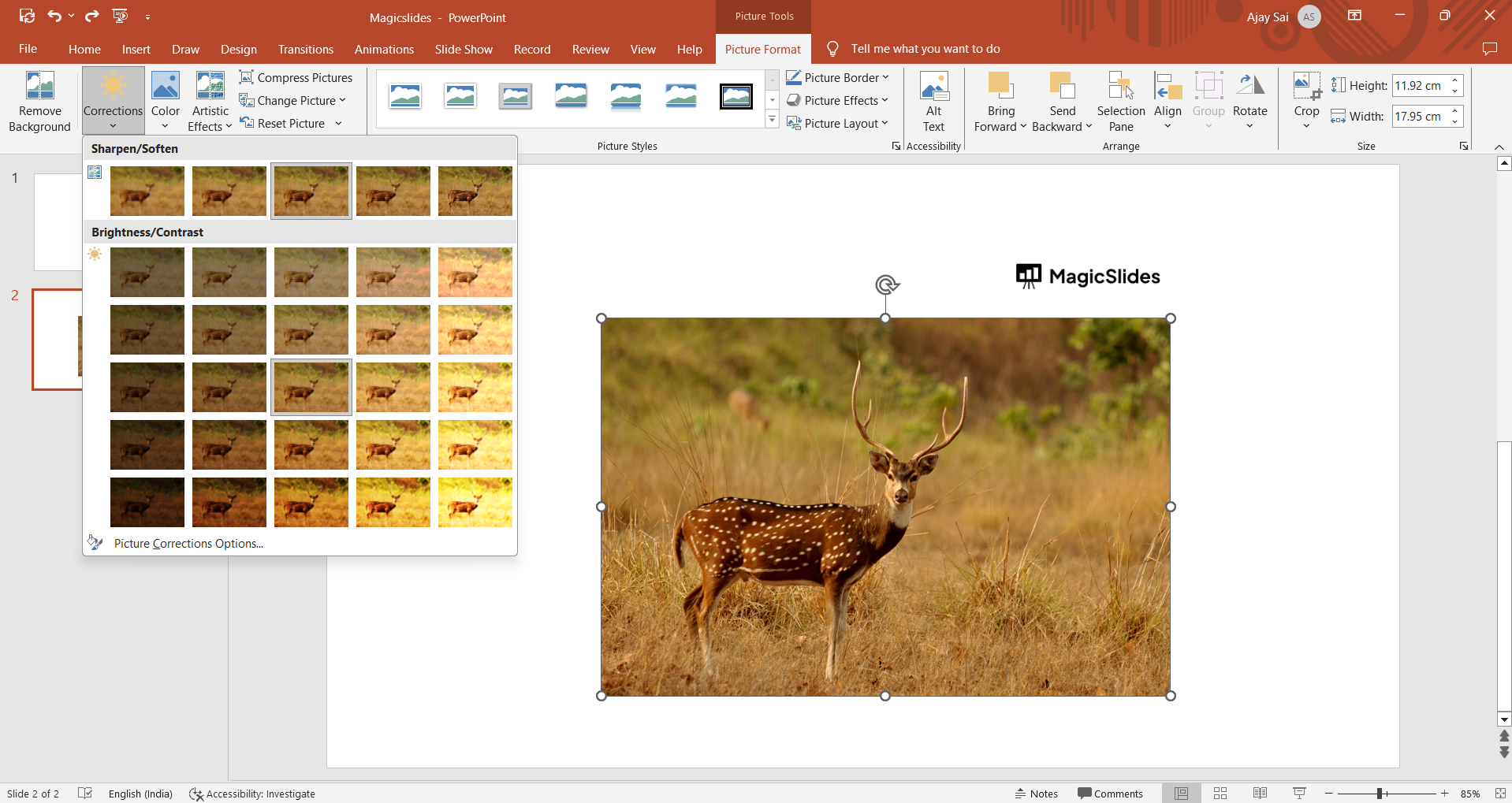
- Click on the inserted image to select it. You will notice the "Picture Format" tab appear in the ribbon.
→ Access the Picture Format Tab:
- Click on the "Picture Format" tab to reveal the formatting options.
→ Adjust the Transparency:
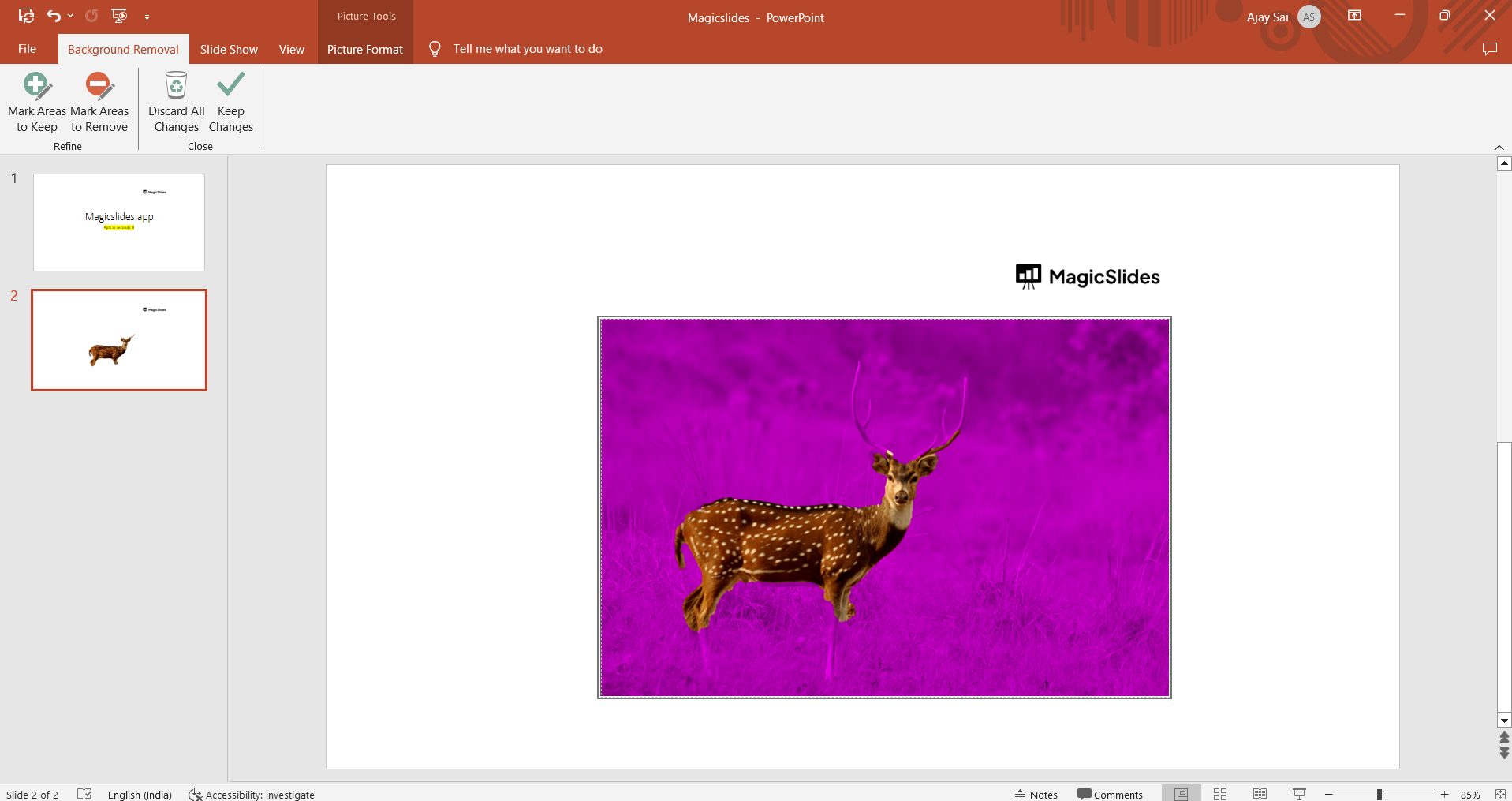
- Locate the "Transparency" slider or "Picture Transparency" option, which may vary slightly depending on your PowerPoint version. Slide the transparency control to the desired level. This action will gradually make the image transparent, allowing the slide background to show through.
→ Fine-Tune Transparency (Optional):
- If needed, you can further fine-tune the transparency by right-clicking the image and selecting "Format Picture." In the Format Picture pane, adjust the transparency percentage under the "Fill" section.
→ Check Your Transparency:
- Review the slide to ensure that the image has the desired level of transparency. You can repeat the process for additional images or slides as needed.
→ Save Your Presentation:
- Once you are satisfied with the transparency effect, save your presentation to retain the changes.
Conclusion:
The ability to make a picture transparent in PowerPoint can significantly enhance your presentations, allowing you to create engaging and visually appealing slides.
By following these detailed steps, you can seamlessly incorporate transparent images for overlays, watermarks, or creative design elements, elevating the impact and professionalism of your PowerPoint presentations.
Creating visually appealing transparent images easy not just in your PowerPoint but also to your Google Slides from here with this simple trick
frequently asked questions (FAQs)
What are some practical applications for making an image transparent in PowerPoint?
The transparency effect in PowerPoint can be used for various purposes, such as creating overlays, watermarks, blending images into the background, and enhancing design aesthetics in your slides.
Does the process of making a picture transparent work with all image file formats?
Yes, you can make images transparent regardless of their file format. PowerPoint supports a wide range of image file formats, including JPG, PNG, GIF, and more.
Can I adjust the transparency of an image after I've already placed it on a slide?
Absolutely, you can easily adjust the transparency of an image at any time. Select the image, access the "Picture Format" tab, and modify the transparency level as needed.
Are there recommended transparency levels for different types of content or images?
The appropriate transparency level varies based on your design objectives. Typically, it's best to choose a transparency level that complements your overall slide design and ensures that your content remains legible and visually appealing.


