How to make images transparent on google slides

Enhance your Google Slides with transparency. Learn to create captivating visuals through transparent image mastery.
In the expansive realm of digital presentations, Google Slides emerges as a versatile platform, offering a seamless experience akin to traditional software like Microsoft PowerPoint. One impactful feature within Google Slides is the ability to make images transparent, adding a layer of sophistication to your presentations.
In this comprehensive guide, we'll navigate the step-by-step process, empowering you to master the art of image transparency.
How to make images transparent on google slides
Step 1: Open the Presentation File
Commence your journey by accessing Google Slides through your browser.
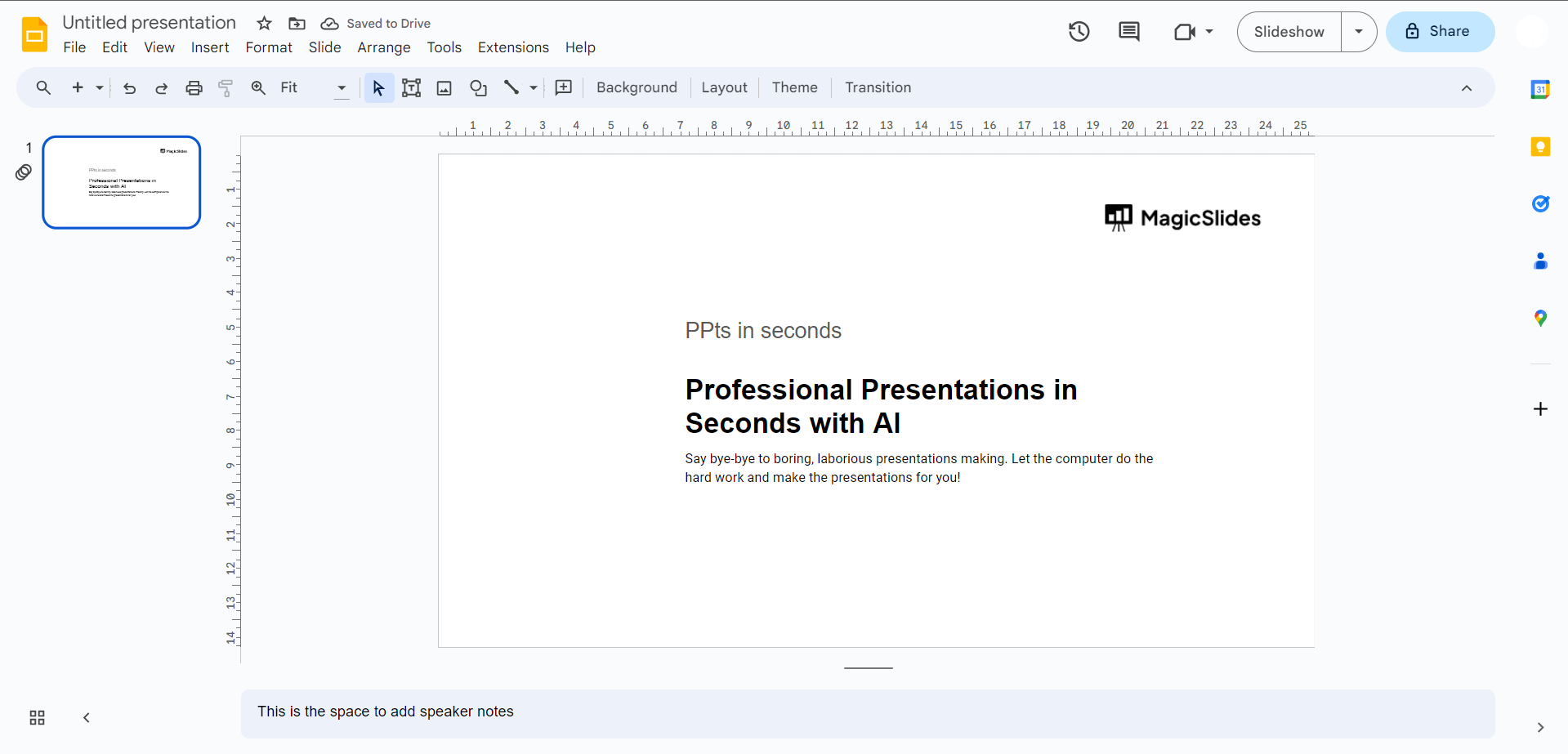
Open your desired presentation file by clicking on the Folder icon and selecting the location for uploading your file in the ensuing pop-up window.
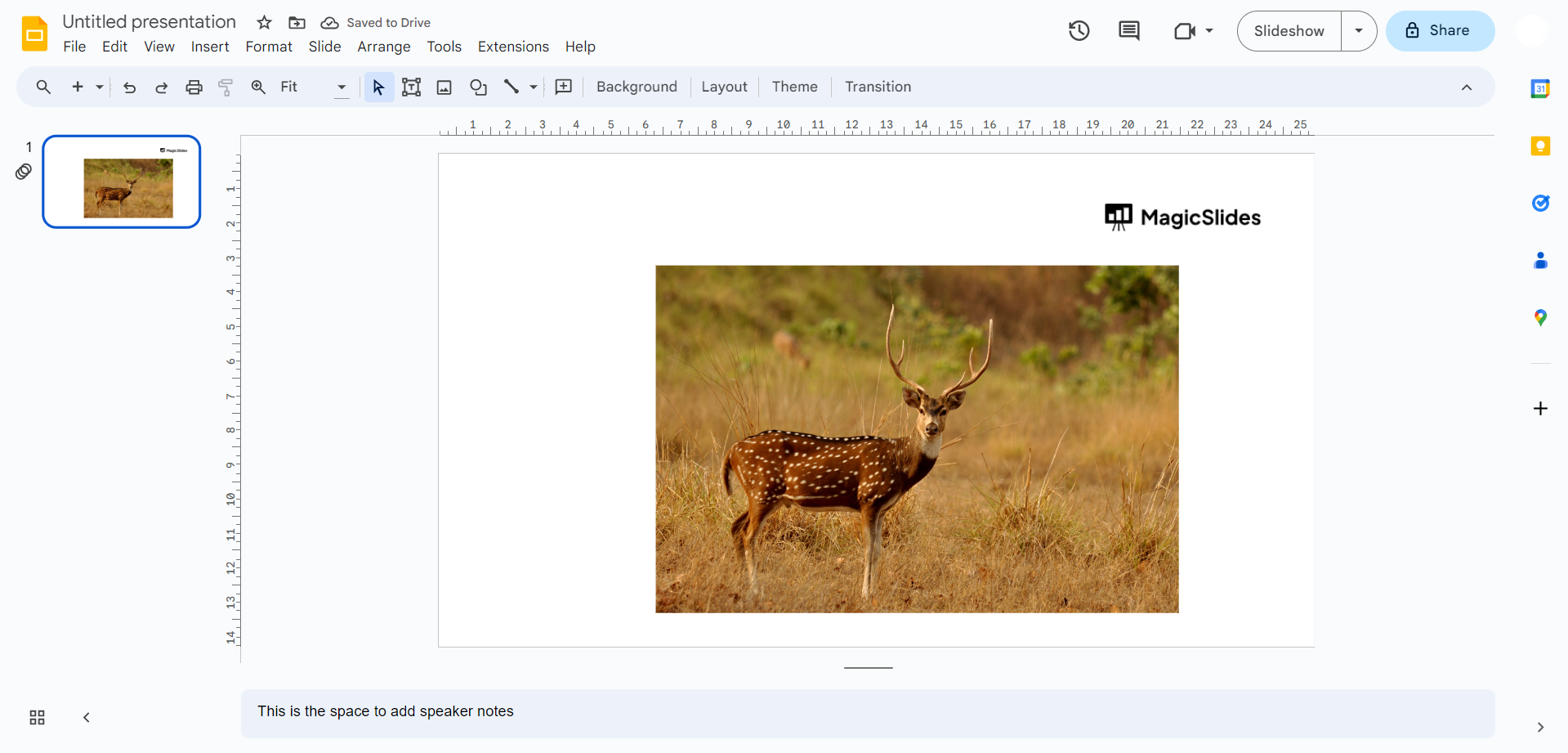
Step 2: Access Format Options
Once your presentation file is open, right-click on the image you wish to make transparent. In the drop-down menu, select "Format Options" to unveil a spectrum of editing possibilities.
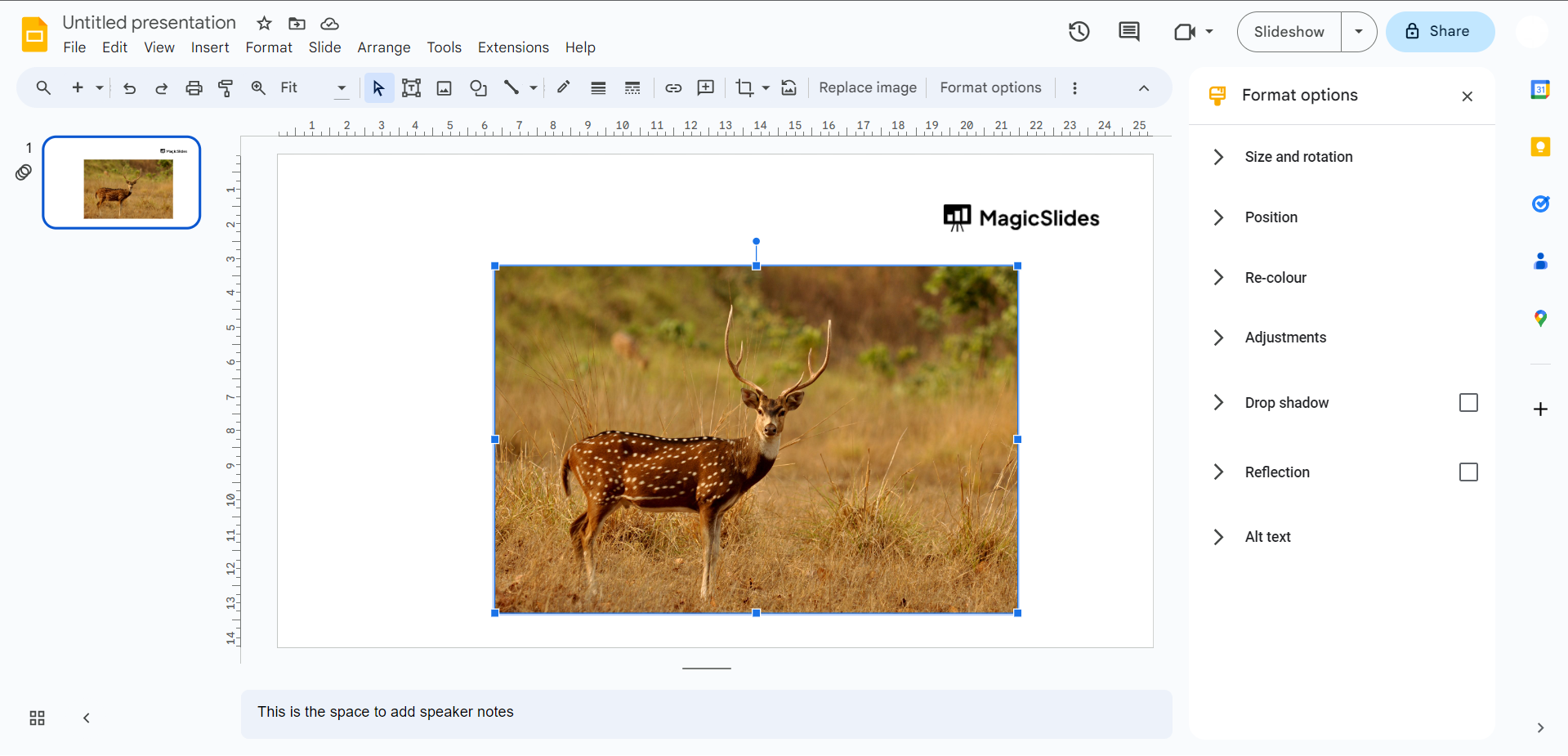
Step 3: Make Image Transparent
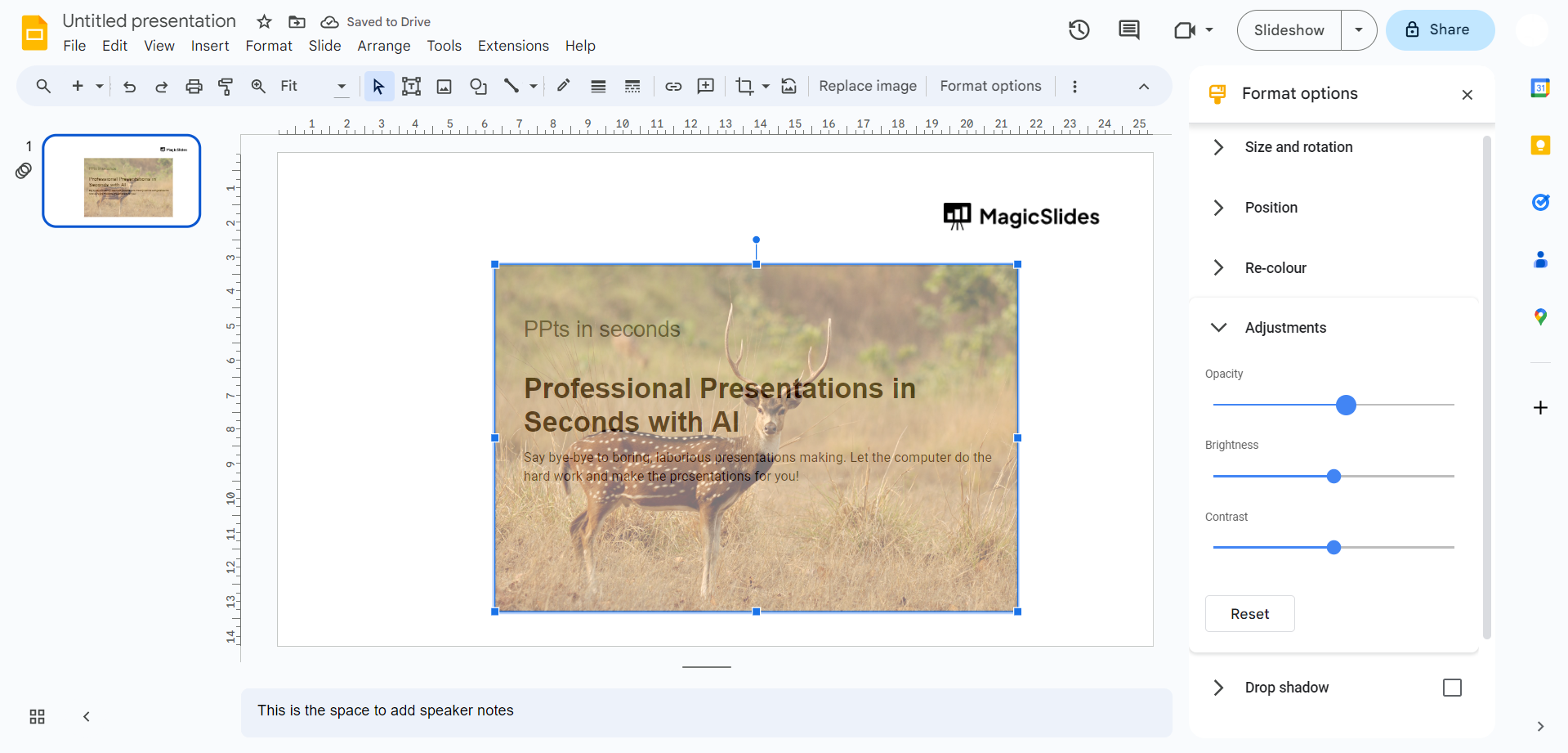
A panel on the right side unfolds, offering various editing options. Under "Adjustments," click the arrow-head and navigate to "Transparency." Slide the transparency adjuster to the right to gradually make the image transparent, achieving the desired effect.
Conclusion
By following these intuitive steps, you've successfully unlocked the capability to make images transparent in Google Slides. This newfound skill empowers you to create visually stunning presentations that captivate your audience. Experiment with transparency levels, blend visuals seamlessly, and elevate your slides to new heights. Google Slides, with its user-friendly interface, ensures that your presentation journey is not only efficient but also creatively enriching.
Frequently Asked Questions:
Q1: Can I make only a specific portion of an image transparent in Google Slides?
A: As of now, Google Slides allows transparency adjustments for the entire image, not specific sections.
Q2: Will making an image transparent affect its quality or resolution?
A: Transparency adjustments in Google Slides shouldn't compromise image quality. Ensure the source image has adequate resolution.
Q3: Can I revert to the original image if I change my mind about transparency?A: Yes, simply revisit "Format Options," navigate to "Transparency," and slide the adjuster back to 0 for full opacity.
Q4: Does image transparency in Google Slides work for all file formats?
A: Yes, Google Slides supports transparency for various image formats, including PNG and GIF, preserving the intended visual effect.
Have a look @these info blogs:
- How To Mirror Images In Powerpoint: https://www.magicslides.app/blog/How-to-mirror-images-in-powerpoint
- How To Add Gif In Google Slides: https://www.magicslides.app/blog/How-to-add-gif-in-google-slides
- How To Turn A Powerpoint Into Google Slides: https://www.magicslides.app/blog/How-to-turn-a-powerpoint-into-google-slides
- How To Group Objects In Powerpoint: https://www.magicslides.app/blog/How-to-group-objects-in-powerpoint