How to mirror images in powerpoint


Transform your PowerPoint visuals effortlessly by learning to mirror images with this simple step-by-step guide.
Enhance your PowerPoint visuals with mirrored images using this straightforward guide, This step-by-step guide unlocks the art of transforming visuals, allowing you to captivate your audience with unique and engaging slides. Discover the power of mirroring in PowerPoint through this user-friendly tutorial.
How to mirror images in powerpoint
Launch PowerPoint and Insert Image:
Open PowerPoint and insert the image you wish to mirror onto your slide.
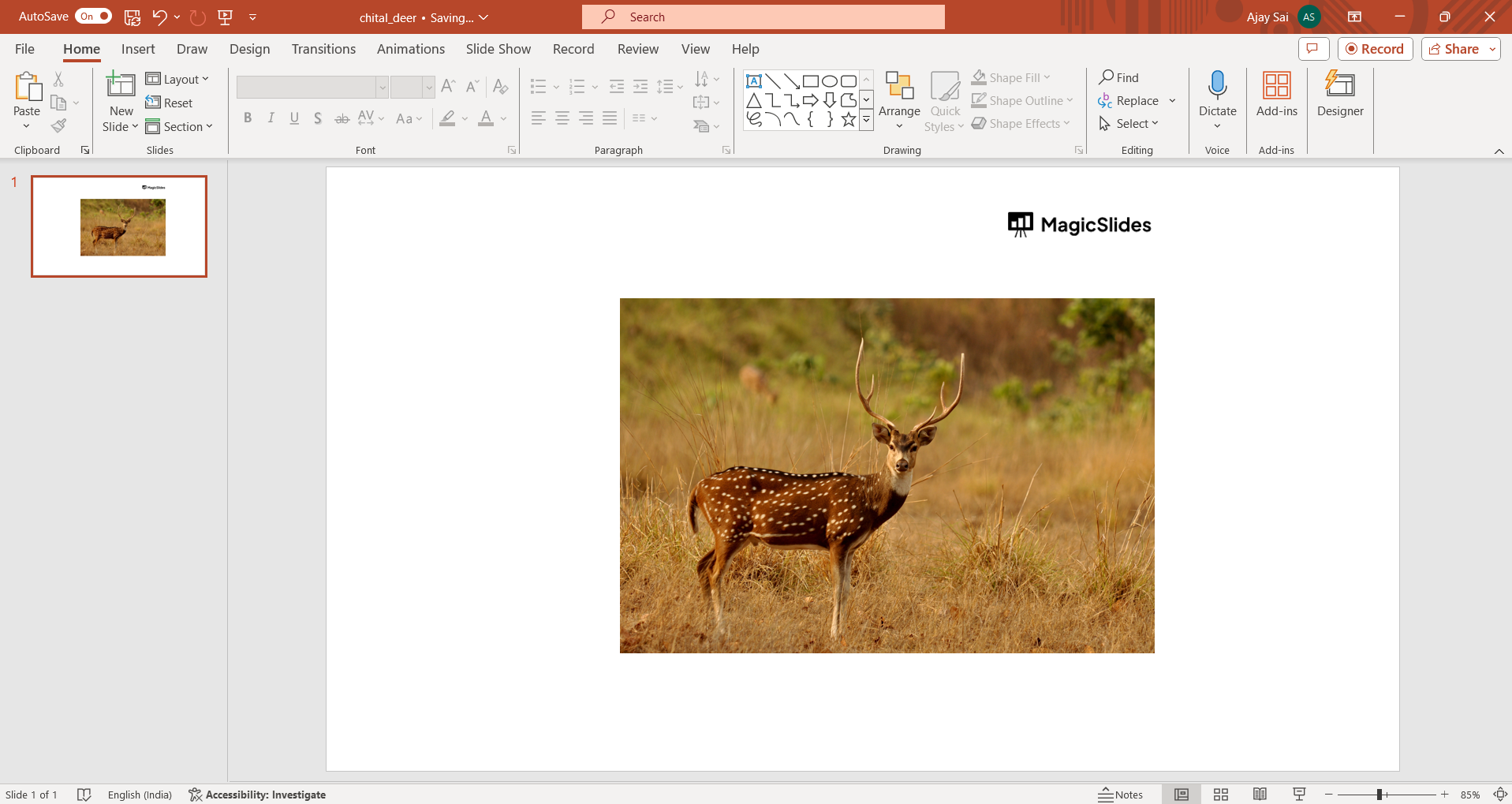
Select the Image:
Click on the inserted image to select it. This ensures that the subsequent changes apply specifically to the chosen image.
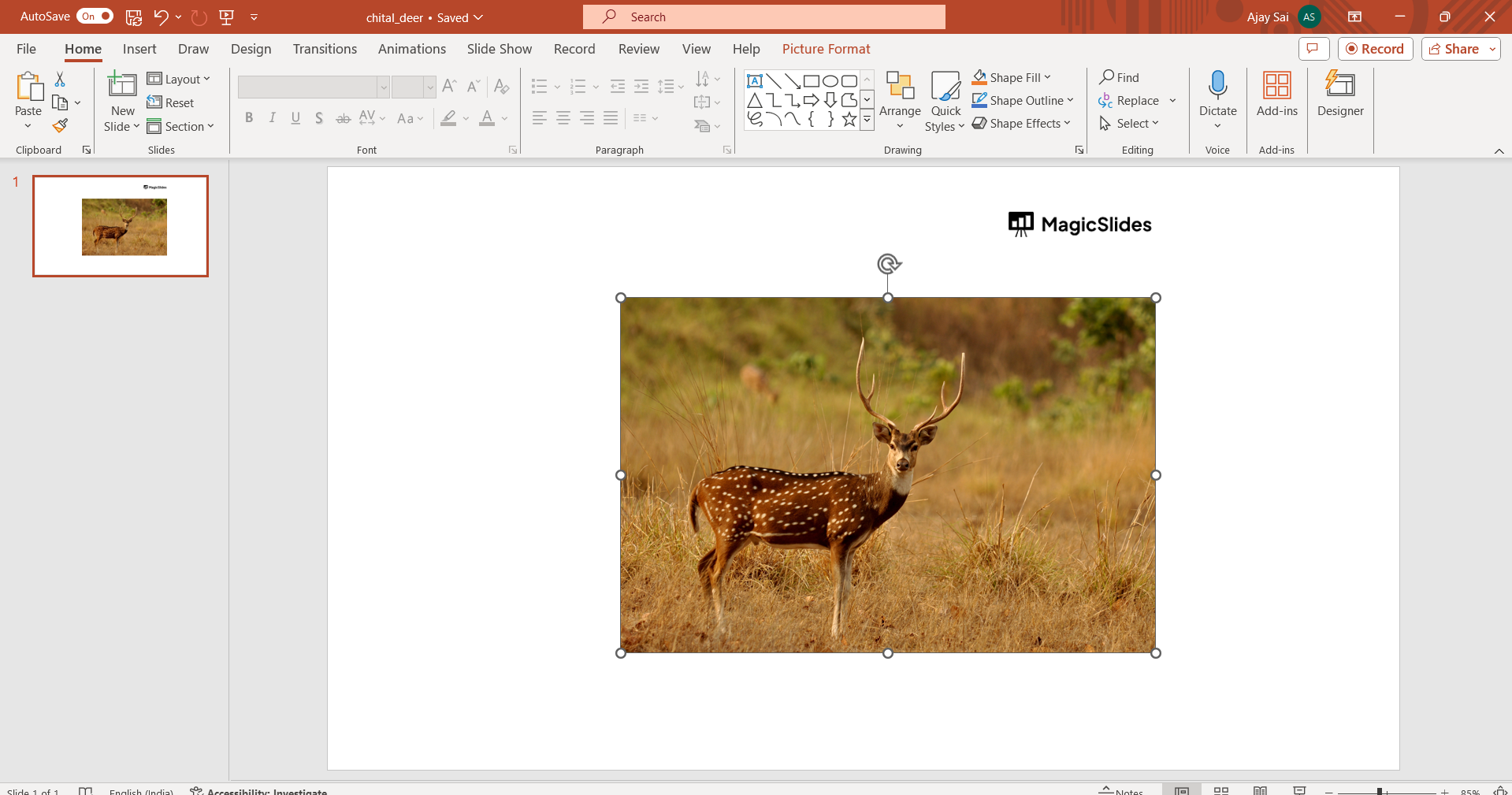
Access the Picture Format Tab:
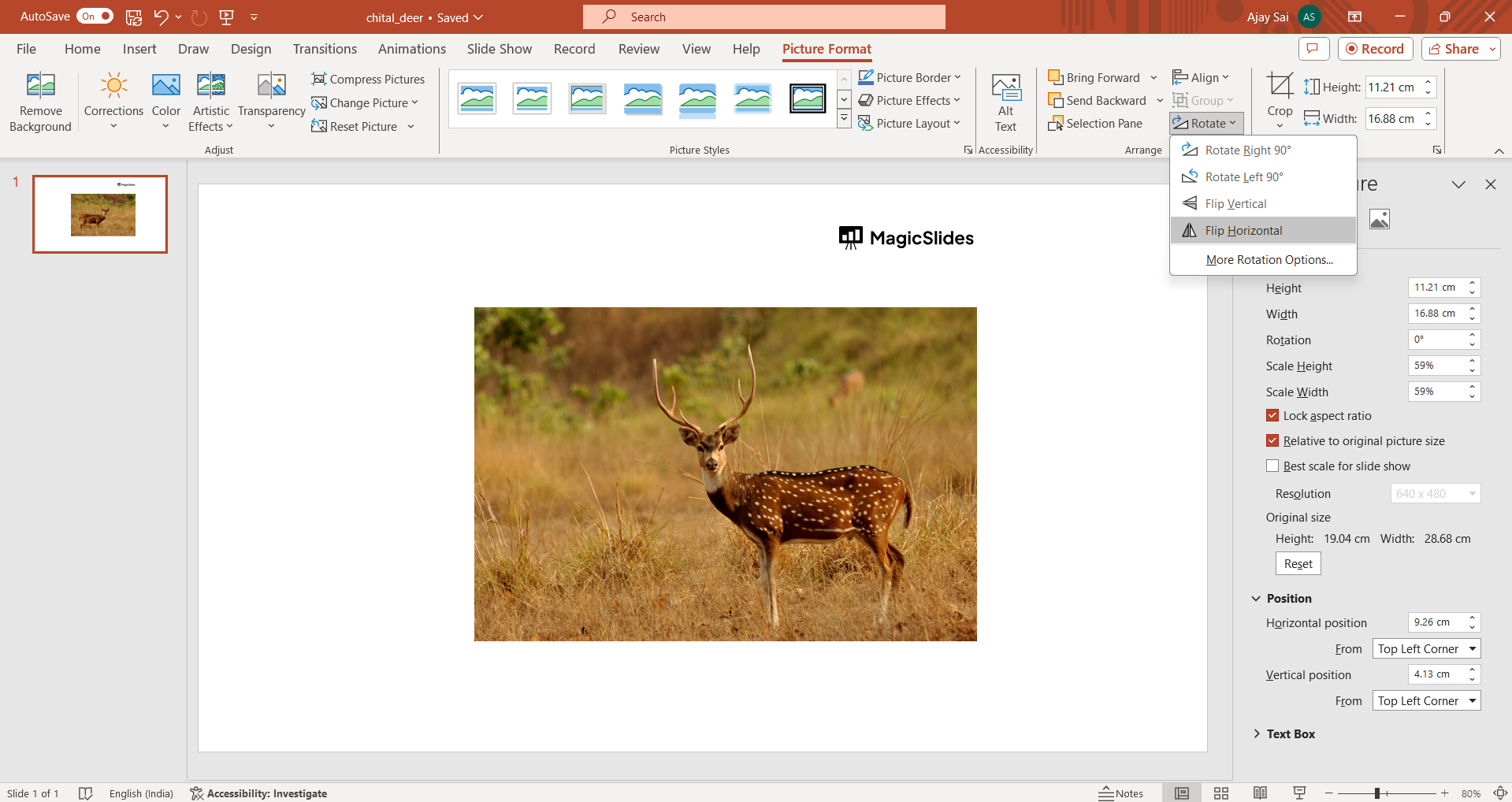
Navigate to the "Picture Format" tab on the ribbon. This tab provides a range of formatting options for your selected image.
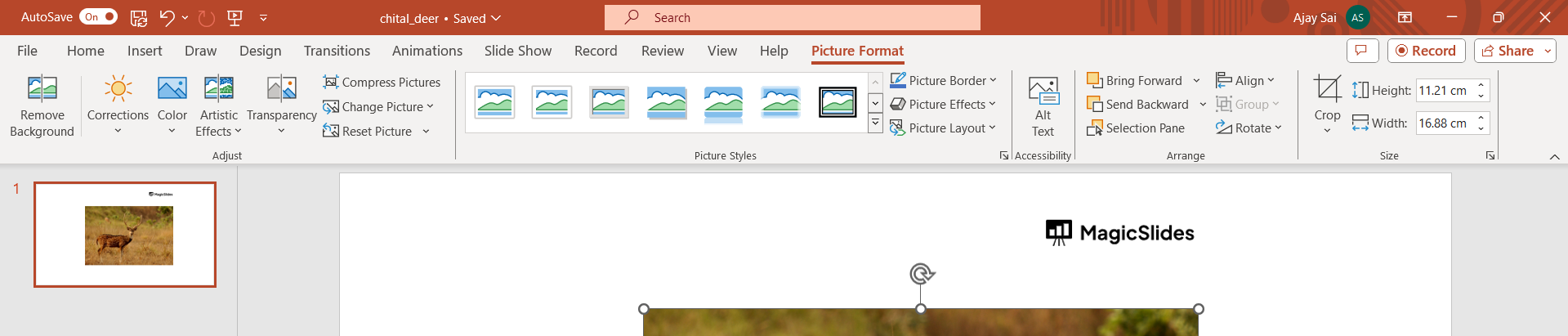
Choose the Rotate Dropdown Menu:
Within the "Picture Format" tab, locate the "Rotate" dropdown menu. This menu is your gateway to various rotation and mirroring options.
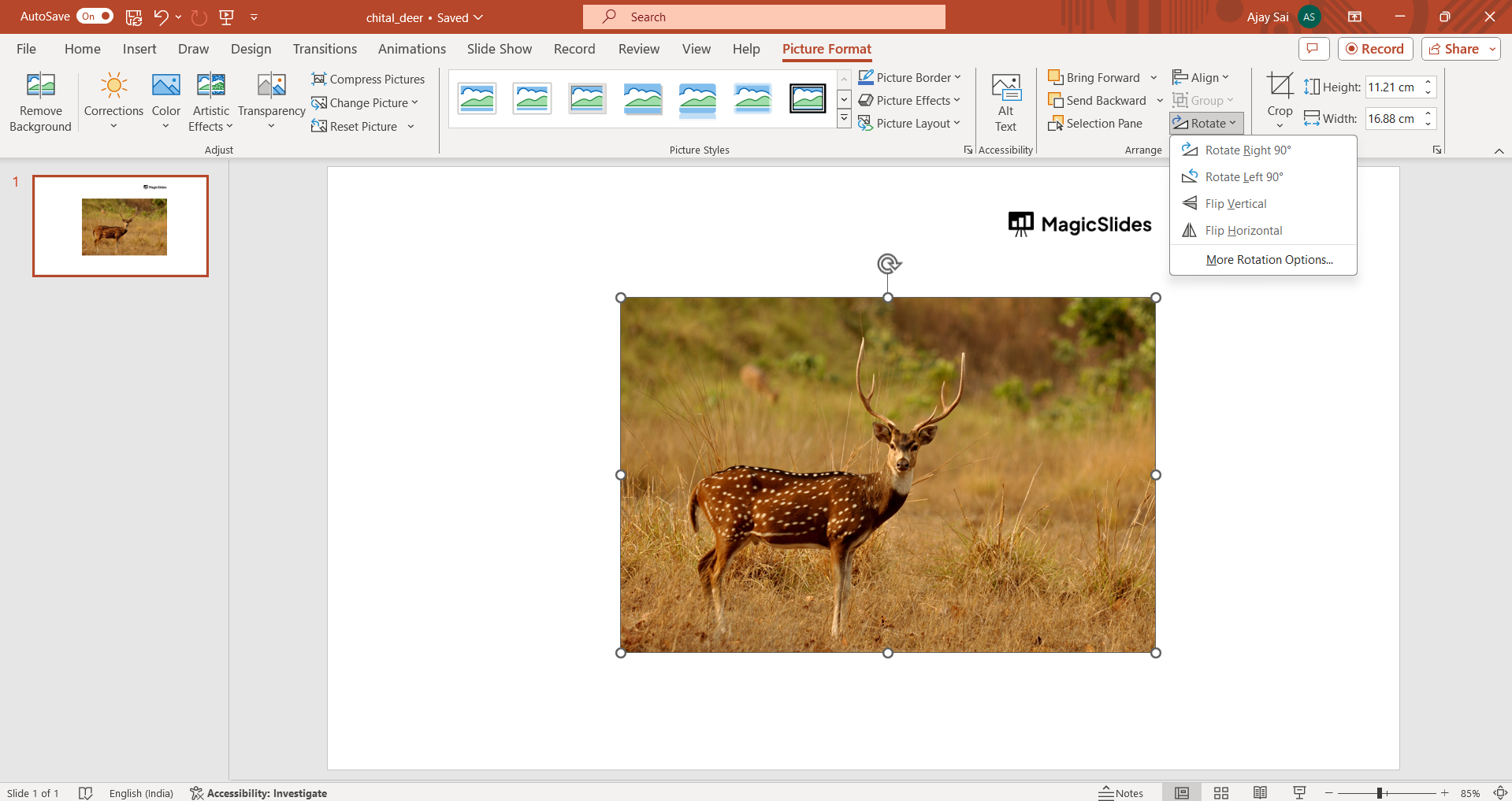
Select Mirroring Direction:
Click on the dropdown menu and choose either "Flip Horizontal" or "Flip Vertical," depending on the desired mirroring effect. "Flip Horizontal" mirrors the image left to right, while "Flip Vertical" mirrors it top to bottom.
Conclusion:
By following these simple steps, you've successfully mirrored an image in PowerPoint. This technique is particularly useful for creating visual interest and variety in your presentations. Experiment with mirroring to add a unique touch to your slides and captivate your audience with creative visuals.
Frequently Asked Questions:
Q1: Can I mirror only a specific part of an image in PowerPoint?
A: No, mirroring options apply to the entire image. Consider cropping before mirroring for selective effects.
Q2: Will mirroring affect the image's quality or resolution in PowerPoint?
A: No, mirroring doesn't inherently alter image quality. Ensure the source image has sufficient resolution.
Q3: Can I undo the mirroring effect if I change my mind later?
A: Yes, simply select the mirrored image, go to the "Rotate" dropdown, and choose the opposite flip option.
Q4: Does mirroring work for all image formats in PowerPoint?
A: Yes, mirroring is a formatting feature and works with various image formats supported by PowerPoint.
Have a look @these info blogs:
How to insert bitmoji into Google Slides: https://www.magicslides.app/blog/How-to-insert-bitmoji-into-google-slides
How To Get More Themes For Google Slides: https://www.magicslides.app/blog/How-to-get-more-themes-for-google-slides
How To Group Objects In Powerpoint: https://www.magicslides.app/blog/How-to-group-objects-in-powerpoint
How To Crop Image In Powerpoint: https://www.magicslides.app/blog/How-to-crop-image-in-powerpoint


