How to make a quiz with Google Forms


Revolutionize your assessments with ease by mastering Google Forms for crafting interactive and engaging quizzes.
Engage your audience and streamline the assessment process by creating quizzes with Google Forms. This user-friendly tool offers a seamless way to design, distribute, and collect responses for quizzes of all kinds. In this comprehensive guide, we'll take you through each step, empowering you to effortlessly create dynamic and effective quizzes for various purposes.
How to make a quiz with Google Forms
Step 1: Access Google Forms
Start by navigating to your Google Drive and clicking on the "+ New" button. Choose "Google Forms" from the dropdown menu to begin creating your quiz.
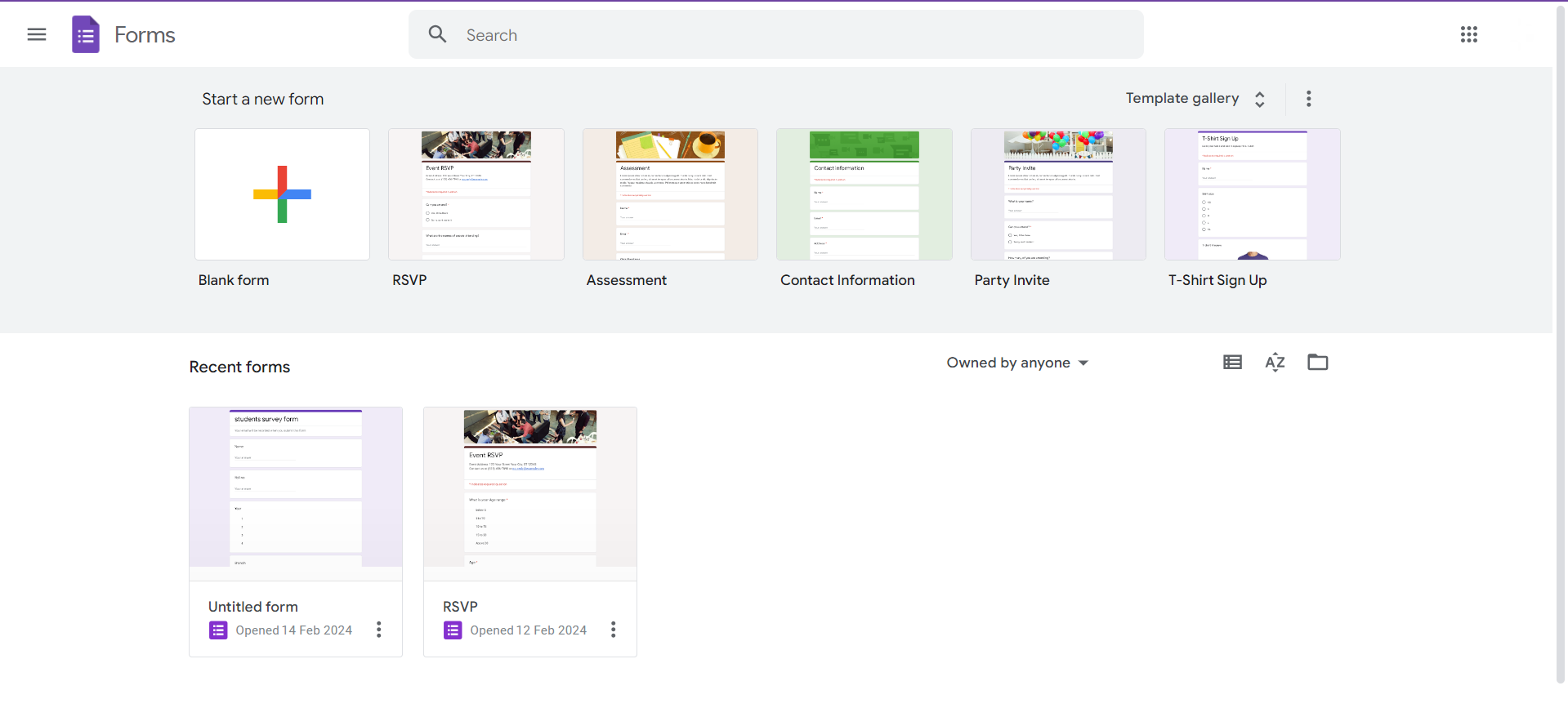
Step 2: Create a New Form
Click on the blank form icon to start a new project. Give your form a title and add a brief description to provide context for your quiz.
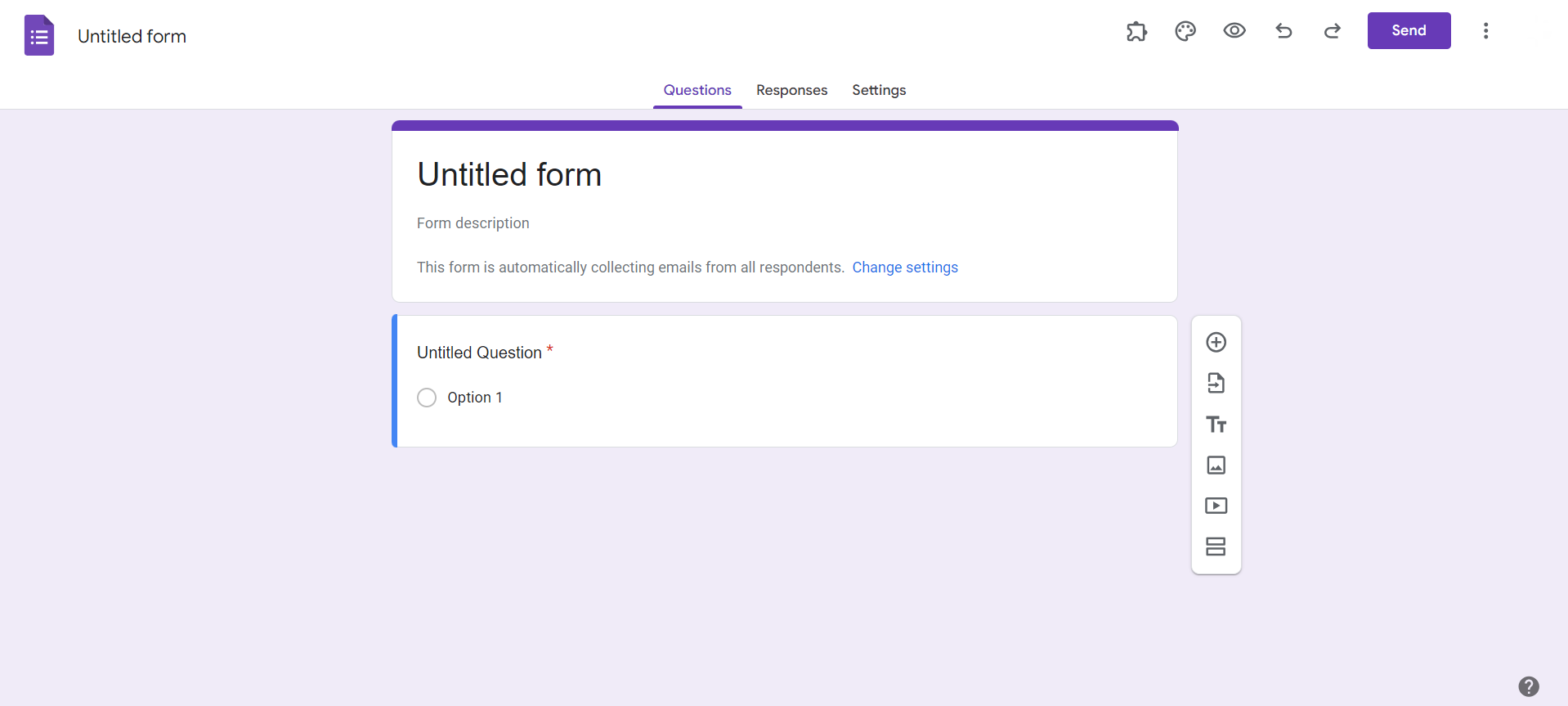
Step 3: Add Questions
Utilize the question types available in Google Forms, such as multiple-choice, short answer, or dropdown, to craft diverse and engaging questions. Use the "Add question" button to insert each new question.
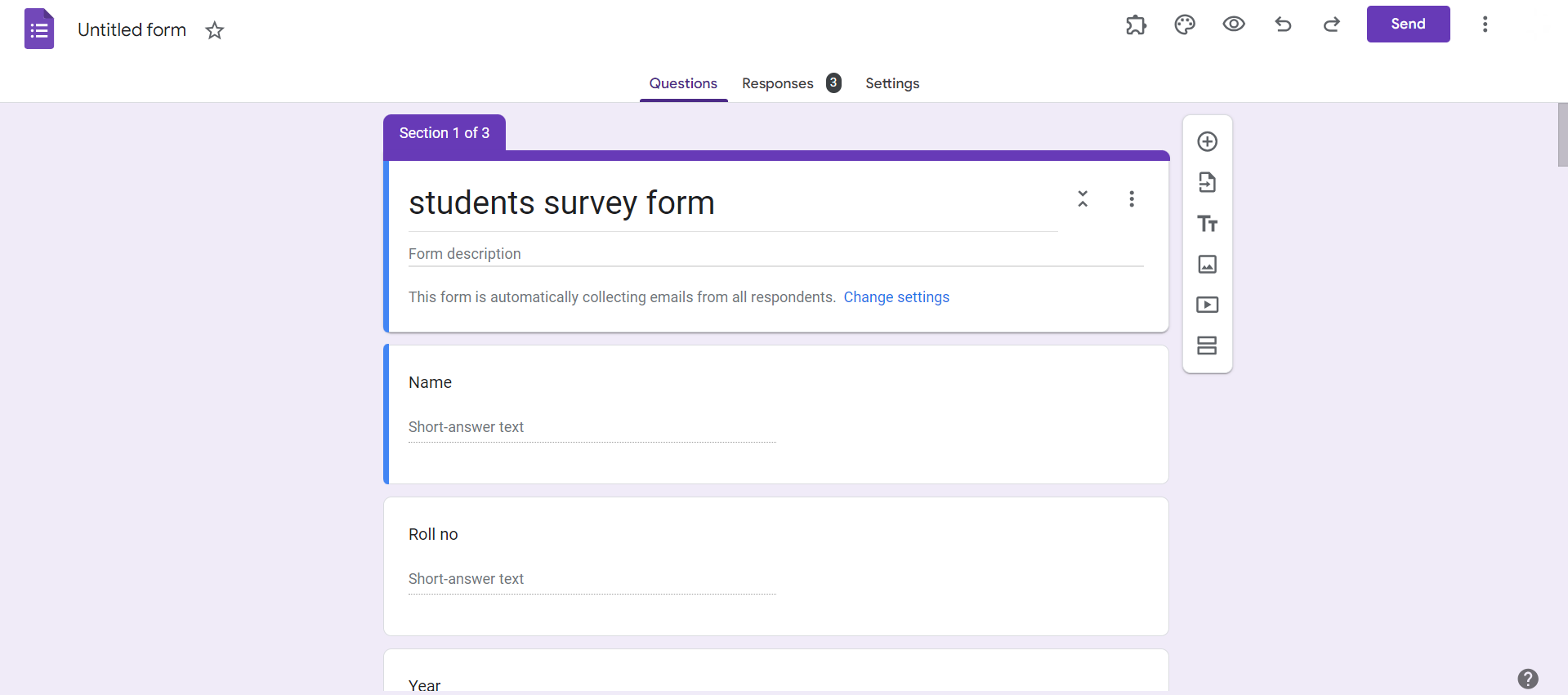
Step 4: Customize Question Settings
Personalize each question by adjusting settings such as required responses, point values, and answer choices. Tailor these settings to match the specific requirements of your quiz.
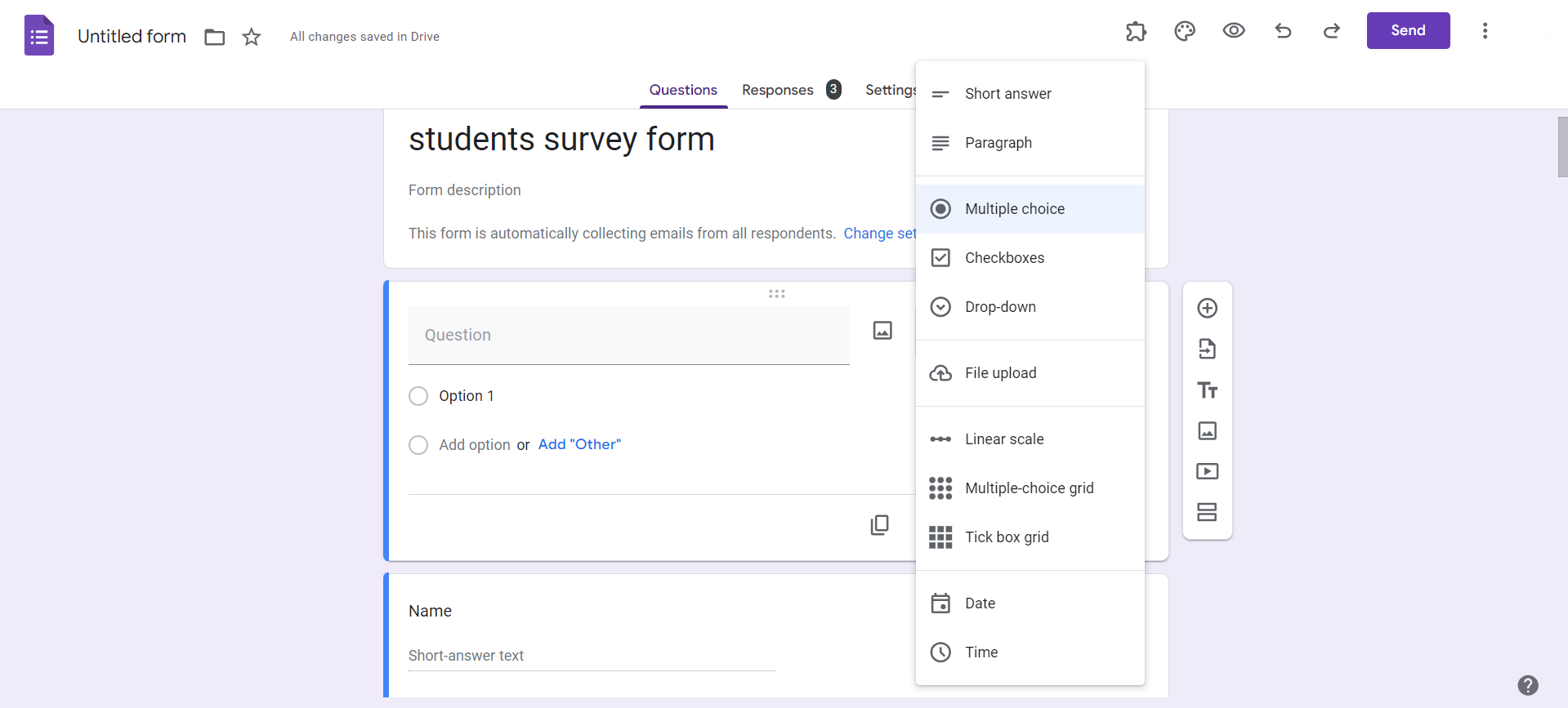
Step 5: Insert Media and Section Breaks
Enhance the quiz experience by incorporating images, videos, or section breaks between questions. Use the "Insert image" and "Insert video" icons to include multimedia elements.
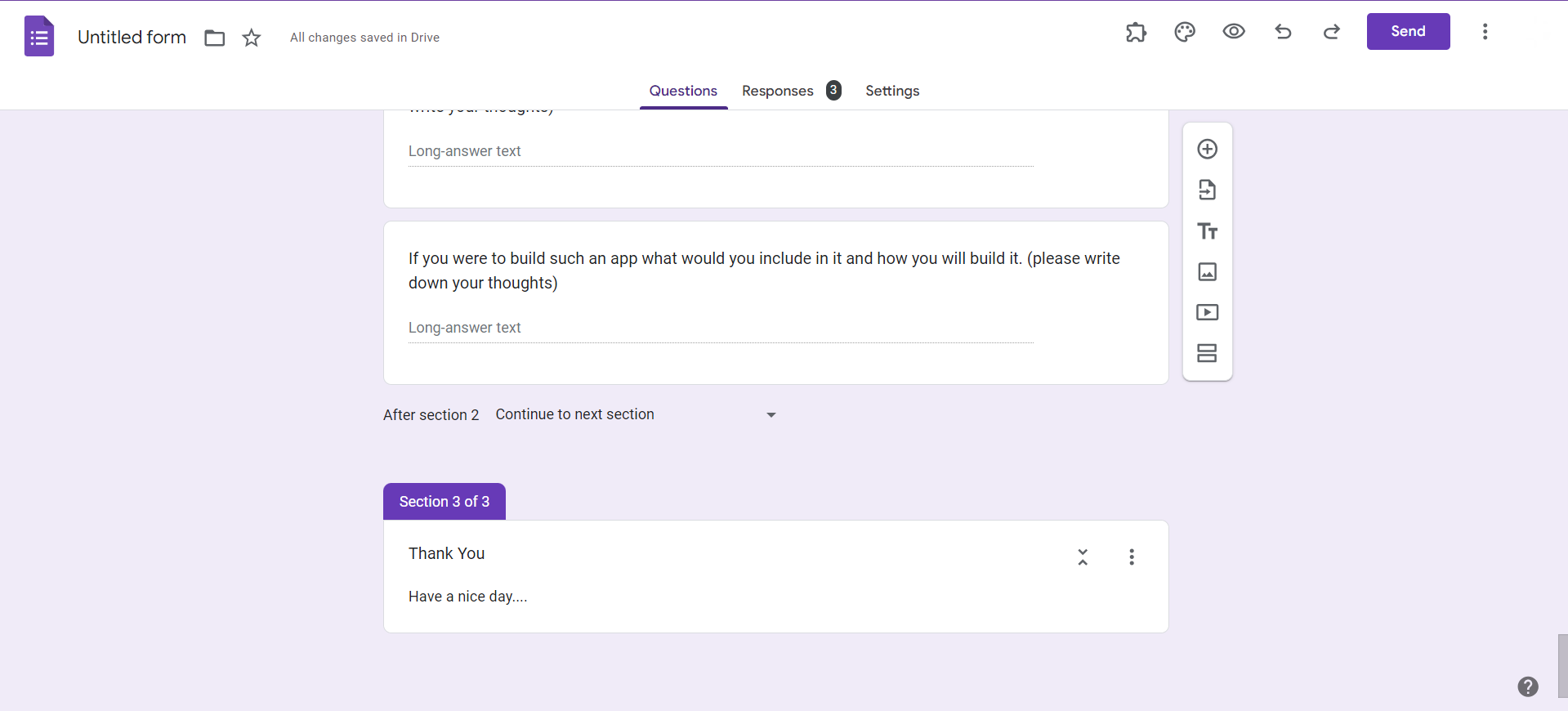
Step 6: Theme and Style
Give your quiz a polished look by customizing the theme and style. Click on the color palette icon to choose a theme or manually adjust colors, fonts, and backgrounds for a personalized touch.
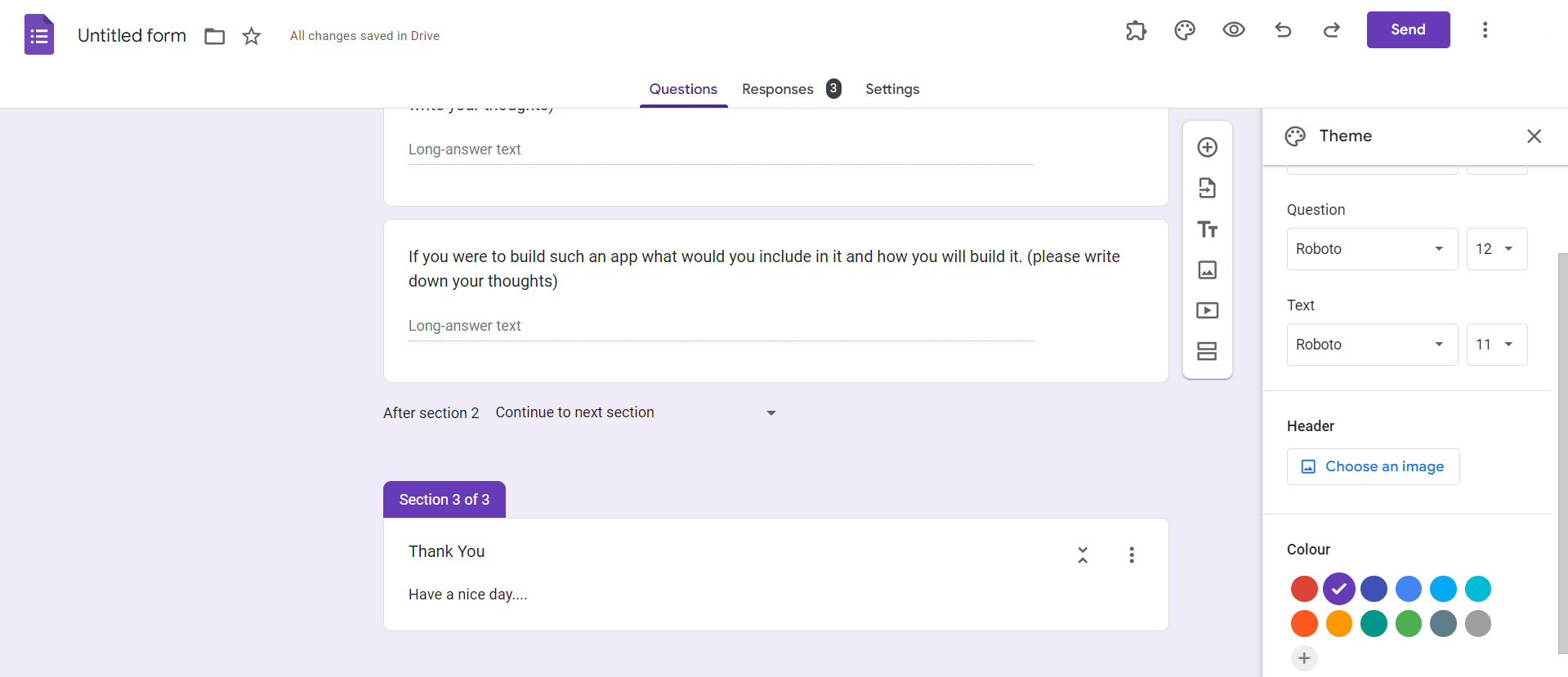
Step 7: Preview and Test
Before sharing your quiz, click on the eye icon to preview the form. Test the quiz to ensure questions, options, and settings work seamlessly.
Conclusion:
Google Forms simplifies the quiz creation process, making it accessible to users of all levels. From educators assessing student knowledge to businesses gathering feedback, this versatile tool provides a platform for dynamic and interactive quizzes. By following these step-by-step instructions, you'll not only streamline the quiz creation process but also create engaging and effective assessments that cater to your specific needs. Experiment with different question types, media elements, and customization options to make your Google Forms quizzes a standout component of your educational or professional toolkit.
Frequently Asked Questions:
Can I limit quiz responses or set a specific deadline on Google Forms?
Yes, access form settings, click on "Collect email addresses" or "Limit to 1 response."
Are there options to randomize question order in Google Forms quizzes?
Certainly, utilize the settings to shuffle question order for a varied and unbiased quiz experience.
Can I include images or videos in my Google Forms quiz questions?
Absolutely, use the "Insert image" or "Insert video" icons when crafting questions to include multimedia elements.
Is it possible to export and analyze quiz responses from Google Forms?
Yes, Google Forms allows you to export responses to Google Sheets for convenient analysis and tracking.


