How to make a survey on Google Forms


Elevate your survey game: Learn the simple steps to create impactful and visually engaging surveys on Google Forms.
Unlock the power of data with Google Forms, a versatile tool for designing surveys. In this comprehensive guide, we'll walk you through each step to help you effortlessly create impactful surveys that gather valuable insights. Whether for professional feedback or personal research, Google Forms simplifies the survey creation process.
How to make a survey on Google Forms
Access Google Forms:
Log in to your Google Account, navigate to Google Drive, and click on the '+ New' button. Select 'Google Forms' from the dropdown menu.
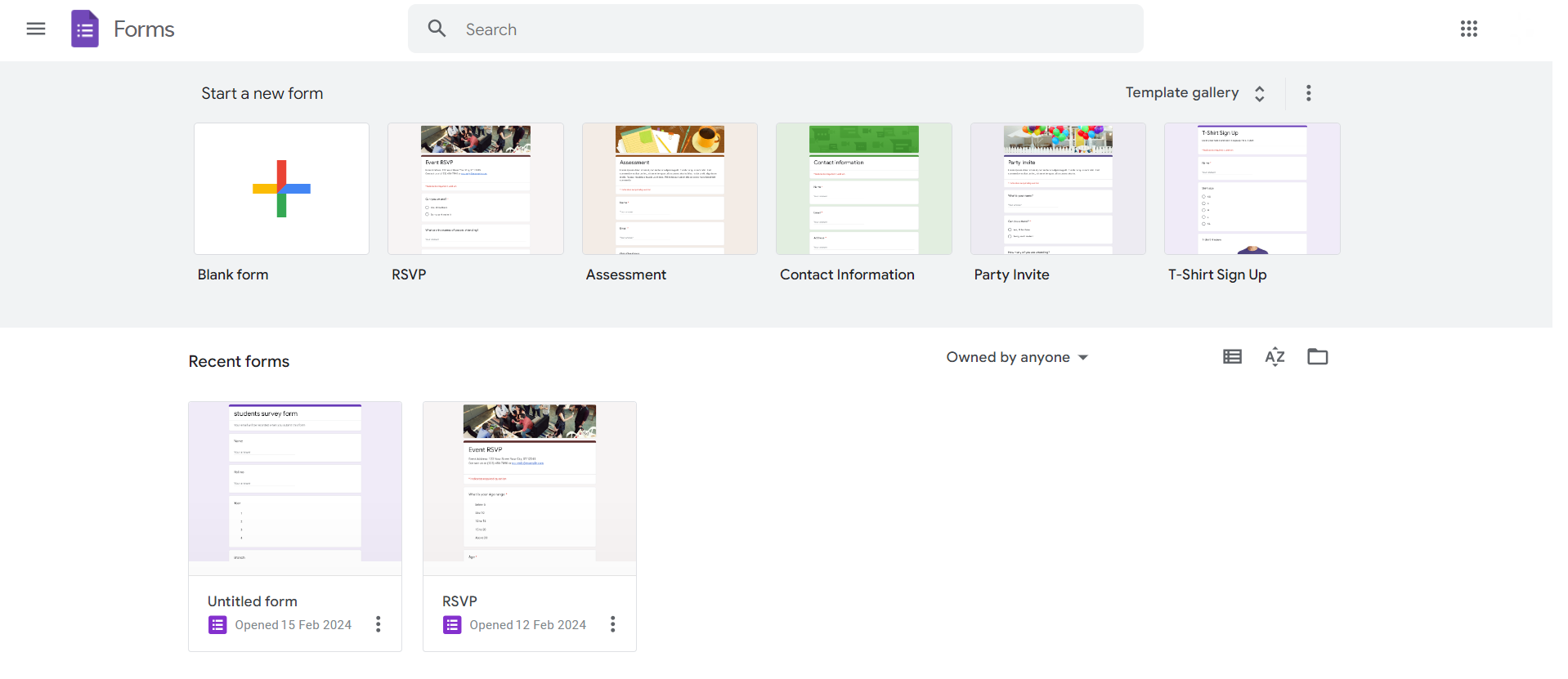
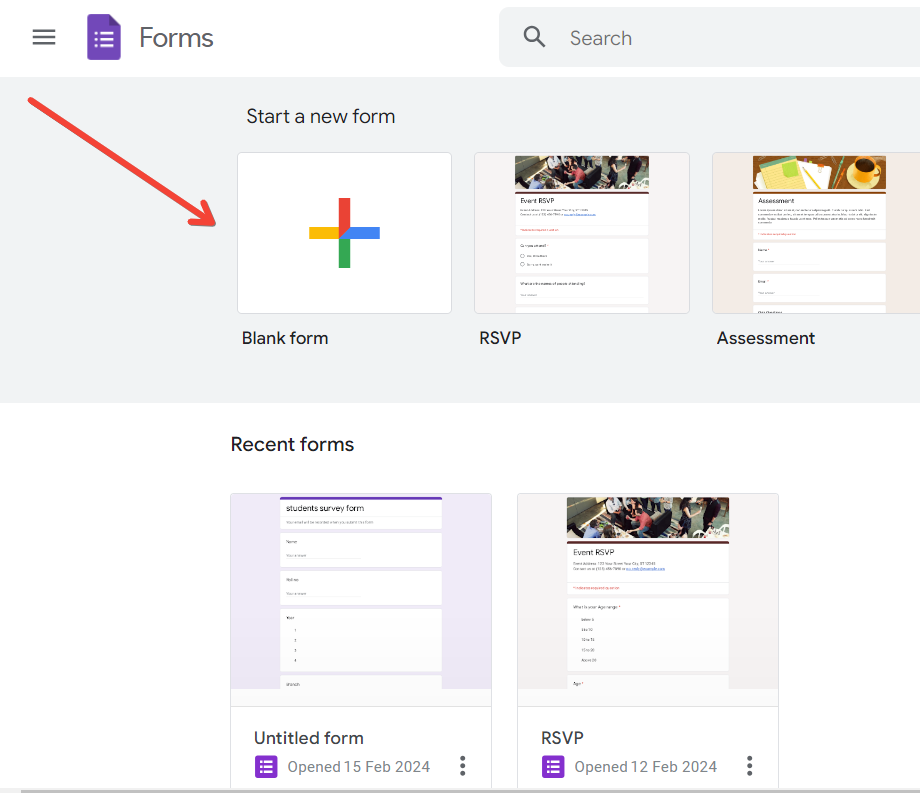
Choose a Blank Form or Template:
Decide if you want to start with a blank form or explore pre-designed templates. Templates can save time and provide inspiration.
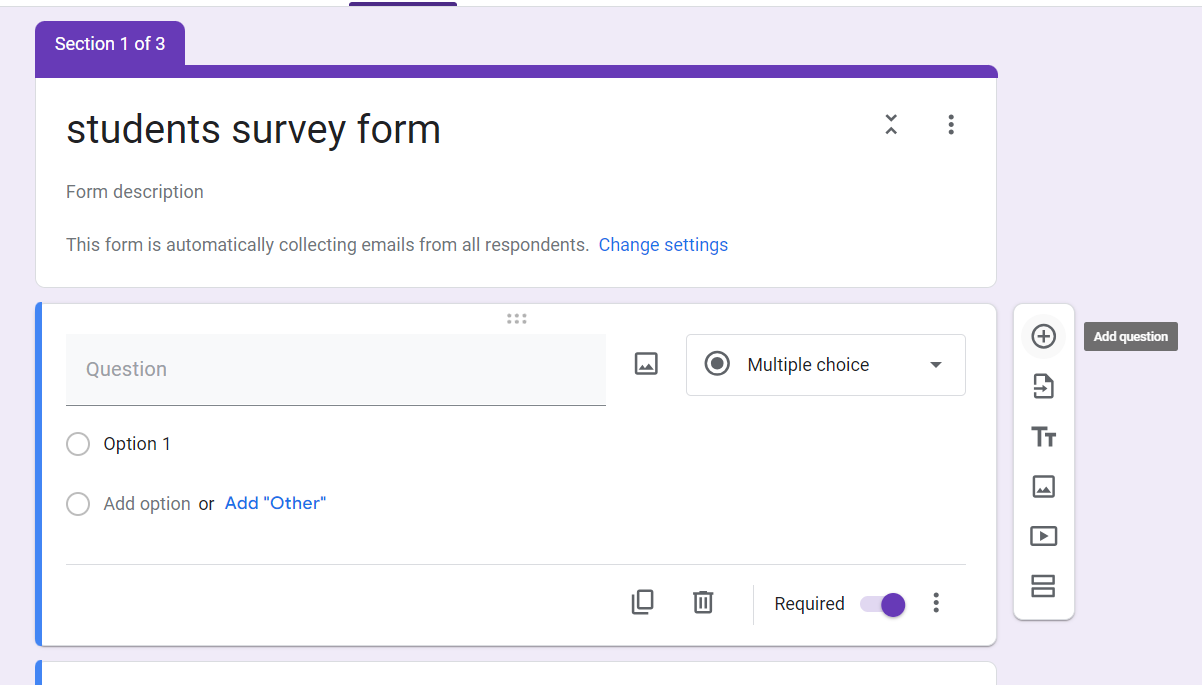
Add Questions:
Click on the 'Untitled Form' to enter your survey's title. Begin adding questions by clicking the '+' button. Choose question types, and customize as needed.
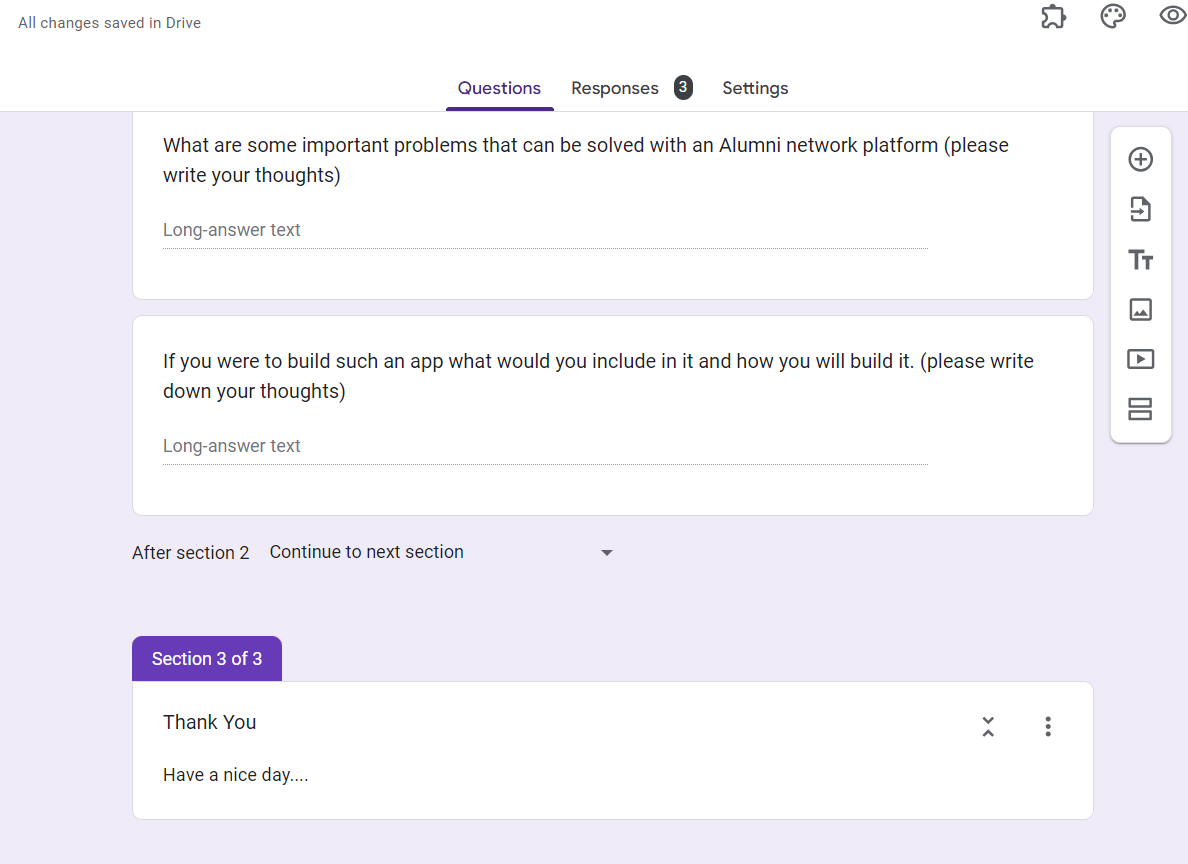
Organize Sections (Optional):
For a well-structured survey, create sections to group related questions. Click on the 'Add section' icon to organize your survey content.
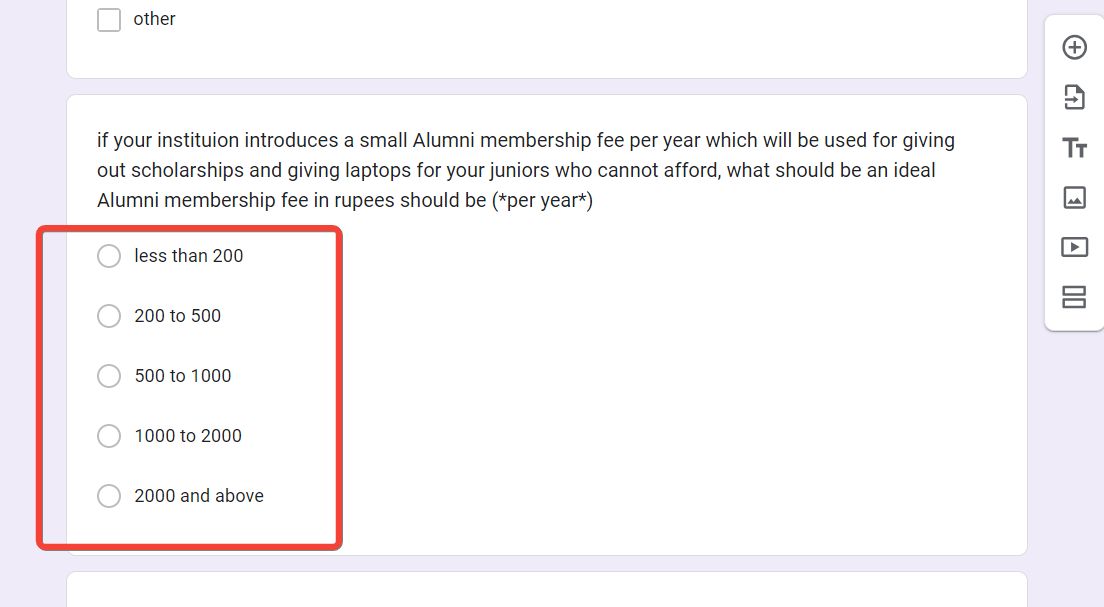
Include Multiple Choice, Dropdowns, or Checkboxes:
Utilize various question formats for diverse responses. Google Forms offers multiple choice, dropdowns, and checkboxes for flexibility.
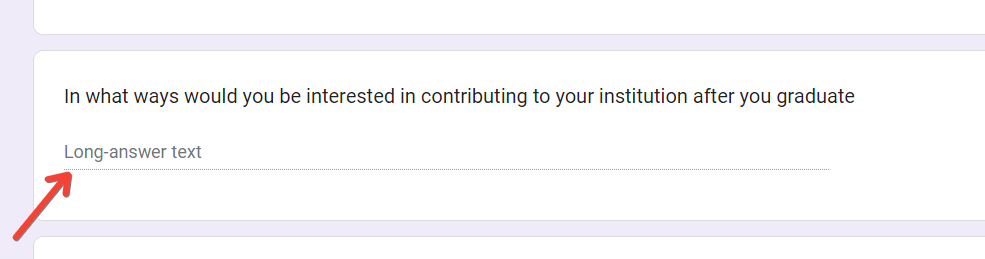
Add Other Question Types (Scale, Short Answer, Paragraph):
Enhance your survey with different question types, such as scales for rating, short answer for brief responses, and paragraphs for longer input.
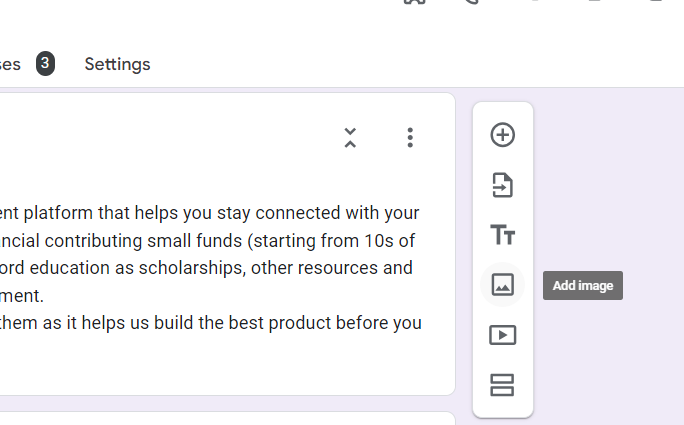
Insert Images or Videos (Optional):
For a visually engaging survey, embed images or videos by clicking on the image or video icon in the question toolbar.
Set Required Questions:
Ensure vital questions are answered by marking them as required. Toggle the switch to make a question mandatory for respondents.
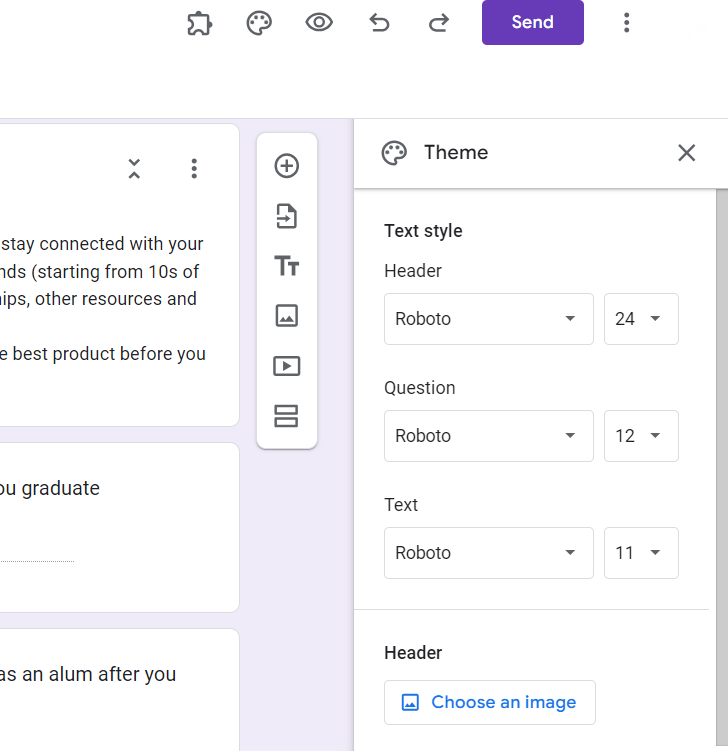
Customize the Theme:
Personalize your survey by selecting a theme that aligns with your brand or the survey's tone. Access the theme options by clicking on the color palette icon.
Preview Your Survey:
Before sharing, preview the survey to check its appearance and functionality. Make adjustments as needed.
Send or Share the Survey:
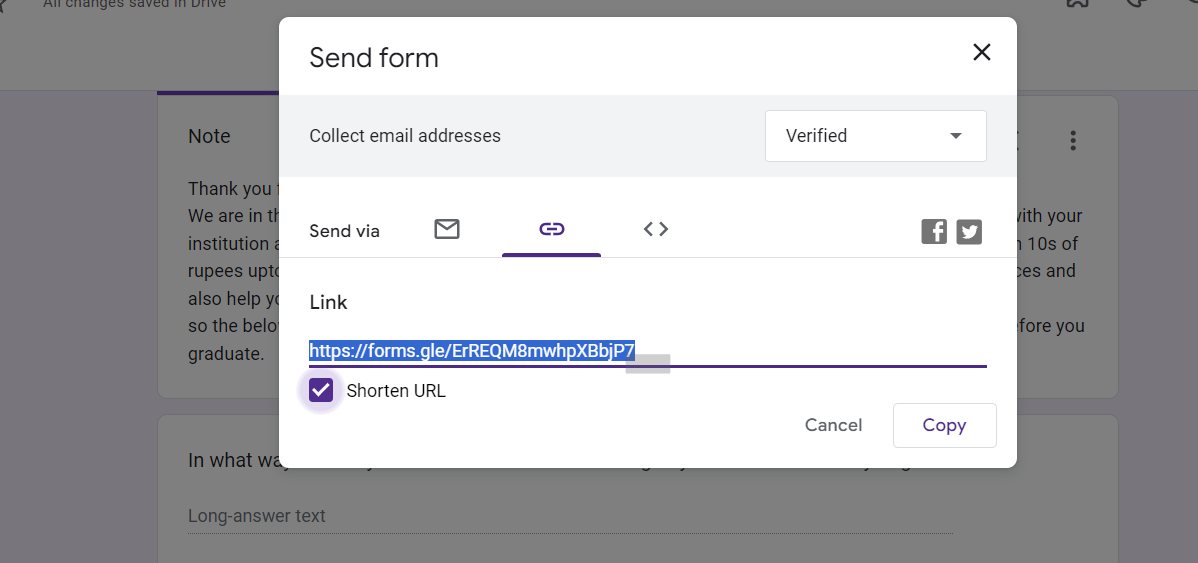
Click on the 'Send' button to distribute the survey via email, link, or embed it in a website. Adjust sharing settings according to your preferences.
Conclusion:
Google Forms empowers you to create surveys effortlessly, facilitating the collection of valuable data. From designing insightful questions to customizing the look and feel, this guide equips you with the tools needed to craft engaging surveys. Whether for professional endeavors, academic research, or personal curiosity, Google Forms ensures a seamless and efficient survey creation process, helping you gain the insights you seek.
Frequently Asked Questions:
Can respondents edit their answers after submitting a Google Forms survey?
No, once submitted, respondents can't edit their answers. Encourage careful consideration before submission.
How can I view and analyze survey responses in Google Forms?
Click on 'Responses' to access response data, where you can review, analyze, and download results.
Is it possible to limit survey responses or set a deadline for submissions?
Yes, use the 'Responses' tab to set response limits or schedule automatic form closure.
Can I collaborate with others in real-time on survey creation in Google Forms?
Absolutely, share your form with collaborators and work simultaneously for efficient real-time collaboration.


