How to Make Google Slides Look More Engaging and Impactful


Learn how to make Google Slides look more engaging and impactful with expert tips, design tricks, and AI-powered solutions like MagicSlides for effortless presentations.
Google Slides is a widely used tool for creating presentations, but many users struggle to make their slides visually appealing and impactful. A well-designed presentation can significantly improve audience engagement and message retention. In this blog, we’ll explore the best techniques to enhance your Google Slides and introduce an AI-powered alternative, MagicSlides, to simplify the process.
Why Does Slide Design Matter?
A good presentation is more than just text on slides. A compelling design can:
- Keep your audience engaged
- Enhance comprehension and retention
- Establish credibility and professionalism
- Reinforce key points effectively
Now, let’s look at actionable ways to improve your Google Slides.
1. Use a Clean and Consistent Design
Choose a Professional Template
A professional template sets the tone for your presentation. Instead of using default Google Slides templates, explore external template libraries like:
- Slidesgo
- Slides Carnival
- Canva
Maintain Consistency
- Stick to one or two fonts throughout the presentation.
- Use consistent colors (preferably from your brand palette).
- Ensure uniform text alignment across all slides.
2. Use High-Quality Images and Graphics
Visual elements make slides more engaging. Here’s how to use them effectively:
- Use high-resolution images from free sources like Unsplash or Pexels.
- Incorporate icons and illustrations instead of long text explanations.
- Use charts and infographics to present data visually (Google Slides has built-in options).
3. Minimize Text, Maximize Visual Impact
Overloading slides with text is a common mistake. Follow these principles:
- Use bullet points instead of paragraphs.
- Apply the 6×6 rule: No more than 6 bullet points per slide, with 6 words per point.
- Replace text-heavy content with diagrams, graphs, and images.
4. Use Animations and Transitions Wisely
While animations can enhance engagement, excessive use can be distracting. Best practices include:
- Use subtle transitions like fade-in or dissolve.
- Avoid excessive animations that make slides appear cluttered.
- Highlight key elements (e.g., appear one by one for emphasis).
5. Leverage Google Slides Add-ons
Enhance your slides with Google Slides Add-ons like:
- Lucidchart for flowcharts and diagrams.
- Slides Toolbox for bulk editing and text formatting.
- MagicSlides AI (alternative to manual design) to auto-generate presentations.
Alternative: AI-Powered Presentation Creation with MagicSlides
If you want a quick and professional alternative, MagicSlides can generate engaging presentations automatically using AI. Instead of manually designing slides, MagicSlides creates structured and visually appealing presentations within minutes.
How to Use MagicSlides
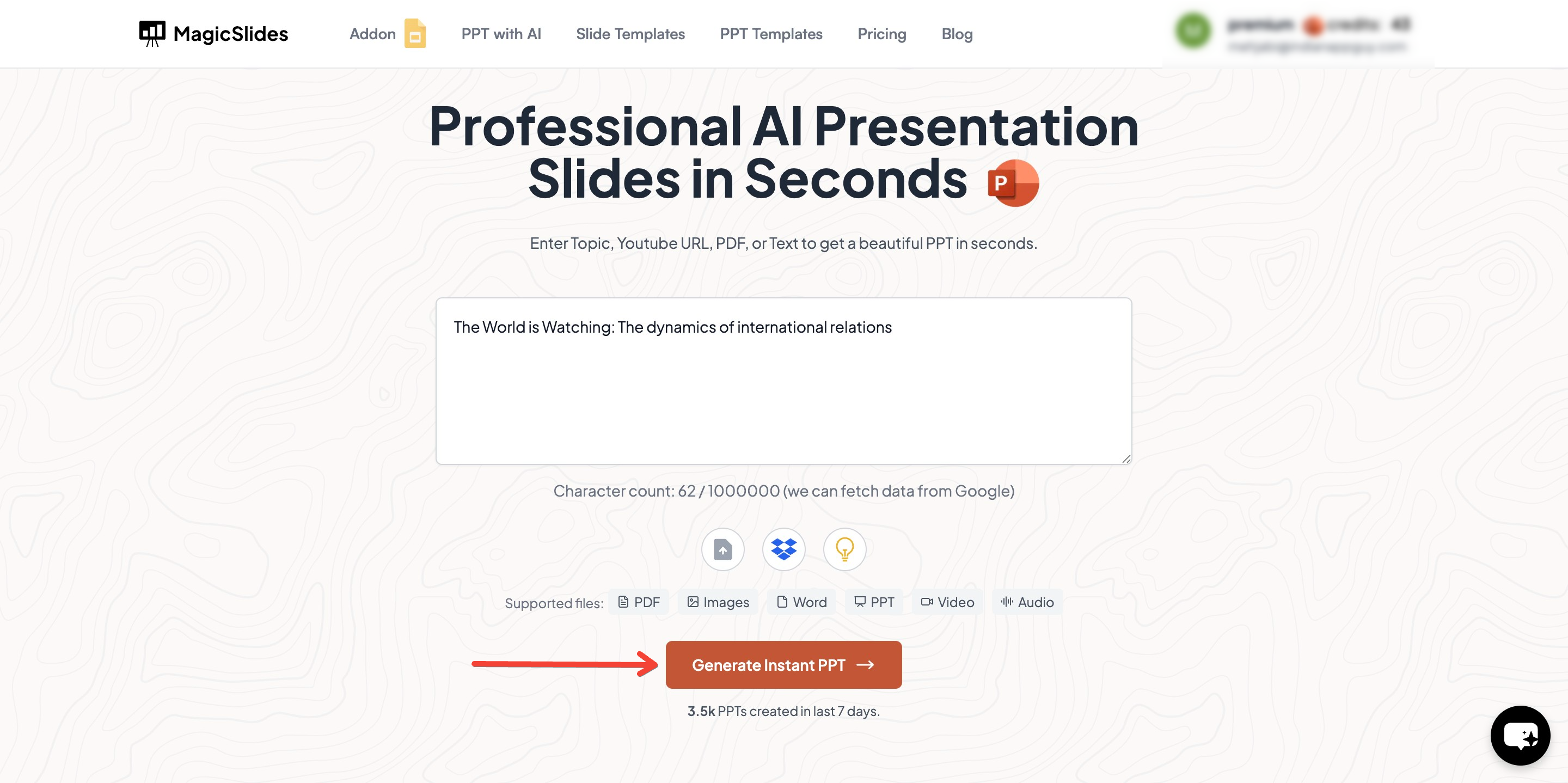
- Visit MagicSlides.app.

- Enter your topic in the provided space.

- Click ‘Generate Instant PPT.
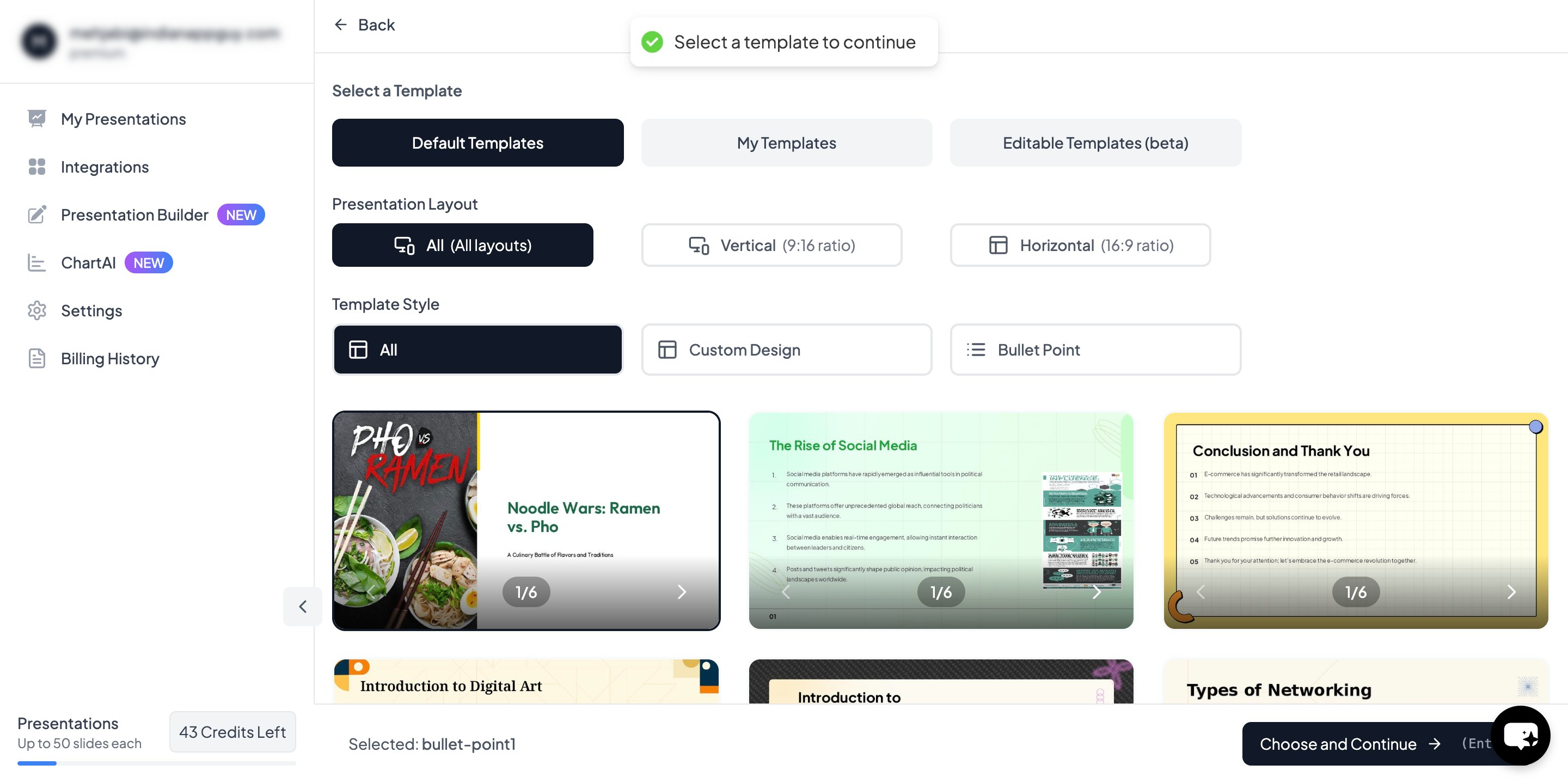
- Choose your template and number of slides.
- Fill in additional details if prompted.

- Click ‘Generate Instant PPT’ to receive your ready-made presentation.

MagicSlides is an excellent alternative for professionals who need high-quality presentations without spending hours designing slides manually.
MagicSlides Pricing
MagicSlides offers multiple pricing plans to suit different needs:
| Plan | Price | Features |
|---|---|---|
| Essential | $6.7/month (Billed Annually – $80) | 10 presentations/month, up to 10 slides per presentation, 12,000 character input limit, basic AI features |
| Pro | $12.4/month (Billed Annually – $149) | 50 presentations/month, up to 15 slides per presentation, 12,000 character input limit, AI-generated images, Google & Wikipedia data, AskPPT for chat |
| Premium | Custom | Unlimited presentations, up to 50 slides per presentation, 100,000 character input limit, 1-hour YouTube video conversion, 20 PDF page conversion, and additional AI features |
For those who need quick, high-quality presentations, MagicSlides is a smart investment, saving time and effort.
Conclusion
Enhancing Google Slides presentations requires a balance of good design, compelling visuals, and strategic content placement. By following the tips above, you can create engaging and professional slides that leave a lasting impression. However, if you’re looking for a faster and AI-powered solution, MagicSlides is a great alternative that generates structured, high-quality presentations in minutes.
Want to try MagicSlides? Visit MagicSlides.app today and experience AI-powered presentations!


