How to Narrate Google Slides? Step-by-Step Guide with Voiceover Tips


Learn how to narrate Google Slides with voice overs. Discover how to record audio, add narration to slides, and create engaging presentations easily.
Picture this: you’re delivering a crucial presentation, and your slides come alive with your voice guiding your audience through the content. That’s the power of narrating Google Slides.
When I first started making presentations, I figured out that Google Slides alone are not enough. If you really want people to understand your message, you need to explain Google Slides. That is where learning how to narrate Google Slides makes a difference.
Narration turns a slideshow into a complete experience. Of leaving your audience guessing you guide them through each point with your voice on Google Slides. Whether you are teaching a lesson, presenting a business idea, or sharing a walkthrough, or knowing how to do a voice over on Google Slides helps people understand Google Slides and stay engaged.
In my experience a narrated Google Slides presentation feels more personal and easier to follow. Google Slides also works perfectly when you cannot present live. You can create a narrated Google Slides presentation once. Reuse Google Slides anytime.
In this guide I will walk you through how to approach narrating Google Slides in a simple practical way and also show you how to make Google Slide presentation effectively from start to finish.
Can You Record Audio Directly in Google Slides?
When I first tried to figure out how to add my voice to Google Slides I thought there would be a record button in Google Slides.. That is not how it works. Google Slides does not have a built-in Google Slides audio recording feature, which’s kind of disappointing, at first.
However this does not mean you cannot add a voice to your Google Slides. It just means you have to do things a bit. Of recording my voice in Google Slides I use something else to record my voice. Sometimes I use my phone and sometimes I use my laptop. And then I add the recording to Google Slides.
This way is actually better because I can make my voice sound good. Once you get used to doing it this way it becomes easy to add your voice to Google Slides. You can do it the way you want to. You can make your Google Slides voice sound really good. it becomes very easy to add voice to your slides and even download Google Slides presentation files with polished audio included.
What are the Benefits of Adding Narration to My Google Slides Presentation
From what I have seen learning how to add narration to google slides completely changes how people look at your presentations. It is not about adding sound to Google Slides. It is about making your ideas easier to understand.
- One of the benefits I have seen is that people pay more attention. When I add a Google Slides voice over people are more likely to stay focused compared to reading Google Slides on their own. My voice naturally helps people follow along and keeps everything moving
- Another good thing about Google Slides is that it helps people understand better. Hard topics are easier to explain when you go through them step by step with Google Slides. This is especially helpful when making a presentation with a voiceover for training or teaching with Google Slides.
- I also like that Google Slides gives me the freedom to use my presentations whenever I want. Once I make a Google Slides presentation with a voiceover I can use it again anytime. Whether it is for sharing with clients students, or team members using Google Slides.
Overall learning how to narrate Google Slides helps me make presentations with Google Slides without needing to be there, in person every time.
Unlocking the Magic: How to Narrate Google Slides
Now I’ll walk you through exactly how I approach how to narrate Google Slides from start to finish. Once you follow this process a couple of times, it becomes second nature.
Step 1: Open Your Google Slides Presentation
- Access Your Work: Start by opening the Google Slides presentation you want to narrate.
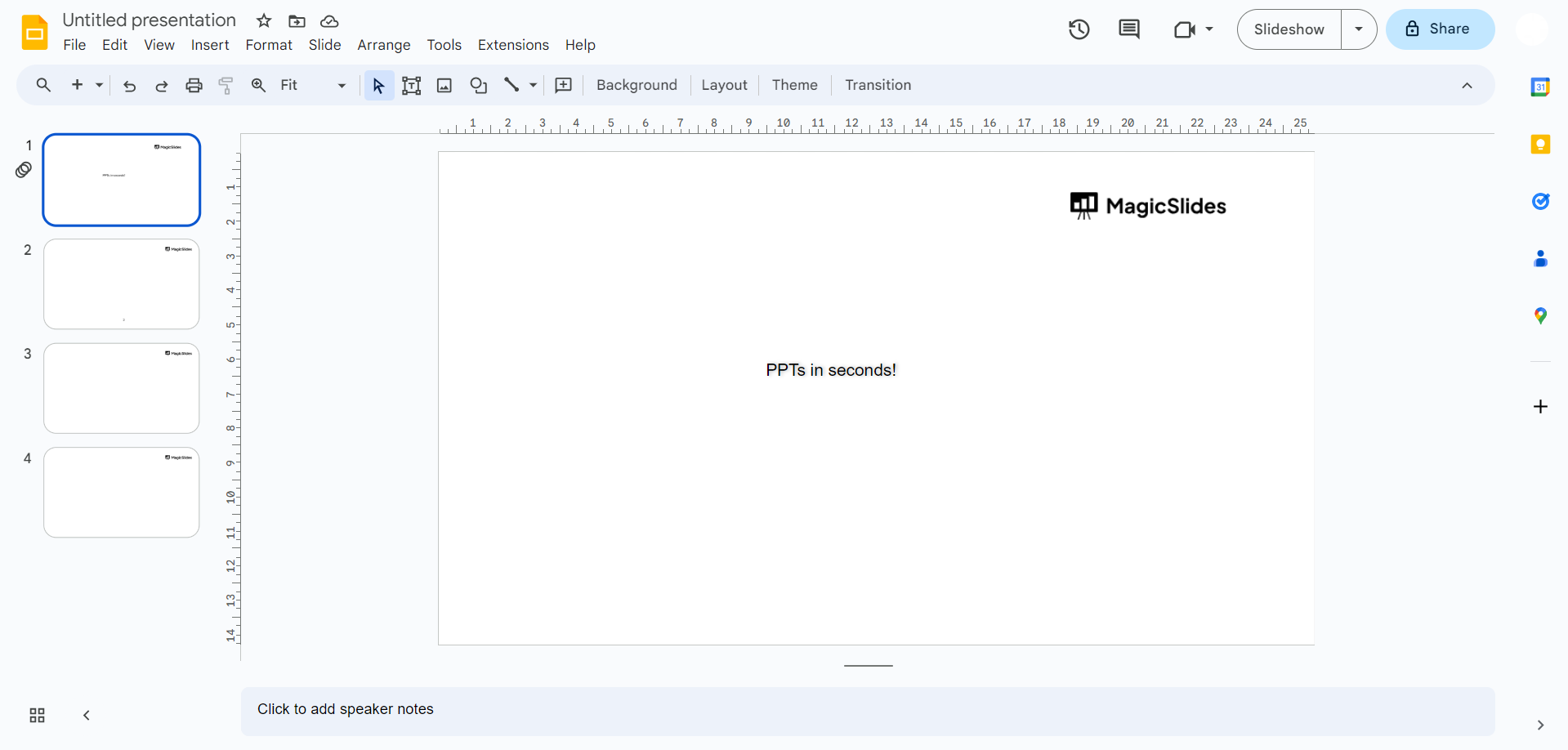
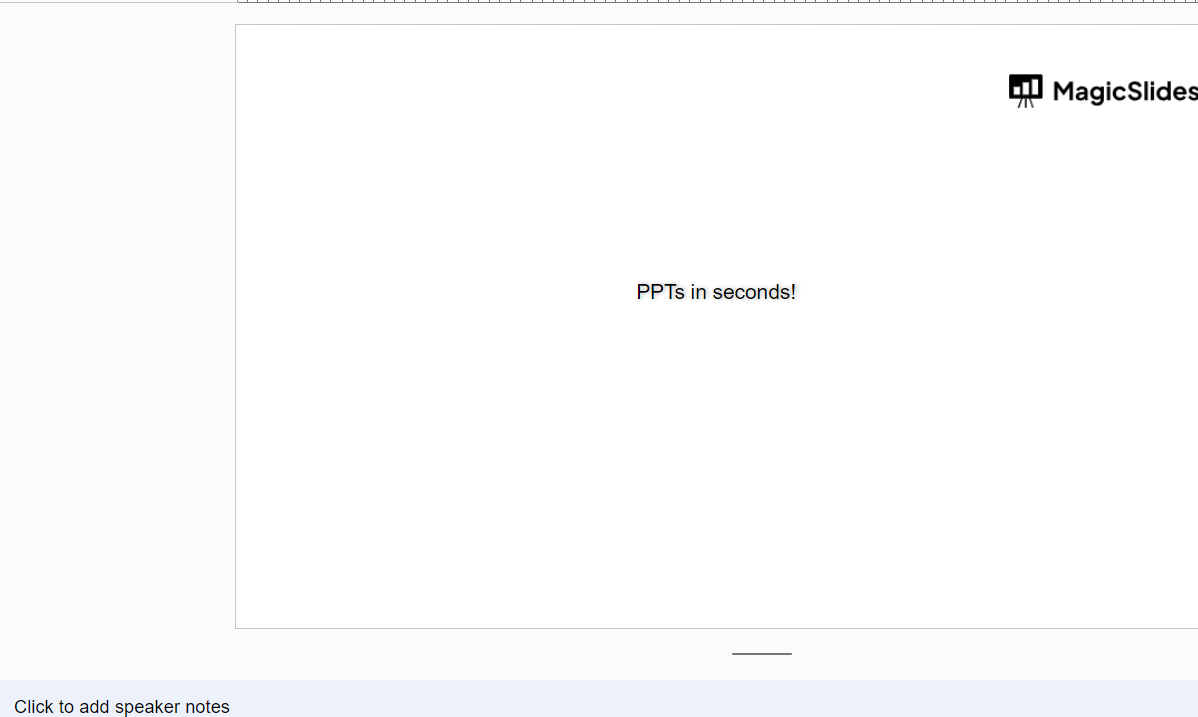
Step 2: Enable Speaker Notes
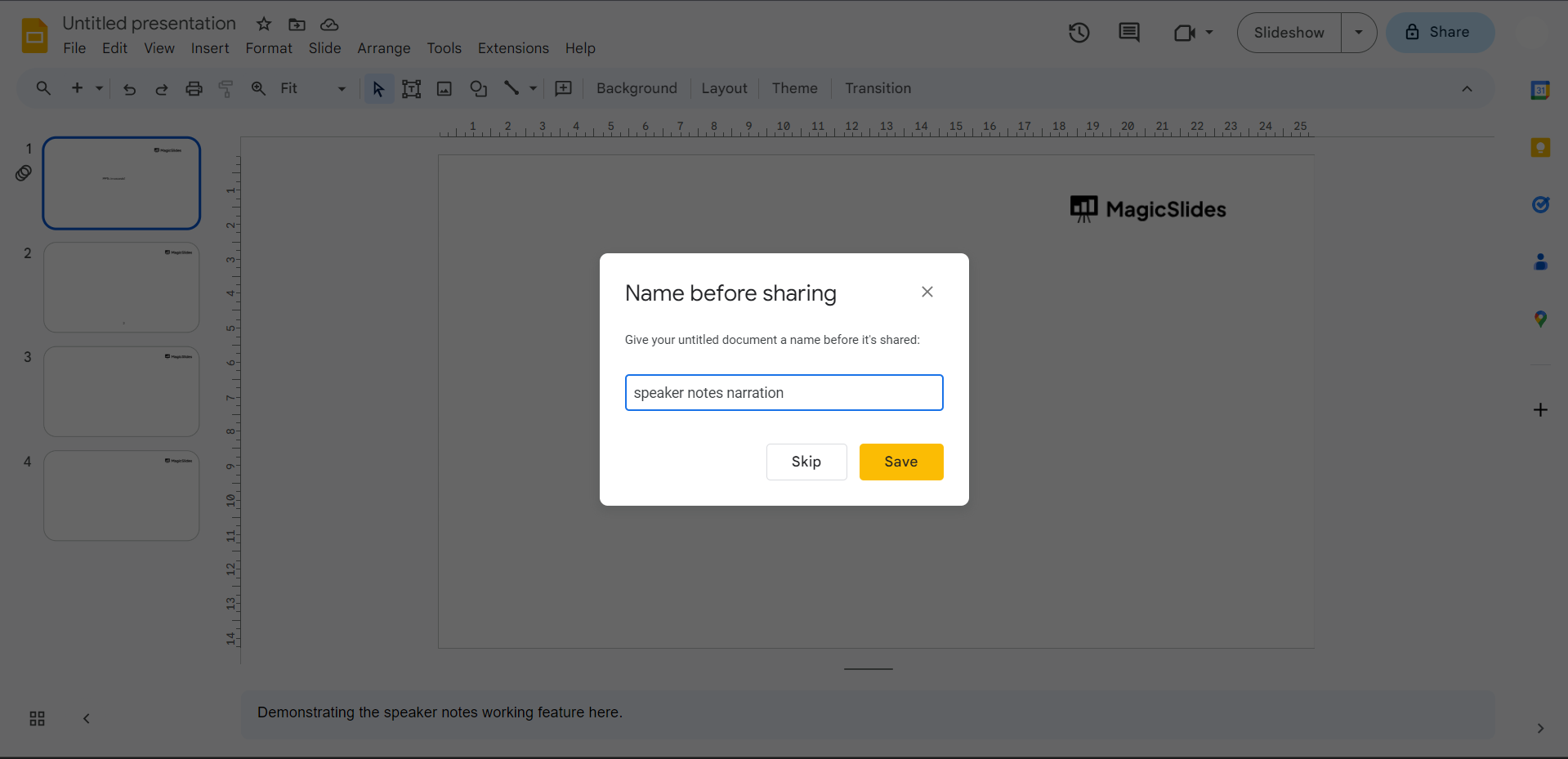
- Unveiling Speaker Notes: In the “View” menu, click on “Speaker Notes.” This is where you’ll add your script and narration cues.
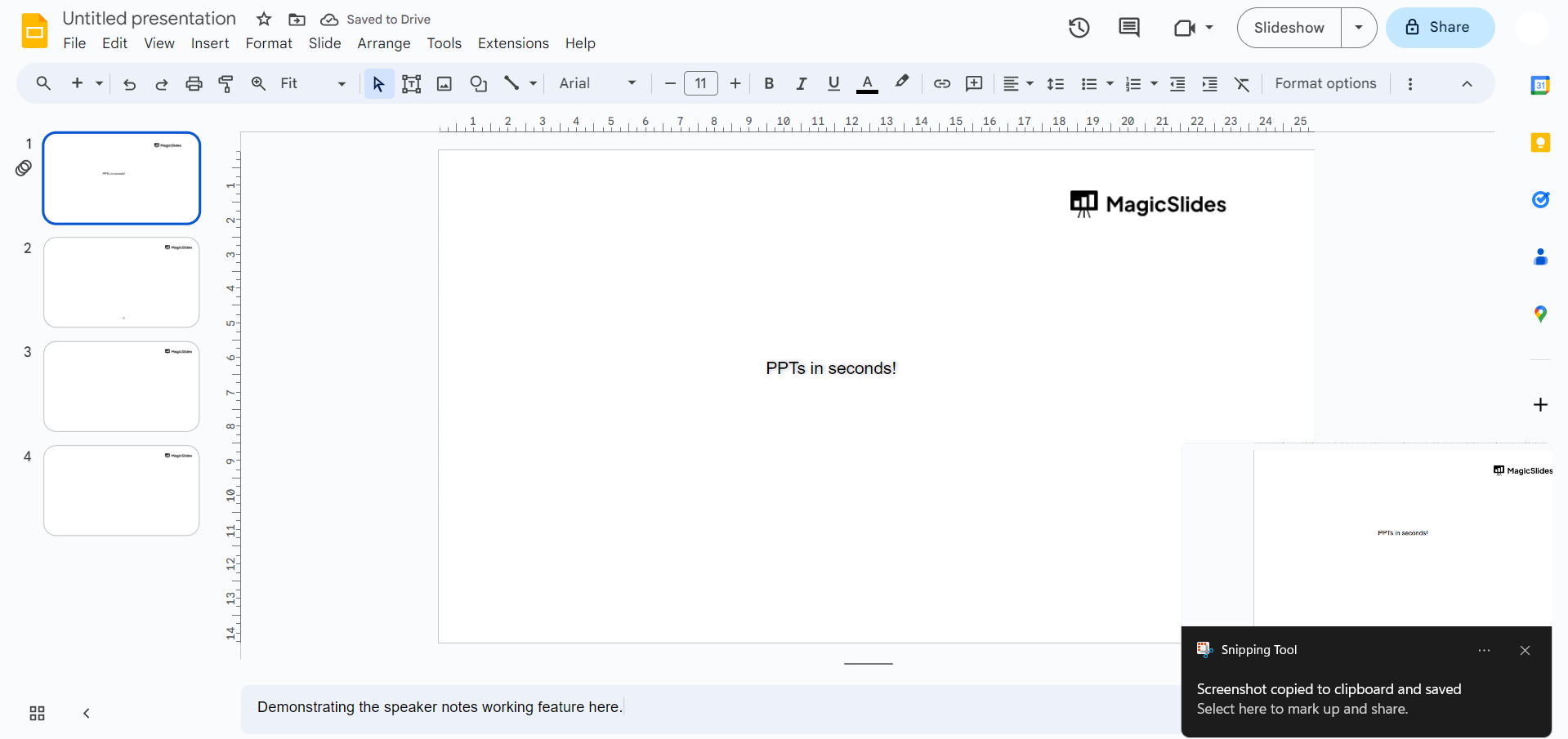
Step 3: Add Speaker Notes
- Craft Your Script: Beneath each slide, write your narration script in the speaker notes section. Be concise and clear, providing cues for when to advance to the next slide.
Step 4: Record Your Narration
- Embrace the Mic: Go to the “Slide” menu, choose “Record narration,” and follow the prompts to allow Google Slides to access your microphone.
- Test Your Setup: Before recording, run a quick audio test to ensure your microphone is working correctly.
- Start Recording: Click the “Record” button and begin your presentation, speaking along with your slides as you go. Google Slides will capture your voice and sync it with the slides.
- You can also add existing audio if it is available from insert tab → and click audio.
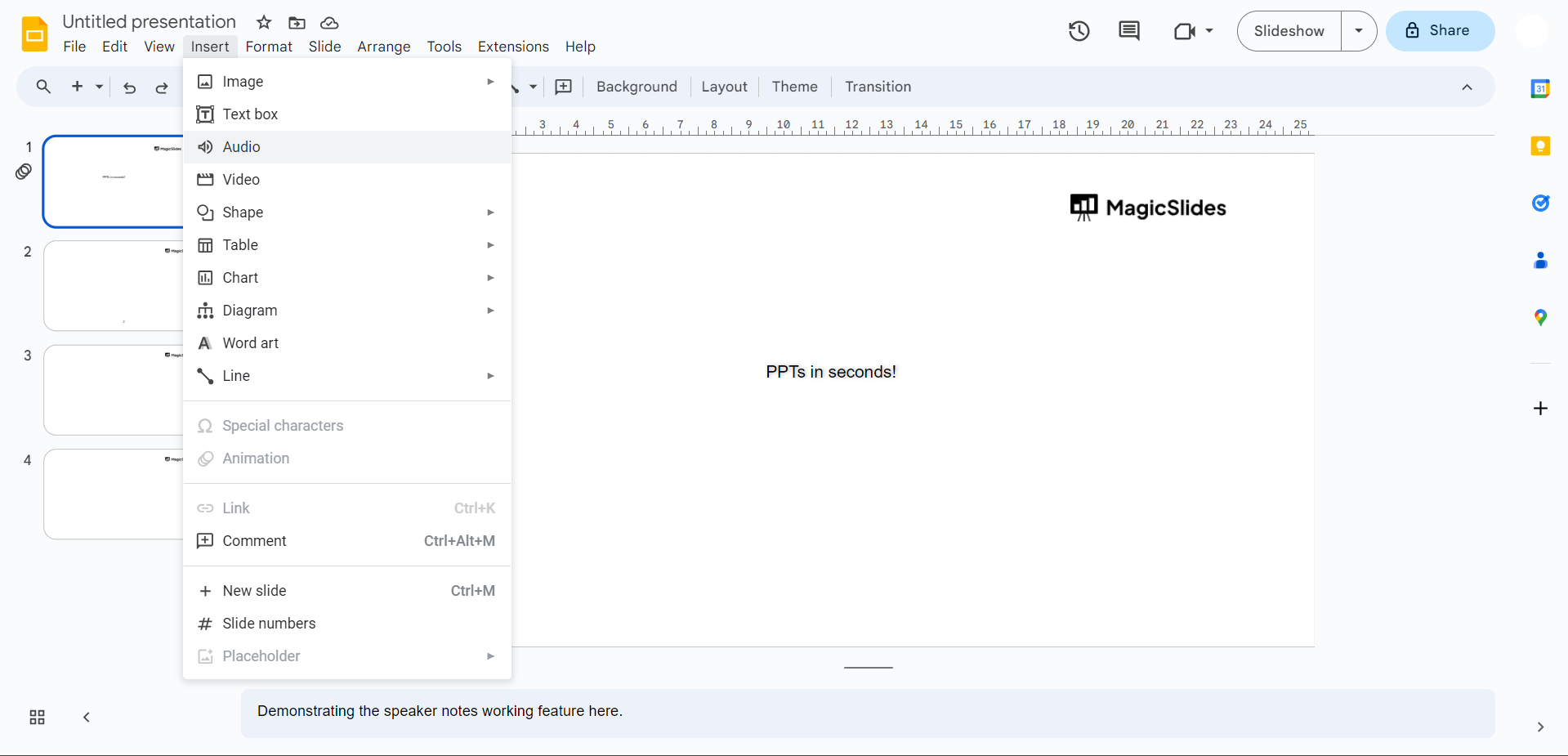
Step 5: Review and Edit
- Fine-Tune Your Delivery: After recording, you can play back your narration to review and edit it as needed.
Step 6: Share Your Narrated Presentation
- Accessible Sharing: Share your narrated presentation with your audience, and they can watch and listen to your voiceover online.
Additional Tip- Create Better Narrated Presentations Faster
When I started working on presentations, I found out that learning how to add narration to google slides and how to narrate Google Slides is just one part of the process. The bigger challenge is actually making Google Slides quickly before you even add narration to your Google Slides.
This is where tools like MagicSlides can really help me with my Google Slides.
- I do not have to spend a lot of time designing Google Slides by myself.
- It is a next-gen AI presentation tool that can make my work easier.
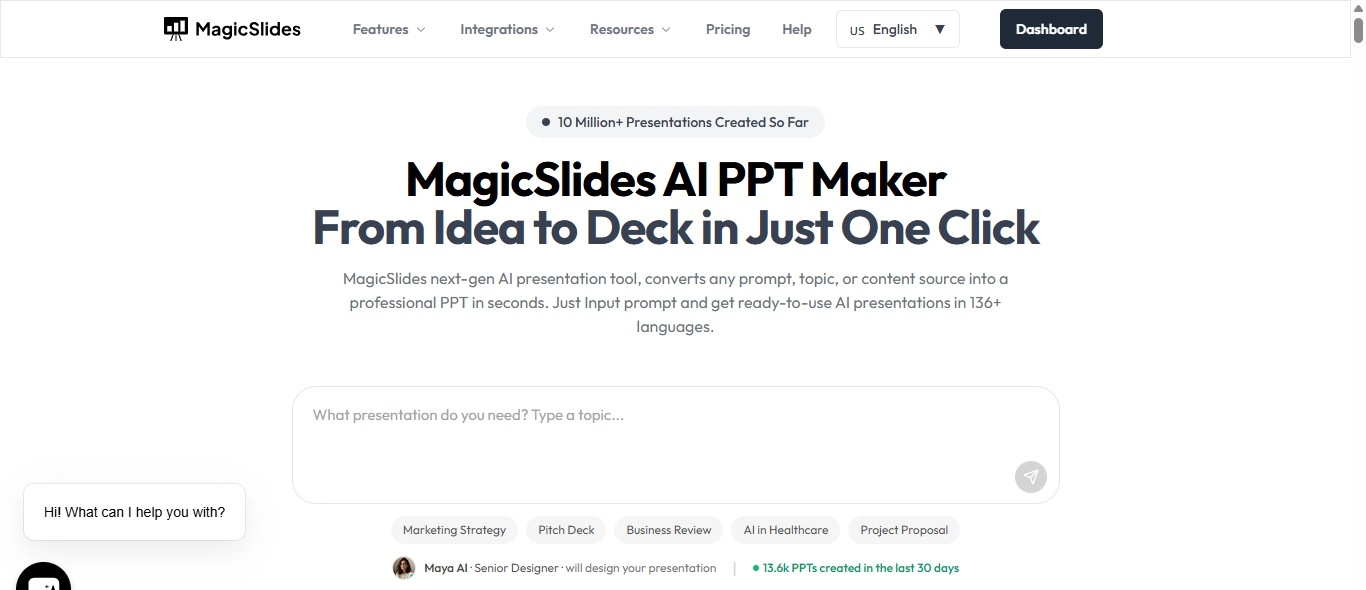
While spending hours making Google Slides, I just put in my topic or what I want to talk about in Google Slides, and this tool makes a complete presentation structure for my Google Slides within seconds. This saves me a lot of time. Lets me focus more on making my script better and improving my voice for Google Slides.
What I think is really useful about this for my Google Slides is how it puts my content in order slide by slide for my Google Slides. That makes it much easier for me when I get to the step of how to narrate my Google Slides because my ideas for Google Slides are already clear. I just record audio, for each slide of my Google Slides without thinking much about how it will all flow together in my Google Slides.
Conclusion
Narrating Google Slides is a game-changer in the world of presentations. It adds a personal touch, ensures accessibility, and enhances engagement.
Whether you’re an educator, a business professional, or a creative storyteller, narrating your slides opens new possibilities for communicating your ideas effectively.
By following the steps outlined in this article, you can breathe life into your presentations and captivate your audience in a way that static slides alone simply can’t achieve. So, step up to the mic and start narrating your way to impactful presentations!
Frequently Asked Questions
Q. How do you tell a story with Google Slides?
I tell a story by recording my voice putting it on Google Drive and adding it to each slide in Google Slides using the part.
Q. Can you record your voice in Google Slides?
No Google Slides does not have a voice recorder. You need to use tools to record audio for Google Slides.
Q. What is the best way to add your voice to Google Slides?
The best way is to record your voice in MP3 format and add it to each slide one by one so it plays automatically.
Q. How do I make a presentation with a story in Google Slides?
Make your slides record what you want to say for each one put the files on Google Slides and fix the playback settings so it sounds nice.
Q. Can I use my phone to record my voice for Google Slides?
Yes I use my phone a lot. It is easy. Works well for recording my voice for presentations, in Google Slides.


