How to record on google slides


Revolutionize presentations: Uncover the steps to effortlessly record audio in Google Slides for maximum impact.
In the dynamic world of online presentations, adding your voice to Google Slides can be a game-changer. Whether you want to explain complex concepts, provide context, or simply engage your audience, this guide will take you through the step-by-step process of recording audio directly within Google Slides, making your presentations more interactive and impactful.
How to Record Audio in Google Slides:
Open Your Google Slides Presentation:
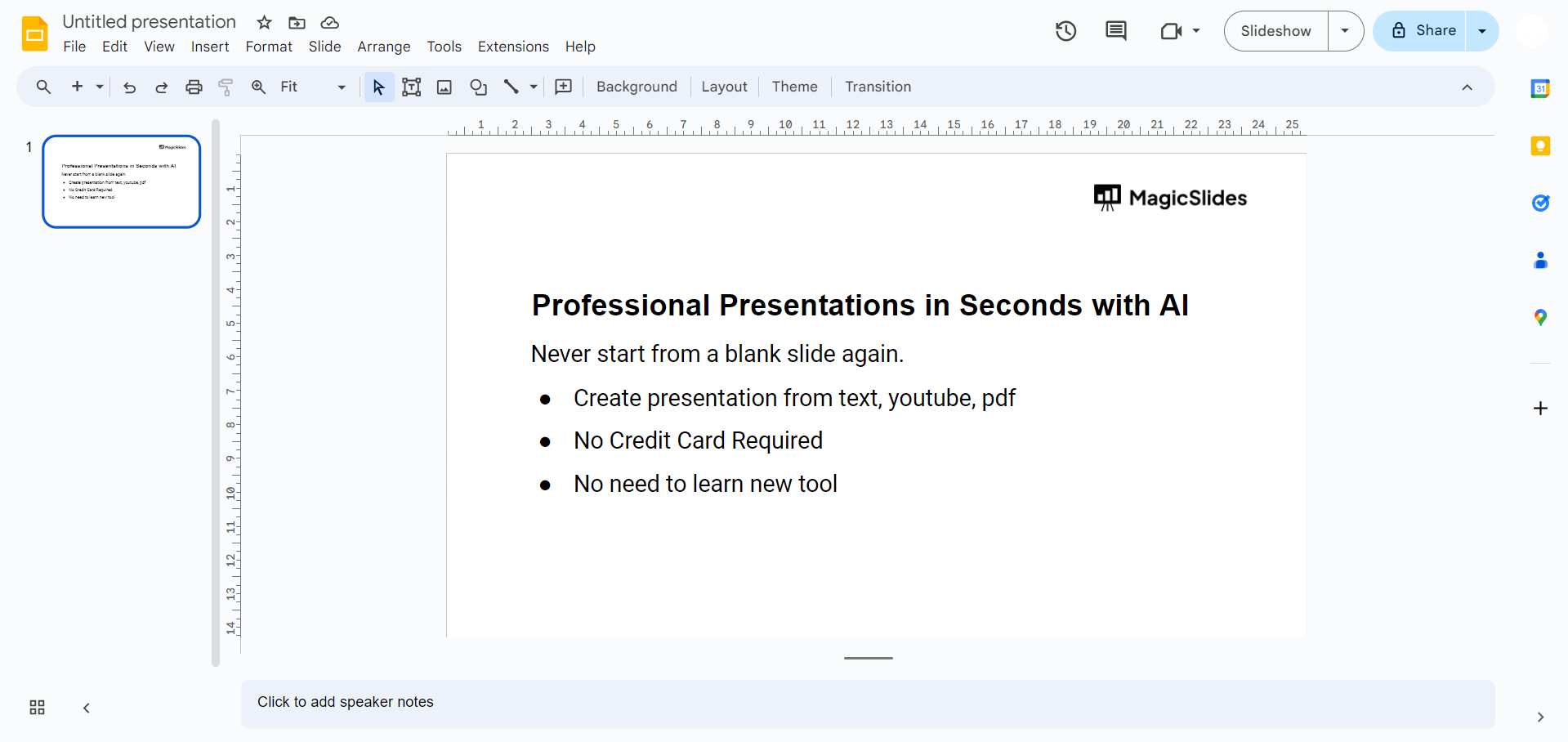
Start by opening the Google Slides presentation where you want to add your recorded audio.
Navigate to the Slide:
Move to the specific slide where you'd like to include the recorded audio.
Access the "Insert" Menu:
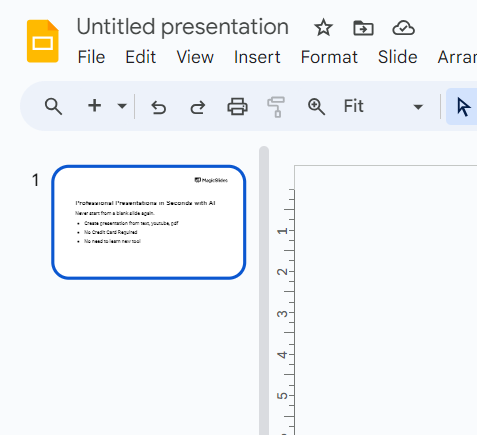
In the top menu, click on "Insert" to open a dropdown menu with various options.
Choose "Audio":
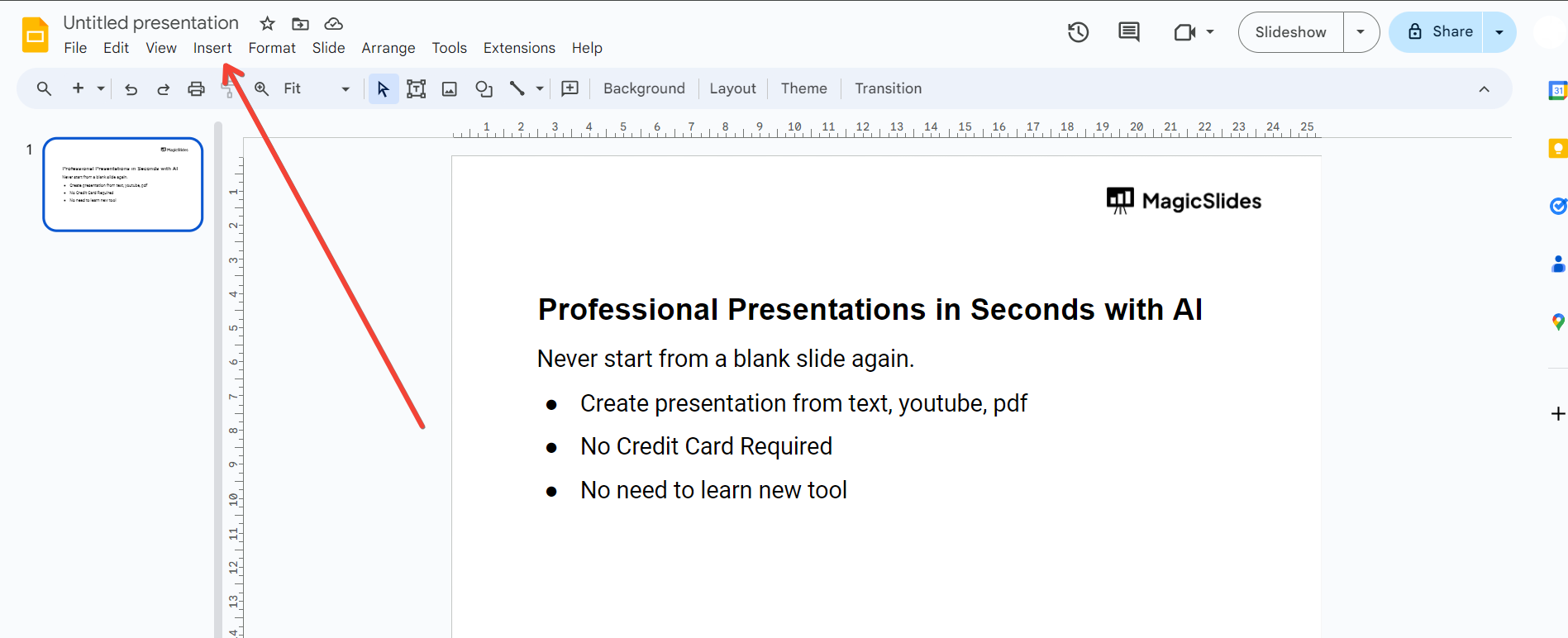
From the "Insert" menu, select "Audio." A sidebar will appear with options for recording or choosing an existing audio file. If not available go to tools tab and select dictate option to record on Google Slides.
Select "Record":
Click on the "Record" option to initiate the audio recording process. A recording toolbar will appear on the screen.
Start and Stop Recording:
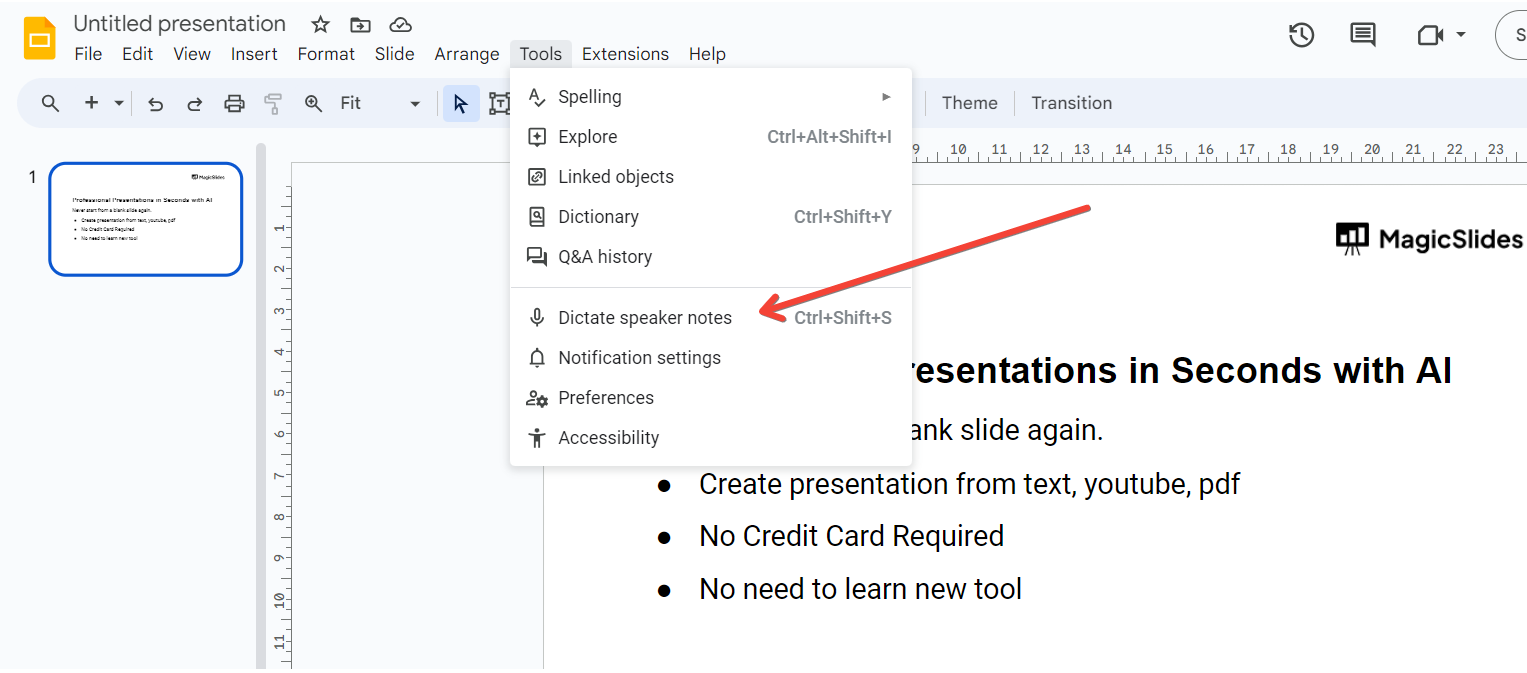
Press the "Record" button to start recording your audio. Narrate your content, and click "Stop" when finished.
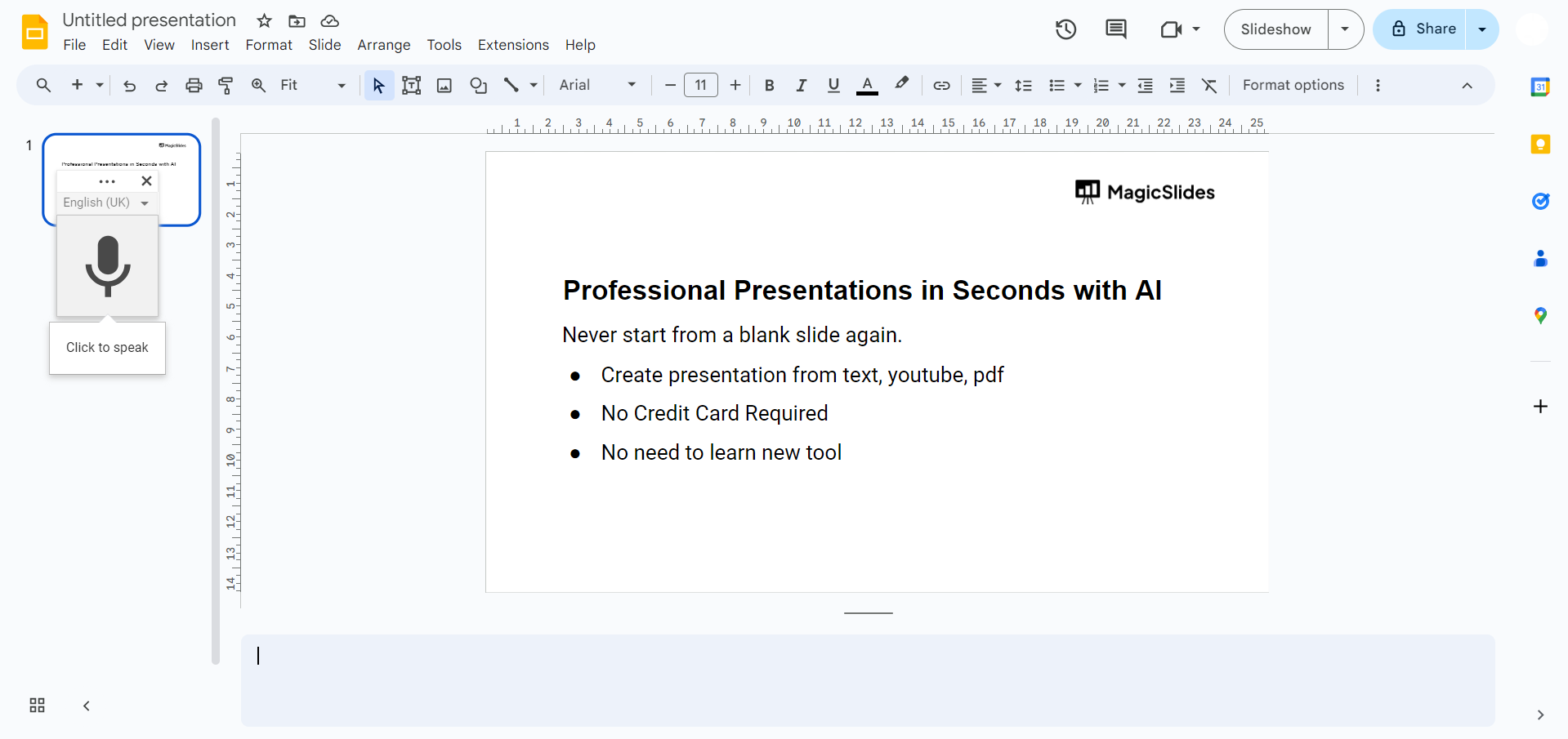
Adjust Audio Settings:
Fine-tune your recording by adjusting settings such as volume or playback options through the audio toolbar.
Position and Resize (Optional):
Click and drag the audio icon to position it on the slide. Resize as needed to seamlessly integrate it into your design.
Conclusion:
Recording audio in Google Slides transforms static presentations into engaging, multimedia experiences. This feature empowers presenters to add a personal touch, offering explanations, anecdotes, or emphasis that written text alone can't convey. By following these simple steps, you can harness the power of voice to captivate your audience, making your Google Slides presentations more memorable and compelling. Elevate your presentation game by integrating audio seamlessly, and watch as your content resonates with your audience on a deeper level.
Frequently Asked Questions:
Can I record audio in real-time during a Google Slides presentation?
Google Slides currently supports pre-recorded audio. Real-time recording is not available within the platform.
What audio formats are supported for recording in Google Slides?
Google Slides supports various audio formats, including MP3, WAV, AAC, and OGG for recording.
Can I edit or trim the recorded audio within Google Slides?
While Google Slides allows basic adjustments, extensive audio editing is recommended outside the platform for precision.
How do viewers experience recorded audio in a shared presentation?
Viewers can listen to recorded audio in a shared presentation by clicking the play button on the audio icon.


