How to remove people from slack channel


Unlock the power of Slack channels: Learn to add for collaboration, remove for focus and security.
In this guide, we'll delve into a fundamental aspect of Slack channel management: adding and removing members.
While adding members fosters inclusivity and collaboration, removing them ensures that channels remain focused and secure. Let's explore the importance of both actions and how to execute them effectively.
Before we begin, if you are looking to send Google form submissions directly to Slack, check SlackNotify.app. It will include all info submitted and sent directly to the Slack channel of your choice
How to remove people from slack channel
Open your Slack application:
Open the Slack workspace where the channel is located.
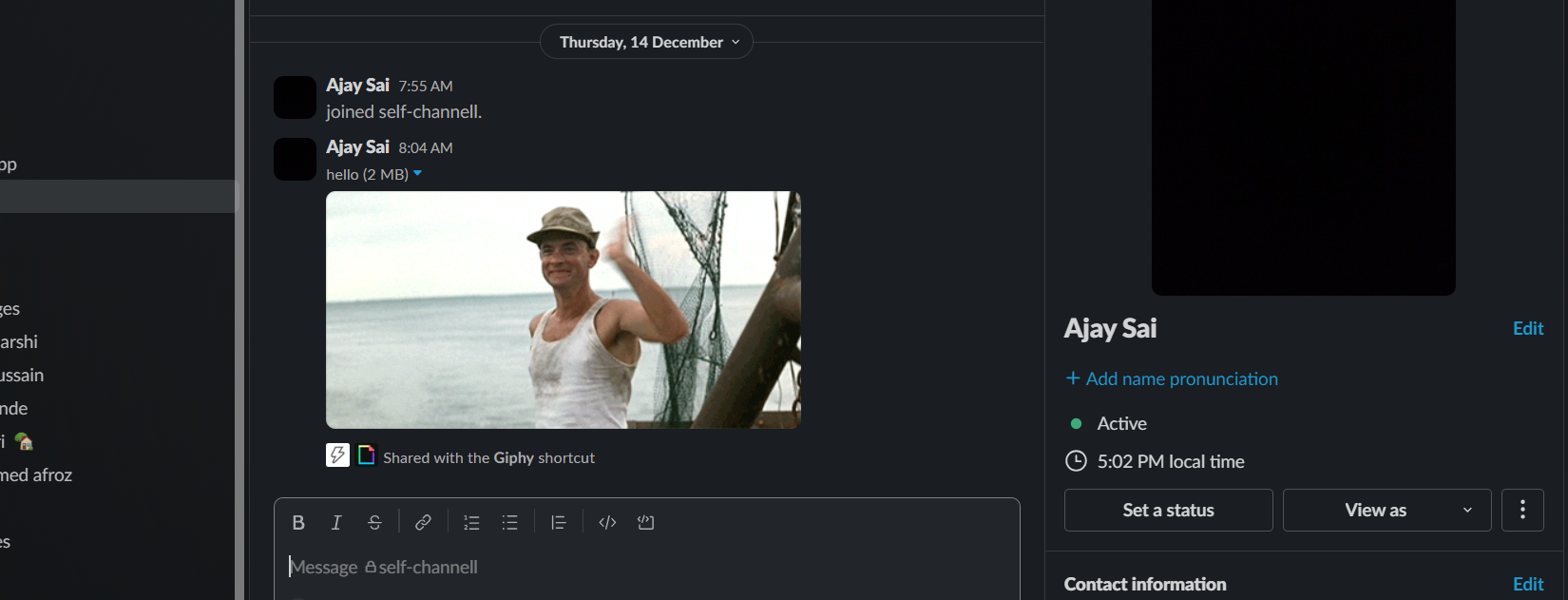
Navigate to the Channel:
Go to the channel from which you want to remove someone.

Click on the Channel Name:
In the left sidebar, click on the channel name to open the channel.
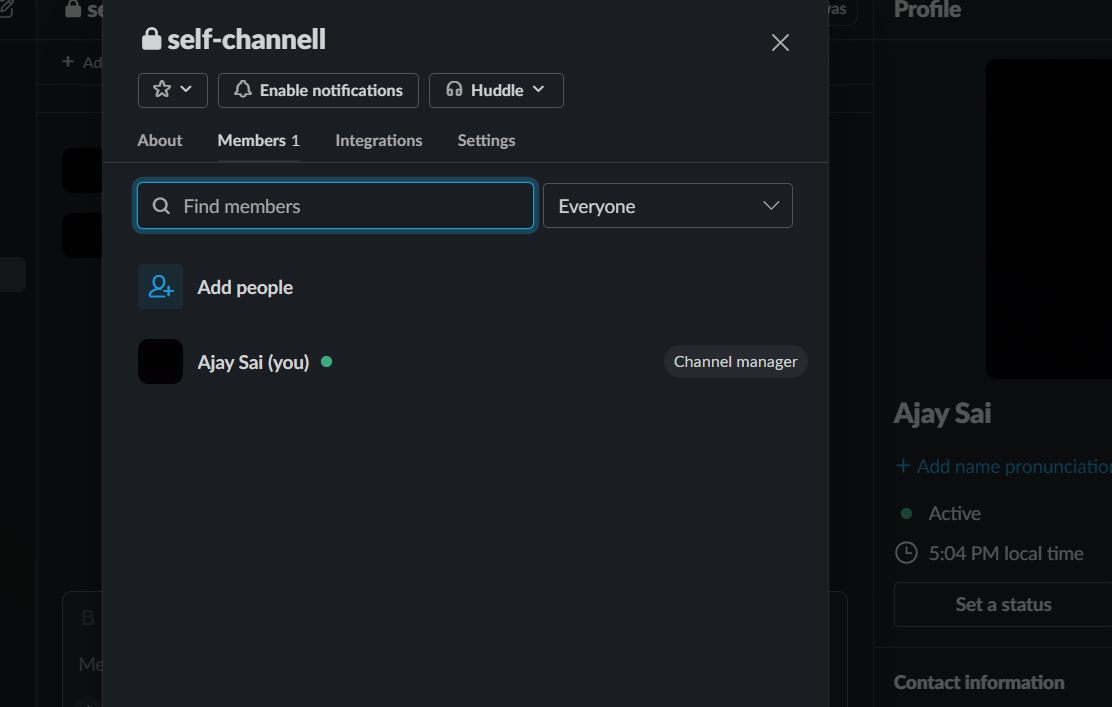
Click on the Settings Icon:
At the top right of the channel, click on the gear icon. This will open the channel settings.

Select "Additional options":
From the dropdown menu, select "Additional options."
Manage Members:
In the "Additional options" menu, choose "Manage members." This will open the list of members in the channel.
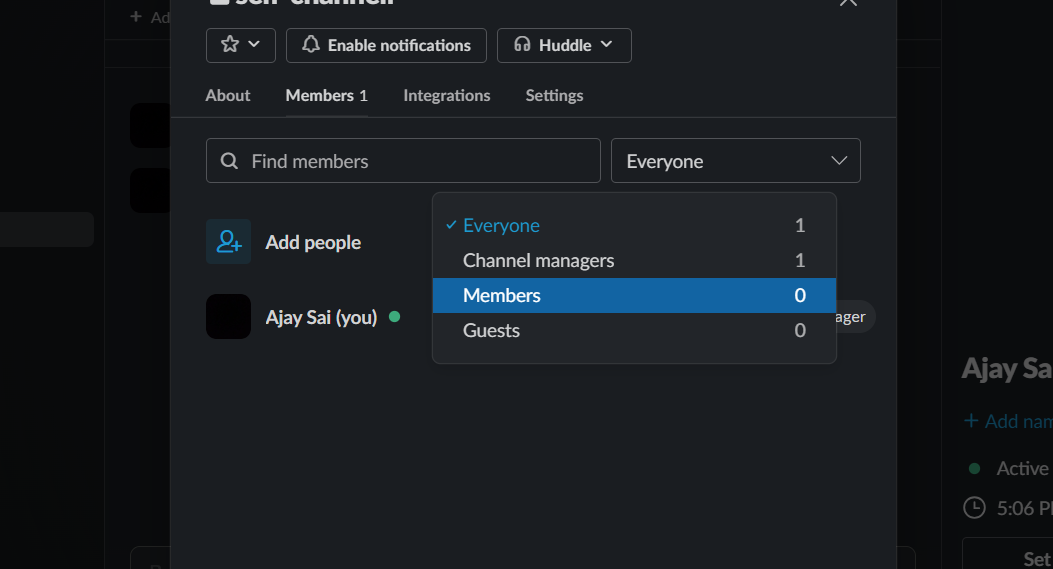
Find and Remove the Member:
Scroll through the list of members and find the person you want to remove. Click on the three dots (...) next to their name.
Remove from Channel:
From the options that appear, select "Remove from channel." Confirm the action if prompted.
Note: If you don't see the option to remove members, you may not have the necessary permissions. In that case, contact a Slack workspace administrator to adjust your permissions or ask them to remove the person from the channel.
While removing people from your Slack channel, make sure you don’t miss important updates by setting up Google Form notifications. Each form submission will trigger an alert in your active channels, keeping your team informed.
Conclusion:
So, whether you're welcoming new contributors or refining the focus of your discussions, mastering these aspects of Slack channel management is a valuable skill for any team navigating the digital landscape of modern work. Create Aesthetic Presentations by slightly tweaking the design
Frequently Asked Questions:
How do I add members to a Slack channel?
Navigate to the channel, click on the gear icon, select "Additional options," and manage members.
Why is it important to add members for collaboration?
Adding members fosters inclusivity, enabling seamless communication, idea sharing, and team collaboration in channels.
Can I remove members from a public channel in Slack?
Yes, but they can rejoin. For private channels, access management may differ based on settings.


