How to Rotate Text in PPT (6 Easy Methods in PowerPoint)


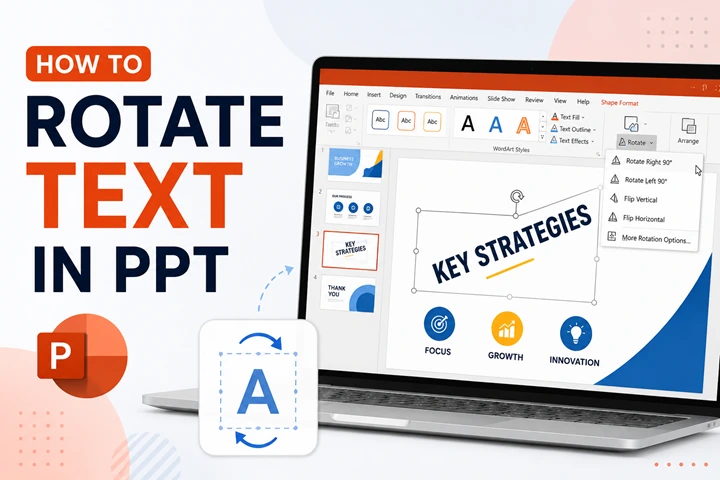
How to rotate text in PPT quickly and easily. Learn how to rotate text in PowerPoint, rotate text boxes, and apply 3D rotation text effects step by step.
To make PowerPoint slides more attractive and eye-catching, many users wonder how to rotate text in PPT. If you’re here, you’re probably looking for the same answer. Don’t worry, your search ends here. In this guide, I’ll explain how to rotate text in PowerPoint across an entire slide deck. If you’re just getting started with presentations, you can also check out how to create a PowerPoint presentation in ChatGPT to quickly generate slides before formatting them.
If you’re still unsure whether you should rotate text in your slides, let me first explain the reasons behind it so you can make an informed decision.
Why Rotate Text in Microsoft PowerPoint?
It’s important to understand why rotating text can be useful in a presentation. Once you understand the benefits, it becomes easier to decide when rotating text will actually improve your presentation.
In many cases, I rotate text in Microsoft PowerPoint to improve slide design and make important information clear. Not only this, but there are also some other reasons, such as:
- Rotate text to make section titles appear vertically on the side of a slide.
- Improving slide layout by aligning labels with:
- Shapes
- Charts
- Images
- When space is limited, rotating text allows for placing content more efficiently and clearly.
- Rotate labels or headings to match
- Arrows
- Tmelines
- Diagrams
- Rotated text can make certain words or headings stand out.
- Making slides look more professional.
If your goal is to improve the overall design of your slides, I also recommend reading how to make PPT attractive for additional design tips.
I hope that after reading these reasons, you’ll make an informed decision based on your requirements.
How to Rotate Text in PPT – Best 6 Methods (Step-by-Step)
Now that you understand why rotating text can improve the design and readability of your slides, the next step is learning how to rotate a text box in PPT.
Microsoft PowerPoint provides several easy ways to do this, depending on your requirements, i.e., quick adjustments or precise rotation angles. In the following section, I’ll explain the 6 best methods to rotate text in PowerPoint. Follow the step-by-step instructions below to rotate text easily in your presentation.
#Method 1. How to Rotate Text in PowerPoint Using the Rotation Handle
Rotation handle is a built-in feature that allows you to quickly adjust the angle of a text box by simply dragging it with the mouse. It’s the fastest way when you want to rotate text slightly to match a slide layout or align with visuals or shapes.
Here are the steps of this approach:
- Open the PowerPoint presentation.
- Insert a text box by going to Insert > Text Box.
- Type the text to rotate.
- Click the text box to select it.
- You will see a circular rotation handle above the box.
- Click and drag the handle left or right to rotate the text.
- Release the mouse once the text reaches the desired angle.
If you don’t want a slight rotation, instead, you need more control over positioning. Learning how to rotate text box in PPT using the formatting panel is the next option.
#Method 2. How to Rotate Text Box in PPT Using Format Options
If you need more precise control over the rotation angle, use the Format Options in PowerPoint. This method is helpful when you want to rotate a text box to an exact degree rather than adjusting it manually. By accessing the Format Shape settings, you can enter a specific rotation value and align the text box perfectly with other elements on the slide.
To do so:
- Select the text box in your slide.
- Right-click the text box.
- Choose Format Shape.
- Go to Size & Properties.
- Locate the Rotation field.
- Enter a specific value such as:
- 90° for vertical text
- 180° to flip text
- 270° for reverse vertical orientation
Understanding how to rotate text box in PPT using exact values ensures consistent formatting across slides.
#Method 3. How to Rotate Text in PowerPoint Using the Arrange Menu
If you want to rotate text quickly without manually dragging the rotation handle, use the Arrange menu in PowerPoint. For the same:
- Select the text box.
- Go to the Shape Format tab.
- Click Rotate in the Arrange group.
- Choose one of the preset options:
- Rotate Right 90°
- Rotate Left 90°
- Flip Vertical
- Flip Horizontal
This option is useful when you want to rotate text quickly without manually dragging the rotation handle.
#Method 4. Rotate Text Direction Inside a Text Box
In some cases, users don’t need to rotate the entire text box; instead, they only want to change how the text appears inside it. That’s when the text direction option in PowerPoint works well. Here are the steps to follow:
- Select the text box.
- Go to Shape Format.
- Click Text Direction.
- Choose one of the options:
- Horizontal
- Rotate all text 90°
- Rotate all text 270°
- Stacked text
This technique helps me create vertical labels or side headings without rotating the entire object. If you want to explore more advanced text effects, you can also check how to curve text in PowerPoint for creative formatting options.
#Method 5. How to Apply 3D Rotation Text Effect in PowerPoint
If you want a more visually dynamic slide, you can apply 3D text rotation effects. Here’s how:
- Select the text box.
- Right-click and choose Format Shape.
- Click Effects.
- Open the 3D Rotation section.
- Adjust the following values:
- X Rotation
- Y Rotation
- Z Rotation
- Choose a preset 3D style if needed.
Learning how to apply 3D rotation text effect in PowerPoint allows you to create professional-looking presentation elements.
#Method 6. How to Rotate Text in PPT Automatically
Now we learned that manually adjusting text rotation for multiple slides can become time-consuming. In such situations, I prefer using a professional Text to PPT Converter that automatically designs slides and applies formatting.
One tool I explored is MagicSlides AI Presentation Generator, which can automatically structure slides and apply design elements, including text rotation, based on a prompt (text).

How MagicSlides AI Automatically Rotates Text in PPT
Instead of manually learning how to rotate text in PowerPoint on each slide, you can simply generate a presentation using this tool. It automatically formats the layout and rotates text where needed to improve the slide design.
Here is the complete set of instructions to use this utility for rotating text:
- Open the specified solution in your browser.
- Enter a prompt describing the presentation topic. For example: “Create a presentation about digital marketing trends.”
- Choose the number of slides and preferred design style.
- Click Generate Presentation.
- The AI automatically creates a slide deck with structured content and design elements.
During this process, the tool automatically adjusts formatting, as per your prompt, including rotating text boxes and improving layout structure.
Once the presentation is generated, export it.
- Click the Export button.
- Choose the PowerPoint (.PPTX) format.
- Download the file.
- Open it in Microsoft PowerPoint.
After exporting, you can still edit the slides and make adjustments if needed.
When I Prefer Using AI for Slide Formatting
This AI-powered slide generator is helpful when:
- Create presentations quickly
- Automatically formatted slide layouts
- Designing large presentations with many slides
- Want AI to handle visual design elements such as text alignment and rotation
How to Rotate Text in PPT Hassle-free – Best Practices
To make the PowerPoint slides professional, use rotated text carefully. For the same, here are some tips to follow:
- Avoid rotating long sentences.
- If you rotate text in one slide, keep the same style throughout the presentation.
- Rotate text to match shapes, arrows, or images to create a clean layout.
- Too many rotations can make slides confusing.
Author’s Verdict
Knowing how to rotate text in PPT helps to make a slide deck clean and professional. For the same, we discussed multiple methods, including:
- Dragging the rotation handle
- Using Format Shape settings
- Applying ribbon rotation tools
- Changing text direction
- Adding 3D rotation effects
- MagicSlides AI (Professional Tool)
Once you understand how to rotate text in PowerPoint, you can design presentations that are both eye-catching and easy to read.
People Also Ask
Q1. Can I rotate text in PowerPoint without rotating the text box?
Yes. You can change the text direction from the Shape Format tab, which rotates only the text inside the box.
Q2. What is the easiest way to rotate text in PowerPoint?
The easiest way is to use the rotation handle above the text box and drag it to the desired angle.
Q3. Can I rotate text to an exact degree in PowerPoint?
Yes. Enter the exact angle in Format Shape > Size > Rotation.
Q4. How do I create vertical text in PowerPoint?
To make text vertical in PowerPoint, here are the quick steps:
- Go to Shape Format.
- Then click on Text Direction > Rotate all text 90° or 270°.


