How to see notes in PowerPoint


PowerPoint’s notes feature helps presenters stay organized with key points and reminders during presentations
Seeing and utilizing notes in PowerPoint can help enhance your presentation by keeping key points readily accessible without crowding your slides.
Speaker notes allow you to have important information and reminders visible only to you during the presentation, keeping you on track and confident.
Follow this step-by-step guide to learn how to view and use notes in PowerPoint.
How to See Notes in PowerPoint: A Step-by-Step Guide
Step 1: Open Your PowerPoint Presentation
Start by opening the PowerPoint file you want to work with. Navigate to the specific slide for which you want to view or add notes.
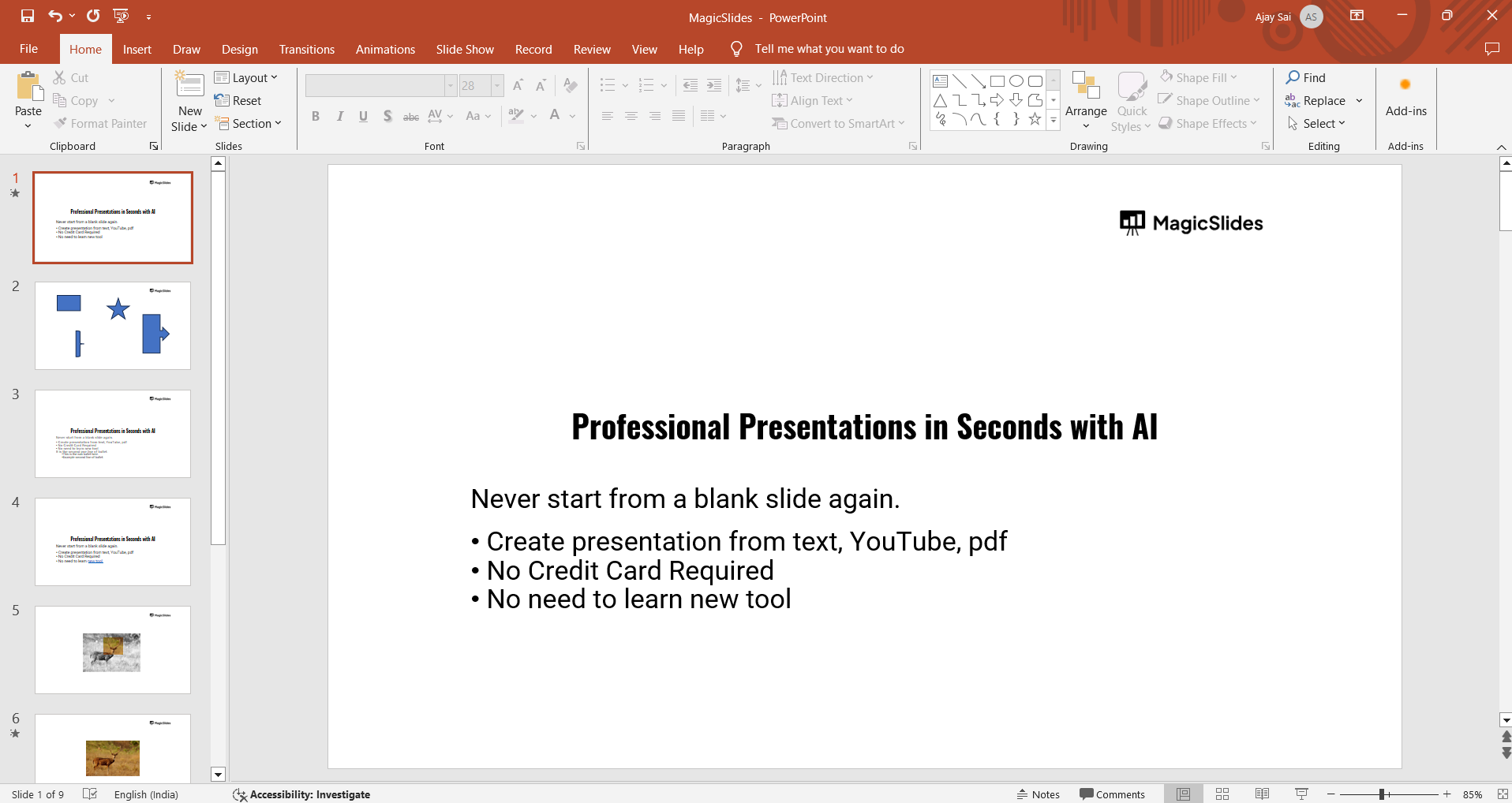
Step 2: Open the Notes Pane
At the bottom of the PowerPoint window, locate the “Notes” button. Clicking it will open the Notes Pane, which appears below the slide.
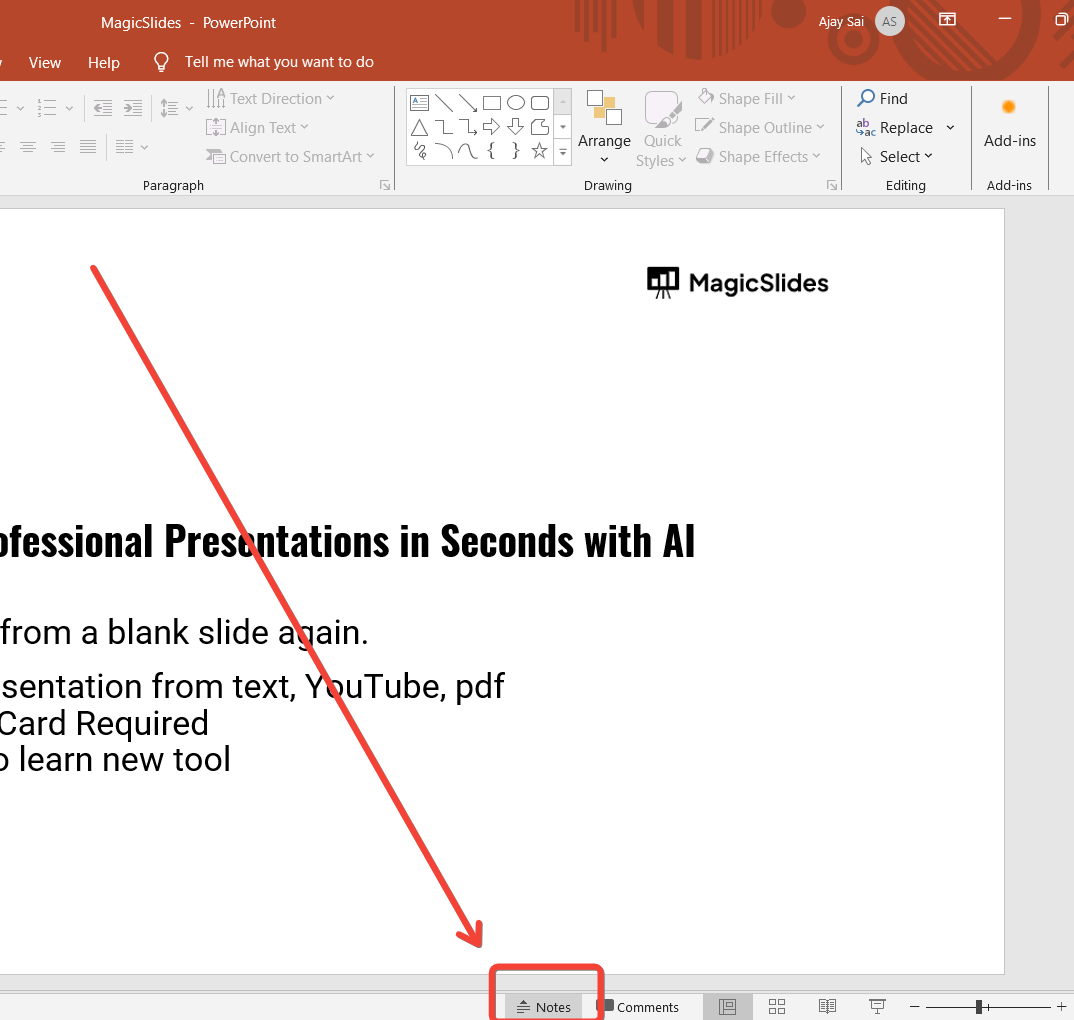
Here, you can type or view any notes associated with the slide. If you don’t see the Notes button, try selecting "View" and then "Notes" from the toolbar.
Step 3: Add or Review Your Notes
In the Notes Pane, you can add new notes or review any existing ones.
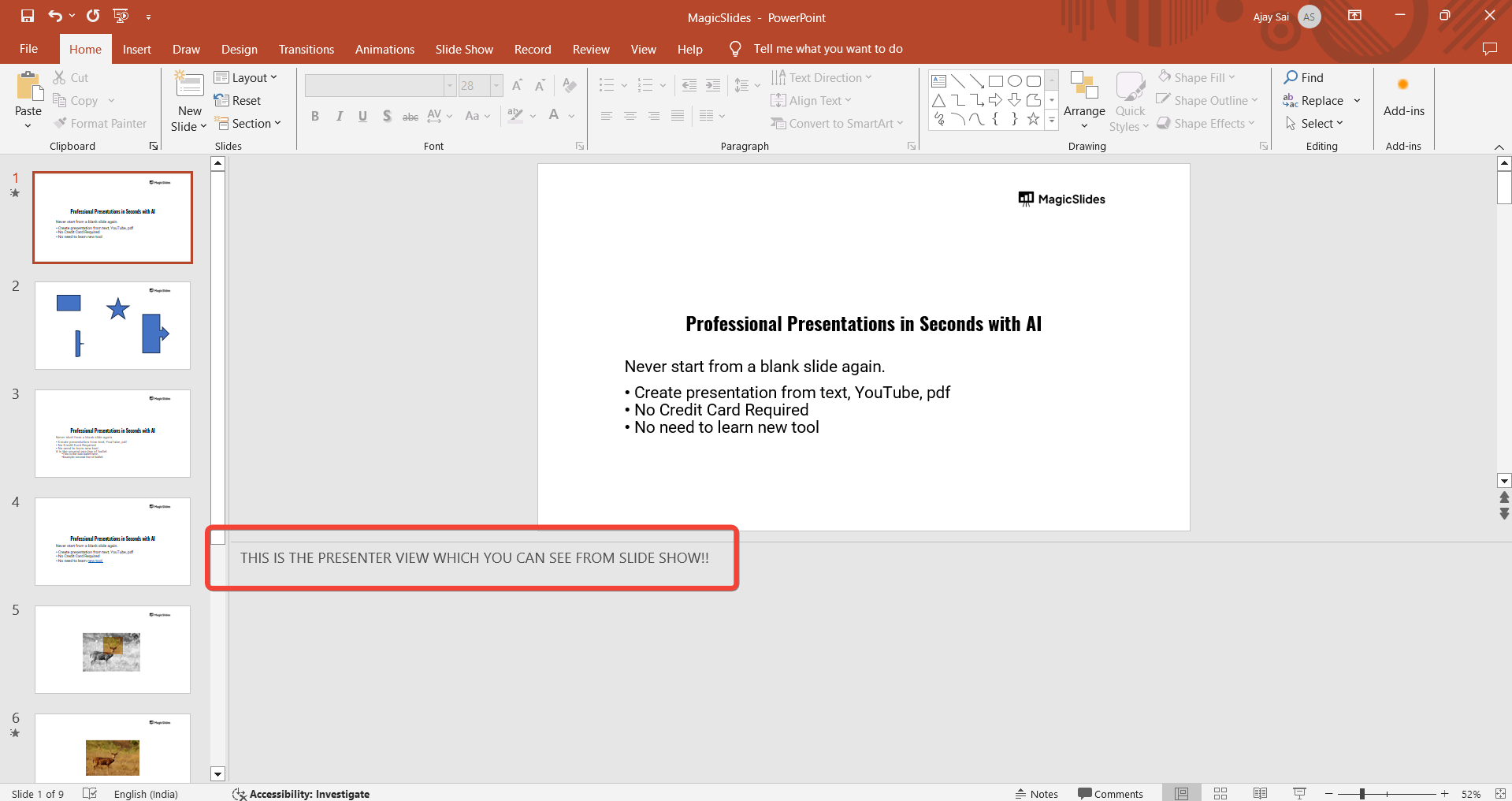
This section is where you’ll input important reminders, talking points, or additional details that complement your slide content.
Notes are saved automatically and will remain with the slide until you delete or edit them.
Step 4: View Notes in Presenter View (for Presentations)
To see your notes during an actual presentation, go to the "Slide Show" tab and select "From Beginning" or "From Current Slide."
Once in Presenter View, your slide will be displayed to the audience, while your screen will show both the slide and your notes on the right side, helping you stay on track during the presentation.
Step 5: Print Notes (Optional)
If you prefer a printed copy of your notes, go to "File" > "Print" and select "Full Page Slides" under "Print Layout."
From the dropdown menu, choose "Notes Pages," which will print each slide with its associated notes.
This is helpful for offline review or as a backup for your presentation.
After viewing notes in PowerPoint, discover how to animate text in PowerPoint to make your slides more engaging.
Conclusion
Using and viewing notes in PowerPoint can be a valuable way to enhance your presentation skills and maintain a smooth flow.
Whether you choose to read notes in Presenter View or print them out, these tools keep essential information at your fingertips, so you can focus on delivering a confident and effective presentation.
FAQs are here to guide!
Can my audience see my notes during the presentation?
No, the audience will only see the slides, while your notes will be visible to you in Presenter View.
Can I add notes to my slides after creating them?
Yes, you can add notes to any slide at any time by opening the Notes Pane and typing in your content.
Can I adjust the font size in the Notes Pane?
Yes, you can increase or decrease the font size in the Notes Pane to make it more readable for yourself. Simply select the text and adjust the font size as needed.


