How to Animate Text in PowerPoint: Step-by-Step Guide


Learn how to animate text in PowerPoint step by step. Make text, words, and bullet points appear one by one with effects, timing, and animation options.
Adding text animations in PowerPoint is an easy way to make your presentations more engaging, clear, and visually appealing. Whether you want to make text appear one by one, highlight key points, or create a smooth flow between ideas, PowerPoint gives you several animation effects and timing options to control how your text appears on the slide. In this guide, you’ll learn how to animate text in PowerPoint step by step, including how to animate words and bullet points individually.
How to Animate Text in PowerPoint: A Step-by-Step Guide
Step 1: Open PowerPoint and Select Your Slide
Open your PowerPoint presentation and navigate to the slide with the text you’d like to animate.
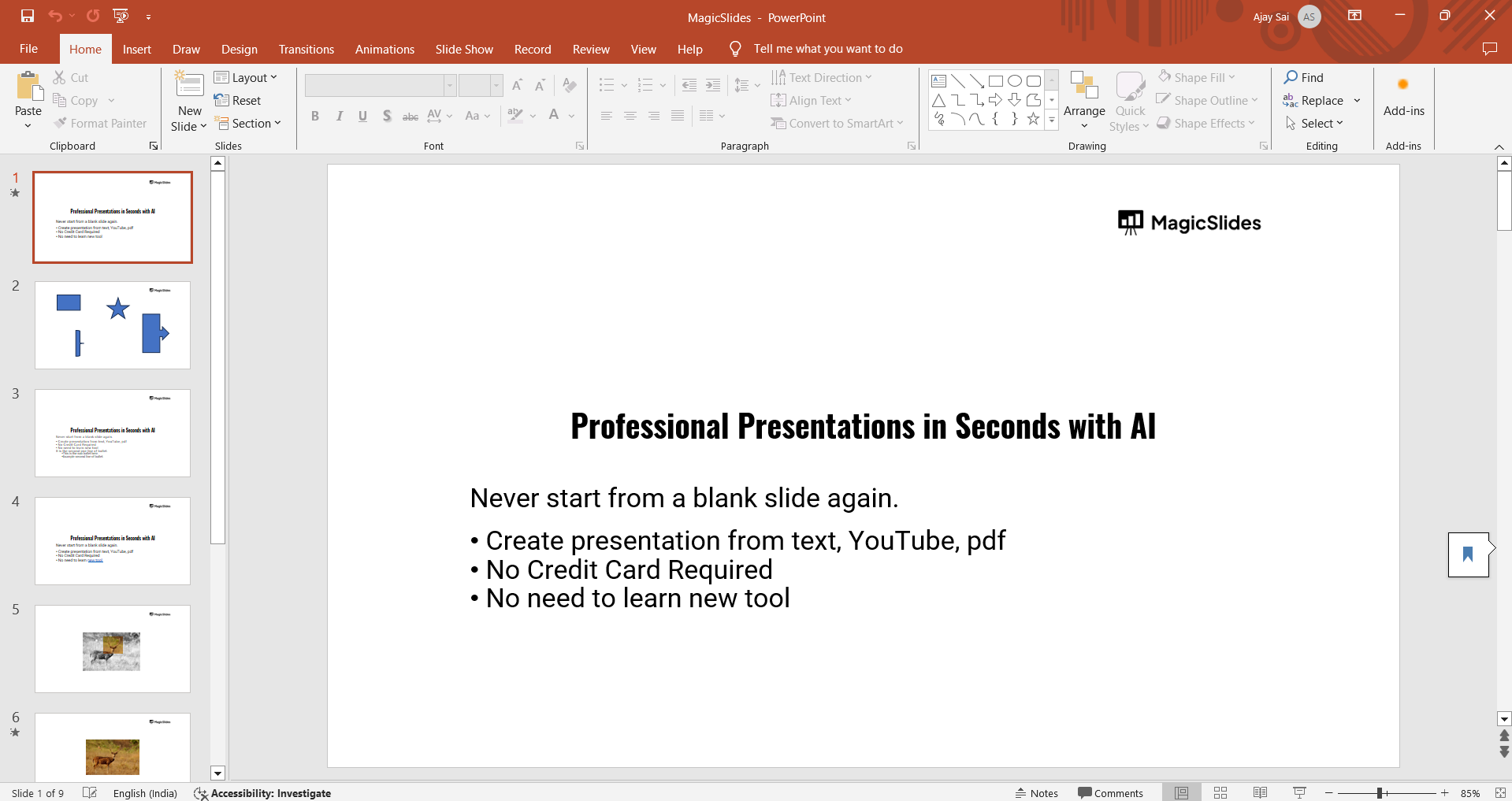
If you need to add text, select the “Insert” tab and click on “Text Box” to type in your content.
Step 2: Select the Text You Want to Animate
Click on the text box containing the text you want to animate.
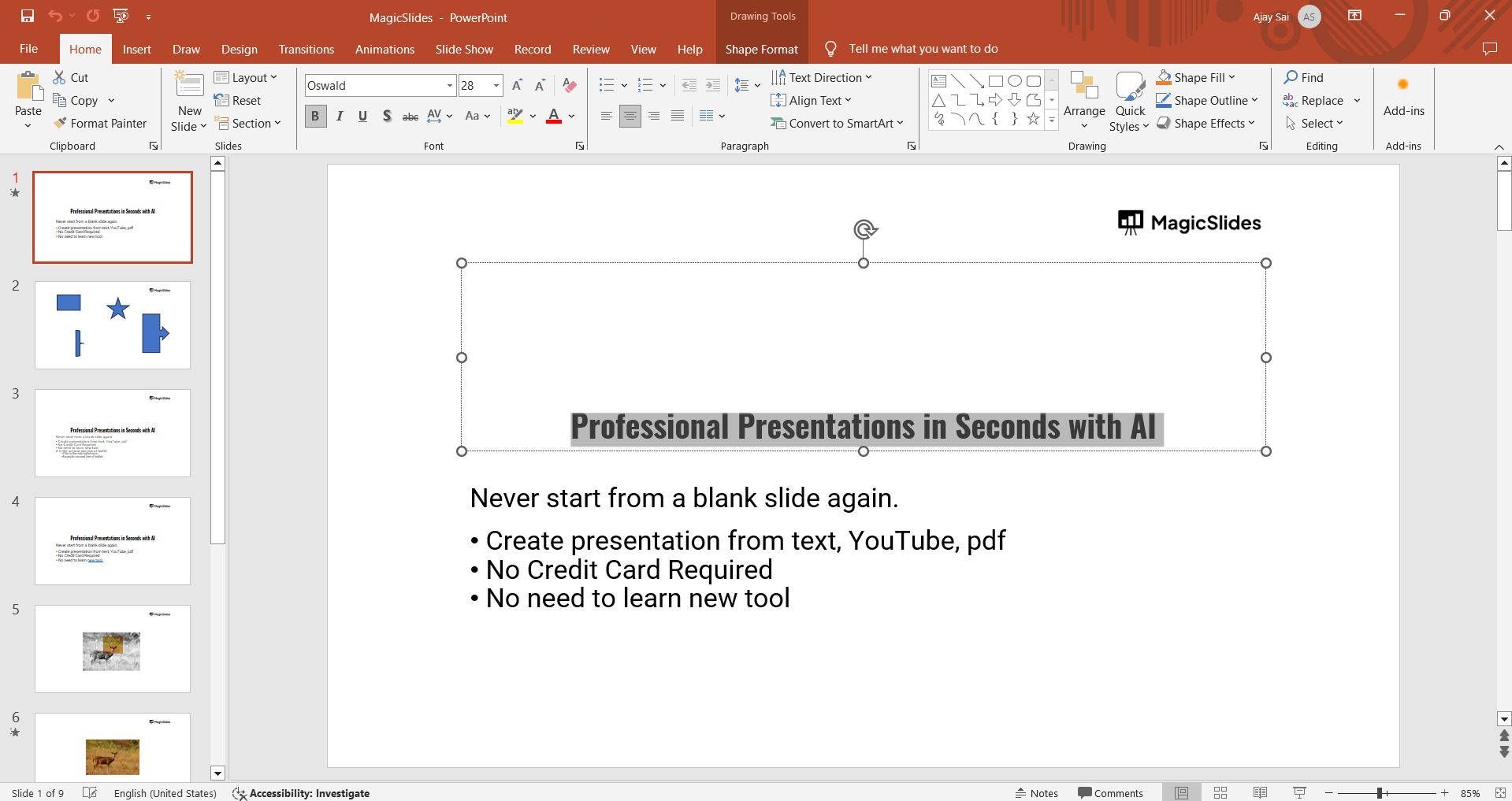
Ensure that only the specific text or text box you wish to animate is selected before moving on to the animation step.
Step 3: Go to the “Animations” Tab
With the text box selected, navigate to the “Animations” tab at the top of the screen.
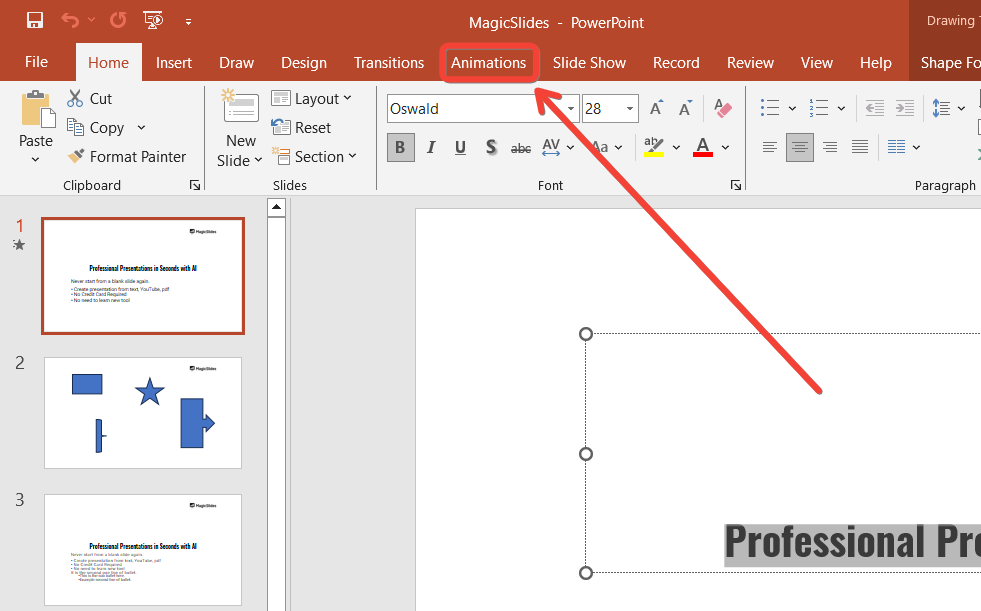
In this tab, you’ll find a variety of animation options under the “Animation” section, including “Entrance,” “Emphasis,” and “Exit” effects, each serving a different purpose in animating your text.
Step 4: Choose an Animation Effect
Click on the animation style you prefer, such as “Fade,” “Fly In,” or “Zoom.”
PowerPoint will provide a quick preview of the effect on your text.
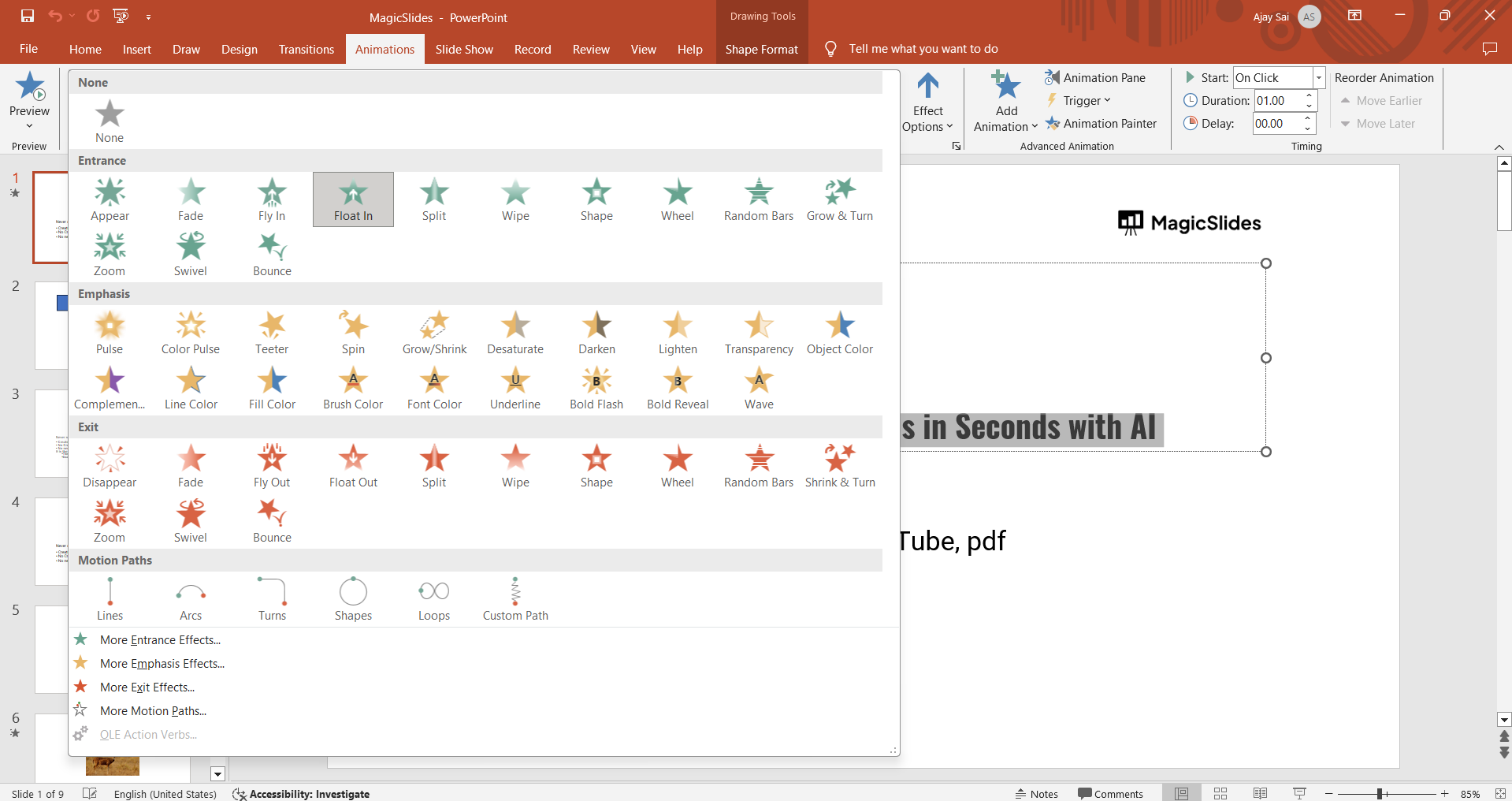
Experiment with different options until you find the one that best fits your presentation’s tone.
Step 5: Adjust Animation Timing and Options
After selecting your animation effect, go to the “Animation Pane” (found in the “Animations” tab) to adjust the timing, start options (such as “On Click,” “With Previous,” or “After Previous”), and duration of the animation.
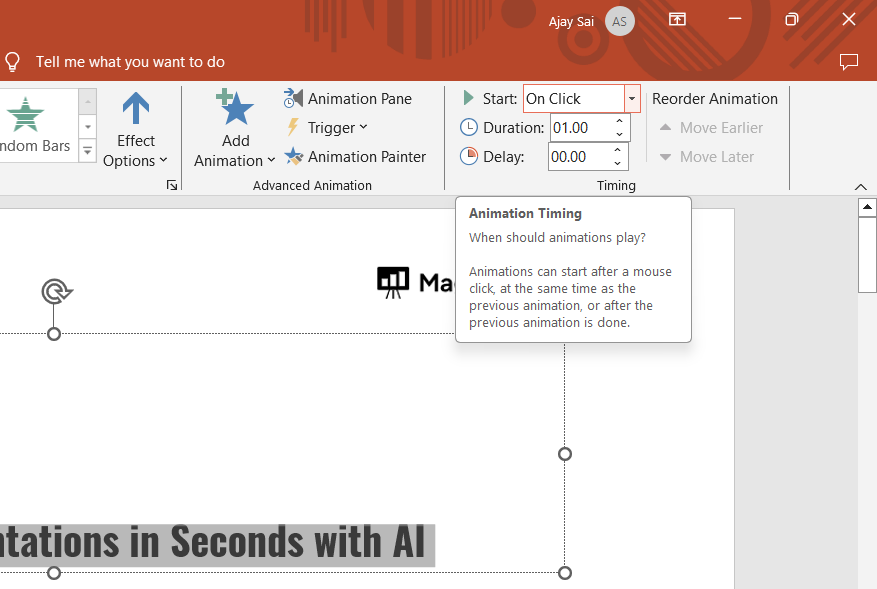
This control allows you to customize when and how the animation occurs for each text box.
Step 6: Add Additional Animations if Needed
If you want to apply more than one effect to the same text, select the text box again, go to “Add Animation,” and choose a new effect.
Repeat these steps to layer multiple animations, such as an entrance and emphasis effect, for a more dynamic presentation.
Step 7: Preview the Animation
To see how your animations look, click “Preview” in the “Animations” tab.
This will play your animations in the order you’ve set them, allowing you to make adjustments as needed.
Once you’ve animated text in PowerPoint, learn how to set a picture as a background in PowerPoint to combine visuals and motion effectively.
How to Make Text Appear One by One in PowerPoint
If you want each line or bullet point to appear separately during your presentation, you can use the By Paragraph option. This is especially useful for presenting information step by step without showing everything at once.
- Select the text box containing your bullet points or paragraphs.
- Go to the Animations tab and choose an entrance effect such as Appear or Fade.
- Click Effect Options.
- Select By Paragraph to make each bullet point or paragraph appear individually.
- Open the Animation Pane to adjust the order and timing of each item.
- Click Preview to check how the text appears during the presentation.
This approach lets you reveal each point at the right moment, helping your audience focus on one idea at a time.
How to Animate Words in PowerPoint
If you want to reveal specific words instead of an entire text box, PowerPoint lets you control how text appears within a paragraph. This can be useful for emphasizing keywords, phrases, or important parts of a presentation.
- Select the text box containing the words you want to animate.
- Go to the Animations tab and choose an entrance effect such as Fade, Appear, or Fly In.
- Click Effect Options to see the available text animation settings.
- In the Timing or Effect settings, look for options that control how the text is animated.
- Choose the appropriate text sequence option, if available, and adjust the Delay to control how quickly the words appear.
- Use the Animation Pane to preview and fine-tune the animation.
For precise word-by-word effects, you can also place individual words or phrases in separate text boxes and apply different animations to each one. This gives you greater control over the order, timing, and movement of each word.
Best Text Animation Effects to Use in PowerPoint
PowerPoint offers several animation effects, but the best choice depends on the type of presentation and the effect you want to create. Here are some useful options:
- Appear: Makes text appear instantly. It’s ideal for simple presentations and bullet points.
- Fade: Gradually brings text onto the slide for a smooth, professional effect.
- Fly In: Makes text enter the slide from a selected direction and works well for highlighting key points.
- Wipe: Reveals text progressively and can work well for headings or short statements.
- Zoom: Makes text appear with a zooming effect, which can add emphasis to important information.
For most professional presentations, Appear and Fade are good choices because they keep the focus on your content without creating unnecessary distraction. Use more noticeable effects such as Fly In or Zoom when you want to emphasize a specific element.
Create Engaging Presentations Faster with MagicSlides
If you want to spend less time building slides manually, MagicSlides AI Presentation Maker can help you create professional presentations faster. Instead of starting with a blank PowerPoint file, you can use AI to generate a presentation from a topic, text, or other content and then customize the slides to match your needs.

For presentations that need strong visual storytelling, you can combine AI-generated slides with PowerPoint’s text animations to create a more engaging final presentation.
Conclusion
Animating text in PowerPoint is a simple way to make your presentations more engaging and guide your audience through information step by step. You can use effects such as Fade, Appear, Fly In, and Wipe, while options like By Paragraph, Animation Pane, and custom timing give you more control over how your text appears.
For the best results, choose animations that support your message rather than distract from it. Keep effects simple, adjust the timing carefully, and preview your presentation before presenting.
FAQs
Q1. Can I animate text in PowerPoint?
Yes. Select your text or text box, open the Animations tab, and choose an animation effect such as Appear, Fade, Fly In, or Wipe.
Q2. How do I make text appear one by one in PowerPoint?
Select the text box, apply an entrance animation, then go to Effect Options and select By Paragraph. Each bullet point or paragraph will then appear separately.
Q3. Can I animate individual bullet points in PowerPoint?
Yes. Apply an animation to the text box containing your bullet points and select By Paragraph under Effect Options. You can then control when each bullet appears using the Animation Pane.
Q4. How do I make text animation start automatically?
Open the Animation Pane, select the animation, and change Start to With Previous or After Previous. You can also adjust the Delay to control when it starts.
Q5. Can I add multiple animations to the same text?
Yes. Select the text box and choose Add Animation to apply another effect without replacing the existing animation. You can combine entrance, emphasis, and exit effects.
Q6. How do I remove text animation in PowerPoint?
Select the animated text, go to the Animations tab, and choose None. You can also select the animation in the Animation Pane and press Delete.


