How to Select Multiple Elements in Canva in 5 Steps?


Learn how to select multiple elements in Canva using simple steps, shortcuts, and tips to move, edit, and group designs faster and more efficiently.
If you want faster editing inside Canva, the key skill is simple “how to select multiple elements in Canva” lets you move, resize, and edit everything together instead of one by one.
When working on designs in Canva, to know how to select multiple items in canva at once can save time and make edits more efficient. This feature is especially useful for grouping, aligning, or moving items together.
Learning how to select elements in Canva inside Canva is one of the quickest ways to improve your design speed in Canva. Instead of adjusting each text box, image, or shape separately, you can work on them as a group.
Additional Information At this stage, many creators also pair Canva with tools like Magicslides AI Presentation maker, which helps turn ideas or notes into ready-made presentations instantly. Once you know how to select multiple elements in Canva, using tools like Magicslides becomes even more powerful because you can quickly refine and adjust entire slide layouts without rebuilding everything manually.
In this guide you will understand how to select multiple items in canva , how to use shortcuts in Canva and how to fix common selection issues in Canva. Whether you are on desktop or mobile the process of selecting elements in Canva is easy once you get used to it.
We will also cover how to select things in Canva, how to select everything at once in Canva and how to use selection tools more efficiently in real projects, in Canva.
What is Multi-Selection in Canva and Why It Matters?
When people search how to select multiple elements in Canva, they’re usually trying to speed up their workflow.
Multi-selection simply means selecting more than one element at the same time, text, images, shapes, or icons.
It helps you:
- Move items together
- Keep alignment clean
- Edit multiple elements at once
This is often called canva select multiple elements, and it’s essential for clean design work in Canva.
Once you understand how to select multiple items in canva, designing becomes faster and more organized.
How to Select Multiple Elements in Canva?
There are a few simple ways to learn how to select multiple elements in Canva.
Step 1. Open Your Design in Canva
Log in to your Canva account and open the design you want to edit.
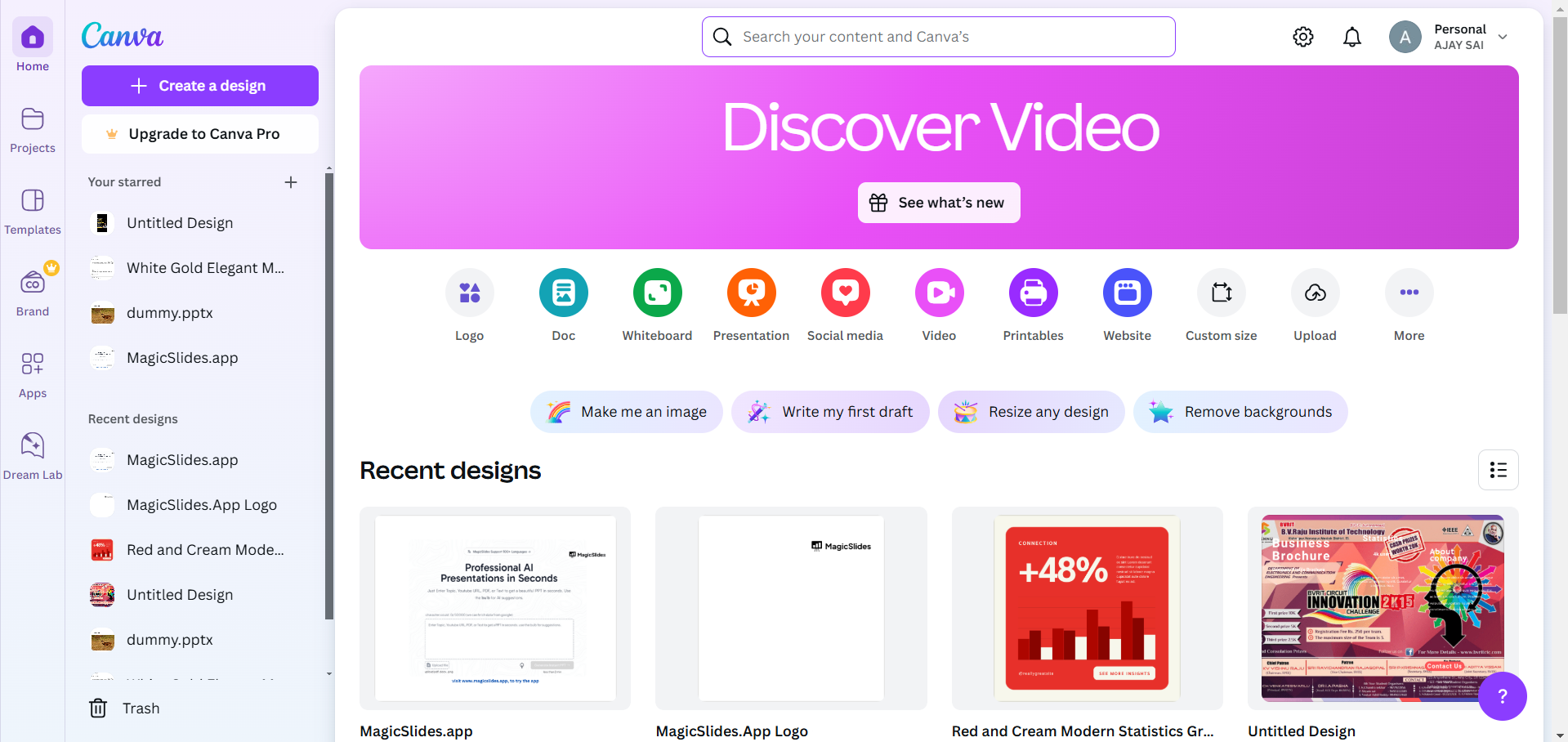
Navigate to the specific page or section where you want to select multiple items in Canva .
Step 2. Hold Down the Shift Key
Click on the first element you want to select.
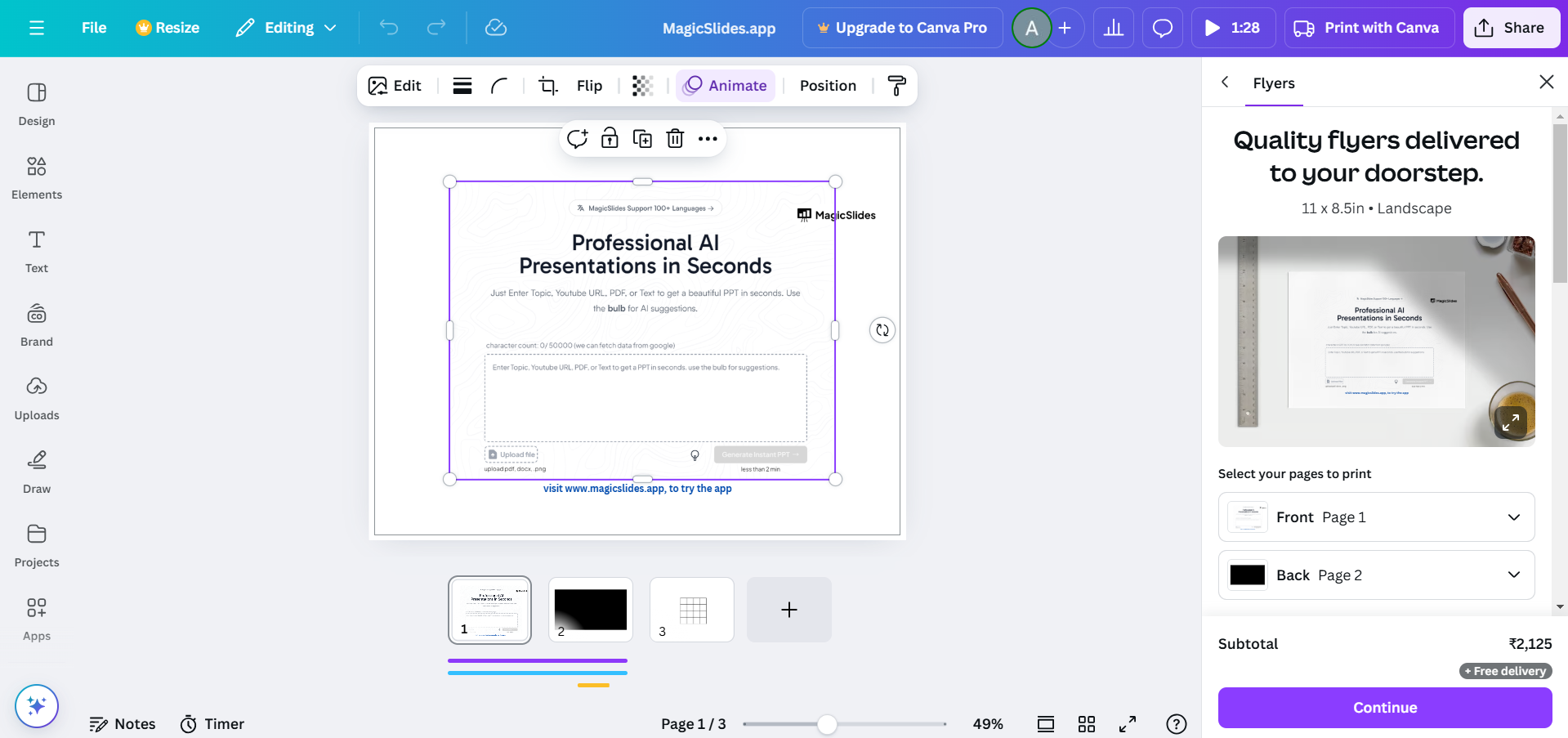
Hold down the Shift key (Windows/Mac).
While holding the key, click on the other elements you want to select. Each clicked element will now be highlighted, indicating it has been selected.
Step 3. Use Click and Drag to Select Multiple Elements
If your elements are close together, use the click-and-drag method.
Click anywhere on the canvas near the elements you want to select, and hold the mouse button down.
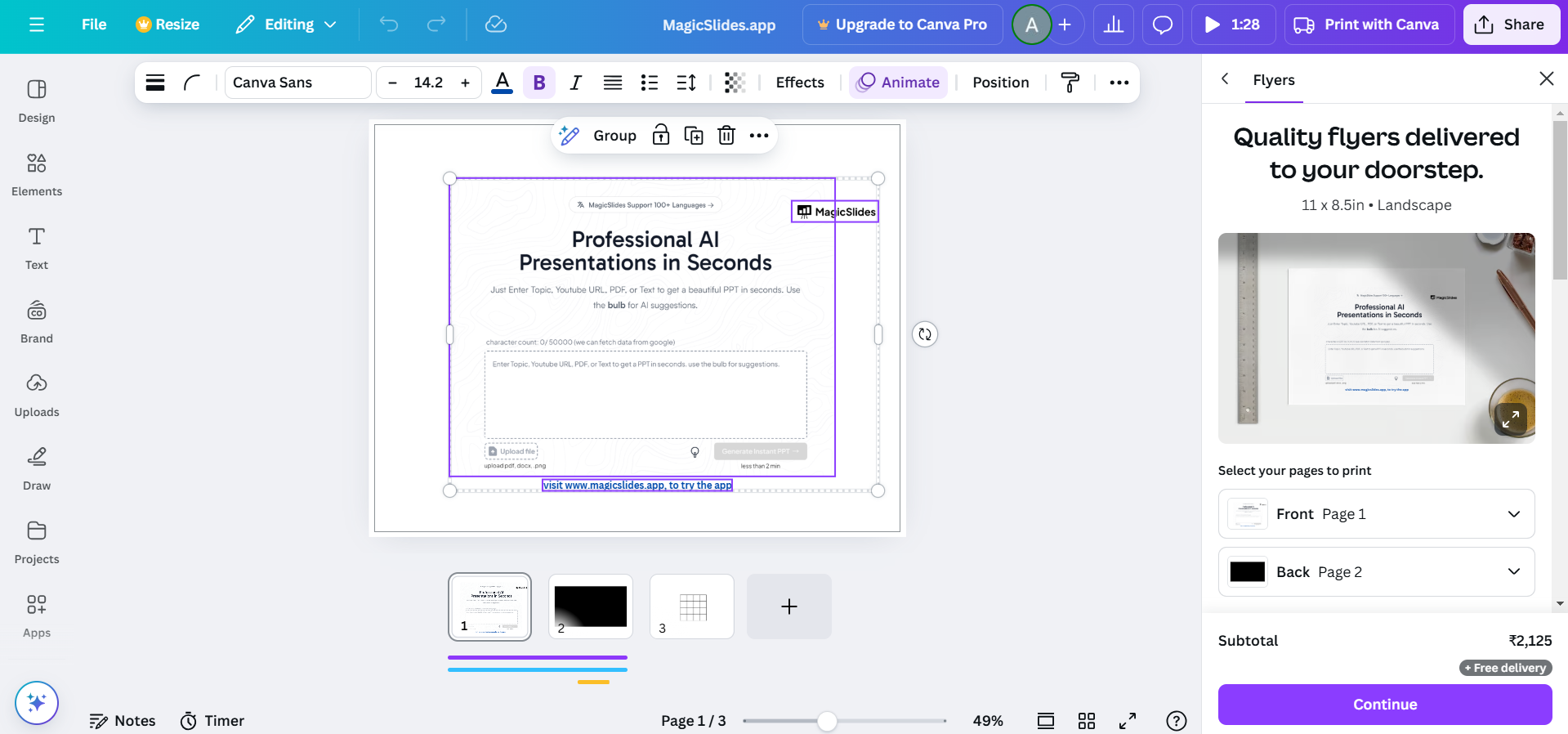
Drag the cursor to create a selection box around the desired elements. When you release the mouse button, all the elements inside the box will be selected.
Step 4. Adjust the Selection
If you accidentally select an element you didn’t want, hold down the Shift key and click the element again to deselect it.
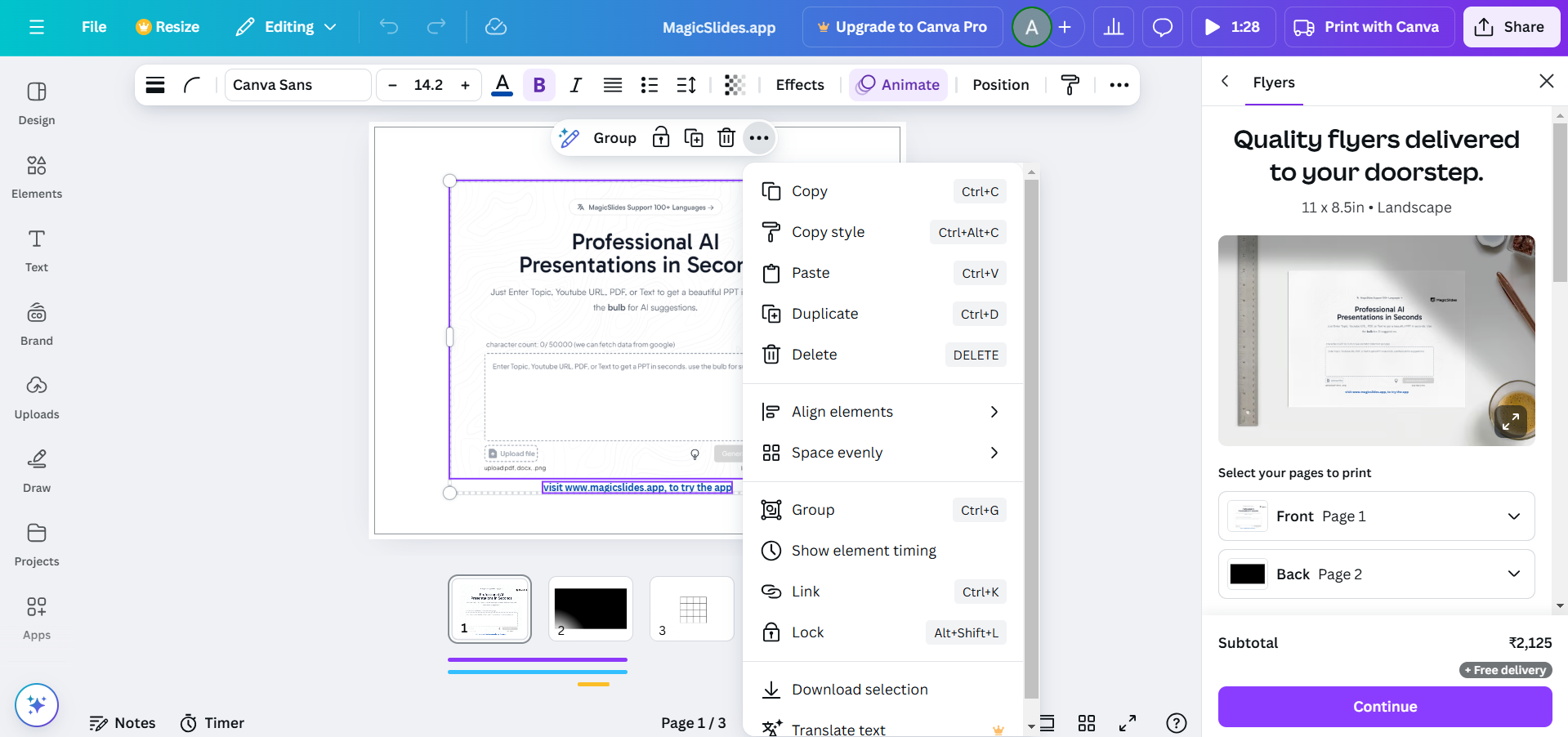
To add more elements, continue holding the Shift key and click on additional items.
Step 5. Perform Actions on the Selected Elements
Once the elements are selected, you can move them as a group by dragging them.
Resize them together by pulling the corner handles.
Group the elements permanently by clicking on “Group” in the toolbar. This ensures they stay together for future edits.
Now that you know how to select multiple elements in Canva, take your design skills further by learning how to make a collage in PowerPoint to create visually stunning layouts.
Conclusion
Selecting multiple elements in Canva is a simple yet powerful feature that enhances your efficiency while designing.
Whether you’re aligning, moving, or grouping elements, mastering these selection techniques will make your design process faster and more seamless.
FAQs on Selecting Multiple Elements in Canva
Q. Can I select multiple elements on different pages in Canva?
No, Canva only allows you to select multiple elements on the same page at a time.
Q. How do I deselect elements in Canva?
Hold down the Shift key and click on a selected element to remove it from the selection.
Q. Can I group and ungroup elements after selecting them?
Yes, after selecting multiple elements, click the “Group” button to group them. To ungroup, select the group and click “Ungroup.”
At the end of “how to select multiple items in canva” guide you will be able to get the steps to know how canva select multiple elements. By following these steps, you’ll save time and work more effectively in Canva, whether for personal or professional design projects!


