How to Make a Collage in PowerPoint


Design stunning collages in PowerPoint with this guide, combining images, shapes, and creativity effortlessly
Creating a collage in PowerPoint is an excellent way to present multiple images creatively and engagingly.
PowerPoint’s easy-to-use tools let you design visually appealing collages without needing specialized software.
This step-by-step guide will walk you through making a professional-looking collage in PowerPoint.
How to Make a Collage in PowerPoint | Steps to Make a Collage in PowerPoint
Step 1: Open a New PowerPoint Slide
Open PowerPoint and start a new presentation.
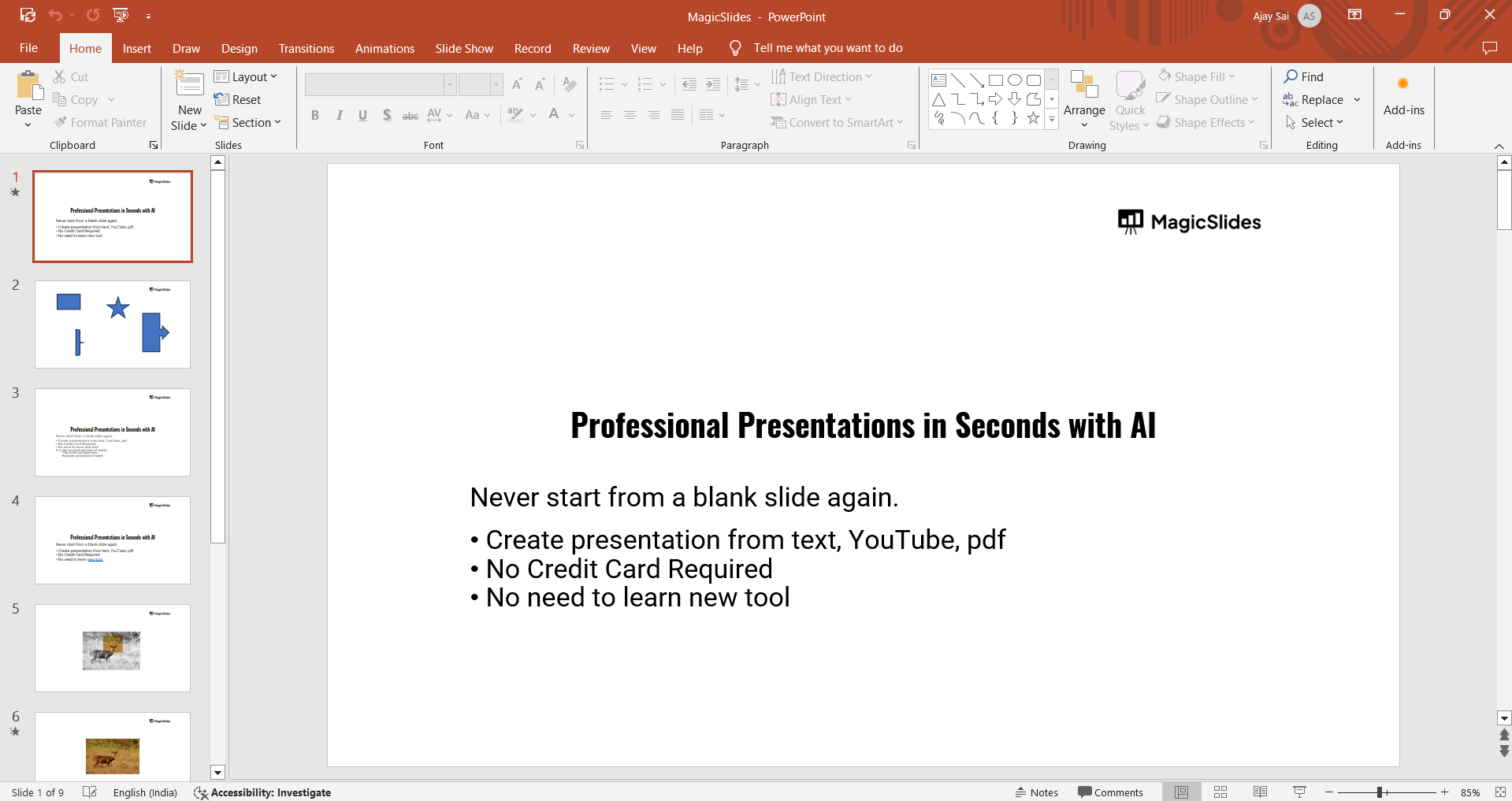
Add a blank slide by clicking Home > New Slide > Blank. This gives you a clean canvas for your collage.
Step 2: Set the Background for the Collage
Right-click anywhere on the slide and select Format Background.
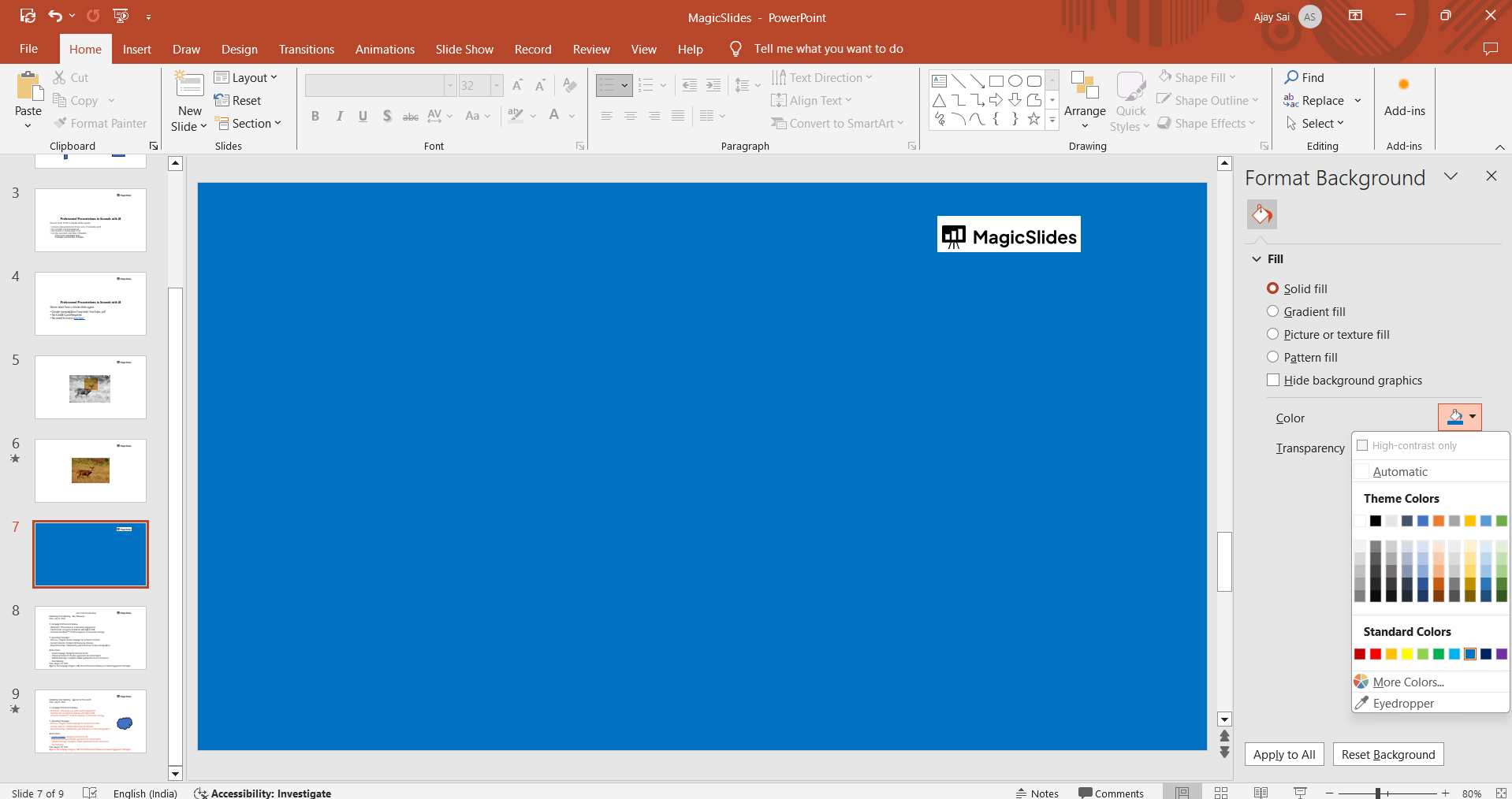
Choose a solid color, gradient, or an image as your background. Adjust transparency for a subtle effect if needed.
Step 3: Insert Images into the Slide
Go to the Insert tab and click Pictures. Select the images you want to include in your collage from your computer.
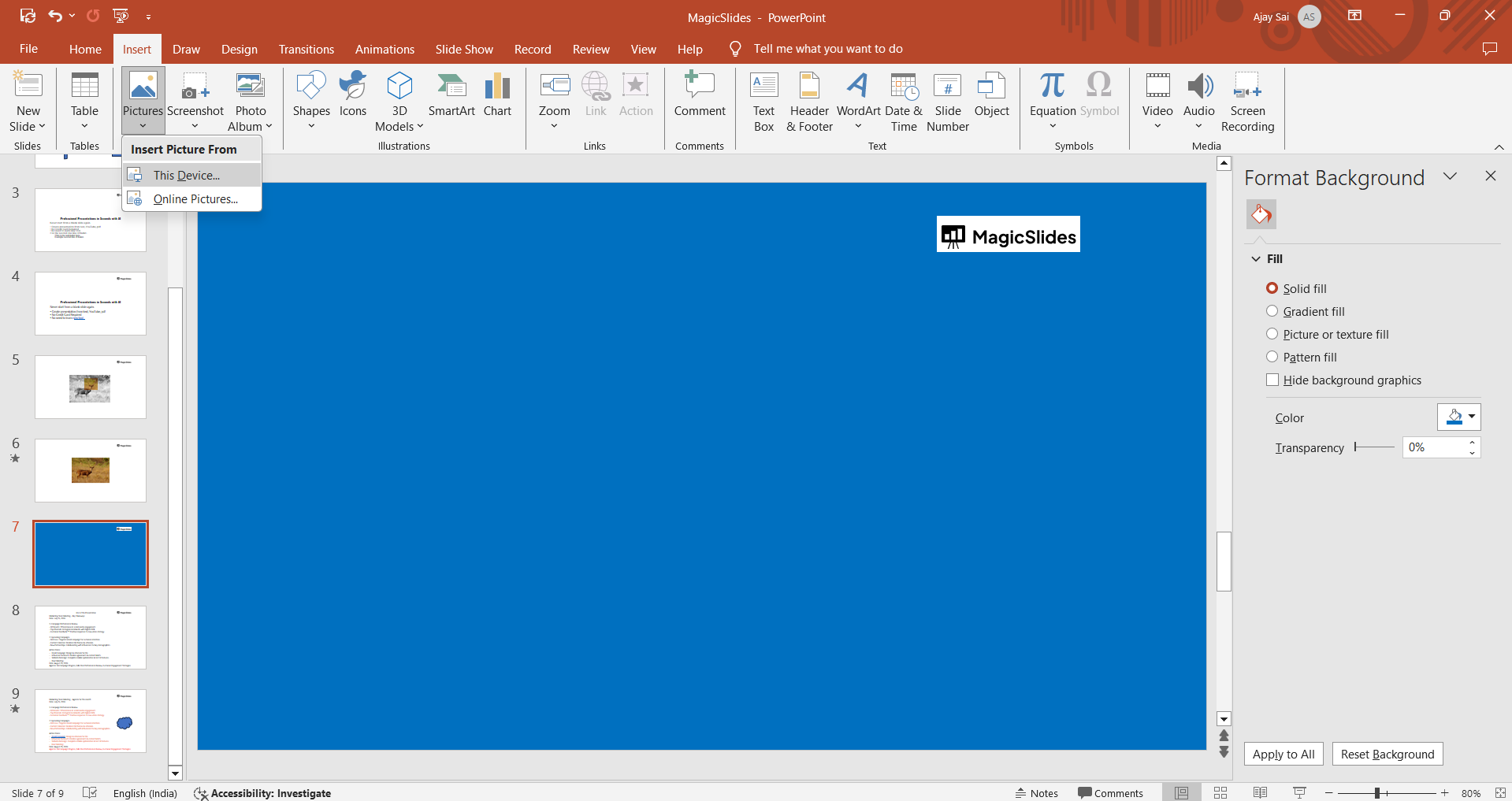
Arrange the images on the slide by clicking and dragging them into place.
Step 4: Resize and Rotate the Images
Click on an image to select it. Drag the corner handles to resize while maintaining the aspect ratio.
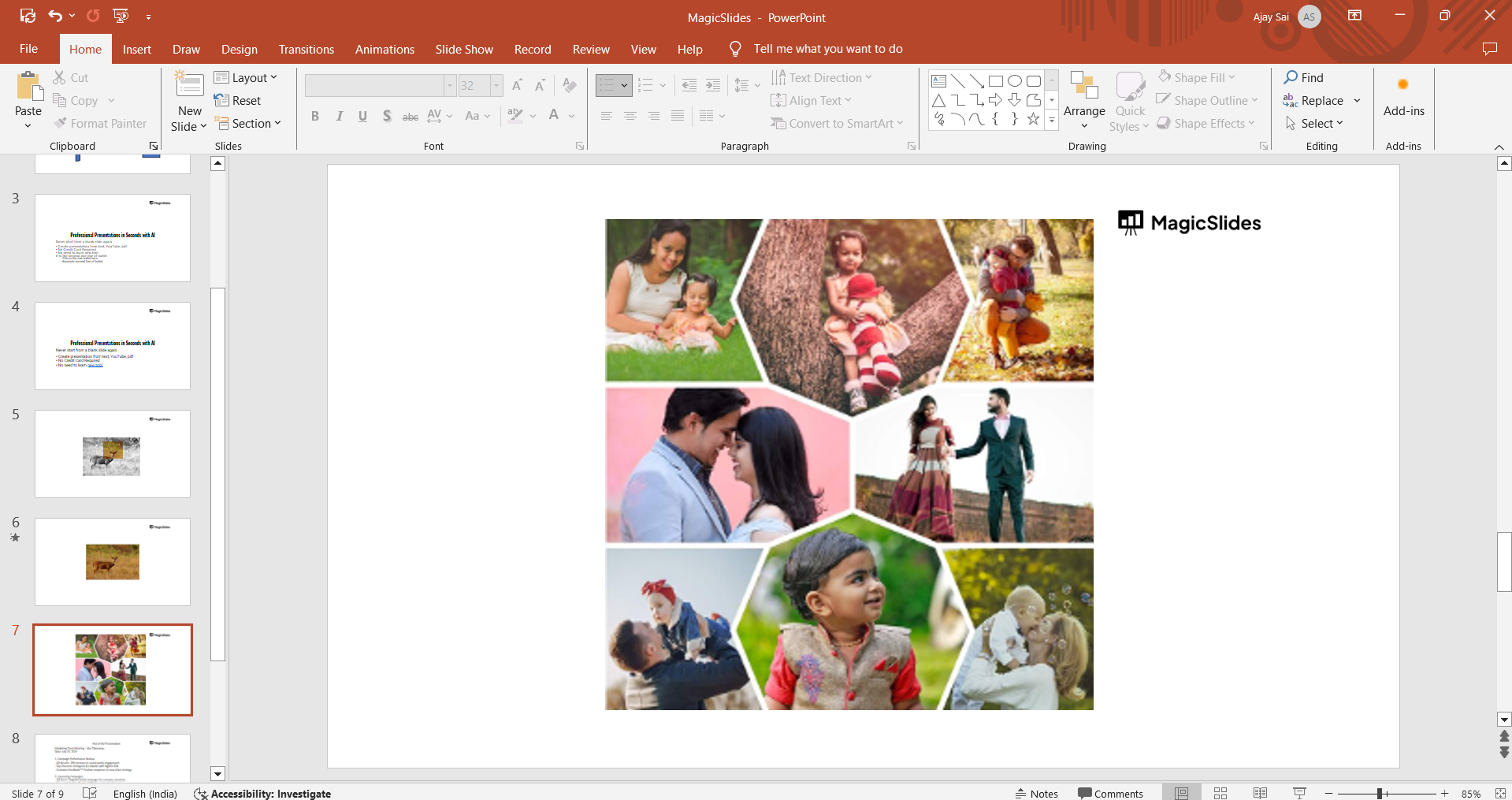
Rotate images by clicking and dragging the rotation handle at the top of the image. This adds variety to your collage.
Step 5: Add Shapes or Borders for Design
Go to the Insert tab and select Shapes.
Use rectangles, circles, or other shapes to frame your images or divide sections.
Adjust the colors and transparency of shapes for an aesthetically pleasing design.
Step 6: Align and Layer Images
Select multiple images by holding down the Shift key and clicking on them.
Use the Align button in the Picture Format tab to ensure the images are evenly spaced or aligned.
Layer images by right-clicking and selecting Bring to Front or Send to Back to achieve a layered effect.
Step 7: Add Text and Final Touches
Use the Text Box tool in the Insert tab to add captions or titles to your collage.
Customize the font, size, and color to match the overall theme.
Review the slide and make adjustments for balance and visual appeal.
→ Once you've created a collage in PowerPoint, take your presentation to the next level by learning how to apply a transition effect between slides for a smoother flow.
Conclusion
Creating a collage in PowerPoint is a simple yet effective way to showcase multiple images in a visually captivating manner.
With the right tools and creativity, you can design stunning collages that enhance presentations, projects, or personal mementos.
Follow these steps to master the process and let your imagination guide you!
FAQs on Making a Collage in PowerPoint
Can I use online images to create a collage in PowerPoint?
Yes, you can insert images from online sources using Insert > Pictures > Online Pictures. Ensure you have the rights to use them.
How do I save the collage as an image?
After completing your collage, right-click on the slide, choose Save As Picture, and save it as a PNG or JPEG file.
Can I use PowerPoint templates for collages?
Yes, PowerPoint offers pre-designed templates. You can modify them or create your collage from scratch.
By following this guide, you can efficiently create a collage that stands out and suits your specific needs!


