How can you add a Transition effect between Slides in PowerPoint?


Enhance your PowerPoint presentations by adding smooth transition effects between slides for a professional finish.
Slide transitions in PowerPoint add a dynamic touch to your presentations, making them more engaging and visually appealing.
By applying transition effects, you can control how one slide moves to the next, enhancing the flow and overall impact of your presentation.
In this blog post, we'll walk you through the steps to add transition effects between slides in PowerPoint, helping you create a polished and professional presentation.
How to Add a Transition Effect Between Slides in PowerPoint
Step 1: Open Your PowerPoint Presentation
Before you can add transitions, ensure your presentation is ready:
- Launch PowerPoint: Open the PowerPoint application on your computer and either create a new presentation or open an existing one where you want to add transitions.
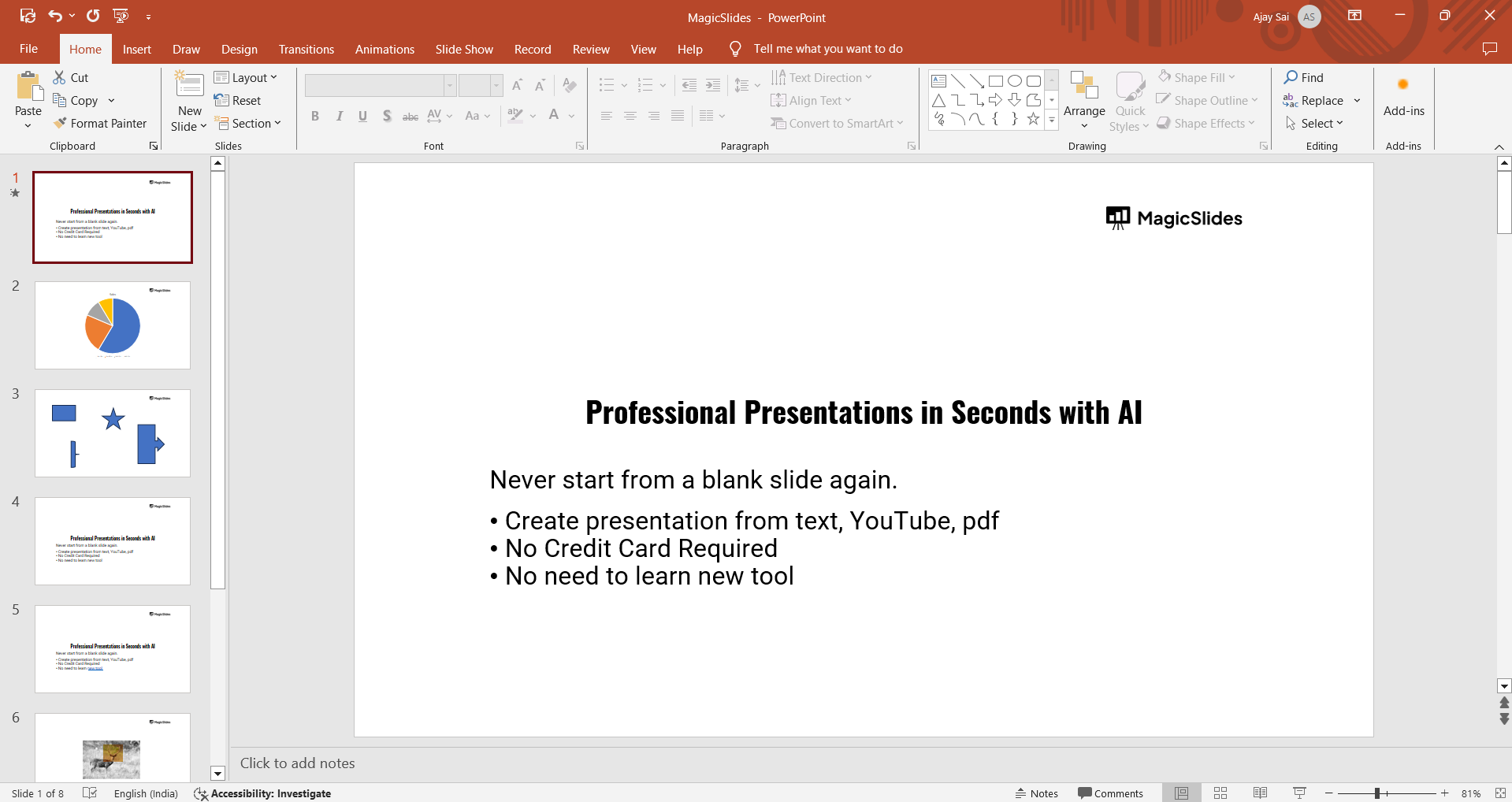
- Navigate to the Slides: Select the slide or slides where you wish to apply a transition effect. You can apply the same transition to multiple slides at once by selecting them together.
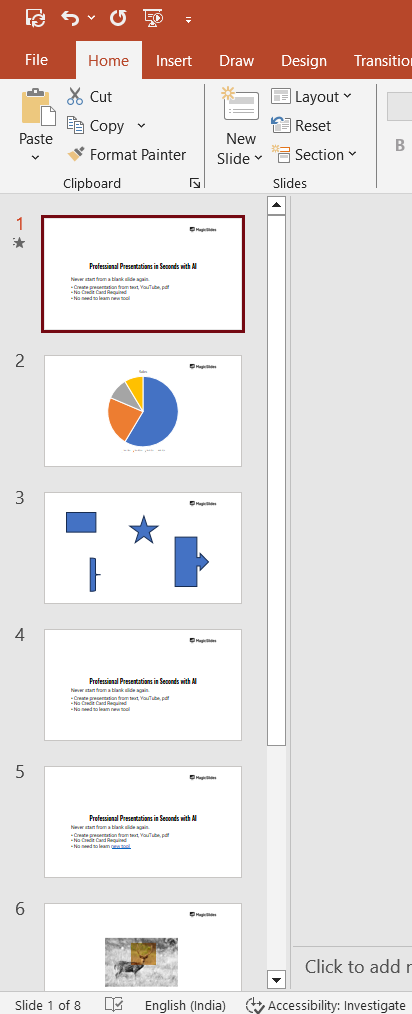
Step 2: Access the Transitions Tab
PowerPoint has a dedicated tab for adding and customizing transitions:
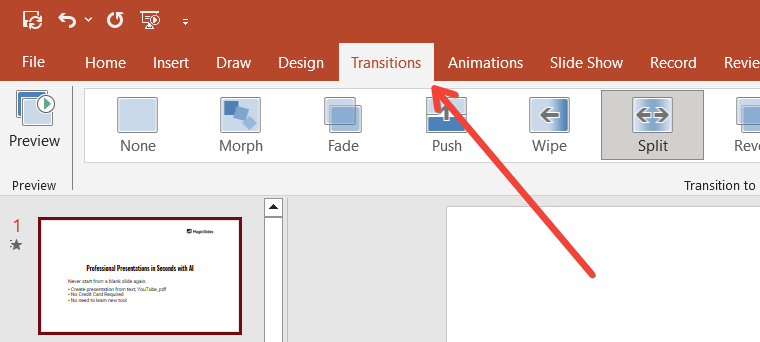
- Go to the Transitions Tab: In the PowerPoint ribbon at the top of the screen, click on the "Transitions" tab. This will open a menu of transition effects that you can apply to your slides.
- Preview Available Transitions: Hover over any of the transition effects in the gallery to see a preview of how the effect will look when applied to your slide.
Step 3: Apply a Transition Effect
Once you've selected a transition, applying it is straightforward:
- Select a Transition Effect: Click on the transition effect you want to apply to your selected slide. PowerPoint will immediately apply the transition, and you'll see a preview on your screen.
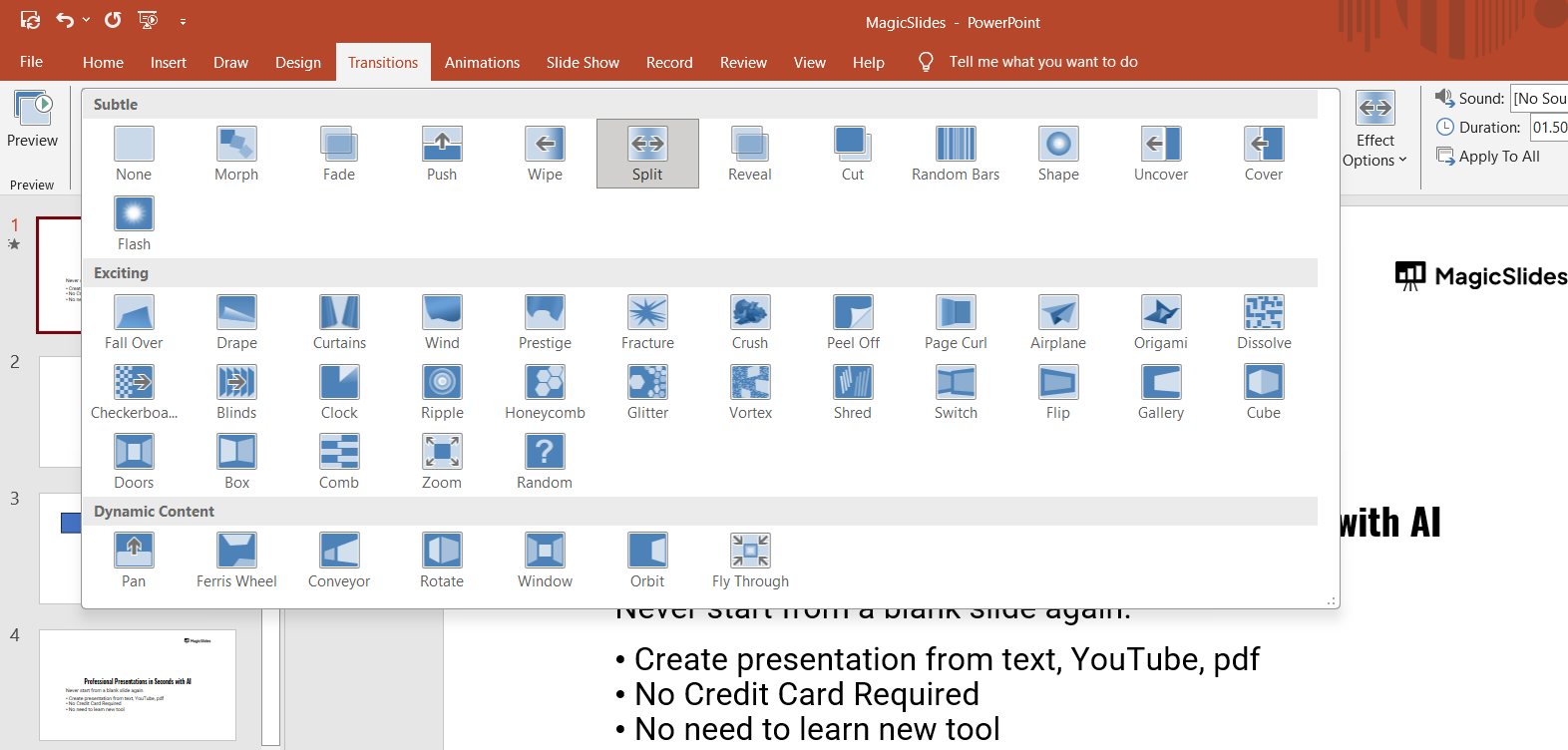
- Customize Transition Settings: After selecting a transition, you can customize its duration, add a sound, or adjust the effect options. For example, you can change the direction of a slide transition or adjust the speed by increasing or decreasing the duration in the "Timing" group.
Step 4: Apply Transitions to Multiple Slides
If you want to maintain consistency throughout your presentation, you can apply the same transition effect to multiple slides:
- Select Multiple Slides: Hold down the "Ctrl" key (or "Cmd" on a Mac) and click on the slides in the slide sorter view that you want to apply the transition to.
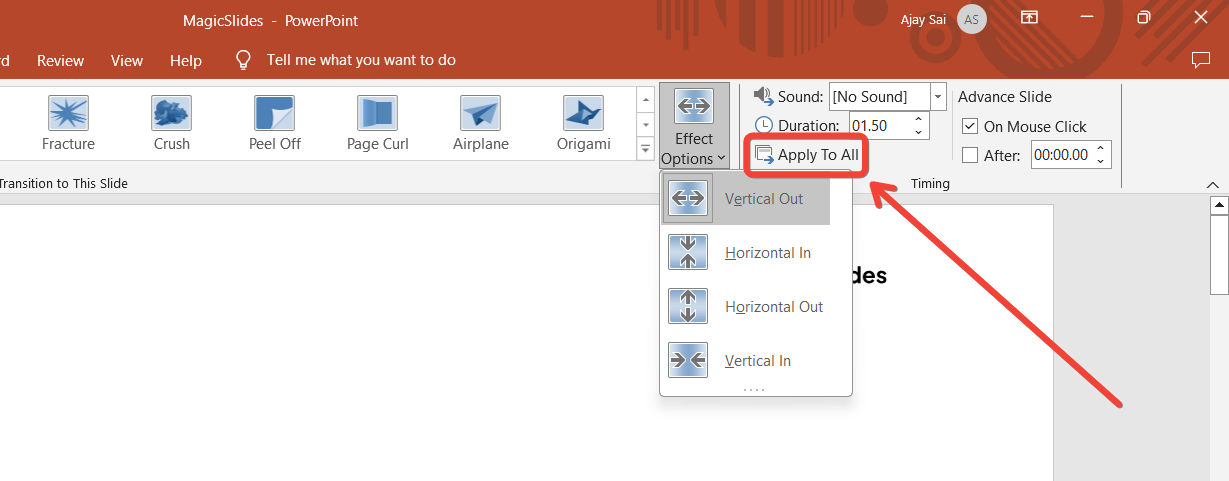
- Apply the Transition: With the slides selected, choose the desired transition from the "Transitions" tab. The selected transition will be applied to all the chosen slides.
- Use "Apply to All": If you want to apply the same transition effect to every slide in your presentation, you can simply click the "Apply to All" button in the "Transitions" tab.
Effectively ending a presentation as a student leaves a strong, lasting impression on your audience
Step 5: Preview and Fine-Tune Your Transitions
Before finalizing your presentation, it's important to preview and adjust your transitions as needed:
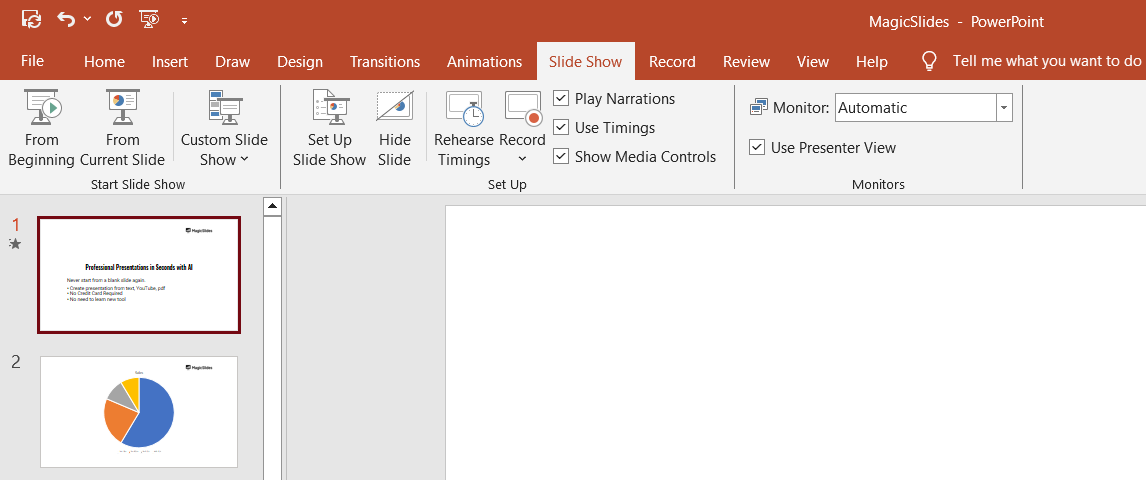
Test the Whole Presentation: Run your presentation in "Slide Show" mode to experience the transitions in real-time and make any final adjustments.
Conclusion
Adding transition effects between slides in PowerPoint is a simple yet powerful way to enhance the visual appeal of your presentation. By following these steps, you can create smooth and professional transitions that help maintain your audience’s attention and improve the overall flow of your presentation.
Whether you’re aiming for a subtle fade or a dramatic wipe, PowerPoint offers a range of transitions to suit your style.
Tired of making presentations? what if we tell you you can make a presentation with just a prompt, convert YouTube videos to PPTs, convert website content to PPTs? Yes! checkout magicslides.app that does all and enjoy the free credits to make presentations in seconds.
FAQs can come handy!
What are slide transitions in PowerPoint?
Slide transitions are visual effects that occur when you move from one slide to the next during a presentation.
Can I apply the same transition to all slides in my presentation?
Yes, you can apply the same transition to all slides by selecting "Apply to All" in the Transitions tab.
How can I adjust the speed of a transition effect?
You can adjust the speed of a transition by changing the "Duration" setting in the Transitions tab.


