How to share Google forms


Master the art of sharing Google Forms effortlessly with this comprehensive step-by-step guide. Dive in!
Google Forms is a powerful tool for creating surveys, quizzes, and feedback forms. Once you've created your form, the next step is to share it with your intended audience. In this step-by-step guide, we'll walk you through the process of sharing Google Forms, ensuring that your form reaches the right people effortlessly.
How to share Google forms
Step 1: Create Your Google Form
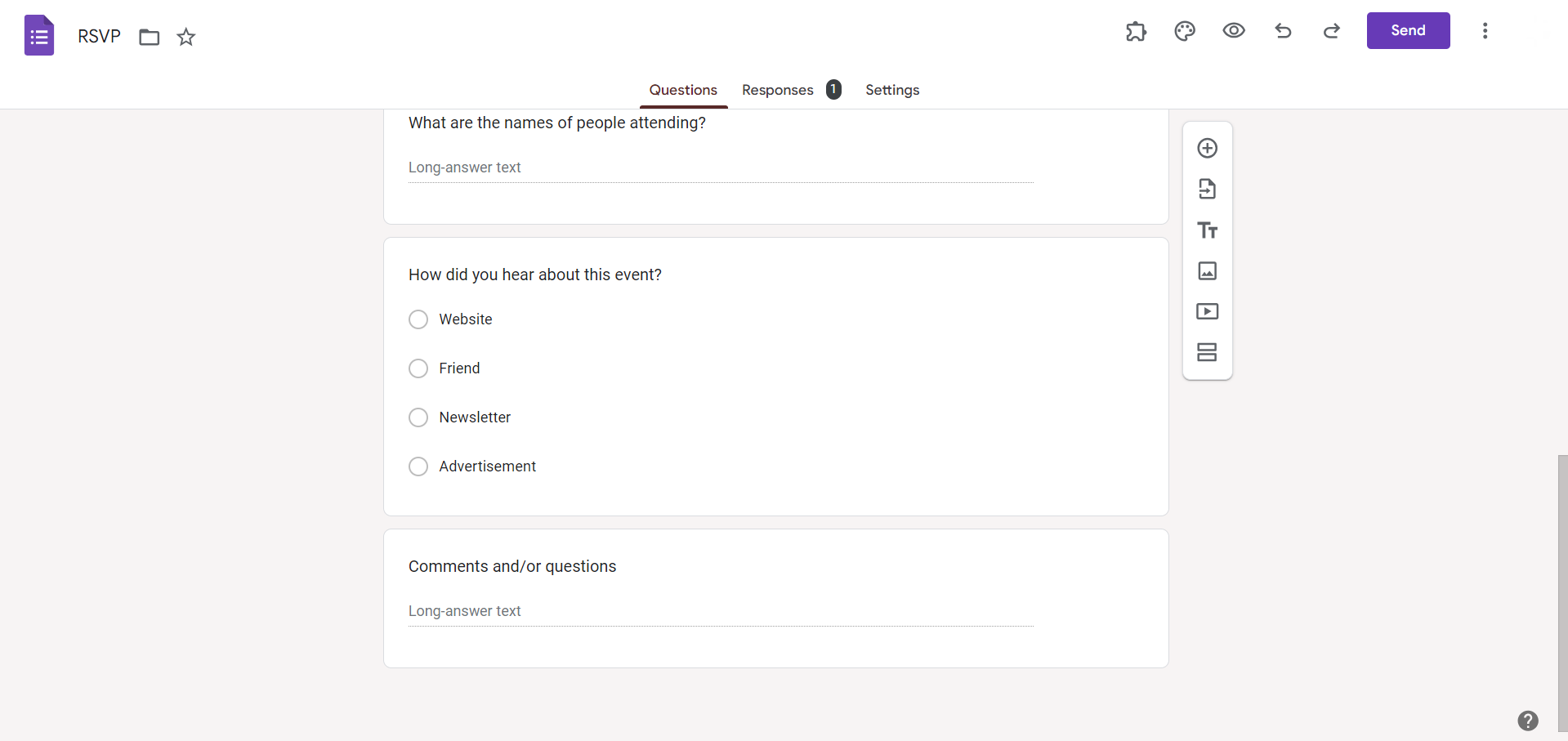
Before you can share your form, make sure you've created it. Head to Google Forms (forms.google.com), click on the "+" sign to start a new form, and customize it according to your needs.
Step 2: Access the "Send" Button
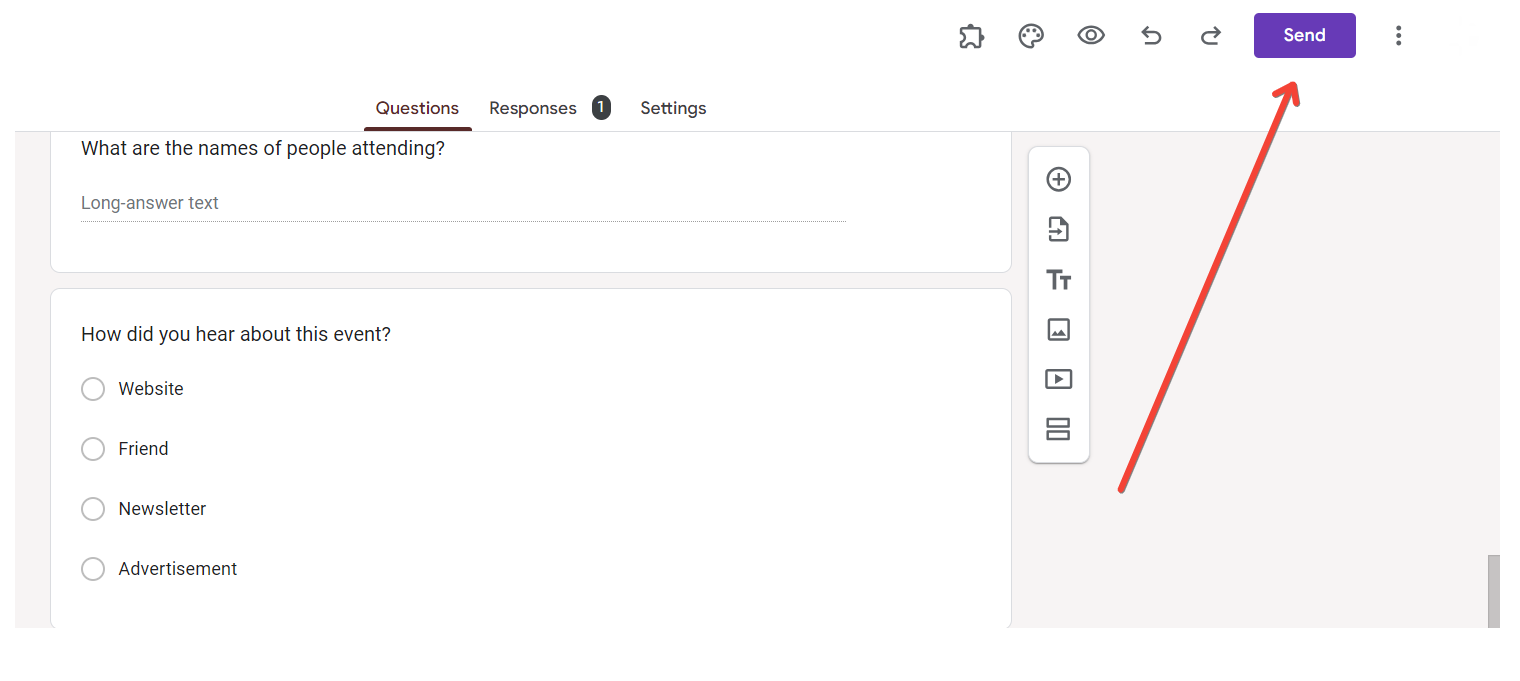
Once your form is ready, click on the "Send" button located in the top-right corner of the screen. This button is essential for sharing your form with others.
Step 3: Choose a Sharing Method
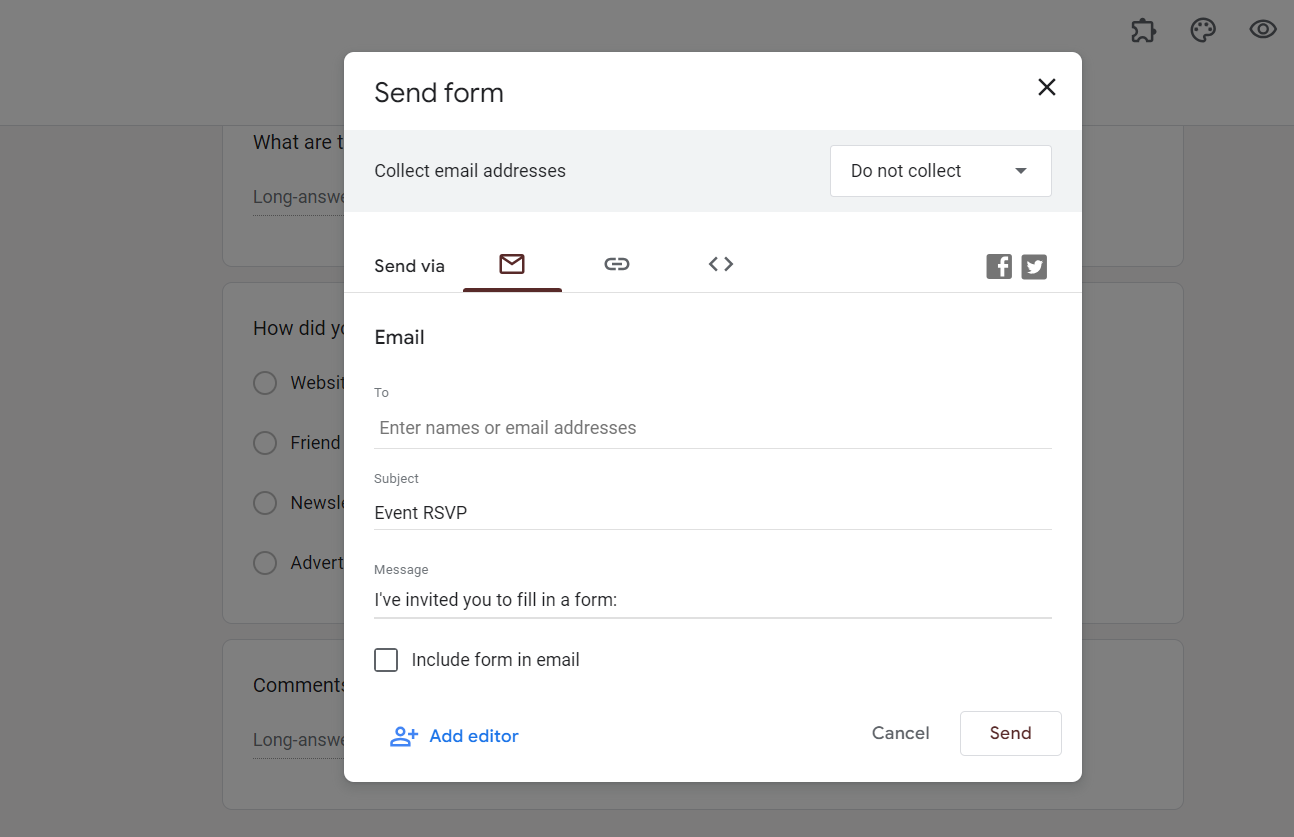
Upon clicking "Send," a window will pop up, providing you with various sharing options. Choose the method that suits your needs:
- Email: You can directly email the form to specific recipients. Enter their email addresses, customize the message, and hit "Send."
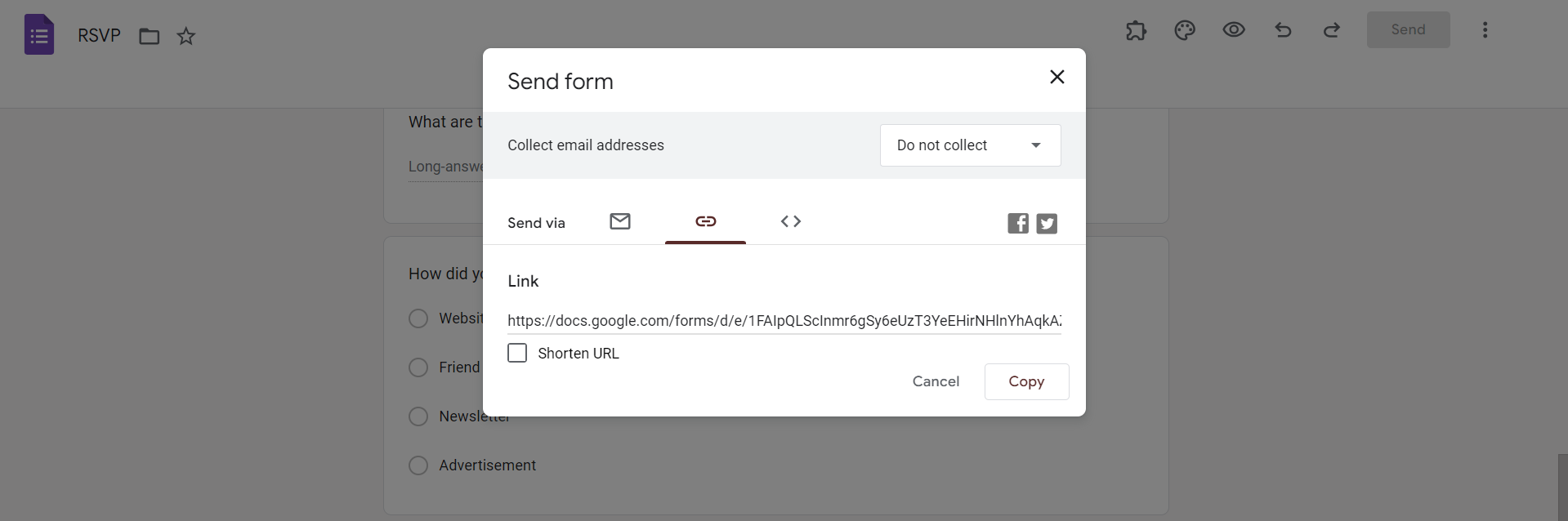
- Link: Create a shareable link that allows anyone with the link to access your form. Customize the permissions, such as allowing respondents to view or edit the form.
- Embed HTML: If you have a website or blog, you can embed the form directly by copying and pasting the provided HTML code.
- Social Media: Share your form on various social media platforms, such as Facebook or Twitter, by selecting the respective icons and following the prompts.
Step 4: Set Permissions
If you're sharing via a link, it's crucial to set the right permissions. Decide whether respondents should only be able to view the form, or if they can also edit it. Adjust the settings accordingly to control access.
Conclusion:
Sharing your Google Form is a straightforward process that ensures your surveys and quizzes reach the right audience. Whether you prefer email, links, embedding, or social media, Google Forms provides versatile options for seamless sharing. By following these simple steps, you'll maximize the reach of your forms and collect valuable data effortlessly.
Frequently Asked Questions:
Can I share a Google Form without using email?
Yes, Google Forms offers various sharing options, including links, embedding, and social media sharing.
Can I control who can access and edit my form?
Absolutely! When sharing a link, you can set permissions to determine who can view or edit your form.
Is it possible to embed a Google Form on my website or blog?
Yes, Google Forms provides an option to generate HTML code for easy embedding on websites and blogs.
Can I track responses and see who has filled out my form?
Yes, Google Forms automatically collects and organizes responses, allowing you to view respondent details and analyze data.


