How to Summarize Educational Content into Engaging Presentations


Transform educational content into captivating presentations with our guide on summarization techniques. Elevate engagement and make learning unforgettable today!
Creating compelling presentations from educational content is an essential skill for educators, trainers, and content creators. In this step-by-step guide, we'll explore how to seamlessly summarize educational material into engaging presentations using the powerful combination of Google Slides and the MagicSlides GPT extension.
How to Summarize Educational Content into Engaging Presentations
Step 1: Visit Google Slides
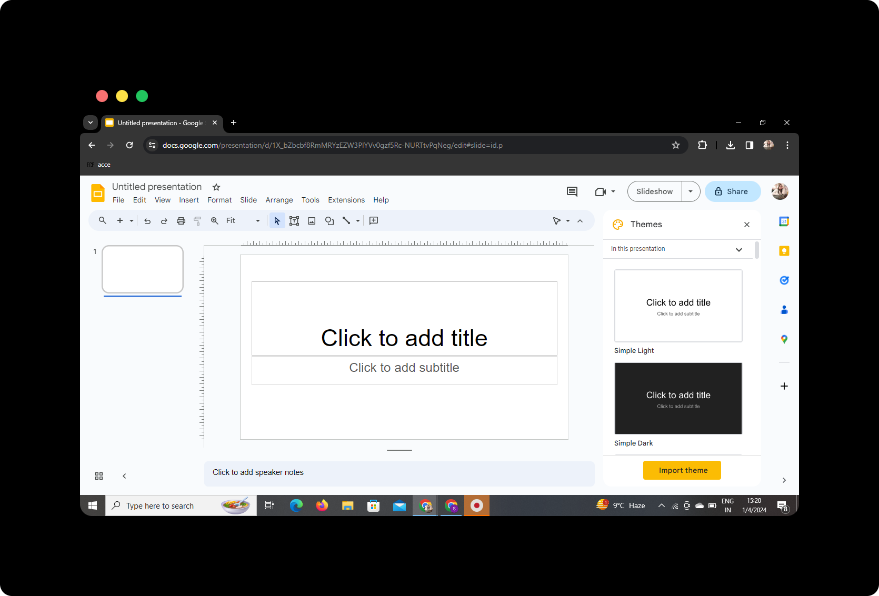
Begin by accessing Google Slides. If you don't have a Google account, you'll need to create one. Once logged in, initiate the process of summarizing your educational content.
Step 2: Sign in with Google to Google Slides
Ensure you are signed in with your Google account to maximize the collaborative and cloud-based features of Google Slides.
Step 3: In Extensions, Click on MagicSlides GPT (If Downloaded)
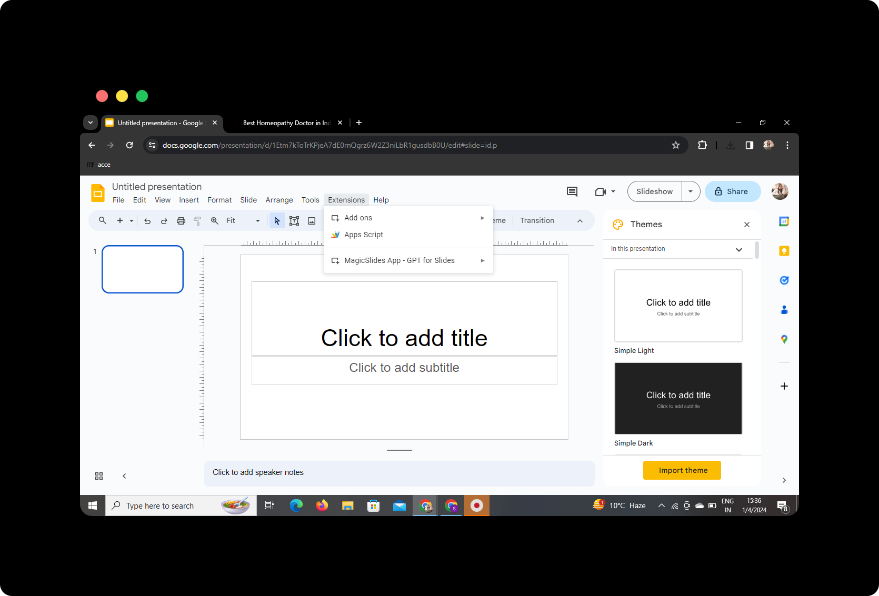
If you've already downloaded the MagicSlides GPT extension, navigate to the extensions menu in Google Slides and click on MagicSlides GPT.
Step 4: If Not Downloaded, First Download as an Extension, Then Open
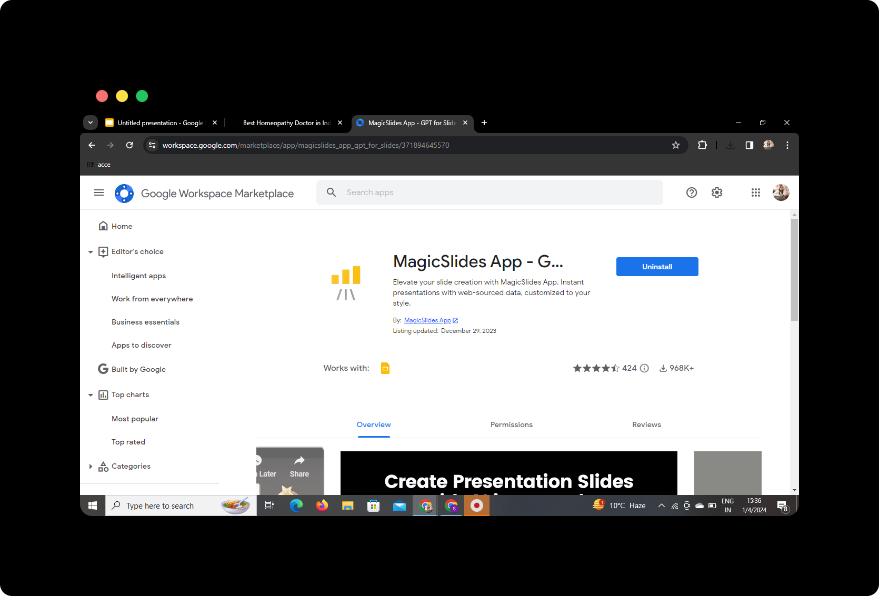
If you haven't downloaded MagicSlides GPT yet, visit the Chrome Web Store, download the extension, and then open it within Google Slides. This powerful tool integrates seamlessly with your presentation workflow.
Step 5: Click on "Generate PPT" in MagicSlides GPT

Activate MagicSlides GPT by clicking on the "Generate PPT" option. This sets the stage for summarizing and transforming your educational content.
Step 6: Click on 'Summarize' Option
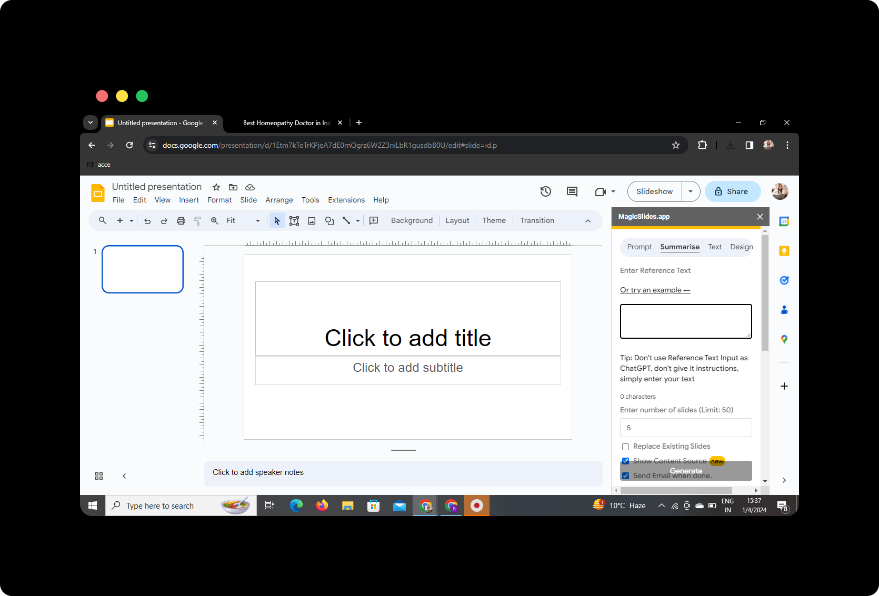
Specify your intention to summarize the content by selecting the "Summarize" option within the MagicSlides GPT interface.
Step 7: Paste Your Educational Content
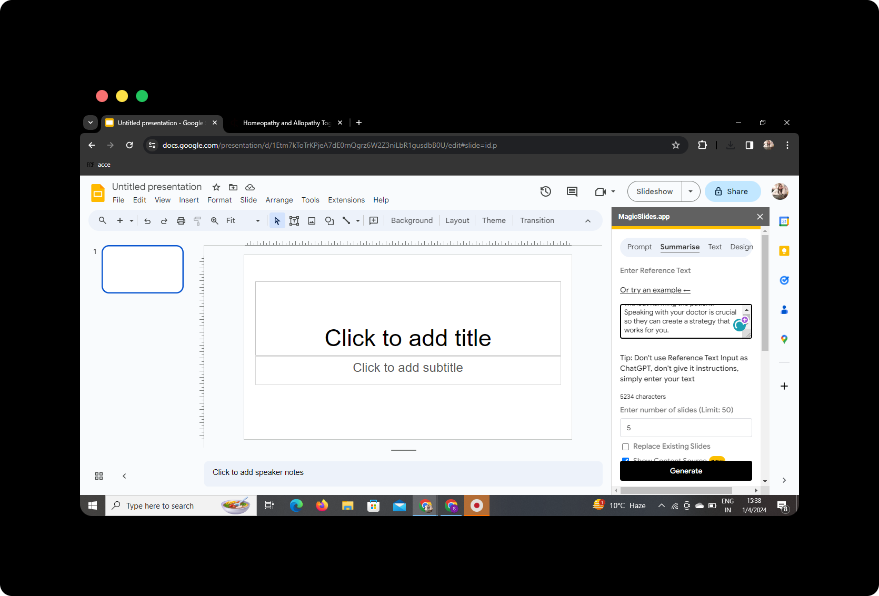
Paste the educational content you wish to summarize into the designated area. MagicSlides GPT's advanced algorithms will process the information.
Step 8: Select the Number of Slides
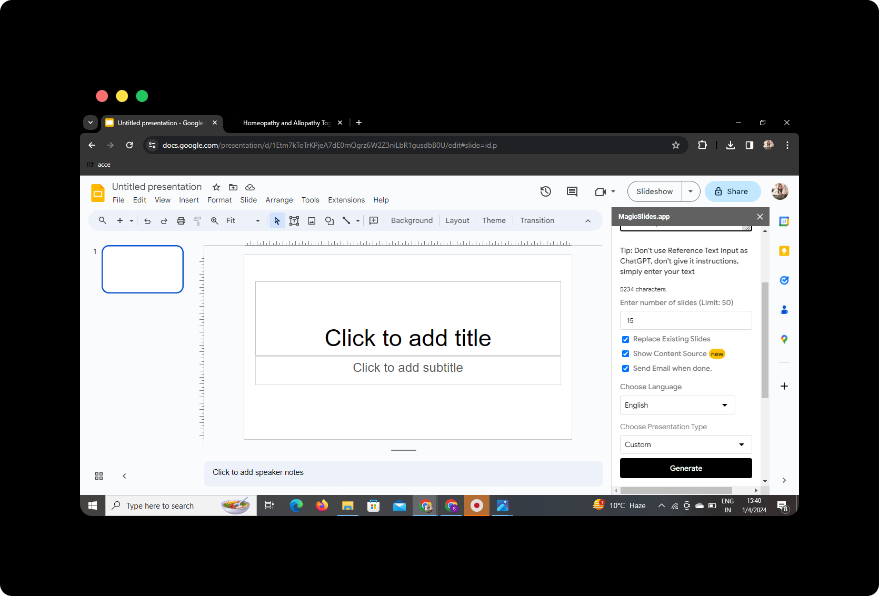
Customize your presentation by specifying the number of slides you desire. MagicSlides GPT intelligently divides your content into coherent and visually appealing slides.
Step 9: Click on "Generate Presentation"
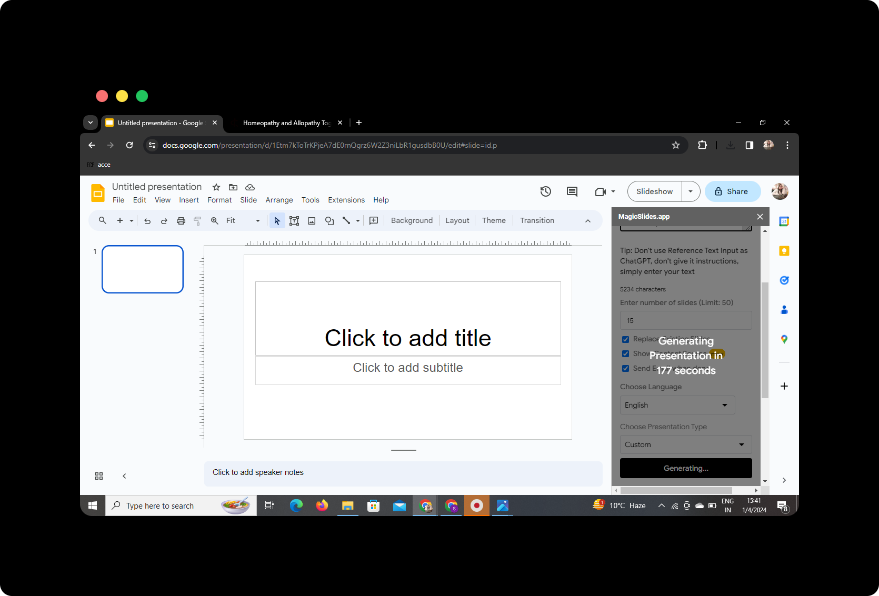
With all settings in place, initiate the summarization process by clicking on "Generate Presentation." MagicSlides GPT will work its magic, transforming your educational content into a well-structured presentation.
Your Presentation is Ready!
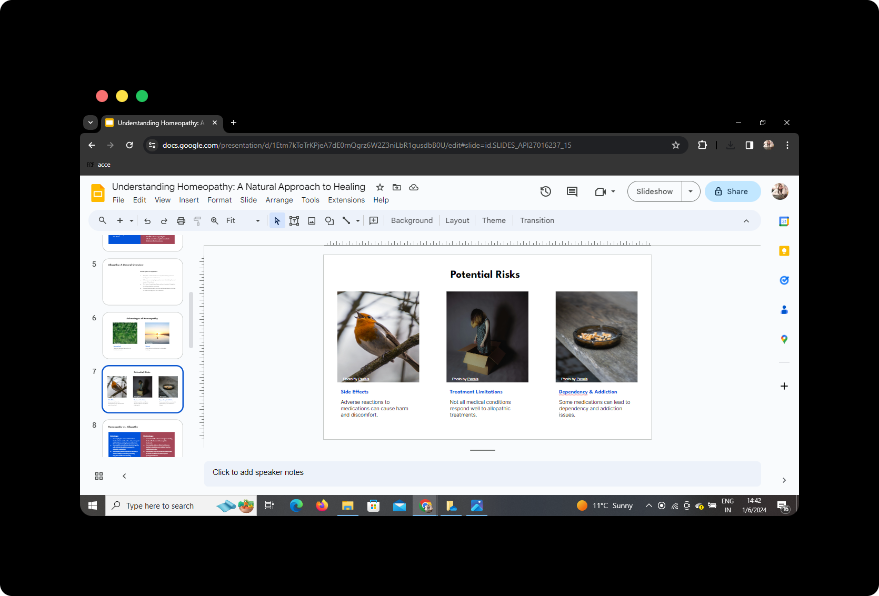
Upon completion of these steps, your presentation is ready to captivate your audience.
Conclusion
Summarizing educational content into engaging presentations has never been easier. With the seamless integration of Google Slides and the powerful MagicSlides GPT extension, educators and content creators can elevate their presentations, fostering a more interactive and impactful learning experience.
Frequently Asked Questions (FAQs)
Can I use MagicSlides GPT on platforms other than Google Slides?
MagicSlides GPT is currently optimized for Google Slides. However, stay tuned for potential expansions to other platforms.
Is MagicSlides GPT free to use?
MagicSlides GPT offers both free and premium versions. Explore the features and choose the plan that best suits your needs.
How accurate is the summarization process?
MagicSlides GPT employs advanced language models for accurate summarization. However, reviewing and editing the slides is recommended for optimal results.
Can I customize the design of the generated slides?
Yes, Google Slides provides a range of customization options. After generating slides with MagicSlides GPT, feel free to enhance the design to align with your preferences.
Are there any limitations on the length of the educational content?
While MagicSlides GPT is proficient at summarizing various lengths of content, it's advisable to break down extensive content into manageable sections for better results.


