How to Transform Customer Testimonials or Reviews into a Presentation?


Learn to elevate your brand with impactful presentations using customer testimonials. Turn reviews into compelling narratives that resonate and captivate.
In the realm of effective communication and marketing, customer testimonials play a pivotal role. Transforming these valuable endorsements into engaging presentations can significantly enhance your brand's credibility and resonate with your audience. In this guide, we'll walk you through the process using Google Slides and the MagicSlides GPT extension.
How to Transform Customer Testimonials or Reviews into a Presentation?
Visit Google Slides
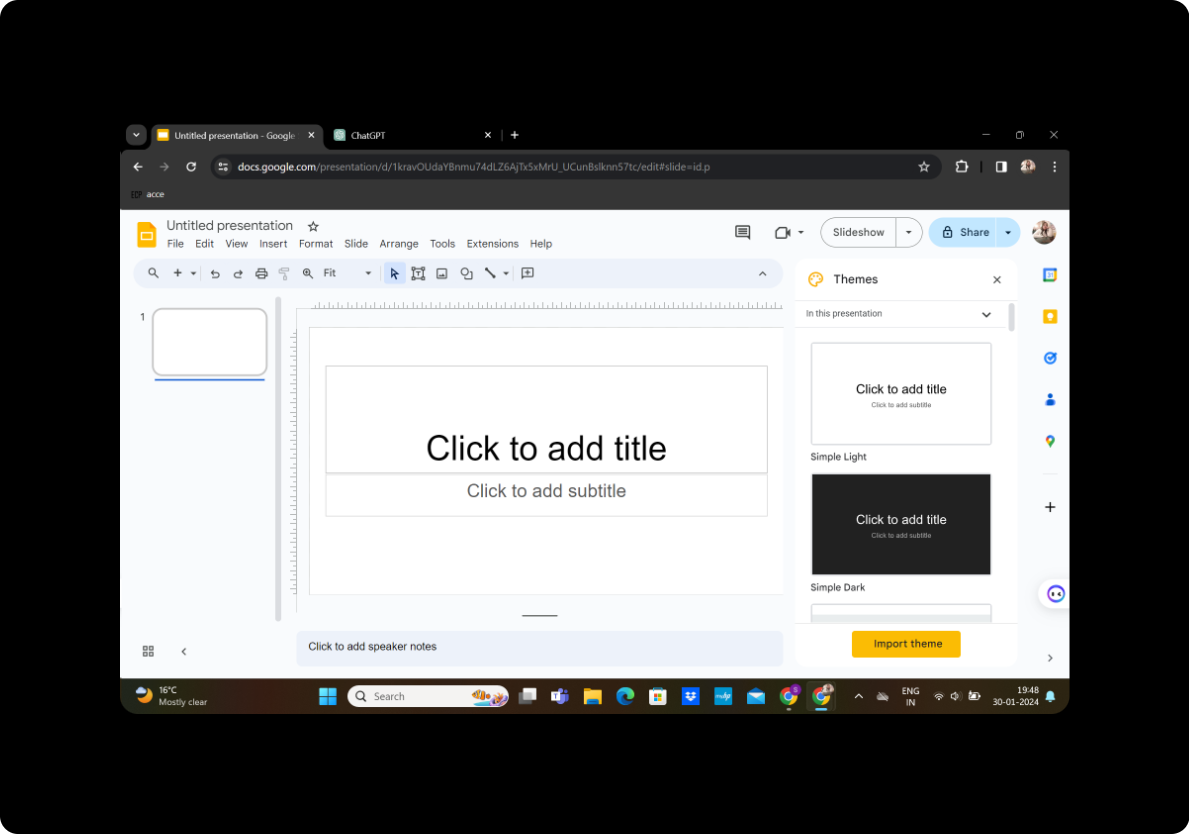
Begin by visiting Google Slides, a user-friendly online presentation tool provided by Google. If you don't have a Google account, you'll need to sign up for one.
Sign in with Google to Google Slides
After visiting Google Slides, sign in with your Google account to access the full suite of features.
In Extensions, Click on MagicSlides GPT if Downloaded
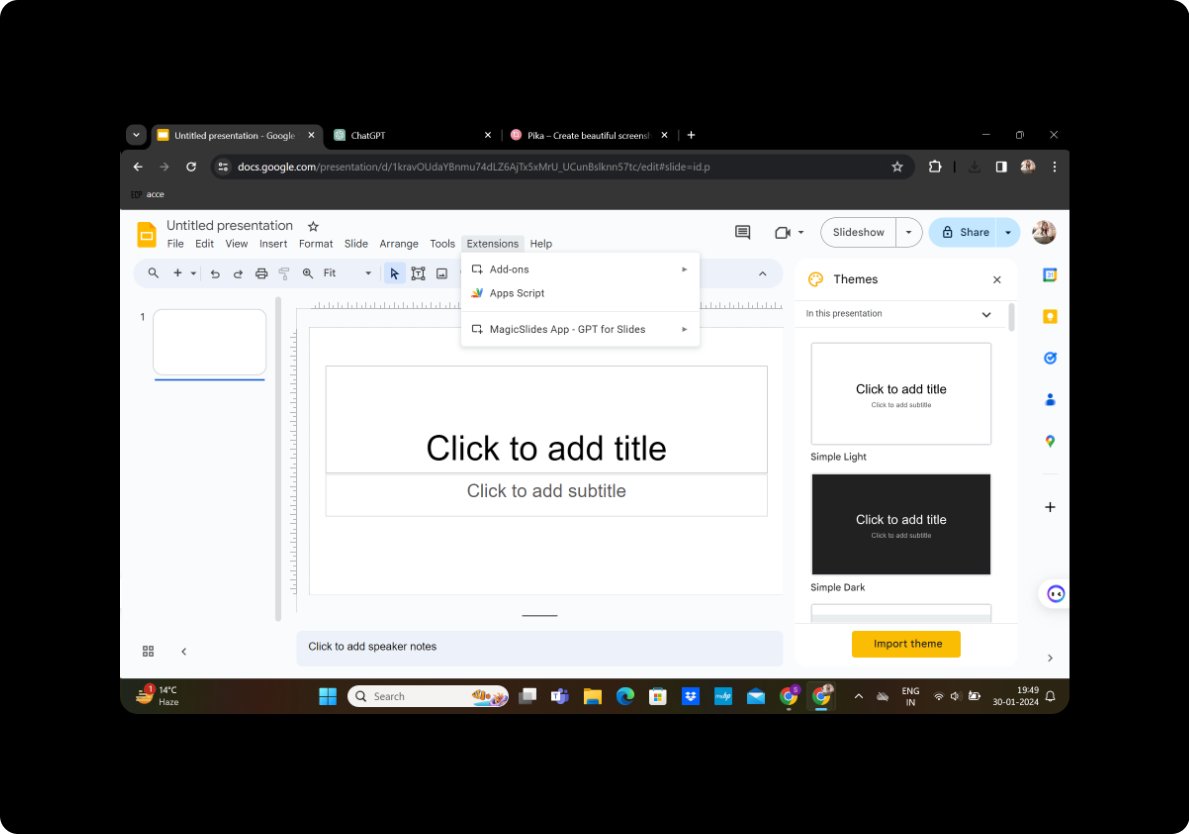
If you have already downloaded the MagicSlides GPT extension, find it in the extensions menu of your browser and click on it to activate.
If Not Downloaded, First Download as an Extension, Then Open
If you haven't downloaded the MagicSlides GPT extension, visit the Chrome Web Store, download it, and then open the extension.
Click on Generate PPT in MagicSlides GPT
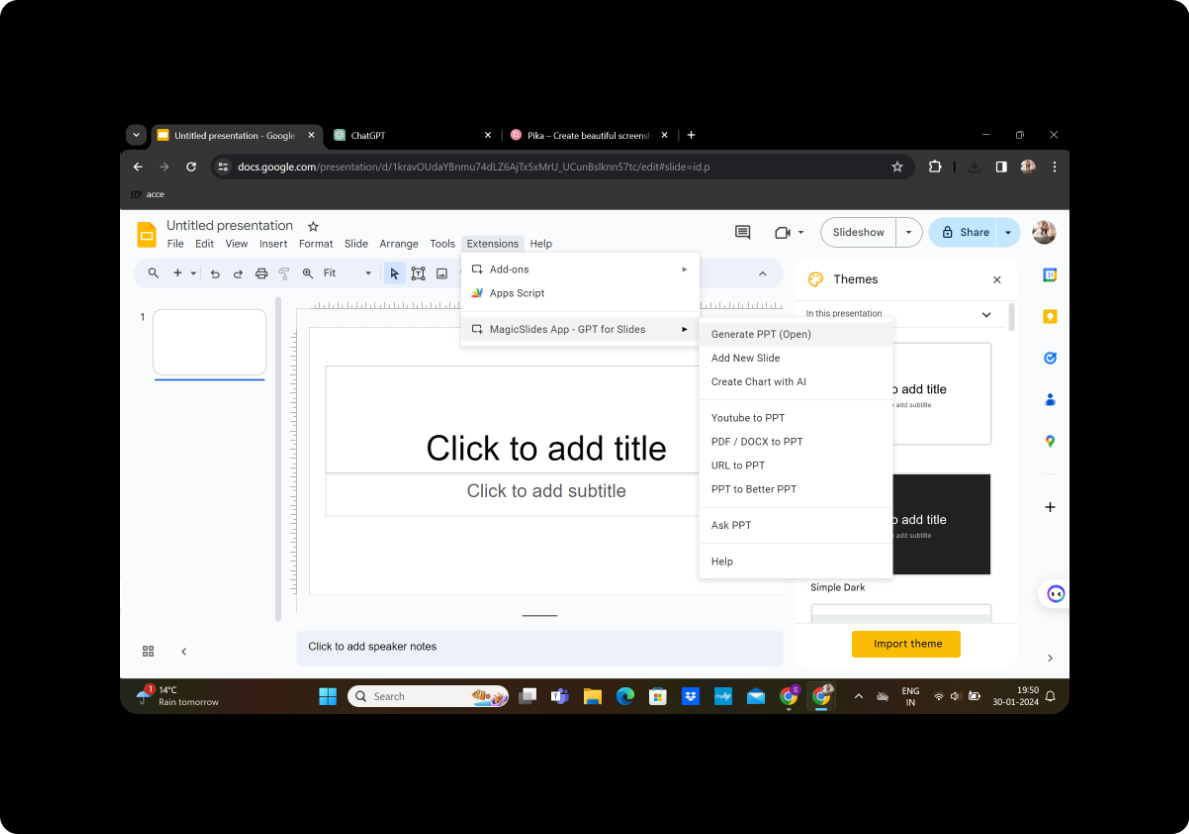
Once MagicSlides GPT is activated, click on the "Generate PPT" option to kickstart the process.
In the Title Option, Add Your Title
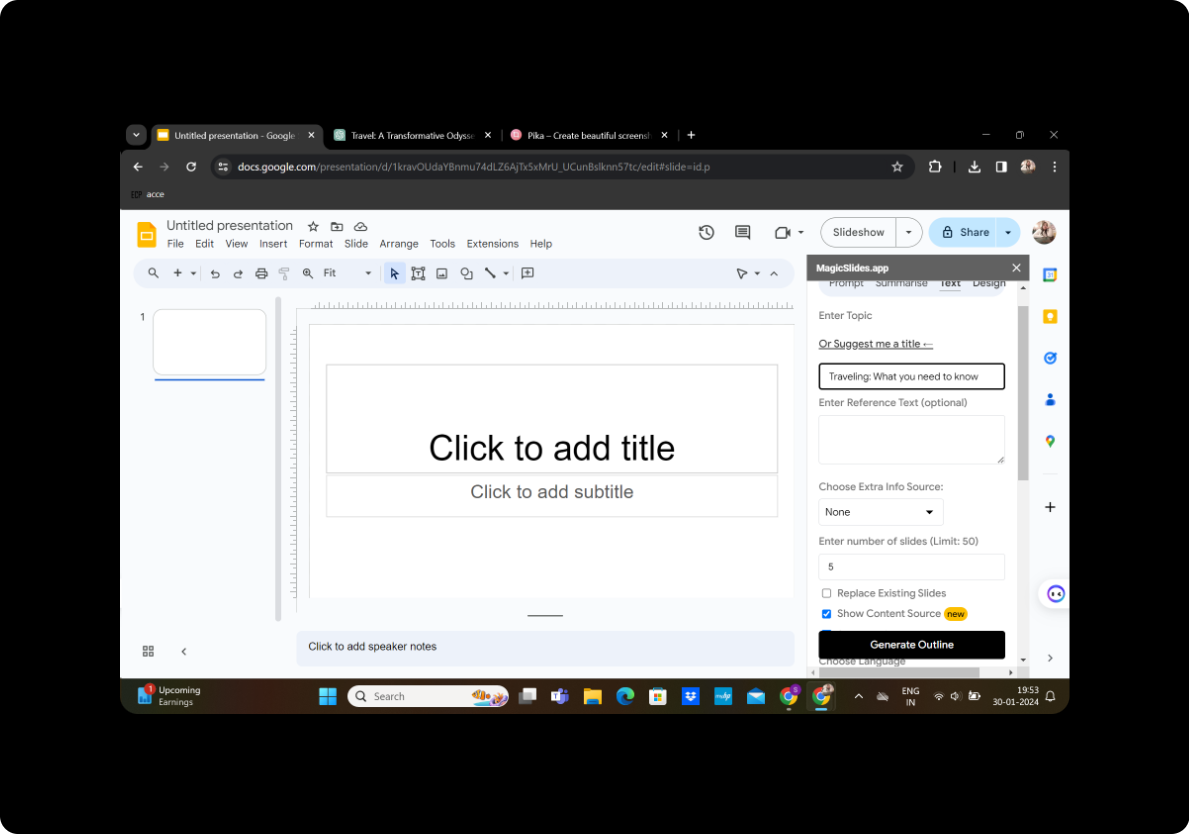
In the MagicSlides interface, you'll find an option to add a title. Input a relevant and catchy title for your presentation.
Copy and Paste Testimonial Content in the Text Box
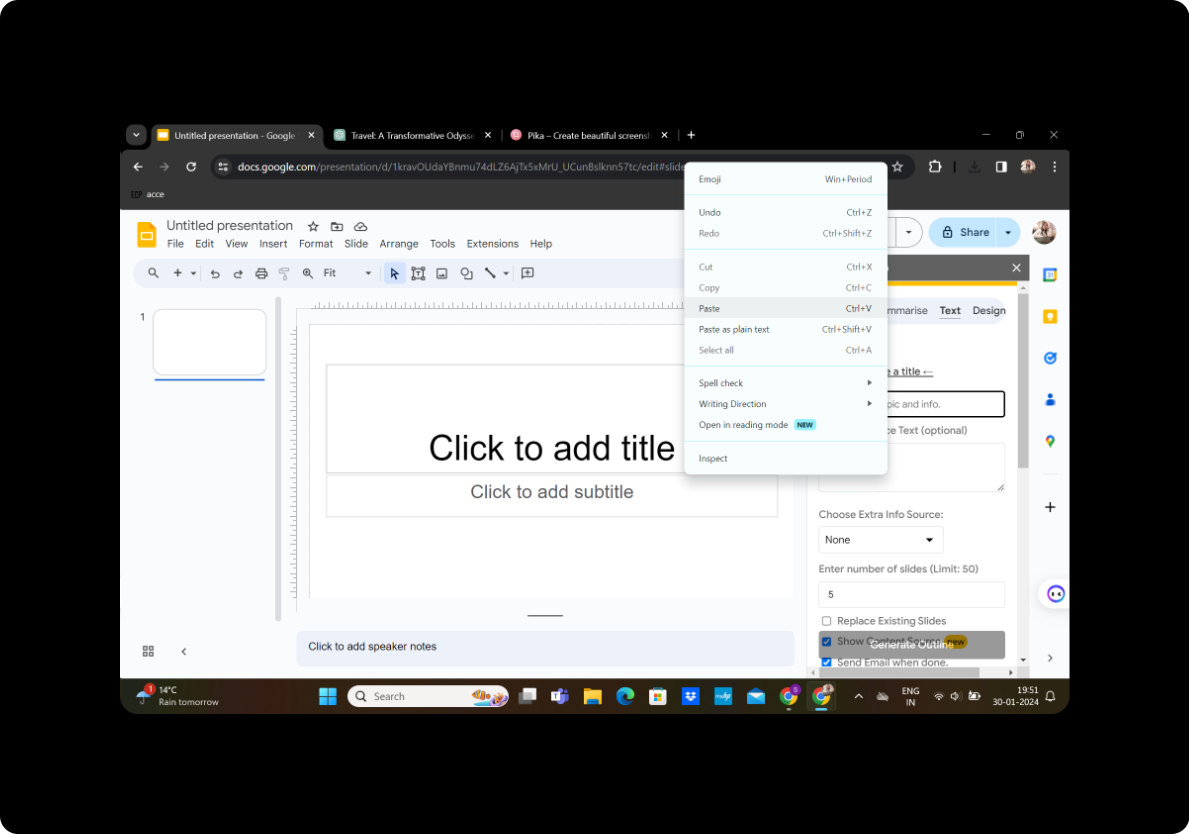
Copy the testimonials or reviews you want to include and paste them into the designated text box within MagicSlides.
Select the Number of Slides
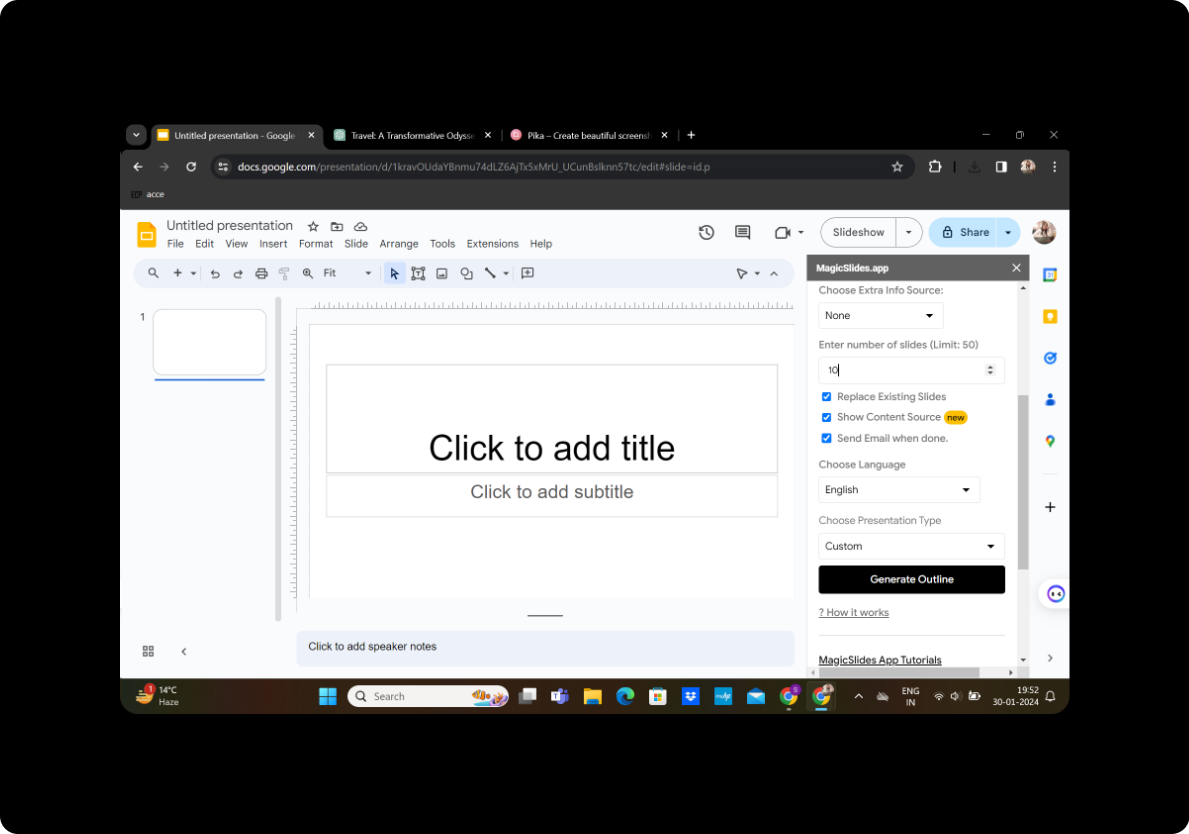
Specify the number of slides you want MagicSlides to generate based on your testimonials.
Click on Generate Outline
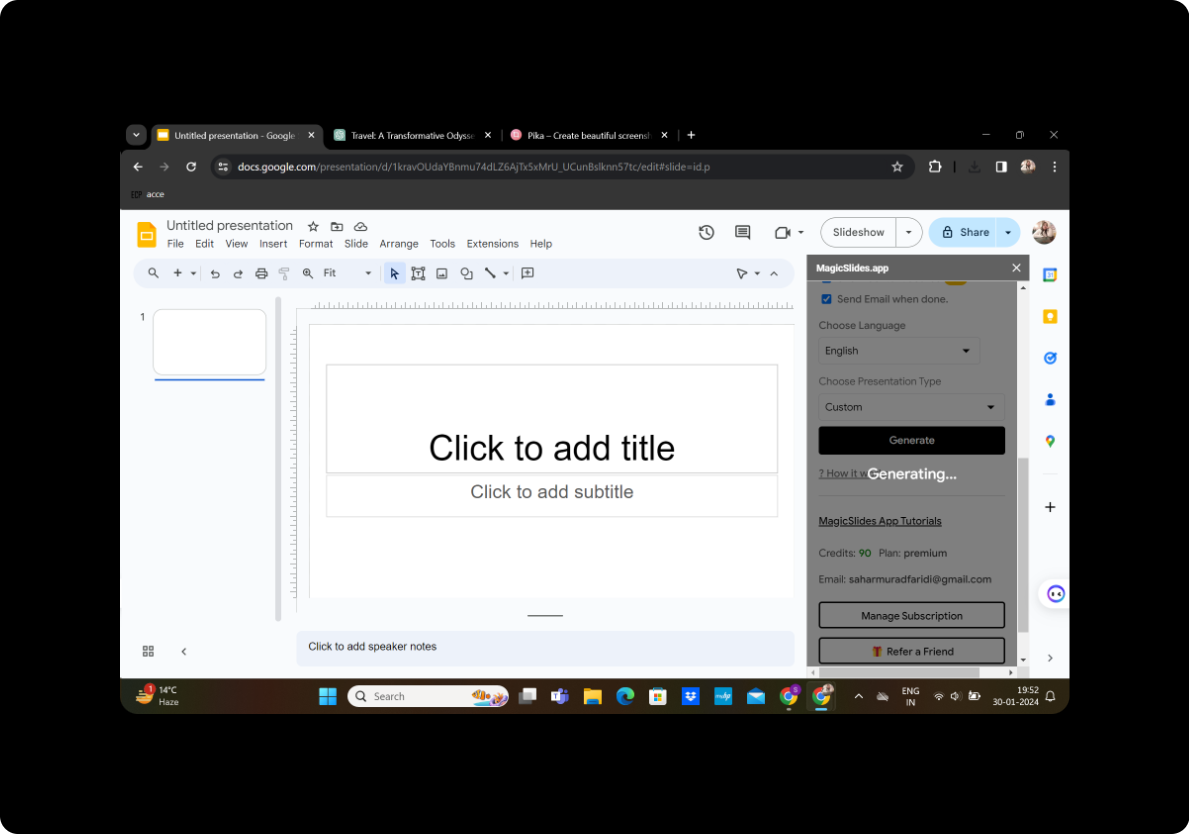
Press the "Generate Outline" button, and MagicSlides will swiftly analyze your content, providing you with a suggested presentation structure.
Modify as Per Preference
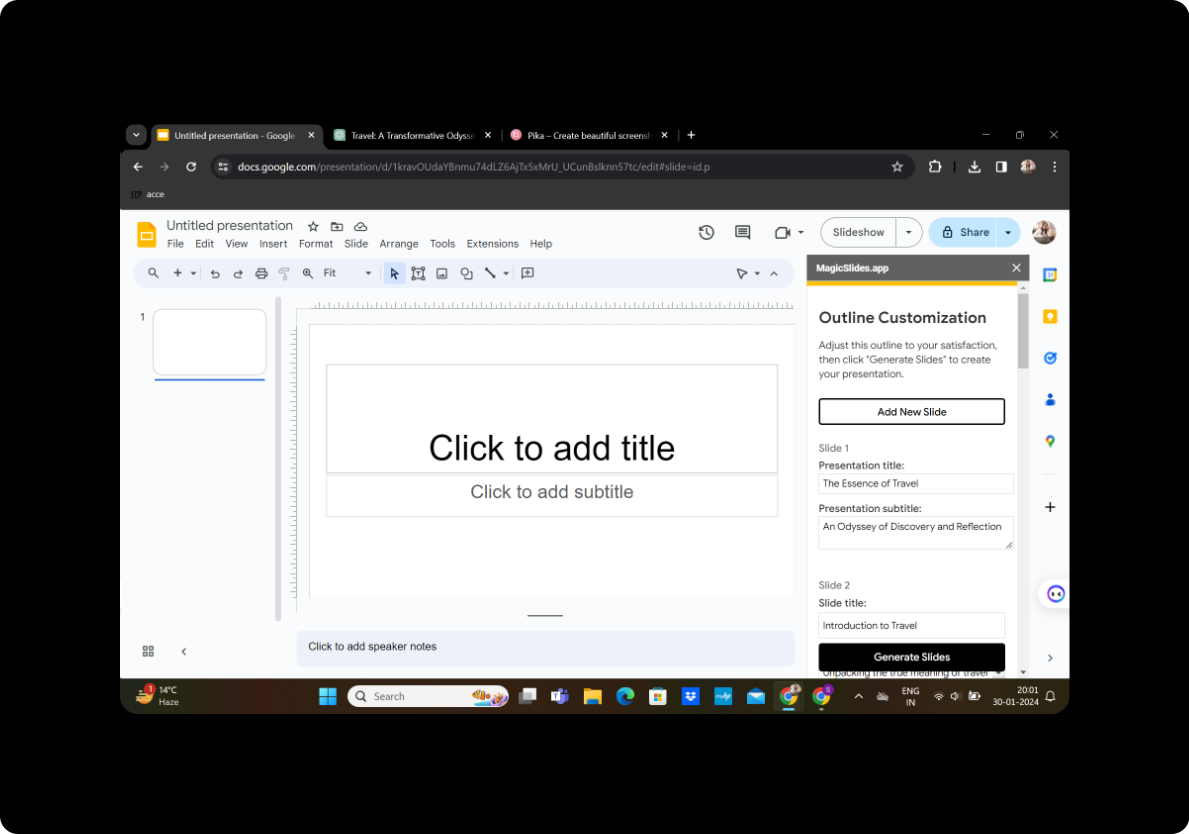
Review the generated outline and make any modifications to suit your preferences. Adjust slide titles, content placement, or formatting as needed.
Click on Generate Presentation
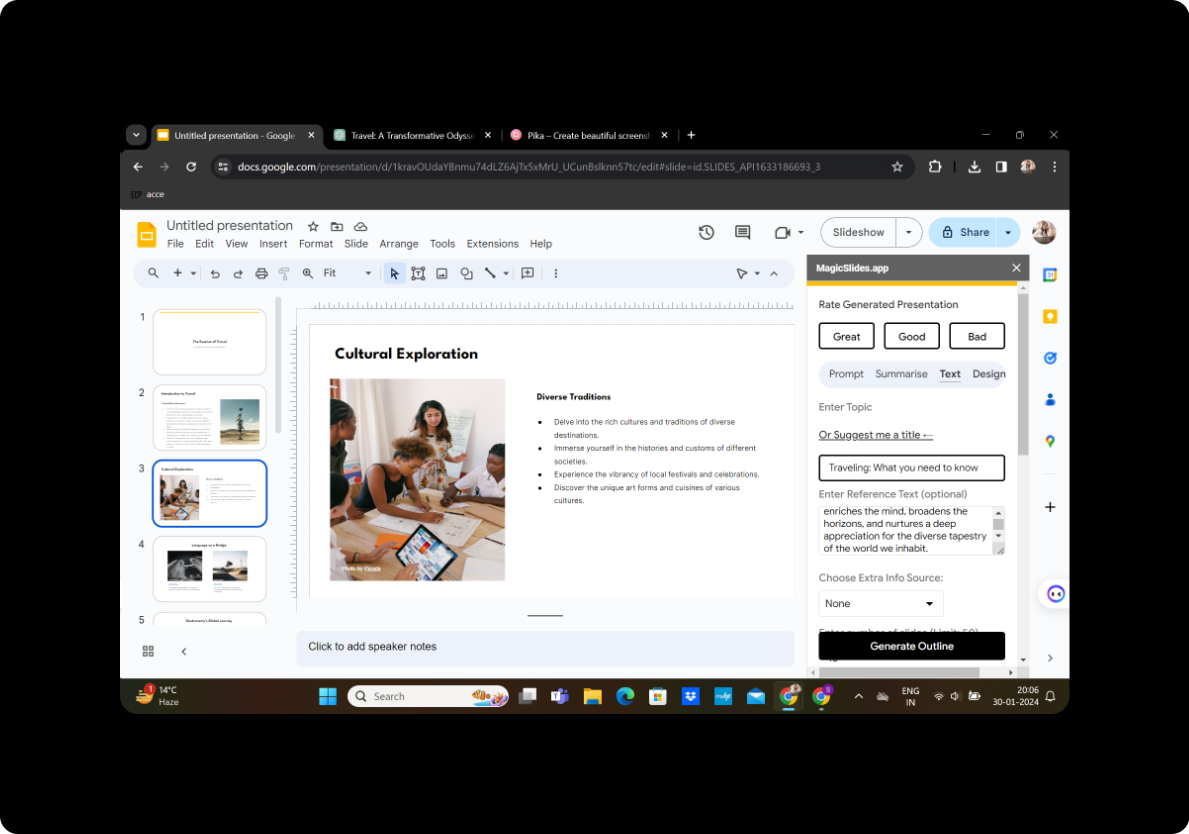
Once satisfied with your modifications, click on "Generate Presentation." MagicSlides will work its magic, transforming your testimonials into a polished presentation.
Conclusion
In conclusion, leveraging customer testimonials through presentations can be a powerful tool for building trust and credibility. With the combination of Google Slides and MagicSlides GPT, the process becomes streamlined and efficient. Your presentation is now ready to captivate your audience with authentic customer experiences.
Frequently Asked Questions
Can I customize the design of my presentation? Absolutely! Google Slides provides various customization options to tailor the design according to your brand's aesthetics.
Is MagicSlides GPT free to use? MagicSlides GPT offers both free and premium versions. The free version covers basic functionalities, while premium features may require a subscription.
Can I share my presentation easily? Yes, Google Slides allows seamless sharing. You can collaborate with others in real-time or share a view-only link.
How do I add visuals to complement testimonials? Within Google Slides, you can easily insert images, graphics, or videos to enhance the visual appeal of your presentation.
Is there a limit to the number of testimonials I can include? While there's no strict limit, it's advisable to maintain a reasonable length for your presentation to keep your audience engaged.


