How to Transform Text-Based Learning Material into PowerPoint Lectures


Learn to convert text-based learning into engaging PowerPoint lectures with our step-by-step guide. Transform your content effortlessly for impact.
In the ever-evolving landscape of education and content creation, the ability to convert text-based learning material into engaging PowerPoint lectures is a valuable skill. This guide will take you through the process using the MagicSlides GPT extension, providing a step-by-step approach to make your presentations visually appealing and effective.
How to Transform Text-Based Learning Material into PowerPoint Lectures
Step 1: Open Google Slides and Start a Blank Presentation
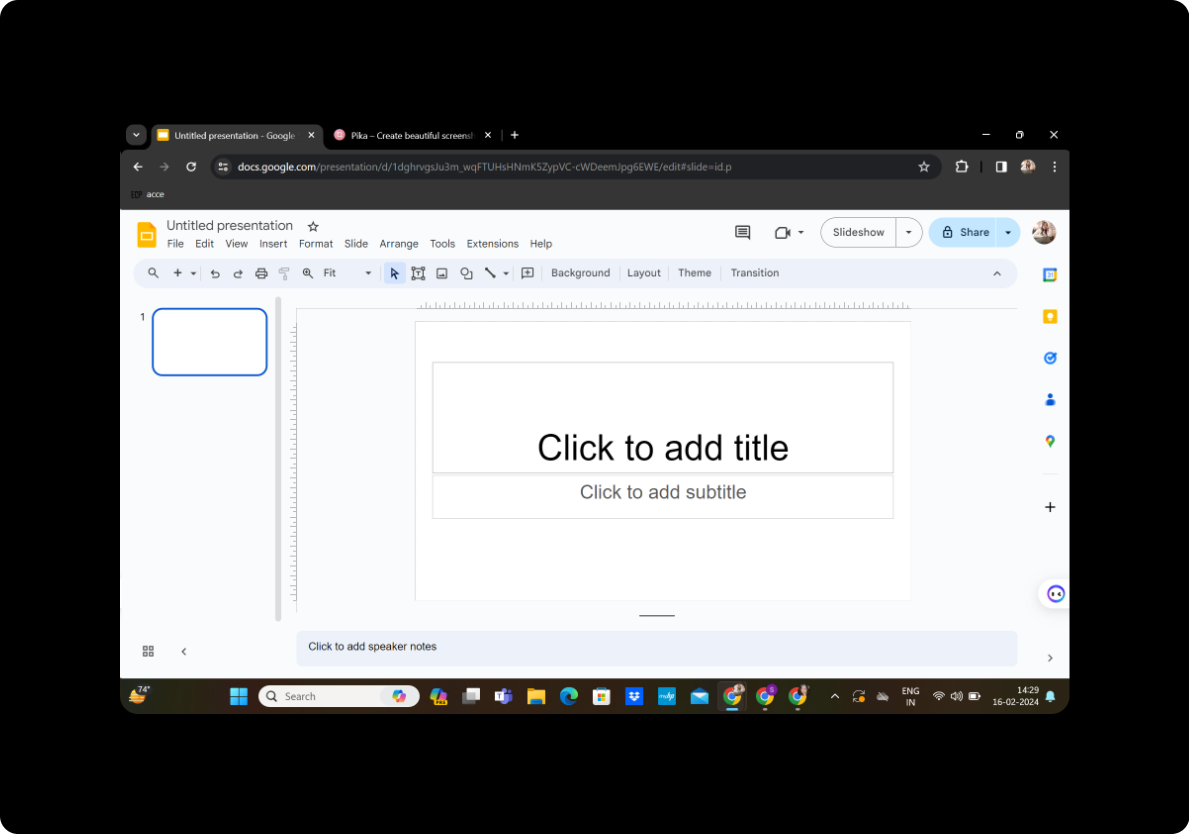
Begin by opening Google Slides and creating a new presentation. Choose a blank template to have a clean canvas for your PowerPoint lecture.
Step 2: Sign in with Google Account
If you're not already signed in, sign in to your Google account. This ensures that your work is saved seamlessly in the cloud.
Step 3: Click on Extensions and MagicSlides GPT
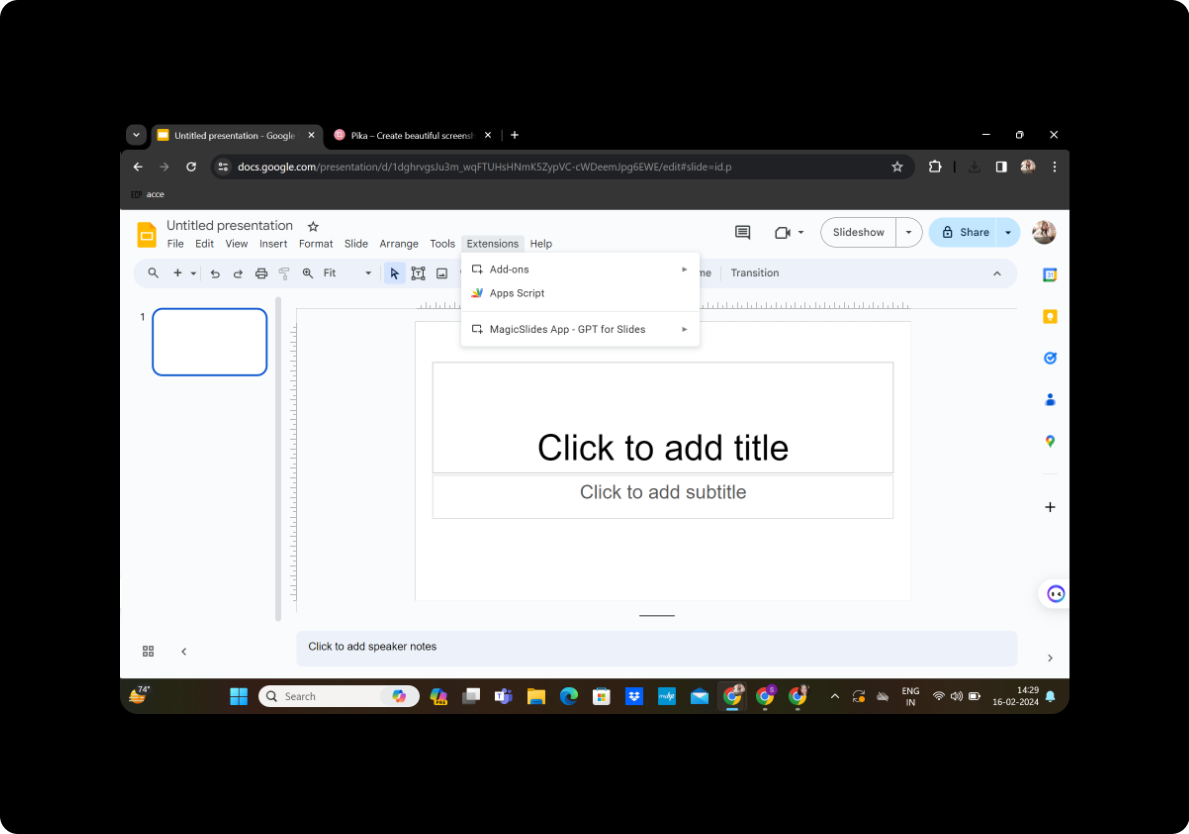
Navigate to the toolbar, find the "Extensions" tab, and select "MagicSlides GPT." If you haven't installed the extension, you can find it in the Google Workspace Marketplace.
Step 4: Click on 'Generate PPT'
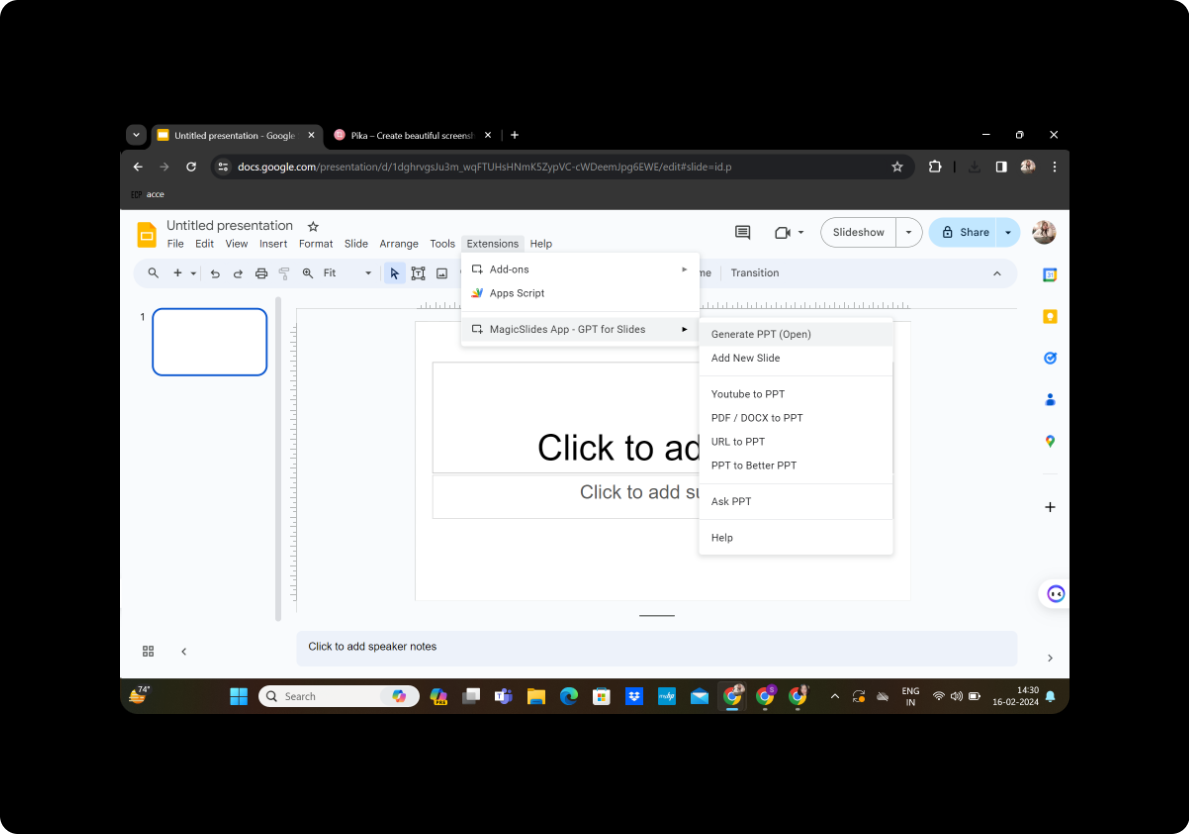
Once MagicSlides GPT is activated, click on 'Generate PPT' to initiate the process of transforming your text-based content into a PowerPoint presentation.
Step 5: Enter Title and Text Content
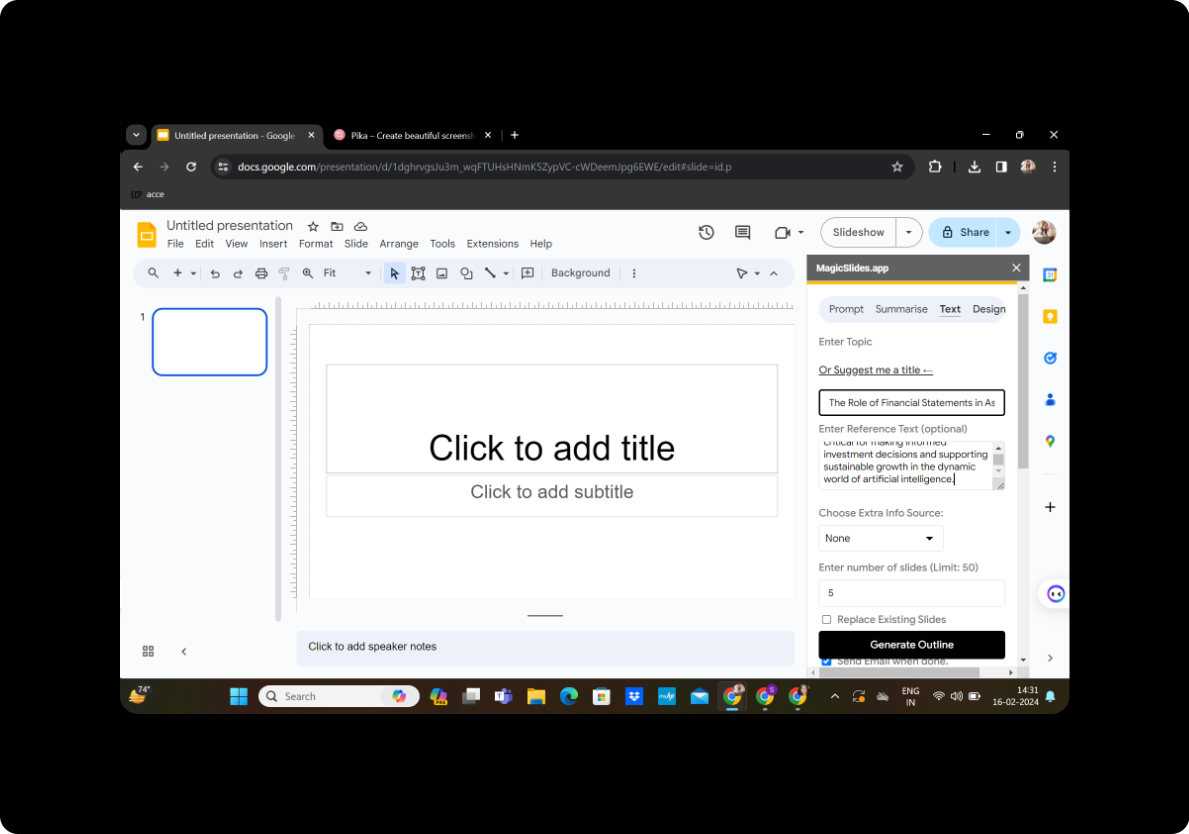
In the space provided, enter the title of your presentation and copy-paste or type in the text-based learning material you want to convert. Ensure clarity and accuracy for the best results.
Step 6: Click on 'Generate Outline'
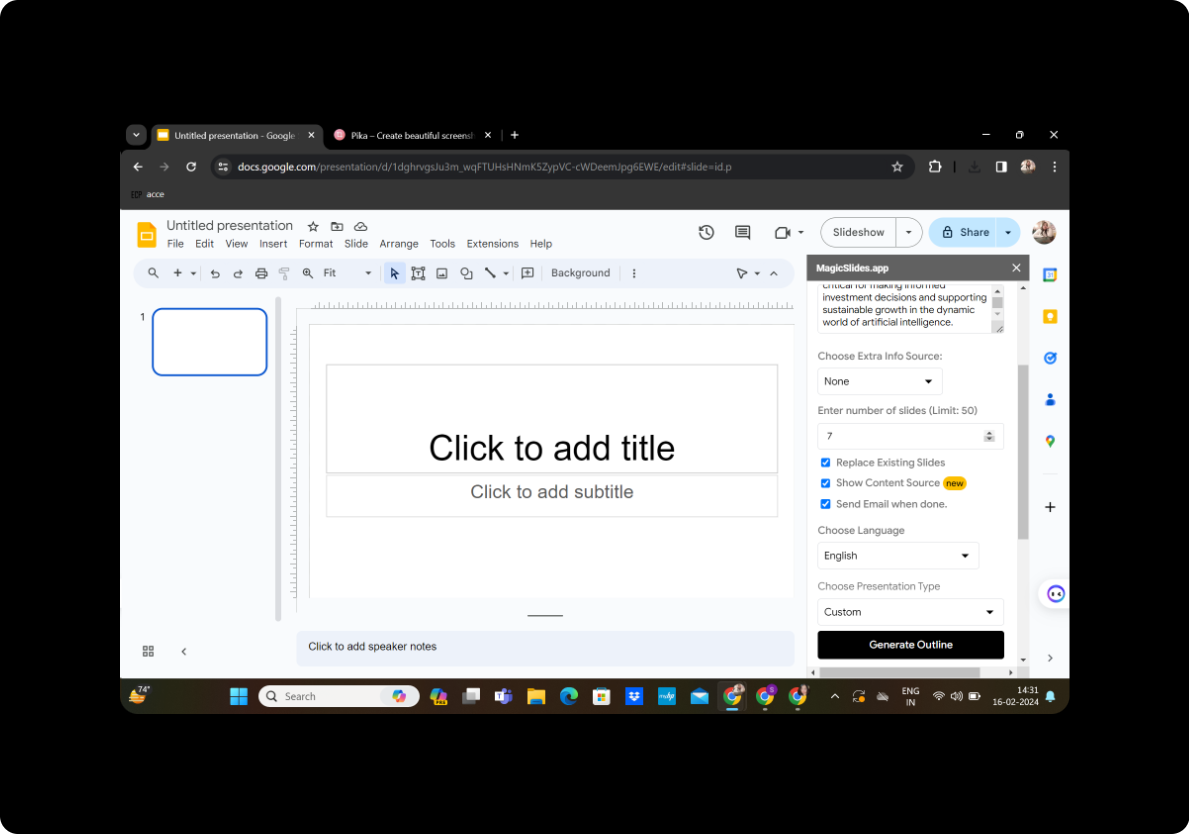
After entering the content, click on 'Generate Outline.' MagicSlides GPT will analyze the text and create an initial outline for your PowerPoint presentation.
Step 7: Select the Number of Slides
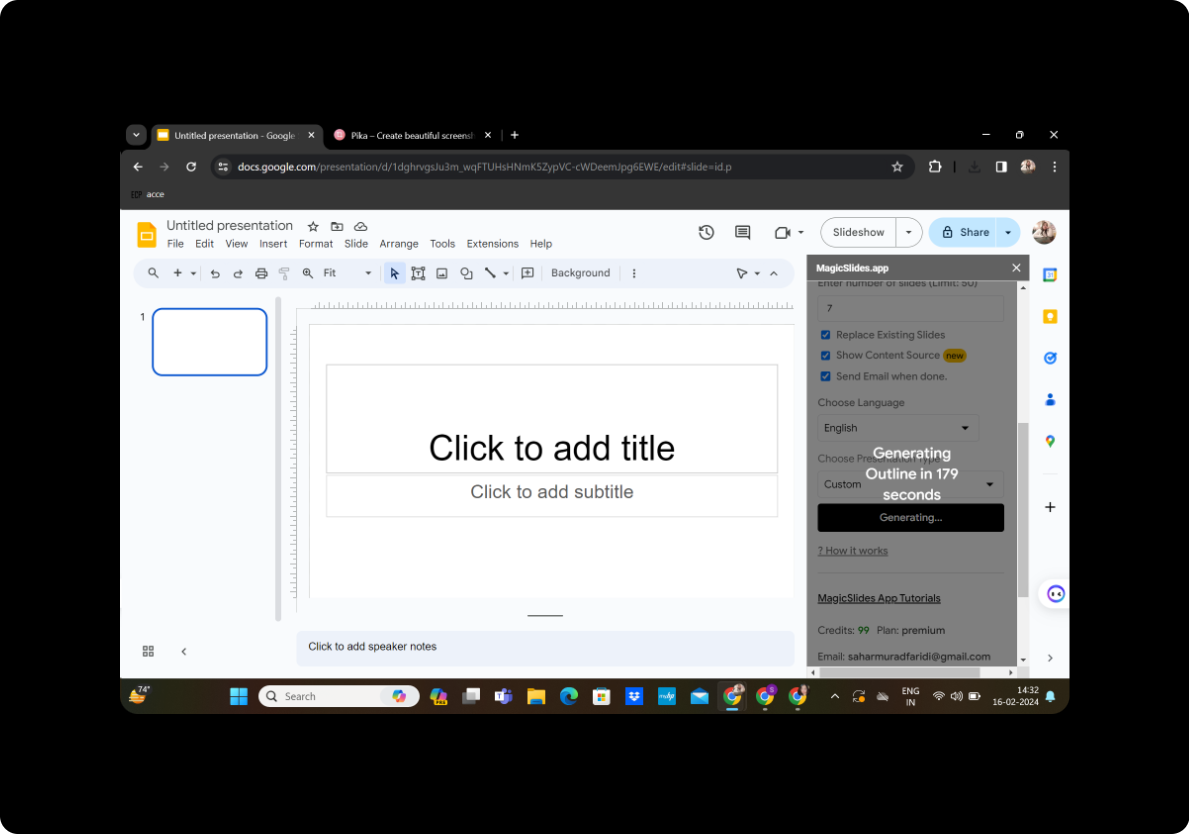
Customize your presentation by selecting the number of slides you want. This step allows you to control the pacing and structure of your lecture.
Step 8: Click on 'Generate Presentation'
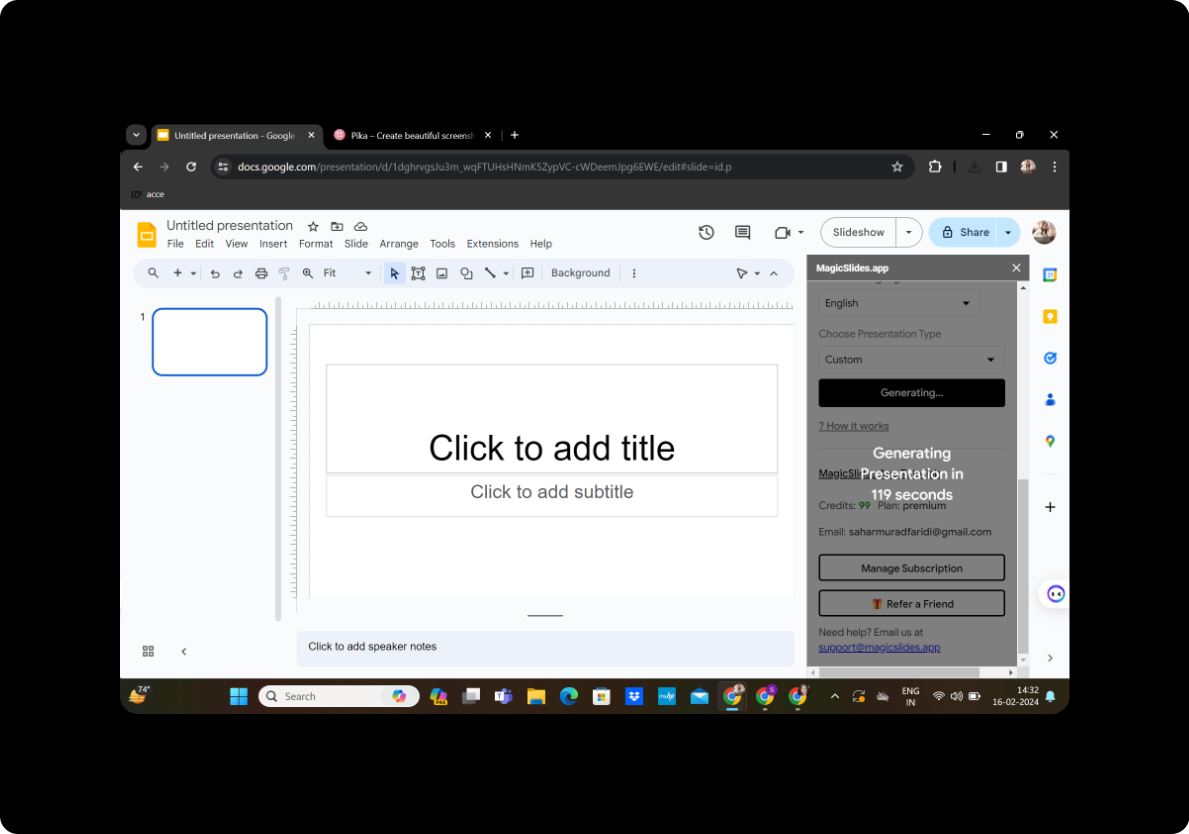
Once satisfied with the generated outline and slide count, click on 'Generate Presentation.' MagicSlides GPT will transform your text-based material into a visually appealing PowerPoint lecture.
Step 9: Your Presentation is Ready
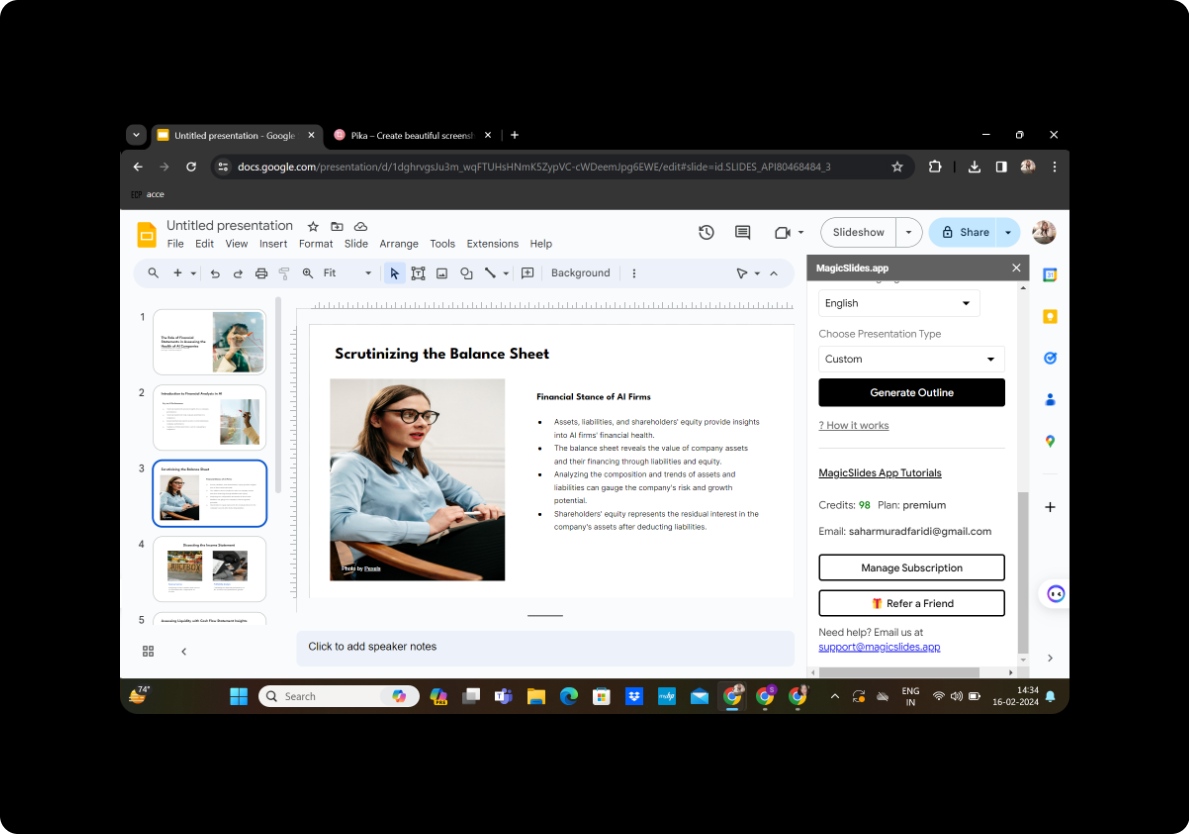
Congratulations! Your presentation is now ready for use. Review the slides, make any necessary edits, and save your work.
Conclusion
Transforming text-based learning material into PowerPoint lectures doesn't have to be a daunting task. With tools like MagicSlides GPT, the process becomes streamlined, allowing educators and content creators to focus on delivering impactful presentations. Enhance your teaching materials, engage your audience, and bring your content to life with the power of visual storytelling.
Frequently Asked Questions
How do I edit slides after the presentation is generated? MagicSlides GPT allows you to make edits directly within Google Slides. Simply click on the slides you want to modify and make the necessary changes.
Can I use MagicSlides GPT for other types of content? Yes, MagicSlides GPT is versatile and can be used to convert various types of content, such as articles, blog posts, and more, into PowerPoint presentations.
Is MagicSlides GPT free to use? MagicSlides GPT may have both free and premium versions. Check the Google Workspace Marketplace for details on pricing and features.
Can I collaborate with others on the generated presentations? Yes, since the presentation is created in Google Slides, you can easily collaborate with others in real-time, allowing for seamless teamwork.
Are there any limitations to the length of the text that can be converted? While MagicSlides GPT is powerful, extremely lengthy text may be truncated. It's advisable to break down lengthy content into manageable sections for optimal results.


