How to Transform Word educational content into PowerPoint slides


Learn to seamlessly convert educational content from Word to engaging PowerPoint slides with our step-by-step guide for effective presentations.
Creating engaging PowerPoint presentations from your educational Word content has never been easier, thanks to tools like MagicSlides GPT. Whether you're a teacher, student, or content creator, this step-by-step guide will help you seamlessly transform your educational materials into dynamic presentations.
Visit Google Slides
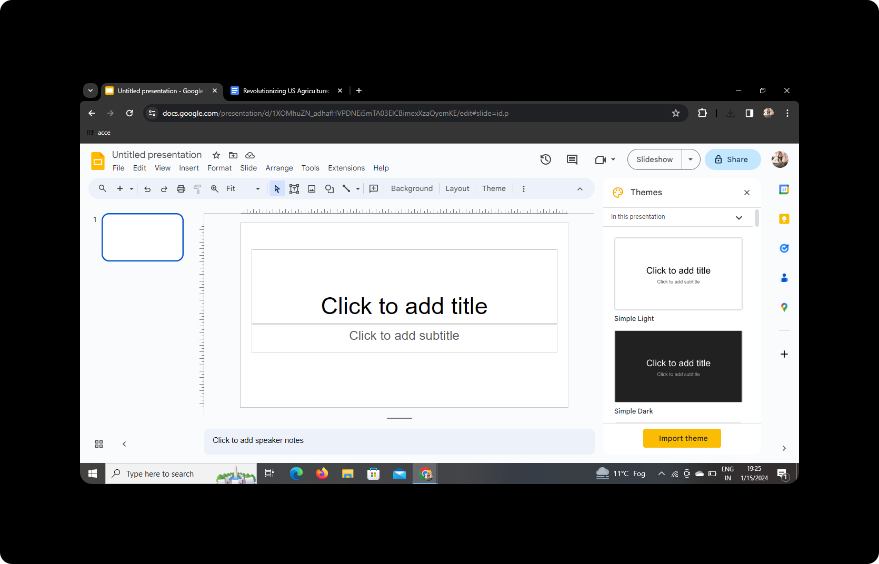
Start by opening your web browser and navigating to Google Slides. If you don't have a Google account, create one—it's free and gives you access to powerful tools like Google Slides.
Sign In with Google to Google Slides
Once on Google Slides, sign in with your Google account to access the full range of features.
In Extensions, Click on MagicSlides GPT (if downloaded)
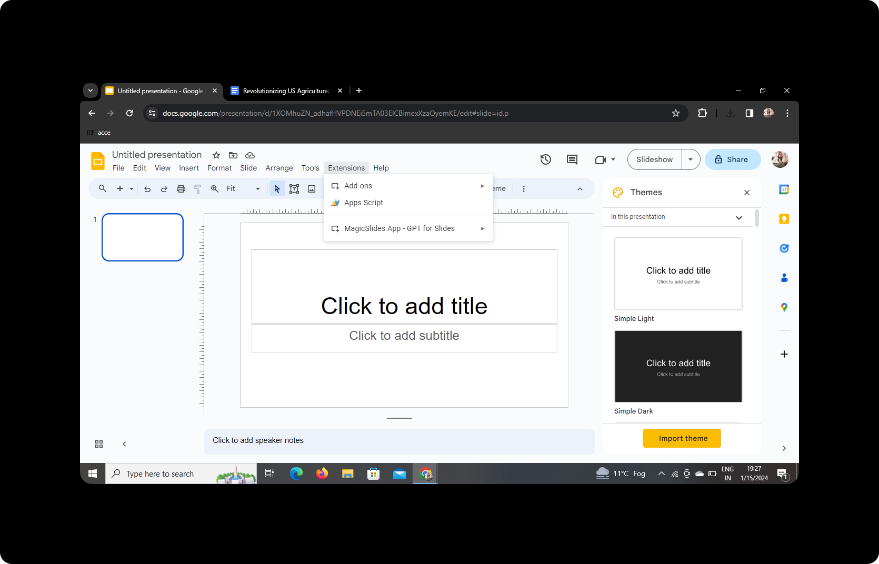
If you've already downloaded the MagicSlides GPT extension, locate it in your browser's extensions. Click on it to activate the MagicSlides tool.
If Not Downloaded, First Download MagicSlides GPT as an Extension, Then Open
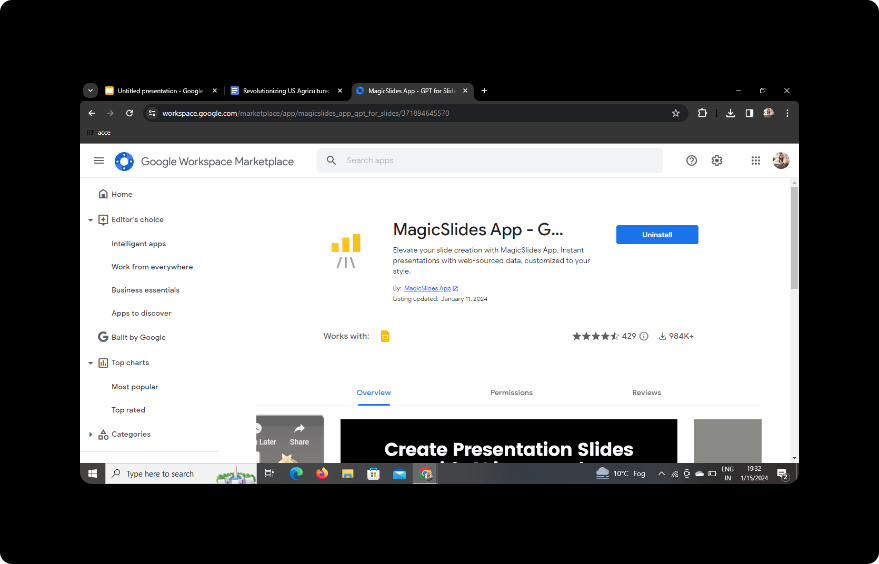
If you haven't downloaded the MagicSlides GPT extension, visit the Chrome Web Store or your browser's extension marketplace. Search for MagicSlides GPT, download, and install it. Once installed, open the extension.
Click on PDF/DOCX to PPT in MagicSlides GPT
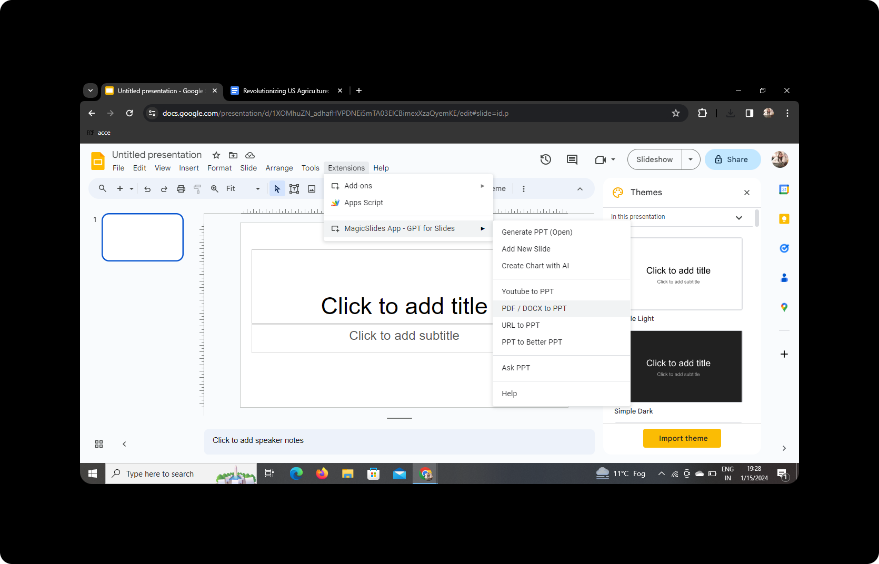
Within the MagicSlides GPT interface, look for the "PDF/DOCX to PPT" option. Click on it to begin the transformation process.
Click on 'Upload PDF/DOCX' Option and Upload Your Educational Content
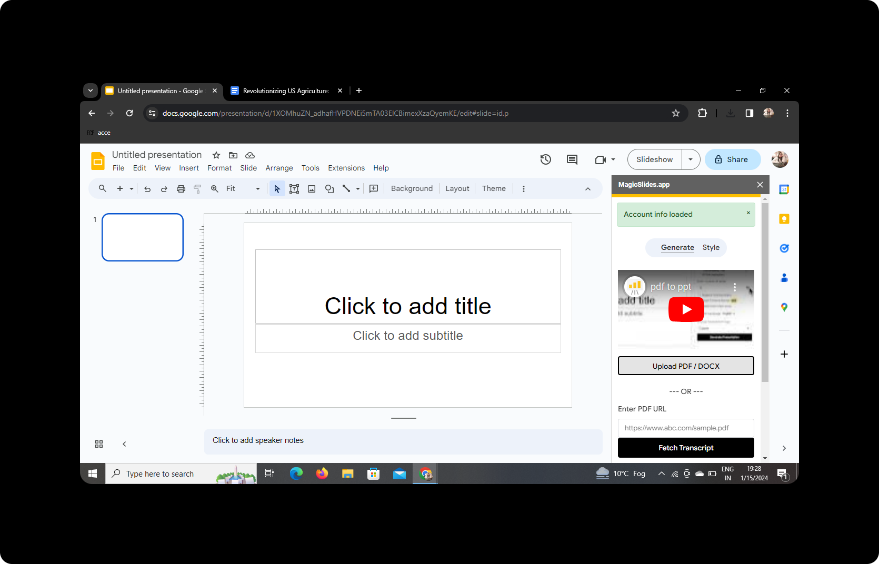
Select the 'Upload PDF/DOCX' option to upload your educational Word content. Click on the designated area to choose the file from your device.
Upload Your Word Content
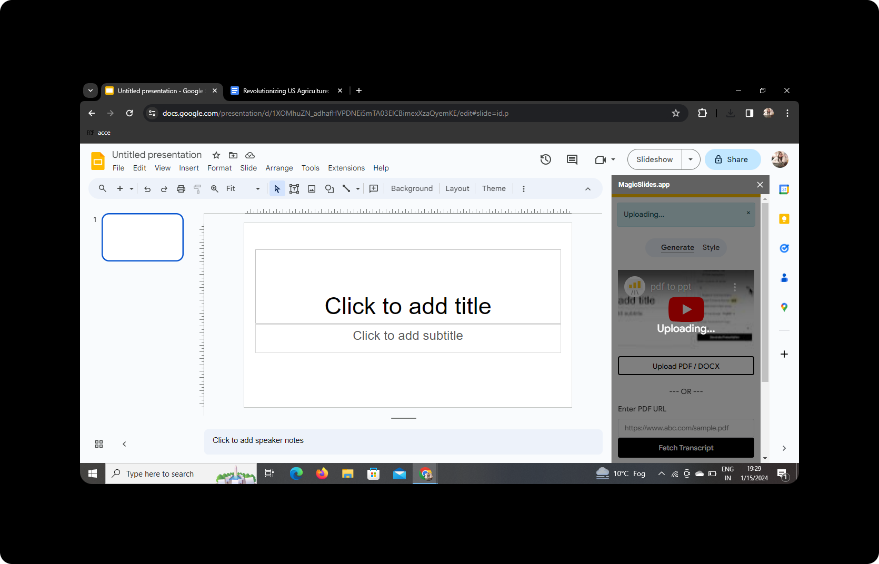
After selecting your Word document, proceed to upload it. MagicSlides GPT will begin analyzing the document.
Select the Number of Slides
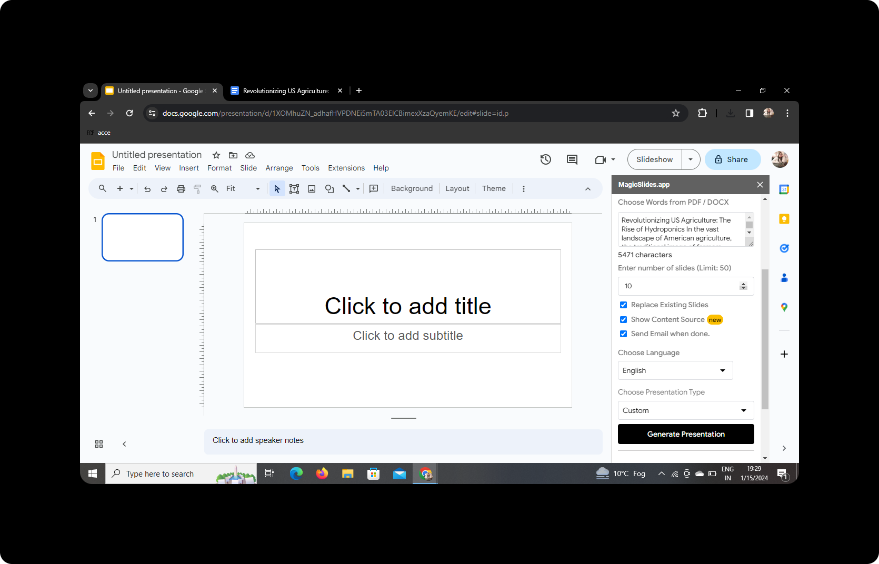
Customize your presentation by specifying the number of slides you want. Adjust this based on your content and presentation preferences.
Click on Generate Presentation
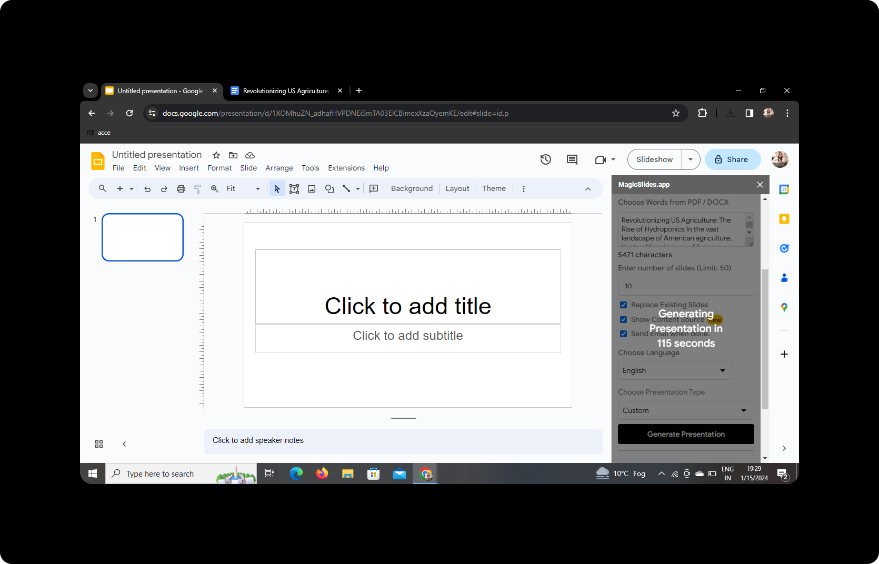
Click the "Generate Presentation" button to let MagicSlides GPT work its magic. The tool will convert your Word educational content into visually appealing PowerPoint slides.
Your Presentation Is Ready
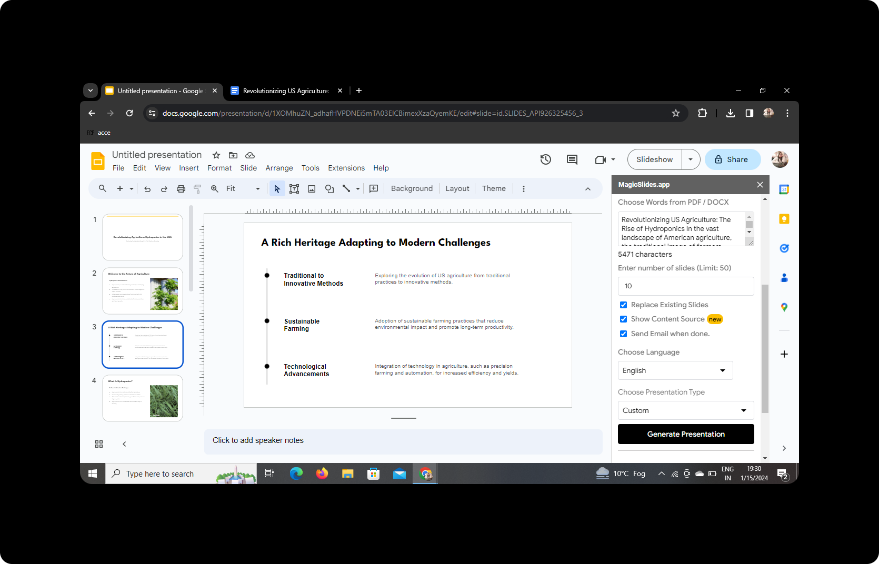
Once the process is complete, your presentation is ready! You can now review, edit, and enhance it further if needed.
Conclusion
Transforming Word educational content into PowerPoint slides has never been more accessible. With tools like MagicSlides GPT, educators and learners can effortlessly create engaging presentations that capture and retain attention. The integration of Google Slides and MagicSlides GPT streamlines the process, allowing users to focus on delivering impactful content.
FAQs
Q1: Can I use MagicSlides GPT on other browsers besides Chrome? A1: As of now, MagicSlides GPT is primarily designed for Chrome. However, check for updates or alternative versions for other browsers.
Q2: Is there a limit to the file size MagicSlides GPT can handle? A2: While there may be some limitations, MagicSlides GPT generally handles moderate-sized documents well. For very large files, consider breaking them into smaller sections.
Q3: Can I customize the design of the slides after generation? A3: Absolutely! MagicSlides GPT provides editing features within Google Slides, allowing you to personalize the design, layout, and content.
Q4: Is MagicSlides GPT free to use? A4: Yes, MagicSlides GPT is available as a free extension, making it accessible to a wide range of users.
Q5: Can I collaborate with others on a MagicSlides-powered presentation? A5: Yes, Google Slides allows for collaborative editing. Share the presentation link with collaborators, and everyone can work together in real-time.
Incorporate these steps into your workflow, and soon you'll be crafting compelling PowerPoint presentations from your Word educational content effortlessly. Enjoy presenting!


