How to Turn a Series of Ideas or Mind Maps into PowerPoint Slides?


Transform your ideas and mind maps into dynamic PowerPoint presentations effortlessly with our step-by-step guide. Elevate your communication skills today!
Creating a PowerPoint presentation from a series of ideas or mind maps can seem daunting at first. However, with the right tools and a systematic approach, you can efficiently turn your concepts into an engaging presentation. This guide will walk you through the process step by step, using Google Slides and a powerful extension called Magic Slides GPT. Whether you're preparing for a class, a business meeting, or a personal project, these steps will help you craft a presentation that effectively communicates your ideas.
How to Turn a Series of Ideas or Mind Maps into PowerPoint Slides?
Visit Google Slides
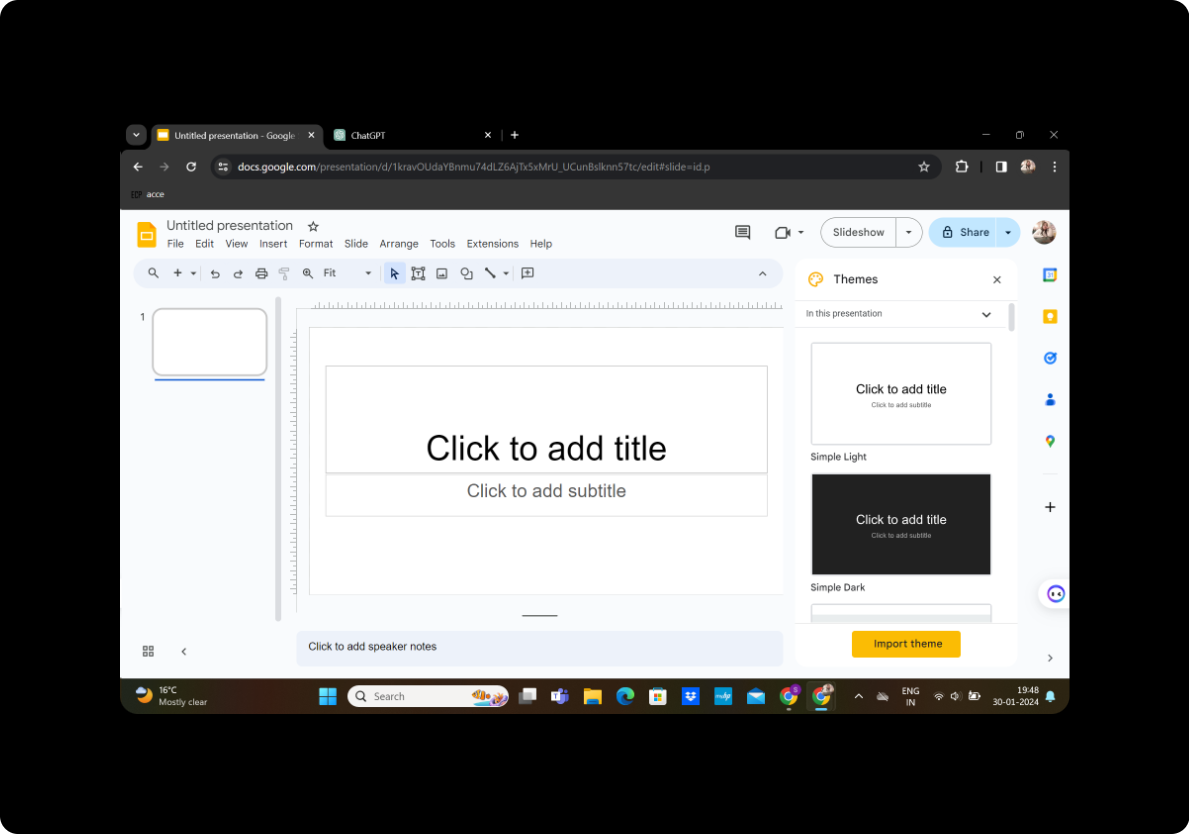
The first step in your journey to create a PowerPoint presentation is to navigate to Google Slides. You can do this by typing "Google Slides" into your web browser's search bar and selecting the first search result.
Sign in with Google to Google Slides
Once you're on the Google Slides homepage, you'll need to sign in using your Google account. If you don't have one, you'll have to create it. Click on the "Sign In" button at the top right corner of the page and enter your Google account credentials.
Setting Up Magic Slides GPT
Download Magic Slides GPT Extension
If you haven't already installed the Magic Slides GPT extension, you'll need to add it to your browser. Go to the Extensions menu in your browser and search for "Magic Slides GPT." Download and install the extension following the on-screen instructions.
Open Magic Slides GPT in Google Slides
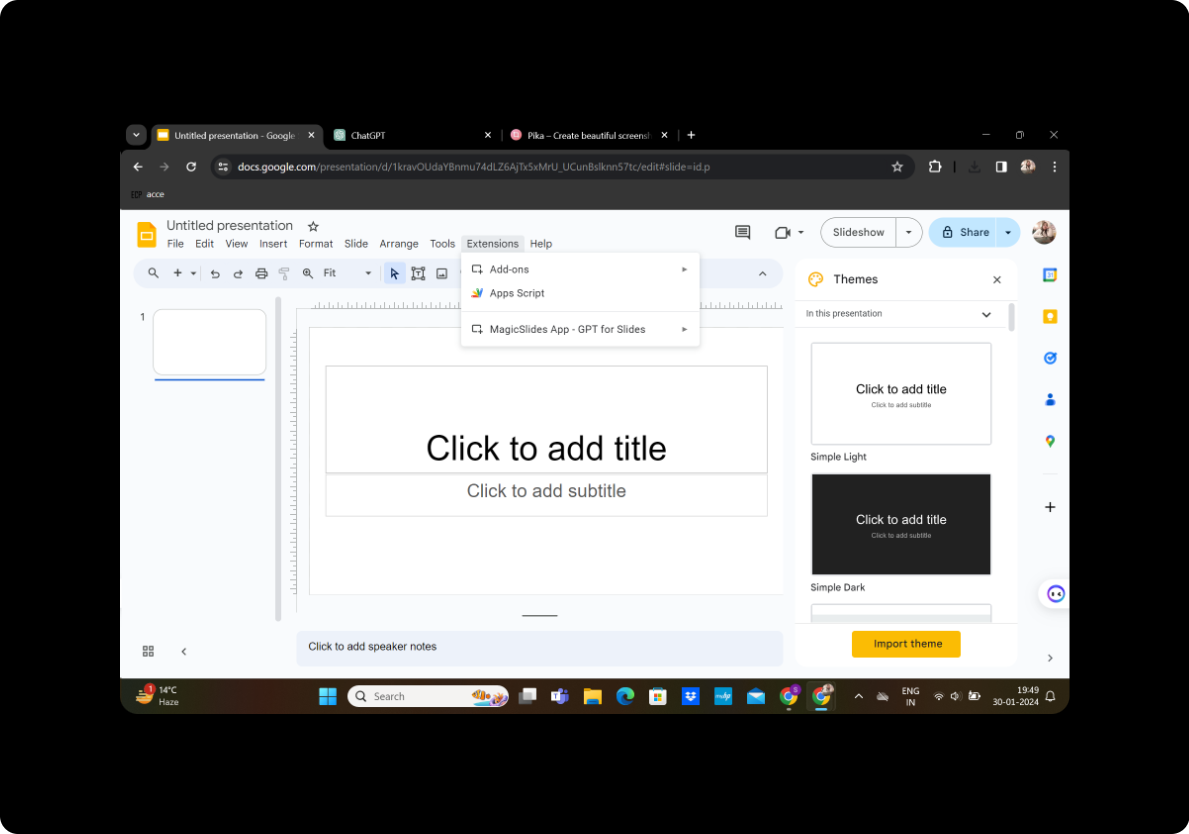
After installing the extension, go back to Google Slides. Click on "Extensions" in the menu bar, then find and select "Magic Slides GPT" from the dropdown list.
Creating Your Presentation
Click on 'Generate PPT' in Magic Slides GPT
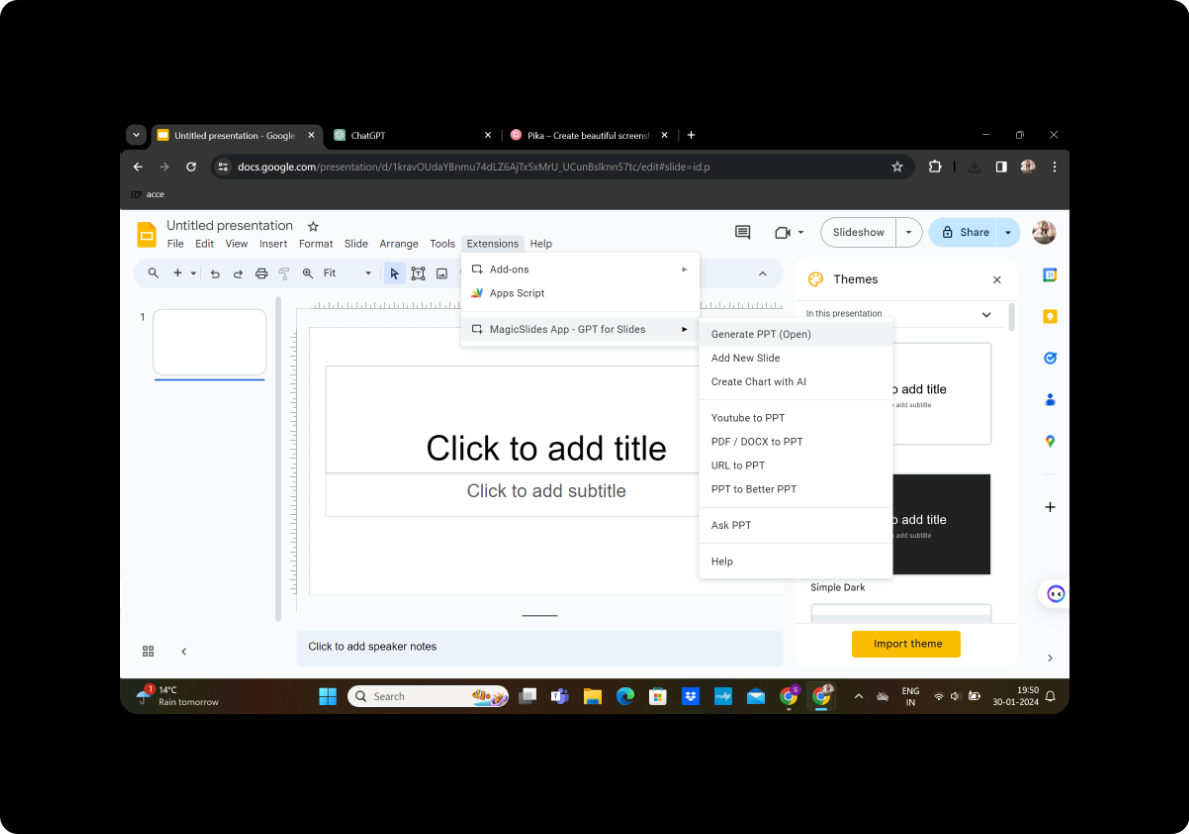
With Magic Slides GPT open, click on the "Generate PPT" button to start the process of creating your presentation.
Add Your Title
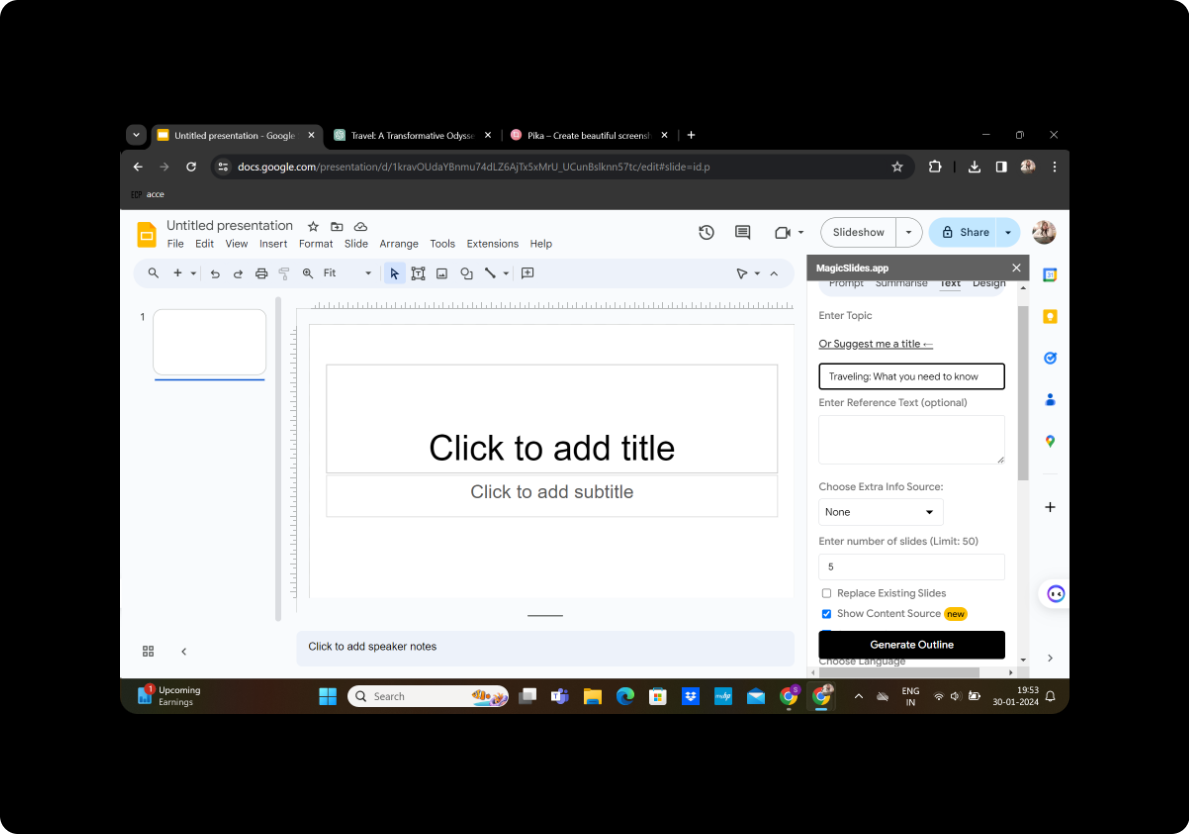
In the title option box, type in the title of your presentation. This should reflect the main theme or subject of your slides.
Input Your Text Content

Copy and paste your text content into the box provided for text. This content can be the series of ideas or the summarized text from your mind maps that you want to turn into slides.
Select the Number of Slides
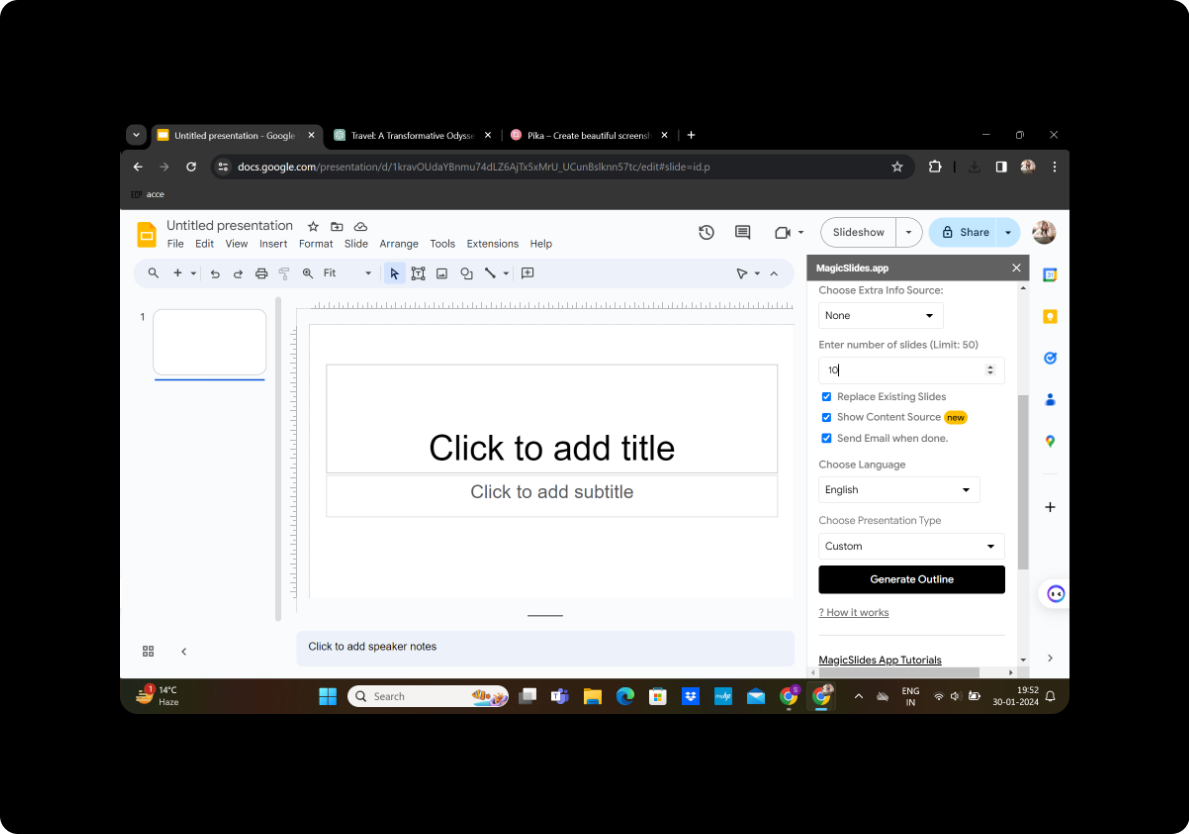
Choose how many slides you want your presentation to have. This decision should be based on the amount of content you have and how detailed you want your presentation to be.
Click on 'Generate Outline'
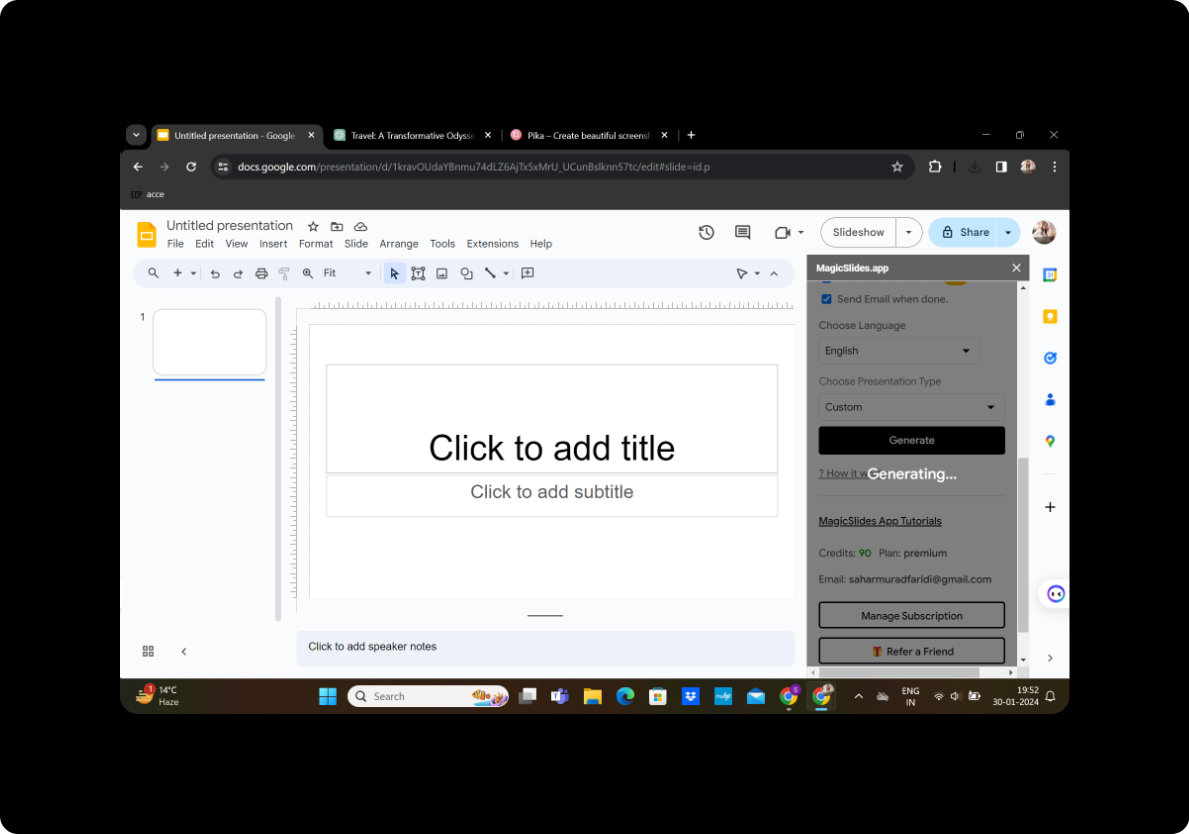
Once you've entered all the necessary information, click on "Generate Outline." Magic Slides GPT will then provide you with an outline for your presentation based on the content you've provided.
Modify Your Presentation as Per Preference
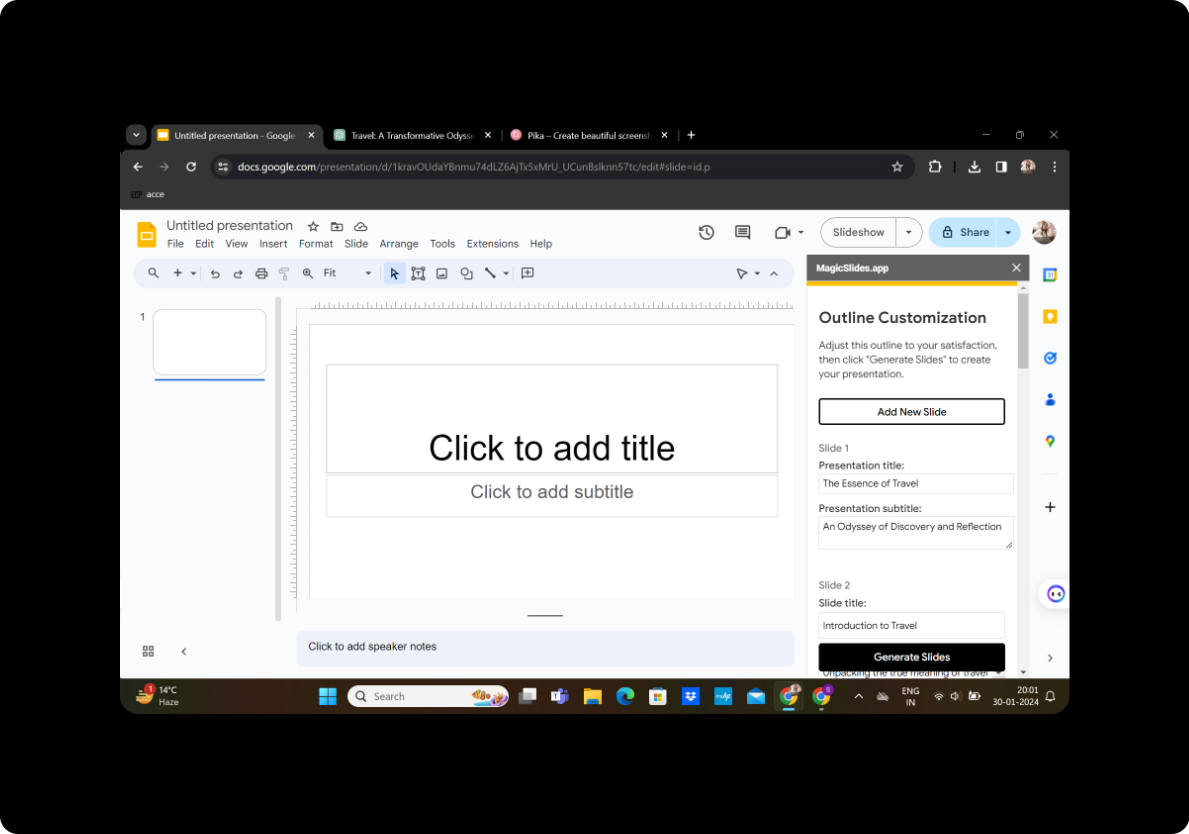
At this point, you can review the generated outline and make any adjustments to the content, design, or order of your slides. This step ensures that the final presentation aligns with your vision and preferences.
Click on 'Generate Presentation'
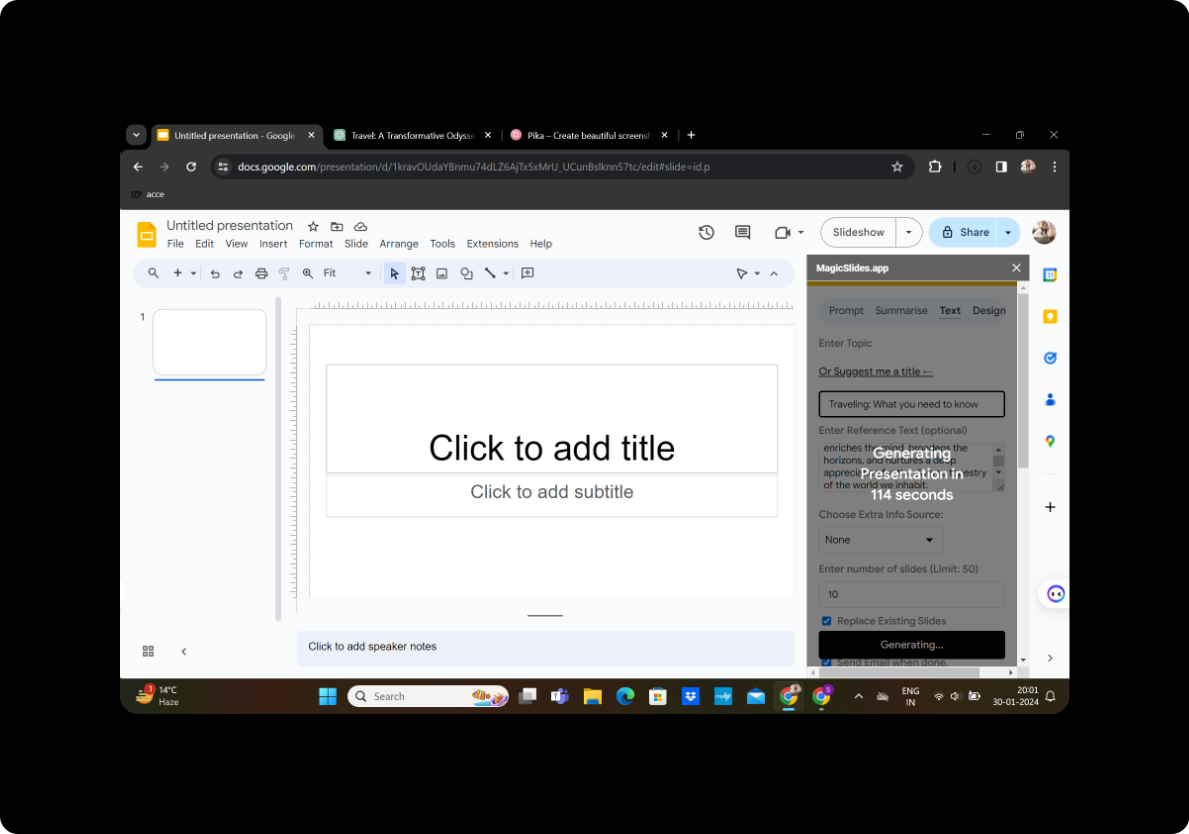
After making all the necessary modifications and ensuring you're satisfied with the outline, click on "Generate Presentation." Magic Slides GPT will then create your PowerPoint slides according to the outline.
Your Presentation Is Ready
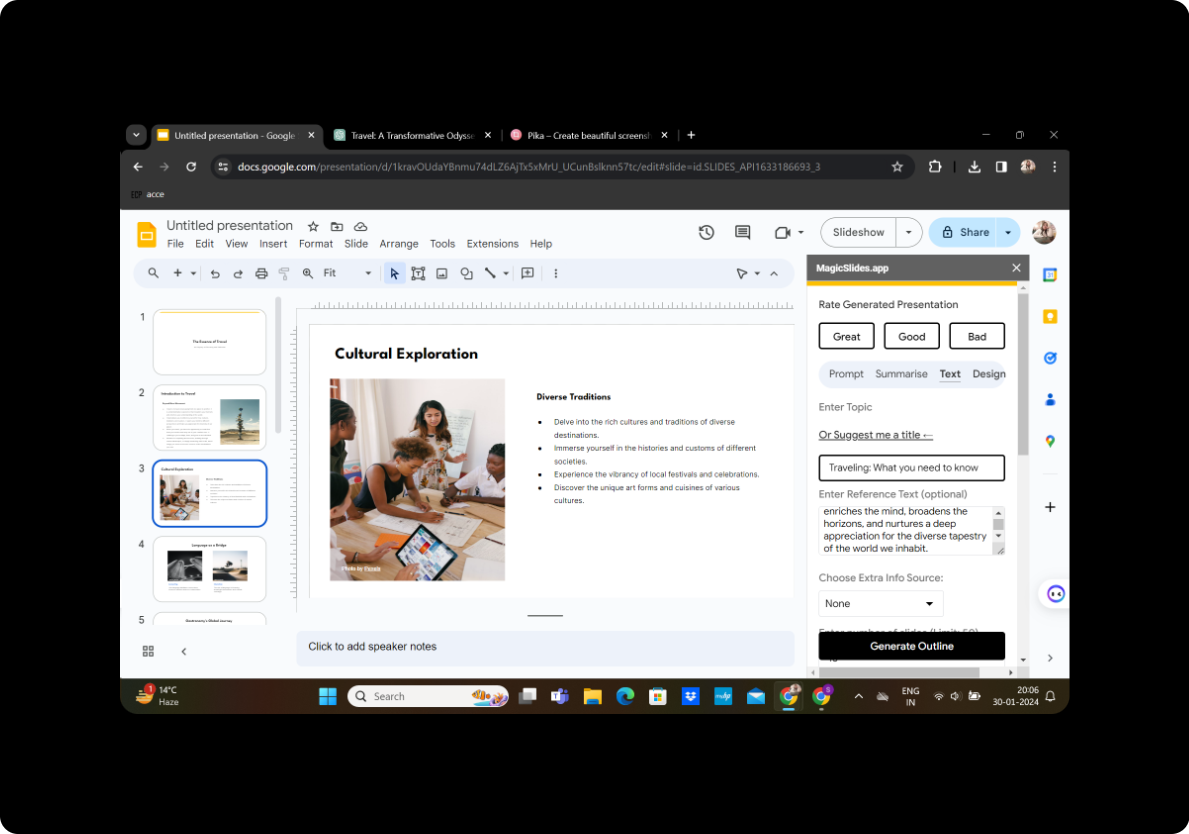
Congratulations! Your presentation is now ready. You can review it, make any final tweaks, and then save or share it as needed.
Conclusion
Turning ideas or mind maps into a PowerPoint presentation doesn't have to be complicated. By leveraging tools like Google Slides and Magic Slides GPT, you can streamline the process and create presentations that effectively convey your message. Remember, the key is to start with a clear outline of your ideas and then use the available technology to bring those ideas to life in slide format.
FAQs
Can I use Magic Slides GPT with other presentation software besides Google Slides? Magic Slides GPT is designed to work within the Google Slides environment as an extension. If you prefer to use another presentation software, like Microsoft PowerPoint, you can still create your presentation in Google Slides and then download it in a format compatible with your preferred software.
What if I need more slides than I initially selected? If you find that you need more slides to effectively convey your message, you can easily adjust the number of slides. After generating your initial outline, you can go back and modify the slide count or manually add more slides as needed within Google Slides.
Is there a way to import images or multimedia into my presentation using Magic Slides GPT? Magic Slides GPT primarily focuses on generating text-based content for slides. However, Google Slides allows you to manually add images, videos, and other multimedia elements to your presentation. After generating your slides with Magic Slides GPT, you can insert multimedia by using the "Insert" menu in Google Slides.
Can I share my presentation directly from Google Slides to social media or email? Yes, Google Slides makes it easy to share your presentation. You can share a link to your presentation, email it directly from Google Slides, or even publish it to the web. Use the "Share" or "File" menu options in Google Slides to explore all the sharing possibilities.
How can I collaborate with others on my presentation using Google Slides? Google Slides supports real-time collaboration, allowing multiple people to work on the same presentation simultaneously. To collaborate, click on the "Share" button in the upper right corner of the Google Slides interface, and then add the email addresses of your collaborators. You can set permissions for each collaborator, determining whether they can view, comment on, or edit the presentation.


