How to Turn PDF Technical Manuals into PowerPoint Training Guides


Transform PDF manuals into dynamic PowerPoint training guides effortlessly. Elevate learning with engaging visuals. Your guide to effective instructional design.
In the ever-evolving landscape of training and education, the need to convert PDF technical manuals into dynamic PowerPoint training guides has become increasingly prevalent. This guide will take you through the process step by step, utilizing the powerful MagicSlides GPT tool. Follow these straightforward steps to transform static manuals into engaging training presentations.
How to Turn PDF Technical Manuals into PowerPoint Training Guides
Step 1: Open Google Slides and Start a Blank Presentation
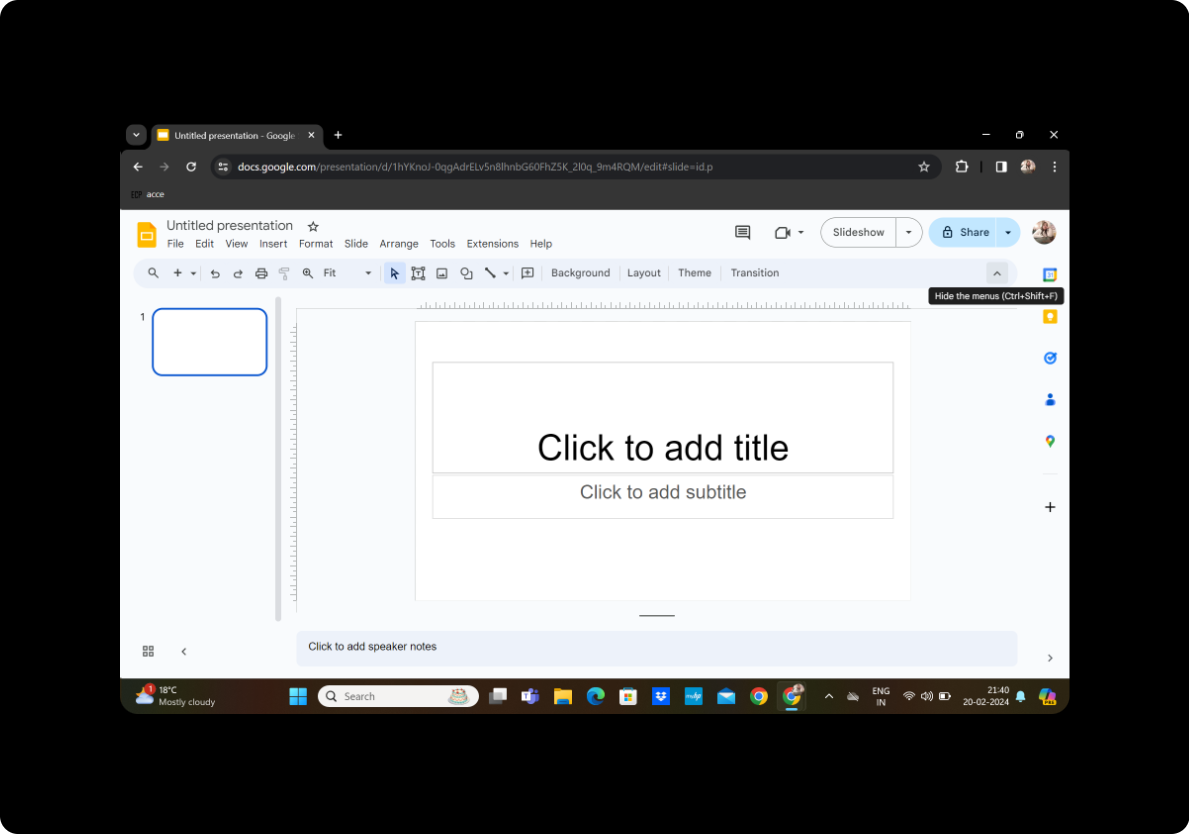
Begin by opening Google Slides and creating a new, blank presentation. If you don't have a Google account, sign up for one to access the suite of Google Workspace tools.
Step 2: Click on Extensions and MagicSlides GPT
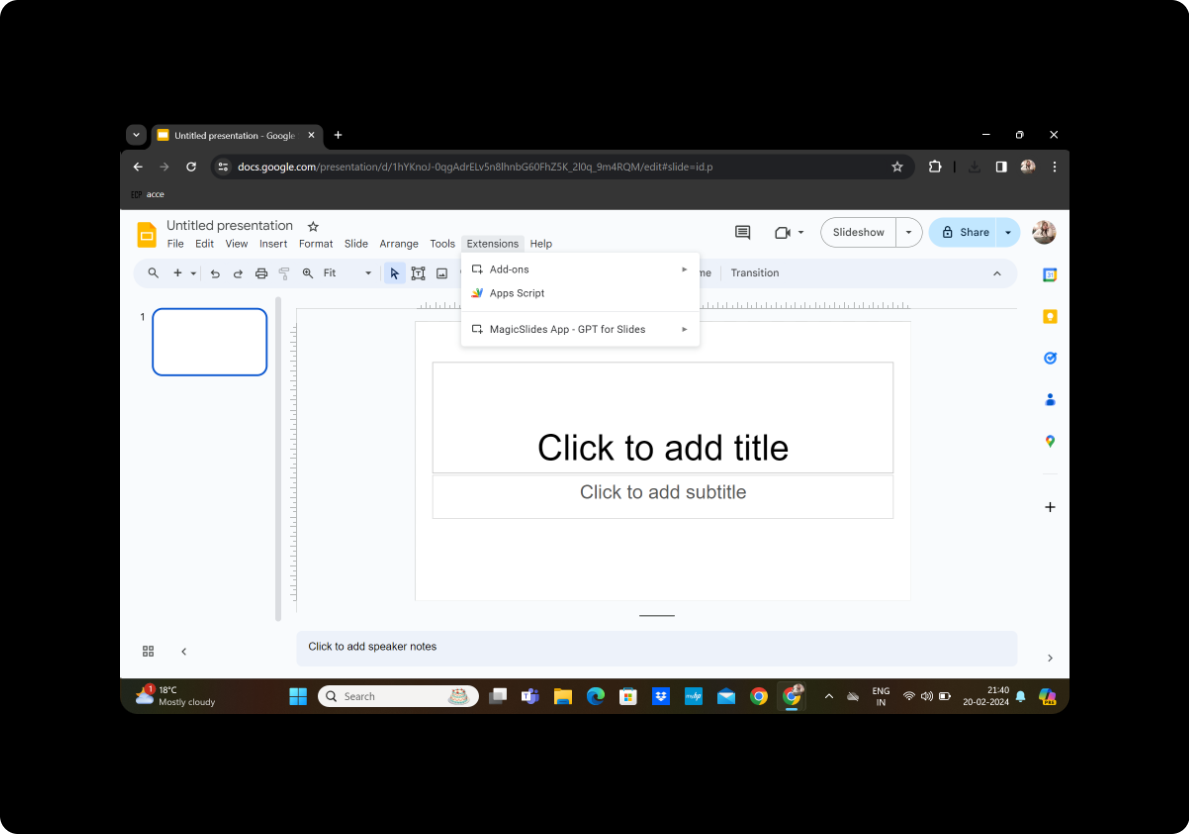
Navigate to the extensions menu within Google Slides and click on "MagicSlides GPT." Ensure the extension is installed and activated to unleash its powerful features.
Step 3: Click on 'PDF/DOCX to PPT'
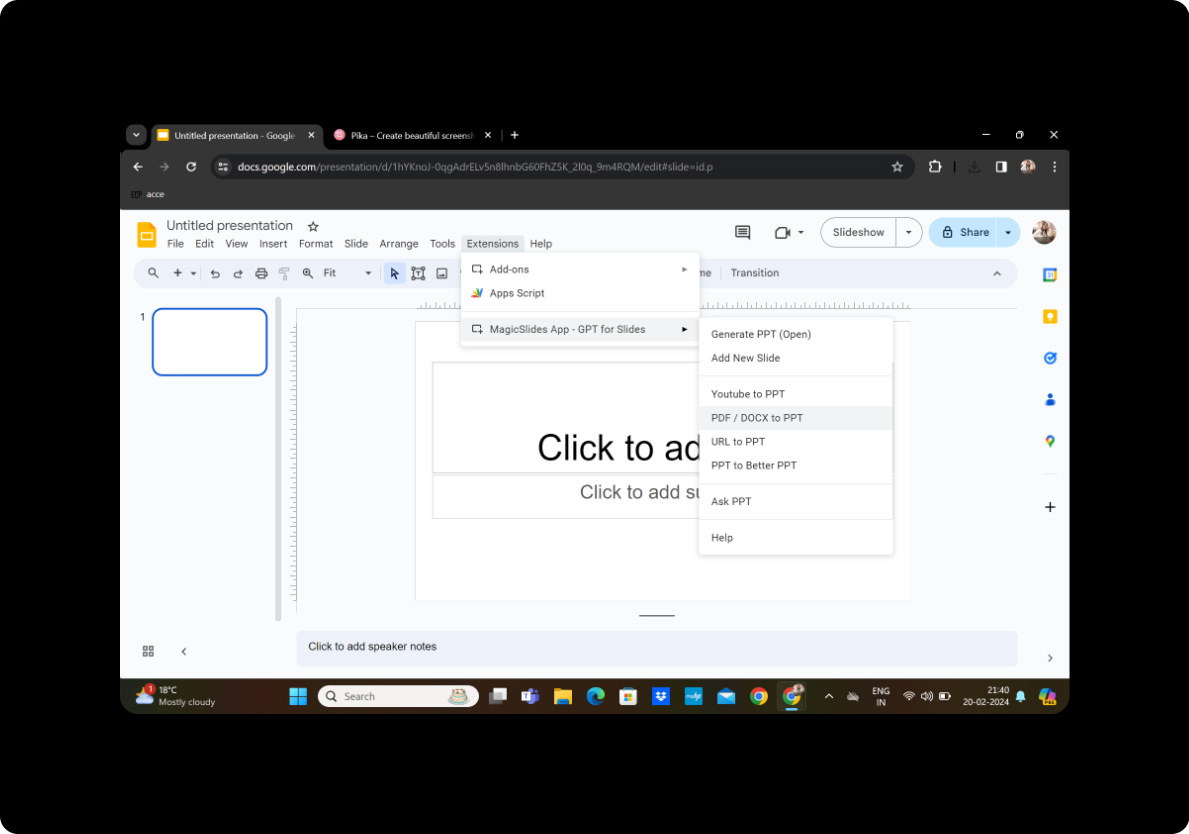
Within MagicSlides GPT, locate the 'PDF/DOCX to PPT' option. This feature streamlines the process of converting your technical manuals into a PowerPoint format.
Step 4: Upload the PDF and Click on Fetch Transcript
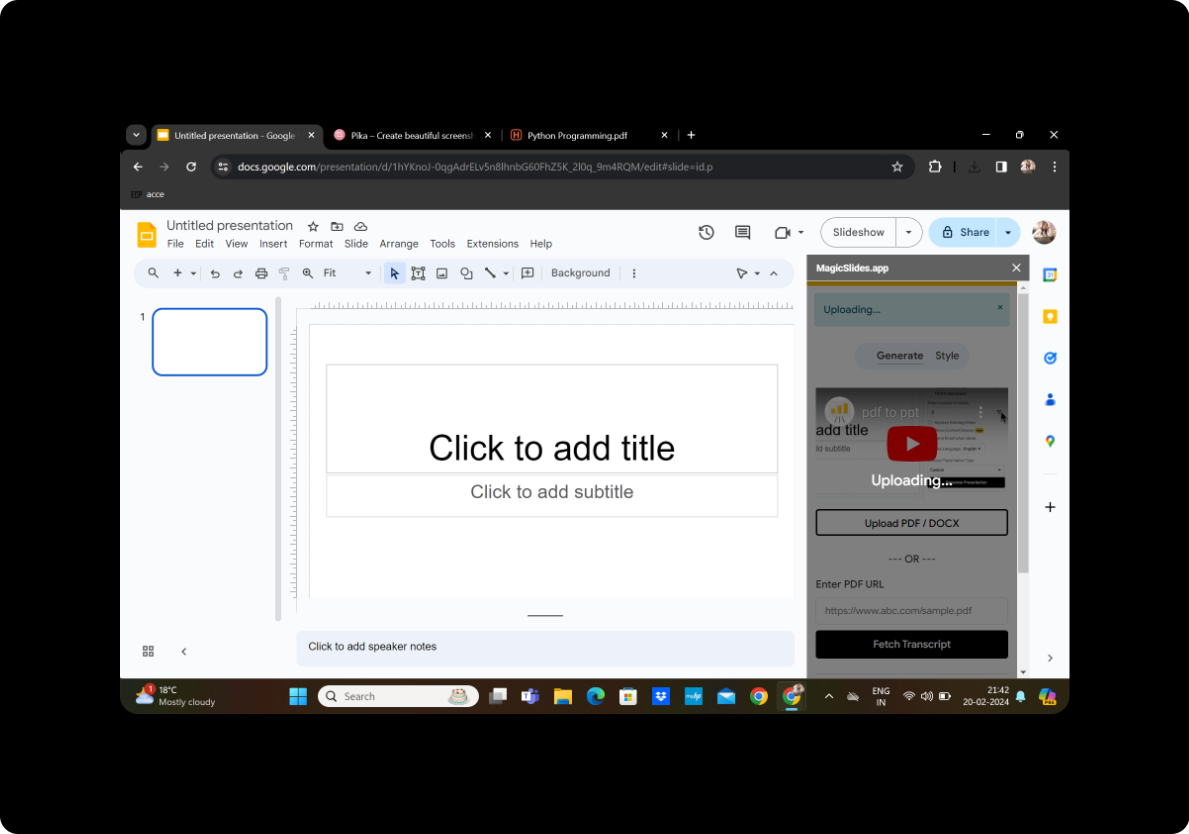
Upload the PDF technical manual you wish to convert. Click on 'Fetch Transcript' to initiate the extraction of text and key content from the document.
Step 5: Select the Number of Slides
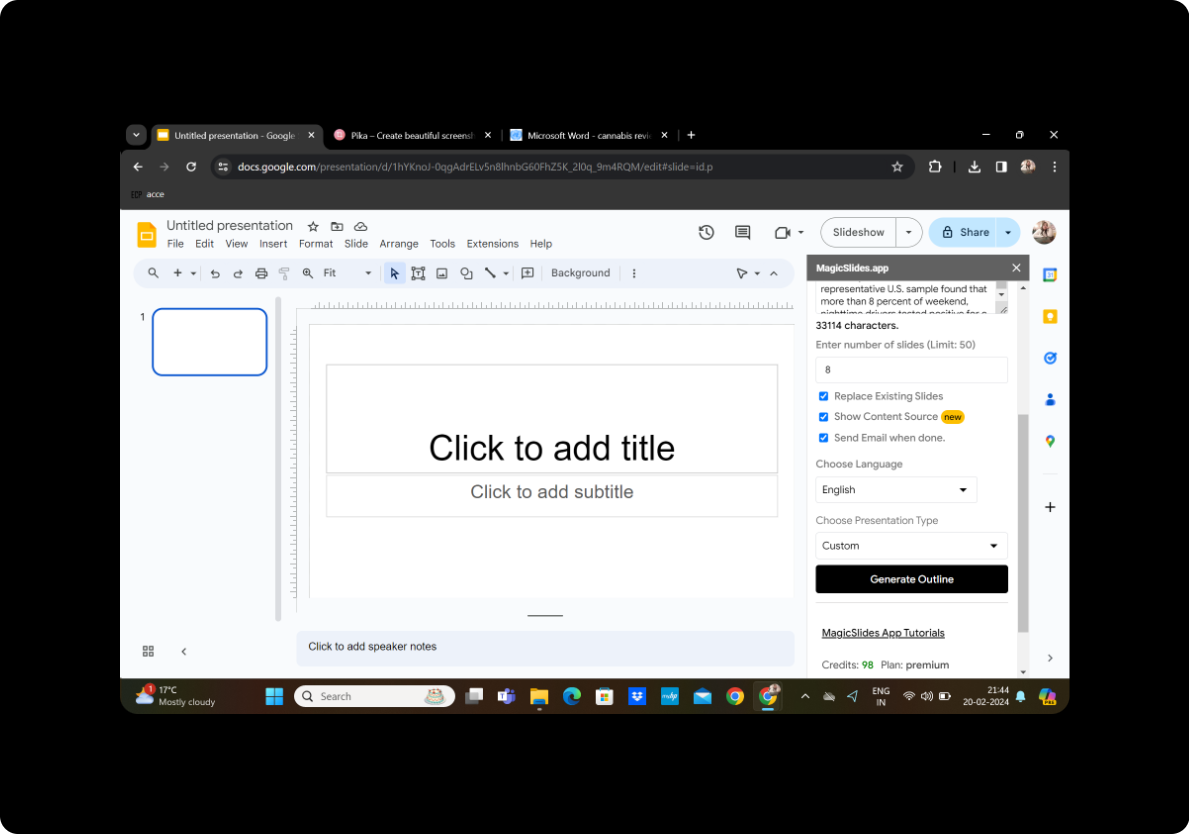
Customize your presentation by choosing the number of slides you want. This step allows you to control the granularity and pacing of your training guide.
Step 6: Click on Generate Outline
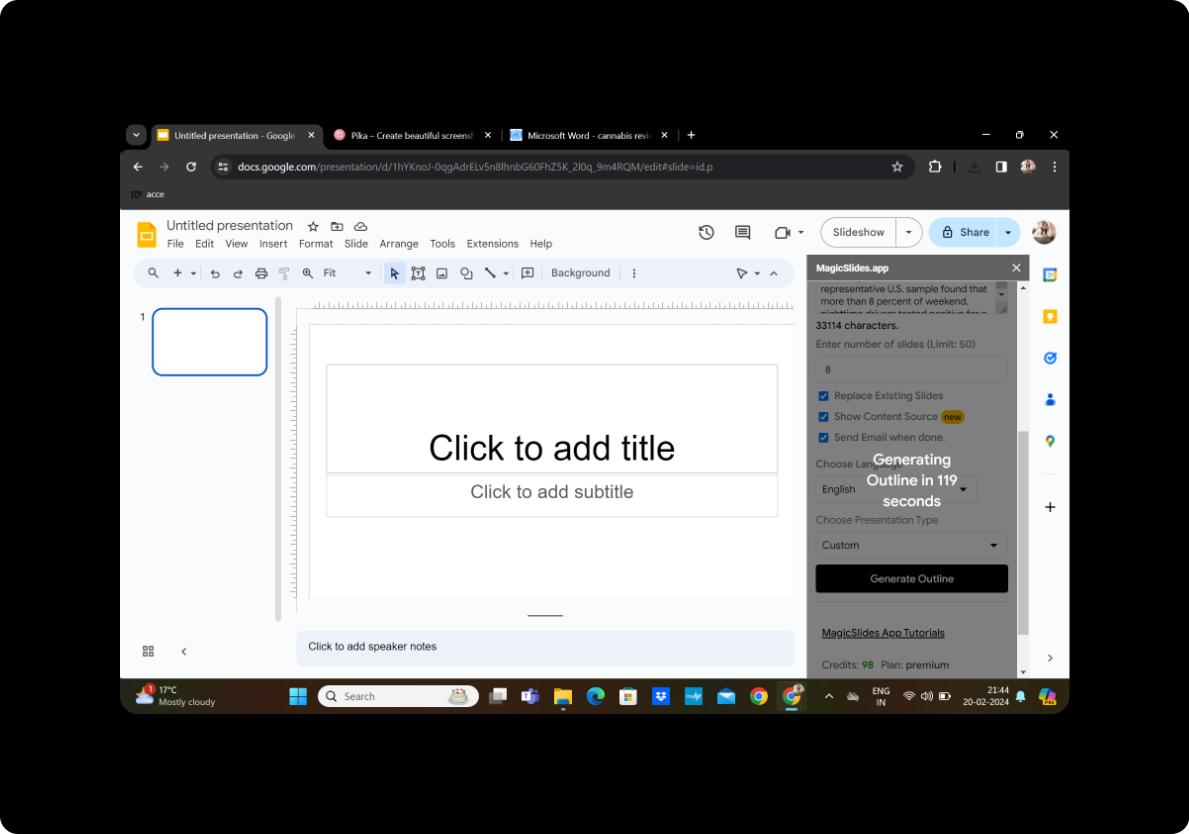
MagicSlides GPT will automatically generate an outline based on the content extracted from the PDF. Review the outline to ensure it aligns with your training objectives.
Step 7: Generate Presentation
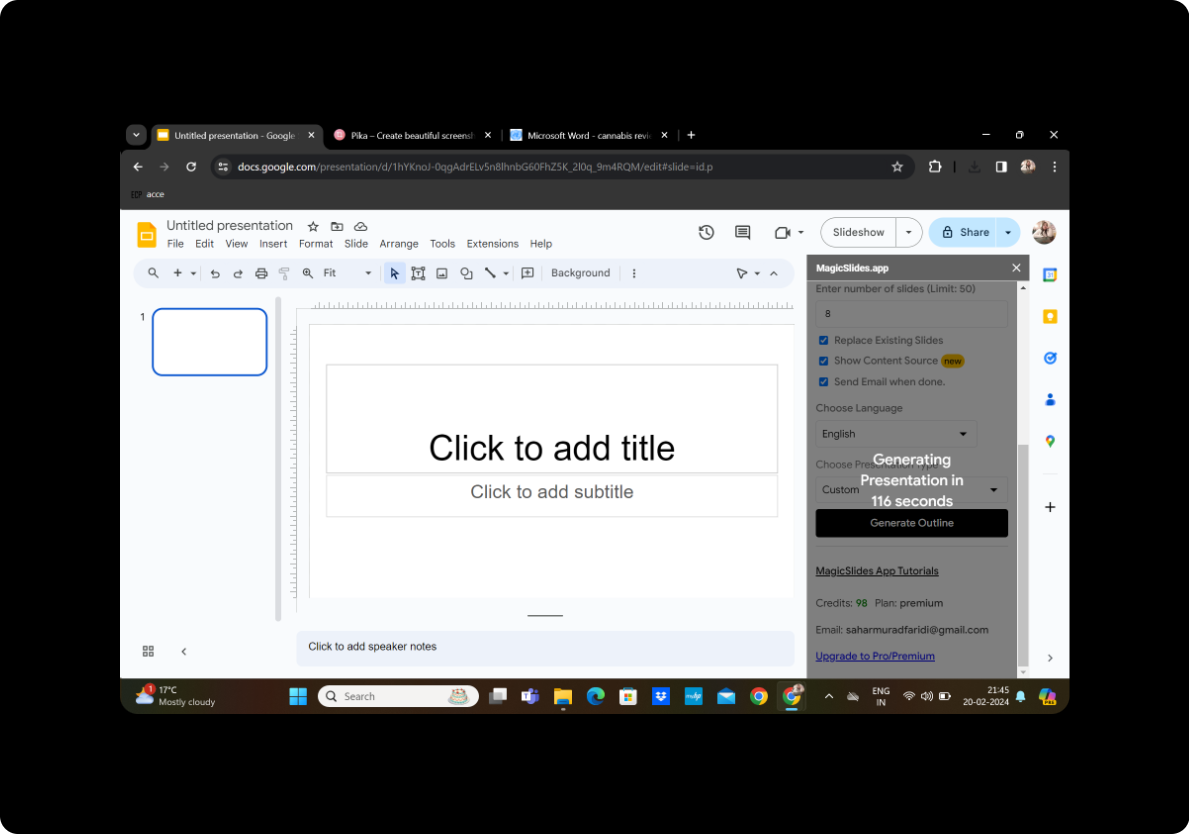
Once satisfied with the outline, click on 'Generate Presentation.' MagicSlides GPT will transform the extracted content into a visually appealing PowerPoint training guide.
Step 8: Your Presentation is Ready
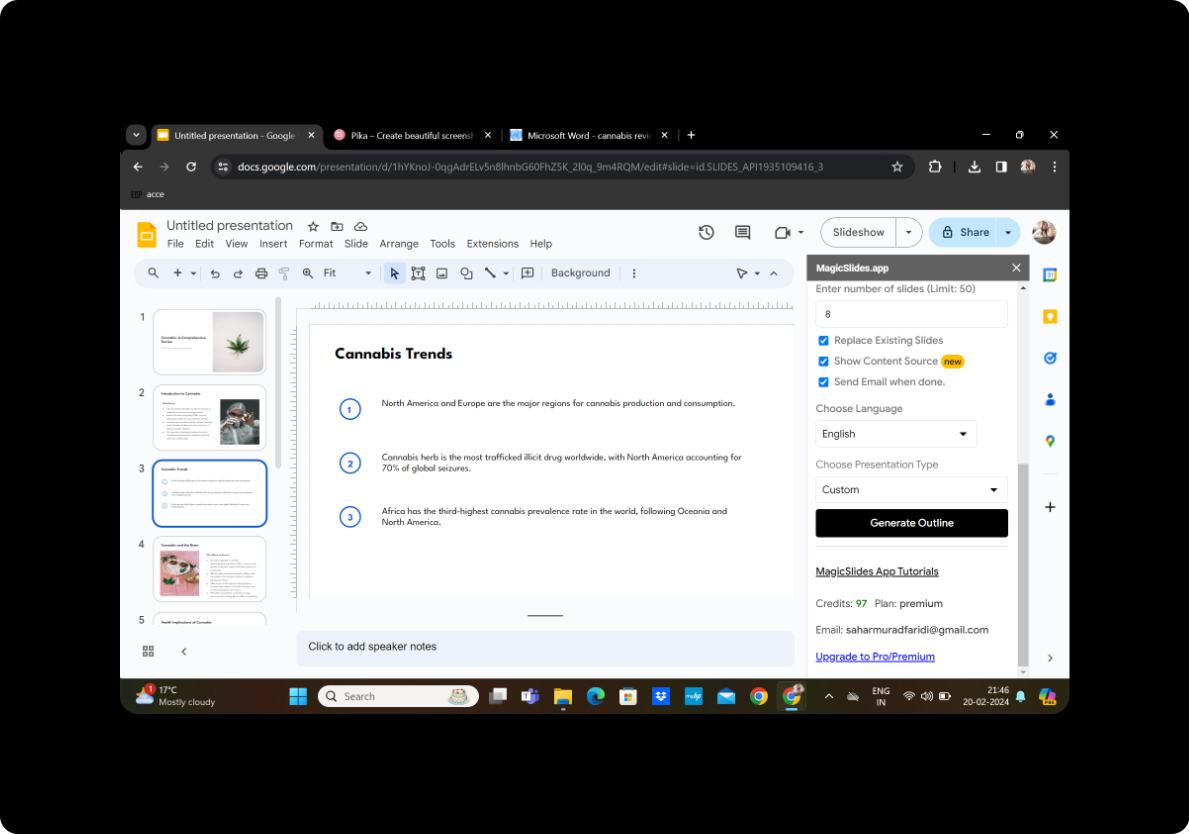
Congratulations! Your PowerPoint training guide is now ready for use. Review the slides to ensure they accurately reflect the information from the technical manual.
Conclusion
In conclusion, transforming PDF technical manuals into PowerPoint training guides has never been more accessible, thanks to tools like MagicSlides GPT. This process not only saves time but also enhances the interactivity and engagement of your training materials. Embrace the power of technology to elevate your training sessions and captivate your audience.
Frequently Asked Questions
Can I customize the design of the PowerPoint slides? Absolutely! After generating the presentation, you can further customize the design, add visuals, and tailor it to your specific training needs.
Is MagicSlides GPT compatible with other document formats? Yes, MagicSlides GPT supports both PDF and DOCX formats, providing flexibility in converting various types of documents.
Can I edit the generated outline? Certainly! MagicSlides GPT allows you to edit the outline before generating the final presentation, giving you control over the content structure.
Is there a limit to the number of slides I can generate? MagicSlides GPT provides flexibility in choosing the number of slides, allowing you to create presentations of varying lengths.
Can I collaborate with others on the generated presentation? Yes, once the presentation is generated, you can easily collaborate with others using Google Slides' collaborative features.
Transform your training materials effortlessly with MagicSlides GPT and revolutionize your training sessions today!


