How to upload PowerPoint to YouTube


Uploading a PowerPoint to YouTube helps you share presentations with a broader, global audience efficiently
Uploading your PowerPoint presentation to YouTube is a great way to share your content with a wider audience, making it accessible for viewers worldwide.
By converting your PowerPoint to a video, you can easily upload it to YouTube. Here's a step-by-step guide on how to do it.
How to Upload a PowerPoint to YouTube: A Step-by-Step Guide
Step 1: Convert PowerPoint to Video
Open your PowerPoint presentation.
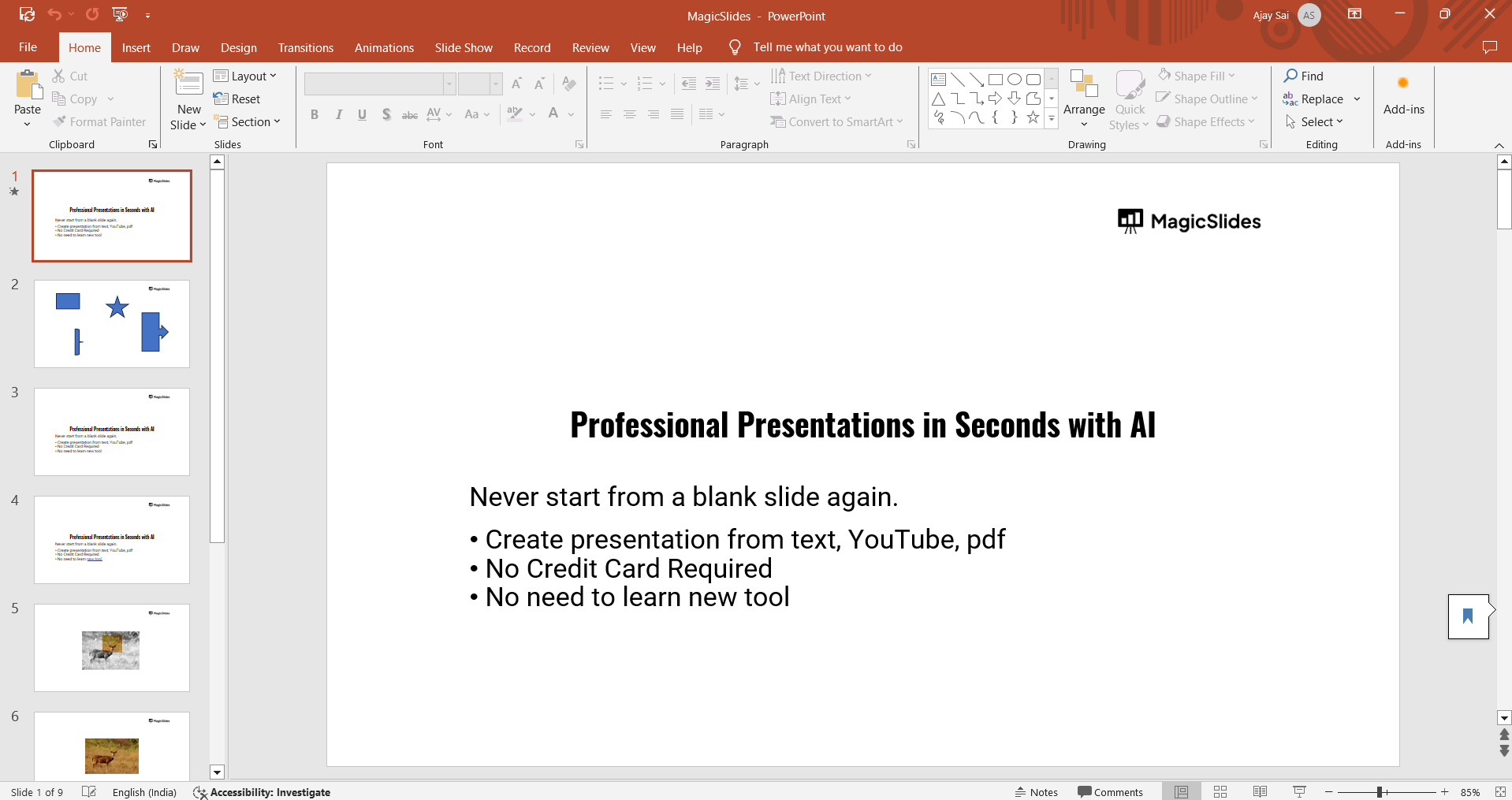
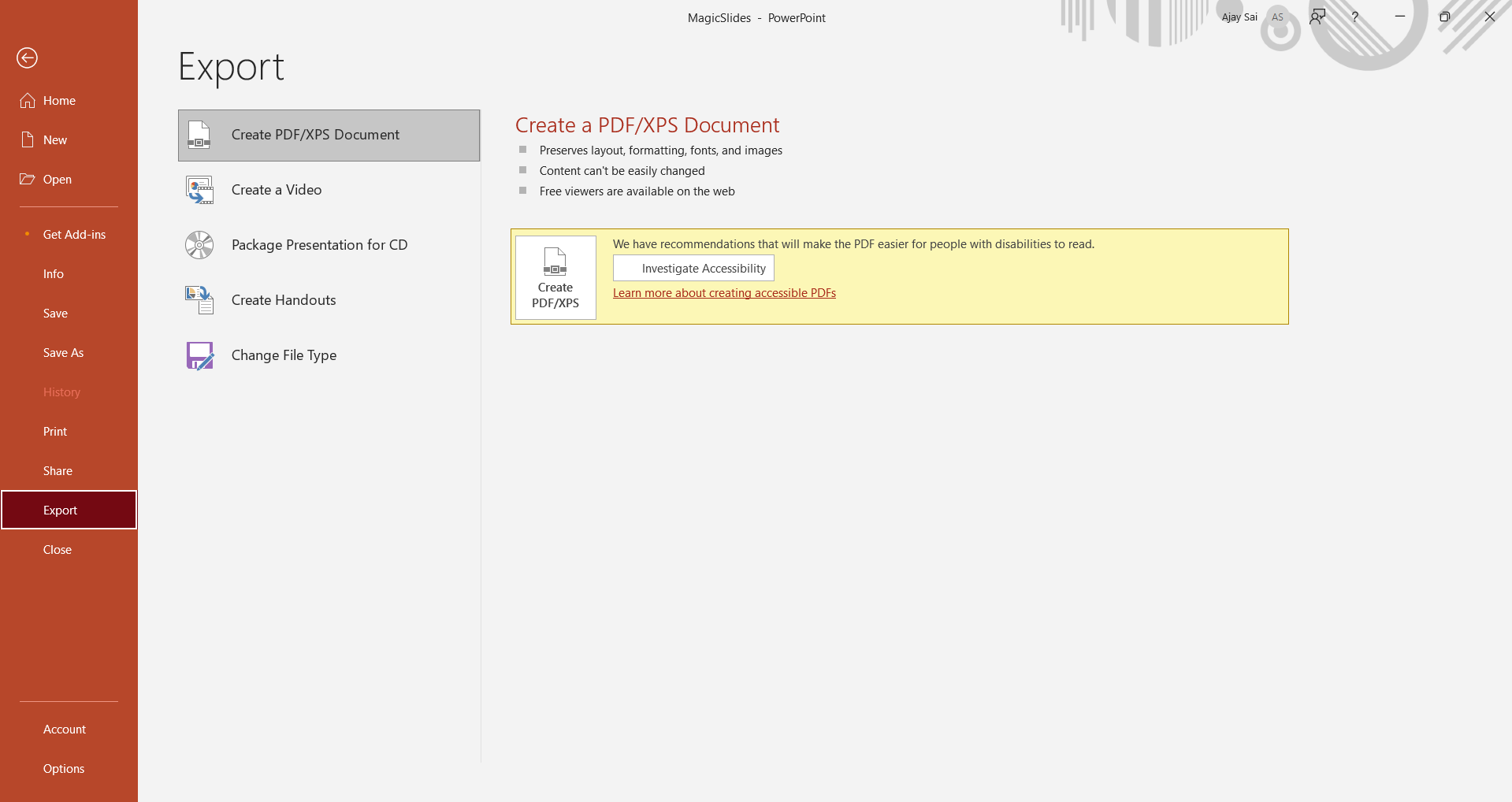
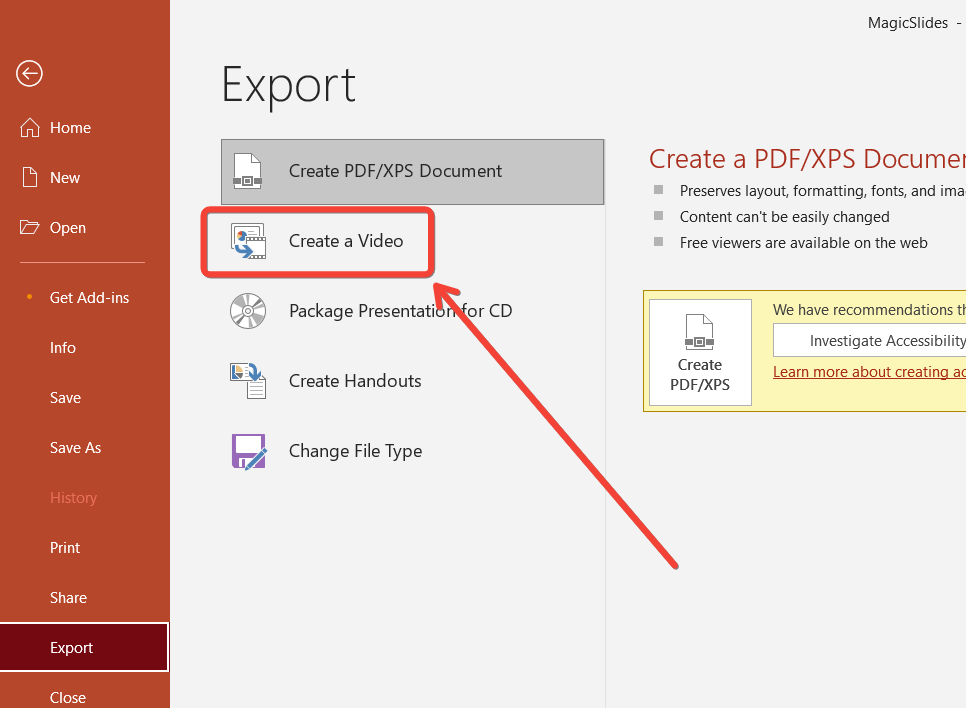
Go to the "File" menu in the top-left corner. Select "Export" and then click "Create a Video."
You’ll see options to choose the video resolution (e.g., 1080p or 720p) and the time spent on each slide if you haven't recorded timings.
Choose your preferred settings and click "Create Video."
Step 2: Save the Video File
Once you click "Create Video," you will be prompted to choose a location to save the file.
Select where you want to save it on your computer and choose a name for the video.
PowerPoint will save the file in MP4 format, which is ideal for uploading to YouTube.
Step 3: Sign in to Your YouTube Account
Open your web browser and navigate to YouTube (youtube.com).
Log in to your account by clicking the "Sign In" button in the top-right corner.

If you don’t have a YouTube account, you can create one using your Google credentials.
Step 4: Upload the Video to YouTube
Once you’re logged in, click on the camera icon with a plus sign at the top-right corner of YouTube’s homepage, labeled "Create." Select "Upload Video" from the dropdown menu.
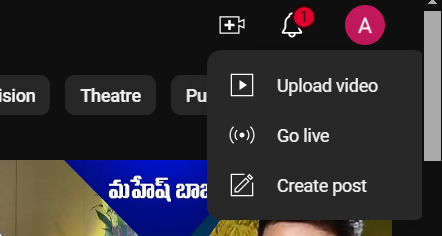
You’ll be taken to the upload page where you can drag and drop your PowerPoint video or click "Select Files" to browse and upload the file from your computer.
Step 5: Add Video Details
While the video is uploading, you can enter important details such as the video title, description, and tags to help people find your content.
You can also choose a custom thumbnail, add it to a playlist, and select the video’s privacy setting (Public, Unlisted, or Private).
Step 6: Publish the Video
After entering all the details and customizing the video settings, click "Next" to proceed through the steps for adding end screens or cards.
Finally, click "Publish" to upload your PowerPoint video to YouTube. Once published, you’ll get a link to share your video with others.
Once you've uploaded your PowerPoint to YouTube, you may want to learn how to add background music to PowerPoint to make your video presentations even more engaging.
Conclusion
Converting and uploading your PowerPoint presentation to YouTube is a simple process that can greatly expand the reach of your content.
Whether it's for educational purposes, business presentations, or personal projects, sharing your work on YouTube allows it to be easily viewed by a broader audience.
Follow these steps, and you’ll have your PowerPoint live on YouTube in no time!
FAQs can take you forward!
Can I add narration to my PowerPoint before uploading it to YouTube?
Yes, you can record narration in PowerPoint before converting it into a video for YouTube.
What video format does PowerPoint export to for YouTube uploads?
PowerPoint exports to MP4, a format that is widely supported by YouTube.
Do I need a YouTube account to upload my PowerPoint video?
Yes, you need a Google or YouTube account to upload videos to the platform.


