How to use Google Forms for surveys


Elevate your survey game with Google Forms a user-friendly tool for efficient, insightful data collection.
Google Forms is a versatile tool that empowers users to create and conduct surveys with ease. Whether you're a student gathering feedback or a professional conducting market research, Google Forms simplifies the survey creation process. In this guide, we'll walk you through each step, from creating a new form to analyzing responses, ensuring you harness the full potential of Google Forms for your survey needs.
How to use Google Forms for surveys
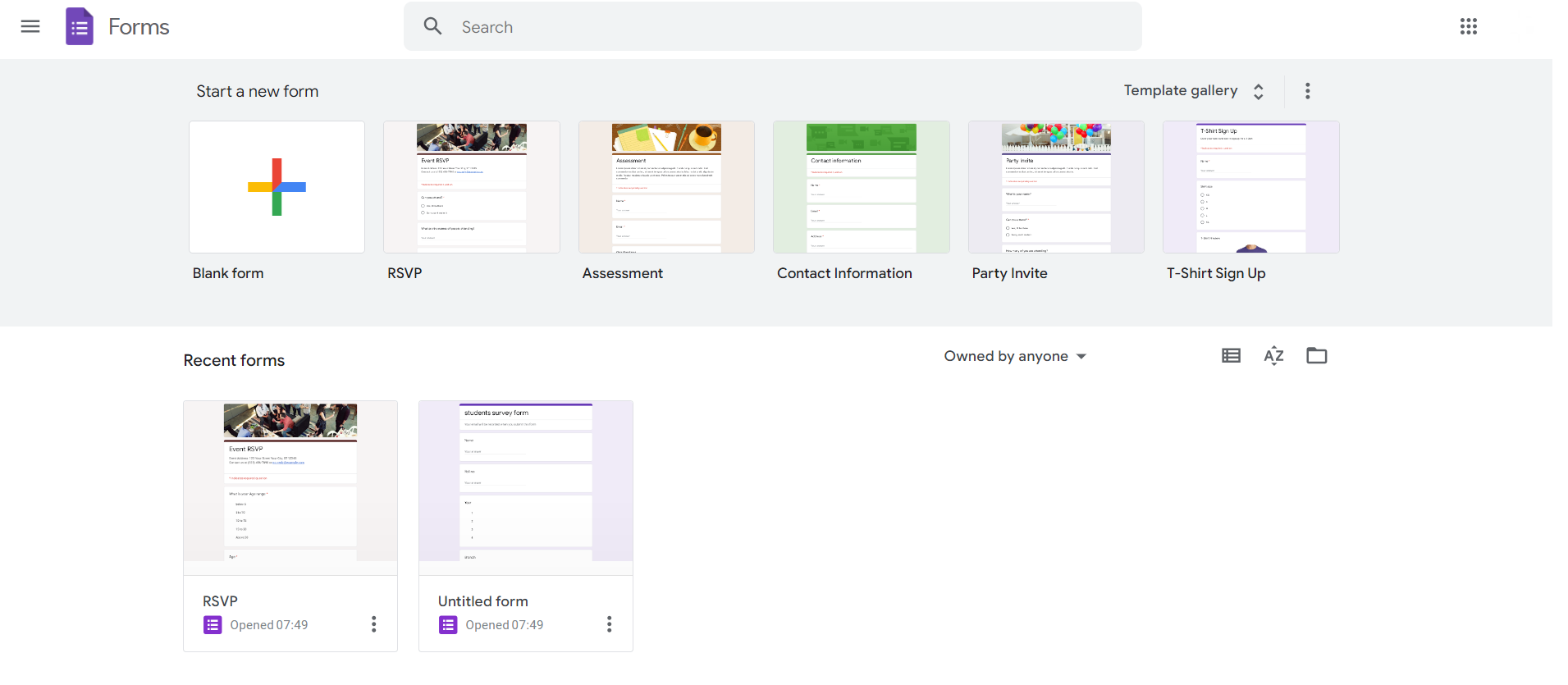
Access Google Forms:
Open your web browser and go to the Google Forms homepage (forms.google.com). Sign in to your Google account if not already logged in.
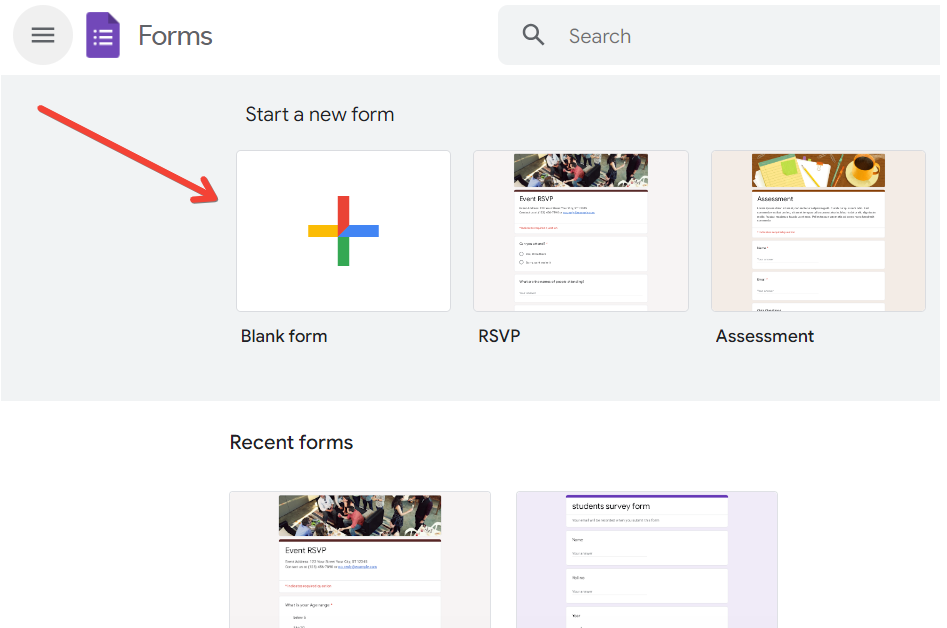
Create a New Form:
Click on the "+" sign or "Blank" to start a new form. Give your form a title and add questions using the form editor.
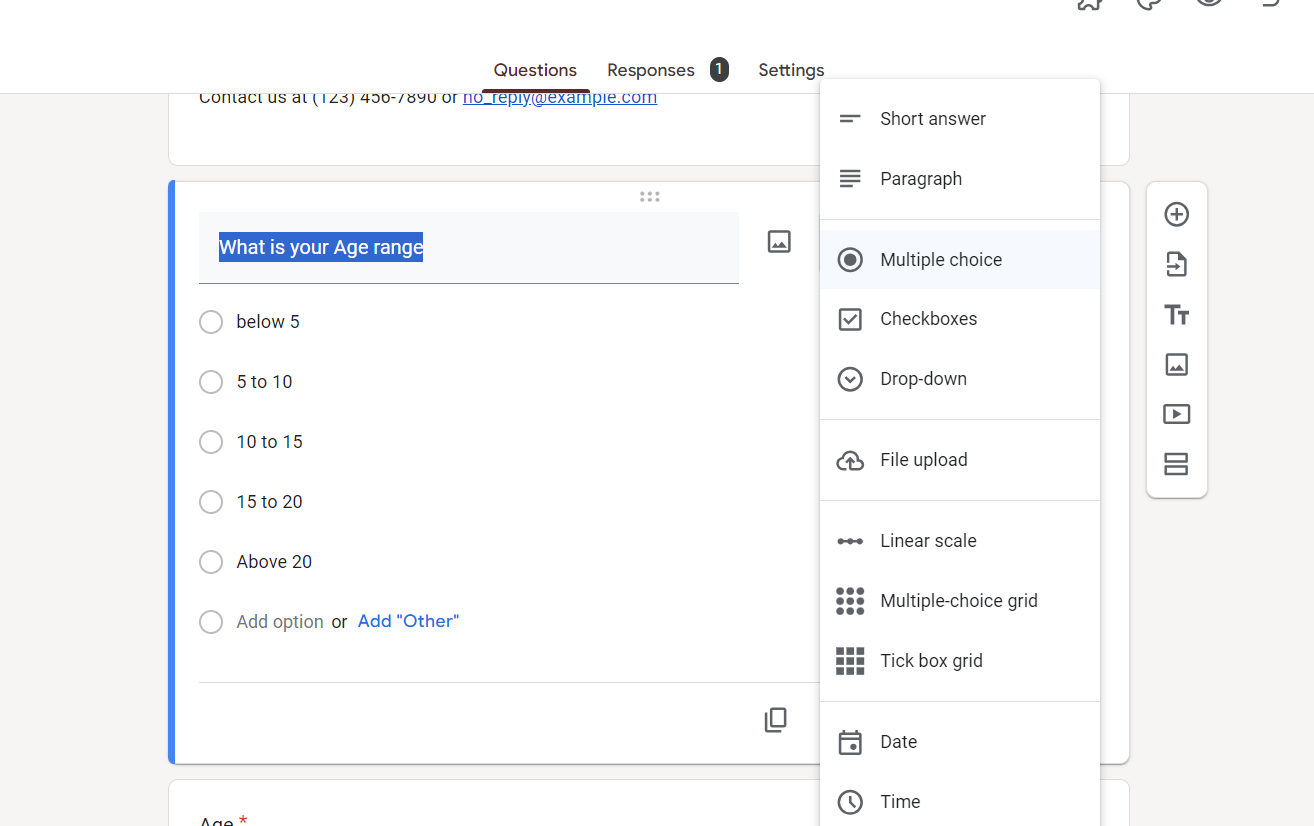
Choose Question Types:
Utilize various question types (multiple choice, short answer, etc.) to suit your survey needs. Include images or videos to enhance engagement.
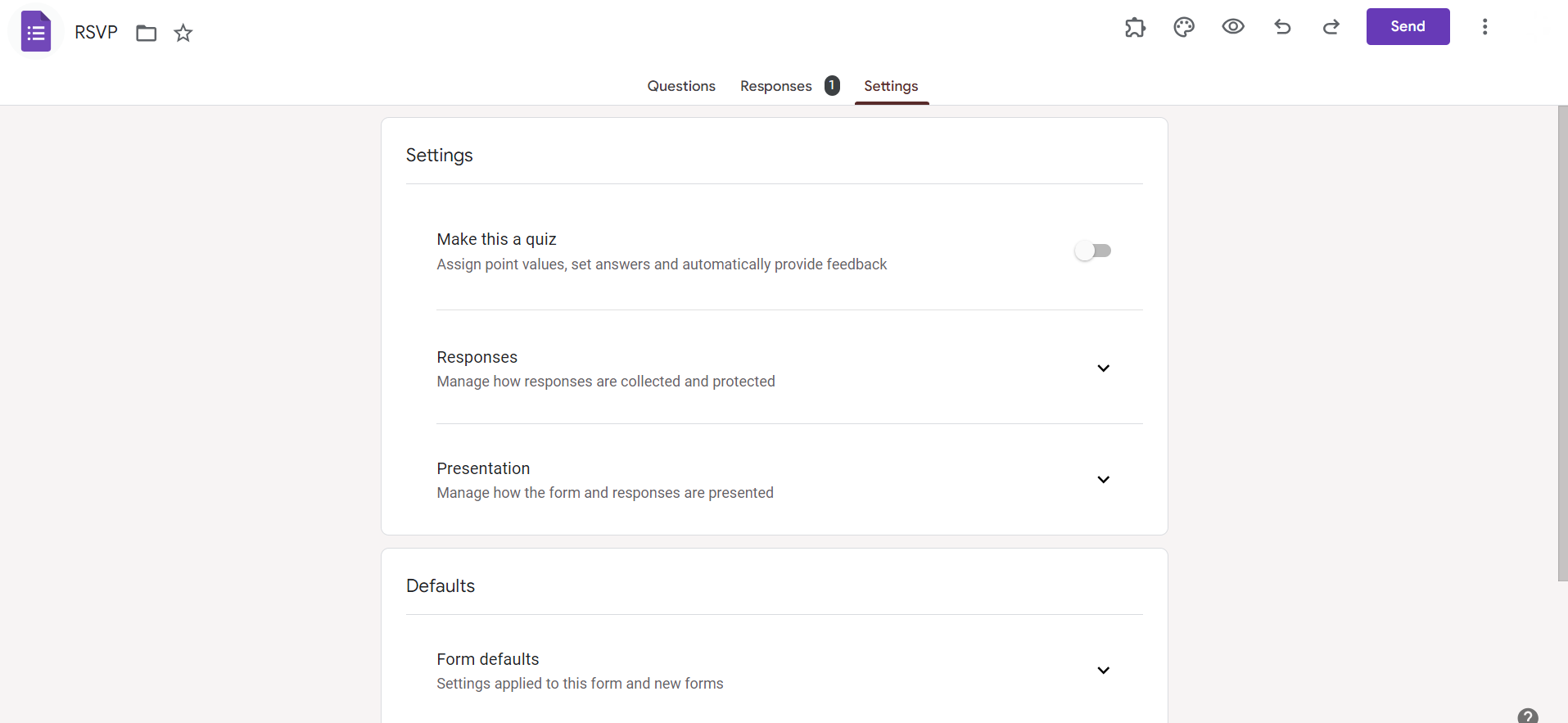
Customize Form Settings:
Click on the gear icon to access form settings. Adjust options like collecting email addresses, limiting responses, and more.
Preview Your Form:
Before sharing, preview your form to ensure it looks and functions as intended.
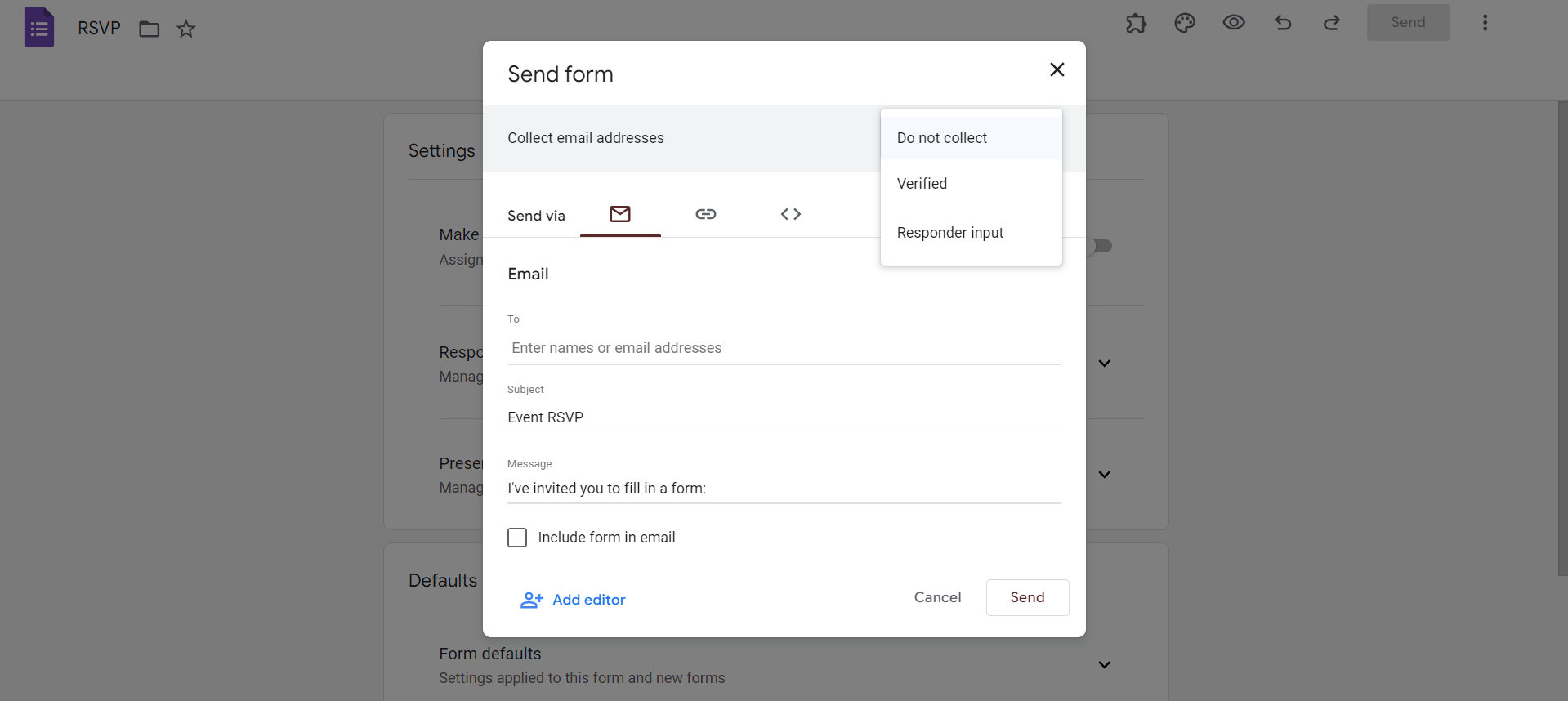
Share Your Form:
Click on the "Send" button to share your survey. Choose from options like email, link sharing, or embedding.
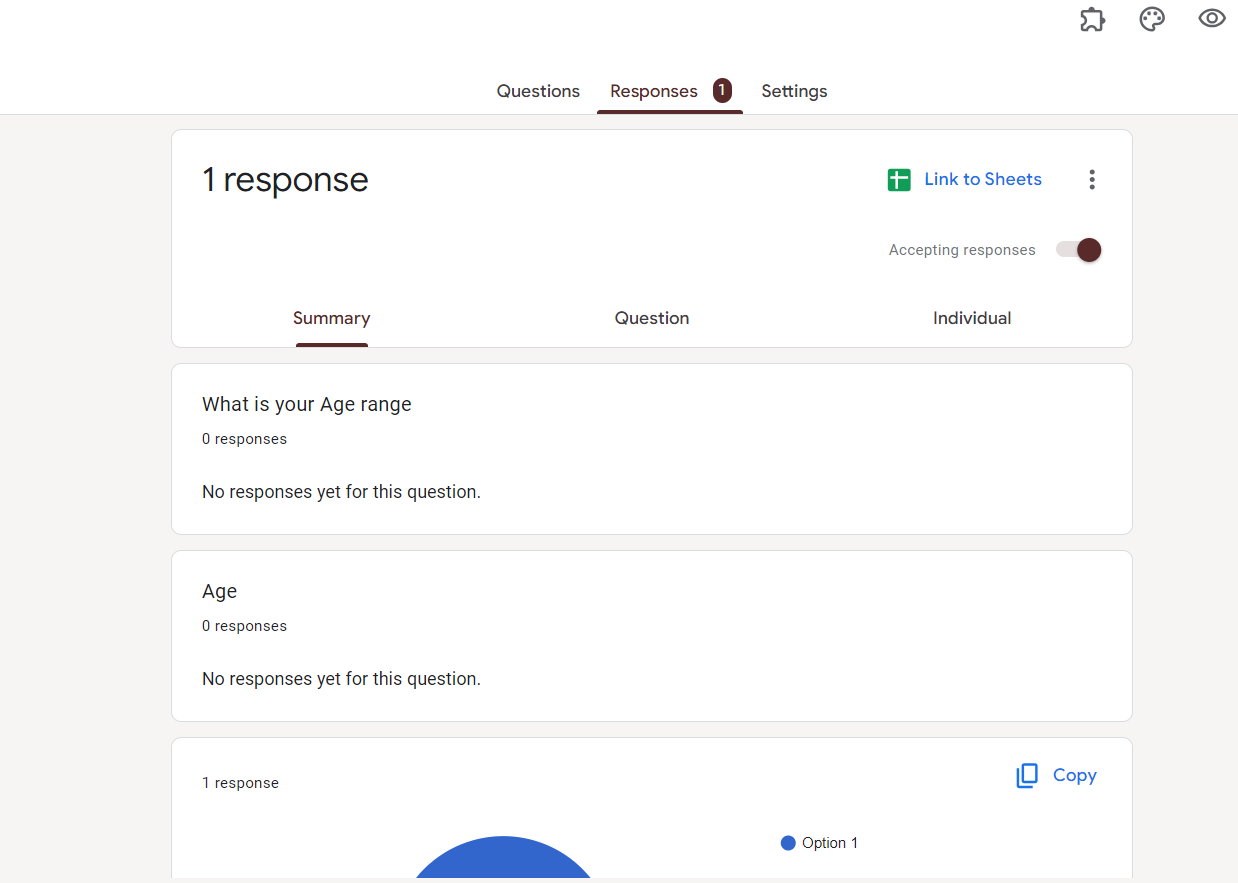
Analyze Responses:
View real-time responses in the "Responses" tab. Use Google Sheets for more in-depth analysis and data manipulation.
Conclusion:
Google Forms revolutionizes the survey creation process, providing a user-friendly and efficient platform for collecting valuable data. By following the step-by-step guide above, you can seamlessly create, customize, and share surveys tailored to your specific needs. Harness the power of Google Forms to gather insights, streamline feedback, and make informed decisions. Keep this guide handy as you embark on your survey journey, and unlock the full potential of Google Forms for your data collection endeavors.
Frequently Asked Questions:
Can I customize the appearance of my survey on Google Forms?
Yes, use the "Theme" option to personalize colors, fonts, and backgrounds for a cohesive look.
Is it possible to collaborate on survey creation in Google Forms?
Yes, click on the "Add collaborators" button, allowing others to edit and contribute to the form.
Can respondents edit their responses after submitting the survey on Google Forms?
Yes, enable the "Edit after submit" option in the form settings to allow respondents to edit.
What is the maximum number of questions or responses Google Forms can handle?
Google Forms supports up to 400 questions per form and can handle millions of responses.


