How to use Microsoft Dictate in desktop PowerPoint


Unleash the power of words with Microsoft Dictate, turning your voice into dynamic PowerPoint magic.
Embarking on a journey to elevate your PowerPoint game? Imagine seamlessly translating your spoken words into dynamic slides, all with the wave of a virtual wand. In this guide, we unveil the magic of Microsoft Dictate, your trusty sidekick in turning thoughts into text without breaking a sweat. Let's dive into a world where words effortlessly dance onto your slides, making your presentation win a top notch appreciation.
How to use Microsoft Dictate in desktop PowerPoint
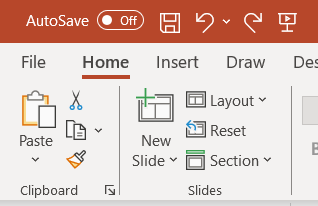
Navigate to the Home Tab:
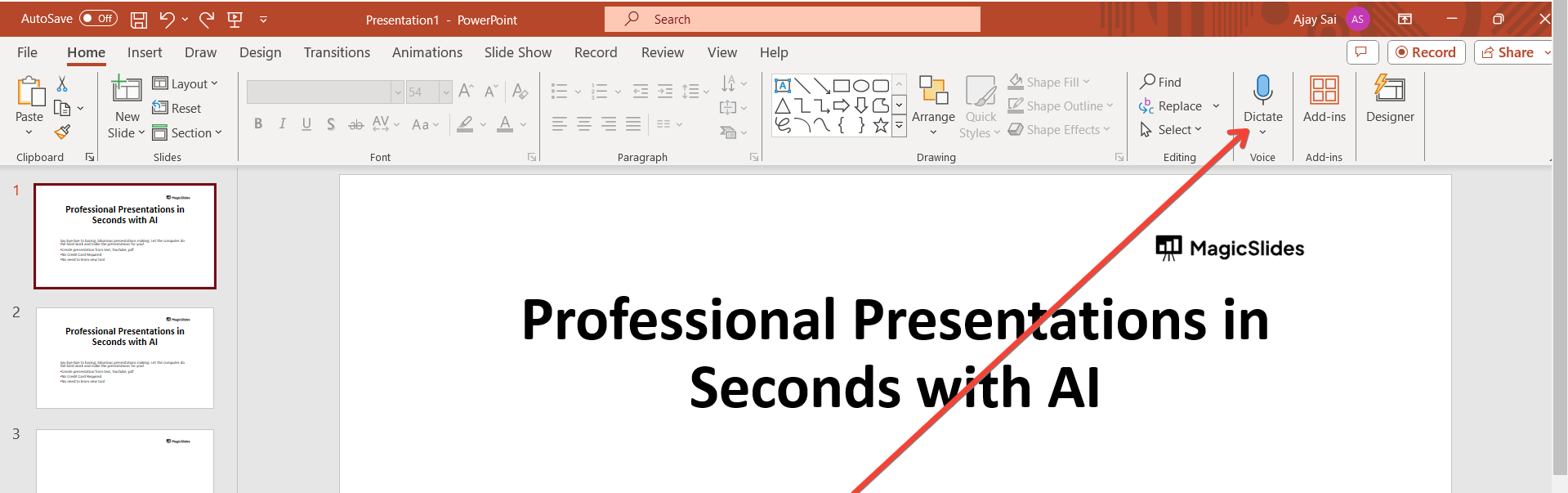
Begin by launching PowerPoint and opening your presentation. Once in the application, head to the "Home" tab located in the Ribbon at the top of the window. Look to the far right where the Dictate feature awaits, represented by a microphone icon.
Click on the Dictate Icon and Wait:
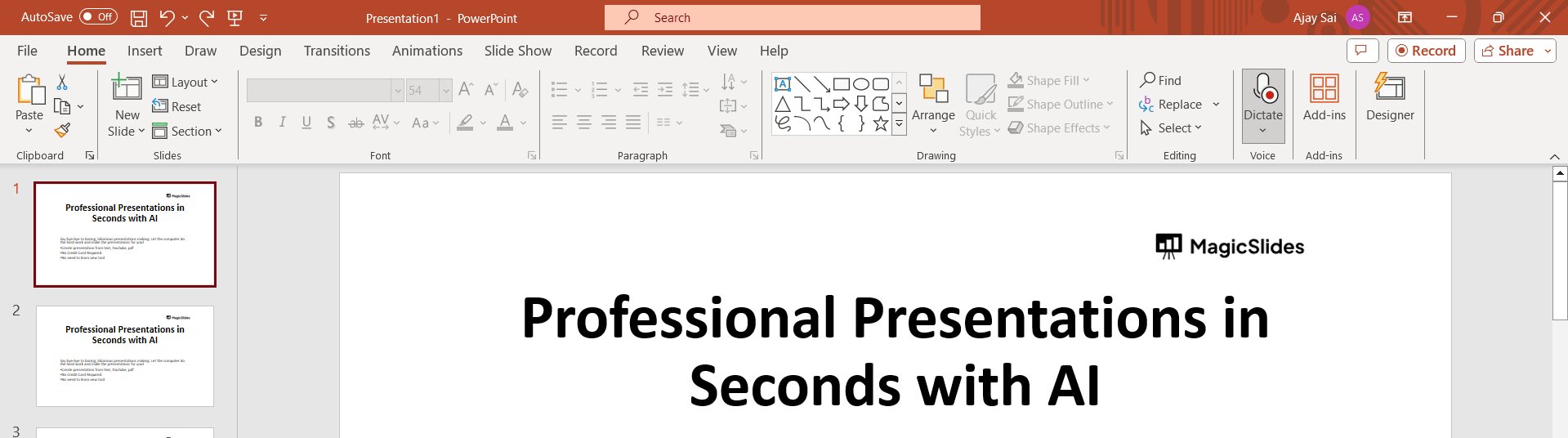
Click on the distinct Dictate icon and patiently wait for the button to activate. Once ready, a brief sound cue will signal its readiness, and the icon will transform into a 'Record' image, indicating that it's prepared to capture your spoken words.
Move Your Cursor and Start Speaking:
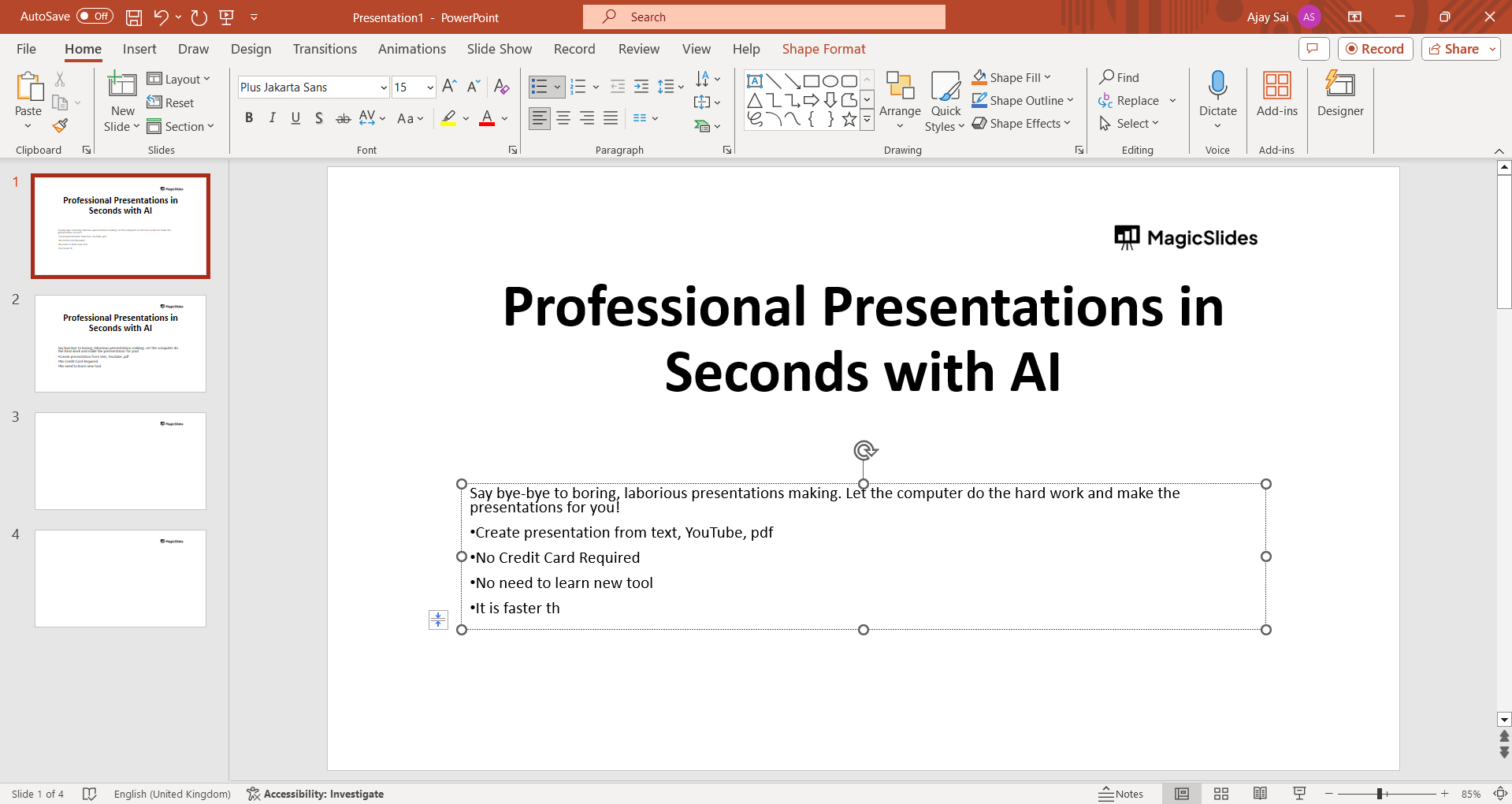
With Dictate in active mode, position your cursor over the placeholder on the slide or the slide notes where you intend to input text. Begin speaking, and witness your spoken words seamlessly transform into text within the selected placeholder.
Insert Punctuation Clearly:
Enhance the precision of your dictated text by incorporating punctuation. Clearly articulate the desired punctuation marks at the appropriate moments in your speech, ensuring a seamless and well-structured transcription.
Fix Mistakes with Your Keyboard:
Embrace the flexibility of correction without disrupting your flow. Should you spot any errors, effortlessly rectify them using your keyboard. There's no need to toggle the microphone icon off, allowing for a smooth and continuous dictation experience while maintaining control over the accuracy of your content.
Conclusion:
As we conclude this exploration, envision a future where your voice shapes presentations with ease. Microsoft Dictate, nestled in the heart of PowerPoint, emerges as a game-changer. From the rhythmic cadence of your speech to the precision of punctuation, this tool empowers your narrative. So, speak your ideas into existence, fix hiccups seamlessly, and let your creativity flow unencumbered. Cheers to a future where your voice truly echoes in every slide.
Frequently Asked Questions:
FAQ 1: Is Microsoft Dictate available in all versions of PowerPoint?
Ans: Microsoft Dictate is generally available in recent versions of PowerPoint, but check for compatibility updates.
FAQ 2: Can Dictate understand various accents and languages?
Ans: Microsoft Dictate supports multiple languages and accents, but accuracy may vary. Experiment and adjust as needed.
FAQ 3: Does Dictate work offline, or does it require an internet connection?
Ans: Dictate relies on cloud processing; therefore, an internet connection is essential for its functionality.


