How to Show Speaker Notes on Google Slides: A Comprehensive Guide


Learn how to effectively use speaker notes in Google Slides for clear, organized presentations with our comprehensive guide.
When it comes to delivering a presentation, being well-prepared with your talking points is crucial. Google Slides, one of the most widely used presentation tools, offers a handy feature called "Speaker Notes" to help presenters keep track of their commentary without cluttering the slides visible to the audience.
In this detailed guide, we'll explore how to effectively use speaker notes in Google Slides and how tools like MagicSlides.app can enhance your presentation preparation and delivery.
What Are Speaker Notes in Google Slides?
Speaker notes in Google Slides are a feature that allows you to add personal notes and reminders to each slide in your presentation. These notes are not displayed to the audience during the presentation; instead, they serve as a personal script or cues that you can refer to while presenting. This feature is particularly useful in keeping your presentation clear and uncluttered while having detailed notes handy to ensure you cover all points without having to memorize everything.
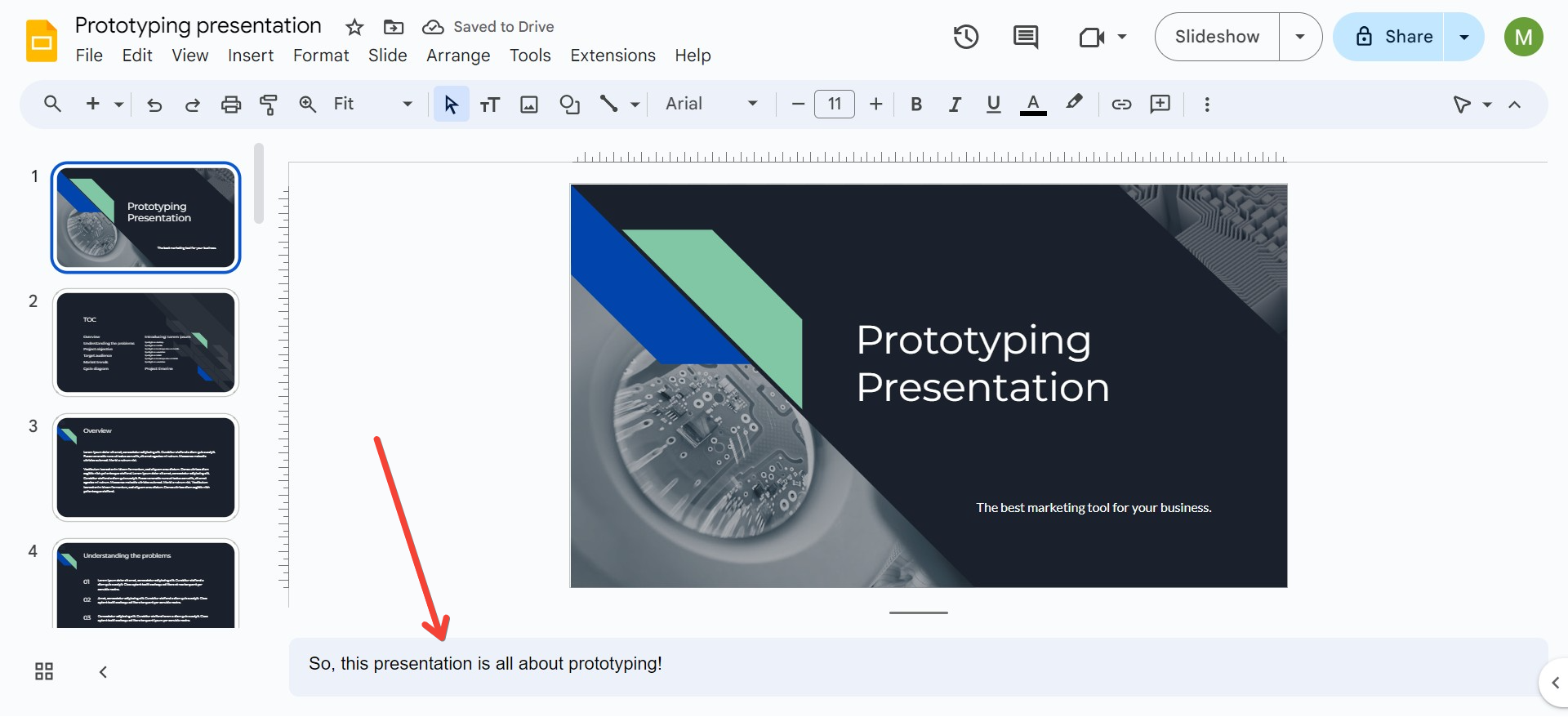
How to Add Speaker Notes
Adding speaker notes in Google Slides is a straightforward process:
- Open Your Presentation: Launch Google Slides and open the presentation you wish to add notes to.

- Find the Speaker Notes Section: Below each slide in your Google Slides window, you’ll see a text box labeled "Click to add speaker notes." This is where you can type in your notes for that particular slide.
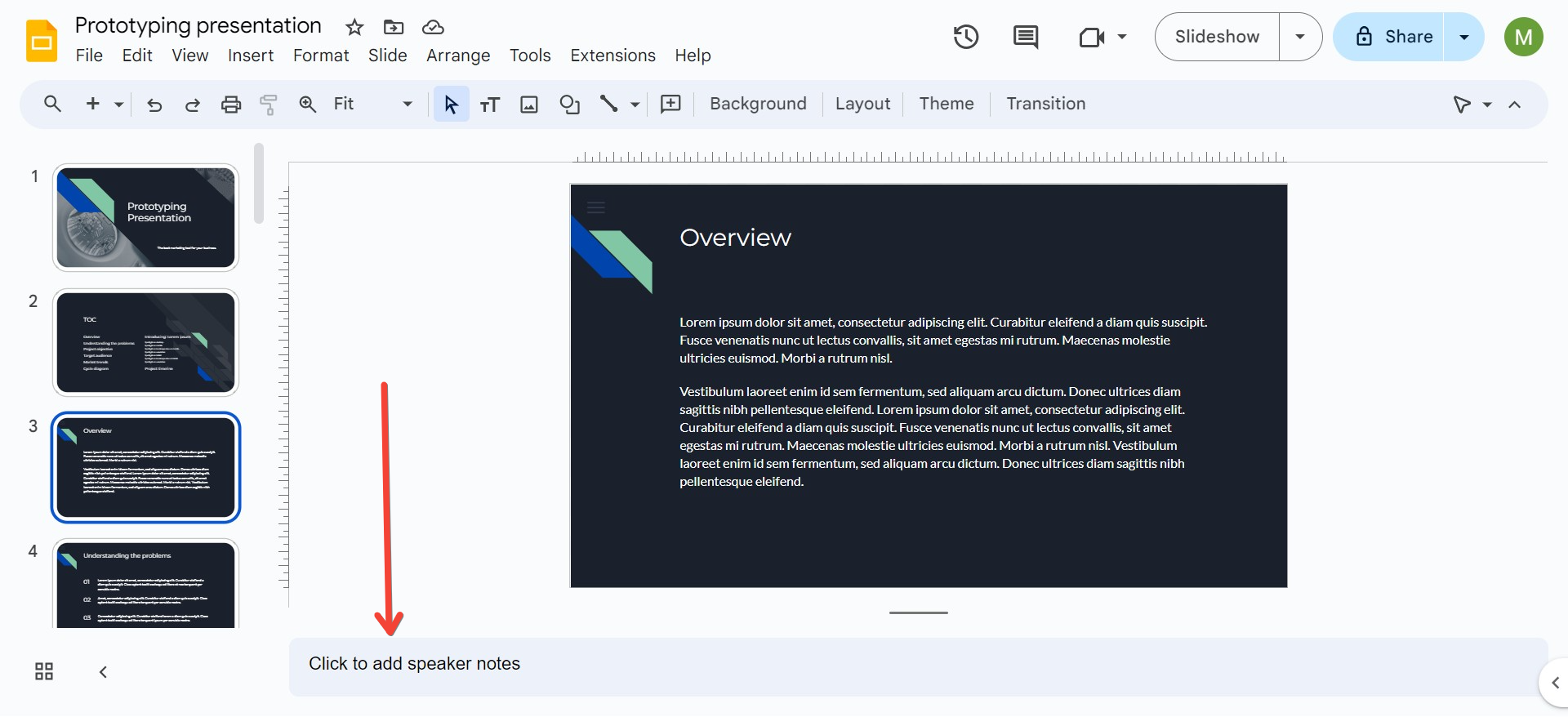
- Enter Your Notes: Click on the text box and start typing your notes. You can add as much text as you need, and the box will expand to accommodate your content.
Viewing Speaker Notes During a Presentation
To view your speaker notes while presenting, you can use one of the following methods:
- Presenter View: When you start your slideshow, you can choose the "Presenter view" from the options. This view displays your current slide, the next slide, and your speaker notes on your screen, while the audience will only see the current slide.
- To start Presenter View, click on the "Present" button in the upper right corner of the screen, then select "Presenter view" from the drop-down menu.
- Dual Monitors: If you are presenting with a dual monitor setup, you can drag the Presenter View window to your personal monitor and show the full-screen presentation on the second monitor that the audience views.
Tips for Using Speaker Notes Effectively
- Keep it Concise: Your notes should be brief and to the point to facilitate quick glances during your presentation.
- Use Bullet Points: Organizing your notes in bullet points can help make them easier to scan quickly.
- Include Keywords: Highlight keywords or important points to make them stand out in your notes.
Enhancing Your Presentations with Tools Like MagicSlides.app
While Google Slides provides robust functionality for creating presentations, using additional tools like MagicSlides.app can further enhance your presentation’s design and interactivity. MagicSlides.app offers features that complement your Google Slides experience, such as advanced template designs, real-time collaboration features, and more interactive elements that can make your presentation stand out.
For example, if you're looking to create a more visually appealing presentation, MagicSlides.app provides a variety of templates and design options that integrate seamlessly with Google Slides. This can be particularly useful for ensuring that your slides are not only informative but also engaging.
Conclusion
Speaker notes are an invaluable feature in Google Slides, helping presenters deliver more effective, organized presentations. By following the steps outlined above, you can make the most of this feature, ensuring you convey all necessary information without overwhelming your audience. Additionally, tools like MagicSlides.app can be used to elevate your presentation quality, making your slides more memorable and impactful. Whether you’re a student, educator, or professional, mastering these tools can significantly enhance your presentation skills.


