How To Write In Title Format In Google Docs?


Learn the art of crafting captivating titles in Google Docs effortlessly with our step-by-step guide on title formatting techniques.
Unlock the full potential of Google Docs by mastering the art of title formatting. Whether you're working on a presentation, report, or any document that requires a standout title, Google Docs provides an easy and efficient way to achieve this. In this guide, we'll take you through the basics and step-by-step instructions on how to save and write in title format in Google Docs.
How To Write In Title Format In Google Docs
To begin, ensure you are signed in to your Google account. If you don't have one, sign up—it's free and unlocks the full suite of Google Workspace tools, including Google Docs.
Step 1: Open Google Docs
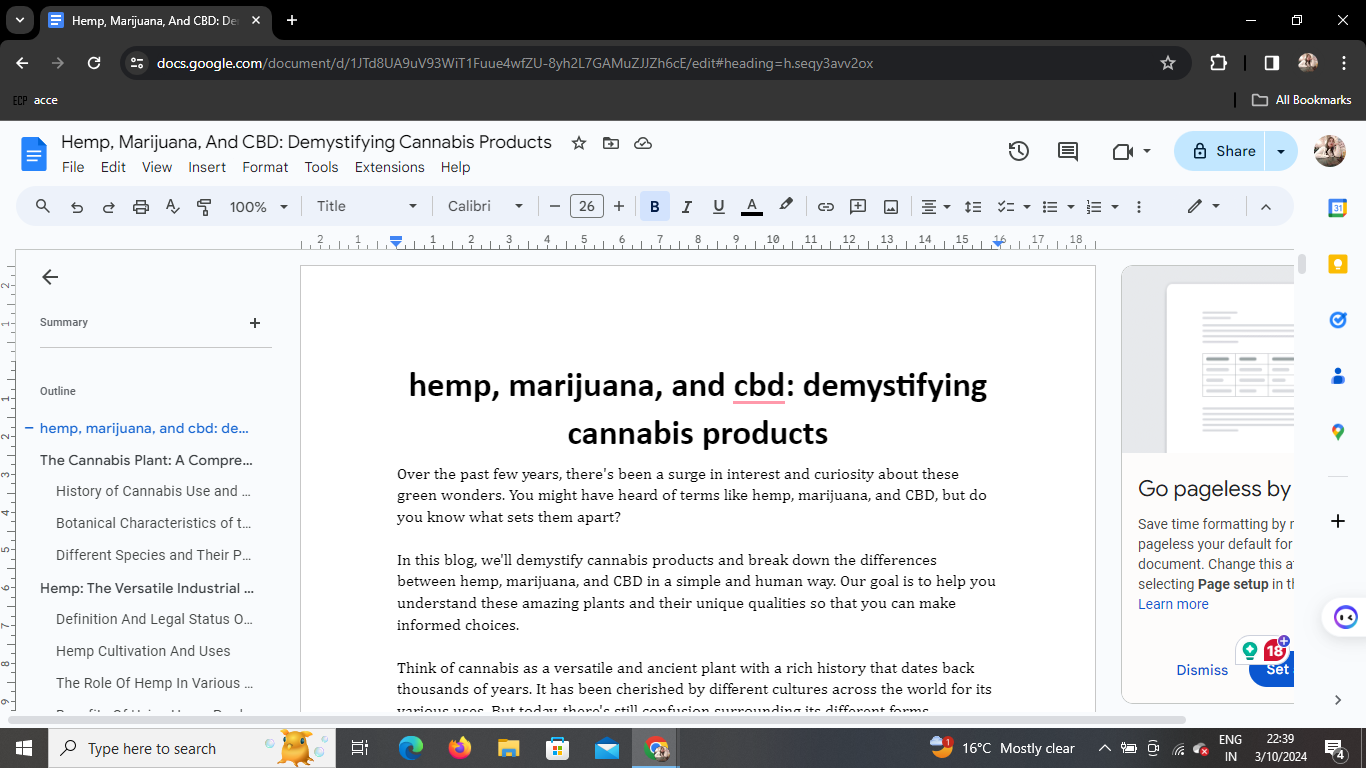
- Launch your web browser and navigate to Google Docs.
- If prompted, sign in with your Google account credentials.
Step 2: Select the Text
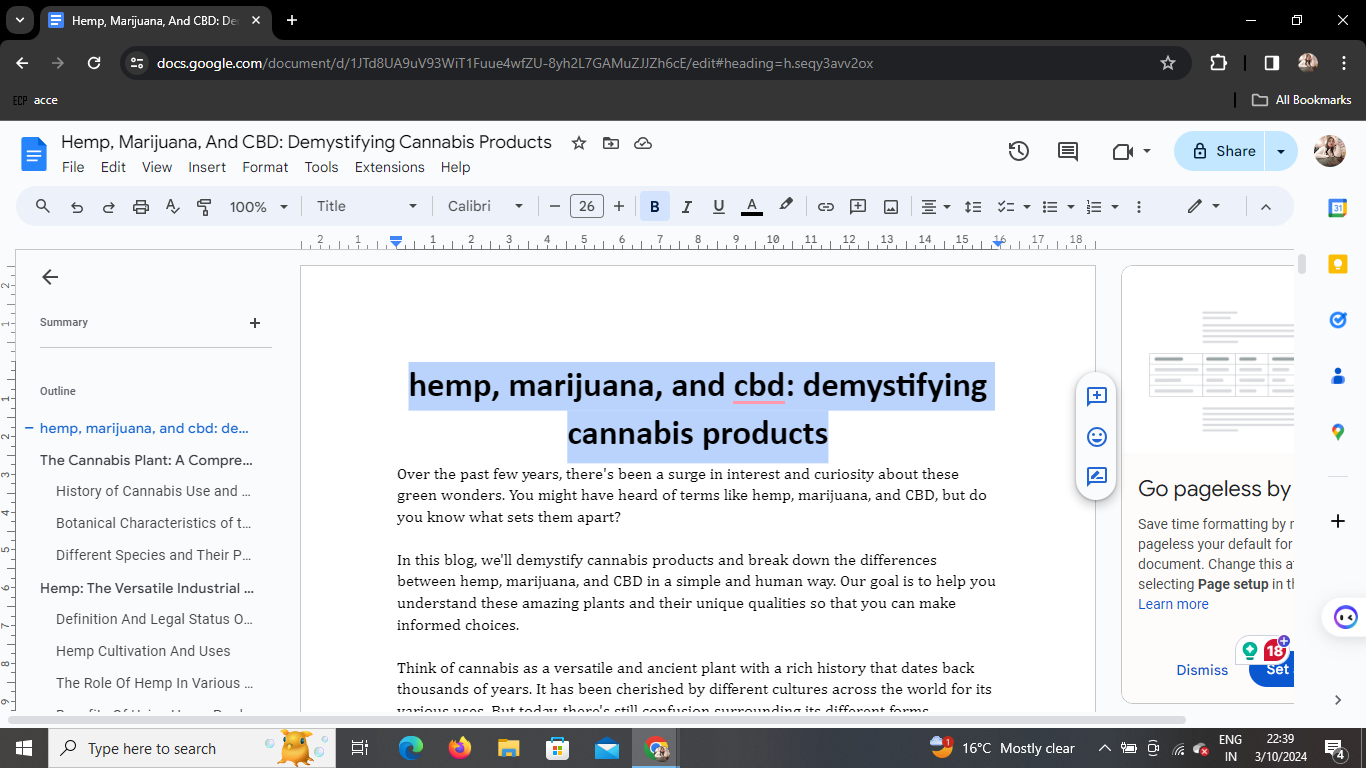
- Open the document where you want to apply title formatting.
- Highlight the text you want to format as a title.
Step 3: Format the Text
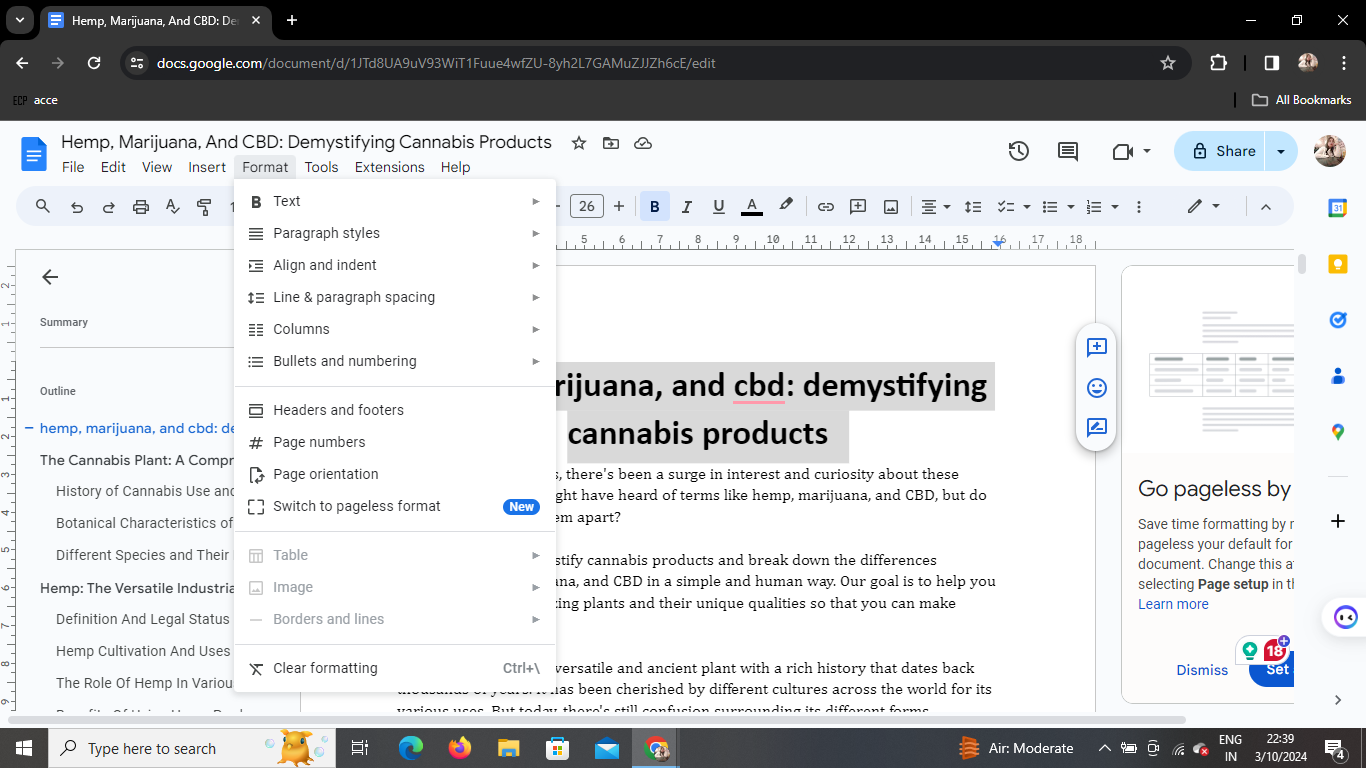
- With the desired text selected, navigate to the top menu.
- Click on "Format" in the menu bar.
Step 4: Choose Text Options
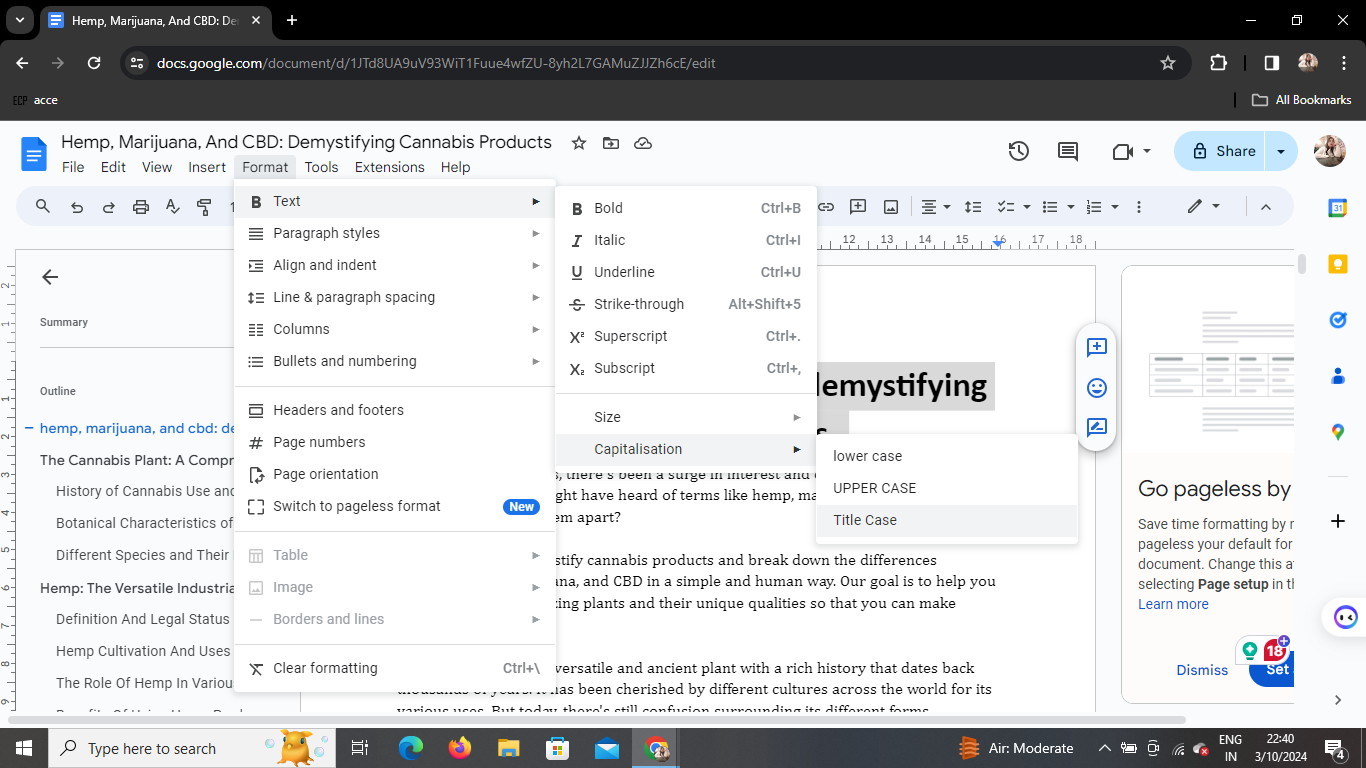
- From the dropdown menu, hover over "Text."
- Select "Capitalization."
Step 5: Apply Title Formatting
- In the sub-menu, click on "Title."
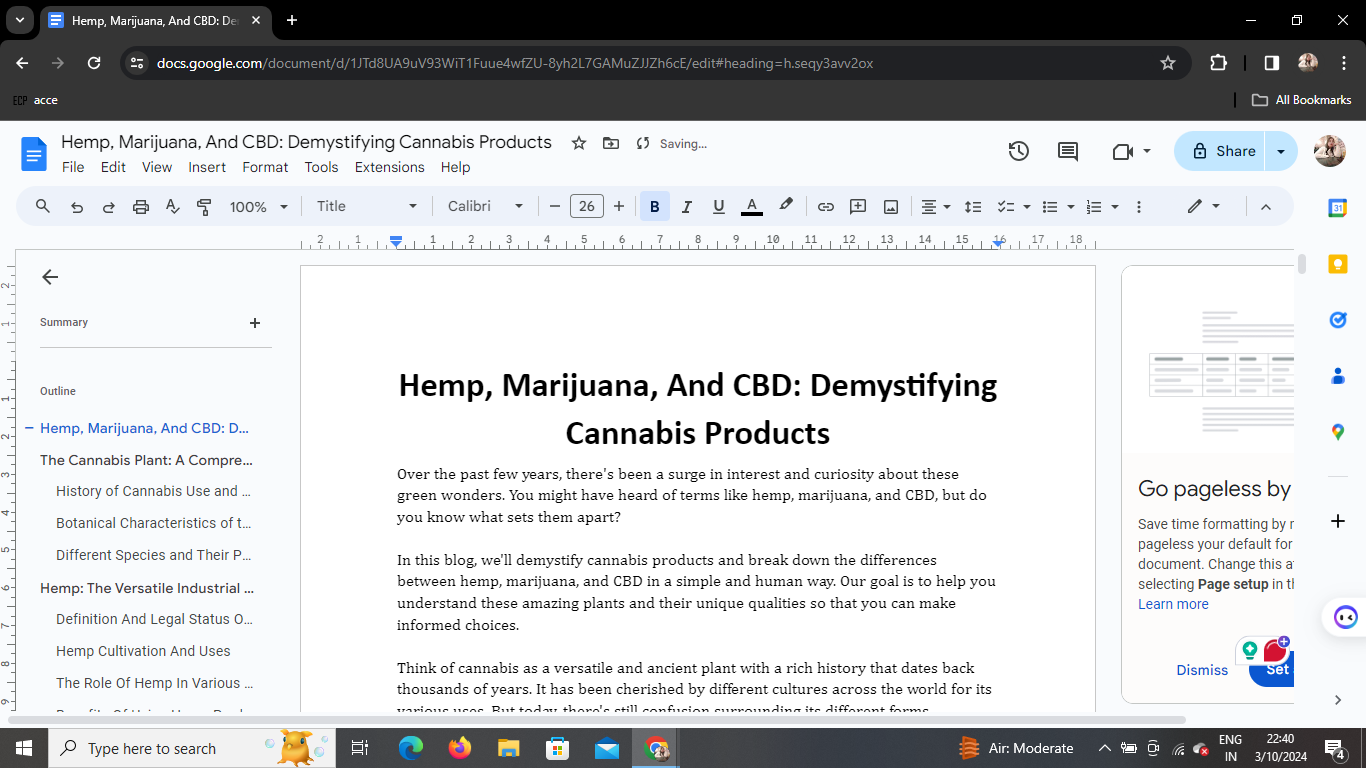
Congratulations! Your selected text is now formatted as a title, adding emphasis and style to your document.
Conclusion
Enhancing the presentation of your document is a breeze with Google Docs. By following these simple steps, you can easily save and write in title format, making your titles stand out and captivate your audience.
Frequently Asked Questions
Can I format multiple titles at once?
Yes, you can! Simply hold down the "Shift" key while selecting multiple sections of text, then follow the formatting steps.
Can I customize the title formatting?
Absolutely. While in the "Capitalization" menu, you can explore various options such as "Heading," "Subtitle," and more, allowing you to tailor the formatting to your specific needs.
Does this process work on the mobile app?
Yes, it does. Open the Google Docs app, select the text, tap the format icon, and choose "Title" under "Capitalization."
Can I undo title formatting?
Certainly. Use the "Undo" shortcut (Ctrl+Z or Command+Z) to revert the formatting changes.
Are there keyboard shortcuts for title formatting?
Yes, you can speed up the process by using keyboard shortcuts. For Windows/Linux, press Ctrl+Shift+K, and for Mac, use Command+Shift+K.
Start creating professional-looking documents with captivating titles using these easy steps in Google Docs. Elevate your writing and make a lasting impression!


