How would you create Diagram in PowerPoint


Creating diagrams in PowerPoint enhances visual communication, simplifying complex ideas for impactful presentations
Diagrams are a powerful way to visually represent information, making complex concepts easier to understand.
Whether you're illustrating a process, showing relationships between elements, or presenting data, diagrams can enhance your PowerPoint presentations and help your audience grasp the key points quickly.
In this blog post, we'll guide you through the steps to create a diagram in PowerPoint, ensuring your presentations are not only informative but also visually engaging.
How would you create Diagram in PowerPoint
Step 1: Open PowerPoint
Begin by opening Microsoft PowerPoint on your computer.
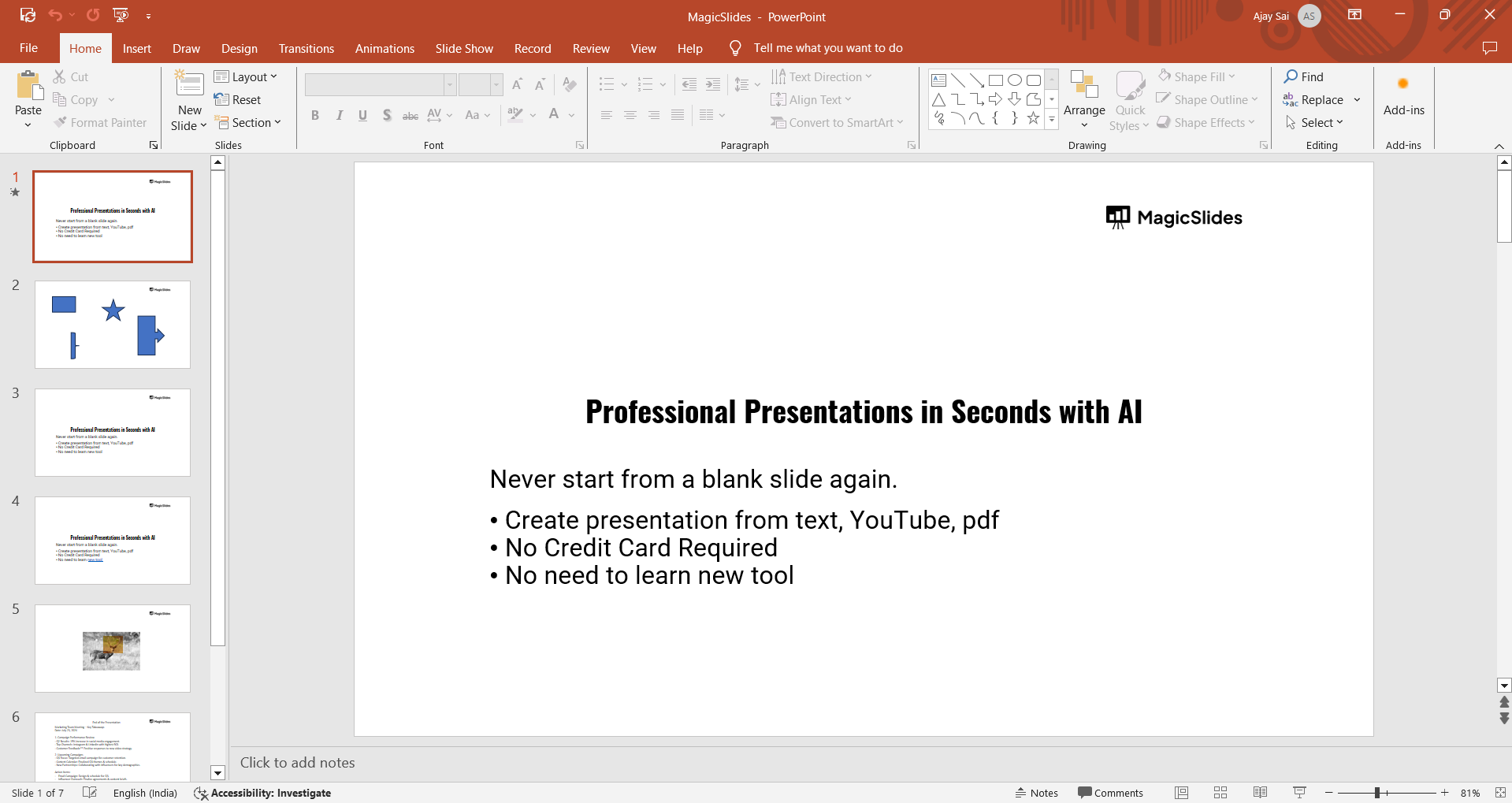
You can do this by searching for "PowerPoint" in your Start menu or by clicking on the PowerPoint icon on your desktop or taskbar.
Step 2: Create or Open a Presentation
Once PowerPoint is open, either create a new presentation or open an existing one.
To start a new presentation, click on "Blank Presentation" or choose a template that suits your needs.
To open an existing presentation, click on "File" in the top-left corner, select "Open," and browse to the presentation file you wish to edit.
Step 3: Insert a New Slide
If you want to add your diagram to a new slide, go to the "Home" tab and click on "New Slide."
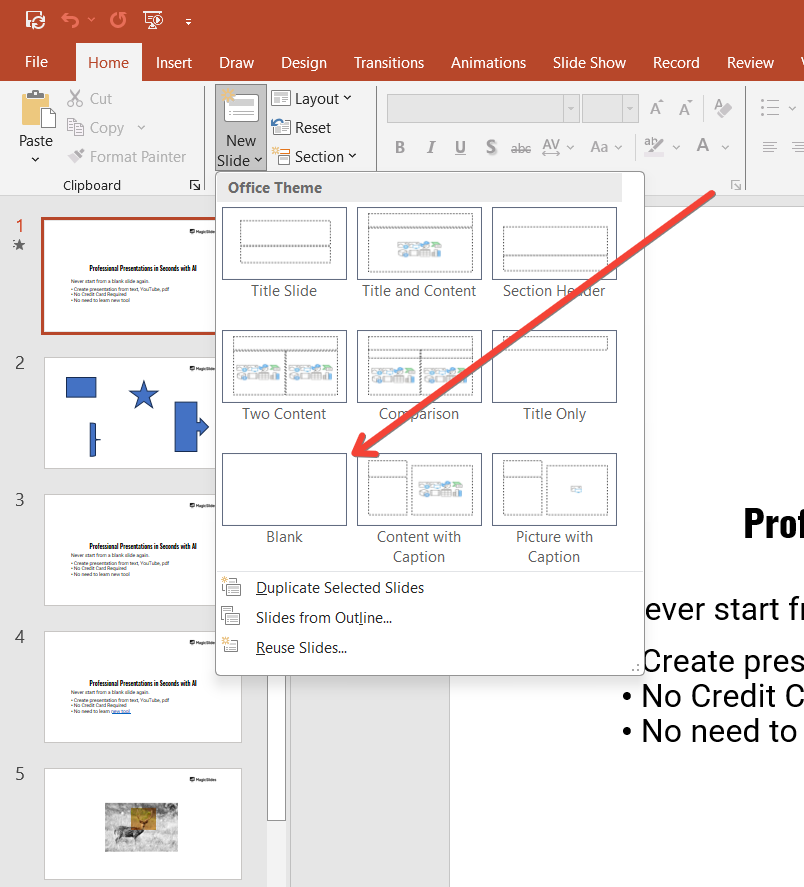
You can choose from various slide layouts, but for diagrams, a blank slide or a slide with a title and content layout is often the best choice.
Step 4: Go to the Insert Tab
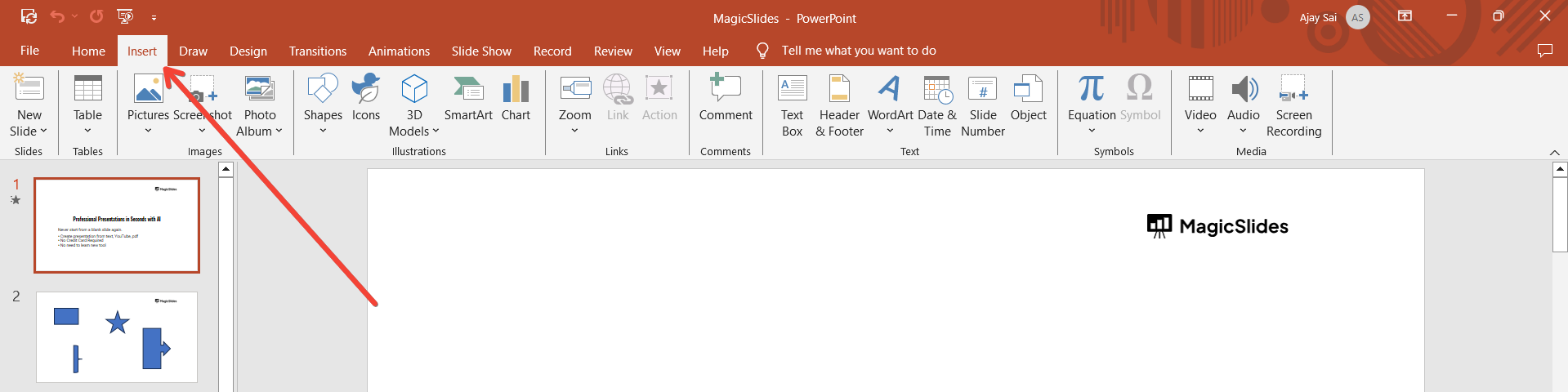
Navigate to the "Insert" tab on the PowerPoint ribbon.
This tab contains a variety of tools that allow you to add different elements to your slide, including diagrams, shapes, charts, and more.
Learn effective strategies to introduce a group presentation, ensuring a cohesive and engaging start that captures your audience's attention.
Step 5: Choose the SmartArt Option
To create a diagram, click on the "SmartArt" button in the "Insert" tab.
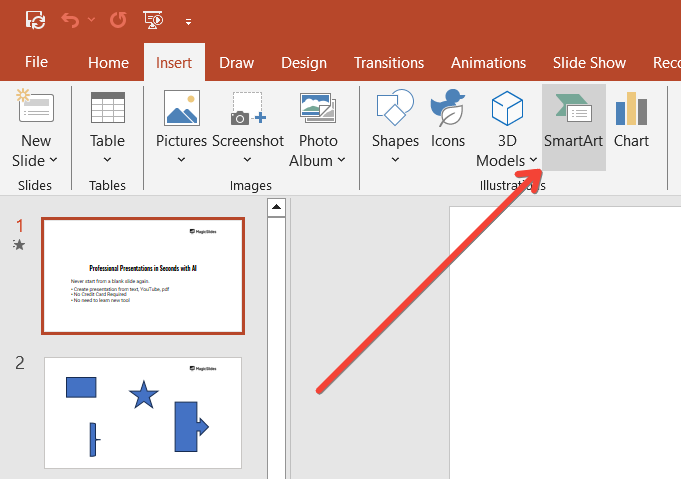
This will open the "Choose a SmartArt Graphic" dialog box, where you can select from various diagram types, such as process, cycle, hierarchy, relationship, matrix, and more.
Step 6: Select a Diagram Type
Browse through the available categories in the SmartArt dialog box to find the type of diagram that best fits your needs.
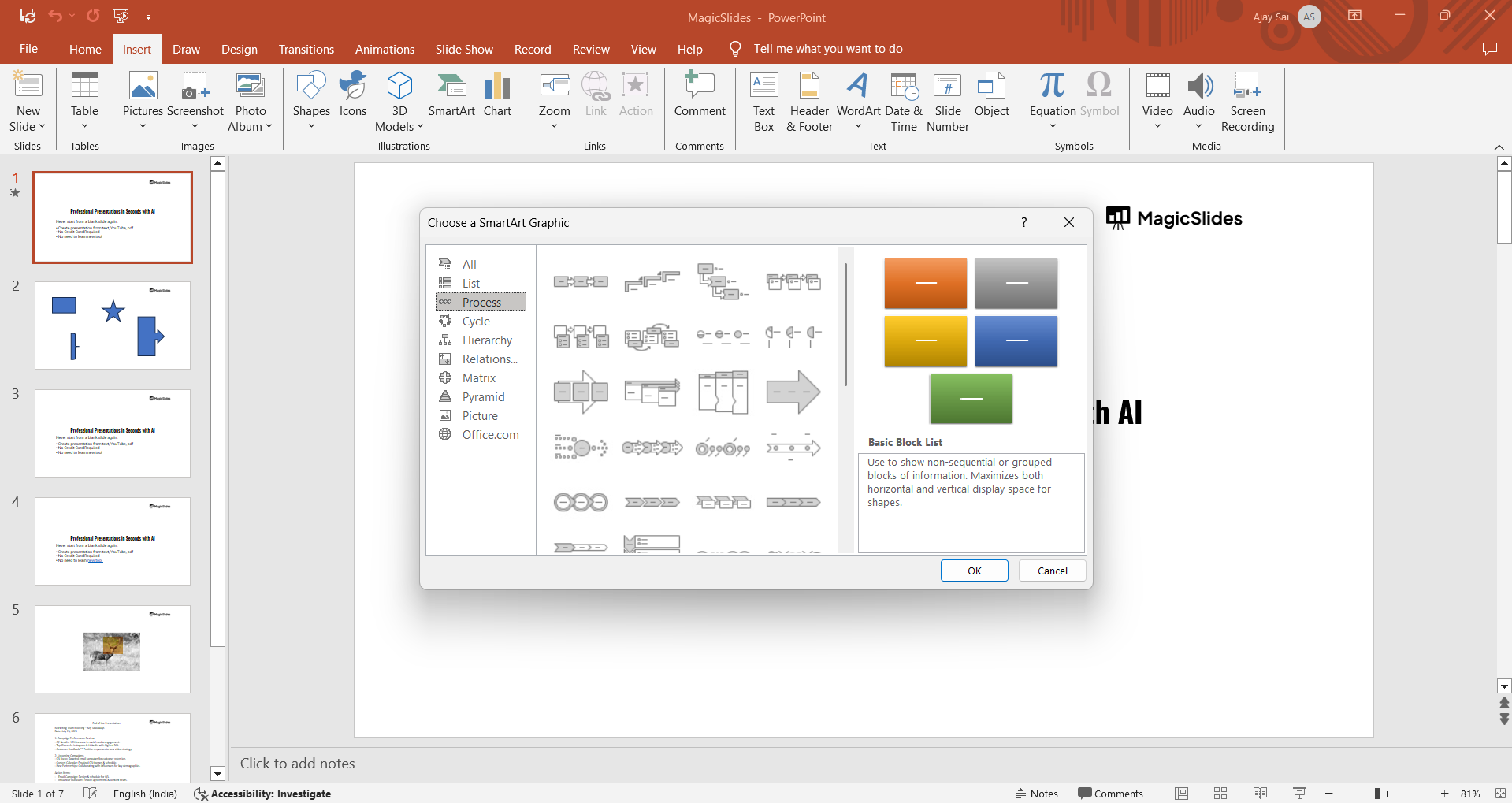
Click on a category to see different styles of diagrams within that category.
For example, if you want to show a process, select "Process" and choose a diagram that suits your content. Once you've selected a diagram, click "OK" to insert it into your slide.
Step 7: Add Your Text
After inserting the diagram, you'll see text placeholders within the diagram shapes. Click on these placeholders to enter your content.
You can add text directly within the shapes or use the text pane that appears next to the diagram for easier editing.
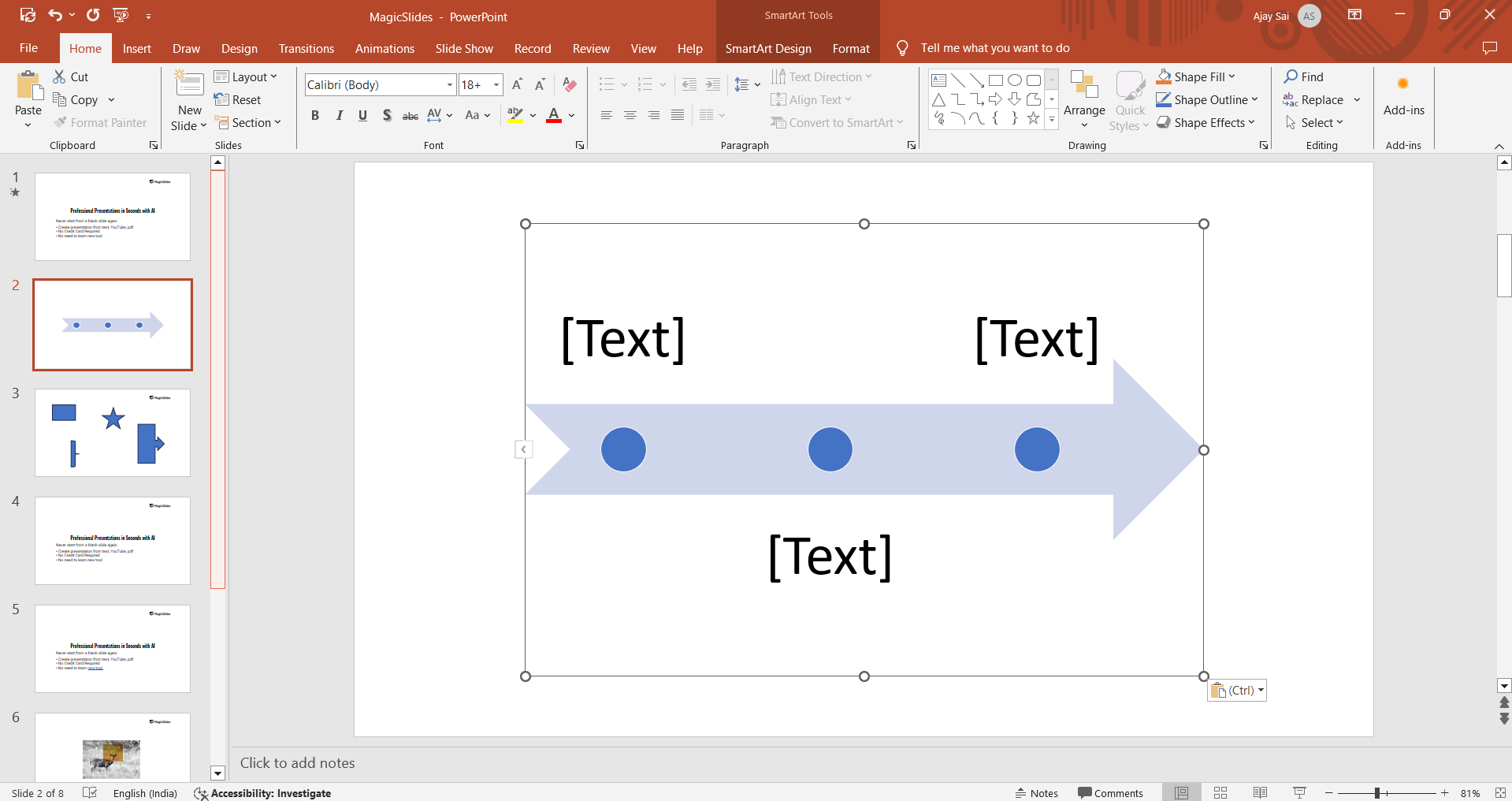
Simply type your information into each text box, and PowerPoint will automatically adjust the diagram to fit your content.
Step 8: Customize the Diagram
PowerPoint allows you to customize your diagram to better fit your presentation's style.
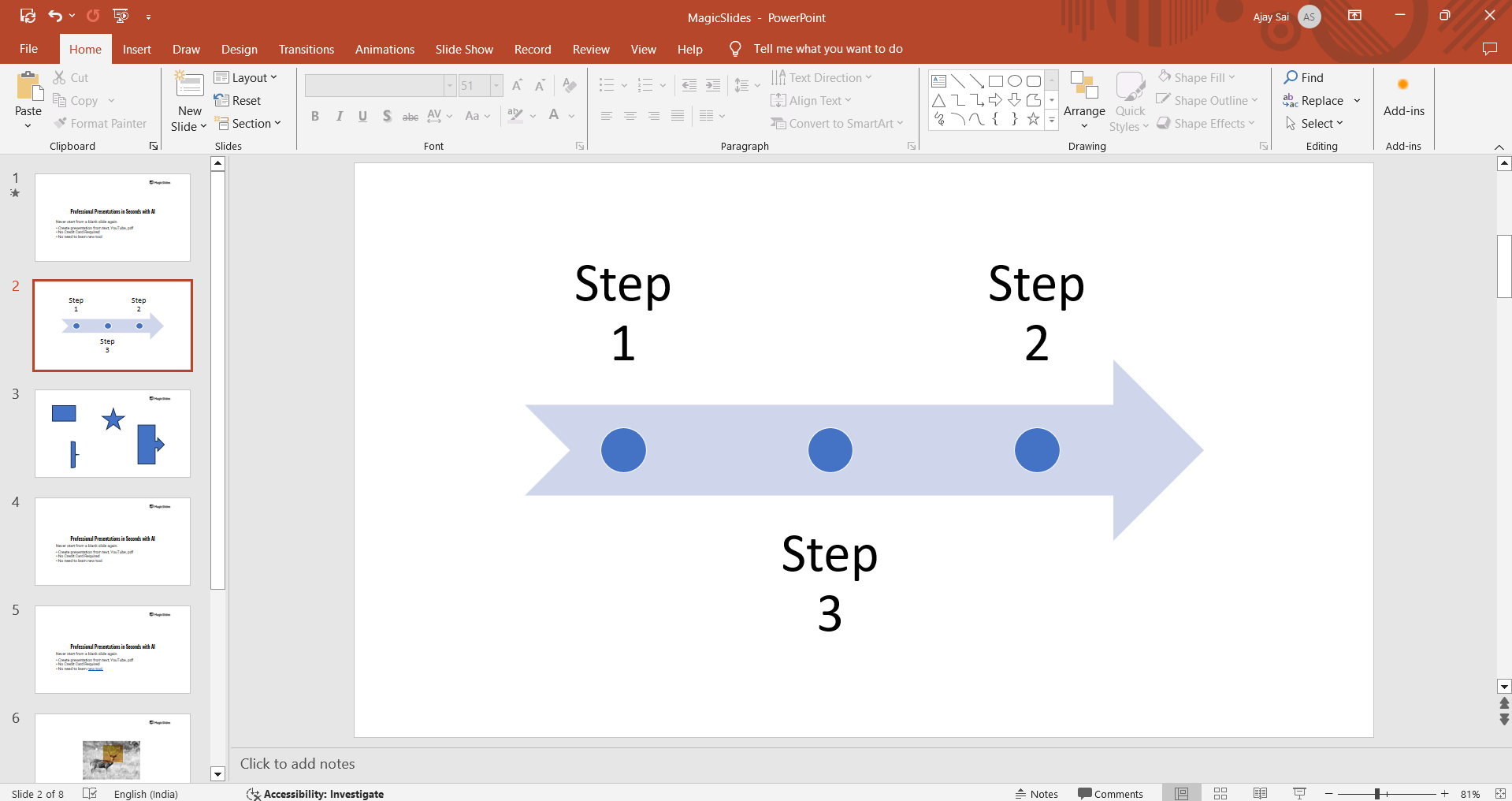
You can change the colors, styles, and layout of your diagram by using the options in the "SmartArt Tools" tab that appears when you have the diagram selected.
To change the color scheme, click on "Change Colors" and choose from the available options. To modify the style, click on "SmartArt Styles" and select a different style to give your diagram a unique look.
Step 9: Adjust the Diagram's Layout
If you need to rearrange the elements within your diagram, you can easily do so by using the "Move Up" or "Move Down" buttons in the SmartArt Tools' "Design" tab.
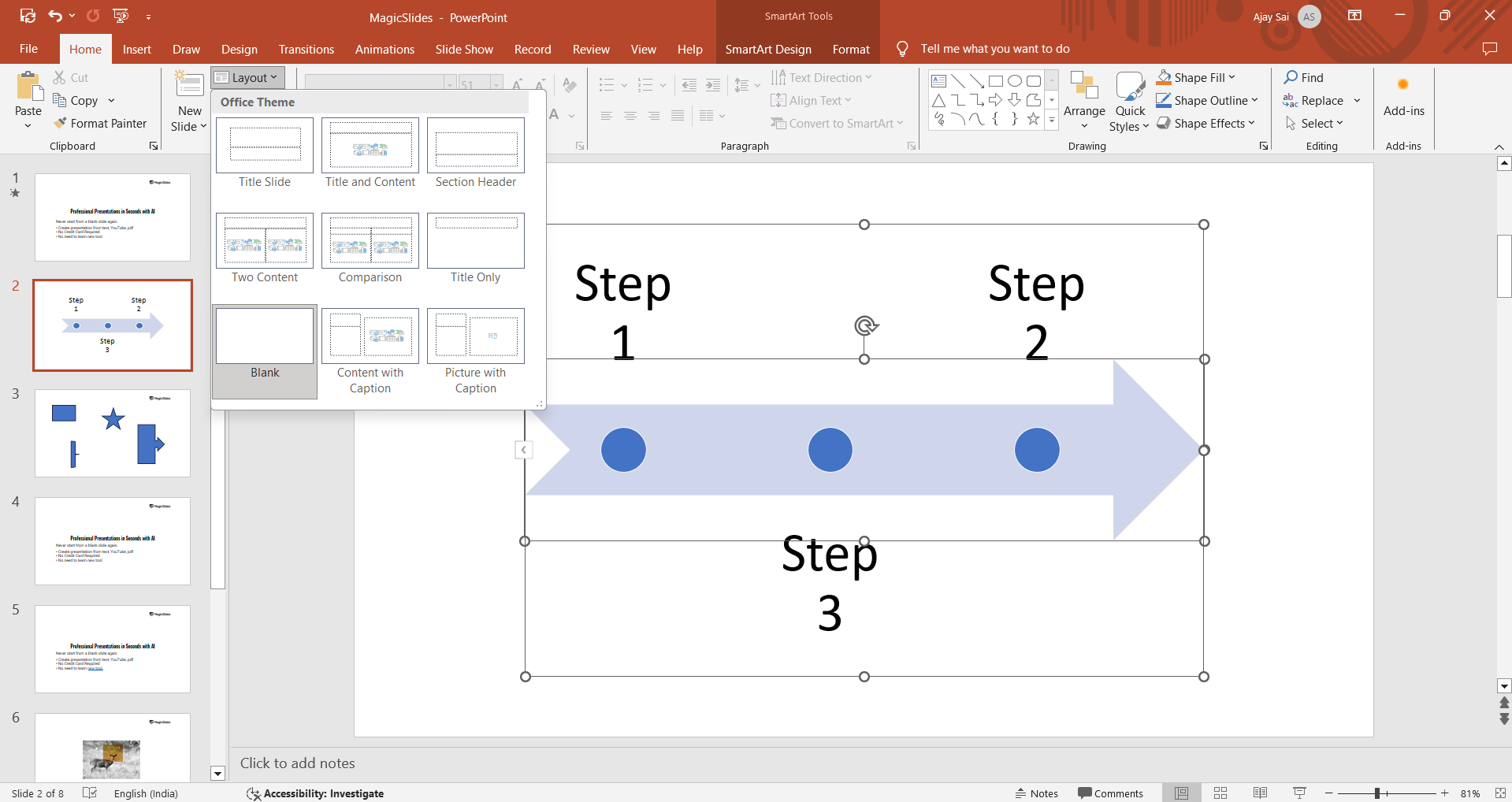
This allows you to reposition the elements to better reflect the flow of information or hierarchy within your diagram.
Step 10: Add Additional Shapes if Needed
Sometimes, you may need to add extra shapes to your diagram. You can do this by clicking on the "Add Shape" button in the "SmartArt Tools" tab.
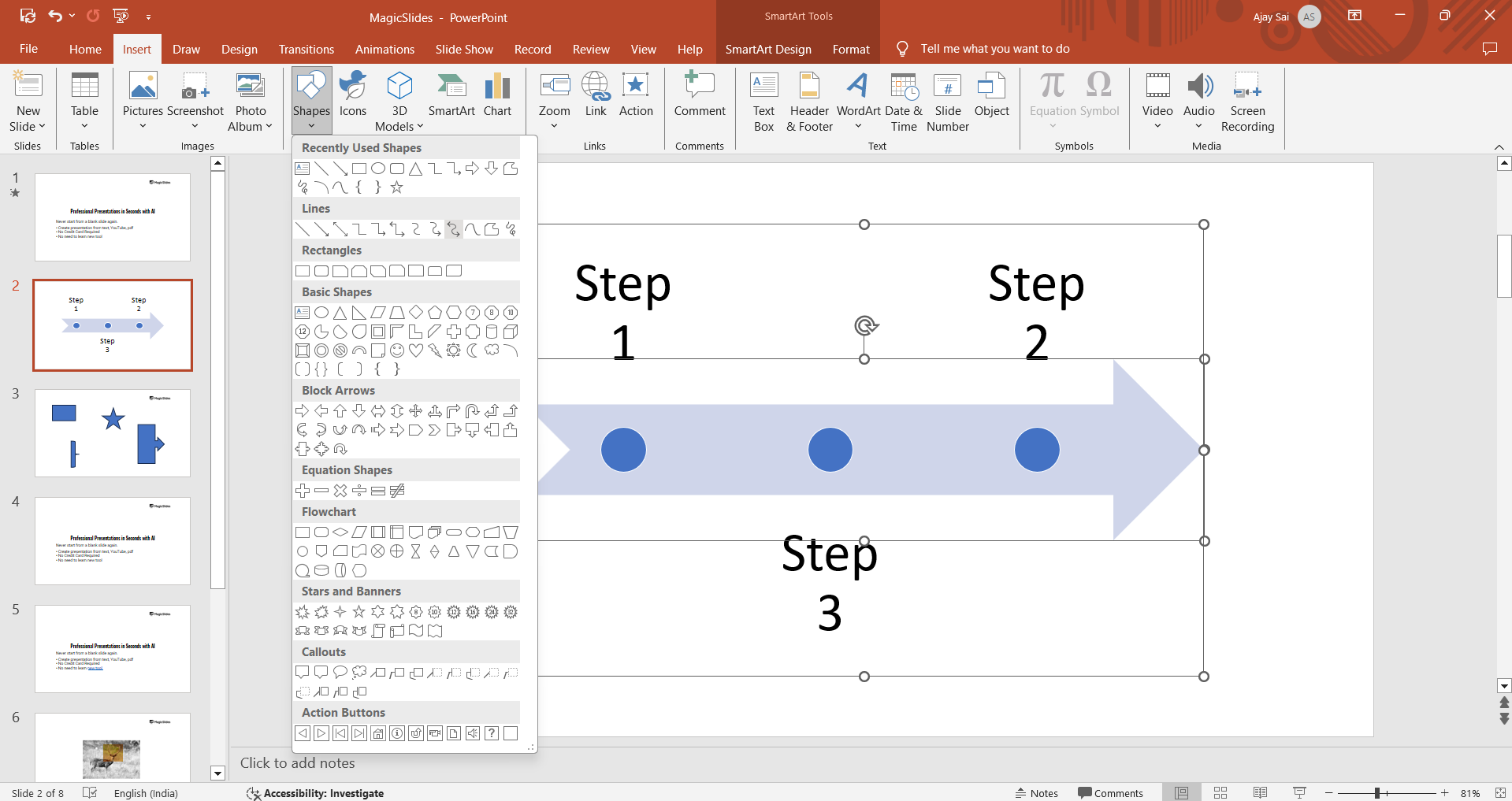
Choose whether to add a shape before, after, above, or below the selected shape, depending on your diagram's structure.
Step 11: Finalize Your Diagram
Once you've added your content and customized your diagram, take a moment to review it.
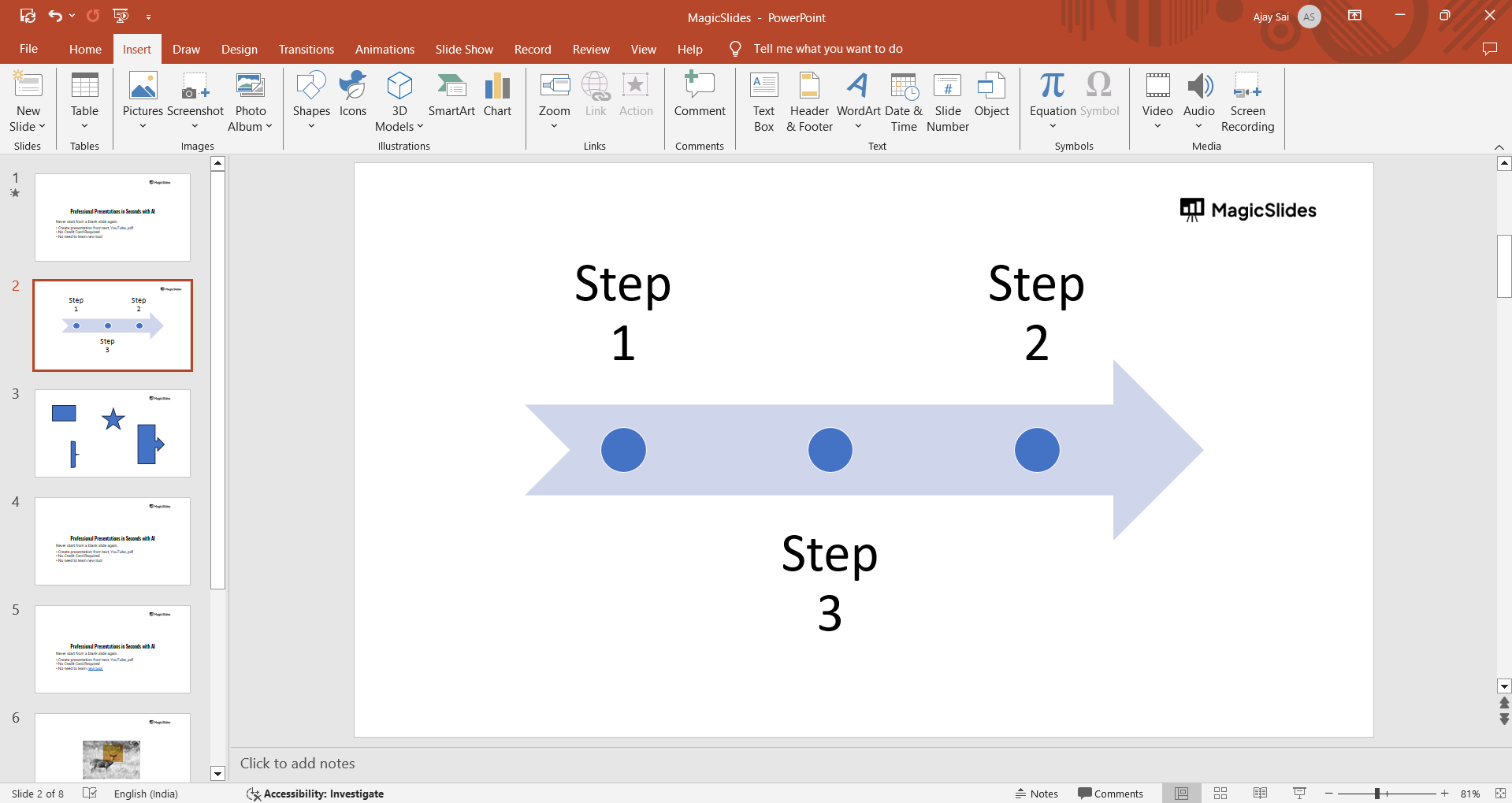
Make sure all the information is accurate, the layout is clear, and the colors and styles are consistent with the rest of your presentation.
You can also resize and reposition the diagram on your slide if needed.
Conclusion
Creating diagrams in PowerPoint is an effective way to communicate complex ideas and data in a visual format.
By following these steps, you can easily create, customize, and fine-tune diagrams that will enhance your presentations and make your information more accessible to your audience.
Diagrams not only add visual interest to your slides but also help convey your message more clearly and effectively.
Tired of making presentations? what if we tell you you can make a presentation with just a prompt, convert YouTube videos to PPTs, convert website content to PPTs? Yes! checkout magicslides.app that does all and enjoy the free credits to make presentations in seconds.
FAQs are here to help!
Can I customize the colors and styles of my diagram in PowerPoint?
Yes, PowerPoint allows you to easily change colors, styles, and layouts using the SmartArt Tools.
What types of diagrams can I create in PowerPoint?
PowerPoint offers various diagram types, including processes, cycles, hierarchies, relationships, and matrices, through SmartArt.
How can I add more shapes to my diagram?
You can add additional shapes by selecting "Add Shape" in the SmartArt Tools’ "Design" tab.


