Increase Undo Limit in PowerPoint – Step By Step Guide


Don't let a formatting mistake ruin your deck. Learn exactly how to increase the undo limit in PowerPoint past the default 20 to protect your slide history.
Increasing the undo limit in PowerPoint is so simple; you just need to go to the File > Options > Advanced, and increase the undo count. But not knowing these simple steps creates the sudden moment of panic when we are designing the PPT and realise we made a mistake about 5 minutes ago.
Fortunately, we have 20 steps to undo changes in PowerPoint, but what if the mistake needs 21 steps to correct it? This is the dead end, and we need to again create the design.
But today, through this blog, I will help you learn the complete process of increasing the undo limit in PowerPoint. So, let’s get started.
Step-by-Step: How to Change the Undo Maximum
Modifying undo limit setting only takes a few seconds, and it will apply to all current and future presentation files.
Step 1. Click on the File from the left corner.
Step 2. Now, go to the Options and then Advanced.
Step 3. Now look for the “Maximum Number of Undos” option.
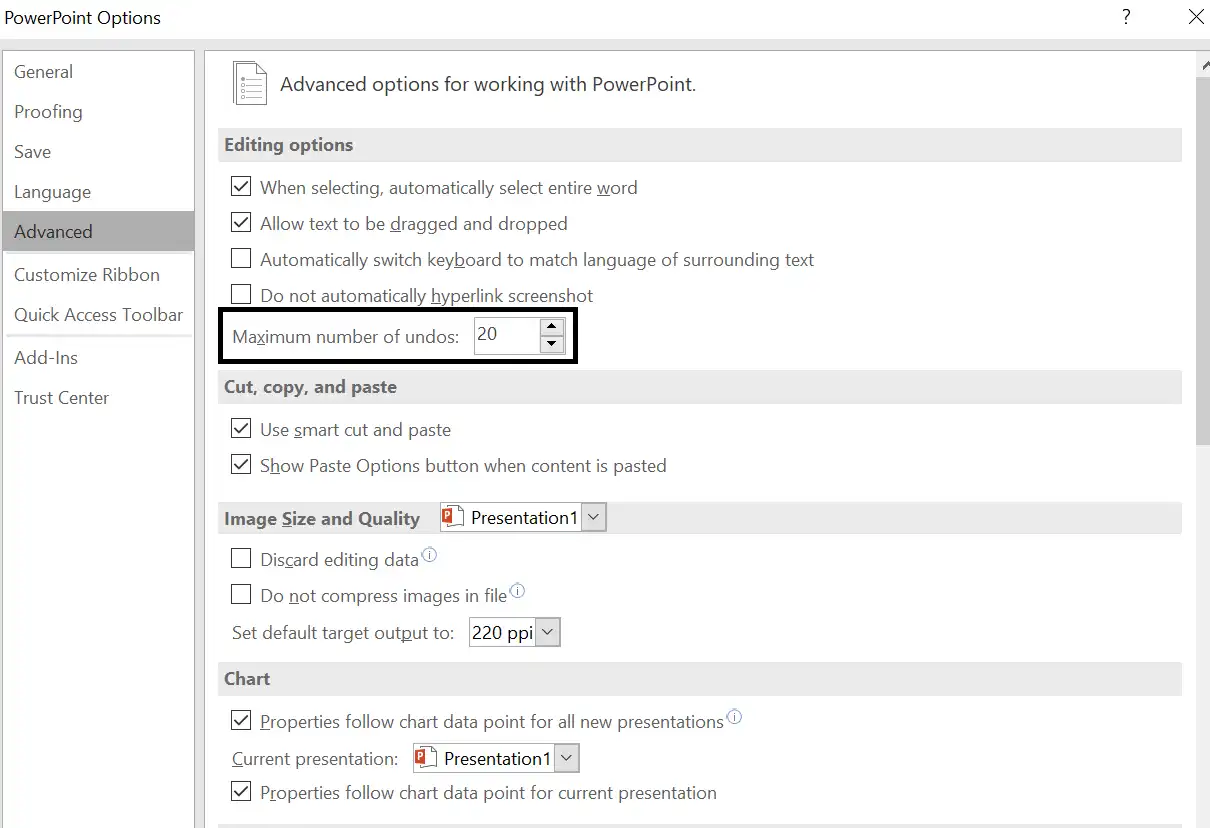
Step 4. Modify the number of undos from 20 (by default) and then save to increase undo limit in PowerPoint.
Streamline Your Workflow With an AI PPT Tool
While manually creating the PPTs is a cumbersome task, we can use MagicSlides Online AI PPT Maker to save hours. This powerful AI software transforms text or prompts into professional presentations instantly. It handles the layout and visuals automatically, letting us focus on the final touches rather than the micro tasks.
Final Words
The undo option of PowerPoint is heavily used while preparing the PPTs. But due to the lack of an undo option, sometimes we need to perform the complete task again to correct the mistake that we have made earlier in PPT creation. But now, after learning how to increase undo limit in PowerPoint, we can backtrack to the defined limit to correct the earlier mistakes, which saves a lot of time and effort, too.
FAQ’s
Q1. Does increasing the undo limit make my presentation file size bigger?
No. The temporary history is only saved in your computer’s short-term memory while the application is actively open.
Q2. Can I undo an accidental slide deletion?
Yes! As long as you haven’t closed the program or executed a history-wiping command, pressing Ctrl + Z will bring back a deleted slide exactly where it was, including its transition settings.
Q3. How to reduce the undo limit in PowerPoint?
You can reduce the undo limit in PowerPoint by opening the File > Options > Advanced and then set the undo limit.


