How to Undo in PowerPoint Without Losing Data?


Learn how to undo in PowerPoint using Ctrl+Z, the Undo button, and Undo History. Recover deleted slides, restore changes, and fix presentation mistakes.
To undo changes in PowerPoint press Ctrl + Z if using a Windows computer. If using a Mac, press Command + Z. You can also click on the Undo button, in the Quick Access Toolbar. This action will instantly reverse what you did last. You can do this times. It helps you get back deleted content restore the way things looked and fix mistakes you made while editing.
Mistakes happen, but luckily, PowerPoint offers a straightforward way to undo changes in PowerPoint and restore your slides to a previous state. If you have ever edit a PowerPoint presentation slide or delete or by mistake moved something or used the wrong format do not worry it happens to everyone. Even people who are good at making presentations make mistakes.
Knowing how to undo in PowerPoint is very helpful. The good news is that PowerPoint has tools that help you fix changes and get your work back. You can use an undo button, in PowerPoint fix mistakes or use AutoRecover or Version History to restore your presentation. There are ways to fix things if you go wrong.
In this guide you will learn how to fix changes in PowerPoint.
You will learn how to use the Undo button see what changes were made get back deleted slides and restore presentations that were not saved.
What Does Undo Mean in Microsoft PowerPoint?
The Undo feature in PowerPoint lets you go back to what you did. If you delete something by mistake move something to the place or change the way something looks Undo in PowerPoint helps you fix it quickly.
PowerPoint remembers what you have done lately. When you use Undo it goes back to what you did and puts everything back the way it was. This makes it easy to undo the thing you did in PowerPoint without having to fix the mistake yourself.
Undo and Redo are not the thing. Undo undoes something you did. Redo does it again if you undid it by mistake. These two features together make it faster and easier to edit your presentation , especially when you need to how to redo changes in PowerPoint after reversing an action.
Knowing how to undo changes in PowerPoint can save you a lot of time and trouble. It can also help you feel more confident when you need to reverse changes in PowerPoint. You can use Undo in PowerPoint to fix mistakes and make your presentation look the way you want it to. Understanding how to undo in PowerPoint is really useful.
If you work on large presentations, you may also want to increase undo limit in PowerPoint so more recent actions can be reversed when needed.
Where is the Undo Button in PowerPoint Located?
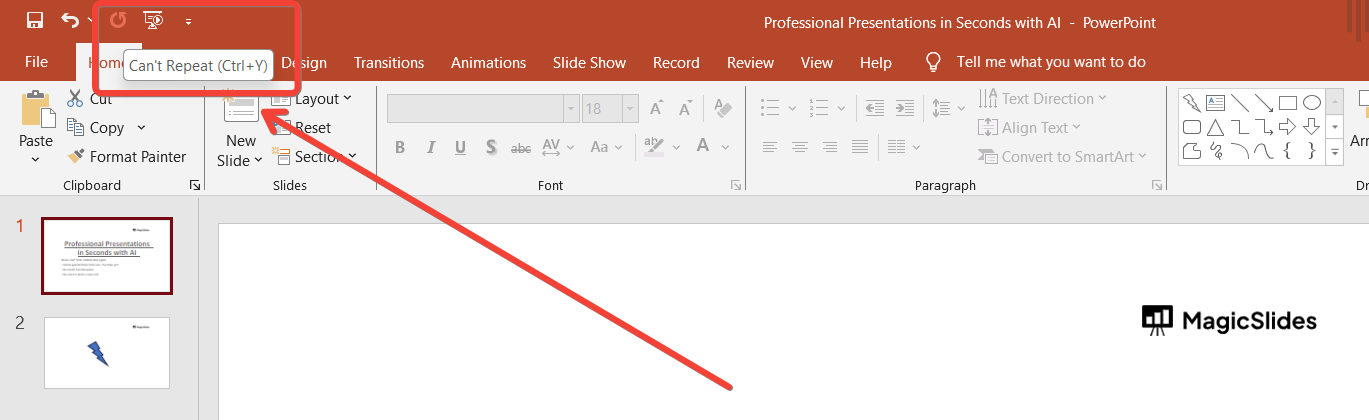
The Undo button is located in the Quick Access Toolbar at the top-left corner of the PowerPoint window. It appears as a curved arrow pointing to the left and allows you to quickly reverse your most recent action with a single click.
If you’ve made an editing mistake, simply click the Undo button to restore the previous state of your presentation. You can also click the small drop-down arrow next to the button to view your recent editing history and undo multiple actions at once.
For even faster access, you can use the PowerPoint undo shortcut: Ctrl + Z on Windows or Command + Z on Mac.
In some situations, users looking for how to reset a presentation in PowerPoint may first try using the Undo feature to reverse recent changes before restoring slides manually or reverting to an earlier saved version of the presentation.
How to Undo Changes in PowerPoint? Steps
Let’s discuss the steps of how to undo in PowerPoint using these steps in details.
Step 1. Open Your PowerPoint Presentation
Start by opening the PowerPoint presentation where you want to undo actions.
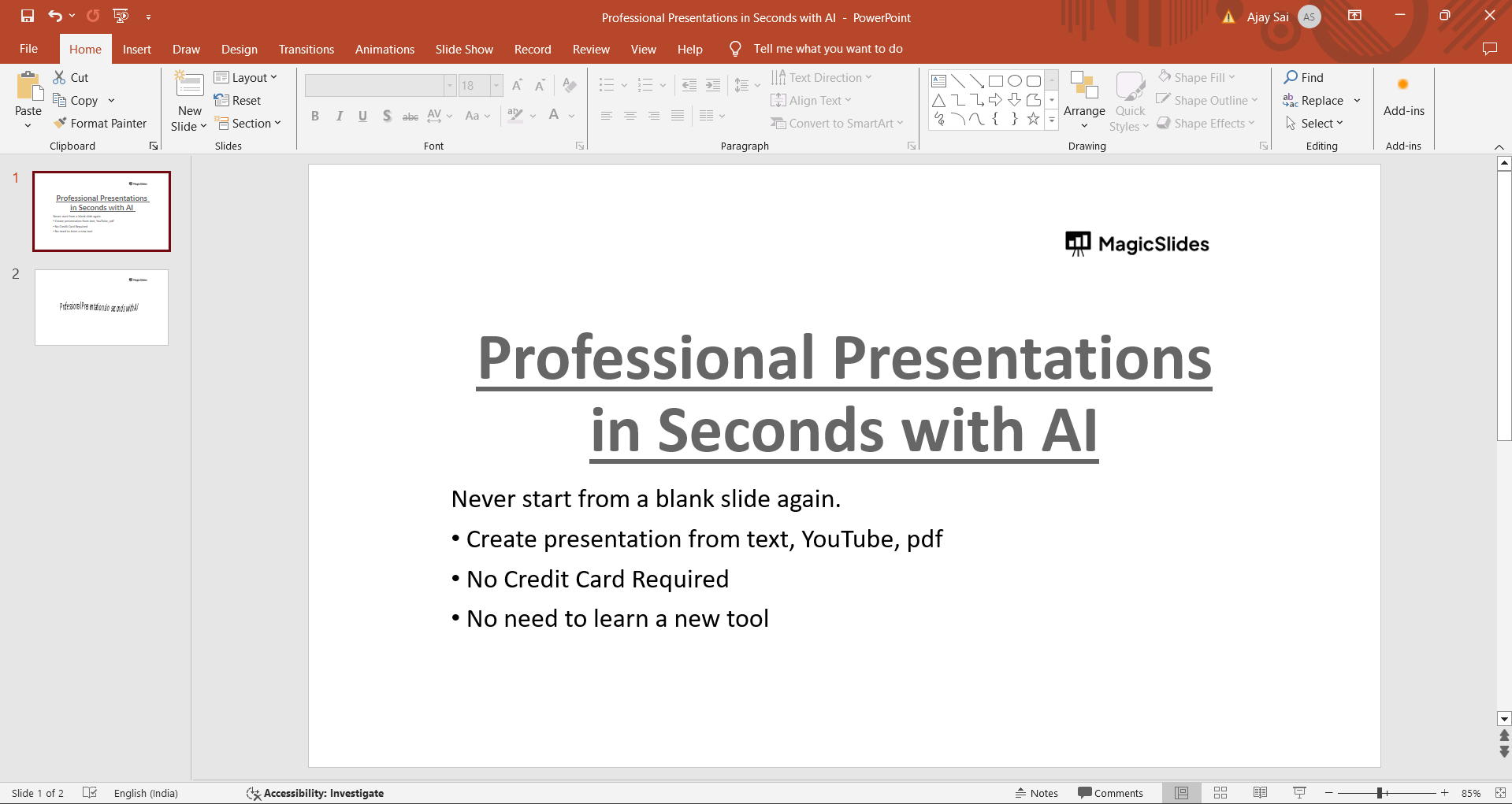
Step 2. Locate the Undo Button
At the top left corner of the PowerPoint window, you’ll find the Undo button represented by a curved arrow pointing to the left. This button is your key to undoing actions.
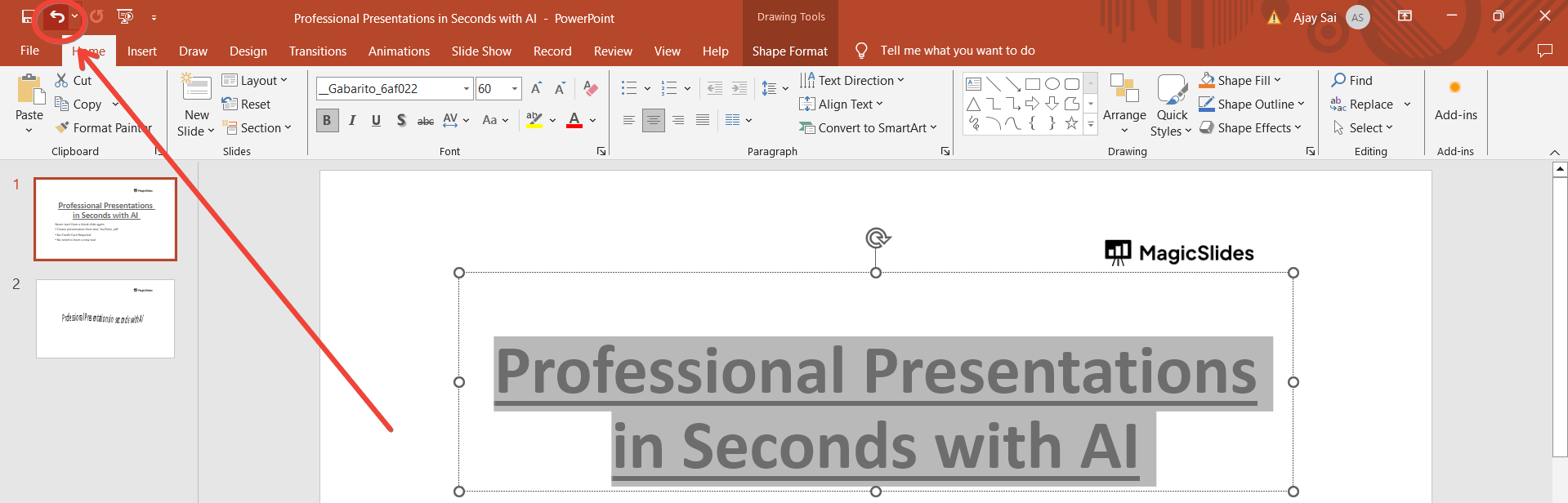
Step 3. Click on the Undo Button
Whenever you need to undo an action, simply click on the Undo button. Each click will undo the most recent action you performed in PowerPoint. You can see the changes to previous state after you’ve clicked undo button.
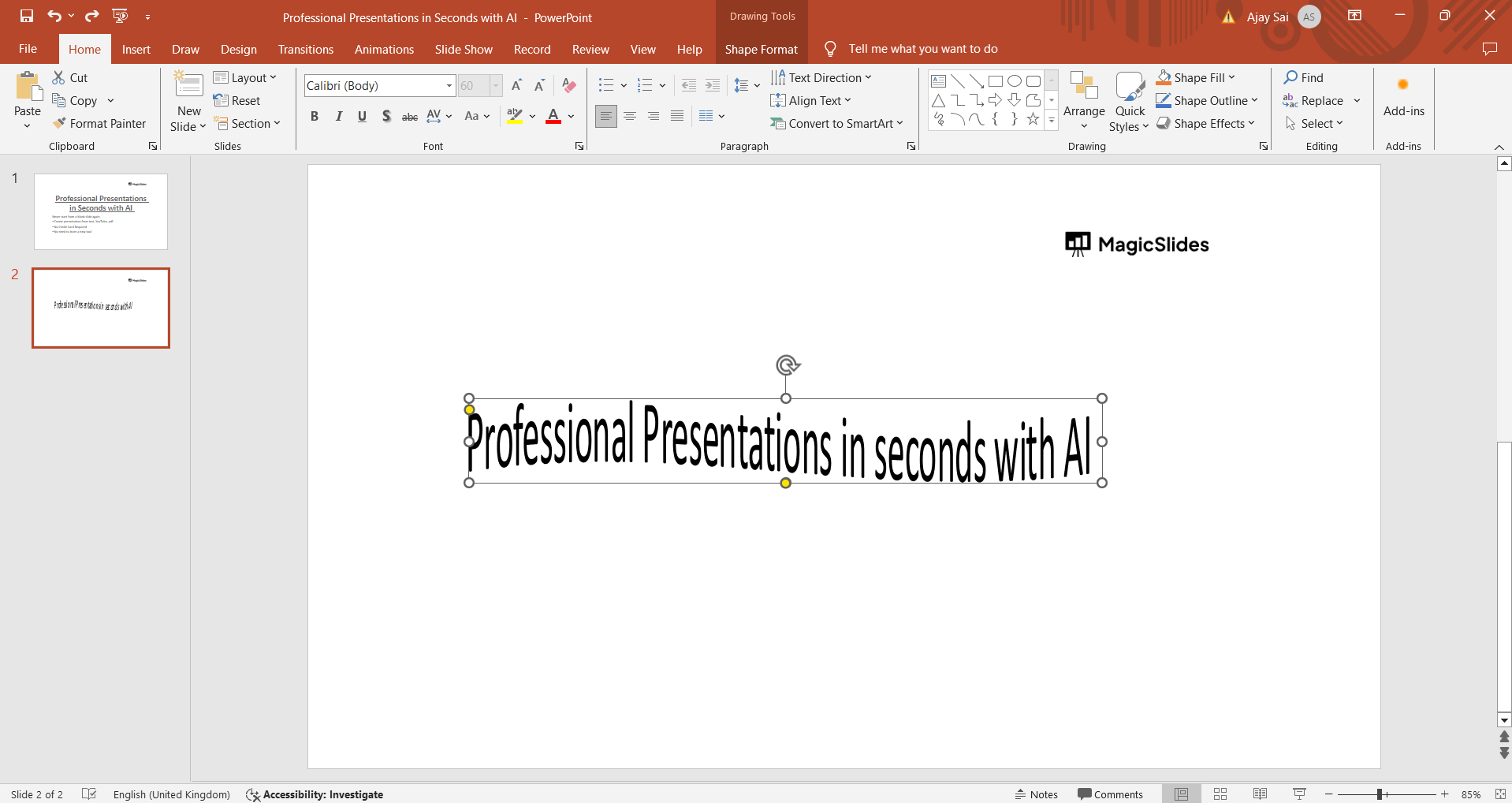
Step 4. Use Keyboard Shortcut
For quicker access, you can also use the keyboard shortcut Ctrl + Z (Command + Z on Mac) to undo actions in PowerPoint. Press this shortcut repeatedly to undo multiple actions in sequence.
Step 5. Undo Multiple Changes in PowerPoint at Once
PowerPoint keeps track of your undo actions in a history list. To see the undo history and potentially redo actions, click on the drop-down arrow next to the Undo button.
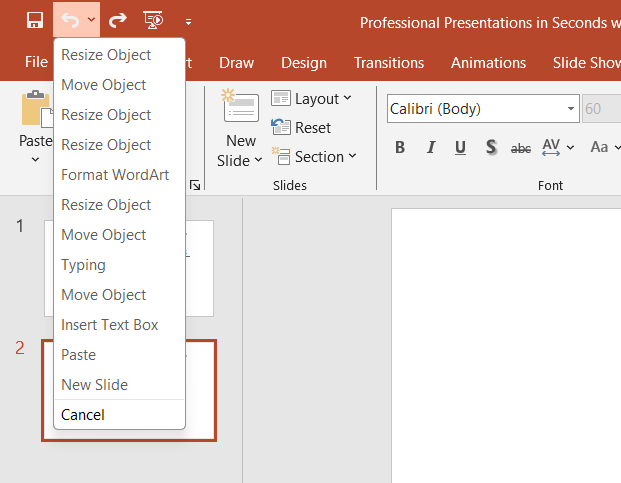
This feature is helpful when you’ve made multiple formatting changes, moved several objects, or edited slides and want to quickly restore an earlier version of your work.
Using the Undo history is one of the fastest ways to get previous version PowerPoint changes using the built-in AutoRecover feature to recover an unsaved PowerPoint. It recovers from mistakes without manually fixing each individual edit.
Step 6: Redo Actions (if needed)
If you’ve undone an action and want to redo it, you can click on the Redo button (represented by a curved arrow pointing to the right) next to the Undo button. You can also use the keyboard shortcut Ctrl + Y (Command + Y on Mac) for redoing.
Pro Tip: Recovering lost edits is helpful, but preventing unnecessary rework is even better. If you regularly build presentations from scratch, MagicSlides AI Presentation maker can automatically generate structured PowerPoint presentations from a topic, document, PDF, URL, or YouTube video.

Through manual work on slides you make fewer mistakes. This gives you time to make your content better instead of fixing errors.
You can focus on improving your content when slide creation and formatting are easier. This way you have time to refine your content.
Why Undo Is Not Working in PowerPoint?
If you try to undo in PowerPoint and nothing happens there are a reasons. The Undo button may be grayed out if you have not made any changes.
Maybe you just opened the presentation. The Undo history gets cleared when you close and reopen a file. So in that case, how to undo changes in PowerPoint won’t work for older edits.
If the PowerPoint undo shortcut (Ctrl + Z) doesn’t work you can try to recover changes through AutoRecover. If your file is saved in OneDrive or SharePoint you can use PowerPoint Version History.
Knowing these limitations helps you quickly restore your work. You can avoid losing edits, to your presentation.
Best Practices to Avoid Losing PowerPoint Changes
While it’s useful to know how to undo changes in PowerPoint, preventing data loss in the first place is even better. A few simple habits can help protect your work and reduce the need for recovery.
First, enable AutoSave and AutoRecover so PowerPoint automatically saves your progress. Learning How to auto-save a PowerPoint can help ensure your latest edits are protected. If possible, store presentations in OneDrive, which provides PowerPoint Version History and makes it easier to recover PowerPoint changes.
It’s also a good idea to save your presentation regularly, especially before making major edits. For important projects, keep backup copies with different version names so you can restore an earlier file if needed.
By combining AutoSave, cloud storage, and backups, you’ll spend less time worrying about mistakes and more time creating effective presentations.
Conclusion
The ability to undo actions in PowerPoint is a valuable feature that allows you to correct mistakes, experiment with different designs, and maintain control over your presentation’s creation process.
By following these simple steps and utilizing keyboard shortcuts, you can efficiently undo and redo actions as needed, ensuring a smooth and productive experience while working on your PowerPoint slides.
Incorporate these techniques into your workflow to boost productivity and confidence in creating engaging and error-free presentations.
Frequently Asked Questions
Can I undo multiple actions at once in PowerPoint?
PowerPoint’s undo function typically allows you to undo one action at a time, but you can use the undo history to navigate multiple steps.
Is there a limit to how many actions I can undo in PowerPoint?
PowerPoint’s undo history usually retains a limited number of actions, so older actions may not be retrievable via the undo feature.
Does undoing actions in PowerPoint affect other users in collaborative mode?
If you’re collaborating on a PowerPoint presentation, your undo actions generally only affect your view and won’t impact other users.
Can I undo changes made to slide layouts or master slides in PowerPoint?
Yes, you can undo changes to slide layouts or master slides using the same undo functionality in PowerPoint.


