How to Get Previous Version PowerPoint


Easily restore previous PowerPoint versions using Version History, AutoRecover, or OneDrive to recover important changes
How to Get a Previous Version of a PowerPoint Presentation
Accidentally made unwanted changes to your PowerPoint presentation? Don't worry! PowerPoint allows you to restore a previous version using its built-in version history feature.
Whether you’re using OneDrive, SharePoint, or working on a local file, this guide will help you retrieve an earlier version of your PowerPoint file.
Step-by-Step Guide to Restoring a Previous Version of PowerPoint
Step 1: Open Your PowerPoint File
Launch Microsoft PowerPoint on your computer. Open the file you want to restore to a previous version.
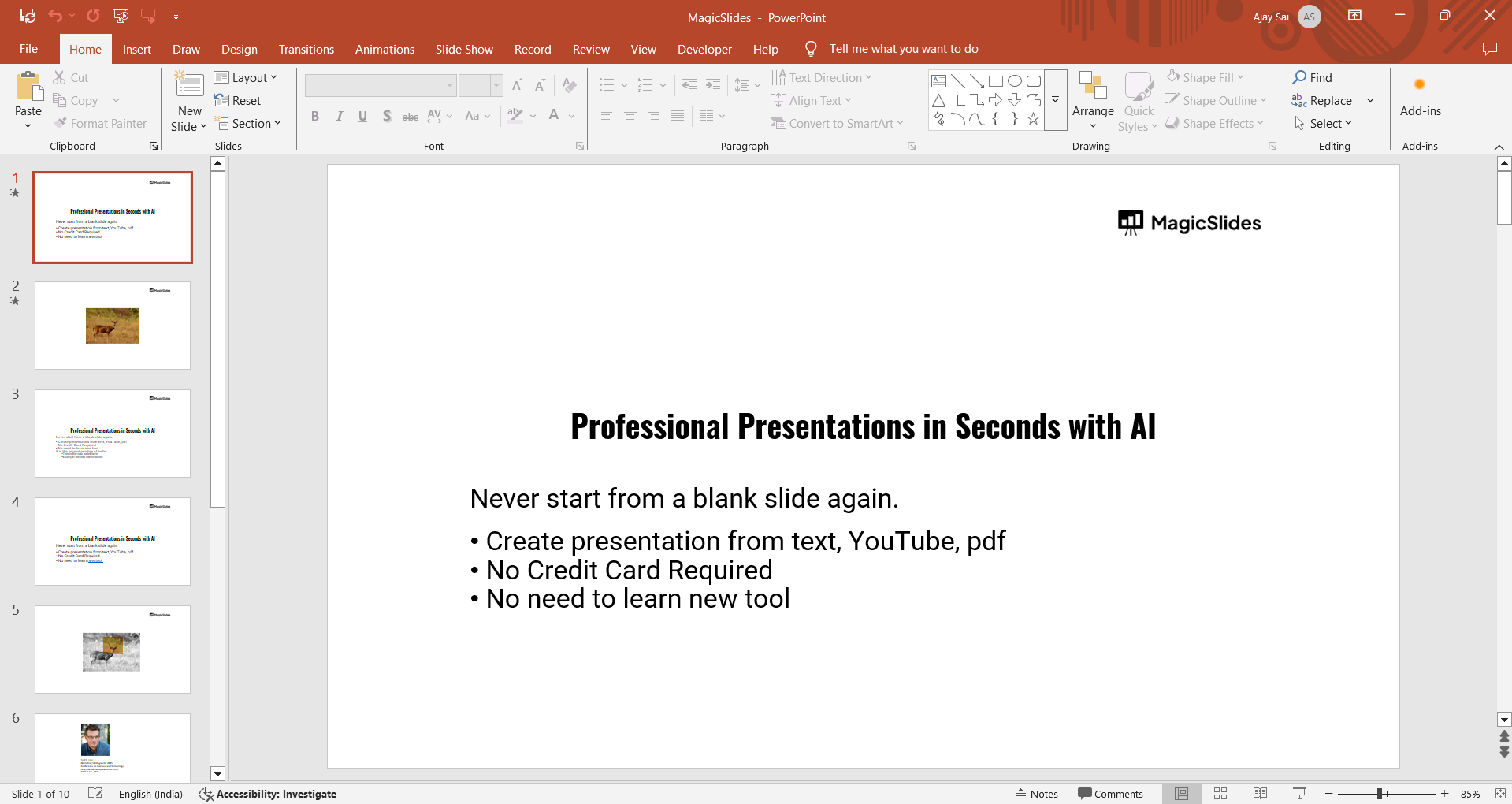
Step 2: Access Version History (For OneDrive or SharePoint Users)
Click on File in the top-left corner. Select Info from the sidebar.
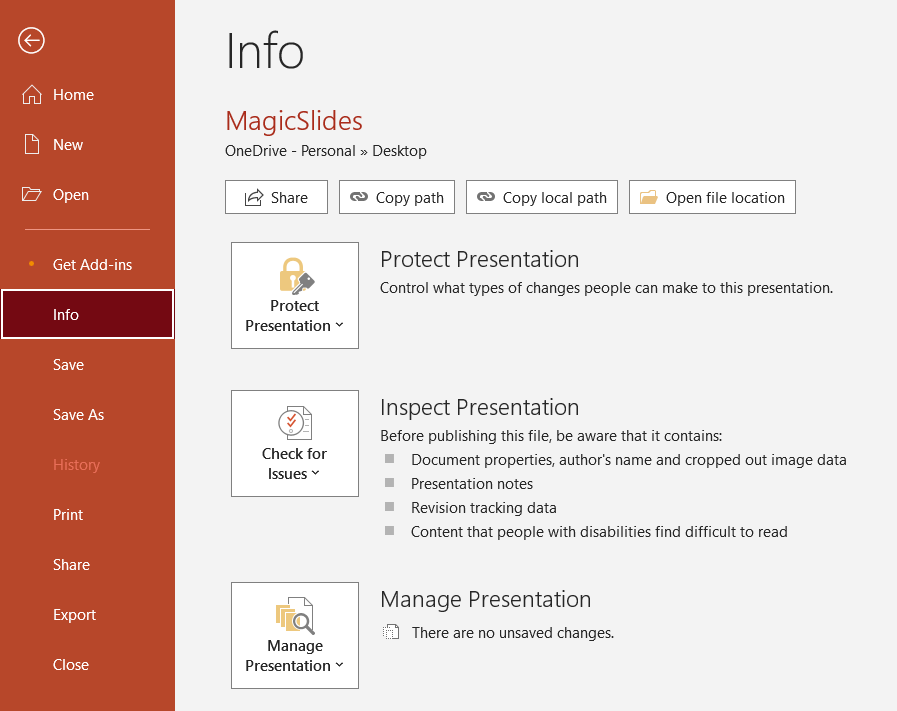
Click on Version History or Manage Versions (depending on your PowerPoint version).

Step 3: Choose a Previous Version
A list of previously saved versions will appear. Click on the version you want to view.
PowerPoint will open it in a separate window.
Step 4: Restore or Save the Previous Version
If you want to restore the selected version, click Restore to replace the current file.
Alternatively, click Save As to save the previous version as a new file, keeping both versions.
Step 5: Retrieve Previous Versions from AutoRecover (If File Wasn't Saved)
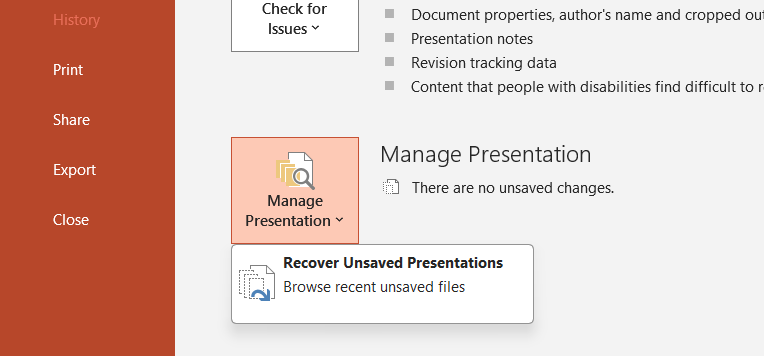
Open PowerPoint and go to File > Info. Click on Manage Presentation > Recover Unsaved Presentations.
If available, select the file and save it immediately.
Need to retrieve an older version of your PowerPoint? While version history helps, creating new, polished slides can be effortless with MagicSlides.app. Generate AI-powered presentations instantly from any topic, document, or video!
Conclusion
PowerPoint makes it easy to restore a previous version of your presentation using version history or AutoRecover.
Whether you're using OneDrive, SharePoint, or recovering an unsaved file, following these steps can help you retrieve important changes quickly.
FAQs About Getting a Previous Version of PowerPoint
Can I restore a PowerPoint version if I’m not using OneDrive?
Yes, but only if AutoRecover was enabled. Otherwise, manually saved versions won’t be available.
How long does PowerPoint keep version history?
For OneDrive or SharePoint users, PowerPoint keeps versions indefinitely until deleted. Local files don’t have built-in version history.
Can I recover a deleted PowerPoint file?
Yes! Check your Recycle Bin or, if using OneDrive, go to OneDrive > Recycle Bin to restore the file.
Now you can confidently retrieve previous versions of your PowerPoint presentations whenever needed! 🎯


