How to edit powerpoint presentation


Editing a PowerPoint presentation ensures your slides are polished, consistent, and effective for any audience.
Editing a PowerPoint presentation is a crucial skill that can significantly impact the effectiveness of your communication. Whether you're revising a presentation for a work meeting, a school project, or a personal event, knowing how to make changes quickly and efficiently is essential.
This blog post will guide you through the basic steps of editing a PowerPoint presentation, from adding new slides to adjusting existing content, ensuring that your presentation is polished and ready to impress your audience.
How to edit powerpoint presentation
Step 1: Open Your PowerPoint Presentation
Start by opening Microsoft PowerPoint on your computer. You can do this by searching for "PowerPoint" in your Start menu or by clicking on the PowerPoint icon if it's pinned to your taskbar.
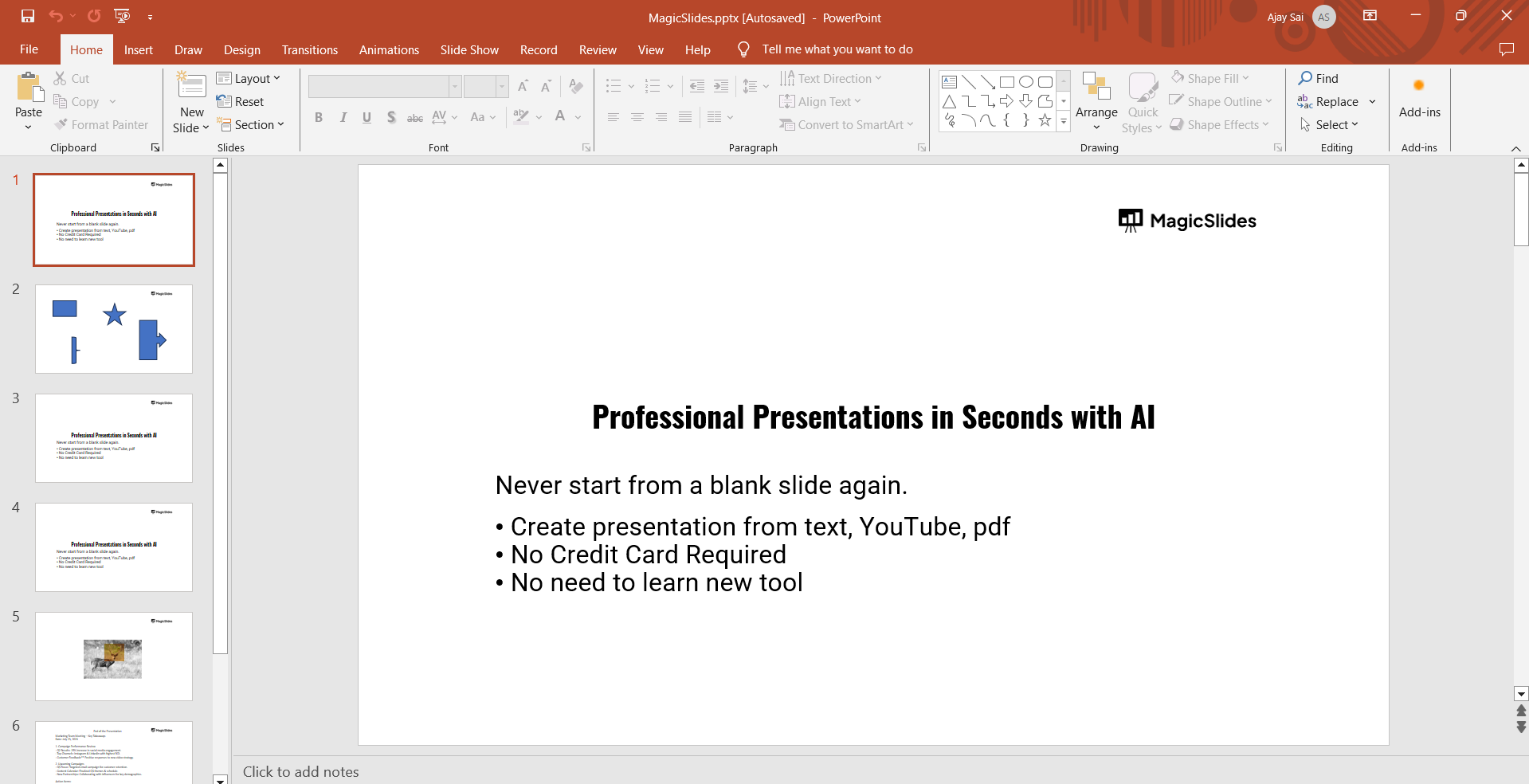
Once PowerPoint is open, click on "File" in the top-left corner and select "Open" to browse for the presentation you want to edit. Locate your file and click "Open" to load the presentation.
Step 2: Navigate Through Your Slides
Once your presentation is open, you can navigate through your slides using the slide thumbnails on the left side of the screen. Scroll through these thumbnails to find the slide you want to edit.
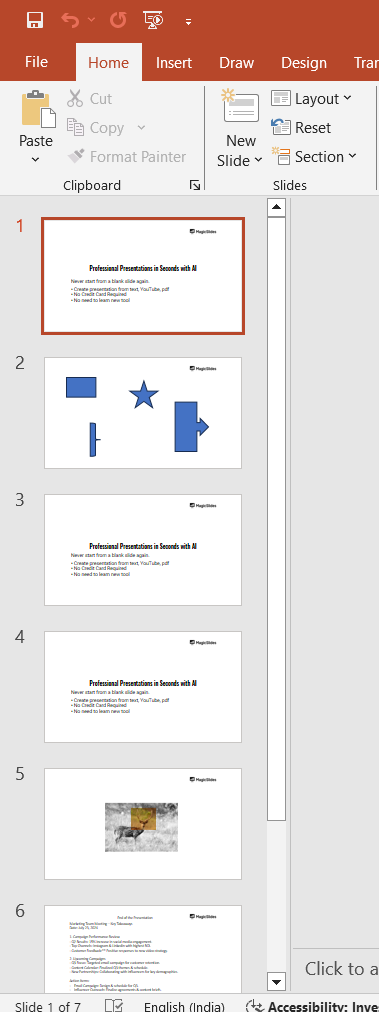
Click on a slide thumbnail to select it, and it will appear in the main editing area.
Step 3: Add or Delete Slides
To add a new slide, go to the "Home" tab in the PowerPoint ribbon and click on the "New Slide" button. You can choose from various slide layouts depending on the content you plan to add.
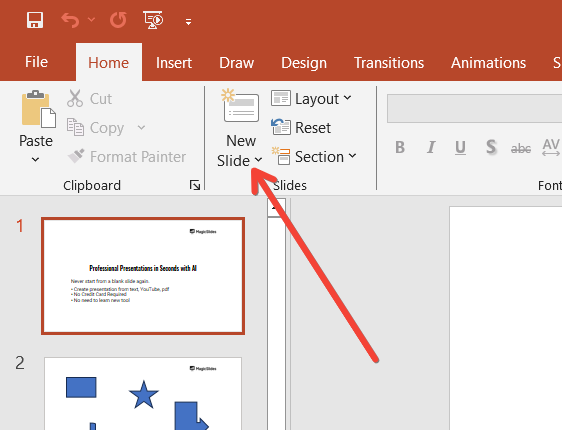
To delete a slide, simply select the slide thumbnail on the left, right-click, and choose "Delete Slide" from the context menu.
Step 4: Edit Text Content
To edit text on a slide, click directly on the text box that you want to modify. The text box will become active, allowing you to type new text, delete existing text, or make changes such as formatting, font size, or color.
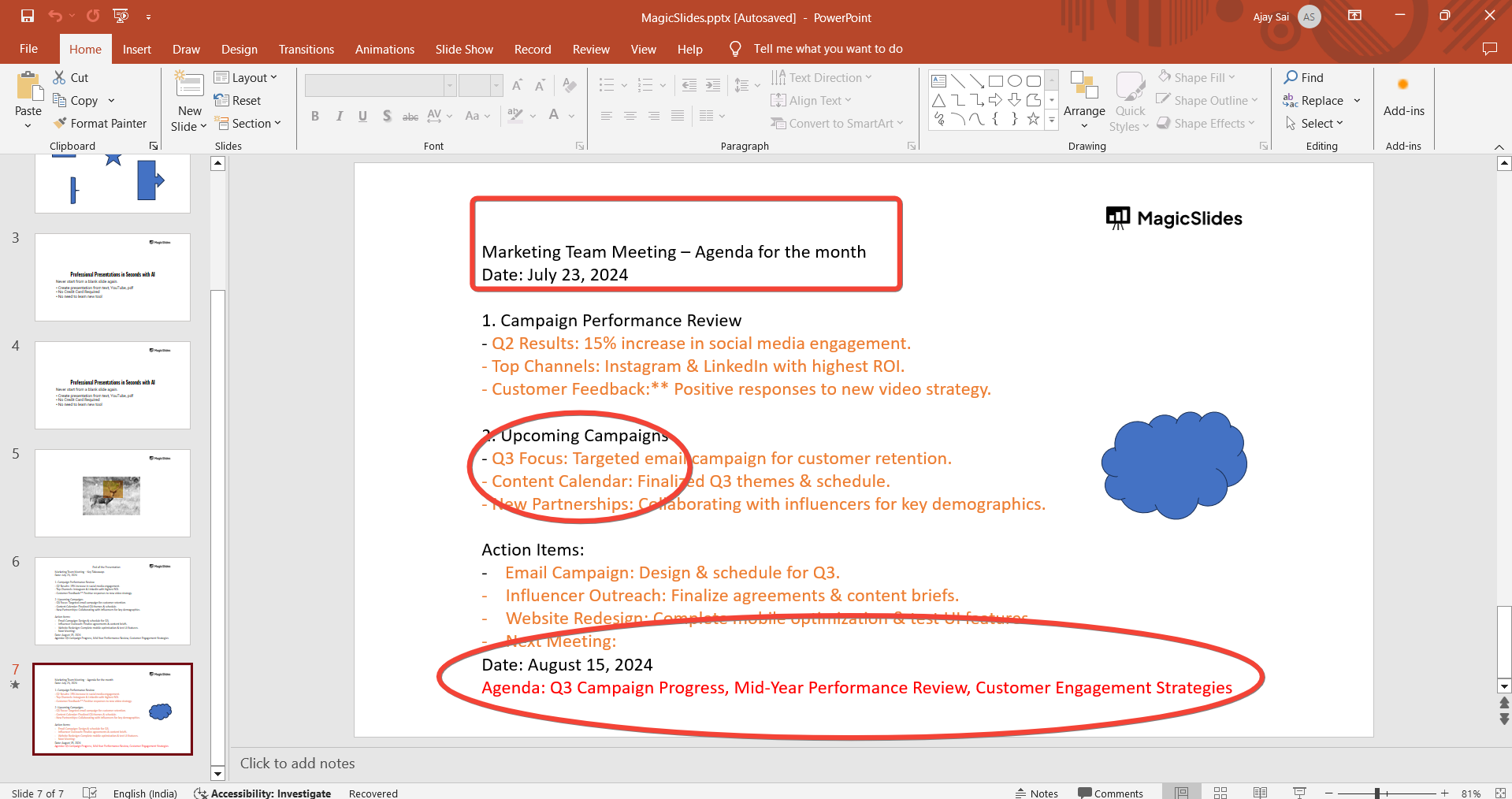
You can find text formatting options in the "Home" tab under the "Font" and "Paragraph" groups.
Step 5: Adjust Images and Graphics
If your slide contains images or other graphical elements, you can edit these as well. Click on the image or graphic you want to modify.

Once selected, you can resize, reposition, or apply various formatting options from the "Picture Format" or "Drawing Tools" tabs, which appear when an image or graphic is selected.
Step 6: Modify Slide Layout and Design
To change the overall layout of a slide, go to the "Home" tab and click on the "Layout" button.
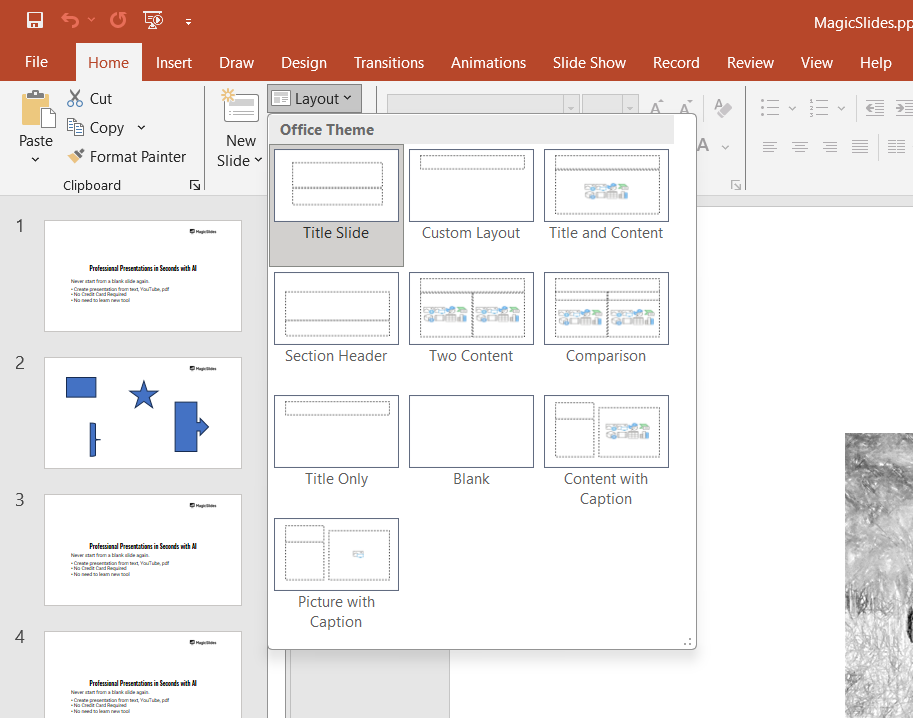
You can select a new layout that better fits your content. Additionally, you can change the slide design by going to the "Design" tab and choosing from a range of themes and color schemes. You will make your PowerPoint Presentations Aesthetic by editing, what about Google Slides, know how to turn your Google Slides aesthetic from here.
Step 7: Review and Finalize Your Edits
After making all the necessary changes, it's important to review your presentation to ensure everything looks good. Go through each slide to check for consistency, clarity, and any errors that need correcting.
You can preview your presentation by clicking on the "Slide Show" tab and selecting "From Beginning" to see how it will appear to your audience.
Conclusion
Editing a PowerPoint presentation is a straightforward process, but it's essential to take your time to ensure that your slides are clear, consistent, and visually appealing.
By following the steps outlined above, you can confidently make the necessary changes to your presentation, whether you're adding new content, refining existing elements, or enhancing the overall design.
With these skills, you'll be able to create presentations that are both effective and engaging for any audience.
Tired of maing presentations? what if we tell you you can make presentation with just a prompt, convert YouTube videos to PPTs, convert website content to PPTs? Yes! checkout magicslides.app that does all and enjoy the free credits to make presentations in seconds
FAQs that might help!
How can I undo changes if I make a mistake while editing my PowerPoint presentation?
If you make a mistake while editing your PowerPoint presentation, you can easily undo your last action by pressing Ctrl + Z on your keyboard or by clicking the "Undo" button in the top-left corner of the PowerPoint window (the arrow pointing left).
If you need to redo an action, press Ctrl + Y or click the "Redo" button (the arrow pointing right).
PowerPoint also has a "History" feature under the "File" tab, where you can access previous versions of your presentation and restore an earlier version if needed.
Can I edit a PowerPoint presentation on my mobile device?
Yes, you can edit a PowerPoint presentation on your mobile device using the PowerPoint mobile app, which is available for both iOS and Android.
The mobile app provides many of the same editing features as the desktop version, allowing you to add or delete slides, edit text, adjust images, and modify slide layouts on the go.
Simply download the app from the App Store or Google Play, open your presentation, and start editing.


