Addon google slides iconPPT with AISlide TemplatesPPT TemplatesPricingBlog
    PPT with AISlide TemplatesPPT TemplatesPricingBlog
    Google Slides
    1. Home
    2. Blog
    3. How To Make Aesthetic Google Slides


    How To Make Aesthetic Google Slides

    magicslides app

    Published By

    magicslides app

    Approved By

    Admin

    Published On

    December 24th, 2024

    Reading Time

    2 min read

    Learn to create aesthetic Google Slides with harmonious colors, high-quality images, and minimalist layouts. Enhance presentations with subtle animations, fonts, and icons.

    Creating aesthetic Google Slides involves thoughtful design choices, visual harmony, and a pleasing color palette. Here's a guide to help you create visually appealing and aesthetic presentations:

    How to make aesthetic Google Slides

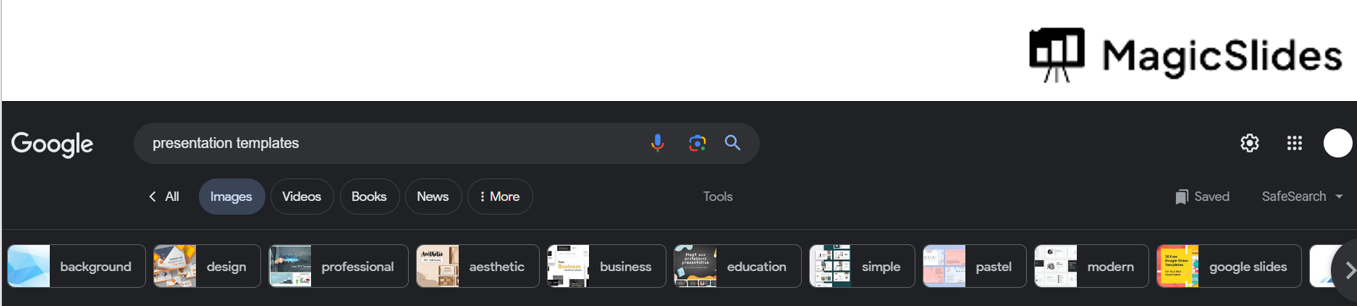
    Step 1: Use presentation templates.

    Gather inspiration from design websites, social media platforms like Pinterest, or aesthetic design communities.
    notion image

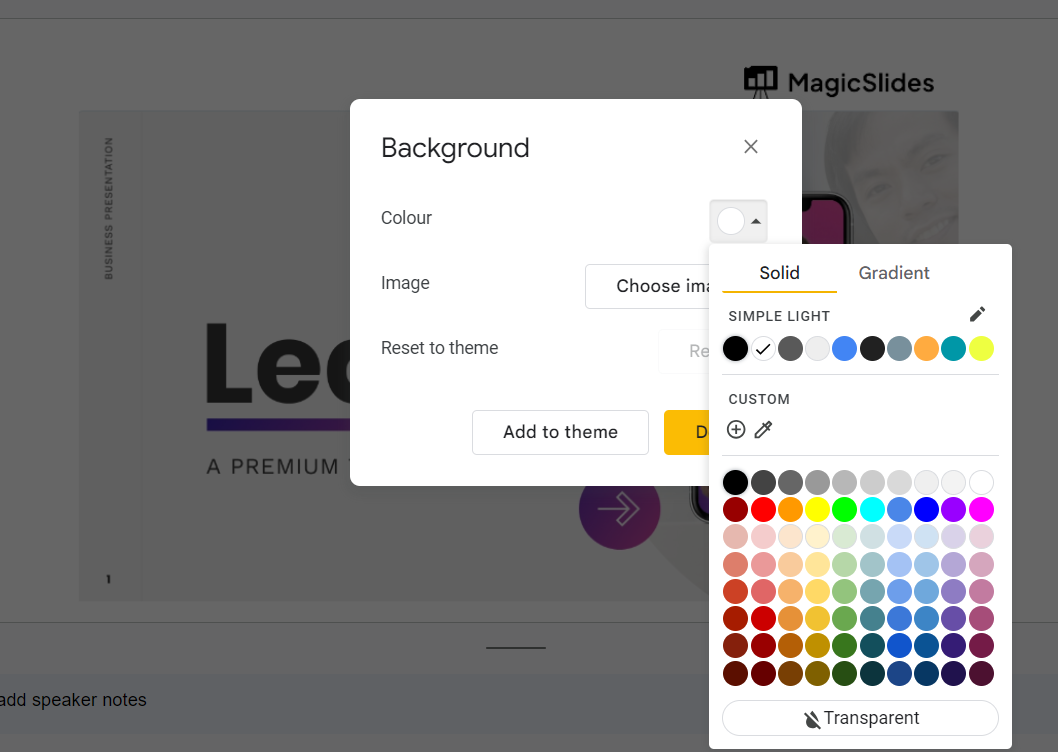
    Step 2: Select a suitable color scheme.

    Select a harmonious color scheme with 2-4 main colors. Consider using color palettes from websites like Adobe Color or Coolors to ensure colors complement each other.
    notion image

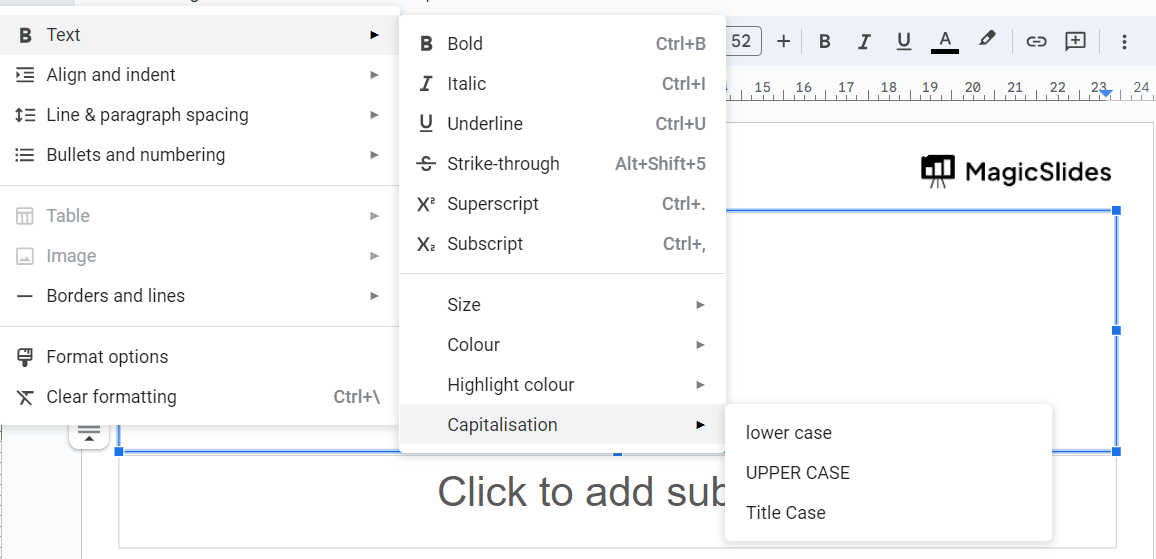
    Step 3: Use two to three fonts only.

    Choose 2-3 complementary fonts—one for headings, another for body text. Ensure legibility and consistency.
    notion image

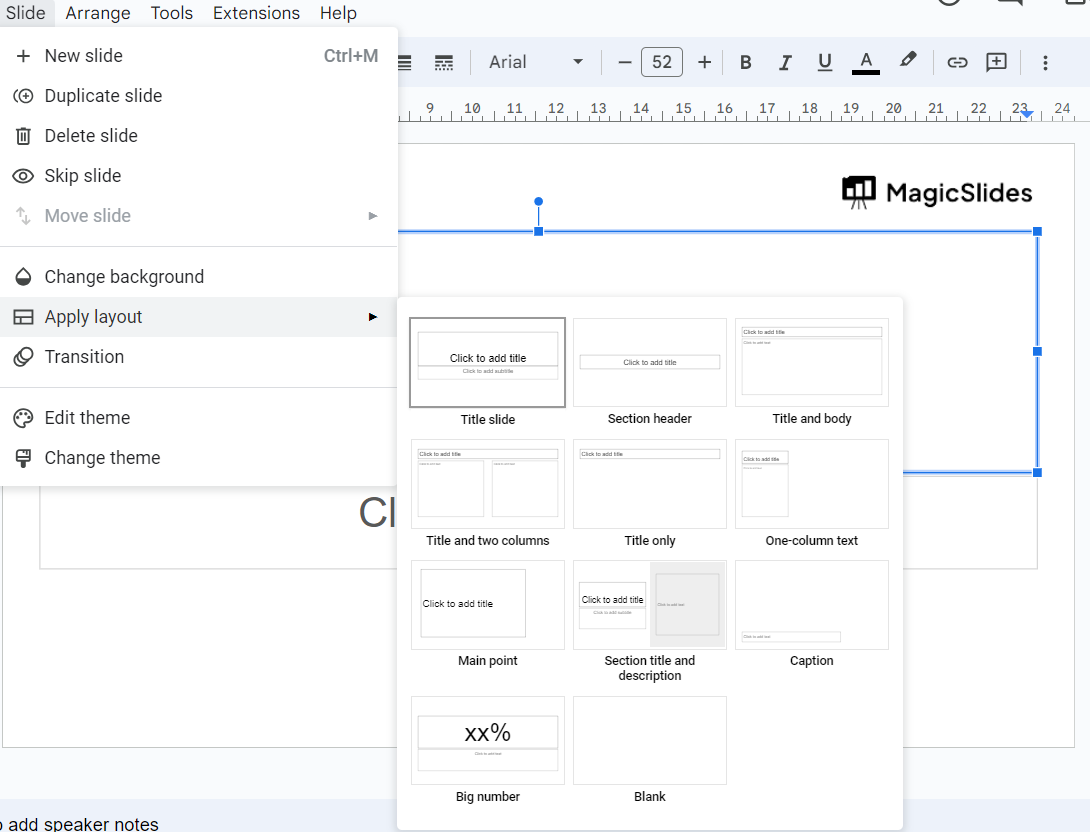
    Step 4: Slide Layouts:

    Utilize consistent slide layouts for headings, content, and images. Maintain alignment and spacing throughout the presentation.
    notion image

    Step 5: Visual Hierarchy:

    Arrange content in a hierarchy—important elements should stand out. Use size, color, and placement to guide the viewer's eye.

    Step 6: Icons and Illustrations:

    Incorporate icons or custom illustrations that match your theme. Websites like Flaticon and Freepik offer free vector resources.

    Step 7: Consistency:

    Maintain a consistent style across all slides. This includes colors, fonts, and design elements.

    Step 8: Save the chanes & download you design.
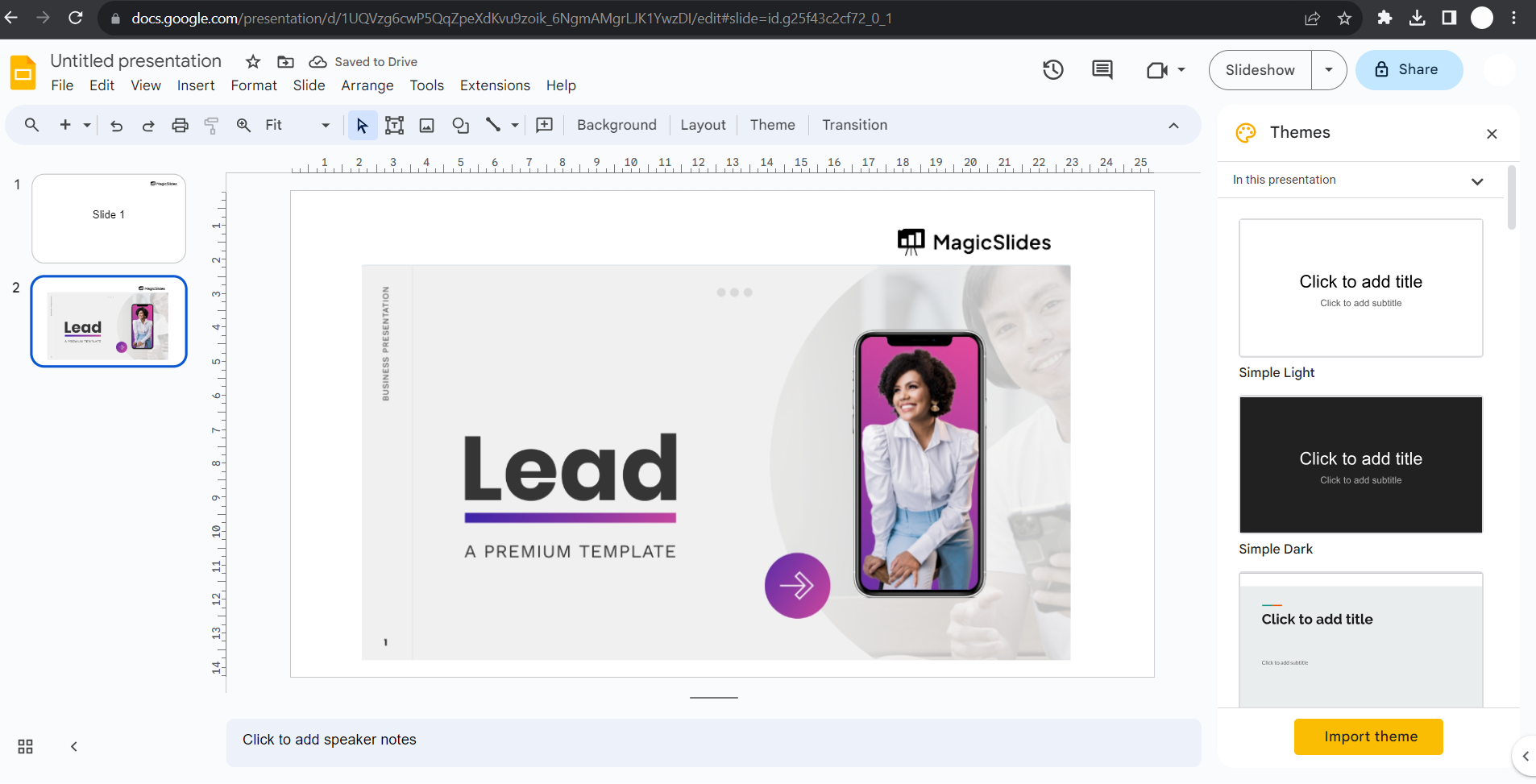
    notion image
    Remember, aesthetics are subjective, so tailor your design choices to your intended audience and purpose. Strive for a presentation that effectively conveys information while delighting the viewer with a visually pleasing experience.

    Conclusion:

    You've successfully added animations to your Google Slides presentation, transforming it into a visually engaging experience. Animations help convey information dynamically, keeping your audience focused and enhancing the overall impact of your message. Experiment with different transition styles and timings to find the perfect balance for your content.
    Elevate your presentations by incorporating animations, and watch as your audience becomes more immersed and captivated by your storytelling.
    Adding animation to your slides is one part of making it presentable, to win a stellar impression while presenting you have to make it aesthetic, which you can know from here

    Share on socials

    About the author

    Ajay Sai profile photo
    Ajay Sai— writer at MagicSlides.app

    Ajay have been a techincal writer for more than 2+ years. from coding tutorials to using day to day apps he have helped 100k+ visitors with their various queries

    More from Ajay

    More from the blog

      250+ Good Morning Messages for Her (Romantic, Deep, Cute & Sweet)

      30 January 2026

      200+ Heart Touching Birthday Wishes for Sister (Short, Funny and More)

      29 January 2026

      50+ History Presentation Topics For 2026

      28 January 2026

      How to Add Music to Your Canva Presentation: A Step-by-Step Guide

      27 January 2026

      15 Quick Tips To Use ChatGpt At Work

      22 January 2026

      11 Best AI Tools for Business in 2025

      22 January 2026

      How to Create an Infographic That Clearly Communicates Your Message

      20 January 2026

      How to Create a Sales Presentation Template in Google Sheets

      20 January 2026

      How to Make a Pie Chart on Google Slides in Simple Steps

      19 January 2026

    Table of Contents

    Create Presentations in Seconds

    Transform your ideas into professional presentations with AI. No design skills needed.

    Try MagicSlides Free

    Create Stunning Presentations with AI in Seconds ✨

    Transform any topic, text, YouTube video, PDF or URL into beautiful presentations instantly with MagicSlides AI.

    Try MagicSlides AI Presentation Maker
    MagicSlides AI Presentation

    Footer

    Solutions

    • MagicSlides App
    • Google Slides Add-on
    • MagicSlides in Chrome
    • MagicSlides in Figma
    • MagicSlides in ChatGPT
    • MagicSlides in Telegram
    • MagicSlides in Zapier
    • MagicSlides in Figma Slides

    Tools

    • AI PPT Tools
    • QR Code Generator
    • Design Tools
    • PPT Templates
    • Slide Templates
    • PDF Tools

    Examples

    • AI Presentations
    • PPT by MagicSlides
    • Quizzes
    • Charts
    • Coloring Pages

    Resources

    • Changelog
    • Documentation
    • API Docs

    Top Blogs

    • How to Create Presentation Using ChatGPT
    • 100+ Best Seminar Topics for Students in 2025

    Company

    • Help
    • MCP
    • Blog
    • Pricing
    • Affiliate Program
    • Manage Subscription
    • Privacy Policy
    • Contact Us
    • Terms & Conditions
    • Refund & Cancellation Policy

    We also built

    • SheetAI - GPT For Sheets
    • MagicForm - GPT For Google Forms
    • SecondBrain.fyi
    • BlogBee - Free Blogging Platform

    © 2026 IndianAppGuy Tech Pvt Ltd. All rights reserved.