How to merge multiple Google Slides into one in few steps


Combining Google Slides into one presentation streamlines, sharing and presenting multiple decks.
Merging multiple Google Slides presentations into one is a simple process that allows you to consolidate content from different sources into a single, cohesive presentation.
Whether you're combining team slides for a group project or gathering materials for a final presentation, this guide will show you how to merge your slides quickly and efficiently.
To merge multiple Google Slides presentations into one, follow these steps:
Step 1: Open Google Slides:
Head over to slides.google.com, either open an existing presentataion or create one.
Step 2: Create a New Presentation:
Click the "+ New" button on the left-hand side and select "Google Slides" to create a new blank presentation. This will serve as the container for merging the others.
Step 3: Open the First Presentation to Merge:
Locate the first presentation you want to merge and open it.
Step 4: Copy All Slides:
Click on the first slide to select it.
Scroll to the last slide and, while holding down the "Shift" key (or "Ctrl" key on Windows/Linux) on your keyboard, click the last slide. This will select all the slides in the presentation.

Step 5: Copy the Slides:
Right-click on any of the selected slides, and from the context menu, choose "Copy."

Step 6: Switch to the New Presentation:
Go back to the new presentation you created in step 2. If it's still open, you can switch to it by clicking on its tab in your browser.
Step 7: Paste the Slides:
Right-click on any slide in the new presentation and select "Paste." This will paste all the slides you copied from the first presentation into the new one.
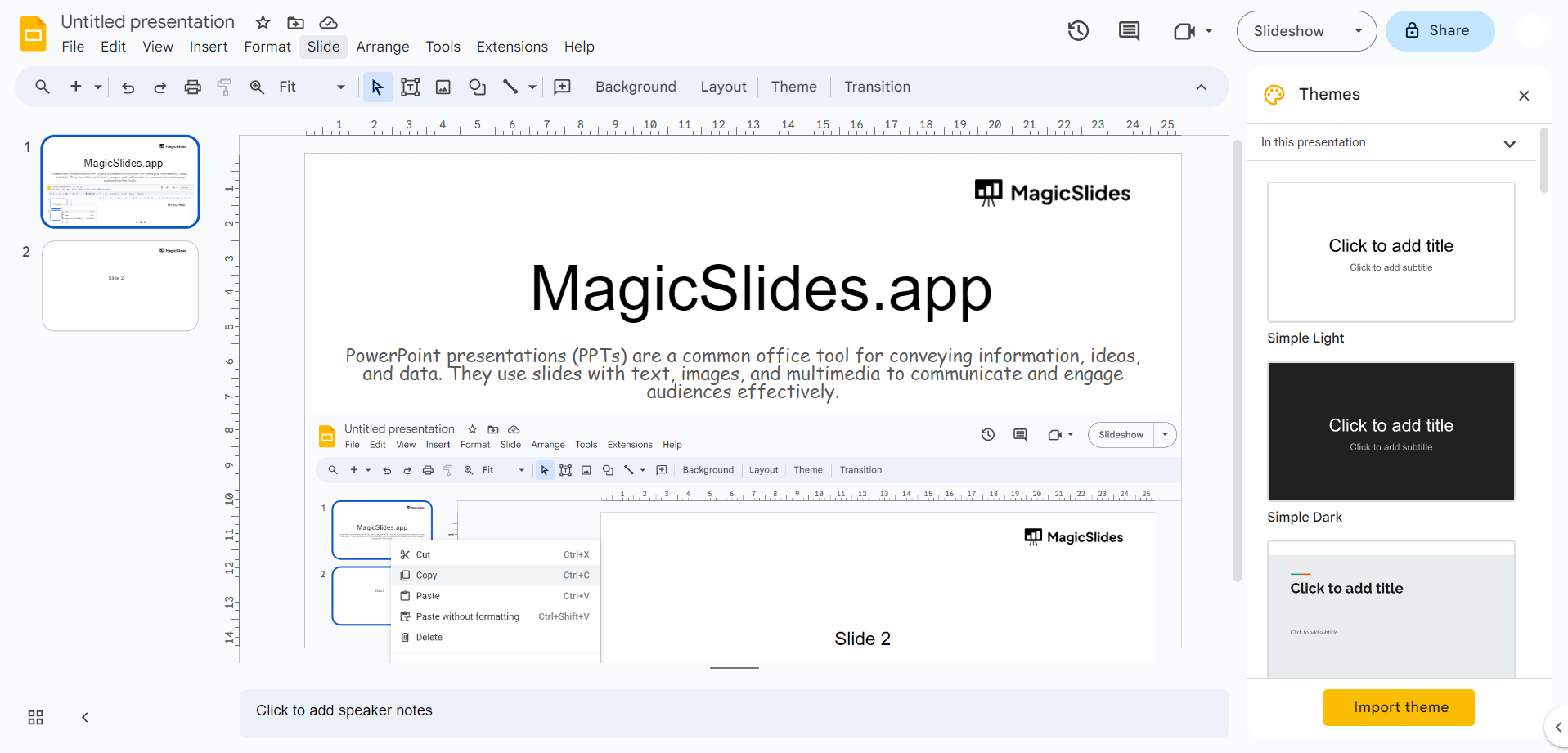
Step 8: Repeat for Additional Presentations:
To merge more presentations, open each one individually, select all the slides, copy them, switch to the new presentation, and paste them, as outlined in steps 3-7.
Step 9: Customize and Save:
Customize the merged presentation by adding or editing content, adjusting formatting, and adding transitions if necessary.
Be sure to save your merged presentation. Great, you’ve learnt to merge cells in Sheets, what if we tell that you can merge the slides also in Google Slides? Know how to merge multiple slides from here
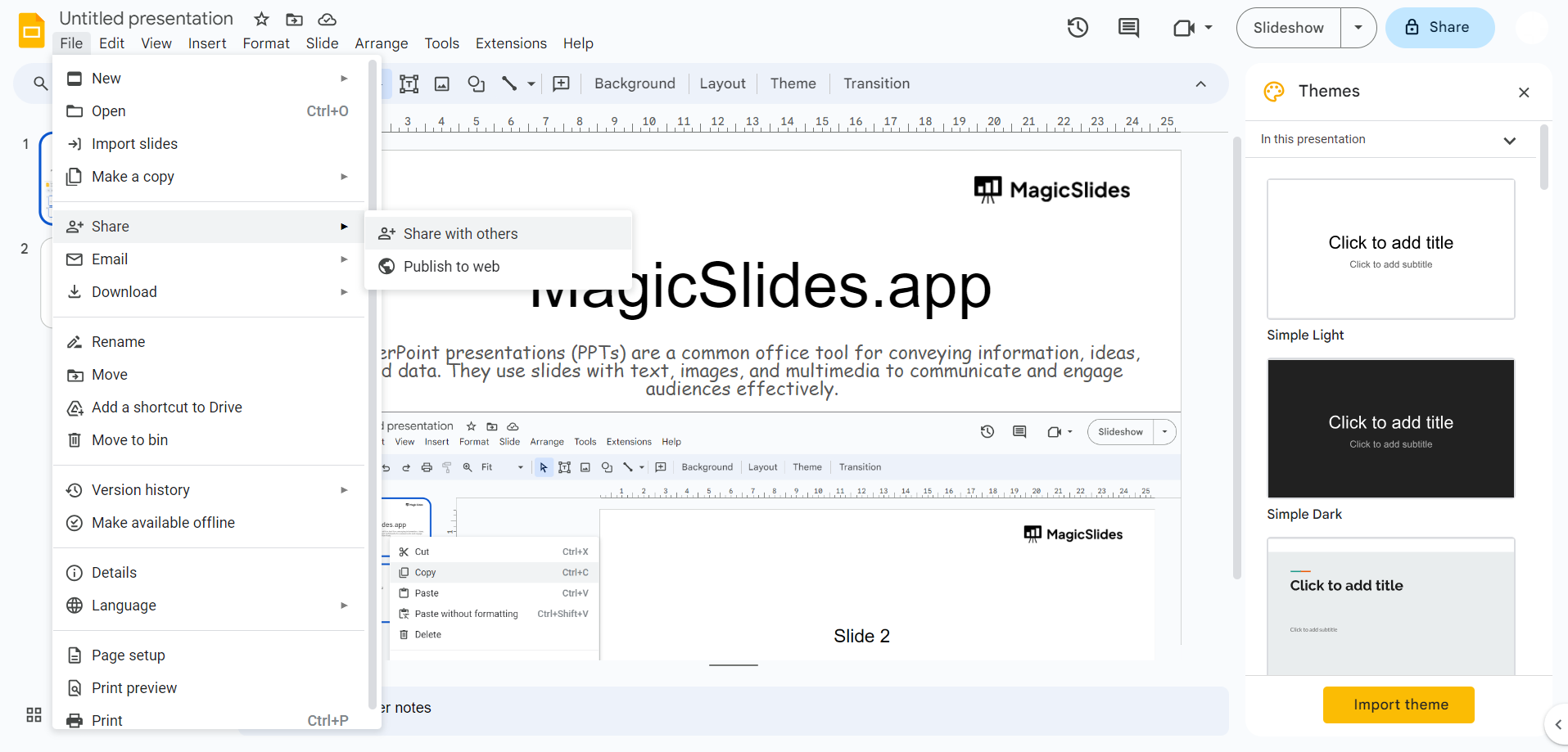
Step 10: Rename and Share:
Rename the merged presentation to something descriptive.
Share it with others or present it as needed.
Conclusion:
By following these steps, you can easily merge multiple Google Slides presentations into one cohesive document, streamlining your content and ensuring a polished final presentation.
Whether you're preparing for a group project or consolidating various sources, merging slides allows you to present a unified message with minimal effort.
Now that you know how to merge Google Slides, you can efficiently manage and organize your presentations with ease.
Tired of making presentations? what if we tell you you can make a presentation with just a prompt, convert YouTube videos to PPTs, convert website content to PPTs? Yes! checkout magicslides.app that does all and enjoy the free credits to make presentations in seconds.
FAQs can take you forward!
How can I merge multiple Google Slides presentations into one?
You can merge multiple Google Slides presentations by copying and pasting slides from one presentation into another or by using the "Import Slides" feature under the "File" menu.
Will the formatting be preserved when merging slides from different presentations?
Yes, the formatting is generally preserved, but you may need to adjust layouts or themes to ensure consistency across all slides.
Can I merge Google Slides presentations that have different themes?
Yes, but when merging slides with different themes, you may need to reapply or adjust the theme to ensure a cohesive look in the final presentation.


