How to Make an Image the Background in Google Slides: A Step-by-Step Guide


Learn how to set an image as the background in Google Slides with this easy, step-by-step guide to enhance your presentations.
Creating a visually appealing presentation can significantly enhance your audience's engagement and convey your message more effectively. One of the most straightforward yet impactful ways to customize your presentation is by setting an image as the background in Google Slides. This guide will walk you through the process of making an image the background in Google Slides, with a gentle nod to how tools like MagicSlides.app can further refine your presentation creation process.
Why Use an Image as a Background?
Before diving into the "how-to," it's worth understanding why you might choose to use an image as a background:
- Visual Appeal: A striking image can make your slides more visually appealing and memorable.
- Contextual Enhancement: Background images can add context to your content, making it easier for your audience to understand the theme or topic.
- Emotional Impact: Images can evoke emotions, making your presentation more powerful and engaging.
- Branding Opportunity: For businesses, using branded images as backgrounds can enhance brand recognition.
Choosing the Right Image
The choice of image is crucial. Here are a few tips for selecting the right background image:
- High Resolution: Ensure the image is high enough in resolution to not appear pixelated on large screens.
- Relevance: The image should be relevant to the presentation content.
- Appropriate Licensing: Make sure the image is free for use or properly licensed.
- Minimalist Style: Busy images can distract from the text. Opt for something that enhances readability.
Step-by-Step Guide to Setting an Image as a Background
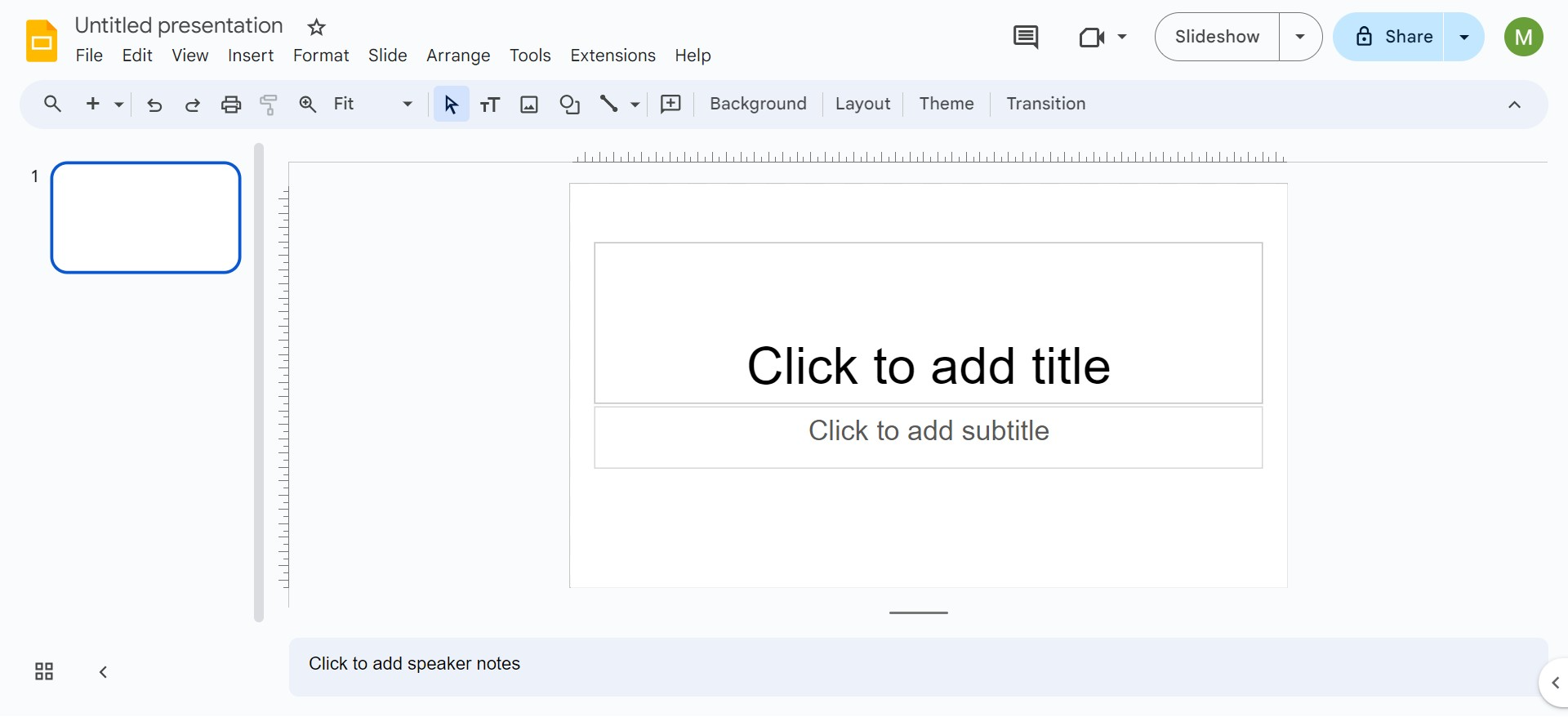
Step 1: Open Google Slides
Begin by opening your Google Slides presentation. If you haven’t created one yet, go to Google Slides and select a blank presentation or one of the templates.
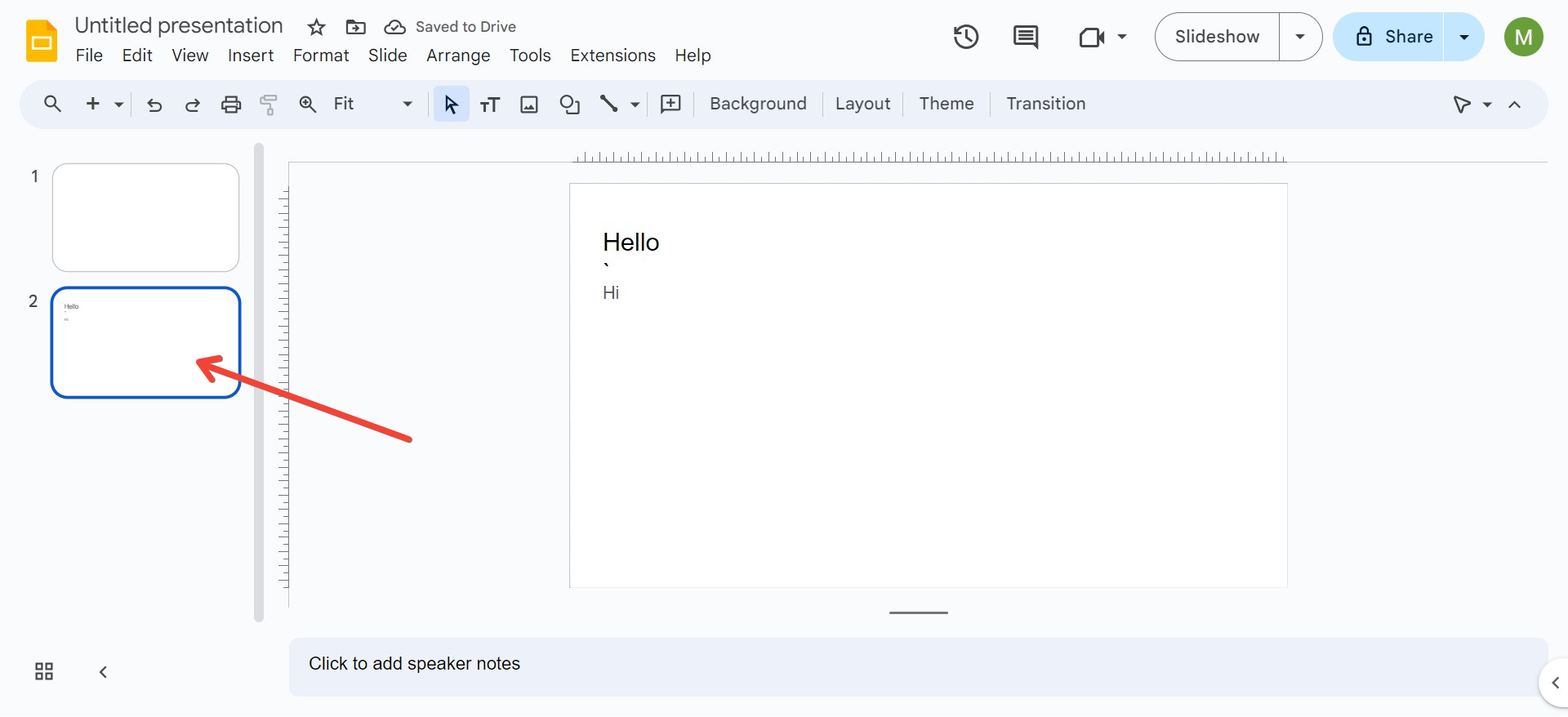
Step 2: Select the Slide
Choose the slide where you want to set the background image. If you want to apply the same background to all slides, you can do so by selecting all the slides in your presentation.
Step 3: Insert the Background Image
There are two primary methods to set an image as a background:
Method 1: Through Background Settings
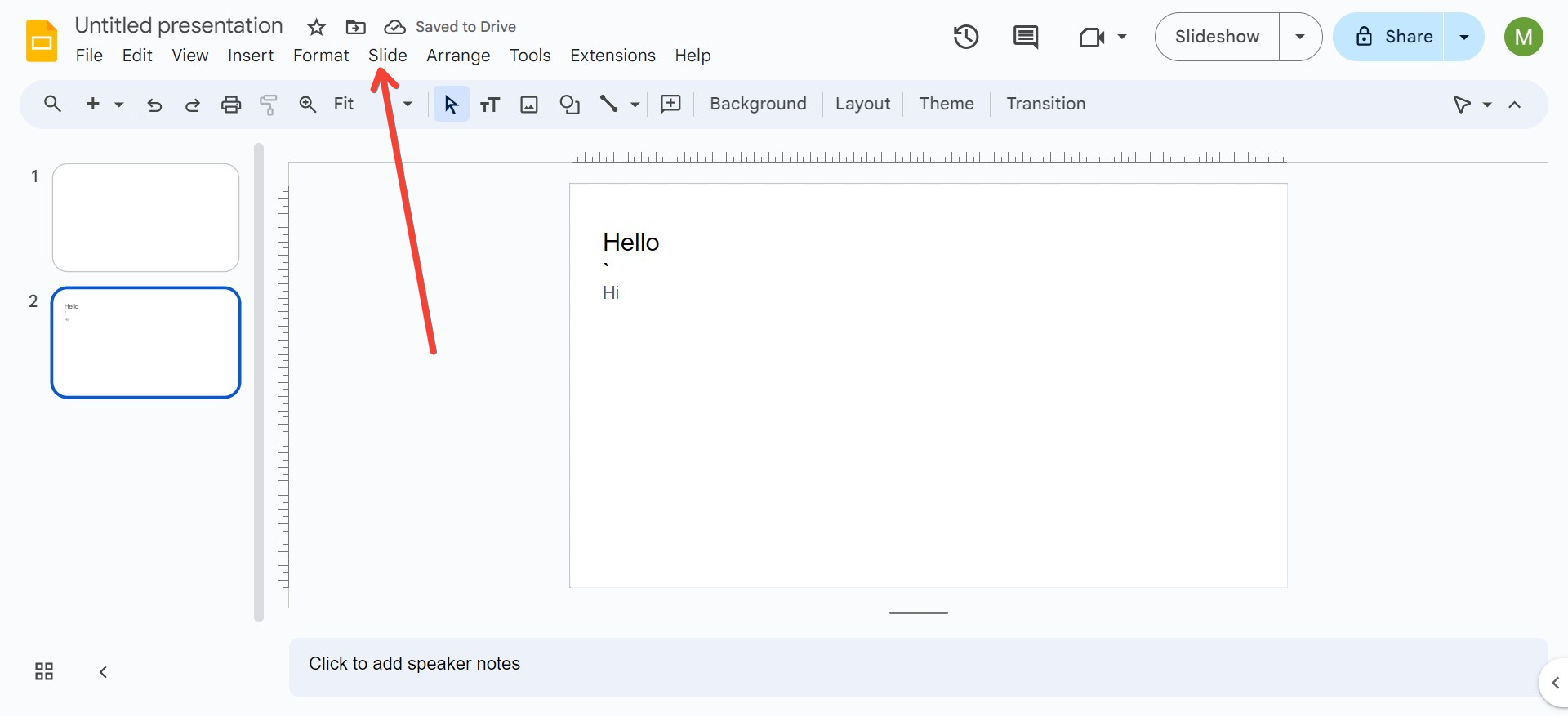
- Click on "Slide" in the top menu.
- Select "Change background" from the dropdown menu.
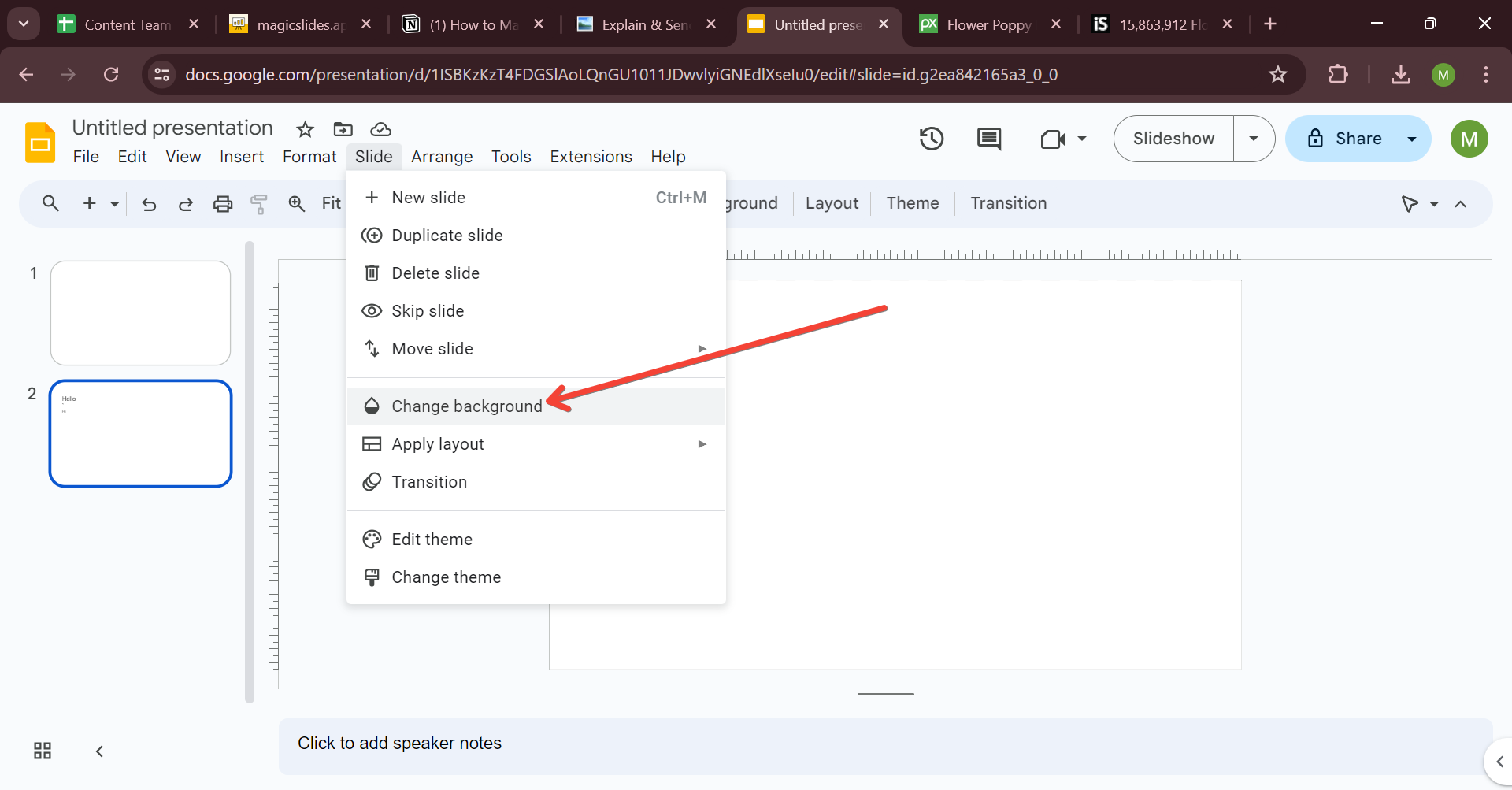
- A dialog box will appear. Click on "Choose" next to the Image option.
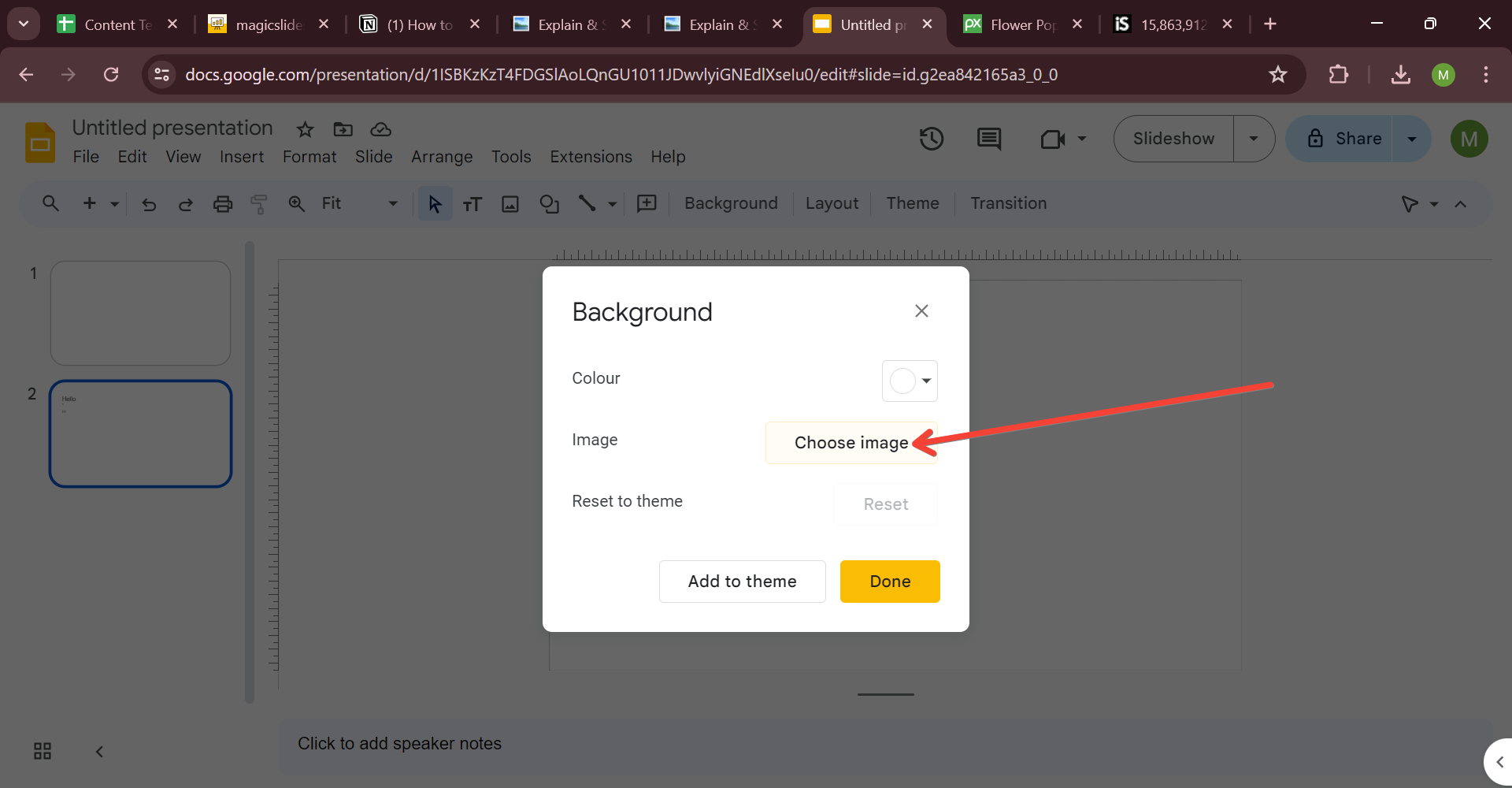
- Upload your image or enter the URL of an image.
- Click "Done" to apply the background.
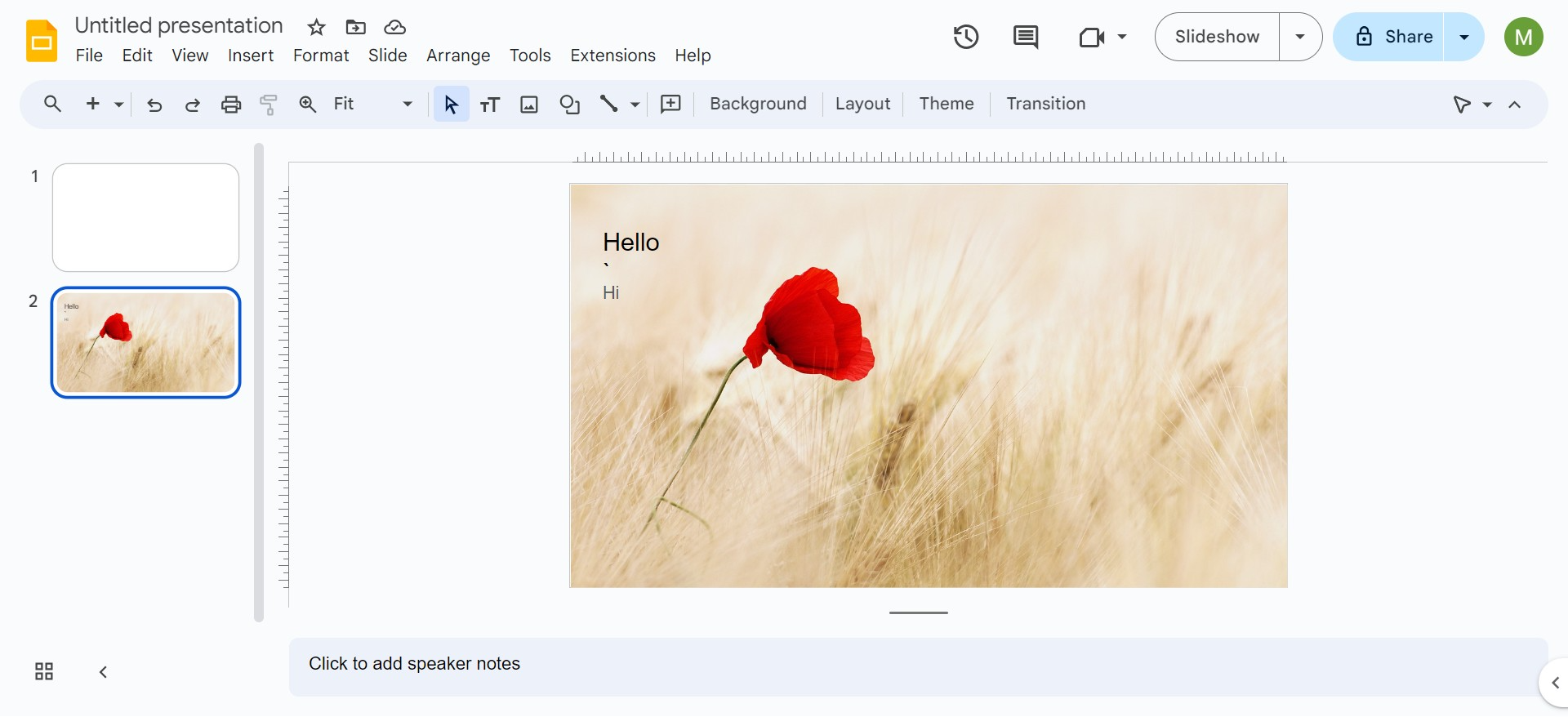
Method 2: Using the Image as a Full-Slide Element
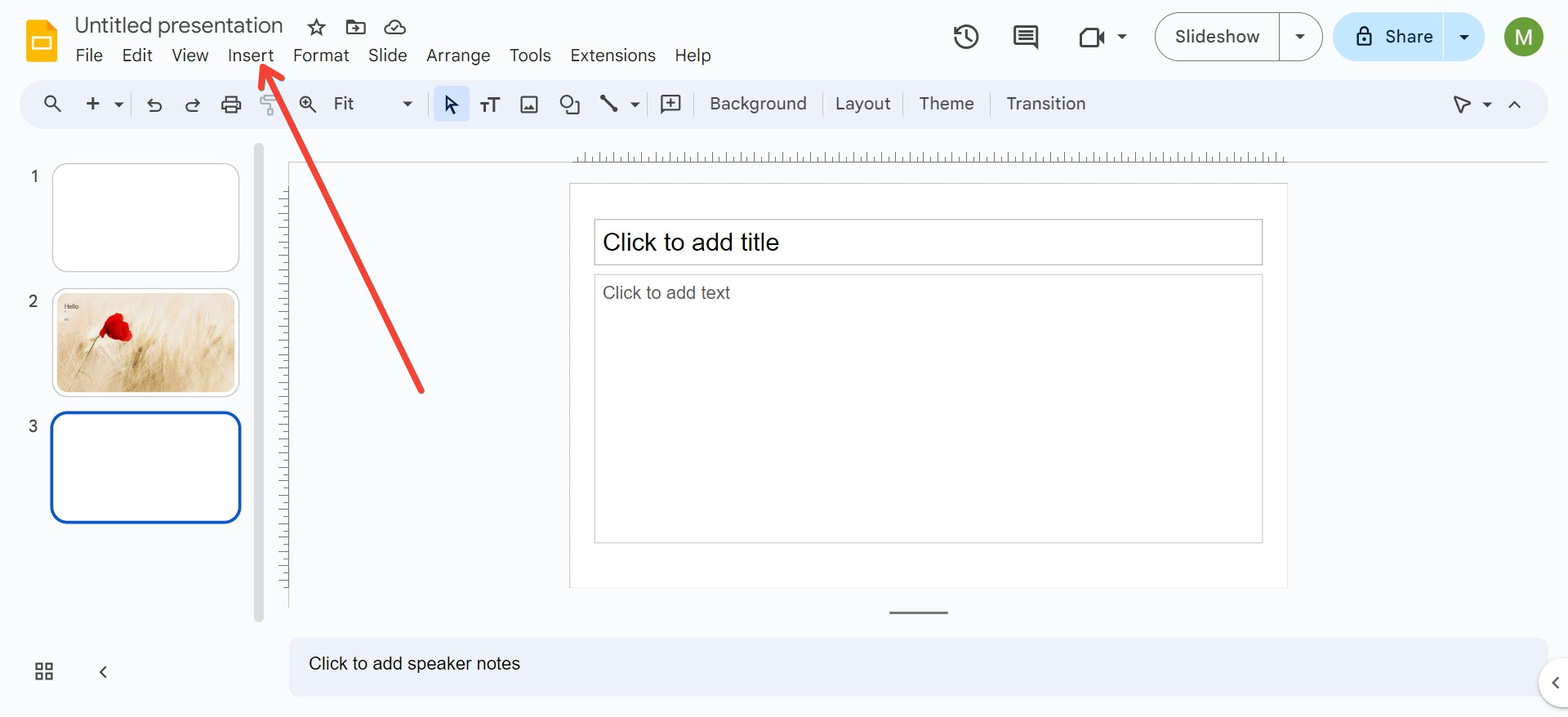
- Click "Insert" in the top menu.
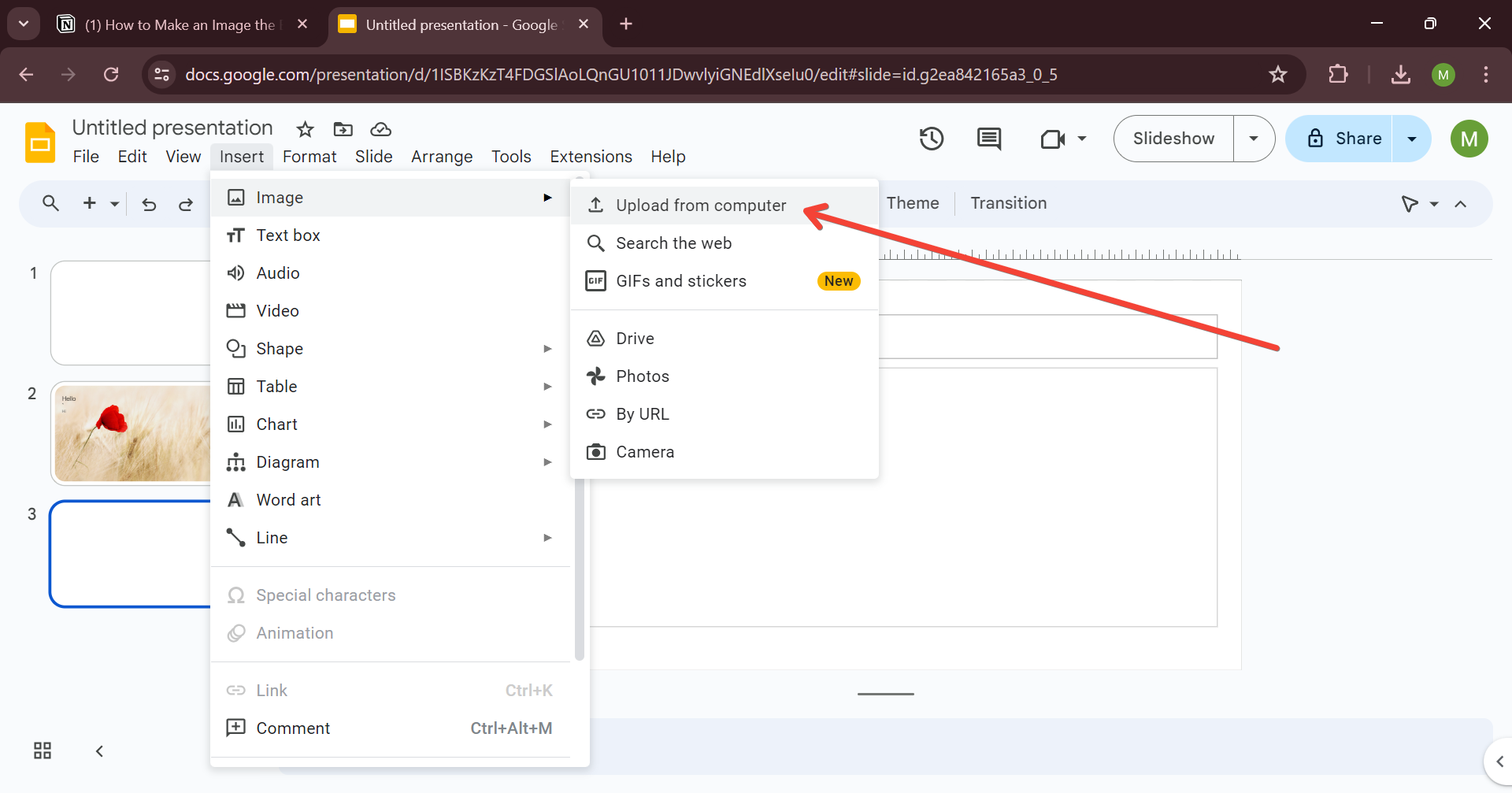
- Select "Image" and then choose how you want to upload your image (upload from computer, search the web, etc.).
- Once the image is inserted, resize it to cover the entire slide.
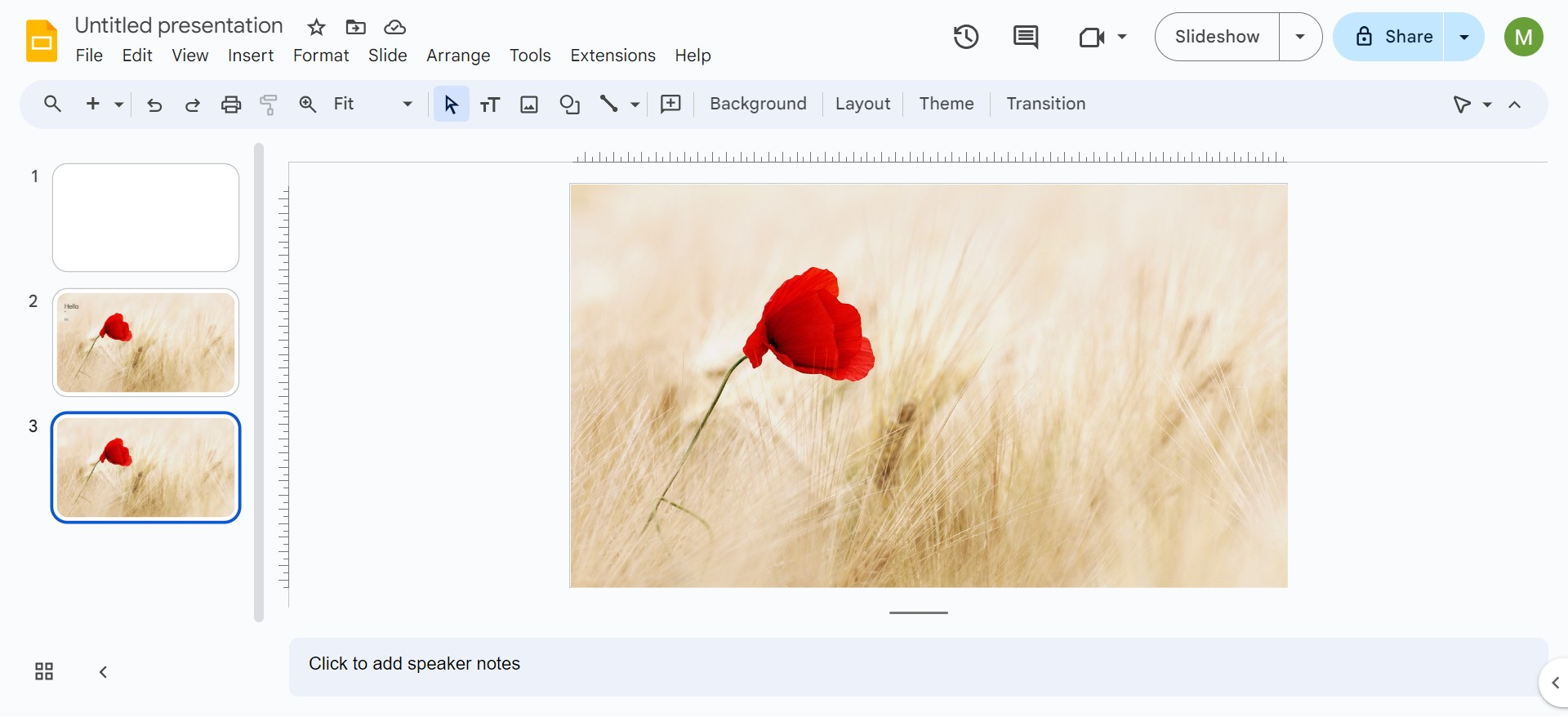
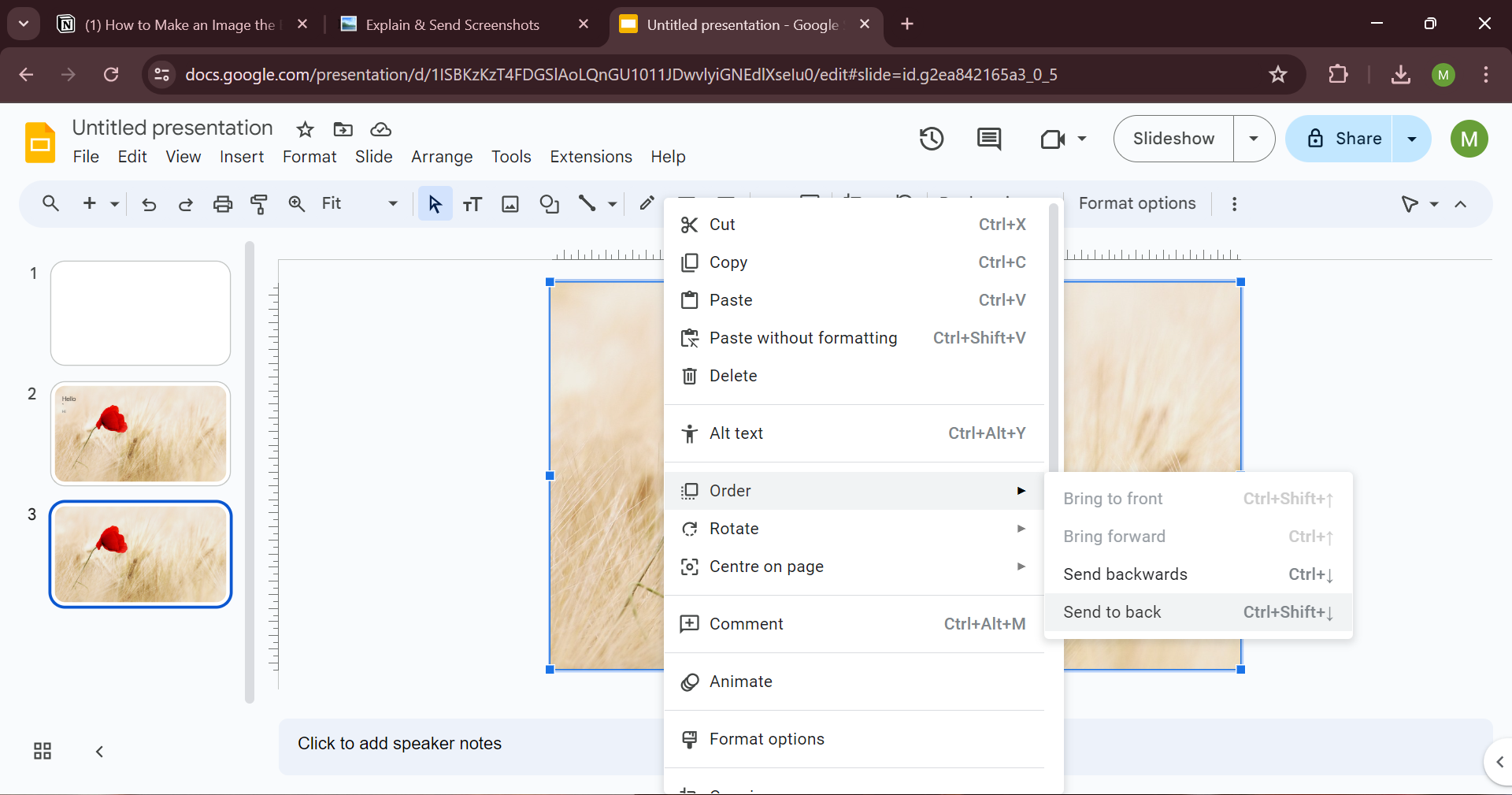
- Right-click the image, select "Order," and then "Send to back." This step ensures your text and other elements stay visible.
Step 4: Adjust for Readability
Once the image is set as the background, make sure that the text and other elements are easily readable. You may need to adjust the text color, size, or add a text shadow.
Step 5: Add Your Content
Continue adding your content to the slide. The background image should complement the text and other visuals without overwhelming them.
Utilizing Tools Like MagicSlides.app
While Google Slides offers robust options for creating presentations, utilizing a dedicated tool like MagicSlides.app can streamline your process and offer enhanced features, such as advanced design templates and easier integration of multimedia elements. These tools are designed to help both novice and seasoned presenters craft professional-level presentations more efficiently.
Conclusion
Setting an image as the background in Google Slides is a simple yet effective way to enhance your presentation's aesthetic appeal and engage your audience. By following these steps and choosing the right images, you can create a visually appealing and impactful presentation. Remember, tools like MagicSlides.app are there to further simplify and enhance your presentation creation process, making it more intuitive and dynamic.


