What are the ways that you can share your presentation so others can view it?


Discover various methods to share your presentation so others can easily view and access it.
Sharing your PowerPoint presentations effectively is crucial for successful communication, whether in a professional, academic, or personal setting. With various methods available, you can choose the one that best suits your needs and your audience’s preferences.
This blog post will explore different ways to share your PowerPoint presentations, including uploading to Google Drive, sharing directly from PowerPoint, using email, and leveraging online platforms.
Each method has its advantages, and we'll guide you through the steps to ensure your presentations are shared seamlessly.
Different Ways to Share Your PowerPoint Presentation
Method #1: Uploading to Google Drive
Uploading your PowerPoint presentation to Google Drive is a simple and effective way to share it with others. This method ensures your audience can access the presentation from any device without needing specific software.
Step 1: Save Your PowerPoint Presentation
Open your PowerPoint presentation.
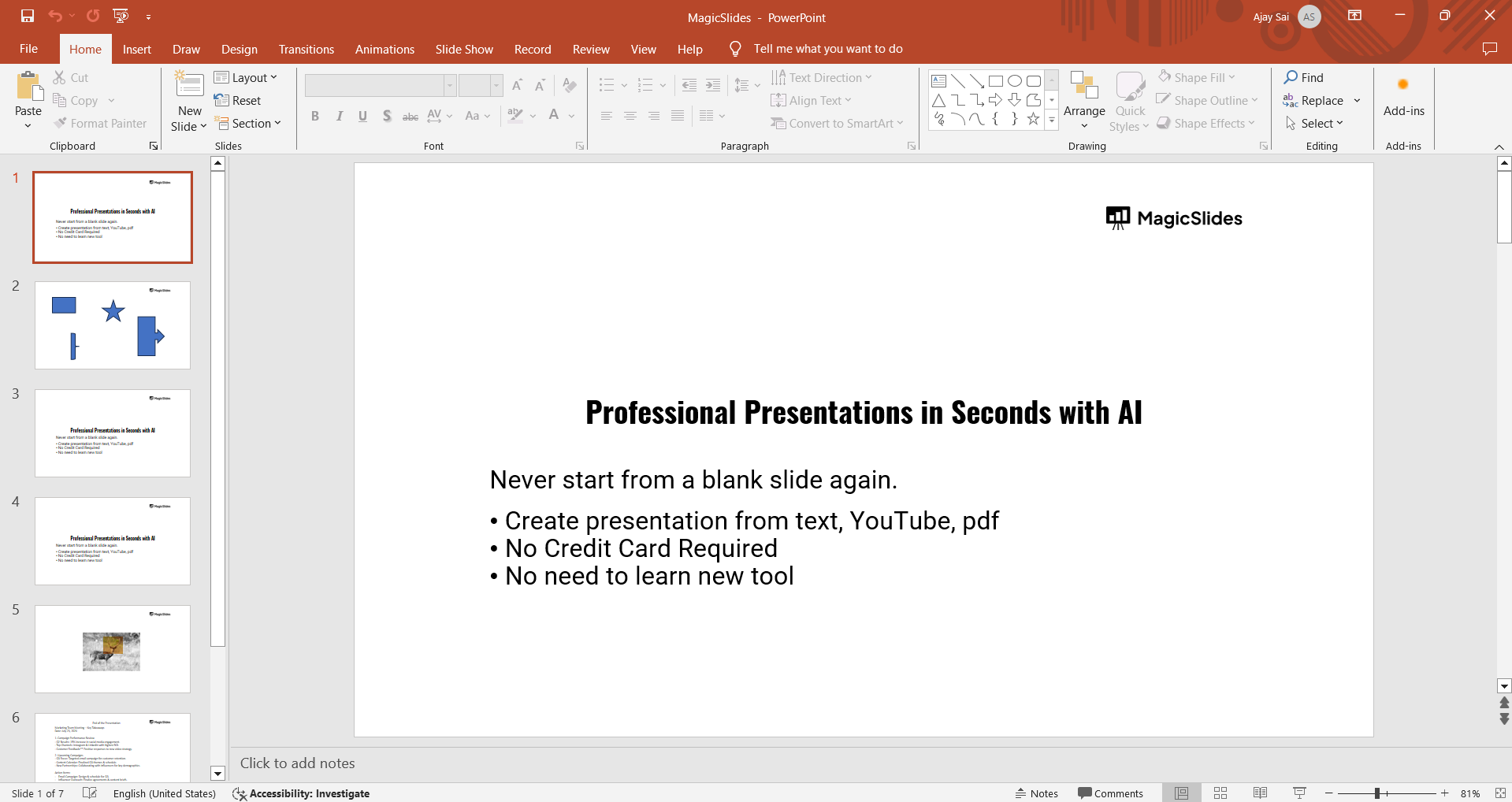
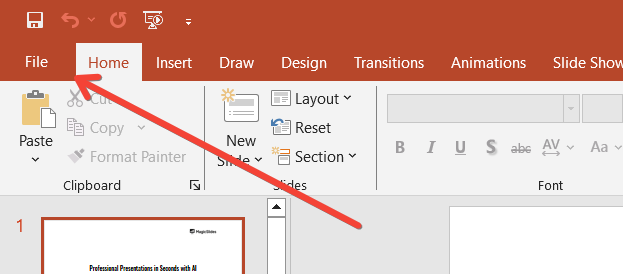
Click on "File" in the top-left corner.
Select "Save As" and choose the location on your computer where you want to save the file.
Give your file a name and click "Save."
Step 2: Upload to Google Drive
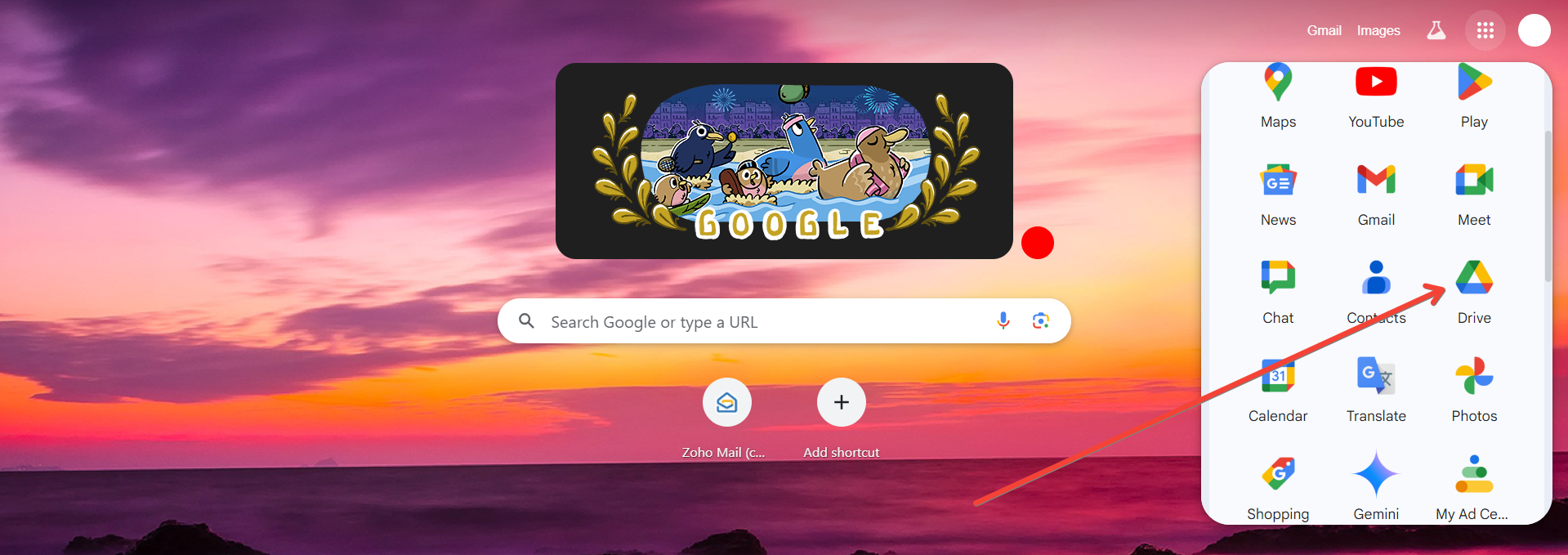
Open Google Drive and log in with your Google account.
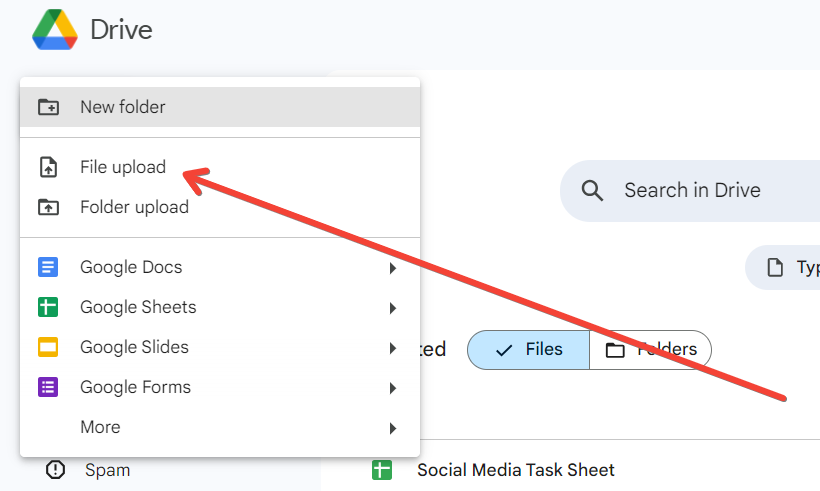
Click on the "+ New" button on the left-hand side.
Select "File upload."
Navigate to the location where you saved your PowerPoint file, select it, and click "Open."
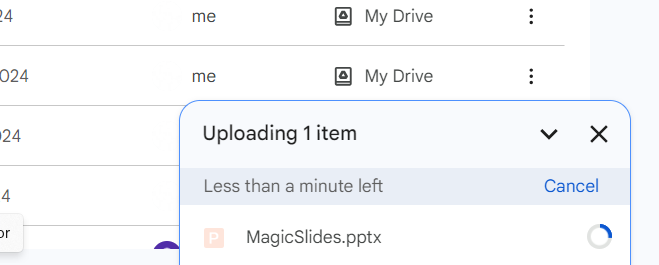
Wait for the file to upload. Once uploaded, you'll see it in your Drive.
Step 3: Generate a Shareable Link
Right-click on the uploaded PowerPoint file.
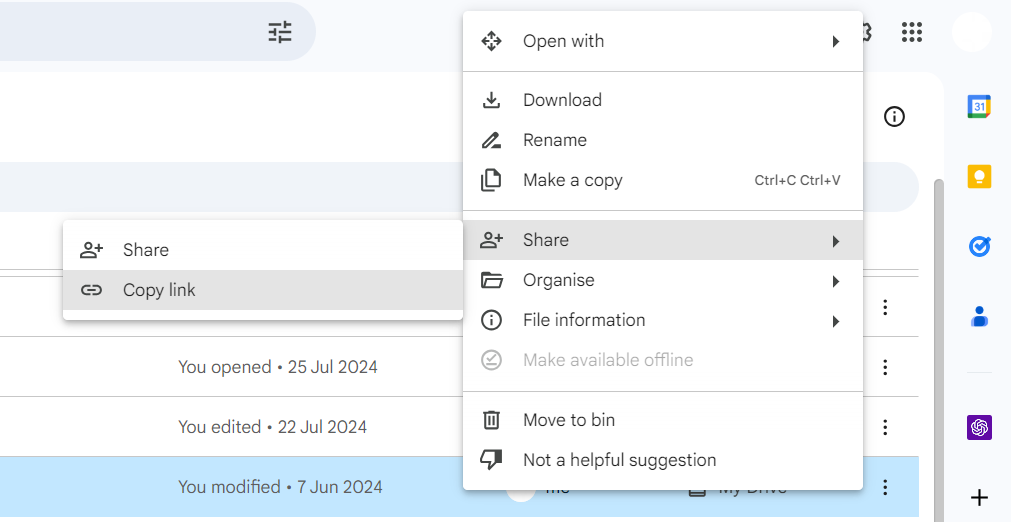
Select "Get link."
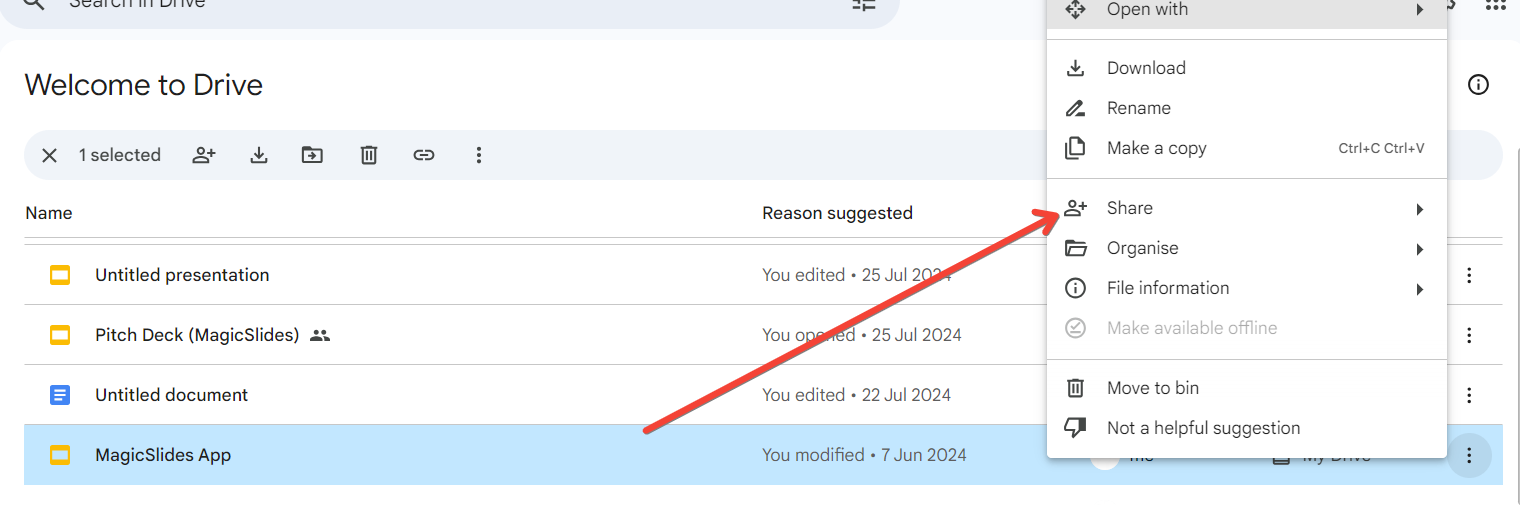
In the popup, click on "Change to anyone with the link" to make it accessible.
Copy the generated link.
Step 4: Share the Link
Copy the link. Paste the link into an email, social media post, messaging app, or embed it on a website.
Method #2: Sharing Directly from PowerPoint
PowerPoint also offers an option to share presentations directly by generating a shareable link. Here’s how to do it:
Step 1: Open Your PowerPoint Presentation
Ensure that your PowerPoint presentation is open and ready to be shared.
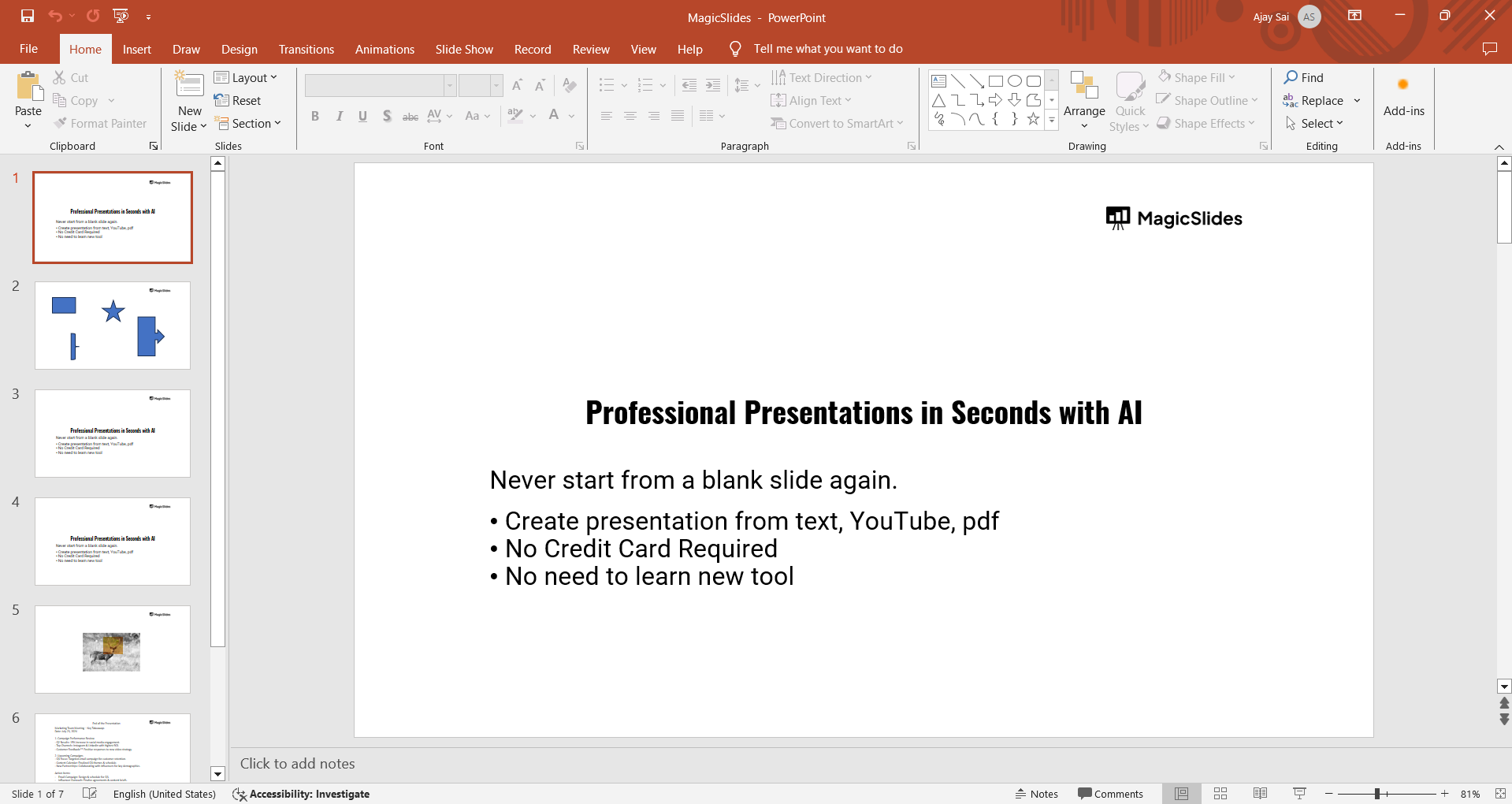
Open your PowerPoint presentation.
Step 2: Share as a Link
Generate a shareable link directly from PowerPoint.
Click on "File" in the top-left corner.
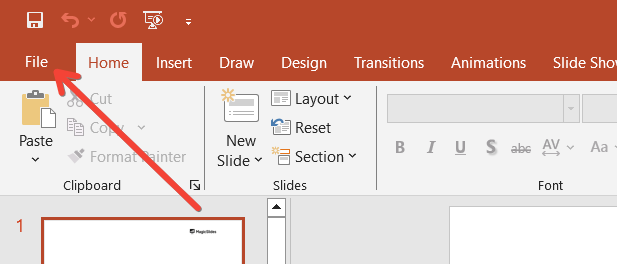
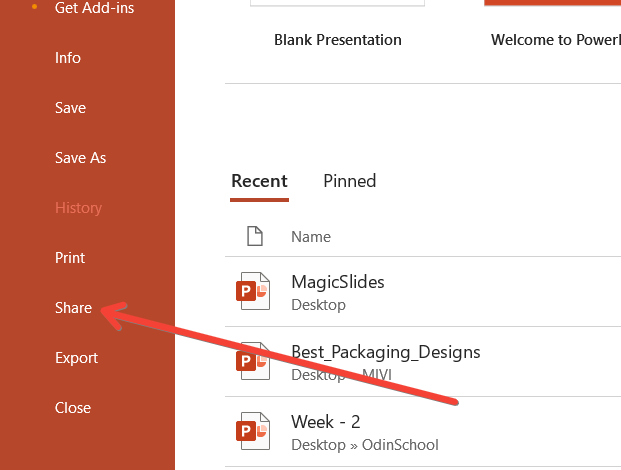
Select "Share" from the menu.
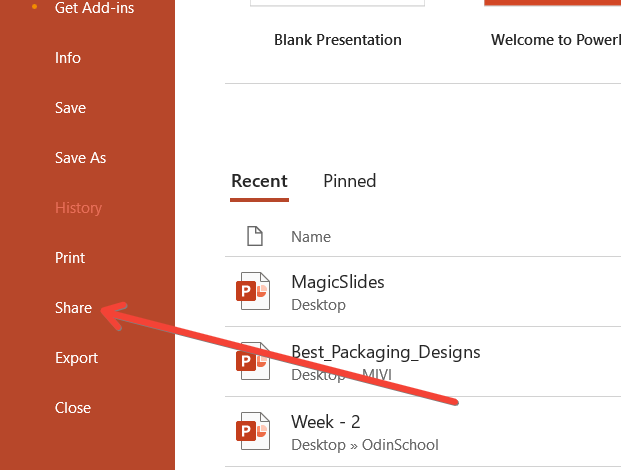
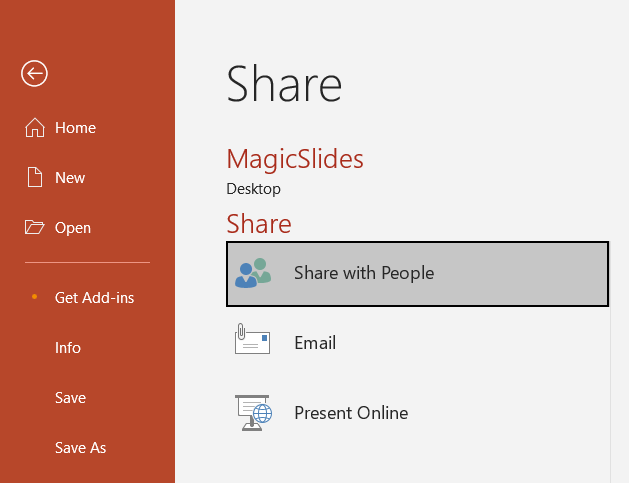
Click on "Get a sharing link" or "Share with people."
Choose "Anyone with the link can view" to ensure accessibility.
Copy the generated link.
Step 3: Share the Link
Distribute the link to your intended audience. Copy the link. Paste the link into an email, social media post, messaging app, or embed it on a website.
Method #3: Sending via Email
Email is a classic and straightforward way to share your PowerPoint presentation, especially for smaller files.
Step 1: Save Your PowerPoint Presentation
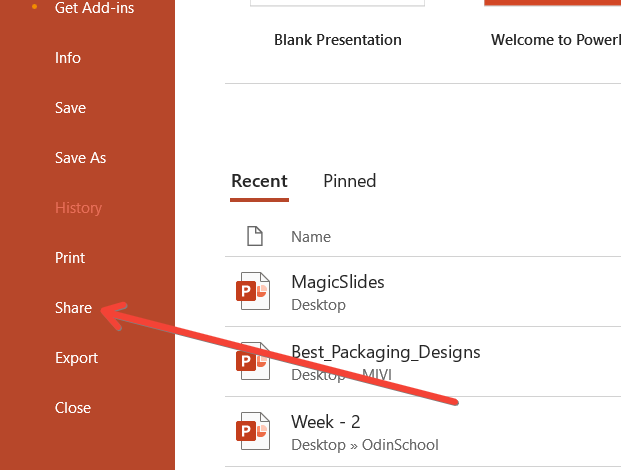
Open your PowerPoint presentation. Click on "File" in the top-left corner. Select "Save As" and choose the location on your computer where you want to save the file. Give your file a name and click "Save."
Step 2: Attach and Send via Email
Open your email client (e.g., Gmail, Outlook).
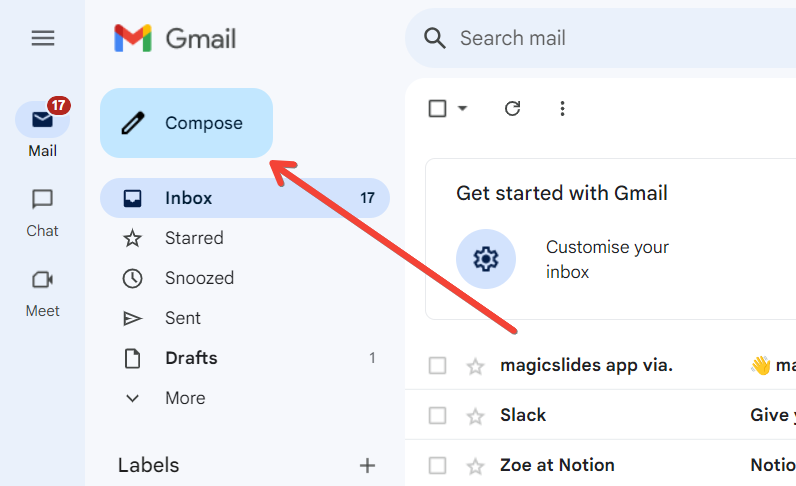
Compose a new email.
Click on the attachment icon (usually represented by a paperclip).
Navigate to the location where you saved your PowerPoint file, select it, and click "Open."
Add recipients, subject, and message.
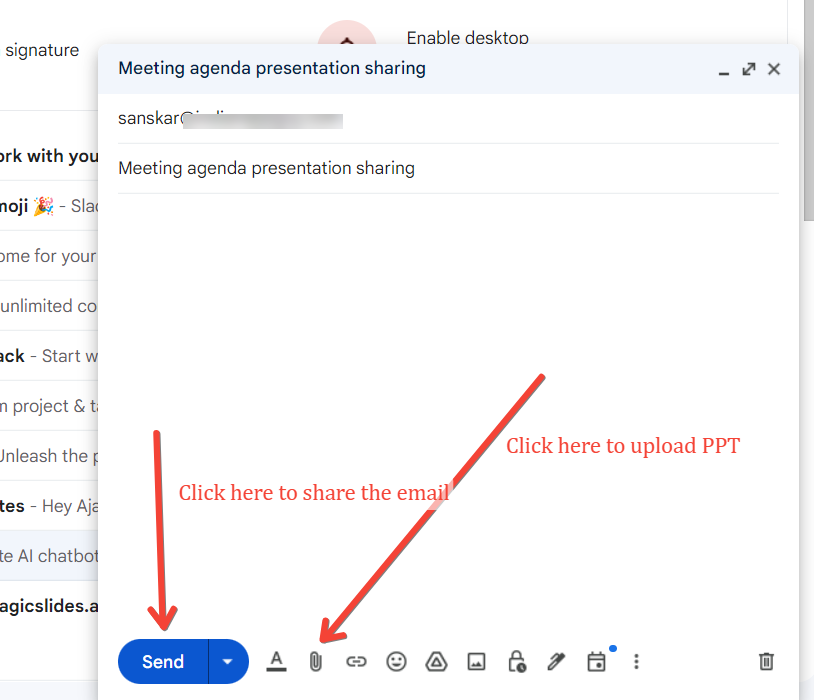
Click "Send."
Method #4: Using Online Platforms
Online platforms like SlideShare or LinkedIn offer a way to share your presentation with a broader audience.
Step 1: Save Your PowerPoint Presentation
Open your PowerPoint presentation. Click on "File" in the top-left corner.
Select "Save As" and choose the location on your computer where you want to save the file.
Give your file a name and click "Save."
Step 2: Upload to SlideShare
Go to SlideShare and log in or create an account.

Click on "Upload" in the top-right corner.
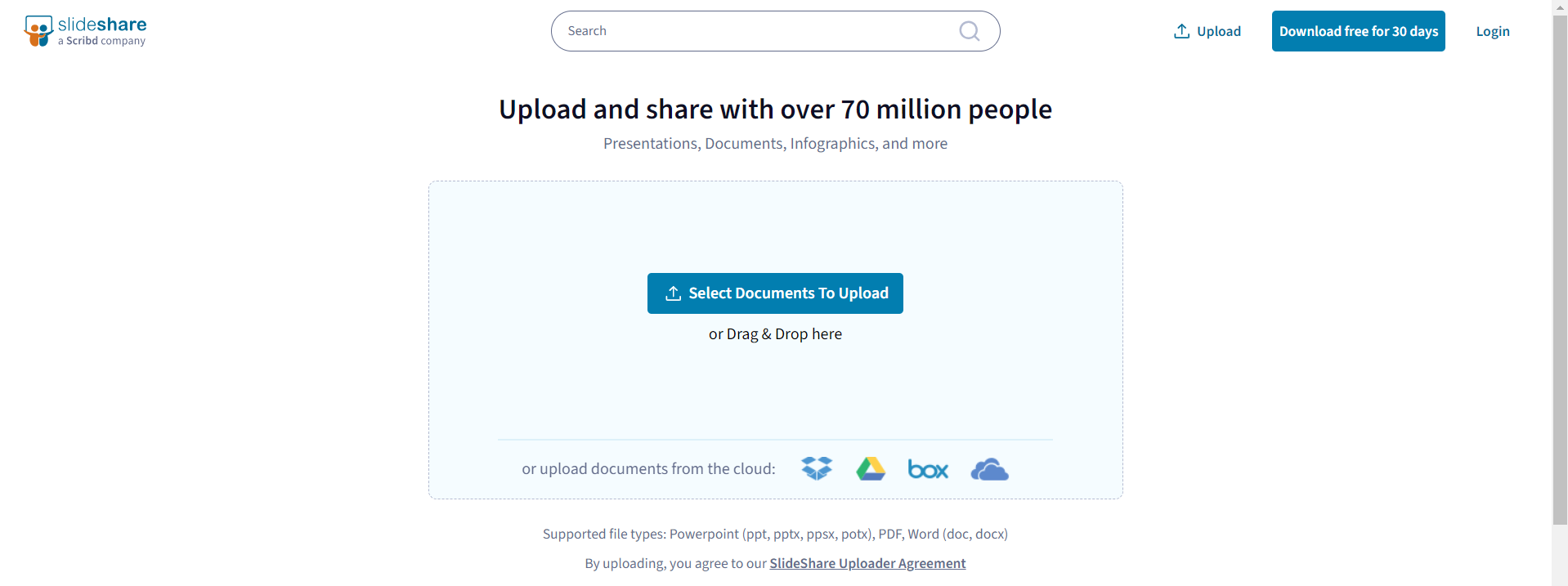
Select your PowerPoint file and click "Open." Add a title, description, and tags. Choose the privacy settings (public or private). Click "Publish."
Step 3: Share the Link
Once published, you’ll receive a link to your presentation. Share the link via email, social media, or embed it on a website.
Conclusion
Sharing your PowerPoint presentations has never been easier, thanks to the variety of methods available.
Whether you prefer uploading to Google Drive, sharing directly from PowerPoint, sending via email, or using online platforms, each method offers unique benefits tailored to different needs and audiences.
By following the steps outlined in this guide, you can ensure your presentations are shared efficiently and effectively. Choose the method that best suits your requirements and enhance your communication by making your presentations easily accessible to your audience.
Frequently Asked Questions:
How do I ensure my PowerPoint presentation remains private when sharing via Google Drive?
To ensure your presentation remains private:
Set Permissions: When generating the shareable link, choose "Restricted" and add specific email addresses of the people you want to share the presentation with.
Limit Access: Set permissions to view only, preventing others from editing or commenting.
Add Expiration Dates: For temporary access, set an expiration date for the link so it becomes invalid after a certain period.
Can I share a PowerPoint presentation directly from PowerPoint if I don't have an internet connection?
No, sharing directly from PowerPoint by generating a shareable link requires an internet connection. If you don’t have internet access, consider saving the presentation to a USB drive or using another offline method to share it, such as sending it via email once you have an internet connection.
What are the file size limitations for sending a PowerPoint presentation via email?
Most email clients have a file size limit for attachments:
- Gmail: Up to 25 MB per email. If the file exceeds this limit, Gmail automatically uploads it to Google Drive and sends a link instead.
- Outlook: Up to 20 MB per email. Larger files can be sent via OneDrive with a link.
- Yahoo Mail: Up to 25 MB per email. Larger files can be sent using Dropbox integration.
- Other Email Clients: Check the specific file size limits as they can vary.


