Addon google slides iconPPT with AISlide TemplatesPPT TemplatesPricingBlog
    PPT with AISlide TemplatesPPT TemplatesPricingBlog
    1. Home
    2. Blog
    3. What we have to type in the run dialog box to open PowerPoint


    What we have to type in the run dialog box to open PowerPoint

    Ajay Sai

    Published By

    Ajay Sai
    Mohit Kumar Jha

    Approved By

    Mohit Kumar Jha

    Published On

    November 12th, 2025

    Reading Time

    3 min read

    Quickly open PowerPoint using the Run dialog box with this easy, time-saving method

    Knowing how to quickly open applications on your computer can save you time, especially when you're working on a project.
    One of the fastest ways to open Microsoft PowerPoint is by using the Run dialog box in Windows.
    This method is particularly useful if you're looking to bypass the Start menu or taskbar shortcuts.
    In this blog post, we'll guide you through the steps to open PowerPoint using the Run dialog box, helping you get started with your presentation in no time.

    What we have to type in the run dialog box to open PowerPoint

    Step 1: Open the Run Dialog Box

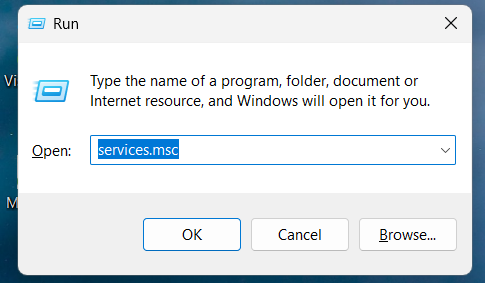
    To begin, you need to open the Run dialog box. You can do this quickly by pressing the Windows key + R on your keyboard.
    notion image
    This keyboard shortcut instantly brings up the Run dialog box, which allows you to open various programs by typing in specific commands.
    Text in data visualizations enhances understanding, providing context and clarity to key insights.

    Step 2: Type the Command for PowerPoint

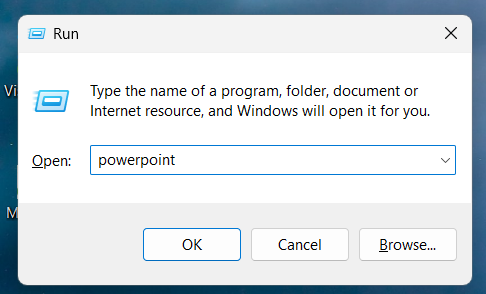
    Once the Run dialog box is open, you'll see a text field labeled "Open:".
    In this field, type the command powerpnt (without the quotation marks). This is the shortcut command that tells Windows to open Microsoft PowerPoint.
    notion image

    Step 3: Press Enter or Click OK

    After typing the command, you have two options to proceed.
    You can either press the Enter key on your keyboard or click the OK button in the Run dialog box.
    This action will execute the command and launch Microsoft PowerPoint on your computer.

    Step 4: PowerPoint Opens

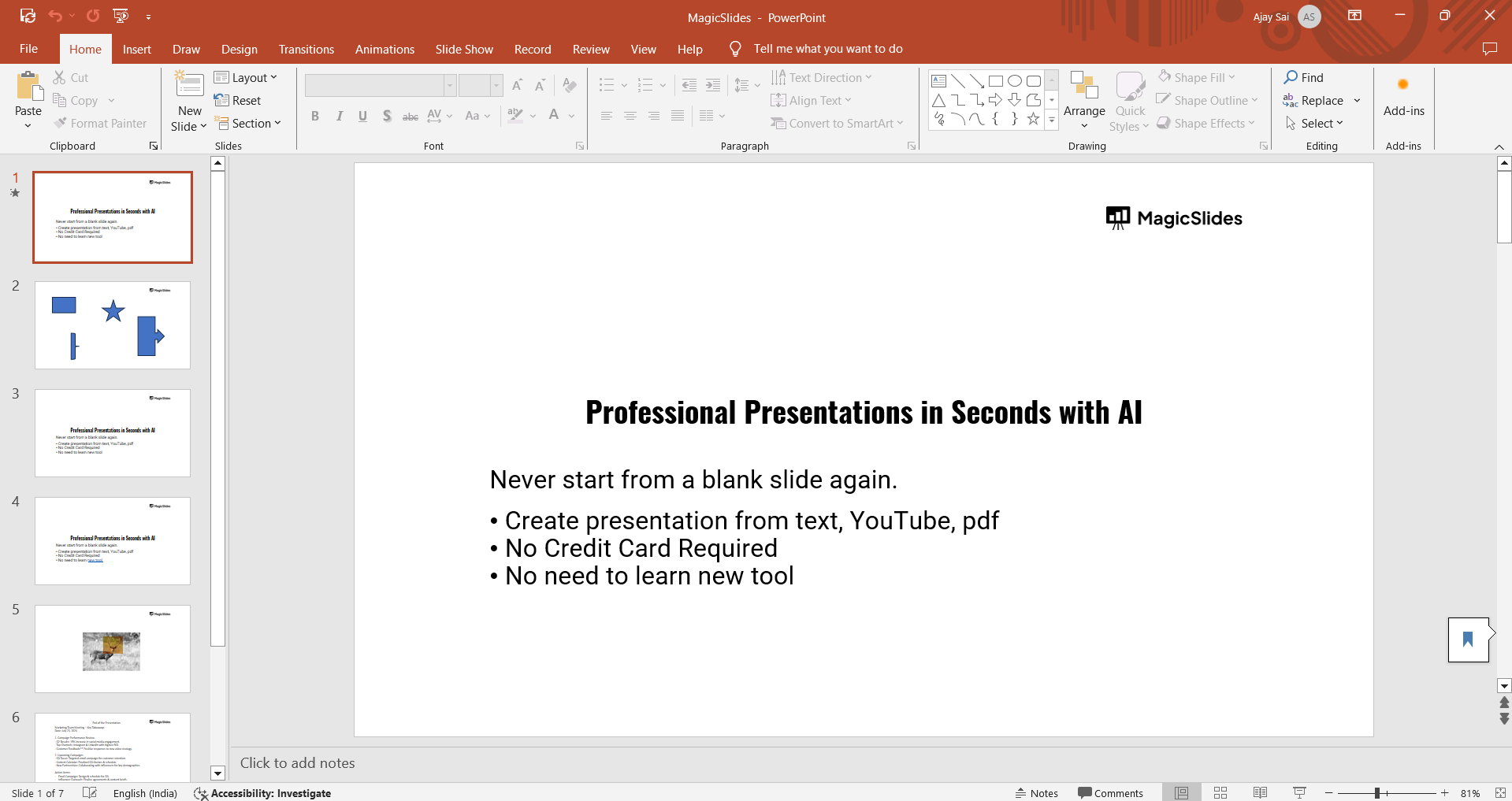
    Within a few seconds, Microsoft PowerPoint should open, and you'll be taken directly to the application.
    notion image
    From here, you can create a new presentation, open an existing one, or start working on your slides right away.

    Conclusion

    Using the Run dialog box to open PowerPoint is a quick and efficient method that can streamline your workflow.
    Whether you're in a hurry or just prefer using keyboard shortcuts, this technique is a great way to access PowerPoint without navigating through multiple menus.
    By following the simple steps outlined in this post, you can open PowerPoint in seconds and get straight to work on your presentations.
    Tired of maing presentations? what if we tell you you can make presentation with just a prompt, convert YouTube videos to PPTs, convert website content to PPTs? Yes! checkout magicslides.app that does all and enjoy the free credits to make presentations in seconds.

    FAQs are here to help!

    What is the Run dialog box in Windows?

    The Run dialog box allows you to open programs, folders, documents, and internet resources quickly by typing commands.

    Can I use the Run command to open other Microsoft Office applications?

    Yes, you can open other Office applications like Word (winword), Excel (excel), and others using similar commands.

    What if powerpnt doesn’t work?

    Ensure that Microsoft PowerPoint is installed on your computer. If the issue persists, try reinstalling PowerPoint or updating your system.

    Share on socials

    About the author

    Sanskar Tiwari profile photo
    Sanskar Tiwari— Founder at MagicSlides

    Sanskar is Founder at IAG Tech, For the past 3 years sanskar have build more than 24+ products, taught 100k students how to code.

    More from Sanskar

    More from the blog

      50+ Best AI Topics for Presentation

      6 February 2026

      How to Flip an Image in PowerPoint in 2026

      5 February 2026

      How to Make Text to Presentation Using AI in Few Minutes

      4 February 2026

      100+ Best Seminar Topics for Students in 2026

      3 February 2026

      Best Presentation AI Tool of 2026 (with Real Use Cases + Comparisons)

      2 February 2026

      250+ Good Morning Messages for Her (Romantic, Deep, Cute & Sweet)

      30 January 2026

      200+ Heart Touching Birthday Wishes for Sister (Short, Funny and More)

      29 January 2026

      50+ History Presentation Topics For 2026

      28 January 2026

      How to Add Music to Your Canva Presentation: A Step-by-Step Guide

      27 January 2026

    Table of Contents

    Create Presentations in Seconds

    Transform your ideas into professional presentations with AI. No design skills needed.

    Try MagicSlides Free

    Create Stunning Presentations with AI in Seconds ✨

    Transform any topic, text, YouTube video, PDF or URL into beautiful presentations instantly with MagicSlides AI.

    Try MagicSlides AI Presentation Maker
    MagicSlides AI Presentation

    Footer

    Solutions

    • MagicSlides App
    • Google Slides Add-on
    • MagicSlides in Chrome
    • MagicSlides in Figma
    • MagicSlides in ChatGPT
    • MagicSlides in Telegram
    • MagicSlides in Zapier
    • MagicSlides in Figma Slides

    Tools

    • AI PPT Tools
    • QR Code Generator
    • Design Tools
    • PPT Templates
    • Slide Templates
    • PDF Tools

    Examples

    • AI Presentations
    • PPT by MagicSlides
    • Quizzes
    • Charts
    • Coloring Pages

    Resources

    • Changelog
    • Documentation
    • API Docs

    Top Blogs

    • How to Create Presentation Using ChatGPT
    • 100+ Best Seminar Topics for Students in 2025

    Company

    • Help
    • MCP
    • Blog
    • Pricing
    • Affiliate Program
    • Manage Subscription
    • Privacy Policy
    • Contact Us
    • Terms & Conditions
    • Refund & Cancellation Policy

    We also built

    • SheetAI - GPT For Sheets
    • MagicForm - GPT For Google Forms
    • SecondBrain.fyi
    • BlogBee - Free Blogging Platform

    © 2026 IndianAppGuy Tech Pvt Ltd. All rights reserved.