Where is Slide Master in PowerPoint


The Slide Master in PowerPoint streamlines slide design, ensuring consistency across your entire presentation effortlessly
The Slide Master in PowerPoint is a powerful tool that allows you to control the design and formatting of your presentation from one central location.
By using Slide Master, you can create a consistent look and feel across all slides, ensuring that fonts, colors, and other elements are applied uniformly.
Here’s how to locate and use Slide Master in PowerPoint.
Where is Slide Master in PowerPoint: A Step-by-Step Guide
Step 1: Open Your PowerPoint Presentation
Start by opening the PowerPoint presentation you want to customize.
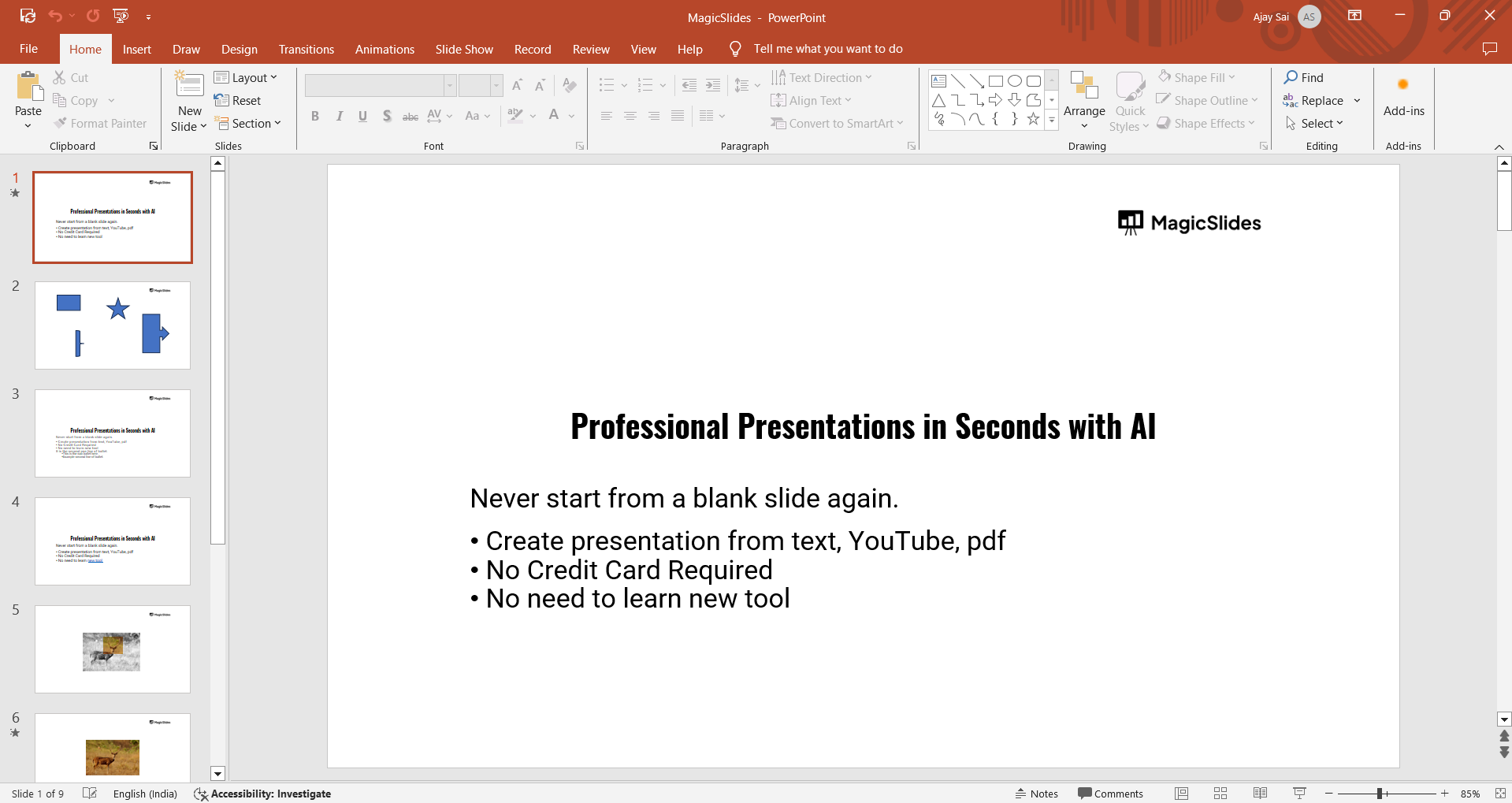
You can access the Slide Master for any presentation, whether you’re starting a new one or editing an existing file.
Step 2: Go to the “View” Tab
Navigate to the top of your PowerPoint window, where you’ll see several tabs, such as "Home," "Insert," and "Design."
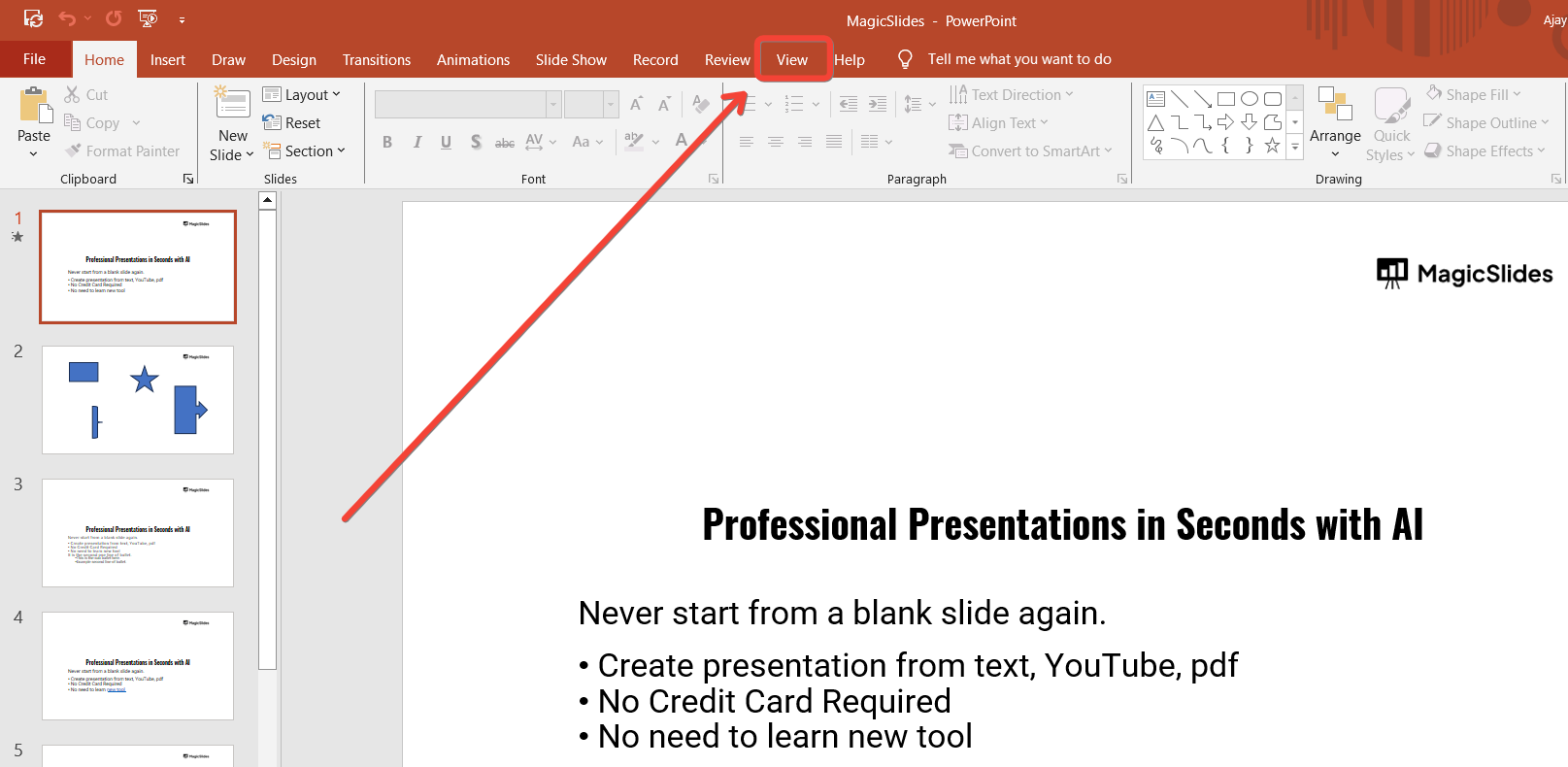
Click on the “View” tab to access different view options within PowerPoint.
Step 3: Select “Slide Master” in the View Tab
Within the “View” tab, locate the “Slide Master” button in the “Master Views” group, usually toward the left side of the toolbar.
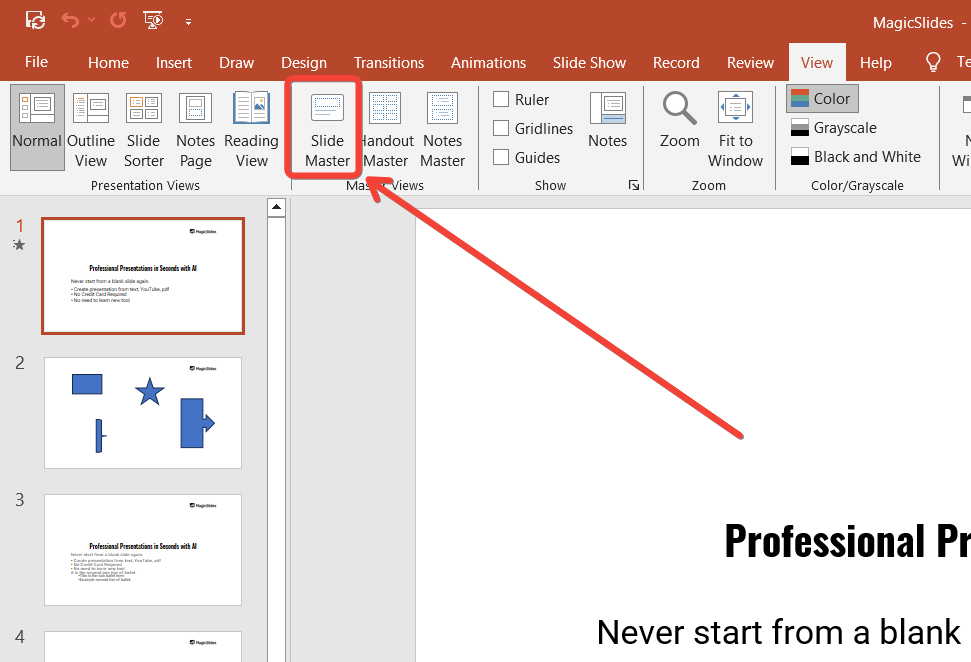
Clicking on “Slide Master” opens a new view where you can see the master slide and its layout slides beneath it.
Step 4: Edit the Slide Master
In Slide Master view, you can customize fonts, colors, backgrounds, and layouts.
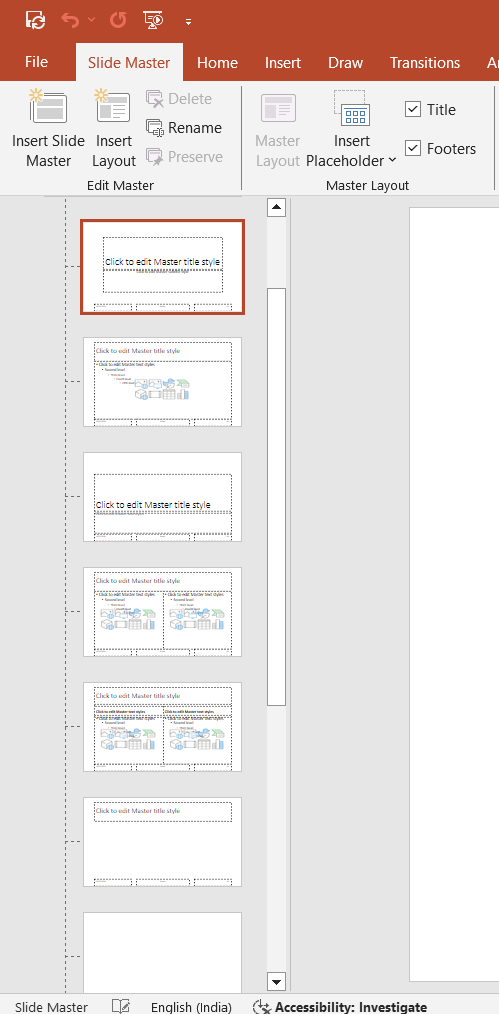
Any changes you make to the main slide at the top will apply across all slides in your presentation, ensuring a consistent design.
Step 5: Exit Slide Master View
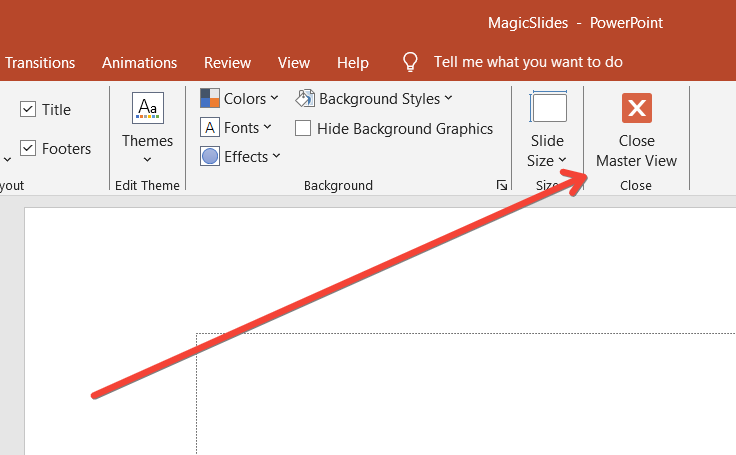
Once you’ve made all desired changes, go back to the “Slide Master” tab at the top and click “Close Master View” to return to the regular editing mode. Your changes will now be reflected throughout your presentation.
Once you’ve located the Slide Master in PowerPoint, dive deeper by learning how to make sub bullet points in PowerPoint to create organized, detailed slides.
Conclusion
The Slide Master is a powerful tool in PowerPoint, allowing you to create cohesive, professional presentations quickly.
By making changes in the Slide Master, you save time while ensuring that all slides follow the same design, which can be particularly helpful for business or educational presentations.
FAQs are here to guide!
Can I edit individual slides after setting up the Slide Master?
Yes, you can still edit individual slides. Slide Master changes apply universally, but individual slides can be customized further as needed.
How do I apply different layouts using Slide Master?
In Slide Master view, you’ll see several layout options beneath the main slide. You can select and customize any layout to suit different slide types.
Will changing the Slide Master affect all slides in my presentation?
Yes, any changes made to the main Slide Master slide will apply to all slides using that master layout, ensuring uniformity.


