How to Convert Google Slides to PowerPoint (PPTX) in 2026


Learn how to convert Google Slides to PowerPoint (PPTX) in minutes. Follow step-by-step methods for desktop, Google Drive, and mobile while preserving formatting.
Google Slides and Microsoft PowerPoint are the two most widely used presentation tools. While Google Slides is excellent for collaboration, many users still need PowerPoint files for offline editing, corporate meetings, client presentations, or Microsoft 365 workflows.
Fortunately, Google Slides lets you export presentations as PowerPoint (.pptx) files in just a few clicks, preserving most formatting, images, and animations.
In this guide, you’ll learn multiple ways to convert Google Slides to PowerPoint on desktop and mobile devices, along with tips to avoid formatting issues.
What is the Fastest Way to Convert Google Slides to PowerPoint?
To convert Google Slides to PowerPoint:
- Step 1. Open your presentation in Google Slides.
- Step 2. Click File → Download → Microsoft PowerPoint (.pptx).
The presentation will automatically download as a PPTX file that can be opened and edited in Microsoft PowerPoint.
Why Convert Google Slides to PowerPoint Presentation?
There are numerous benefits to opting for Microsoft PowerPoint, instead of Google Slides, i.e.
- A PPTX file allows offline editing.
- PowerPoint offers more advanced design features.
- Easily save, share, and back up PPT files locally or on cloud storage without depending on Google Drive.
- PowerPoint is the standard format for meetings and conferences in many corporate environments.
- PowerPoint handles large videos, audio clips, and high-resolution graphics more efficiently.
- PowerPoint supports Microsoft Copilot, which helps you create dynamic, professional slides in seconds.
- If your team uses Microsoft 365, converting to PowerPoint allows smoother integration with other Microsoft services.
Whatever your reason, Google Slides makes it simple to export your presentation as a PowerPoint file.
Also read: How to Create a Presentation in Canva?
How to Convert Google Slides to PowerPoint?
Converting Google Slides to PPT is the easiest process. For the same, here are the quick solutions with step-by-step instructions:
#Method 1. Download Google Slides as a PowerPoint File
It is a quick solution and preserves most of the original formatting. To do so:
- Step 1. Open the Google Slides presentation.
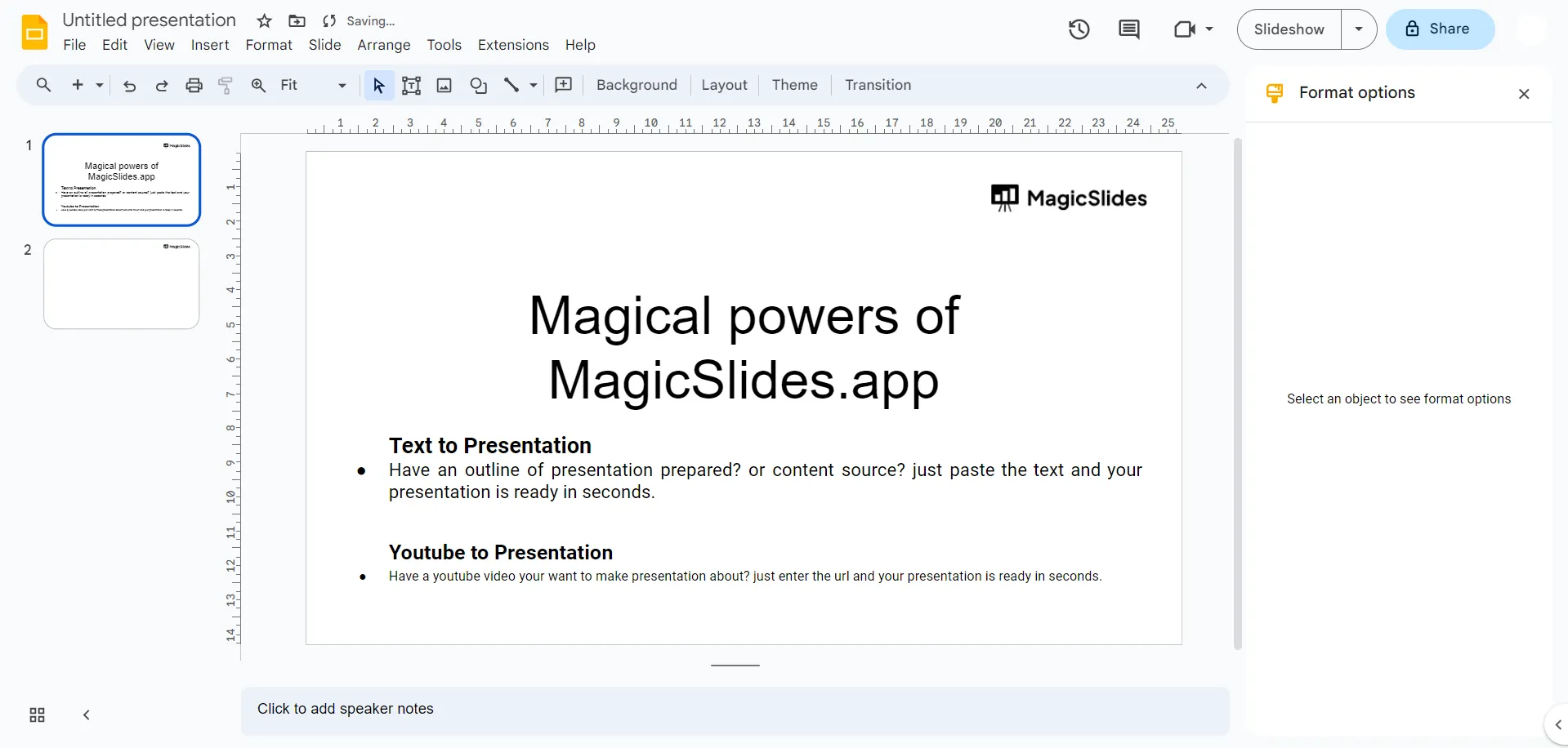
- Step 2. Click File in the top-left corner.
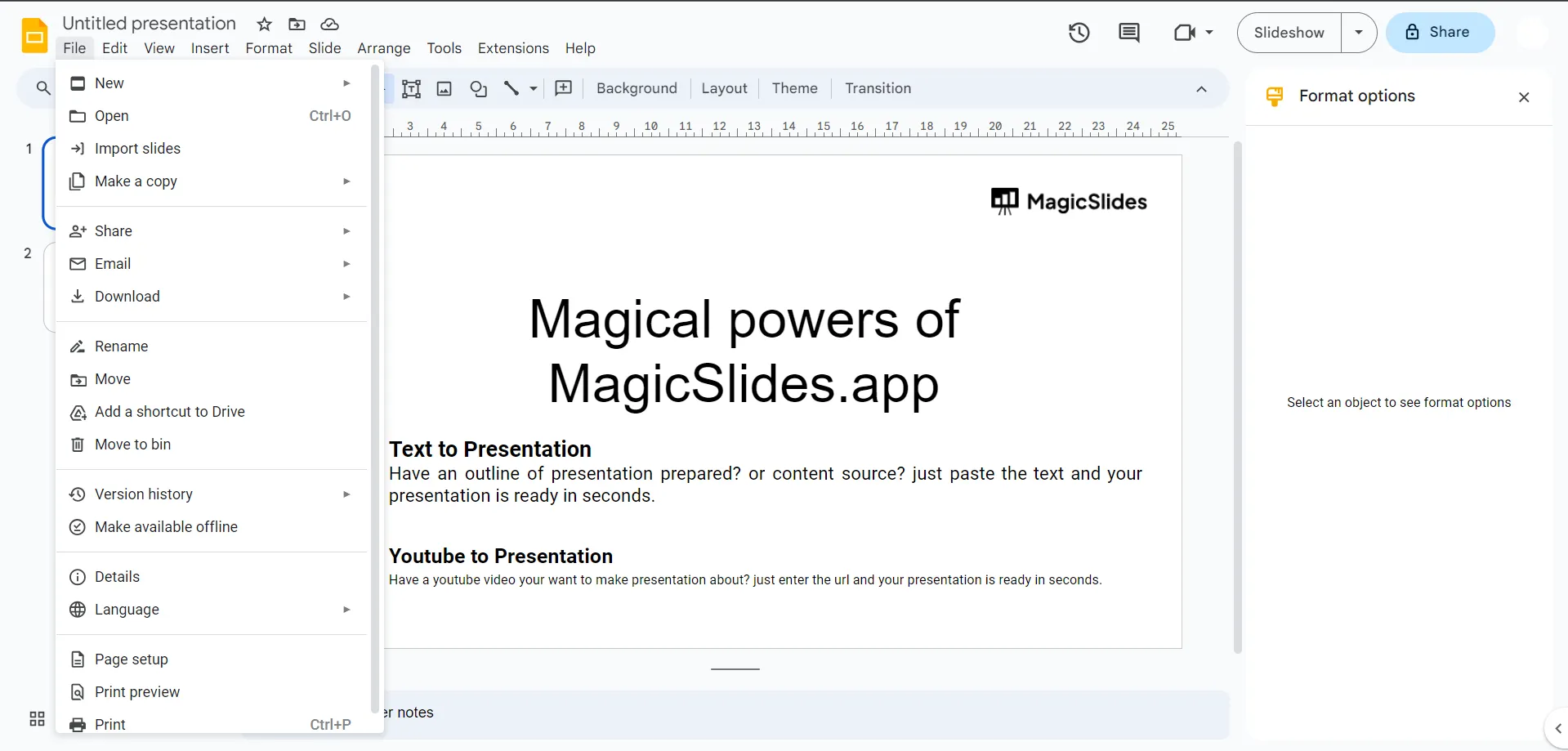
- Step 3. Select Download.
- Step 4. Choose Microsoft PowerPoint (.pptx).
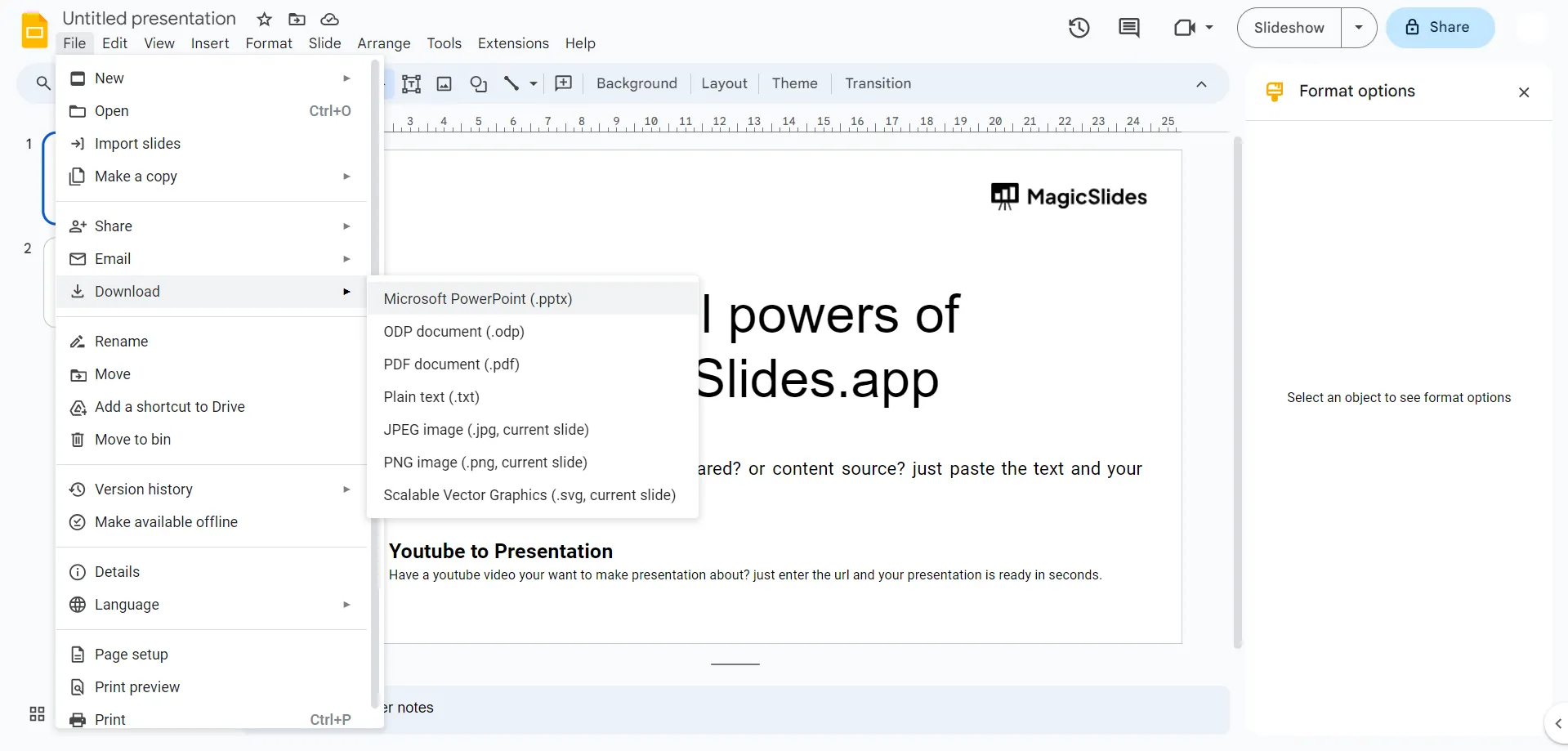
- Step 5. The file automatically downloads to the computer.
After downloading, open the PPTX file in PowerPoint and verify whether the layout, fonts, and images are preserved.
#Method 2. Convert Google Slides to PowerPoint Using Google Drive
If you’re managing multiple files directly from Google Drive. Then:
Step 1. Open Google Drive.
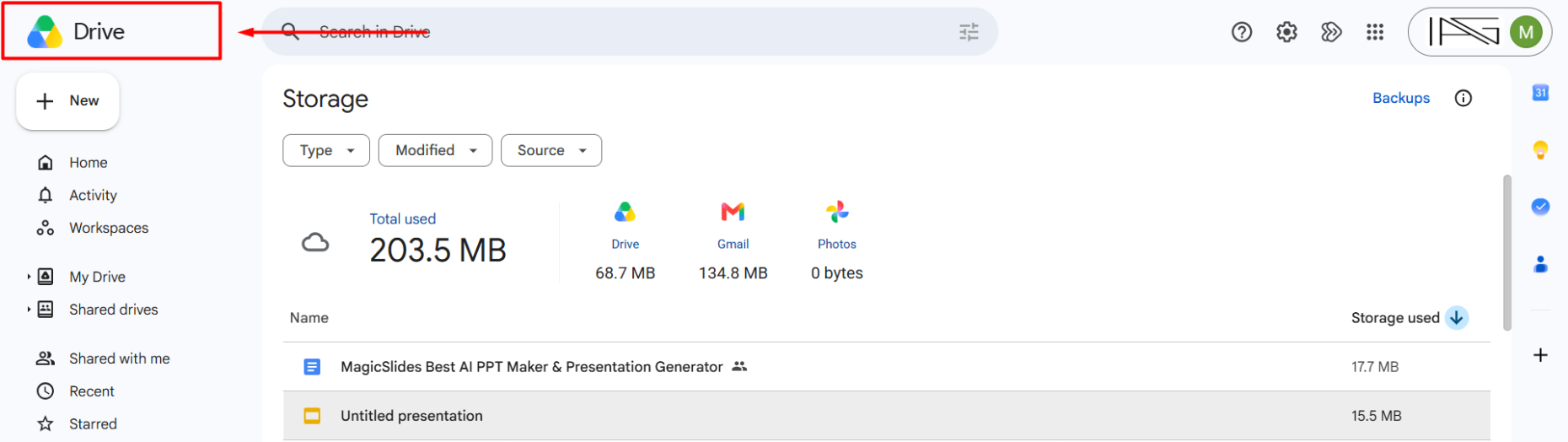
Step 2. Right-click the Google Slides file.
Step 3. Click Download.
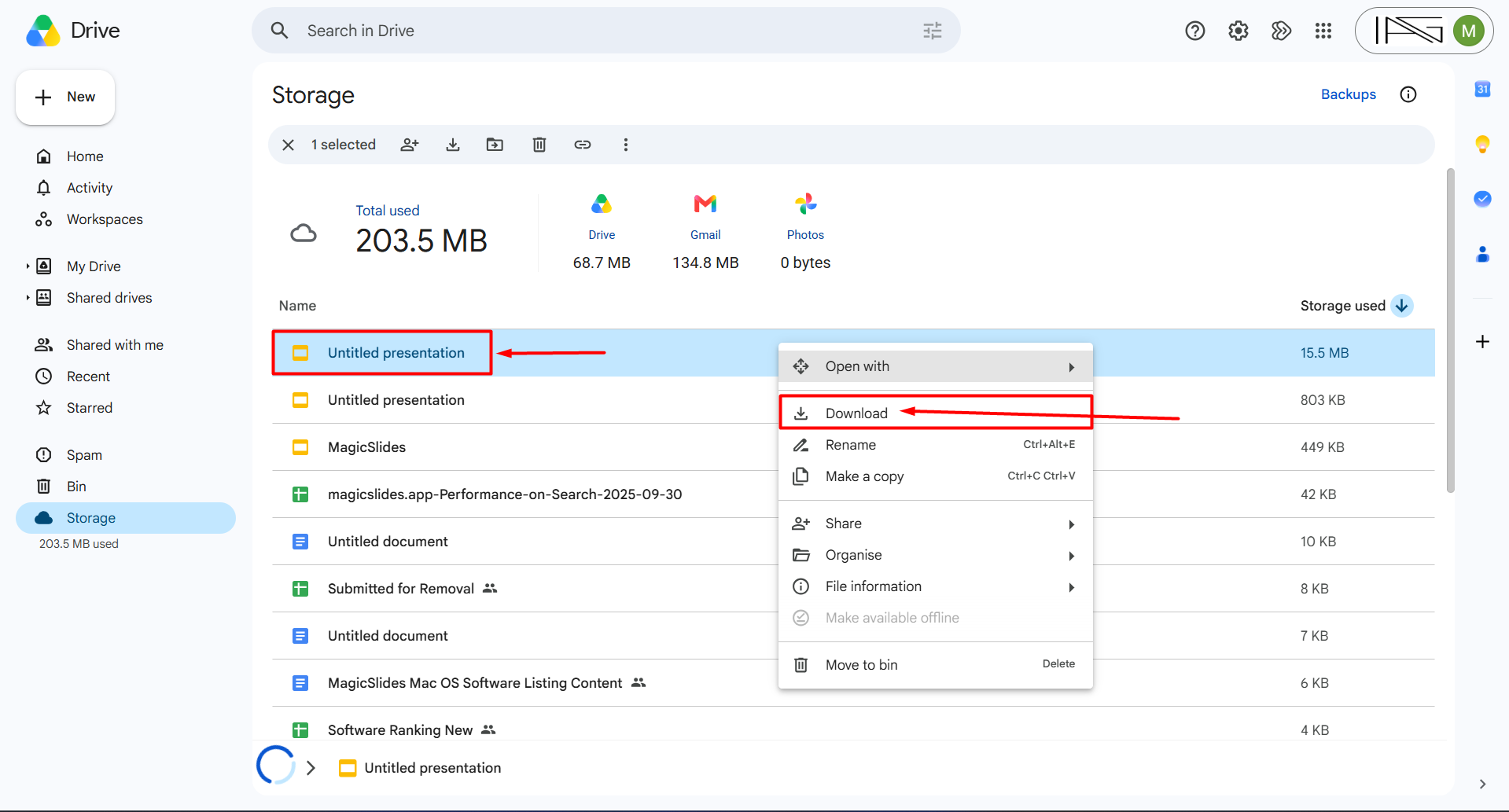
Step 4. Google Drive automatically converts it into a .pptx file.
This method is useful when you’re downloading multiple presentations at once.
#Method 3. Convert Google Slides to PPT on Mobile (Android/iPhone)
Sometimes users need a PowerPoint file without a computer. The Google Slides mobile app lets users do that, but formatting options are limited. Here’s how:
- Open the Google Slides app on the phone.
- Open the required presentation.
- Tap the three dots (menu) in the top-right.
- Tap Share & export.
- Select Save as PowerPoint (.pptx).
- The PPTX file is saved locally or to the cloud storage.
How MagicSlides Helps You Create Presentations Faster?
MagicSlides offers several AI-powered tools that help you create professional presentations quickly without designing slides manually.
- Text to Presentation – Convert written text or notes into structured presentation slides automatically.
- Topic to PPT Generator – Enter a topic and instantly generate a complete presentation.
- YouTube Video to PPT – Turn YouTube videos into ready-to-use presentation slides.
- PDF to PPT Converter – Upload a PDF and convert it into an editable PowerPoint presentation.
- URL to Presentation – Generate presentation slides directly from webpage content.
Best Practices to Convert Google Slides to PowerPoint
Although you know all the methods for Google Slides conversion, most users still face some issues during the procedure. So, to avoid them, follow and remember this checklist always:
- Use widely supported fonts to keep formatting intact.
- Avoid layering too many elements on a single slide.
- Reduce the file size by compressing images beforehand.
- Use PNG format for transparent images for consistency.
- Open the PPTX file immediately after exporting to check that everything is correct, like text, audio, and images, etc.
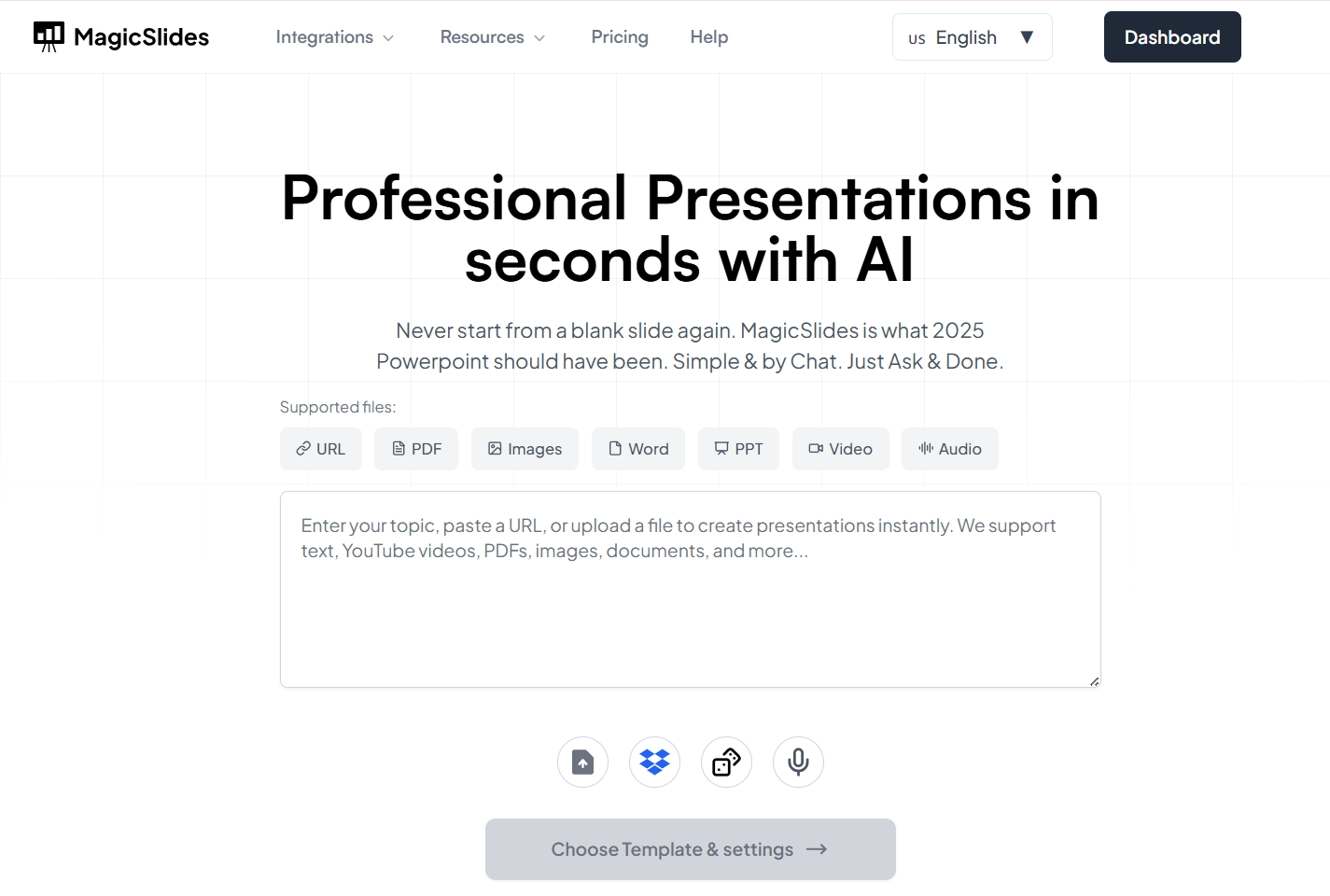
If you’re starting from scratch, use MagicSlides AI Presentation Maker to instantly generate your presentation ideas into professional slides. It minimises your manual workload and supports exporting directly to both Google Slides and PowerPoint formats. You can try this solution now for free.
When Users Prefer PowerPoint Over Google Slides→
While users regularly leverage both tools, many times they want to switch to PowerPoint when:
- Need advanced animation paths.
- Presenting offline at a conference.
- Using high-end templates from Envato or Creative Market.
- Require detailed graphic editing features.
If you need to know how to convert PPT to Google Slides, then you can read this guide.
Author’s Verdict
Converting Google Slides to PowerPoint is simple and usually takes less than a minute. Most presentations retain their layouts, images, and formatting during export.
However, presentations that contain custom fonts, advanced animations, or embedded media should always be reviewed after conversion.
If you’re creating presentations from scratch, AI tools like MagicSlides can help generate professional presentations quickly and export them directly to both Google Slides and PowerPoint formats.
FAQs
Q1. Can I convert Google Slides to PowerPoint without losing formatting?
Yes, Google Slides preserves most text, images, layouts, and basic animations when exporting to PowerPoint. However, custom fonts, advanced animations, and embedded media may require minor adjustments after conversion.
Q2. How do I save Google Slides as a PPTX file?
Open your presentation in Google Slides, click File → Download → Microsoft PowerPoint (.pptx). The presentation will automatically download as a PPTX file.
Q3. Can I convert Google Slides to PowerPoint on mobile?
Yes. Open the Google Slides app, tap the three-dot menu, select Share & export, and choose Save as PowerPoint (.pptx).
Q4. Do I need Microsoft PowerPoint installed to convert Google Slides?
No. Google Slides performs the conversion directly. Microsoft PowerPoint is only required if you want to open, edit, or present the downloaded PPTX file.
Q5. Why does my PowerPoint file look different after conversion?
Formatting differences usually occur because of unsupported fonts, complex animations, missing media files, or certain Google Slides features that PowerPoint does not fully support.
Q6. Are animations and transitions preserved when converting Google Slides to PowerPoint?
Most basic animations and slide transitions are preserved during conversion. However, advanced animations, custom effects, and certain Google Slides features may appear differently in PowerPoint.


