How to Add/ Remove Comments in a PowerPoint Presentation?


Learn how to add comments in PowerPoint to streamline feedback, manage the comment box like a pro, and remove all comments before a final presentation.
Using the comment box feature in PowerPoint, we can add or remove comments whenever required. The comment box feature helped me a lot, too. When I need to manage large-scale marketing projects, my PowerPoint PPT goes through dozens of revisions. I used to send separate emails with bulleted lists of “fixes,” but things always got lost in translation.
After a lot of struggle, I finally realized that learning how to add comments in PowerPoint was the best way to keep my feedback contextual and my team on the same page. So, in this write-up, we will go through the complete steps to insert comments in PowerPoint and how to clean up a final draft by removing all comments.
How to Add Comments in PowerPoint Slides
Go with the steps below:-
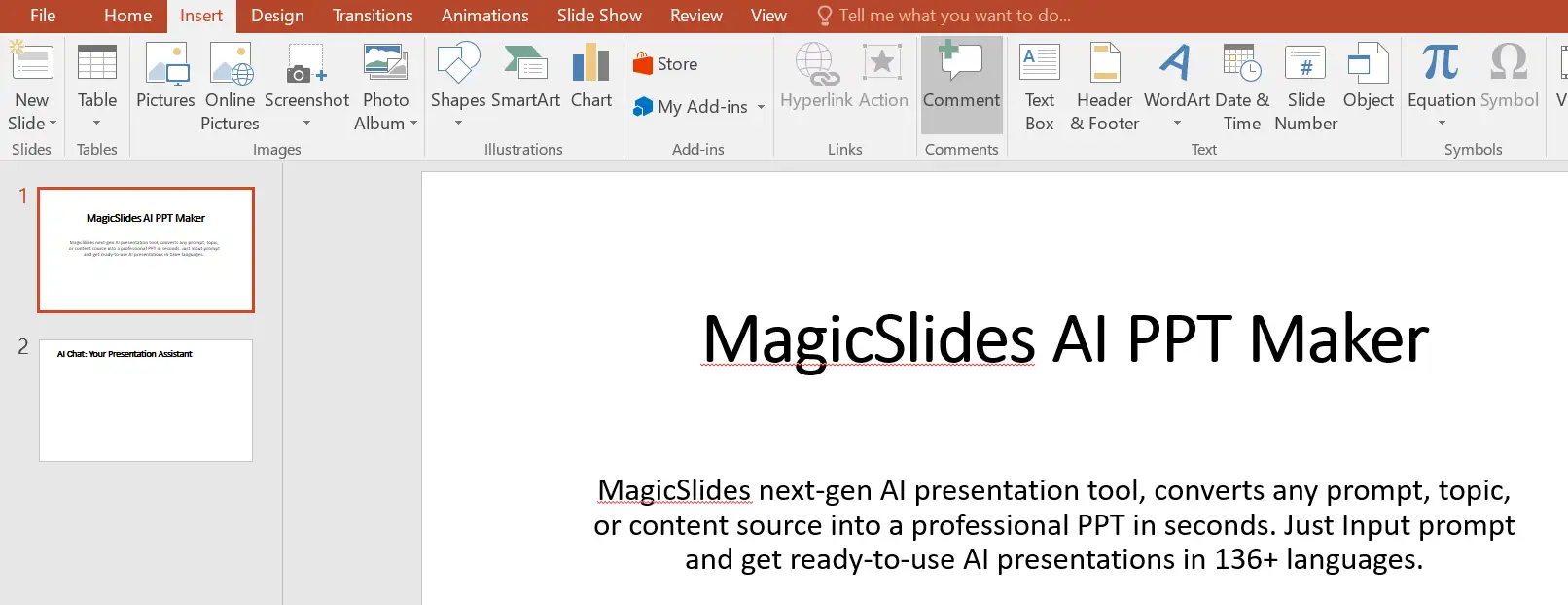
1. Select the Object: Click on the text box, image, or chart that needs comment.
2. Click on the Insert Option and then click the Comment option.
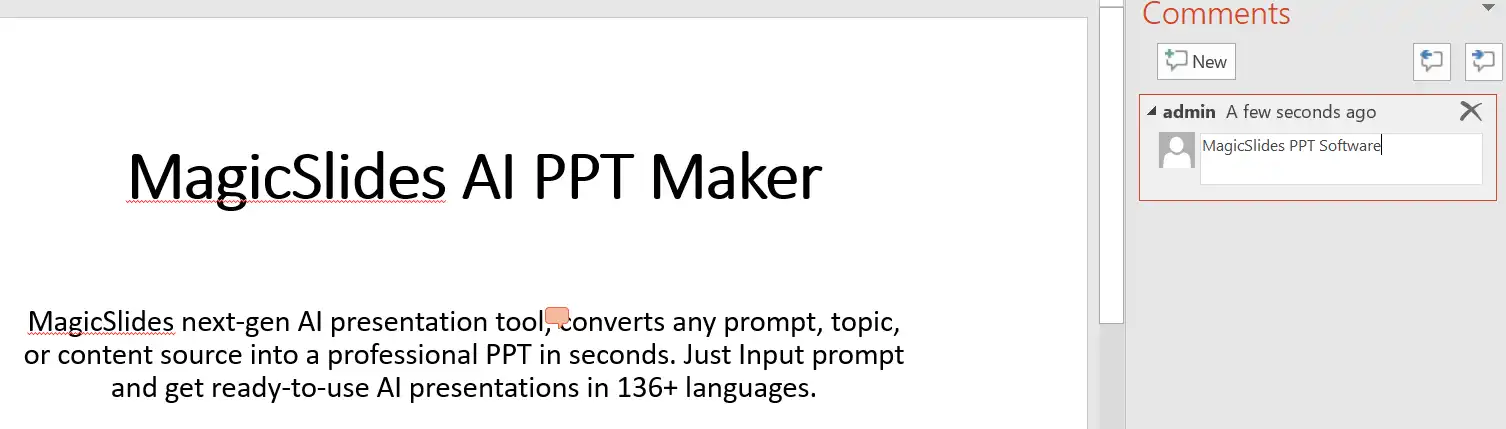
3. Enter the message or feedback in the comment box.
The “Final Polish”: How to Remove Comments in PowerPoint
After all of the edits are done, the final polish needs a complete clean in PPT to ensure there are no comments still available.
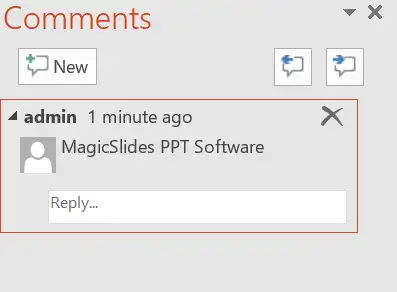
To delete a single comment:
Just click the “X” in the top corner of the specific comment box.
How to remove all comments in PowerPoint (The Bulk Fix):
Removing a single comment is not feasible if our PPTs have multiple slides. So, we can go with the bulk deletion of comments. Below are the steps:
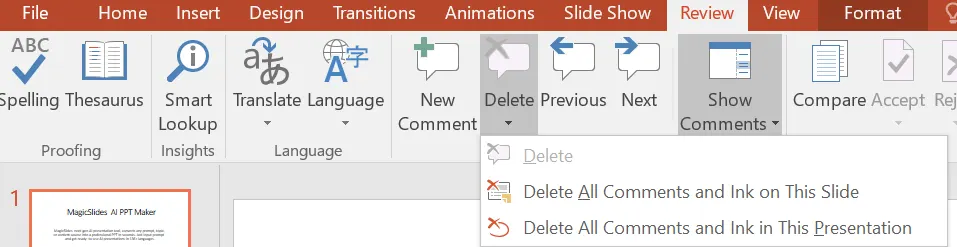
- Go to the Review tab.
- Hit the Delete button.
- Choose the “Delete All Comments and Ink on This Slide” option to delete all comments from a single slide. And choose “Delete All Comments and Ink in This Presentation“ to delete all the comments from the complete presentation.
Streamline Your Workflow with AI
While manual editing is key, we can use MagicSlides AI PPT Maker to save hours. This powerful AI tool transforms text or prompts into professional presentations instantly. It handles the layout and visuals automatically, which can help to focus on the final touches rather than the heavy lifting.
Final Words
In this write-up, we have resolved the query of how to add/ remove comments in PowerPoint. We have elaborated on the detailed steps to insert or delete comments in PPTs.
Frequently Asked Questions
Q1. Why can’t I see the comment box in PowerPoint?
A – Usually, the comments pane is just closed. To see the comments, go to the Review tab and click Show Comments.
Q2. How many comments can I add to a PowerPoint PPT?
A – You can add multiple comments in a PowerPoint presentation.
Q3. How to delete all of the comments from the complete presentation in bulk?
A – You can choose the “Delete All Comments and Ink in This Presentation” option to remove all of the comments in a single click.
Have a look @these info blogs:
Steps to delete a PowerPoint presentation
How to delete text in PowerPoint?


