Learn to delete text in PowerPoint efficiently with this comprehensive guide, featuring tips and MagicSlides.app integration.
Microsoft PowerPoint is a powerful tool for creating presentations that communicate ideas effectively. Whether you’re a student, a professional, or anyone in between, knowing how to manage text in your slides is crucial. Today, we’ll explore how to delete text in PowerPoint, ensuring your presentations remain clear and impactful.
Understanding the PowerPoint Interface
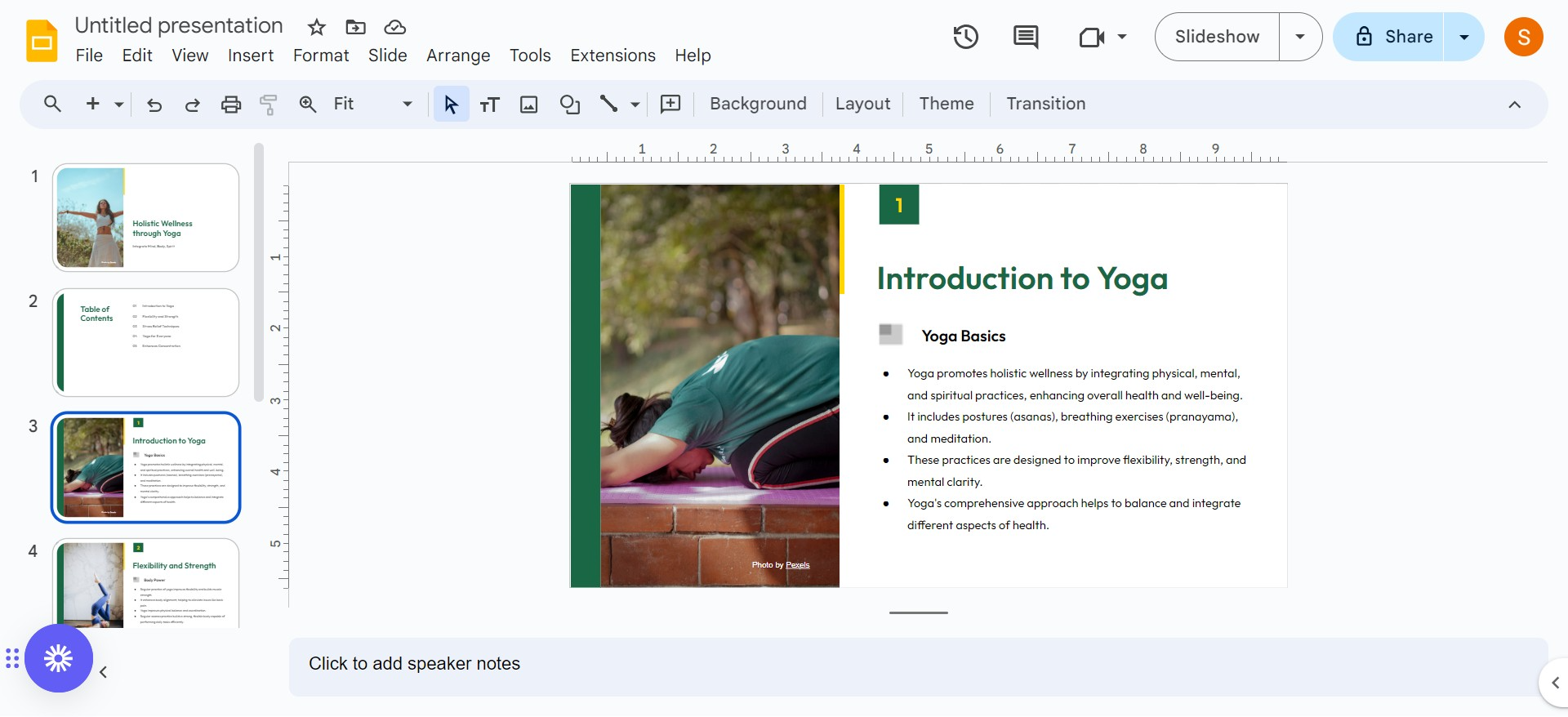
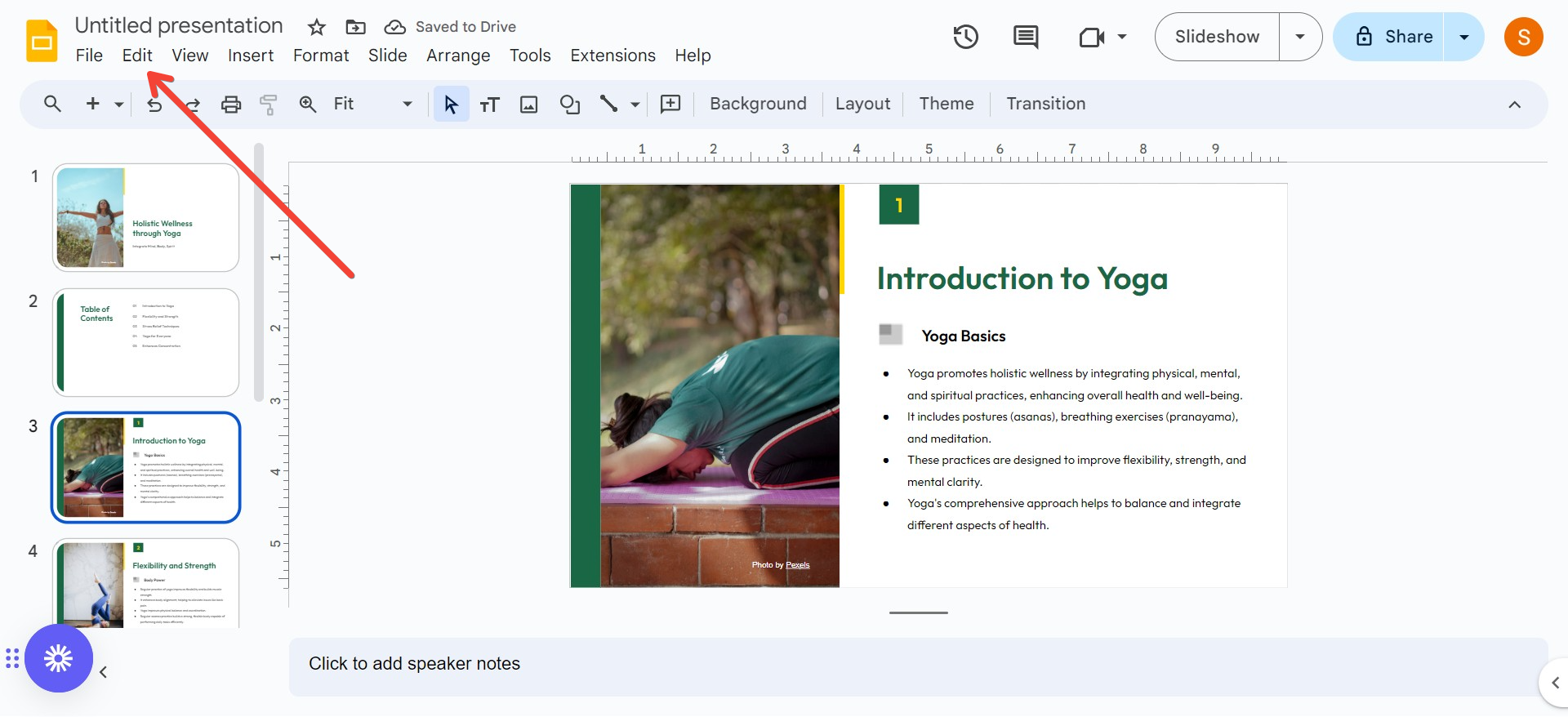
Before diving into text deletion, familiarize yourself with the PowerPoint interface. The interface is intuitive, with the main features accessible from the ribbon at the top, including options for inserting, formatting, and deleting text.
Deleting Text: A Step-by-Step Approach
1. Selecting the Text Box
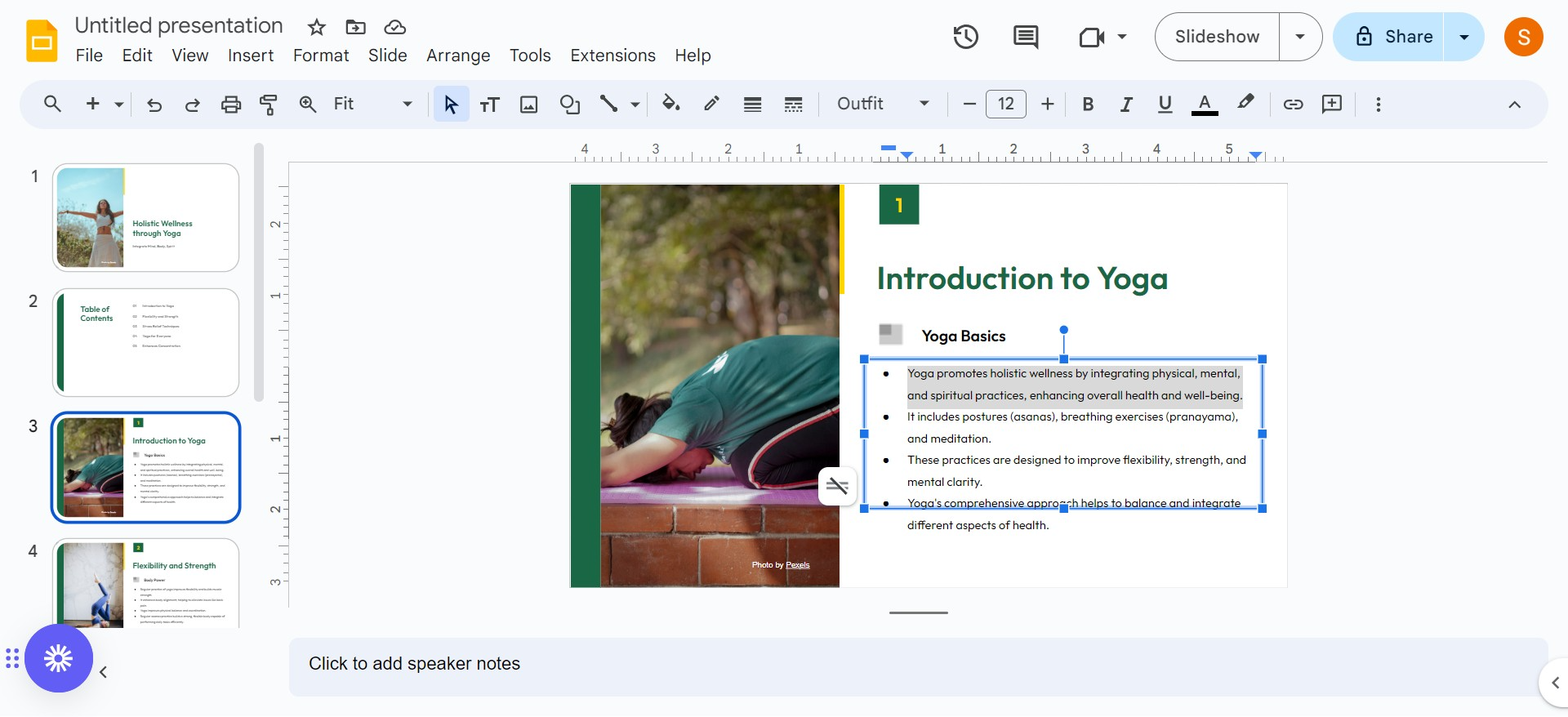
To delete text, you first need to click on the text box containing the text. If the text box is not immediately visible, click around the general area where the text appears; this action should highlight the text box.
2. Deleting Specific Text
If you want to delete specific words or characters:
Click inside the text box.
Use your cursor to highlight the specific text you want to delete.
Press the Delete key on your keyboard (or Backspace on some keyboards).
If you delete text accidentally, you can quickly undo the action by pressing Ctrl + Z (or Cmd + Z on Macs) or by clicking the Undo button on the Quick Access Toolbar.
Tips for Managing Text Efficiently
Use Keyboard Shortcuts: Learning keyboard shortcuts for cutting (Ctrl + X), copying (Ctrl + C), and pasting (Ctrl + V) can speed up your text management in PowerPoint.
Adjust Text Boxes: Sometimes, instead of deleting text, consider adjusting the size of the text box or changing the text alignment to improve the layout of your slide.
Regularly Save Your Work: To avoid losing your progress, regularly save your presentation, especially after making significant changes like deleting text.
Leveraging Tools Like MagicSlides.app
While PowerPoint offers robust features for presentation design, exploring other tools can enhance your productivity. MagicSlides.app is an online platform that complements PowerPoint by providing additional features for creating, managing, and sharing presentations more efficiently. It’s designed to integrate smoothly with PowerPoint, allowing you to import and export presentations easily.
MagicSlides.app offers a variety of templates and design elements that can help you create more visually appealing presentations. This can be particularly useful when you’re looking to design professional or academic presentations quickly.
Conclusion
Deleting text in PowerPoint is straightforward, but knowing how to do it efficiently can save you time and help maintain the aesthetic integrity of your slides. Remember, the key to effective PowerPoint presentations lies not just in what you include, but also in what you choose to leave out. By mastering simple functions like deleting text, you can ensure your presentations are always clear and focused.
For those looking to expand beyond traditional tools, consider exploring additional resources like MagicSlides.app to enhance your presentation capabilities. Happy presenting!
Sanskar Tiwari is the founder of MagicSlides and IAG Tech. Over the past 5 years, he has shipped 24+ products and taught 100k+ students how to code. His work focuses on AI‑assisted creation and developer education.